
The Amazon Fire Stick has revolutionized home entertainment, transforming a standard television into a smart hub for streaming. Its versatility and affordability have made it a popular choice for cord-cutters and tech enthusiasts alike. While the Fire Stick offers a plethora of official apps, its true potential often lies in its ability to sideload third-party applications. Among these, IPTV players have gained significant traction, allowing users to access a vast array of live TV channels and on-demand content from various providers. IPTV Smarters Pro stands out as one of the most feature-rich and user-friendly IPTV players available for the Fire Stick. This comprehensive guide will walk you through the process of installing and setting up IPTV Smarters Pro on your Fire Stick, empowering you to unlock a world of new viewing possibilities.
Our journey into the realm of IPTV Smarters Pro on Firestick will cover the essential preparatory steps, the installation process itself, and crucial tips for optimizing your experience. We’ll also touch upon the technological underpinnings that make this setup possible and the broader implications for digital entertainment.
Understanding the Foundation: Why Sideloading is Necessary
Before we dive into the installation steps, it’s important to understand why we need to “sideload” applications like IPTV Smarters Pro onto a Fire Stick.
The Fire Stick Ecosystem and App Stores
The Amazon Appstore, pre-installed on every Fire Stick, is curated by Amazon and adheres to specific guidelines. While it hosts a wide range of popular streaming services, it deliberately excludes applications that facilitate access to content that Amazon deems unauthorized or copyright-infringing. IPTV Smarters Pro, while a legitimate player for legally obtained IPTV streams, is not available on the official Amazon Appstore. This is a common practice for many powerful media players that aim to offer flexibility beyond what official app stores typically permit.
The Role of Third-Party Apps and APKs
To access applications not found in the official store, users must resort to a process known as sideloading. This involves downloading the application’s installation file, known as an APK (Android Application Package), from a trusted external source and then installing it directly onto the device. The Fire Stick, running on a modified version of Android, fully supports this capability, provided certain settings are adjusted to permit installations from “unknown sources.”
Why IPTV Smarters Pro? Features and Benefits
IPTV Smarters Pro has earned its reputation as a top-tier IPTV player for several compelling reasons:
- User-Friendly Interface: Despite its advanced features, IPTV Smarters Pro boasts an intuitive and clean interface, making it easy for both novice and experienced users to navigate and manage their IPTV subscriptions.
- Multi-Device Support: While we are focusing on the Fire Stick, IPTV Smarters Pro is also available on other platforms like Android, iOS, and web browsers, allowing for a consistent viewing experience across your devices.
- Advanced Playback Features: It supports EPG (Electronic Program Guide) integration, allowing you to see program schedules for your channels. It also offers Picture-in-Picture (PiP) mode, subtitle support, video resolution adjustment, and robust playback controls.
- Playlist Management: Easily add and manage multiple IPTV playlists from different providers, organizing them for quick access.
- Xtream Codes API and M3U URL Compatibility: IPTV Smarters Pro is designed to work seamlessly with Xtream Codes API, the most common authentication method for IPTV services, as well as traditional M3U playlist URLs.
- VPN Integration (Optional): For users concerned about privacy and potential geo-restrictions, some versions of IPTV Smarters Pro offer built-in VPN integration, further enhancing your streaming security.
Preparing Your Fire Stick for Installation
Before you can download and install IPTV Smarters Pro, you need to configure your Fire Stick to allow installations from external sources. This is a crucial security setting that, when managed responsibly, unlocks significant flexibility for your device.
Enabling “Apps from Unknown Sources”
This is the most critical step in the preparation process. Without enabling this setting, your Fire Stick will block any attempt to install an APK file not downloaded from the Amazon Appstore.
- Navigate to Settings: On your Fire Stick’s home screen, move your cursor to the top menu and select “Settings.”
- Access “My Fire TV”: Within the Settings menu, locate and select “My Fire TV.”
- Developer Options: Scroll down and select “Developer Options.”
- Enable “Apps from Unknown Sources”: You will see an option titled “Apps from Unknown Sources.” If it is currently “Off,” select it to turn it “On.” You may see a warning message; acknowledge it and proceed.
Important Note: Enabling “Apps from Unknown Sources” does increase your device’s vulnerability if you download APKs from untrusted websites. Always ensure you are downloading files from reputable sources.
Installing the “Downloader” App
To easily download the IPTV Smarters Pro APK file directly onto your Fire Stick, we will use a dedicated app called “Downloader.” This app simplifies the process of accessing web pages and downloading files.
- Return to the Fire Stick Home Screen: Press the “Home” button on your remote.
- Search for “Downloader”: In the search bar at the top of the home screen, type “Downloader” and select the app from the search results.
- Download and Install: Select the “Downloader” app and click “Get” or “Download” to install it on your Fire Stick.
- Launch Downloader: Once installed, open the “Downloader” app.
When you first launch Downloader, you might be prompted with a “Quick Start Guide” or a disclaimer. Read through it and acknowledge it to proceed. You will see a text field where you can enter URLs.
Step-by-Step Installation of IPTV Smarters Pro
With your Fire Stick prepared and the Downloader app ready, we can now proceed with the actual installation of IPTV Smarters Pro.
Downloading the IPTV Smarters Pro APK
The key to this step is to find a reliable URL for the IPTV Smarters Pro APK. IPTV Smarters Pro is available in different versions, and it’s generally recommended to use the latest stable version. You will need to search for a current and reputable download link.
Where to find the APK:
- Official IPTV Smarters Website (if available): The most secure way is to find the official website for IPTV Smarters Pro. They often provide direct download links for Android APKs. A quick web search for “IPTV Smarters Pro official website” should help you find it.
- Reputable Tech Websites: Many reputable tech blogs and forums that focus on streaming devices and IPTV will often share download links for the latest versions of popular apps. Exercise caution and stick to well-known sources.
Once you have a valid URL:
- Open Downloader: Launch the “Downloader” app on your Fire Stick.
- Enter the URL: In the URL field of the Downloader app, carefully type the full web address (URL) of the IPTV Smarters Pro APK file. Ensure you type it accurately, including
http://orhttps://if required. - Go: Press the “Go” button.
- Download Process: The Downloader app will now navigate to the web page and automatically start downloading the APK file. You’ll see a progress bar.
- Installation Prompt: Once the download is complete, an installation screen will appear. This is the standard Android installation prompt.
- Install: Scroll down and select the “Install” button.
- Wait for Installation: The app will now be installed on your Fire Stick. This may take a minute or two.
- “App Installed” Notification: Once the installation is successful, you will see an “App Installed” confirmation.
Important: After the installation is complete, you will see options to “Done” or “Open.” It’s generally recommended to select “Done” to return to Downloader and then delete the downloaded APK file to save storage space on your Fire Stick. You can then proceed to open IPTV Smarters Pro from your Fire Stick’s app library.
Navigating and Setting Up IPTV Smarters Pro
Now that IPTV Smarters Pro is installed, it’s time to launch it and configure it with your IPTV service details.
-
Launch IPTV Smarters Pro:
- Go to your Fire Stick’s Home screen.
- Navigate to “Apps” (usually found in the main menu bar).
- Find the “IPTV Smarters Pro” app icon and select it to launch.
-
Accept Terms and Conditions: Upon first launch, you will likely be presented with the app’s terms of service and privacy policy. Review them and accept to proceed.
-
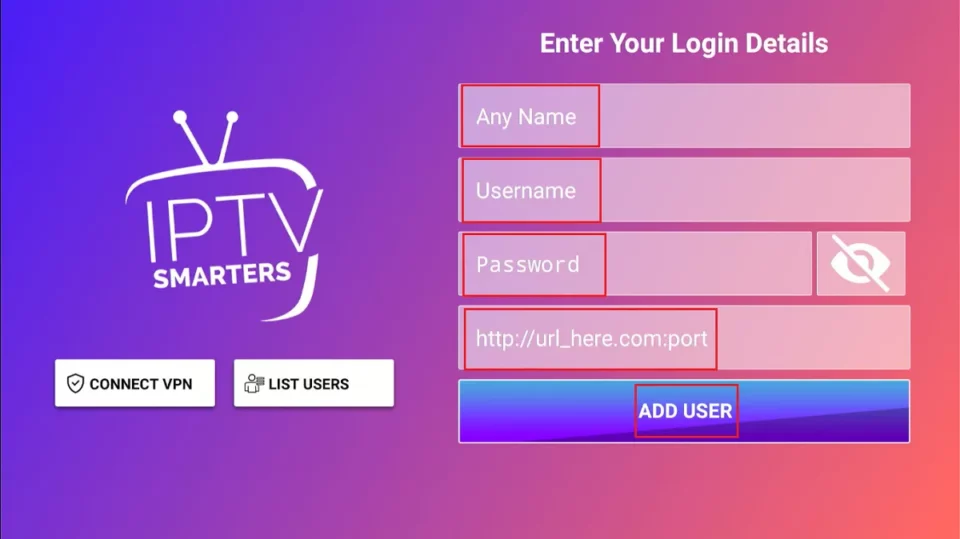
Choose Your Login Method: IPTV Smarters Pro offers several ways to log in, depending on how your IPTV provider has set up their service. The most common are:
- Login with Xtream Codes API: This is the preferred and most feature-rich method. You will need your IPTV provider’s username, password, and the portal URL.
- Login with M3U URL: If your provider gives you an M3U playlist URL, you can use this option. You’ll also need to provide a display name for the playlist.
-
Enter Your Credentials:
- For Xtream Codes API:
- Username: Enter the username provided by your IPTV service.
- Password: Enter the password provided by your IPTV service.
- Portal URL: Enter the exact URL for your IPTV provider’s server. This is crucial.
- Display Name (Optional but recommended): Give this connection a name, e.g., “My IPTV Provider.”
- For M3U URL:
- M3U URL: Paste the full M3U URL provided by your IPTV service.
- Username (if required): Some M3U links may require a username.
- Password (if required): Some M3U links may require a password.
- Display Name: Give this playlist a name.
- For Xtream Codes API:
-
Click “Add User” or “Login”: After entering your details, click the relevant button to connect to your IPTV service.
-
Load Your Content: If your credentials are correct and the server is accessible, IPTV Smarters Pro will begin loading your playlists, live TV channels, movies, and series. This might take a few moments.
Exploring the Interface and Key Features
Once your content is loaded, take some time to familiarize yourself with the IPTV Smarters Pro interface. You’ll typically find sections for:
- Live TV: Access all your live television channels.
- Movies: Browse and watch available on-demand movies.
- Series: Watch episodes from various TV series.
- Catch-Up TV / VOD: Access recorded programs or Video on Demand libraries.
- Settings: Customize playback options, appearance, parental controls, and more.
Key features to explore:
- EPG (Electronic Program Guide): Press the “EPG” button (often a calendar icon) to view channel schedules.
- Search: Use the search function to find specific channels, movies, or series.
- Favorites: Mark your most-watched channels or content as favorites for quick access.
- Picture-in-Picture (PiP): If supported by your IPTV service and device, you can watch multiple channels simultaneously or keep a small window open while browsing menus.
- Playback Controls: Familiarize yourself with the play, pause, rewind, fast-forward, and audio/subtitle selection controls.
Optimizing Your IPTV Smarters Pro Experience on Firestick
To ensure a smooth and enjoyable viewing experience, consider these optimization tips.
Maintaining a Stable Internet Connection
IPTV streaming is heavily reliant on a strong and stable internet connection. Lagging, buffering, and poor video quality are often direct results of a weak internet signal.
- Wired Connection: Whenever possible, use a wired Ethernet connection instead of Wi-Fi. Ethernet is generally more stable and offers lower latency.
- Wi-Fi Optimization: If Wi-Fi is your only option, ensure your router is placed in a central location, away from obstructions. Consider upgrading to a dual-band router (2.4GHz and 5GHz) and connect to the 5GHz band for faster speeds, provided your Fire Stick is within range.
- Bandwidth: Ensure your internet plan provides sufficient bandwidth for streaming. Most IPTV services recommend at least 10-20 Mbps for HD streaming and more for 4K.
- Close Unused Apps: Close any other applications running in the background on your Fire Stick that might be consuming bandwidth.
Keeping Apps and Fire Stick Updated
Regular updates are crucial for both performance and security.
- Update IPTV Smarters Pro: While you sideloaded the app, it’s good practice to periodically check for updates. If a new APK is released, you’ll need to repeat the download and installation process. However, some apps have internal update mechanisms.
- Update Fire Stick Firmware: Amazon regularly releases updates for the Fire Stick operating system. These updates can improve performance, fix bugs, and enhance security.
- Go to Settings > My Fire TV > About > Check for Updates.
- If an update is available, follow the on-screen prompts to install it.
Managing Storage and Performance
The Fire Stick has limited storage space. Over time, downloaded files and cached data can slow down your device.
- Clear Cache and Data: Periodically clear the cache and data for the Downloader app and IPTV Smarters Pro.
- Go to Settings > Applications > Manage Installed Applications.
- Find “Downloader” and select “Clear Cache” and then “Clear Data.”
- Repeat this process for “IPTV Smarters Pro.” Note: Clearing data for IPTV Smarters Pro will require you to re-enter your login credentials.
- Uninstall Unused Apps: Uninstall any apps you no longer use to free up storage space.
- Restart Your Fire Stick: A simple restart can often resolve minor performance glitches. You can do this via Settings > My Fire TV > Restart or by unplugging the power adapter for 30 seconds and plugging it back in.
VPN Usage for Enhanced Privacy and Access
While not strictly required for the installation, a Virtual Private Network (VPN) is highly recommended when using IPTV services.
- Privacy: A VPN encrypts your internet traffic, masking your online activity from your Internet Service Provider (ISP) and other third parties.
- Geo-Restrictions: Some IPTV content might be geo-restricted. A VPN allows you to connect to servers in different countries, potentially bypassing these restrictions.
- Security: A VPN adds an extra layer of security, especially when connecting to public Wi-Fi networks.
You can install a VPN app directly from the Amazon Appstore or sideload one if your preferred VPN provider doesn’t have a Fire Stick app. Once installed, connect to a VPN server before launching IPTV Smarters Pro.
Conclusion: Unleashing Your Entertainment Potential
Installing IPTV Smarters Pro on your Fire Stick is a straightforward process that unlocks a significantly expanded entertainment experience. By understanding the necessity of sideloading and carefully following the preparation and installation steps, you can seamlessly integrate this powerful IPTV player into your digital life. Remember to always source your APK files from reputable locations and prioritize a stable internet connection for optimal performance. With IPTV Smarters Pro, you are not just installing an app; you are gaining access to a world of content, customizable to your viewing preferences, all within the convenience of your Fire Stick. Enjoy your enhanced streaming journey!
aViewFromTheCave is a participant in the Amazon Services LLC Associates Program, an affiliate advertising program designed to provide a means for sites to earn advertising fees by advertising and linking to Amazon.com. Amazon, the Amazon logo, AmazonSupply, and the AmazonSupply logo are trademarks of Amazon.com, Inc. or its affiliates. As an Amazon Associate we earn affiliate commissions from qualifying purchases.