
Printers, those indispensable workhorses of our digital lives, are only as useful as the ink they hold. When the dreaded “low ink” or “replace ink cartridge” message appears, it can feel like a minor roadblock to productivity, creativity, or simply getting that important document printed. But fear not, for installing new ink cartridges is a straightforward process that, with a little guidance, anyone can master. This guide will walk you through everything you need to know, from identifying the right ink to safely replacing your printer’s ink cartridges, ensuring your printer is back up and running in no time.

Understanding Your Printer and Ink Needs
Before you can embark on the simple task of installing ink, it’s crucial to understand the basics of your printer and its specific ink requirements. This initial step is vital for avoiding costly mistakes and ensuring optimal printer performance.
Identifying the Right Ink Cartridges for Your Printer
The most common pitfall for many when it comes to printer ink is purchasing the wrong type of cartridge. Printers are not universal in their ink needs; they are designed to work with specific cartridge models. Attempting to use an incompatible cartridge can lead to poor print quality, damage to your printer, or simply the cartridge not being recognized at all.
1. Consult Your Printer’s Manual: The most definitive source of information is your printer’s user manual. It will clearly list the exact model numbers of the ink cartridges compatible with your specific printer. If you’ve misplaced your physical manual, most manufacturers offer downloadable PDF versions on their official websites. A quick search for your printer model followed by “manual” or “support” should lead you to it.
2. Check Your Printer’s Manufacturer Website: Similar to the manual, the manufacturer’s support section for your printer model will provide detailed information about compatible ink cartridges. This is also a great place to find official documentation and troubleshooting tips.
3. Examine Existing Cartridges: The easiest way to identify the correct ink is often by looking at the cartridges currently installed in your printer. Carefully open your printer and note the labels on the existing ink cartridges. These labels will usually display the cartridge model number or a series of alphanumeric characters. Take a picture of these labels if you’re unsure. When purchasing new ink, simply match these numbers.
4. Use Online Compatibility Tools: Many ink manufacturers and online retailers offer tools where you can input your printer model, and they will display a list of compatible ink cartridges. This can be a convenient way to quickly find what you need, but always cross-reference with your printer’s manual if possible for absolute certainty.
5. Understand Different Ink Types: Printers typically use either dye-based or pigment-based inks.
* Dye-based inks are generally more vibrant and less expensive, but they can fade over time and are not as water-resistant. They are common in many home and office inkjet printers.
* Pigment-based inks are more durable, water-resistant, and fade-resistant, making them ideal for archival printing or professional use. They tend to be more expensive.
* Your printer manual will specify which type of ink is recommended or required for optimal performance. Using the wrong type could affect print quality and longevity.
6. Consider Genuine vs. Compatible/Remanufactured Cartridges:
* Genuine (OEM – Original Equipment Manufacturer) cartridges are made by the same company that manufactured your printer. They are guaranteed to be compatible and offer the highest quality.
* Compatible cartridges are manufactured by third-party companies and are designed to work with specific printer models. They are often more affordable than genuine cartridges.
* Remanufactured cartridges are original cartridges that have been used, refilled, and tested by a third-party company. They are also a cost-effective option.
While compatible and remanufactured cartridges can offer significant savings, it’s important to buy from reputable brands to ensure quality and avoid potential issues. Always check reviews and warranty information.
Understanding Ink Levels and When to Replace
Modern printers are equipped with sensors that monitor ink levels, alerting you when a cartridge is running low or empty. Heeding these warnings is crucial to prevent potential printer damage.
- Low Ink Warnings: Most printers will display a message on their screen or through accompanying software when ink levels are getting low. This is your cue to purchase new cartridges. While you can often print a few more pages with a low ink warning, it’s best to replace the cartridge soon to avoid incomplete prints or potential damage to the print head if it attempts to print with no ink.
- “Ink Empty” or “Replace Cartridge” Messages: These messages indicate that the cartridge is completely depleted. Continuing to print with an empty cartridge can be detrimental to your printer. The print head, which applies ink to the paper, can overheat or become clogged if it tries to operate without ink, potentially leading to costly repairs.
- Print Quality Degradation: Even before you receive an explicit warning, you might notice a decline in print quality. This could manifest as faded colors, horizontal lines or bands across the page, or incomplete images. These are all signs that one or more ink cartridges are running low.
- “Ink Out of Order” or “Ink Not Recognized” Errors: If you’ve recently replaced a cartridge and are receiving these messages, it might indicate a faulty cartridge, an improperly seated cartridge, or a compatibility issue.
The Step-by-Step Process for Installing Printer Ink
Now that you’ve identified the correct ink and understand when to replace it, let’s get down to the actual installation process. While specific steps can vary slightly between printer models, the general procedure is consistent.
Preparing for the Ink Replacement
A little preparation goes a long way in ensuring a smooth and mess-free ink cartridge installation.
1. Gather Your Supplies:
* New Ink Cartridges: Ensure you have the correct, compatible cartridges ready.
* Paper Towels or Lint-Free Cloths: These are essential for wiping up any accidental ink spills.
* Gloves (Optional but Recommended): Ink can stain, so wearing disposable gloves can keep your hands clean.
* Your Printer Manual (if needed): Keep it handy in case you encounter an unusual step.
2. Ensure Proper Printer State:
* Turn on Your Printer: Most printers need to be powered on for the ink cartridge carriage to move to the accessible replacement position. Refer to your manual if you’re unsure.
* Access the Cartridge Bay: This is usually achieved by opening the printer’s cover or a specific door designated for ink cartridge access. The printer should then automatically move the print head carriage to the center of the printer, making the cartridges easy to reach. If it doesn’t move automatically, your manual will guide you on how to initiate this process.
* Allow the Printer to Settle: After opening the cover, give the printer a moment to position the carriage. Avoid forcing it or interfering with its movement.
Removing Old Ink Cartridges and Installing New Ones
This is the core of the process, and it’s designed to be intuitive.
1. Locating and Removing the Old Cartridge:
* Identify the Empty Cartridge: The printer’s display or accompanying software will usually indicate which cartridge needs replacing. Visually, the empty cartridge might appear different or be clearly marked.
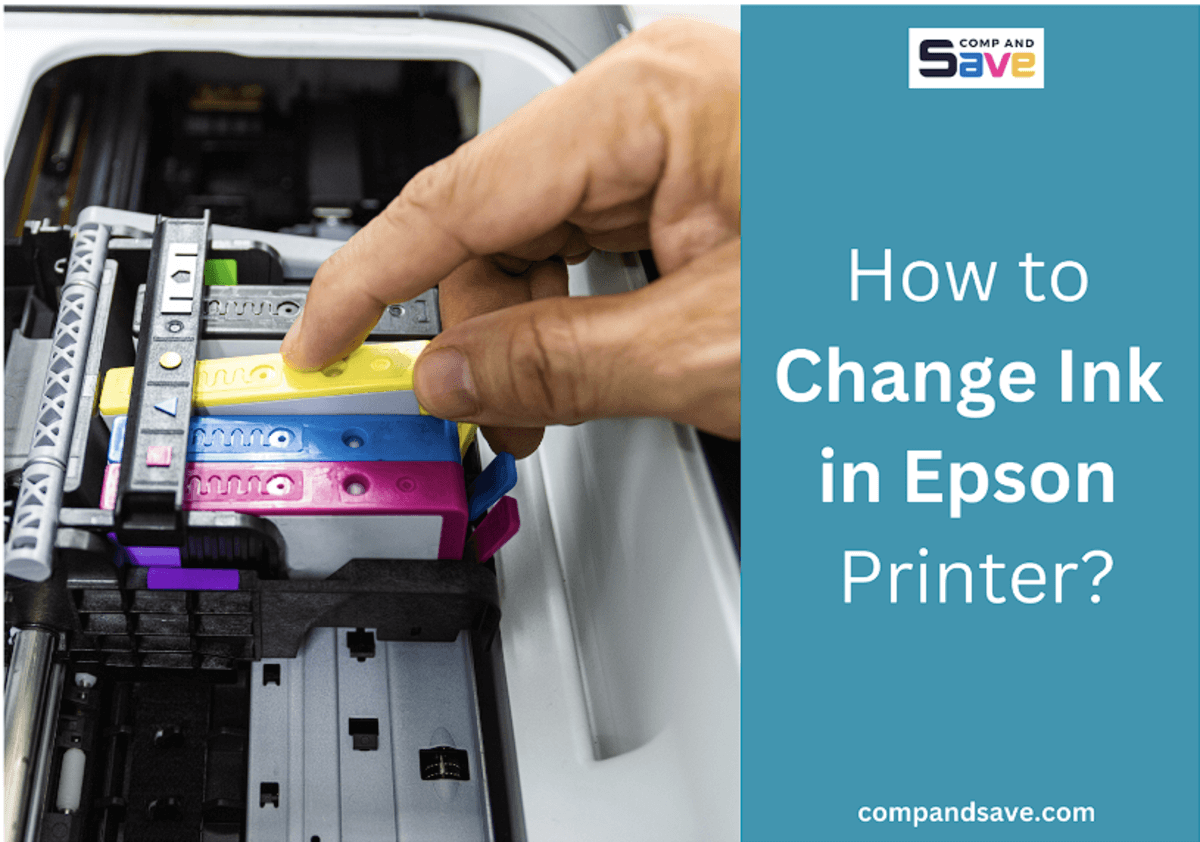
* Release the Cartridge: Most cartridges are secured by a clip or latch. Gently press the release tab or lever associated with the cartridge you need to replace. This will disengage the cartridge from its slot.
* Lift and Remove: Once released, carefully lift the cartridge straight up and out of its slot. If you encounter resistance, double-check that you’ve fully released the latch. Place the old cartridge on a paper towel to prevent any residual ink from staining surfaces.
2. Preparing the New Ink Cartridge:
* Unpack Carefully: Remove the new ink cartridge from its packaging. Be mindful of any seals or protective coverings.
* Remove Protective Tape/Seals: New cartridges typically have a protective strip of tape (often orange or yellow) that needs to be removed. This tape usually covers the ink nozzles and sometimes electrical contacts. Carefully peel this tape off. Do not touch the ink nozzles or the electrical contacts with your fingers, as oils from your skin can interfere with proper function.
* Remove Any Plastic Tabs or Clips: Some cartridges may have small plastic tabs or clips that need to be removed before installation. Again, consult your cartridge’s packaging or your printer manual if you’re unsure.
3. Installing the New Ink Cartridge:
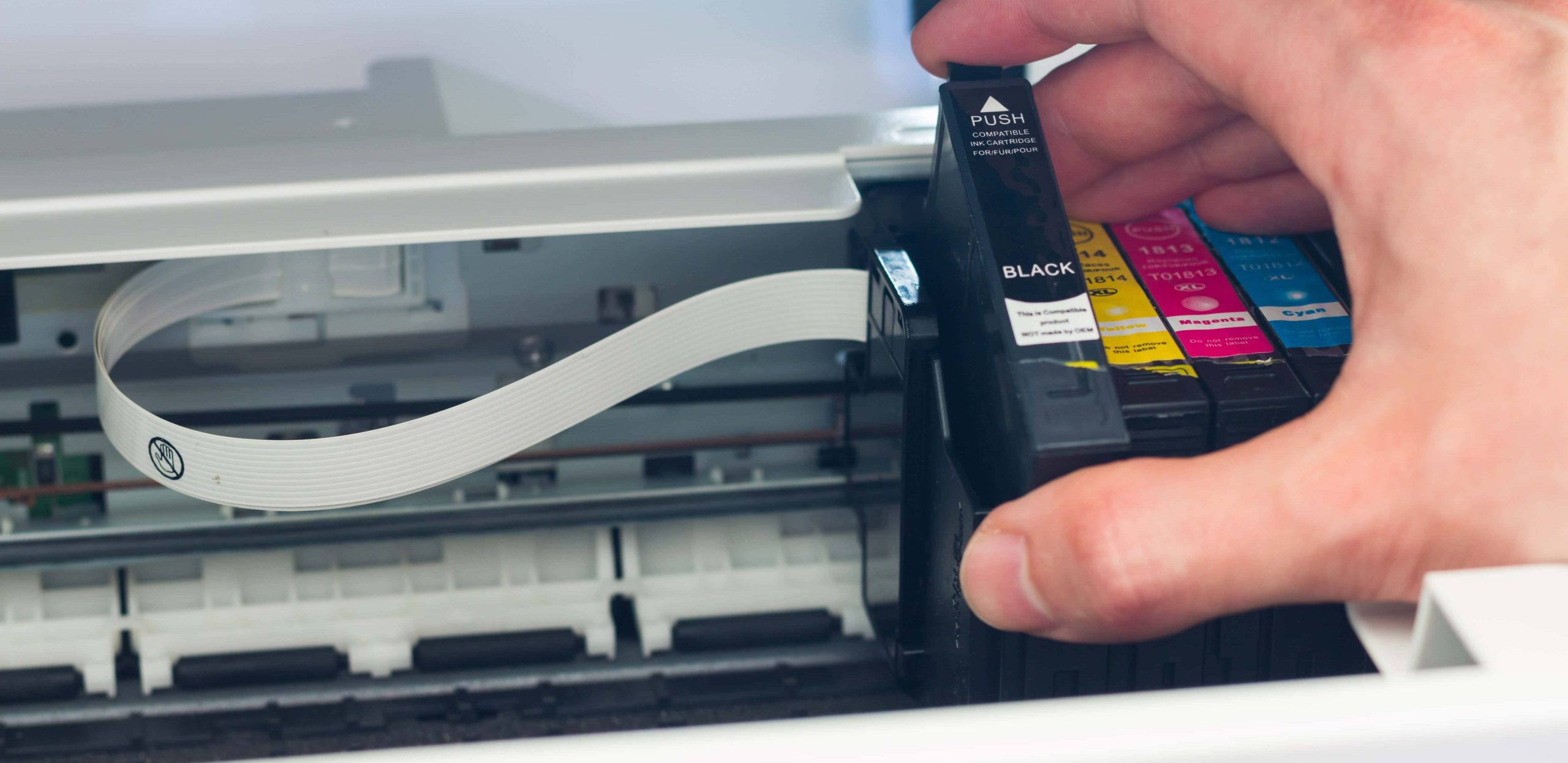
* Align the Cartridge: Hold the new cartridge by its sides and carefully align it with the empty slot. The cartridge is shaped to fit only in its correct position.
* Insert Firmly: Gently push the cartridge down into the slot until it clicks into place. You should feel and hear a secure connection. Ensure it is fully seated.
* Close the Cover: Once all new cartridges are installed, securely close the printer’s cover or access door.
Post-Installation Procedures and Troubleshooting
After the physical installation is complete, there are a few crucial steps to ensure your printer recognizes the new ink and is ready for printing.
1. Printer Initialization and Alignment:
* Automatic Alignment: Most modern printers will automatically initiate an ink cartridge alignment process after new cartridges are installed. This is crucial for ensuring that the print heads deliver ink precisely onto the paper, resulting in sharp and accurate prints. The printer might make some whirring noises and print a test page during this process.
* Manual Alignment (if prompted): In some cases, you might be prompted to perform a manual alignment. This usually involves printing a special alignment page and then scanning it using your printer’s scanner or following on-screen prompts on your computer. Follow the instructions precisely.
* Print a Test Page: Regardless of whether an automatic or manual alignment was performed, it’s always a good idea to print a test page. This can be done through your printer’s software or by printing a simple document. Examine the test page for any signs of smudging, streaks, or missing colors.
2. Troubleshooting Common Issues:
* “Ink Cartridge Not Recognized” Error:
* Reseat the Cartridge: Turn off the printer, open the cover, remove the cartridge, check for any protective materials you might have missed, and then reinsert it firmly until it clicks.
* Clean the Contacts: Ensure the electrical contacts on both the cartridge and inside the printer are clean. Use a dry, lint-free cloth or a cotton swab lightly dampened with distilled water (ensure it’s completely dry before reinserting).
* Try Another Cartridge: If you have another compatible cartridge, try installing it to see if the issue is with the specific cartridge.
* Consult Your Manual/Manufacturer: If the problem persists, refer to your printer’s troubleshooting guide or contact the manufacturer’s support.
* Poor Print Quality After Installation:
* Run the Printer’s Cleaning Utility: Most printer software includes a built-in utility to clean the print heads. This can resolve issues caused by dried ink or minor clogs. You may need to run this utility a few times.
* Perform Alignment Again: If print quality is still poor, re-running the alignment process can often help.
* Check Ink Levels: Ensure the new cartridges are not faulty and are recognized as having ink.
* Use High-Quality Paper: The quality of your paper can also affect print output.
Maintaining Your Printer for Optimal Ink Usage and Longevity
Proper maintenance extends the life of your printer and ensures you get the most out of your ink cartridges.
- Regular Printing: It might seem counterintuitive, but printing at least once a week, even just a test page, helps keep the ink flowing and prevents the print heads from drying out.
- Use the Correct Paper Type: Always use paper recommended for your printer. Using overly absorbent or rough paper can lead to ink wastage and poor print quality.
- Turn Off Printer Correctly: Always use the power button on the printer to turn it off. This allows the printer to go through its shutdown sequence, which often includes capping the print heads to prevent drying. Simply unplugging the printer can lead to dried ink.
- Store Ink Cartridges Properly: Unused ink cartridges should be stored upright in a cool, dry place, away from direct sunlight. Do not remove them from their packaging until you are ready to install them.
- Consider XL or High-Yield Cartridges: If you print frequently, investing in XL or high-yield cartridges can be more cost-effective in the long run as they contain more ink and require less frequent replacement.
By following these steps, you can confidently install ink in your printer, ensuring consistent print quality and minimizing downtime. Remember that a little care and attention to detail can save you time, money, and frustration, keeping your printer a reliable tool for all your printing needs.
aViewFromTheCave is a participant in the Amazon Services LLC Associates Program, an affiliate advertising program designed to provide a means for sites to earn advertising fees by advertising and linking to Amazon.com. Amazon, the Amazon logo, AmazonSupply, and the AmazonSupply logo are trademarks of Amazon.com, Inc. or its affiliates. As an Amazon Associate we earn affiliate commissions from qualifying purchases.