
Fortnite, the global phenomenon from Epic Games, revolutionized the battle royale genre and etched itself into the annals of gaming history. While its availability on consoles and PCs was straightforward, its journey onto Android devices has been notably unique, marked by strategic decisions, technological considerations, and a direct-to-consumer approach that offers both freedom and responsibility to players. This guide will walk you through every step of installing Fortnite on your Android device, ensuring a smooth and secure setup while also exploring the broader implications for tech, brand strategy, and the financial ecosystem of mobile gaming.

For enthusiasts eager to dive into the vibrant, ever-evolving world of Fortnite, understanding the specific installation process for Android is crucial. Unlike most Android apps that reside comfortably within the Google Play Store, Fortnite on Android took a different path, requiring users to download the game directly from Epic Games. This decision, rooted in a desire for greater autonomy and control over revenue, has profound implications for how players interact with the game and how Epic Games manages its brand and monetization strategies on mobile.
Understanding Fortnite’s Unique Android Distribution
Before we delve into the step-by-step installation, it’s essential to grasp why Fortnite’s presence on Android devices differs so significantly from the norm. This divergence isn’t merely a technical quirk; it’s a strategic move by Epic Games that has reshaped discussions around app store policies, digital distribution, and brand control in the tech industry.
Why Fortnite Isn’t on Google Play
The primary reason Fortnite is not available through the Google Play Store stems from Epic Games’ public dispute with both Google and Apple over app store fees. Traditional app stores, including Google Play, typically levy a 30% commission on all in-app purchases and initial sales. Epic Games, led by CEO Tim Sweeney, vocally criticized this model, deeming it an anti-competitive practice that unfairly extracts value from developers.
In pursuit of a more favorable financial model and greater control over its brand and customer relationships, Epic Games decided to bypass the Google Play Store entirely for Fortnite’s initial Android launch in 2018. Instead, they opted for a direct distribution method, requiring players to download the game’s installer directly from the Epic Games website. This move allowed Epic to retain 100% of the revenue generated from V-Bucks and other in-game purchases on Android, significantly boosting their financial returns from the highly profitable game.
This brand strategy decision was a bold statement, showcasing Epic’s commitment to challenging established norms in the tech world. While it gave Epic greater financial independence, it also placed the onus of security and technical troubleshooting more squarely on the user. For a website focused on “Tech,” “Brand,” and “Money,” Epic’s approach with Fortnite on Android serves as a fascinating case study in how a major software developer leveraged its brand power to negotiate better financial terms and redefine digital distribution.
System Requirements: Ensuring Your Device is Battle-Ready
Before you embark on the installation process, it’s vital to ensure your Android device meets Fortnite’s minimum system requirements. Attempting to run the game on an underpowered device will lead to a frustrating experience, characterized by low frame rates, frequent crashes, and poor graphics. This is a critical “Tech” consideration for any mobile gamer.
Fortnite is a graphically intensive game, and while Epic Games has done an admirable job optimizing it for mobile, it still demands significant hardware resources. Here’s what you’ll generally need:
- Operating System: Android 8.0 (Oreo) or higher. Newer Android versions often come with performance improvements and security updates that enhance the gaming experience.
- RAM: A minimum of 4GB of RAM. While some devices might claim to run it on 3GB, 4GB is generally the sweet spot for stable gameplay and multitasking. More RAM will always lead to a smoother experience.
- GPU (Graphics Processing Unit): Adreno 530 or higher, Mali-G71 MP20, Mali-G72 MP12 or higher. This is one of the most crucial components. High-end devices with GPUs like Adreno 6xx series (found in Snapdragon 845/855/865 and newer) or Mali-G76/G77/G78 series (found in Exynos or Kirin 980/990 and newer) will provide the best performance.
- Processor (CPU): A 64-bit Android device with an ARM64 processor. Examples include Qualcomm Snapdragon 670 or higher, Snapdragon 845 or higher, Kirin 970 or higher. The faster the CPU, the better the game will run.
- Storage: At least 8GB of free storage space. The initial download and installation package is substantial, and the game constantly receives updates that add new content, maps, and features, requiring even more space over time.
- Internet Connection: A stable and fast Wi-Fi connection is highly recommended for downloading the game and for an optimal online multiplayer experience. Mobile data can be used, but be mindful of large file sizes and potential data charges (“Money” consideration for some users).
To check your device’s specifications, you can usually navigate to “Settings” > “About Phone” or use a third-party app designed to display hardware information. Investing in a device that meets or exceeds these recommendations isn’t just about playing Fortnite; it’s about future-proofing your mobile gaming experience and getting the most out of other demanding “Tech” applications.
Step-by-Step Installation: Getting into the Action
With your device ready and an understanding of Epic’s distribution strategy, it’s time to install Fortnite. The process is straightforward but requires careful attention to detail, especially regarding security.
Preparing Your Android Device for Installation
Since Fortnite isn’t downloaded from the Google Play Store, you’ll need to enable a specific security setting on your Android device. This allows your phone to install applications from sources other than Google Play, often referred to as “sideloading.”
-
Enable “Install unknown apps”:
- Navigate to your device’s Settings.
- Search for “Install unknown apps” or “Special app access” or “Security & privacy” (the exact path may vary slightly depending on your Android version and device manufacturer).
- Find the option related to “Install unknown apps” or “Unknown sources.”
- You will typically see a list of apps. You need to grant permission to the web browser you will use to download the Fortnite installer (e.g., Chrome, Firefox). Tap on your preferred browser and toggle on “Allow from this source.”
- Important Security Note: Enabling “Install unknown apps” makes your device potentially vulnerable if you download APKs from untrusted sources. Once Fortnite is installed, it’s a good practice to revisit this setting and disable “Allow from this source” for your browser to enhance your device’s security. This is a critical “Digital Security” best practice.
-
Ensure Sufficient Storage: Double-check that you have at least 8-10 GB of free storage space on your device. The initial download is large, and subsequent updates will add to this. Clear out old photos, videos, or unused apps if necessary.
-
Stable Internet Connection: Connect your device to a reliable Wi-Fi network. Fortnite’s installation files are massive, and a stable connection will prevent download corruption and save you from incurring excessive mobile data charges.
-
Charged Battery: Ensure your phone has ample battery life, or keep it plugged in during the download and installation process. Large file transfers and installations can be power-intensive.
Downloading the Epic Games App Installer
The official and safest way to get Fortnite on Android is directly from Epic Games. Avoid any third-party websites offering “Fortnite APKs,” as these are often modified versions containing malware, viruses, or scams that can compromise your device and personal data – a significant “Digital Security” and “Money” risk.
- Open your chosen web browser on your Android device (e.g., Chrome, Samsung Internet).
- Go to the official Fortnite Android page: Type
fortnite.com/androidinto the address bar and press Enter. - On the Fortnite Android page, you will see an option to “Get it on the Epic Games App” or a similar prompt. Tap the “Download” or “Get the Epic Games App” button.
- Your browser will prompt you about downloading an APK file, warning that it “might be harmful.” This is a standard Android security warning for files downloaded outside the Play Store. Since you are downloading directly from the official Epic Games website, tap “Download Anyway” or “OK” to proceed.
- The file, typically named
EpicGamesApp.apk, will begin downloading. You can usually see the download progress in your browser’s notifications or downloads manager.
Installing Fortnite via the Epic Games App
Once the EpicGamesApp.apk file is downloaded, the real installation process begins. This involves two main steps: installing the Epic Games launcher, and then using that launcher to download and install Fortnite itself.
- Locate the downloaded APK file:
- You can usually tap on the completed download notification in your device’s notification shade.
- Alternatively, open your device’s “Files” or “My Files” app, navigate to the “Downloads” folder, and find
EpicGamesApp.apk.
- Install the Epic Games App:
- Tap on the
EpicGamesApp.apkfile. - You may be prompted to grant permission to install apps. Follow the on-screen instructions, which might involve a final confirmation.
- Once confirmed, the Epic Games App will install on your device. This is a small application that acts as a launcher for Fortnite and potentially other Epic titles.
- Tap on the
- Launch the Epic Games App:
- After installation, tap “Open” or find the “Epic Games” icon in your app drawer and launch it.
- Install Fortnite:
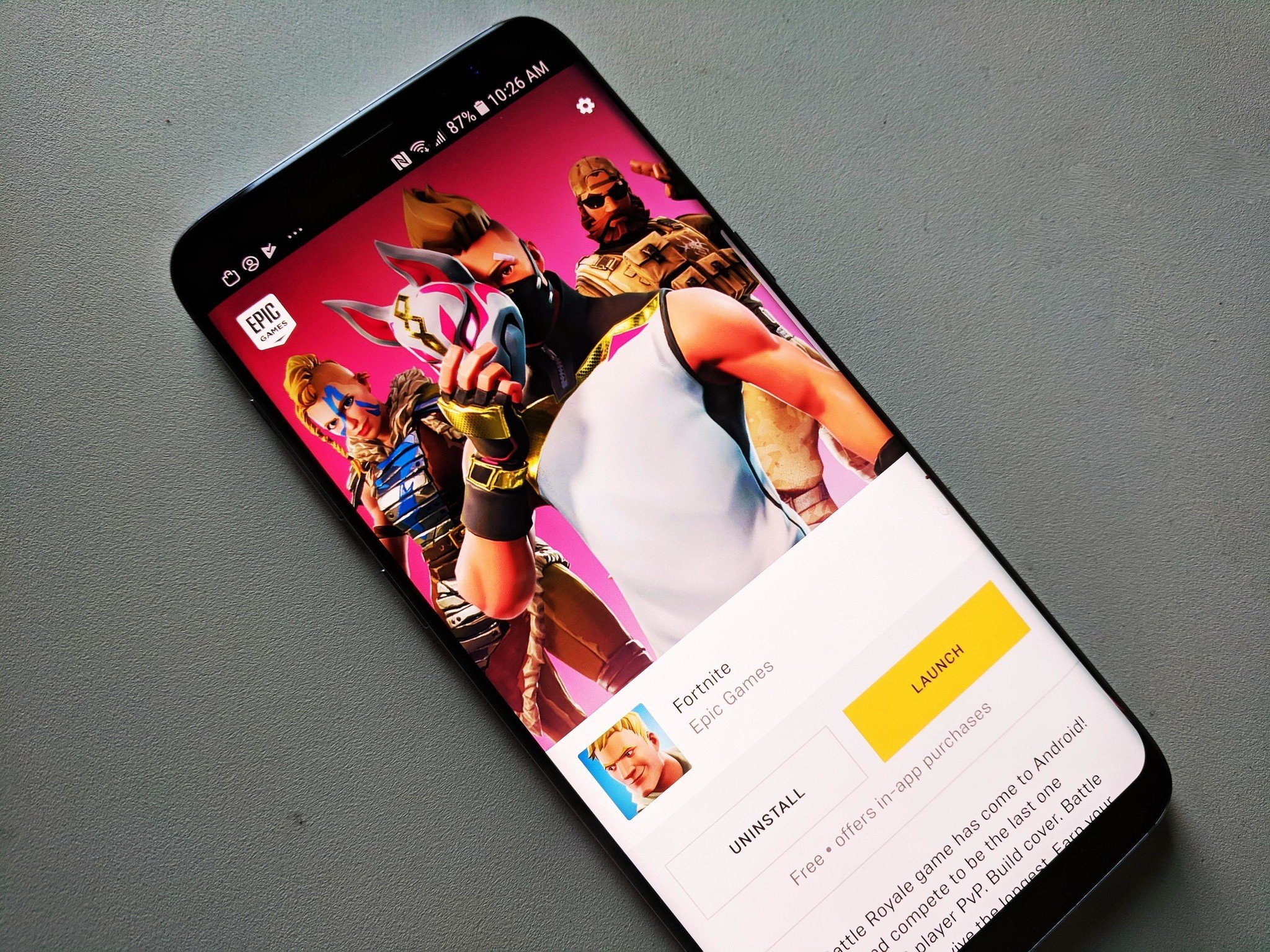
- Inside the Epic Games App, you will see Fortnite listed as an available game.
- Tap on Fortnite and then tap the “Install” button.
- The app will begin downloading the main Fortnite game files. This is a very large download (several gigabytes), so ensure you remain connected to Wi-Fi and have sufficient storage.
- Once the download is complete, the Epic Games App will automatically install Fortnite onto your device.
- Launch Fortnite:
- After the installation is finished, you can tap “Launch” within the Epic Games App, or find the Fortnite icon in your app drawer to start playing.
- The first launch might involve additional resource downloads or shader compilation, which can take a few minutes.
Congratulations! You’ve successfully installed Fortnite on your Android device. Now it’s time to sign in with your Epic Games account (or create one if you don’t have one) and jump into the battle.
Post-Installation & Optimizing Your Fortnite Experience
Installing Fortnite is just the first step. To ensure a smooth, enjoyable, and secure gaming experience, it’s crucial to understand how to keep the game updated, optimize performance, and troubleshoot common issues. These “Tech” aspects are vital for any serious mobile gamer.
Updating Fortnite: Staying Current with the Latest Content
Fortnite is a live-service game, meaning it’s constantly evolving with new seasons, events, weapons, map changes, and bug fixes. Regular updates are critical, and unlike Play Store apps, Fortnite updates are handled directly through the Epic Games App.
- Automatic Updates: The Epic Games App is designed to notify you when new Fortnite updates are available. When you open the Epic Games App (or sometimes Fortnite itself), it will check for updates.
- Manual Check: You can manually check for updates by opening the Epic Games App. If an update is pending, you’ll typically see an “Update” button next to Fortnite.
- Why Updates are Important: Updates aren’t just for new content. They often include critical bug fixes, performance enhancements, and security patches. Staying updated ensures you have access to the latest features, a more stable game, and protection against known vulnerabilities – all crucial for a positive “Tech” experience and “Digital Security.”
Performance Optimization Tips for Android
Even if your device meets the minimum requirements, Fortnite can be demanding. Optimizing your settings can significantly improve frame rates and overall smoothness.
- Adjust In-Game Settings:
- Graphics Quality: Start with “Low” or “Medium” and gradually increase if your device can handle it.
- 3D Resolution: This is a crucial setting. Reducing it slightly can provide a huge performance boost at the cost of some visual sharpness. Experiment with values between 75% and 100%.
- Frame Rate: Aim for a stable 30 FPS or 60 FPS. If your device struggles at 60, lock it to 30 for a more consistent experience.
- Shadows, Effects, Post Processing: Turn these off or set them to low for maximum performance.
- Close Background Apps: Before launching Fortnite, close all unnecessary applications running in the background. These consume RAM and CPU cycles that Fortnite needs.
- Clear Cache: Regularly clear the cache of Fortnite and other frequently used apps. Go to Settings > Apps > Fortnite > Storage > Clear Cache. This can help resolve minor performance hitches.
- Keep Your Device Cool: Overheating can cause performance throttling. Avoid playing in direct sunlight or with a case that traps heat. Consider removing your phone case while gaming.
- Restart Your Device: A simple restart can often clear out temporary files and processes, freeing up resources for better game performance.
- Use Game Boosters (if available): Some Android devices have built-in “Game Mode” or “Game Booster” features that prioritize game performance by managing notifications and background processes.
- Stable Network: While not directly performance-related in terms of graphics, a stable, low-latency internet connection is critical for a smooth online multiplayer experience. Lag (high ping) can ruin gameplay regardless of your device’s power.
Troubleshooting Common Installation Issues
Despite following all steps, you might encounter issues. Here are solutions for some common problems:
- “App Not Installed” Error:
- Cause: Often due to insufficient storage, corrupted APK, or incompatibility.
- Solution: Check free storage space. Delete the downloaded
EpicGamesApp.apkand re-download it from the official website. Ensure your device meets all system requirements.
- Download Stuck or Failed:
- Cause: Unstable internet connection, server issues, or insufficient storage during the main game download.
- Solution: Verify your Wi-Fi connection. Pause and resume the download. Close the Epic Games App and restart it. Check Epic Games’ server status page. Ensure enough storage for the entire game download.
- Fortnite Crashes on Launch or Mid-Game:
- Cause: Insufficient RAM, overheating, outdated game files, or incompatible device.
- Solution: Check system requirements. Close all background apps. Try clearing Fortnite’s cache (Settings > Apps > Fortnite > Storage > Clear Cache). Lower in-game graphics settings. Restart your device. If it persists, consider reinstalling the game.
- Black Screen on Launch:
- Cause: Graphics driver issues, corrupted game files, or incompatibility.
- Solution: Update your Android OS if an update is available. Reinstall the game. Ensure your device’s GPU meets the requirements.
- Lag or Low Frame Rates:
- Cause: Device not powerful enough, high graphics settings, or too many background apps.
- Solution: Follow the performance optimization tips above, especially lowering 3D Resolution and graphics quality.
For persistent issues, checking the official Epic Games support page or community forums can provide device-specific solutions or indicate widespread problems.
Security, Safety, and the Financial Ecosystem of Fortnite on Android
Beyond the technicalities of installation and optimization, understanding the broader context of security and the game’s financial model is crucial for a complete experience. This ties into “Digital Security,” “Personal Finance,” and the overall “Brand Strategy” of Epic Games.
Verifying Sources: Avoiding Malware and Scams
The decision by Epic Games to distribute Fortnite outside of Google Play opened a vector for potential security risks. While it gave Epic control, it also meant users had to be more vigilant. Unscrupulous individuals and organizations often capitalize on popular software to distribute malware, phishing schemes, and scams.
- The Danger of Third-Party APKs: The most significant risk comes from downloading “Fortnite APKs” from unofficial websites, torrents, or dubious app stores. These files are often modified to include malicious code that can:
- Steal Personal Data: Including login credentials, banking information, and other sensitive data (“Digital Security” and “Money” risk).
- Install Adware/Spyware: Bombarding your device with intrusive ads or monitoring your activities.
- Ransomware: Locking your device or files until a payment is made.
- Cryptocurrency Miners: Secretly using your device’s processing power to mine cryptocurrency, significantly degrading performance and battery life.
- How to Stay Safe:
- ALWAYS Download from Official Sources: The only legitimate place to download the Epic Games App for Fortnite is
fortnite.com/android. - Be Skeptical of “Free V-Bucks” or “Hacks”: These are almost always scams designed to trick you into downloading malware or giving away your account credentials. Remember, “Money” isn’t free.
- Check Website URLs Carefully: Phishing sites often mimic official URLs with slight misspellings.
- Use Reputable Antivirus Software: A good mobile security suite can add an extra layer of protection, scanning downloaded files and monitoring app behavior.
- Review App Permissions: When installing any app, review the permissions it requests. If a simple game asks for access to your contacts, SMS messages, or call history, it’s a red flag.
- ALWAYS Download from Official Sources: The only legitimate place to download the Epic Games App for Fortnite is
By adhering to official channels, you safeguard your device, your personal information, and your financial well-being, reinforcing the principles of “Digital Security” and “Financial Literacy.”
In-Game Purchases and Managing Your Money (V-Bucks)
Fortnite is free-to-play, but its monetization model relies heavily on in-game purchases, primarily V-Bucks, its virtual currency. Players use V-Bucks to buy cosmetic items like outfits (skins), emotes, gliders, pickaxes, and the Battle Pass.
- The Battle Pass: This is a seasonal purchase that grants players access to exclusive challenges and rewards as they play and level up. It offers significant value for players who commit to a season.
- V-Bucks and Real Money: V-Bucks are purchased with real money. This creates a powerful “Money” ecosystem within the game, driving Epic Games’ revenue and fueling its extensive development.
- Responsible Spending and Parental Controls:
- Budgeting: It’s easy for players, especially younger ones, to get carried away with cosmetic purchases. Encourage responsible spending and setting a budget for in-game items.
- Parental Controls: Parents should set up parental controls on their Epic Games account and, if applicable, on their Android device’s app store settings (even for apps downloaded outside Google Play, purchase methods can still be linked to Google accounts or credit cards directly). This includes requiring passwords for purchases, setting spending limits, or disabling in-app purchases entirely.
- Understanding Value: Help players understand that cosmetic items are purely aesthetic and do not offer any in-game advantage. This perspective can help manage expectations and prevent overspending.
Epic Games’ brand strategy has successfully integrated this monetization into the core experience, making cosmetics a significant part of the game’s culture and personal expression. However, managing the “Money” aspect requires awareness and discipline.
The Future of Fortnite on Android: What’s Next?
The mobile gaming landscape is constantly evolving, and Fortnite on Android is no exception. While Epic Games continues its direct distribution model, there’s always potential for shifts.
- Ongoing Tech Development: Expect continuous “Tech” improvements in optimization, graphics fidelity, and new features tailored for mobile devices. Cloud gaming solutions like Xbox Cloud Gaming or NVIDIA GeForce NOW also offer alternative ways to play Fortnite on Android without local installation.
- Brand Evolution: Epic Games’ brand continues to be one of innovation and disruption. Their strategy on Android exemplifies this, and they will likely continue to push boundaries in terms of distribution and monetization.
- The Financial Landscape: The mobile gaming market is fiercely competitive, with billions of dollars at stake. Fortnite’s financial success on Android will continue to influence how other major game developers approach mobile versions of their titles and interact with app store gatekeepers.
The ongoing legal battles and market dynamics mean the “Tech,” “Brand,” and “Money” aspects of Fortnite’s Android presence are dynamic and worth watching.
Conclusion
Installing Fortnite on Android is a straightforward process once you understand the unique steps involved. By following the official download procedures, ensuring your device meets the necessary “Tech” specifications, and maintaining vigilance regarding “Digital Security,” you can enjoy the full, uncompromised experience of Fortnite. Remember to optimize your settings for the best performance and to approach in-game purchases with an understanding of “Personal Finance” and responsible spending.
Fortnite on Android isn’t just a game; it’s a testament to Epic Games’ bold “Brand Strategy” and their impact on the “Tech” and “Money” ecosystems of mobile applications. By equipping yourself with this comprehensive guide, you’re not just installing an app; you’re engaging with a piece of digital history, ready to drop into the battle royale and claim your victory. Now, jump into the bus, land, loot, and conquer!
aViewFromTheCave is a participant in the Amazon Services LLC Associates Program, an affiliate advertising program designed to provide a means for sites to earn advertising fees by advertising and linking to Amazon.com. Amazon, the Amazon logo, AmazonSupply, and the AmazonSupply logo are trademarks of Amazon.com, Inc. or its affiliates. As an Amazon Associate we earn affiliate commissions from qualifying purchases.