
Grand Theft Auto V, an undisputed titan in the gaming world, offers an expansive open world brimming with possibilities. Yet, for many enthusiasts, the official multiplayer mode, GTA Online, eventually gives way to a thirst for something more tailored, more community-driven, and infinitely customizable. This is where FiveM steps in – a powerful modification framework that transforms GTA V into a platform for dedicated servers, offering unique role-playing experiences, custom game modes, and a truly dynamic multiplayer environment. From intricate police role-play scenarios to elaborate virtual economies and drag racing circuits, FiveM unlocks a new dimension of GTA V gameplay.

This comprehensive guide will walk you through the entire process of installing FiveM, from meeting the fundamental prerequisites to troubleshooting common issues and even exploring avenues to enhance your experience. Whether you’re a seasoned modder or completely new to the world of custom game servers, this article will ensure you’re equipped to dive into the rich and diverse communities that FiveM has to offer. We’ll delve into the technical steps, provide practical tips, and briefly touch upon how FiveM intertwines with broader themes of technology, community branding, and even potential economic ecosystems within its virtual worlds.
Preparing for Installation: Prerequisites and Essential Setup
Before embarking on the FiveM installation journey, it’s crucial to ensure your system meets the necessary requirements and that your foundational GTA V installation is in optimal condition. This preparatory phase is often overlooked but is vital for a smooth and successful setup. Skipping these steps can lead to various complications down the line, from installation failures to in-game performance issues.
Essential Requirements for FiveM
FiveM doesn’t just run on its own; it’s a client built upon the robust engine of Grand Theft Auto V. Therefore, the absolute first requirement is a legitimate, fully installed copy of Grand Theft Auto V. This means you must own the game through platforms like Steam, the Rockstar Games Launcher, or the Epic Games Store. Pirated copies are not supported and will not work with FiveM, primarily due to authentication checks and the integrity of game files required by the mod.
Beyond the game itself, your PC’s hardware plays a significant role. While FiveM’s client doesn’t drastically increase the minimum requirements over base GTA V, playing on heavily modded servers with many players and custom assets will demand more.
- Operating System: Windows 8.1, Windows 10, or Windows 11 (64-bit versions are mandatory).
- Processor: An Intel Core i5 3470 @ 3.2GHz / AMD X8 FX-8350 @ 4GHz or better. For smoother experiences on high-population servers, an i7 or equivalent Ryzen processor is highly recommended.
- Memory (RAM): 8GB RAM is the minimum, but 16GB or more will significantly improve performance and stability, especially when loading complex server resources.
- Graphics Card: NVIDIA GTX 660 2GB / AMD HD 7870 2GB or better. Modern GPUs like the NVIDIA GTX 10-series or AMD RX 500-series and newer will provide a much more enjoyable experience.
- Storage: At least 72GB of free space for GTA V, plus an additional 4GB minimum for FiveM’s client files and cache. An SSD (Solid State Drive) is strongly recommended for both GTA V and FiveM to drastically reduce loading times.
- Internet Connection: A stable and fast internet connection is paramount. FiveM servers transfer a lot of data, especially when joining for the first time or when new server assets are downloaded. A broadband connection with decent upload and download speeds will prevent lag and disconnections.
Initial Setup Steps and Best Practices
Before you even think about downloading the FiveM client, dedicate some time to these preparatory actions:
- Verify GTA V Installation: Ensure your Grand Theft Auto V installation is complete, updated to the latest version, and functional. Launch the base game and play for a few minutes to confirm everything is working correctly. If you’re on Steam or Epic Games, use their “Verify Game Files” feature to check for corrupted or missing data. For Rockstar Games Launcher, the option is typically under the game settings.
- Update Graphics Drivers: Outdated graphics drivers are a common culprit for performance issues and crashes in any demanding game or mod. Visit the official websites for NVIDIA, AMD, or Intel and download the latest drivers for your specific graphics card. Perform a clean installation if possible.
- Disable Overlays (Initially): Game overlays from Discord, Steam, GeForce Experience, or other applications can sometimes conflict with FiveM, especially during the initial setup. Consider temporarily disabling them until you’ve confirmed FiveM is running smoothly. You can re-enable them later.
- Windows Updates: Ensure your Windows operating system is fully updated. Critical system updates often include stability improvements and security patches that can impact game compatibility.
- Antivirus and Firewall Configuration: This is a significant point of concern. Many antivirus programs and Windows Firewall can mistakenly flag FiveM as a threat due to its nature as a game modification that interacts deeply with another application. While you should never disable your antivirus entirely, be prepared to create exceptions for the FiveM application and its associated folders in both your antivirus software and Windows Firewall. We’ll revisit this in the troubleshooting section.
- Administrative Privileges: Both Grand Theft Auto V and FiveM often require administrative privileges to function correctly, particularly when writing files to the game directory or accessing network resources. Ensure you have admin rights on your Windows account, or be prepared to right-click and “Run as administrator” for the FiveM installer and client.
By diligently following these preparatory steps, you’re laying a solid foundation for a hassle-free FiveM installation and a more enjoyable gaming experience. It minimizes the chances of encountering common errors that can delay your entry into the exciting world of custom GTA V servers.
The Installation Process: A Step-by-Step Guide
With your system prepped and ready, it’s time to proceed with the core installation of the FiveM client. This process is generally straightforward but requires attention to detail to ensure everything links up correctly with your existing Grand Theft Auto V installation.
Downloading the FiveM Client
The first and most critical step is to obtain the official FiveM client. Always download FiveM from its official source to ensure you’re getting the latest, most stable, and secure version, free from malicious modifications.
- Visit the Official FiveM Website: Open your web browser and navigate to
fivem.net. This is the legitimate home of the FiveM project. - Locate the Download Button: On the homepage, you will typically find a prominent “Download Client” or “Download FiveM” button. Click on it.
- Agree to Terms of Service: Before the download begins, you will likely be prompted to agree to FiveM’s Terms of Service. Read them carefully, as they outline acceptable use and community guidelines. Once you understand and agree, proceed.
- Save the Installer: Your browser will prompt you to save the
FiveM.exeinstaller file. Choose a location that’s easy to access, such as your Downloads folder or Desktop. The file size is relatively small, usually a few megabytes.
Running the Installer and Initial Setup
Once FiveM.exe has been downloaded, the installation process is primarily automated, with a few key decisions required from the user.
- Launch the Installer: Double-click on the
FiveM.exefile you just downloaded. If you encounter any User Account Control (UAC) prompts, grant permission for the application to run. It’s often beneficial to right-clickFiveM.exeand select “Run as administrator” to prevent permission-related issues. - FiveM Application Data Download: The installer will typically first download some essential FiveM application data. This might take a few moments depending on your internet speed. Allow it to complete without interruption. This data is usually placed in your
AppDatadirectory (e.g.,C:Users[Your Username]AppDataLocalFiveM). - Locate Grand Theft Auto V Game Files: This is the most crucial step in the installation. FiveM needs to know where your legitimate copy of Grand Theft Auto V is installed to function. The installer will usually attempt to auto-detect the path.
- If it successfully detects your GTA V installation, it will display the path and ask for confirmation.
- If it cannot detect it (common if you’ve installed GTA V to a non-default location or have multiple drives), you will be prompted to manually browse for the GTA V game directory.
- Important: You need to point FiveM to the main directory of GTA V, not a subfolder like “installers” or “data.” This directory typically contains
GTA5.exe. - Common Paths:
- Steam:
C:Program Files (x86)SteamsteamappscommonGrand Theft Auto V - Epic Games:
C:Program FilesEpic GamesGTAV - Rockstar Games Launcher:
C:Program FilesRockstar GamesGrand Theft Auto V
- Steam:
- Navigate to this directory and select it. FiveM will then verify the integrity and legitimacy of your GTA V files.
- Important: You need to point FiveM to the main directory of GTA V, not a subfolder like “installers” or “data.” This directory typically contains
- Additional Game Data Download: After successfully linking to your GTA V installation, FiveM will begin downloading additional game assets and updates necessary for its operation. These are essentially modified game files and resources that allow FiveM to create its custom environment. This download can be substantial (several gigabytes), so ensure you have a stable internet connection and sufficient free disk space.
- Completion and First Launch: Once all the necessary files have been downloaded and verified, the FiveM client will be fully installed. A shortcut might be created on your desktop or in your Start Menu. You can now launch FiveM.
Initial Launch and Updates
When you launch FiveM for the first time after installation, it might perform a final check for updates and potentially download any new client patches.
- Sign In (Optional but Recommended): FiveM integrates with the Cfx.re platform, which is its backend. You can create an account or sign in with an existing one. This allows you to track your play time, save favorite servers, and participate in the community.
- Browse Servers: Upon successful launch, you’ll be presented with the FiveM server browser. Here, you can filter servers by game mode (e.g., Roleplay, Drift, Race), language, player count, and more.
- Joining a Server: When you select a server and click “Connect,” FiveM will download any unique server-side resources (custom vehicles, maps, scripts, textures) required by that specific server. This can take some time for your first connection to a new server, especially if it has many custom assets. Subsequent connections will be faster as most assets will be cached.
Congratulations! You have successfully installed FiveM. You’re now ready to explore the vast array of custom experiences available within its vibrant community.
Troubleshooting Common FiveM Installation Issues
Even with careful preparation, unforeseen issues can arise during or after the FiveM installation. Many of these are common and have well-documented solutions. Addressing these proactively can save you a lot of frustration and ensure a smoother experience. This section dives into the most frequent problems and their fixes, emphasizing the “Tech” aspect of problem-solving.
Firewall and Antivirus Conflicts

This is arguably the most prevalent cause of FiveM installation and connection problems. Security software, designed to protect your system from unknown applications, can often mistake FiveM’s legitimate activities for malicious behavior due to its deep interaction with game files and network connections.
- Symptoms: Installation failures, FiveM client failing to launch, inability to connect to any server, slow downloads, or files disappearing after installation.
- Solution:
- Add Exceptions: The most effective solution is to add FiveM to your antivirus and firewall’s exclusion list or whitelist. You typically need to add exceptions for:
- The
FiveM.exeexecutable. - The entire FiveM application data folder, usually located at
C:Users[Your Username]AppDataLocalFiveM. - If necessary, the GTA V game directory itself, though this is less common for FiveM-specific issues.
- The
- Temporarily Disable (Caution!): As a diagnostic step, you can temporarily disable your antivirus and firewall (including Windows Defender/Firewall) to see if FiveM then works. Immediately re-enable them after testing and then proceed to add the proper exceptions. Never browse the internet or download files with your security software disabled.
- Check Firewall Rules: Ensure that your Windows Firewall (or third-party firewall) is not blocking FiveM’s outbound connections to the internet. FiveM requires unrestricted access to connect to servers and download resources.
- Add Exceptions: The most effective solution is to add FiveM to your antivirus and firewall’s exclusion list or whitelist. You typically need to add exceptions for:
Game Path Errors and Corrupted Files
Incorrectly pointing FiveM to your GTA V directory or having corrupted game files can lead to immediate installation failures or crashes upon launch.
- Symptoms: “Grand Theft Auto V is not installed” errors, crashes during startup, FiveM asking for the GTA V path repeatedly, or “missing game files” warnings.
- Solution:
- Verify GTA V Installation: Re-verify the integrity of your Grand Theft Auto V game files through its respective launcher (Steam, Epic Games, Rockstar Games Launcher). This ensures the base game is complete and uncorrupted.
- Manually Locate Path: If FiveM is persistently asking for the GTA V path, ensure you are pointing it to the root directory where
GTA5.exeresides. Do not select subfolders. Double-check the common paths mentioned in the installation section. - Delete FiveM Cache: Sometimes, FiveM’s cache files can become corrupted. Navigate to
C:Users[Your Username]AppDataLocalFiveMFiveM.appdataand delete everything inside thedatafolder except for thegamefolder. Relaunch FiveM; it will re-download necessary cache files. - Reinstall FiveM: As a last resort, if you suspect a deeply corrupted FiveM installation, try completely uninstalling FiveM (delete the
AppDataLocalFiveMfolder) and then reinstalling from scratch.
Connection Problems and Server Issues
Even if FiveM installs correctly, connecting to servers can sometimes be problematic.
- Symptoms: “Failed to connect to server,” constant disconnections, high ping, or server browser not showing any servers.
- Solution:
- Internet Connection: Ensure your internet connection is stable. Test it with other online applications. Restart your router/modem.
- Server Status: The server you’re trying to join might be offline, full, or experiencing issues. Try connecting to a different, well-populated server to rule out a FiveM client-side problem. Check the server’s Discord or community page for status updates.
- VPN/Proxy: If you’re using a VPN or proxy, try disabling it, as some servers block connections from specific VPN providers or IP ranges.
- DNS Flush: Sometimes, flushing your DNS cache can resolve connection issues. Open Command Prompt as administrator and type
ipconfig /flushdnsthen press Enter. - Router Settings: Check if your router has any aggressive firewall settings or QoS (Quality of Service) rules that might be throttling FiveM’s connection. Port forwarding is generally not required for the FiveM client, only for hosting a server.
Graphics and Performance Tweaks
While not strictly installation issues, poor performance can make FiveM unplayable.
- Symptoms: Low FPS, stuttering, texture pop-in, crashes during gameplay.
- Solution:
- In-Game Settings: Within FiveM, access the settings menu (usually F8 to open the console, then
settingsor directly through the main menu) and adjust your graphics settings. Start with lower settings and gradually increase them. - Driver Updates: Reiterate the importance of updated graphics drivers.
- Game Mode and Hardware Acceleration: Ensure Windows Game Mode is enabled. Disable hardware acceleration for Discord or other applications running in the background.
- Task Manager: Close any unnecessary background applications that might be consuming CPU, RAM, or GPU resources.
- FiveM Client Settings: FiveM has some internal settings that can affect performance. For example, reducing
draw distanceor disablingpost-effectscan yield significant frame rate improvements. - Server Optimization: Keep in mind that server-side mods and high player counts can inherently impact performance, regardless of your local settings. Some servers are simply more resource-intensive than others.
- In-Game Settings: Within FiveM, access the settings menu (usually F8 to open the console, then
By systematically working through these troubleshooting steps, you should be able to resolve most common FiveM installation and operational issues. Remember, the FiveM community forums and Discord servers are also excellent resources for specific problems that might not be covered here.
Beyond Installation: Enhancing Your FiveM Journey
Installing FiveM is just the beginning. The real magic lies in exploring the vast ecosystem of custom servers and communities. This section will guide you on how to make the most of your FiveM experience, subtly touching upon aspects of community building, “brand” identity, and even the “money” angle within this unique digital landscape.
Exploring Servers and Communities
The heart of FiveM is its diverse server base, each offering a distinct experience. Finding the right community is paramount to enjoying FiveM.
- The FiveM Server Browser: Upon launching FiveM, you’re presented with a server list. Use the filters to narrow down your choices:
- Gamemode: Look for Roleplay (RP), Freeroam, Drifting, Racing, Zombie Survival, or various other custom modes. Roleplay servers are particularly popular, offering immersive experiences where players adopt specific characters and interact within a structured virtual society.
- Tags: Many servers use tags to describe their unique features (e.g., “economy,” “whitelisted,” “custom cars”).
- Language: Filter by your preferred language to find communities where you can communicate effectively.
- Community Platforms: Beyond the in-game browser, the most vibrant FiveM communities are often found on Discord. Many servers have dedicated Discord channels for applications (especially for whitelisted RP servers), announcements, support, and general chat. Searching for “FiveM RP servers Discord” or specific server names will often lead you to these hubs.
- Branding and Reputation: Just like real-world businesses, FiveM servers develop their own “brand” identity. A well-established server brand is recognized for its unique rules, moderation quality, custom content, and consistent uptime. Look for servers with a strong reputation, active staff, and a healthy player count. Reviews from other players and consistency in their communication (e.g., on Discord or forums) are good indicators of a well-managed “brand.”
- Whitelisted Servers: Many high-quality roleplay servers are “whitelisted,” meaning you need to apply to join. This process often involves writing an application explaining your understanding of roleplay rules and character concept. While it requires effort, these servers often provide the deepest and most immersive experiences due to their dedicated player base and strict adherence to rules, fostering a truly unique community “brand.”
Understanding Server-Side Mods and Resources
One of FiveM’s greatest technical strengths is its ability to allow server owners to implement extensive custom content, far beyond what official GTA Online permits.
- Custom Scripts: Servers run custom scripts that dictate everything from unique job systems, crafting mechanics, intricate economic simulations, and custom police/EMS functionalities. These scripts fundamentally alter the gameplay experience.
- Custom Assets: Servers can stream custom vehicles, clothing, weapons, map modifications (MLOs and YMAPs), and even entirely new buildings. These assets are downloaded automatically when you join a server and are seamlessly integrated into your game.
- Performance Impact: While these mods offer incredible diversity, they can also impact performance. Servers with a high volume of custom assets and complex scripts may require more powerful hardware, even on the client side. A well-optimized server, like a well-designed piece of software, is a testament to effective “tech” management.
Monetization, Community Building, and the “Money” Aspect
While FiveM itself is free, the ecosystem around it offers various interesting intersections with financial aspects and community-driven economies.
- Server Donations and VIP Systems: Running a high-quality FiveM server requires significant resources: powerful hosting, custom script development, asset creation, and dedicated staff. Many servers rely on donations from their player base to cover these costs. In return, donors often receive cosmetic VIP perks (e.g., custom car liveries, exclusive clothing, priority queue access) or in-game currency bonuses. This is a direct example of players investing “money” into the “brand” they support.
- Virtual Economies: Many roleplay servers feature complex virtual economies where players earn in-game money through jobs, businesses, or even illicit activities. This virtual currency can be used to purchase property, vehicles, and other goods, creating a dynamic, player-driven market that mirrors real-world economic principles.
- Content Creation and Personal Branding: FiveM has become a massive platform for content creators. Streamers and YouTubers often dedicate their channels to showcasing their FiveM roleplay adventures, attracting large audiences. Successful content creators leverage their “personal brand” to engage viewers, build communities, and monetize their content through subscriptions, ad revenue, and sponsorships. For them, FiveM is not just a game but a viable income stream.
- Freelance Development: There’s a robust freelance market for FiveM script developers, asset creators, and server administrators. Individuals with skills in LUA scripting, 3D modeling, or server management can offer their services to server owners, turning their “tech” expertise into a source of “money.”
By understanding these dynamics, you can appreciate FiveM not just as a game modification but as a complex digital ecosystem where technology, community branding, and even economic principles are intricately woven together, offering endless possibilities for entertainment, creativity, and engagement.
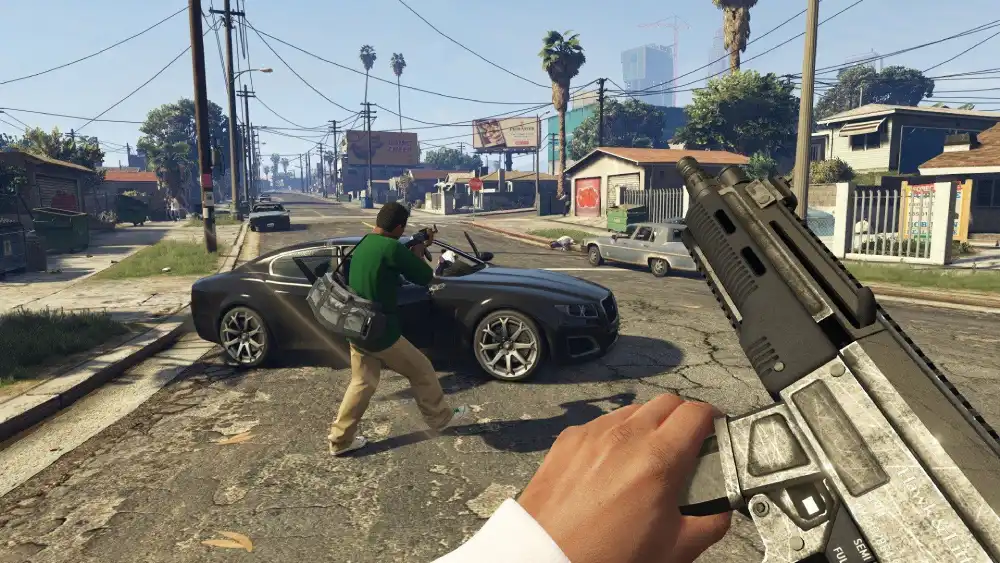
Conclusion
Installing FiveM opens the door to an unparalleled Grand Theft Auto V experience, transforming the familiar streets of Los Santos into a boundless canvas for custom game modes, immersive role-playing, and vibrant player communities. From the initial prerequisites and meticulous installation steps to the intricacies of troubleshooting common issues, this guide has equipped you with the knowledge needed to successfully navigate the setup process.
Remember, FiveM is more than just a mod; it’s a testament to the power of community-driven development and the endless possibilities unlocked when technology is placed in the hands of creative enthusiasts. As you delve into this rich ecosystem, you’ll encounter servers that are meticulously crafted, each with its own unique “brand” and set of rules, fostering dedicated player bases. You might even stumble upon intricate virtual economies where in-game “money” takes on real significance, or discover content creators who have built impressive “personal brands” through their FiveM adventures.
Embrace the journey, explore the diverse server offerings, and don’t be afraid to experiment. While the technical aspects of installation and troubleshooting are crucial, the true reward of FiveM lies in the social interactions, the shared stories, and the unforgettable moments you’ll create within its dynamic worlds. Welcome to the expanded universe of Grand Theft Auto V; your adventure has just begun.
aViewFromTheCave is a participant in the Amazon Services LLC Associates Program, an affiliate advertising program designed to provide a means for sites to earn advertising fees by advertising and linking to Amazon.com. Amazon, the Amazon logo, AmazonSupply, and the AmazonSupply logo are trademarks of Amazon.com, Inc. or its affiliates. As an Amazon Associate we earn affiliate commissions from qualifying purchases.