
In the dynamic world of computing, where raw power meets demanding applications, the silent guardian of your system’s performance and longevity is often overlooked: its cooling system. Whether you’re a hardcore gamer pushing the limits of your GPU, a content creator rendering intricate 3D models, or simply a professional relying on your machine for daily productivity, effective thermal management is paramount. Overheating is not just an inconvenience; it’s a silent assassin that can throttle performance, cause system instability, and drastically shorten the lifespan of your expensive components. This guide will walk you through the essential process of installing fans in your PC, transforming your system into a cool, efficient, and reliable powerhouse.

Why PC Cooling Matters: The Foundation of Performance and Longevity
Before diving into the nuts and bolts of fan installation, it’s crucial to understand why proper cooling is non-negotiable for any modern computer. Your CPU, GPU, chipset, and even your storage drives generate heat as they perform their tasks. Without an efficient way to dissipate this heat, temperatures inside your PC case can rapidly climb to dangerous levels.
The Silent Threat: Understanding Overheating
When components reach their thermal limits, they employ a mechanism called “thermal throttling.” This means they intentionally reduce their operating speed (clock speed) to generate less heat, preventing permanent damage. While this protects your hardware, it comes at a significant cost: a dramatic drop in performance. Your games might stutter, your rendering times will increase, and your overall system responsiveness will suffer.
Beyond performance degradation, prolonged exposure to high temperatures accelerates component degradation. Capacitors can swell, solder joints can weaken, and sensitive semiconductors can experience micro-fractures, leading to unpredictable crashes, data corruption, and eventually, hardware failure. Think of it like a car engine – consistent overheating will inevitably lead to costly repairs or a total breakdown.
The Benefits of Effective Airflow
Conversely, a well-cooled PC offers a myriad of advantages:
- Consistent Performance: Components can operate at their intended speeds without throttling, ensuring peak performance during demanding tasks.
- Extended Hardware Lifespan: Keeping temperatures within optimal ranges significantly reduces wear and tear on components, prolonging their operational life and protecting your investment.
- System Stability: Reduced heat stress translates to fewer crashes, freezes, and unexpected errors, leading to a more reliable and enjoyable computing experience.
- Quieter Operation: With efficient cooling, fans don’t need to spin at maximum RPM as often, leading to a quieter system overall. High-quality fans designed for good airflow at lower RPMs further enhance this benefit.
- Future-Proofing: As hardware demands increase, a robust cooling solution provides headroom for future upgrades and overclocking.
Preparing for Installation: Essential Tools and Considerations
Before you even think about opening your PC case, a little preparation goes a long way. Gathering the right tools and understanding the fundamental principles of PC cooling will ensure a smooth and successful installation.
Gathering Your Arsenal: Tools of the Trade
You won’t need an elaborate workshop, but these basic tools are essential:
- Phillips Head Screwdriver: The most critical tool. A magnetic tip is a bonus for handling tiny screws.
- Thermal Paste: Absolutely vital if you’re installing or reinstalling a CPU cooler. It fills microscopic gaps between the CPU’s integrated heat spreader (IHS) and the cooler’s base, ensuring maximum heat transfer.
- Cable Ties (Zip Ties) or Velcro Straps: For neat cable management, which not only improves aesthetics but also airflow.
- Anti-Static Wrist Strap (Recommended): Connects you to a grounded surface, dissipating static electricity from your body. This is crucial for preventing electrostatic discharge (ESD) damage to sensitive components. If unavailable, periodically touch a grounded metal object (like your PC’s unpainted metal frame) before handling internal components.
- Flashlight or Headlamp: To illuminate the often-dark recesses of your PC case.
- Isopropyl Alcohol (90%+ Purity) and Lint-Free Cloths: For cleaning old thermal paste off your CPU and cooler base.
Decoding Fan Types and Airflow Dynamics
PC fans aren’t all created equal. Understanding the different types and their roles is key to optimizing your setup:
- Case Fans: These come in various sizes (80mm, 92mm, 120mm, 140mm, 200mm being common) and are designed to move air into and out of your PC case. They typically connect via a 3-pin or 4-pin (PWM) connector to your motherboard or a fan controller.
- Airflow Fans: Have broader, more curved blades and are designed to move a large volume of air with less restriction. Ideal for front intake or top/rear exhaust where there are no obstacles directly in front or behind them.
- Static Pressure Fans: Have fewer, flatter, more angled blades and are designed to push air effectively through restrictive environments, like radiators (for AIO liquid coolers) or through drive cages.
- CPU Coolers: These can be air coolers (a heatsink with one or more fans) or All-in-One (AIO) liquid coolers (a pump, radiator, and fans). Their primary job is to dissipate heat directly from the CPU.
Airflow Dynamics: The Golden Rule of Cooling
The most critical aspect of case fan installation is airflow direction. You want to create a clear path for cool air to enter your case and hot air to exit.
- Intake: Fans that draw cool air into the case (typically from the front or bottom).
- Exhaust: Fans that push hot air out of the case (typically from the rear or top).
- Positive Pressure: More air intake than exhaust. This can help prevent dust ingress as air is constantly being pushed out of any small gaps.
- Negative Pressure: More air exhaust than intake. Can lead to more dust being sucked in through unfiltered openings.
- Balanced Pressure: Equal intake and exhaust. Often the ideal, if achievable.
A common and highly effective airflow setup is front intake, rear exhaust, and top exhaust. This creates a natural “wind tunnel” effect, drawing cool air over your components and expelling hot air upwards and out.
Pre-Installation Checks: Size, Connectors, and Placement
Before purchasing or installing, confirm these details:
- Fan Size Compatibility: Check your PC case’s specifications for compatible fan sizes at each mounting point (e.g., “supports 3x 120mm front fans,” “1x 120mm rear exhaust”).
- Motherboard Fan Headers: Locate the “CPUFAN,” “SYSFAN,” or “CHA_FAN” headers on your motherboard. Note if they are 3-pin (voltage controlled, less precise) or 4-pin (PWM – Pulse Width Modulation, more precise control). Modern motherboards typically have multiple 4-pin headers.
- CPU Cooler Clearance: If installing a large air cooler, ensure it doesn’t interfere with your RAM modules (especially if they have tall heatspreaders) or the side panel of your case. For AIOs, ensure your case has space to mount the radiator (e.g., front, top, or rear).
- Fan Orientation: Most fans have arrows on their side indicating airflow direction and blade rotation. Pay close attention to these!
Step-by-Step Installation: From Case Fans to CPU Coolers
Now, let’s get hands-on. Follow these steps carefully for a successful installation.
Opening Your PC Case and Initial Setup
- Power Down and Unplug: Completely shut down your PC, unplug the power cable from the wall and the back of the power supply, and disconnect all peripherals.
- Move to a Clean, Flat Surface: Work on a sturdy, non-carpeted surface.
- Ground Yourself: Put on your anti-static wrist strap and connect it to a bare metal part of your PC case or another grounded object.
- Open the Case: Unscrew and remove the side panel(s) of your PC case. Typically, this involves two thumbscrews or Phillips screws at the rear.
Installing Case Fans for Optimal Airflow
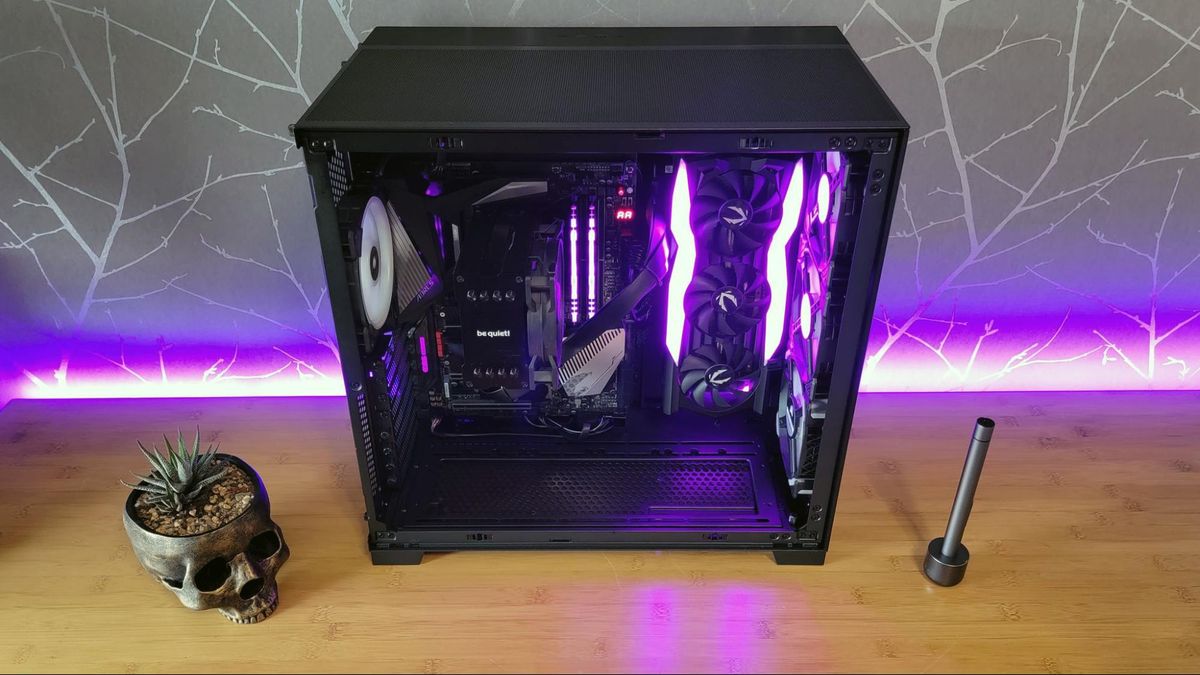
- Identify Mounting Points: Based on your airflow plan (e.g., front intake, rear exhaust, top exhaust), locate the appropriate fan mounting brackets or screw holes in your case.
- Orient the Fan Correctly: Remember those arrows? Ensure the fan is oriented to pull air in (intake) or push air out (exhaust) as intended for that specific location. Generally, the side with the fan’s sticker/label is the exhaust side.
- Mount the Fan:
- Screws: Align the fan with the screw holes and use the included fan screws (often self-tapping, so they might require a bit of force initially). Do not overtighten, as this can strip the plastic or deform the fan frame.
- Rubber Push-Pins: Some fans come with rubber push-pins that reduce vibration and noise. Thread these through the fan holes and pull them through the case mounting holes.
- Connect to Power: Plug the fan cable into an available “SYSFAN” or “CHAFAN” header on your motherboard. If you have a fan hub or controller, connect it there. Ensure you connect 3-pin fans to 3-pin headers (or 4-pin headers, but they won’t have PWM control) and 4-pin fans to 4-pin PWM headers for full speed control.
Repeat this process for all desired case fans.
Mastering CPU Cooler Installation (Air and AIO Liquid)
This is often the most intricate part.
If Upgrading a CPU Air Cooler:
- Remove Old Cooler:
- Unplug the existing CPU cooler’s fan cable from the “CPU_FAN” header.
- Carefully unclip or unscrew the old cooler from its mounting bracket. Be gentle, as old thermal paste can create a strong bond. Gently twist the cooler a few times to break the seal before pulling upwards.
- Place the old cooler aside.
- Clean CPU and Cooler Base:
- Use a lint-free cloth and a small amount of high-purity isopropyl alcohol to gently wipe away all traces of old thermal paste from both the CPU’s IHS (the metal lid on top) and the base of your new CPU cooler. Ensure both surfaces are spotless and dry.
- Install Mounting Hardware:
- Follow your new cooler’s instructions carefully. This typically involves installing a backplate on the underside of the motherboard (requiring access to the back of the motherboard tray, or removing the motherboard entirely if your case doesn’t have a cutout), then securing standoffs or brackets on the front side around the CPU socket.
- Apply Thermal Paste: This is critical.
- Pea Method (Most Common): Place a small, pea-sized dot of thermal paste directly in the center of the CPU’s IHS. The pressure from the cooler will spread it evenly.
- Line Method: For rectangular CPUs, a thin line across the longer dimension can also work.
- Do not spread it manually with your finger or a spatula unless specifically instructed by the thermal paste manufacturer, as this can introduce air bubbles.
- Mount the Heatsink:
- Carefully lower the new heatsink onto the CPU, aligning it with the mounting hardware.
- Screw it down in an alternating X-pattern (e.g., top-left, bottom-right, top-right, bottom-left) to ensure even pressure. Tighten until snug, but do not overtighten.
- Connect CPU Fan(s): Plug the CPU cooler’s fan cable(s) into the “CPU_FAN” header on your motherboard. If your cooler has two fans, it might come with a Y-splitter to connect both to a single header.
If Installing an AIO (All-in-One) Liquid Cooler:
- Install Mounting Hardware: Similar to air coolers, install the backplate and standoffs/brackets around the CPU socket according to the AIO’s specific instructions for your CPU socket type (Intel LGA or AMD AM).
- Apply Thermal Paste: Apply thermal paste to the CPU’s IHS (some AIOs come with pre-applied paste).
- Mount the Pump/Cold Plate: Carefully lower the pump block onto the CPU, aligning it with the mounting hardware. Secure it firmly with the provided screws, tightening in an X-pattern until snug.
- Mount the Radiator and Fans:
- Attach the fans to the radiator, ensuring their airflow direction is correct (e.g., pushing air through the radiator for exhaust at the top, or pulling air through for intake at the front).
- Mount the radiator-fan assembly to the designated spot in your case (front, top, or rear), typically with longer screws that go through the fan and into the radiator.
- Connect Cables:
- Plug the pump’s power cable into the “AIOPUMP” or “CPUOPT” header on your motherboard. If neither is available, use a “SYS_FAN” header, but ensure it’s set to full speed in BIOS/UEFI.
- Plug the radiator fans into the “CPU_FAN” header (using a splitter if needed) or a dedicated fan hub if your AIO has one.
Connecting and Managing Cables
With all fans physically installed, it’s time for cable management:
- Route Cables: Route fan cables, power supply cables, and other internal cables neatly behind the motherboard tray if your case allows.
- Secure Cables: Use zip ties or Velcro straps to bundle cables together and secure them to cable tie-down points in your case. This prevents them from sagging, obstructing airflow, or getting caught in fan blades.
- Double-Check Connections: Ensure all fan cables are securely plugged into their respective headers.
Post-Installation & Troubleshooting: Ensuring Flawless Operation
You’re almost there! A few final steps and checks will ensure your new cooling system is performing optimally.
Verifying Your Setup and Initial Boot-Up
- Final Inspection: Before closing the case, take a moment to visually inspect everything. Are all fans oriented correctly? Are all screws tightened? Are cables neatly managed and clear of fan blades? Is the CPU cooler seated properly?
- Close the Case: Carefully replace the side panel(s).
- Reconnect and Power On: Plug in all your peripherals and the power cable. Power on your PC.
- Initial Fan Spin: Observe if all installed fans spin up immediately. If any fan isn’t spinning, power down and check its connection.
- BIOS/UEFI Check: Enter your motherboard’s BIOS/UEFI settings (usually by pressing DEL, F2, or F10 during startup). Navigate to the monitoring section to check CPU and system temperatures, and verify that your motherboard detects all connected fans and their RPMs. You can also adjust fan curves here to optimize noise and cooling.
- Software Monitoring: Once in Windows (or your OS), install a monitoring software like HWMonitor, Core Temp, or MSI Afterburner to keep an eye on CPU and GPU temperatures under idle and load conditions. Run a stress test (e.g., Prime95 for CPU, FurMark for GPU) for 15-30 minutes to ensure temperatures remain stable and within safe limits (typically below 80-85°C for CPUs/GPUs under heavy load).
Common Issues and Quick Fixes
- Fan Not Spinning:
- Check Connection: Ensure the fan cable is fully seated in the correct motherboard header or fan controller port.
- Power Issue: Try plugging the fan into a different header or a known working fan hub.
- Damaged Fan: The fan itself might be faulty.
- BIOS/Software Setting: The fan might be set to not spin below a certain temperature threshold in BIOS or fan control software.
- Excessive Noise:
- Loose Screws: Tighten mounting screws; a loose fan can vibrate against the case.
- Cable Interference: A cable might be touching fan blades. Re-route and secure.
- Fan Bearing Noise: If the fan itself is making a grinding or buzzing noise, its bearings might be faulty. Consider an RMA.
- High RPM: Adjust fan curves in BIOS or software to run fans at lower RPMs when temperatures are low.
- High Temperatures After Installation:
- Incorrect Airflow: Double-check fan orientation. Are intake fans actually pulling air in, and exhaust fans pushing air out?
- CPU Cooler Seating/Thermal Paste: For CPU coolers, ensure it’s firmly seated and you applied thermal paste correctly. Re-seat and reapply if necessary.
- Blocked Vents: Ensure no dust filters are clogged or case vents are obstructed.
Maintaining Your Cooling System for Lasting Performance
Installation is just the beginning. Regular maintenance is crucial:
- Dust Cleaning: Every 3-6 months, open your PC and use compressed air to blow out dust from fans, heatsinks, and radiators. Always hold fan blades in place when blowing them to prevent over-spinning and potential damage.
- Thermal Paste Replacement: For CPU coolers, thermal paste can dry out and become less effective over several years (3-5 years is a common recommendation, but it varies). Consider reapplying it if temperatures start to creep up.
Beyond the Basics: Advanced Cooling Strategies
For enthusiasts and those seeking ultimate control, there are further avenues to explore.
Fan Controllers and Software
Many modern motherboards offer excellent fan control through their BIOS/UEFI, allowing you to create custom fan curves based on temperature sensors. However, dedicated fan controllers (either internal hubs or external desktop units) or proprietary software (like NZXT CAM, Corsair iCUE, ASUS AI Suite, MSI Dragon Center) can offer more granular control, RGB lighting synchronization, and advanced monitoring features, especially if you have many fans or AIO coolers from a single brand. These tools allow you to fine-tune fan speeds to strike the perfect balance between cooling performance and acoustic comfort.

Custom Water Cooling: A Deeper Dive
For the ultimate in cooling performance and aesthetic customization, custom water cooling loops offer unparalleled thermal dissipation capabilities. This involves building a bespoke system of pumps, reservoirs, radiators, and interconnected tubing to circulate a coolant fluid through water blocks on your CPU, GPU, and even RAM or VRMs. While offering superior performance and quiet operation, custom loops are significantly more complex, costly, and require meticulous planning and maintenance. They are generally reserved for experienced builders and extreme enthusiasts.
By following this comprehensive guide, you’re now equipped to install fans in your PC with confidence. You’ve not only learned the practical steps but also gained an understanding of the critical role cooling plays in safeguarding your hardware and ensuring a top-tier computing experience. Embrace the cool, and unleash the full potential of your machine!
aViewFromTheCave is a participant in the Amazon Services LLC Associates Program, an affiliate advertising program designed to provide a means for sites to earn advertising fees by advertising and linking to Amazon.com. Amazon, the Amazon logo, AmazonSupply, and the AmazonSupply logo are trademarks of Amazon.com, Inc. or its affiliates. As an Amazon Associate we earn affiliate commissions from qualifying purchases.