
In an era defined by rapid technological advancement and an increasing reliance on cloud-based solutions, the operating system you choose can profoundly impact your productivity, security, and even your financial bottom line. While dedicated Chromebooks have garnered a significant following for their simplicity, security, and speed, many users might not realize the transformative power of ChromeOS can be extended to existing hardware. This guide delves into the process of installing ChromeOS Flex – Google’s official offering for non-Chromebook devices – providing a detailed roadmap to breathe new life into older machines or establish a streamlined, cloud-centric workstation.

This journey is not just a technical endeavor; it’s a strategic move for individuals and businesses alike looking to optimize their tech stack, enhance digital security, and potentially unlock significant cost savings. Whether you’re a tech enthusiast, a small business owner, or simply seeking a more efficient computing experience, understanding how to install ChromeOS Flex is a valuable skill in today’s digital landscape.
The Allure of ChromeOS: Why Make the Switch?
Before we dive into the nuts and bolts of installation, let’s explore the compelling reasons why ChromeOS Flex has become a focal point for modern computing. Its unique architecture and philosophy align perfectly with several key trends in technology, offering tangible benefits across productivity, security, and financial efficiency.
Cloud-First Computing & Productivity Unleashed
ChromeOS, by its very design, is a cloud-first operating system. This means it leverages the power of web applications and Google’s extensive suite of cloud services (Google Workspace, Google Drive, etc.) rather than relying heavily on locally installed software. This paradigm shift offers several distinct advantages for productivity:
- Instant On, Instant Productivity: Chromebooks and ChromeOS Flex devices are renowned for their rapid boot times. This means less waiting and more doing, a critical factor for professionals with tight schedules or anyone looking to maximize their work hours.
- Seamless Sync Across Devices: With everything tied to your Google account, your settings, documents, and preferences automatically sync across all your Chrome OS devices. This creates a consistent and fluid workflow, allowing you to pick up exactly where you left off, whether on a desktop, laptop, or tablet. For individuals managing multiple projects or juggling various online income streams, this seamless integration is invaluable.
- Focus on Web Applications: The Chrome Web Store, coupled with the increasing sophistication of Progressive Web Apps (PWAs) and Android app compatibility (on some ChromeOS Flex devices, depending on hardware), provides access to a vast ecosystem of tools. From project management software to graphic design tools and communication platforms, the web offers robust alternatives to traditional desktop applications, often with lower resource demands. This lean approach to software contributes directly to a smoother, faster user experience, enhancing overall productivity.
- Minimal Maintenance: Unlike traditional operating systems that often require regular manual updates, driver installations, and security patches, ChromeOS handles much of this in the background. Updates are frequent, automatic, and designed to be non-intrusive, freeing up valuable time that would otherwise be spent on system maintenance. This “set it and forget it” aspect is a significant boon for personal and professional users alike.
Security by Design: Protecting Your Digital Assets
In an age where cyber threats are increasingly sophisticated, digital security is no longer a luxury but an absolute necessity. ChromeOS stands out as one of the most secure operating systems available, built from the ground up with robust protective measures.
- Verified Boot: Every time a ChromeOS device starts, it undergoes a “Verified Boot” process. This automatically checks for system integrity, ensuring that the operating system hasn’t been tampered with by malicious software. If any unauthorized changes are detected, the system automatically reverts to a known good state, thwarting potential attacks before they even begin.
- Sandboxing: ChromeOS employs sandboxing for every application and browser tab. This means that each process runs in an isolated environment, preventing malware from one tab or app from affecting the entire system or accessing sensitive user data. Should a malicious website manage to exploit a vulnerability, its impact is confined.
- Automatic Updates: Security patches are deployed automatically and frequently in the background, ensuring your system always has the latest defenses against emerging threats. This eliminates the user’s responsibility to manually check for and install critical updates, significantly reducing the window of vulnerability.
- Data Encryption: All user data on ChromeOS devices is encrypted by default, protecting sensitive information even if the device is lost or stolen. This foundational security feature provides peace of mind for those handling personal finance data, client information, or proprietary business documents.
- Read-Only Operating System: The core operating system files are read-only, making it incredibly difficult for malware to permanently embed itself into the system. This layered security approach makes ChromeOS a robust fortress against a wide array of cyber threats, enhancing digital security for all users.
A Fiscally Savvy Choice: Repurposing & Cost Efficiency
Beyond its technical prowess, ChromeOS Flex presents a compelling financial argument, making it an attractive option for budget-conscious individuals and businesses.
- Extending Hardware Lifespan: Perhaps the most significant financial benefit of ChromeOS Flex is its ability to revive older computers. Many Windows or macOS machines that have become sluggish or obsolete due to demanding software requirements can experience a new lease on life with ChromeOS Flex. Its lightweight nature means it runs efficiently on less powerful hardware, delaying the need for costly new equipment purchases. This “repurposing” strategy is not only environmentally friendly but also remarkably cost-effective, aligning with sustainable tech trends.
- Reduced Software Costs: ChromeOS largely relies on free web-based applications and services. While premium cloud subscriptions (like Google Workspace or Microsoft 365) are common, the base functionality and many productivity tools are accessible without significant upfront software costs, unlike traditional OS ecosystems that often require expensive licenses for productivity suites, antivirus software, and other utilities.
- Lower Maintenance Overheads: As discussed, the minimal maintenance requirements of ChromeOS translate directly into lower operational costs for businesses. Less time spent on IT support, troubleshooting, and manual updates means a more efficient allocation of resources. For solopreneurs or those running side hustles, this means more time focused on income-generating activities rather than system administration.
- Scalability for Businesses: For organizations, ChromeOS Flex offers scalable deployment options, making it easier and cheaper to manage a fleet of devices. The ability to push policies and applications centrally through Google Admin Console (for managed accounts) streamlines IT operations and reduces per-device management costs. This makes it an excellent choice for educational institutions, call centers, or companies establishing distributed workforces, providing a uniform and secure computing experience without breaking the bank.
Preparing for Installation: Your Pre-Flight Checklist
Installing ChromeOS Flex is a straightforward process, but like any successful technical endeavor, it requires careful preparation. Gathering the right tools and understanding the prerequisites will ensure a smooth and successful installation.
Hardware Compatibility & System Requirements
While ChromeOS Flex is designed to be highly compatible, not every machine is an ideal candidate. Google provides a list of certified models, but generally, if your PC or Mac meets these minimum specifications, you should be good to go:
- Processor: Intel or AMD x86-64 bit processor (ARM processors are not supported).
- RAM: 4 GB or more.
- Internal Storage: 16 GB or more (for full installation).
- Bootable From USB: Your device must be able to boot from a USB drive.
- Internet Connection: Required for initial setup and ongoing updates.
- Graphics: Integrated or dedicated graphics that support display output.
- Age: Devices newer than 2010 generally perform better. Components manufactured before 2010 might still work but could experience diminished functionality.
Important Note: Some hardware components, such as Wi-Fi adapters or specialized graphics cards, might not be fully supported on older devices. It’s advisable to test ChromeOS Flex as a live USB session first to confirm compatibility before committing to a full installation.
Acquiring the OS: ChromeOS Flex and Beyond
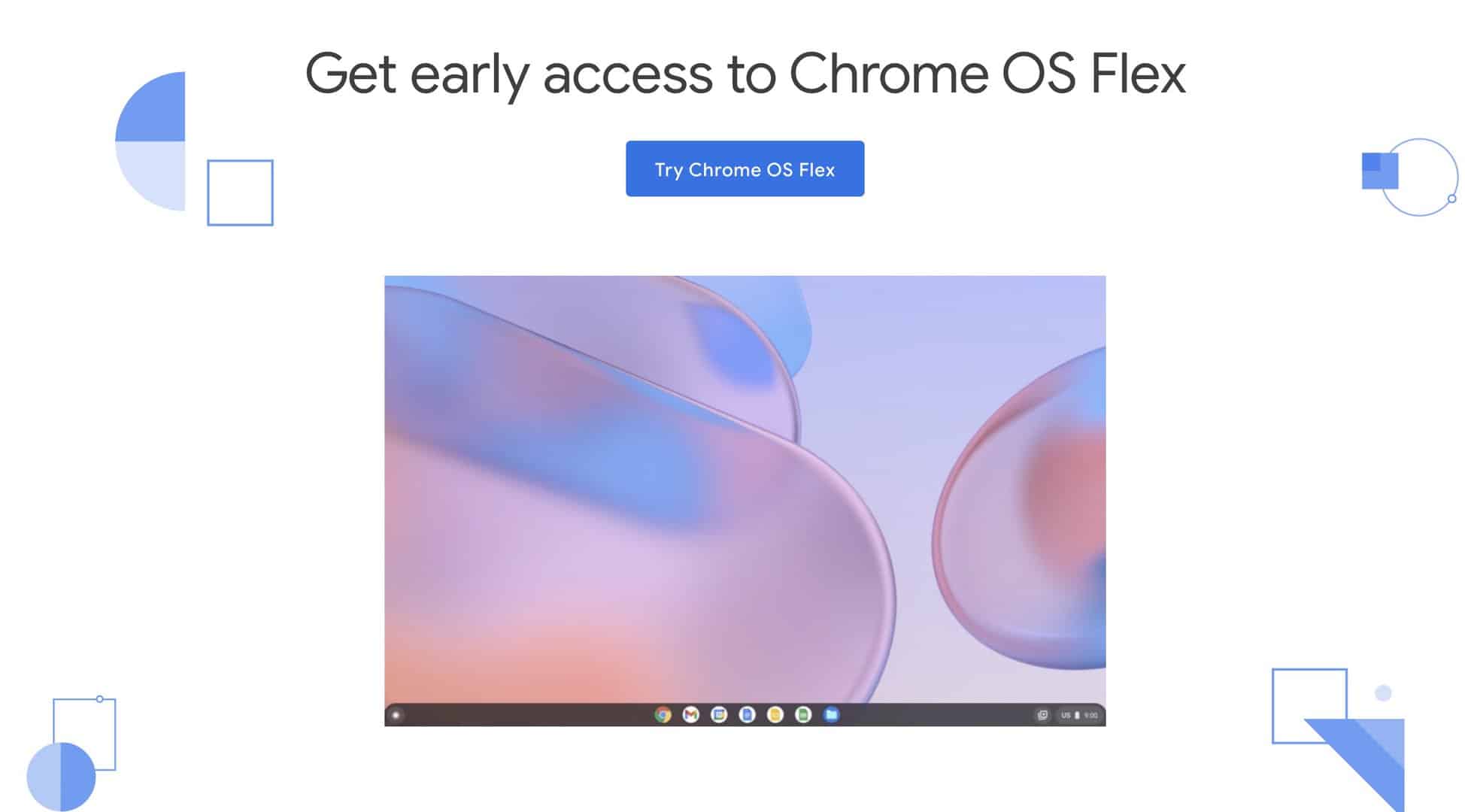
The primary method for installing a Chrome OS experience on non-Chromebook hardware is through ChromeOS Flex. This is Google’s official, free-to-use cloud-first operating system designed for PCs and Macs. It’s built on the same foundation as Chrome OS found on Chromebooks, offering the same security, speed, and cloud-centric features. While historically other projects like Neverware’s CloudReady existed (which Google acquired and transformed into ChromeOS Flex), and community-driven projects like FydeOS offer enhanced features, ChromeOS Flex is the recommended and most stable option for most users.
You won’t “download ChromeOS Flex” in the traditional sense. Instead, you’ll use a specific tool to create a bootable USB drive.
Crafting Your Bootable USB Drive
This is where the magic begins. You’ll need a USB flash drive and a working computer (Windows, macOS, or another Chrome OS device) to create the installer.
- USB Drive Requirements:
- Capacity: 8 GB or larger.
- Condition: It must be empty, as the creation process will erase all data on it. It’s recommended to use a high-quality, reliable USB 3.0 drive for faster creation and installation.
- The Tool: Chromebook Recovery Utility (CRU):
- This is the officially recommended tool by Google for creating ChromeOS Flex installation media. It’s a Chrome browser extension, making it incredibly accessible.
- Steps to use CRU:
- Open the Chrome browser on your working computer.
- Go to the Chrome Web Store and search for “Chromebook Recovery Utility.”
- Install the extension.
- Once installed, launch the utility.
- Click “Get started.”
- When prompted to “Identify your Chromebook,” click “Select a model from a list.”
- From the manufacturer list, choose “Google ChromeOS Flex.”
- From the product list, select “ChromeOS Flex.”
- Click “Continue.”
- Insert your USB drive when prompted and select it from the dropdown list.
- Click “Continue” and then “Create now.”
- The utility will download the ChromeOS Flex image and write it to your USB drive. This process can take a significant amount of time depending on your internet speed and USB drive performance.
- Once complete, you’ll receive a confirmation message. Safely eject the USB drive.
Alternative Tool: Etcher (for advanced users or if CRU fails):
While CRU is official, open-source tools like Balena Etcher can also be used if you prefer a standalone application or encounter issues with CRU. You would need to manually download the ChromeOS Flex image (often provided as an alternative download link or extracted from CRU’s temporary files, though this is less straightforward). For beginners, CRU is strongly recommended.
Essential Pre-Installation Steps
Before you even think about booting from your newly created USB drive, there are a few critical steps to undertake to safeguard your data and ensure a smooth transition.
- Backup Your Data: This is paramount. Installing a new operating system will typically wipe your primary storage drive. Ensure all important documents, photos, videos, and any other critical files are backed up to an external hard drive, a cloud service (like Google Drive, OneDrive, or Dropbox), or another computer. Do not skip this step! Data loss can be catastrophic and often irreversible. For businesses handling client data or sensitive financial information, a robust backup strategy is part of good digital security and brand reputation management.
- Charge Your Device: Ensure your laptop or desktop has sufficient power. For laptops, it’s best to keep them plugged into an AC adapter throughout the process to prevent unexpected shutdowns.
- Disable Secure Boot and Fast Boot (if applicable): Many modern computers with UEFI firmware have “Secure Boot” and “Fast Boot” enabled by default. These features can sometimes prevent booting from non-standard USB drives. You’ll need to access your BIOS/UEFI settings (typically by pressing F2, F10, F12, DEL, or ESC during startup) and disable these options. Refer to your computer’s manufacturer manual for specific instructions on accessing BIOS/UEFI.
- Identify Your Boot Menu Key: While in the BIOS/UEFI settings, also identify the key that brings up the “Boot Menu” (e.g., F12, F9, ESC). This allows you to select your USB drive as the boot device without permanently changing your boot order.
The Installation Journey: Step-by-Step Guide to ChromeOS Flex
With your preparations complete, you’re ready to embark on the installation of ChromeOS Flex. The process is designed to be intuitive, guiding you through each stage.
Booting from the USB Drive
- Insert the USB: With your computer turned off, insert the ChromeOS Flex bootable USB drive into an available USB port.
- Power On and Access Boot Menu: Power on your computer and immediately begin pressing the “Boot Menu” key repeatedly (e.g., F12, F9, ESC, depending on your device). This should bring up a temporary boot device selection menu.
- Select USB Drive: From the boot menu, select your USB drive. It might be listed by its brand name (e.g., “SanDisk Cruzer”) or as “USB HDD” or “UEFI USB Device.” Use the arrow keys to navigate and Enter to select.
- ChromeOS Flex Welcome Screen: If successful, your computer will boot from the USB drive and eventually display the “Welcome to CloudReady” (or “Welcome to ChromeOS Flex”) screen. This confirms you’ve successfully booted into the live environment.
Navigating the ChromeOS Flex Installer
Once you’re in the live environment, you have two primary options: “Try it first” or “Install CloudReady” (or “Install ChromeOS Flex”).
- Choose Your Language and Keyboard Layout: On the welcome screen, select your preferred language and keyboard layout from the dropdown menus.
- “Try it first” (Highly Recommended): Before committing to a full installation, it’s highly advisable to choose “Try it first.” This allows you to run ChromeOS Flex directly from the USB drive without touching your internal storage.
- Test Drive: Use this opportunity to test key hardware components like Wi-Fi, Bluetooth, trackpad/mouse, display, and sound. Ensure all essential functions work as expected. This step is crucial for identifying any unforeseen compatibility issues on older hardware before you erase your existing operating system.
- Guest Mode: During this live session, you’ll be in guest mode. You can browse the web, access some basic apps, and get a feel for the OS. You won’t be able to save files permanently or install new applications, but it’s perfect for a quick compatibility check.
- Initiate Installation: Once you’re satisfied with the live environment and have confirmed basic hardware functionality:
- Click on the “Install CloudReady” (or “Install ChromeOS Flex”) option, typically located in the bottom right corner of the screen.
- A warning message will appear, informing you that all data on your hard drive will be erased. Confirm that you have backed up all important data. If you haven’t, stop here, reboot into your old OS, and perform a backup immediately.
- Click “Install CloudReady” (or “Install ChromeOS Flex”) again to confirm.
- The installation process will begin. It will copy the OS files to your internal hard drive. This can take anywhere from 10 to 30 minutes, depending on the speed of your USB drive and internal storage.
- Do not power off your computer or remove the USB drive during this process.
Initial Configuration and Google Account Integration
After the installation is complete, your computer will shut down.
- Remove USB and Reboot: Remove the USB installation drive. Power on your computer. It should now boot directly into ChromeOS Flex from your internal storage.
- Welcome Screen (Post-Installation): You’ll be greeted by another welcome screen, prompting you to set up your new operating system.
- Connect to Wi-Fi: Select your Wi-Fi network and enter the password. An internet connection is essential for the initial setup, updates, and Google account login.
- Accept Terms and Conditions: Review and accept the ChromeOS Flex Terms of Service.
- Sign in with Google Account: This is the cornerstone of the Chrome OS experience. You will be prompted to sign in with your Google account (the same one you use for Gmail, YouTube, Google Drive, etc.).
- Why a Google Account? Your Google account serves as your profile, syncing all your settings, browser history, installed web apps, and cloud data. It’s how ChromeOS provides its seamless, personalized, and secure experience. For individuals leveraging ChromeOS for online income or business operations, this integration provides a robust platform for managing digital assets and workflows.
- Creating a New Account: If you don’t have one, you can create a new Google account during this step.
- Sync Settings (Optional): You’ll be asked if you want to sync your settings from other Chrome OS devices or Chrome browser profiles. This is where the cloud-first advantage truly shines, instantly personalizing your new OS.
- Finalize Setup: Follow any remaining on-screen prompts, which may include setting up Google Assistant or reviewing privacy settings.
- Welcome to ChromeOS Flex! After these steps, you’ll be presented with the ChromeOS desktop. Congratulations, you’ve successfully installed ChromeOS Flex!
Post-Installation Mastery: Optimizing Your ChromeOS Experience
Installing ChromeOS Flex is just the beginning. To truly harness its power and align it with your personal or professional goals, a few post-installation steps and optimizations are highly recommended.
Diving into the Chrome OS Ecosystem: Apps and Extensions
One of the biggest advantages of ChromeOS is its access to a rich ecosystem of applications and extensions that enhance productivity, security, and user experience.
- Web Apps and PWAs: The Chrome browser is your gateway to thousands of web applications. Many popular services like Slack, Zoom, Microsoft 365 (web versions), Adobe Creative Cloud (web versions), and various financial tools operate flawlessly within the browser. Look for “Install app” prompts in the browser’s address bar for Progressive Web Apps (PWAs), which behave like native applications, complete with their own window and desktop icon. This emphasizes a fundamental tech trend: the increasing capability and prevalence of web-based software.
- Chrome Web Store Extensions: Enhance your browser’s functionality with extensions for password management (e.g., LastPass, 1Password), ad blocking, grammar checkers (e.g., Grammarly), productivity timers, and specialized tools for brand analytics or marketing. Carefully curate your extensions to avoid clutter and potential security risks. Focus on well-reviewed extensions from reputable developers.
- Android App Integration (Limited for Flex): While native Chromebooks widely support Android apps via the Google Play Store, ChromeOS Flex’s support is dependent on hardware compatibility and is generally more limited or not available. Do not expect full Android app compatibility; focus on the web app experience first. However, if your specific hardware configuration supports it, this unlocks another vast library of applications, further blurring the line between traditional desktops and mobile devices, and offering new avenues for online income generation or specialized tasks.
Maintaining Security and Performance
ChromeOS is designed for minimal user intervention, but a few practices can further ensure optimal security and performance.
- Regular Updates: ChromeOS Flex updates automatically, but it’s good practice to occasionally check
Settings > About ChromeOS > Check for updatesto ensure you’re on the latest version. These updates often contain critical security patches and performance improvements, underscoring the “Digital Security” aspect of modern tech. - Browser Security Settings: Regularly review your Chrome browser’s privacy and security settings. Pay attention to site permissions, cookie management, and safe browsing features.
- Password Management: Utilize a strong password manager (either a built-in one or a reputable extension) to generate and store complex, unique passwords for all your online accounts. This is a crucial element of personal digital security.
- Clear Browser Data: Periodically clear your browser cache and cookies to free up space and maintain performance, especially if you experience any slowdowns.
- Monitor Storage: While ChromeOS Flex is lean, downloaded files and cached data can accumulate. Use the “Files” app to manage your downloads and free up space if needed. Remember, much of your data should reside in the cloud.
Leveraging Chrome OS for Professional & Personal Branding
While ChromeOS might not be the traditional platform for high-end graphic design or video editing, its strengths in productivity, security, and accessibility offer unique advantages for professionals and entrepreneurs looking to build or maintain their brand.
- Reliable and Professional Presentation: A fast, responsive, and secure operating system ensures smooth presentations, seamless video calls, and quick access to information during client meetings or networking events. This reliability contributes to a professional image, demonstrating competence and efficiency.
- Cost-Effective Infrastructure: For startups, freelancers, or small businesses, leveraging ChromeOS Flex on repurposed hardware provides a cost-effective yet powerful computing infrastructure. This financial shrewdness can be subtly communicated as part of an efficient and resourceful brand identity.
- Focus on Cloud Collaboration: ChromeOS naturally pushes users towards cloud-based collaboration tools (Google Workspace, Slack, Trello, Asana). Mastering these tools and seamlessly integrating them into your workflow positions you as a forward-thinking professional adept at modern remote work and collaborative environments – a valuable trait in today’s distributed workforce.
- Digital Security as a Brand Asset: In an age of increasing cyber threats, demonstrating a commitment to digital security, even through your choice of OS, can be a subtle but powerful aspect of your professional brand. Using a secure platform like ChromeOS Flex shows you prioritize data integrity and client confidentiality.
Conclusion: Embrace the Future of Cloud-Centric Computing
The decision to install ChromeOS Flex on your existing hardware is more than just a technical upgrade; it’s an investment in a more efficient, secure, and potentially more financially savvy computing future. By repurposing older devices, you’re not only extending their lifespan but also tapping into Google’s robust, cloud-first ecosystem designed for the demands of modern productivity and digital security.
We’ve explored the compelling reasons for making the switch – from the unparalleled speed and productivity enhancements to its fortified security architecture and significant cost-saving potential. We’ve guided you through the essential preparations, the step-by-step installation process, and crucial post-installation optimizations.
Whether you’re looking to streamline your personal digital life, equip your small business with a lean and secure IT infrastructure, or simply curious about the next wave of computing, ChromeOS Flex offers a compelling solution. It empowers you to focus on what truly matters: your work, your projects, and your digital well-being, all while benefiting from Google’s continuous innovation in the tech landscape. So, take the leap, unlock the full potential of your device, and embrace the future of cloud-centric computing with ChromeOS Flex.
aViewFromTheCave is a participant in the Amazon Services LLC Associates Program, an affiliate advertising program designed to provide a means for sites to earn advertising fees by advertising and linking to Amazon.com. Amazon, the Amazon logo, AmazonSupply, and the AmazonSupply logo are trademarks of Amazon.com, Inc. or its affiliates. As an Amazon Associate we earn affiliate commissions from qualifying purchases.