
In the dynamic landscape of web development, striking a balance between performance, flexibility, and cost-effectiveness is paramount. This guide delves into a powerful combination that empowers developers and system administrators: integrating Common Gateway Interface (CGI) applications with OpenLiteSpeed, all hosted on a robust Vultr cloud instance. While modern web frameworks often overshadow CGI, its simplicity and ability to interface with virtually any programming language continue to make it a valuable tool for specific tasks, legacy applications, or custom scripting that requires direct server interaction. OpenLiteSpeed, a lightweight yet incredibly powerful web server, offers exceptional performance, while Vultr provides the agile, scalable, and affordable cloud infrastructure needed to bring your projects to life.
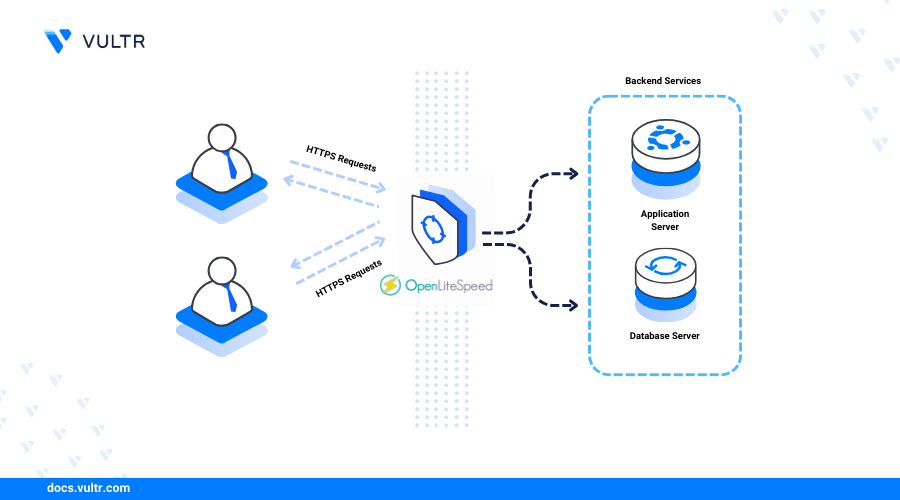
This comprehensive tutorial will walk you through the entire process, from setting up your Vultr instance to configuring OpenLiteSpeed, deploying a sample CGI script, and ensuring everything runs smoothly. We’ll cover the essential steps, best practices, and troubleshooting tips to help you leverage this versatile setup for your web projects, whether you’re handling data processing, form submissions, or dynamic content generation.
Understanding the Foundation: CGI, OpenLiteSpeed, and Vultr
Before diving into the technical configurations, it’s crucial to grasp the roles and benefits of each component in our setup. A clear understanding of CGI, OpenLiteSpeed, and Vultr will not only make the installation process smoother but also help you appreciate the robust environment you’re creating.
What is CGI and Why is it Still Relevant?
The Common Gateway Interface (CGI) is a standard protocol that defines how an external executable program (a CGI script) interacts with a web server. When a web server receives a request for a CGI script, it executes the script, and the script’s output is then sent back to the browser as part of the HTTP response. This allows web servers to deliver dynamic content, unlike static HTML files.
While more modern alternatives like FastCGI, WSGI, and application servers have emerged, CGI remains relevant for several reasons:
- Simplicity: It’s straightforward to implement, especially for simple scripts or command-line tools that need a web interface.
- Language Agnostic: CGI scripts can be written in virtually any programming language (Perl, Python, C++, Ruby, Shell scripts, etc.), as long as the server can execute them. This offers immense flexibility for integrating existing scripts or leveraging specific language strengths.
- Direct Server Interaction: For tasks requiring direct access to server resources or system commands, CGI provides a clear and direct mechanism.
- Legacy Systems: Many older but still critical web applications rely on CGI, making its support essential for maintenance and migration.
OpenLiteSpeed: A High-Performance Web Server
OpenLiteSpeed (OLS) is a powerful, open-source web server known for its exceptional performance, scalability, and resource efficiency. It’s the open-source version of LiteSpeed Web Server Enterprise, sharing much of its core technology, including an event-driven architecture that excels at handling high traffic with minimal resource consumption.
Key advantages of OpenLiteSpeed include:
- Speed: OLS boasts impressive speed benchmarks, often outperforming Apache and Nginx, especially when dealing with dynamic content.
- Resource Efficiency: Its event-driven model consumes fewer resources (CPU and RAM) compared to process-based servers like Apache, making it ideal for Vultr instances where resource optimization is key.
- Ease of Use: It comes with a user-friendly WebAdmin GUI, simplifying server configuration and management tasks, which is a significant plus for both beginners and experienced administrators.
- Mod_Rewrite Compatibility: OLS supports Apache’s
.htaccessrewrite rules directly, making migrations from Apache much smoother. - Built-in Caching: It offers robust caching capabilities that can further boost website performance.
Vultr: Your Agile Cloud Infrastructure
Vultr is a leading cloud provider offering high-performance SSD cloud servers across numerous data centers worldwide. It’s renowned for its balance of speed, reliability, and competitive pricing, making it an excellent choice for deploying web applications, including those powered by OpenLiteSpeed and CGI.
Benefits of hosting on Vultr include:
- Global Reach: Deploy instances in data centers strategically located around the globe, ensuring low latency for your target audience.
- High Performance: Vultr instances come with NVMe SSDs and powerful processors, guaranteeing fast application response times.
- Scalability: Easily scale your resources up or down as your needs change, providing flexibility for fluctuating traffic demands.
- Affordability: Vultr offers a range of pricing plans, including hourly billing, making it cost-effective for projects of all sizes.
- Ease of Deployment: With a straightforward control panel and one-click app installs, setting up a server is quick and intuitive.
Preparing Your Vultr Instance for CGI Integration
Before we can configure OpenLiteSpeed for CGI, we need to ensure our Vultr instance is properly set up and ready. This involves creating the instance, establishing secure access, and updating the system with necessary packages.
Initial Server Setup and SSH Access
First, you’ll need a Vultr instance. If you don’t have one already, follow these steps:
- Log in to Vultr: Go to the Vultr website and log in to your account.
- Deploy a New Server: Click the “Deploy New Server” button.
- Choose a Server Type: Select “Cloud Compute” for general-purpose usage.
- Select Server Location: Choose the data center closest to your target audience for optimal performance.
- Choose Server Image: We recommend selecting an operating system like Ubuntu (e.g., Ubuntu 22.04 LTS) for its widespread support and package availability. You could also opt for a Vultr marketplace app that pre-installs OpenLiteSpeed, which would simplify a later step. For this guide, we’ll assume a fresh OS install.
- Select Server Size: Choose a server size that meets your anticipated resource needs. A 1 CPU, 1GB RAM instance is usually sufficient for testing and small-to-medium applications.
- Add SSH Keys (Recommended): For enhanced security, add your SSH public key. This allows you to log in without a password.
- Enter Server Hostname & Label: Give your server a recognizable name.
- Deploy Now: Click the “Deploy Now” button to provision your server.
Once deployed, you’ll receive the server’s IP address and root password (if you didn’t use SSH keys). Open your terminal (Linux/macOS) or an SSH client like PuTTY (Windows) and connect to your server:
ssh root@your_server_ip_address
If prompted, accept the server’s fingerprint. If using a password, enter it.
Updating Your System and Essential Packages
With SSH access established, the next crucial step is to ensure your server’s package list and installed software are up-to-date. This prevents security vulnerabilities and ensures compatibility. We’ll also install some essential packages that are often required for CGI scripts.
sudo apt update
sudo apt upgrade -y
Next, install any necessary build tools and common CGI interpreters if they aren’t already present. For instance, Perl and Python are very common for CGI scripts.
sudo apt install -y build-essential perl python3
build-essential is often needed if your CGI scripts require compilation or specific C libraries. perl and python3 provide the interpreters for many CGI applications.
OpenLiteSpeed Installation (If Not Pre-installed)
If you chose a plain OS image on Vultr, you’ll need to install OpenLiteSpeed manually. If you used a Vultr marketplace app that includes OLS (like “LiteSpeed WordPress” or “LiteSpeed Web Server”), you can skip this section as OLS will already be installed.
To install OpenLiteSpeed, you can add the LiteSpeed repository and install from there:
wget -O - http://rpms.litespeedtech.com/litespeed.repo | sudo bash
sudo apt update
sudo apt install -y openlitespeed
After installation, the OpenLiteSpeed service should start automatically. You can verify its status:
sudo systemctl status openlitespeed
You’ll also need to set an administrator password for the OpenLiteSpeed WebAdmin console. The default username is admin.
sudo /usr/local/lsws/admin/misc/admpass.sh
Follow the prompts to set a strong password. Note the port for the WebAdmin console, which is typically 8088.
Configuring OpenLiteSpeed for CGI Execution
With OpenLiteSpeed up and running, the next major step is to configure it to correctly handle CGI scripts. This involves using the WebAdmin interface to define an external application for CGI and then setting up a script handler within your virtual host.
Accessing the OpenLiteSpeed WebAdmin Panel
To begin the configuration, you’ll need to access the OpenLiteSpeed WebAdmin panel through your web browser.
Navigate to: https://your_server_ip_address:8088
You might encounter a security warning about the self-signed SSL certificate; you can safely proceed. Log in using the admin username and the password you set in the previous step.
Enabling the CGI Handler
The first step within the WebAdmin panel is to define an “External Application” that tells OpenLiteSpeed how to execute CGI scripts.
-
Navigate to External App: In the left-hand navigation menu, go to Server Configuration > External App.
-
Add New External App: Click the ‘+’ (Add) button to add a new external application.
-
Select Type: From the dropdown menu, choose
CGI Wrapper. Click Next. -
Configure CGI Wrapper:
- Name:
CGI(or any descriptive name, e.g.,PerlCGI,PythonCGI). - Address:
uds://tmp/lshttpd/cgi.sock(This is a Unix Domain Socket, generally recommended for performance and security). - Max Connections:
10(Adjust as needed based on expected load,5-20is a good starting range). - Environment: This is crucial for passing environment variables to your CGI scripts. You can add variables like
PATHorPERL5LIBif your scripts rely on specific binaries or libraries not in the default path. For a basic setup, you might not need to add anything here initially. - Auto Start:
Yes - Command:
/usr/bin/perlor/usr/bin/python3or/usr/local/bin/php-cgidepending on your primary CGI language. Ensure this path is correct for your system. If using a Perl script, for example, ensure the shebang in your script matches this. For generic CGI, you might leave this blank or point it to a shell interpreter if your scripts have explicit shebangs. A common practice is to point to the desired interpreter for a specific CGI type (e.g.,PerlCGIpointing to/usr/bin/perl). For maximum flexibility across different script types, you might use a generic approach or multiple handlers. For a general “CGI Wrapper”, OLS will respect the script’s shebang, but for specificCGItype, specifying theCommandcan ensure certain scripts are run with a particular interpreter. Let’s assume for general CGI execution that we’ll rely on the script’s shebang. So you might leaveCommandblank here. However, to explicitly define it: let’s go with/usr/bin/perlfor a Perl example. - Backlog:
100(Default is usually fine) - Instances:
1(For simple setups) - Run On Startup:
Yes - Memory Soft Limit/Hard Limit:
0(Use default OS limits or configure for resource control) - Process Group:
Yes - Auto Recover Timeout:
30 - CGI Umask:
007(Default is usually fine) - Ext. Max Idle Time:
60
- Name:
-
Click Save.
Setting Up Virtual Host Context for CGI

After defining the external application, you need to tell your specific virtual host (e.g., your default website) how to use this CGI handler for certain file types or directories.
-
Navigate to Virtual Hosts: In the left-hand navigation menu, go to Virtual Hosts.
-
Edit Your Virtual Host: Click the ‘View/Edit’ icon next to your default virtual host (usually
ExampleorDefaultif you haven’t created others). -
Go to Script Handler: Within the Virtual Host configuration, click the ‘Script Handler’ tab.
-
Add New Script Handler: Click the ‘+’ (Add) button.
-
Configure Script Handler:
- Suffixes:
.pl, .cgi, .py(These are the file extensions that OpenLiteSpeed will recognize as CGI scripts. Add any relevant extensions your scripts will use.) - Handler Type: Select
CGI Wrapper. - Handler Name:
CGI(This should match the “Name” you gave your External App in the previous step). - Notes: (Optional) Add a description like “Handles Perl and Python CGI scripts.”
- Suffixes:
-
Click Save.
-
Graceful Restart: After saving changes, you’ll see a “Click to Restart” button at the top of the WebAdmin interface. Click it to apply the changes. OpenLiteSpeed will perform a graceful restart, meaning existing connections won’t be interrupted.
Granting Proper Permissions for CGI Scripts
Permissions are critical for security and functionality. CGI scripts must be executable by the web server user. By default, OpenLiteSpeed runs as the nobody user or a dedicated lsws user.
Create a directory for your CGI scripts, for example, within your virtual host’s document root or a dedicated cgi-bin directory:
sudo mkdir -p /usr/local/lsws/DEFAULT/html/cgi-bin
sudo chown -R nobody:nogroup /usr/local/lsws/DEFAULT/html/cgi-bin
sudo chmod -R 755 /usr/local/lsws/DEFAULT/html/cgi-bin
These commands:
- Create a directory named
cgi-bininside the default virtual host’s document root. - Change the ownership of the directory and its contents to the
nobodyuser andnogroupgroup, which OpenLiteSpeed often uses. - Set appropriate permissions (
755) allowing the owner (nobody) to read, write, and execute, and others to read and execute. This is crucial for the web server to run the scripts.
You might need to adjust the path /usr/local/lsws/DEFAULT/html/ to match your virtual host’s actual document root. You can find this in the WebAdmin panel under Virtual Hosts > yourvirtualhost > General > Document Root.
Developing and Testing Your First CGI Script
Now that OpenLiteSpeed is configured, it’s time to create a simple CGI script and test if everything is working as expected. This “Hello World” equivalent will confirm your setup.
Creating a Sample CGI Script
Let’s create a very basic Perl CGI script. Perl is a classic choice for CGI due to its robust text processing capabilities.
-
Create the script file:
sudo nano /usr/local/lsws/DEFAULT/html/cgi-bin/test.pl -
Add the following content:
#!/usr/bin/perl

print "Content-type: text/htmlnn";
print "<html>n";
print "<head><title>CGI Test</title></head>n";
print "<body>n";
print "<h1>Hello from a CGI script on OpenLiteSpeed!</h1>n";
print "<p>This is a simple Perl CGI script running successfully.</p>n";
print "</body>n";
print "</html>n";
Explanation:
#!/usr/bin/perl: This is the “shebang” line. It tells the server which interpreter to use for executing the script. Make sure the path toperlis correct (which perlin your terminal will confirm it).print "Content-type: text/htmlnn";: This is a critical HTTP header. CGI scripts must output at least theContent-typeheader followed by two newline characters (nn) before any other output. This tells the browser what kind of content to expect.
If you prefer Python:
#!/usr/bin/python3 print("Content-type: text/htmln") print("<html>") print("<head><title>CGI Test</title></head>") print("<body>") print("<h1>Hello from a Python CGI script on OpenLiteSpeed!</h1>") print("<p>This is a simple Python CGI script running successfully.</p>") print("</body>") print("</html>") -
Save and exit: Press
Ctrl+X, thenY, thenEnter.
Setting Executable Permissions
For the script to run, it must have executable permissions.
sudo chmod +x /usr/local/lsws/DEFAULT/html/cgi-bin/test.pl
This command makes the test.pl script executable by all users, including the web server user.
Verifying CGI Functionality
Now, open your web browser and navigate to the URL of your script:
http://your_server_ip_address/cgi-bin/test.pl
If everything is configured correctly, you should see a webpage displaying:
Hello from a CGI script on OpenLiteSpeed!
This is a simple Perl CGI script running successfully.
If you see this output, congratulations! Your OpenLiteSpeed server on Vultr is successfully executing CGI scripts.
Advanced Considerations and Troubleshooting
While the basic setup is now complete, understanding common issues and implementing best practices can save you headaches in the long run.
Debugging Common CGI Issues
Encountering errors is part of the process. Here are common problems and how to troubleshoot them:
-
“500 Internal Server Error”: This is the most common CGI error and can be caused by many things.
- Check Server Logs: The OpenLiteSpeed error log is your best friend. It’s usually located at
/usr/local/lsws/logs/error.log. Look for specific error messages that indicate syntax errors in your script, missing interpreters, or permission problems. - Incorrect Shebang: Ensure the
#!/path/to/interpreterline at the top of your script is correct and the interpreter exists at that path. Usewhich perlorwhich python3to confirm. - Missing
Content-typeHeader: The CGI script must outputContent-type: text/htmlnn(ortext/plain, etc.) as the very first output. Without it, the server won’t know how to send the response to the browser. - Permissions: Double-check that your script file has executable permissions (
chmod +x). Also, ensure the directory containing the script has appropriate permissions (e.g.,755). - Syntax Errors: Run your script directly from the command line on the server to catch basic syntax errors (e.g.,
perl /usr/local/lsws/DEFAULT/html/cgi-bin/test.pl).
- Check Server Logs: The OpenLiteSpeed error log is your best friend. It’s usually located at
-
“Not Found” or “Forbidden”:
- Incorrect Path: Ensure the URL you’re accessing matches the physical location of the script on the server.
- Virtual Host Configuration: Verify that the Script Handler in your OpenLiteSpeed virtual host is correctly set up with the right suffixes and points to the correct CGI Wrapper.
- Directory Permissions: Ensure the
cgi-bindirectory (or wherever your scripts reside) has read and execute permissions for the web server user.
-
Blank Page: If you get a blank page with no errors, it usually means the script ran but produced no output, or there’s an issue with the
Content-typeheader. Check your script’s output logic and ensure the header is properly formatted.
Security Best Practices for CGI
CGI scripts can be a security risk if not handled carefully, as they execute directly on the server.
- Input Validation: Never trust user input. Always validate and sanitize all data received from forms, URL parameters, or headers before using it in your script or interacting with the file system/database.
- Least Privilege: Run CGI scripts with the lowest possible privileges. OpenLiteSpeed’s
nobodyuser is a good start, but if possible, create a dedicated user for your CGI applications with only the necessary permissions. - Error Handling: Implement robust error handling in your scripts to prevent sensitive information from being exposed in error messages.
- Secure Coding: Follow secure coding practices for your chosen language. Avoid directly executing user-provided commands using functions like
system()orexec()without extreme caution and rigorous sanitization. - Keep Software Updated: Regularly update your OpenLiteSpeed server, operating system, and CGI interpreter packages to patch known vulnerabilities.
- Restrict CGI Directories: Only enable CGI execution in specific, designated directories (like
cgi-bin) and avoid allowing execution in your general document root.
Scaling CGI Applications on OpenLiteSpeed
While CGI itself isn’t inherently designed for massive scale, OpenLiteSpeed provides features that can help improve performance for CGI-based applications:
- OpenLiteSpeed Caching: Utilize OLS’s powerful server-side caching mechanisms (like LiteSpeed Cache) for static content or even dynamic content that doesn’t change frequently. This can significantly reduce the number of times your CGI script needs to be executed.
- Load Balancing: For very high-traffic CGI applications, you can distribute requests across multiple Vultr instances running OpenLiteSpeed and your CGI applications, using a load balancer (e.g., Vultr Load Balancers or an external solution).
- Optimize CGI Scripts: Write efficient and optimized CGI scripts. Minimize database queries, expensive computations, and unnecessary file I/O.
- FastCGI: If performance becomes a bottleneck, consider migrating from traditional CGI to FastCGI (FCGI). FastCGI keeps the interpreter processes running, reducing the overhead of starting a new process for each request. OpenLiteSpeed has excellent FastCGI support, which you can configure similarly to CGI, but with a different “External App” type.
Conclusion
By following this guide, you have successfully learned how to install and configure CGI on an OpenLiteSpeed web server hosted on a Vultr cloud instance. This setup offers a flexible and high-performance environment for running dynamic web applications, whether you’re working with legacy systems, integrating custom scripts, or simply prefer the directness of CGI for specific tasks.
The combination of Vultr’s agile and scalable infrastructure, OpenLiteSpeed’s exceptional speed and resource efficiency, and CGI’s language agnosticism provides a powerful toolkit for developers. Remember to prioritize security, validate all user input, and regularly monitor your server for optimal performance and stability. As your needs evolve, OpenLiteSpeed’s features and Vultr’s scalability ensure that your web applications can grow and adapt, making this a reliable foundation for a wide array of web projects. Embrace the versatility, and unleash the full potential of your dynamic web content.
aViewFromTheCave is a participant in the Amazon Services LLC Associates Program, an affiliate advertising program designed to provide a means for sites to earn advertising fees by advertising and linking to Amazon.com. Amazon, the Amazon logo, AmazonSupply, and the AmazonSupply logo are trademarks of Amazon.com, Inc. or its affiliates. As an Amazon Associate we earn affiliate commissions from qualifying purchases.