
In the landscape of digital productivity tools, Microsoft PowerPoint remains the industry standard for visual communication. While the visual slides are designed to capture the audience’s attention, there is a secondary, often underutilized layer of the software that acts as the “brain” of the presentation: Speaker Notes. Technically known as the “Notes Pane,” this feature serves as a private workspace where presenters can store scripts, technical cues, and supplementary data that remain invisible to the audience during a live broadcast or projection.
Understanding the technical nuances of speaker notes is essential for anyone looking to master the art of digital presentation. This guide explores the architecture of speaker notes, how they interface with modern hardware, and the software features that turn a simple slideshow into a sophisticated multi-screen experience.
The Architecture of the Notes Pane: Understanding the Tech Behind the Slide
At its core, a PowerPoint file is more than just a sequence of images and text boxes. It is a structured database of information where each slide contains multiple layers of metadata. The speaker notes reside in a dedicated section of the XML structure of a .pptx file, separate from the visual canvas.
The Hidden Metadata Layer
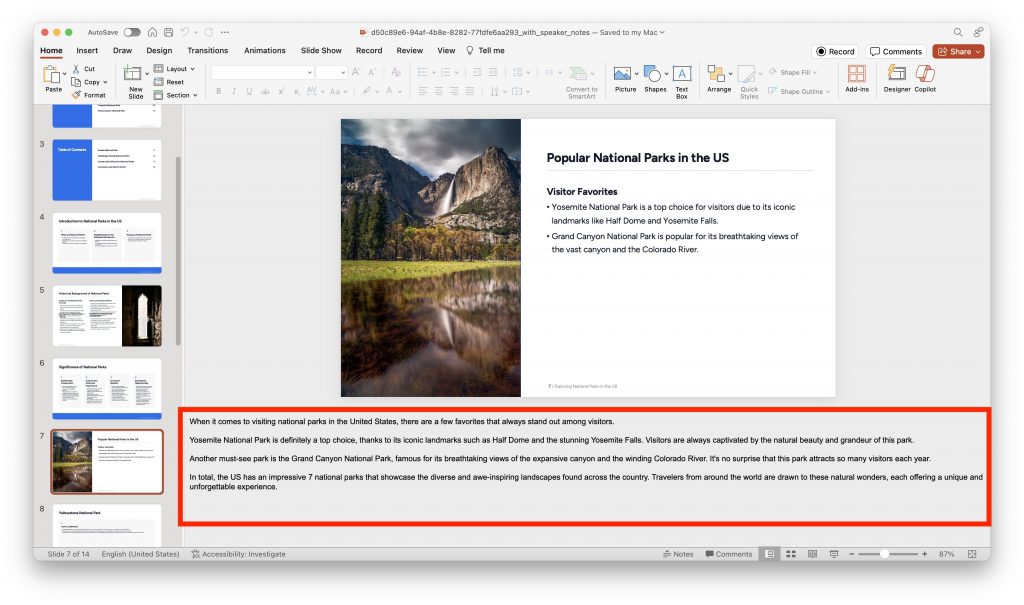
Every slide in a PowerPoint presentation consists of the “Slide Layer” (what the audience sees) and the “Notes Layer” (the backend data). When you type into the Notes Pane at the bottom of the PowerPoint interface, you are populating this hidden layer. This data is tethered to the specific slide ID, ensuring that if you reorder your deck, the notes move seamlessly with their corresponding visuals. This technical synchronization is what makes PowerPoint a robust tool for complex storytelling, as it prevents the misalignment of spoken word and visual aid.
The Interface: Finding the Notes Workspace
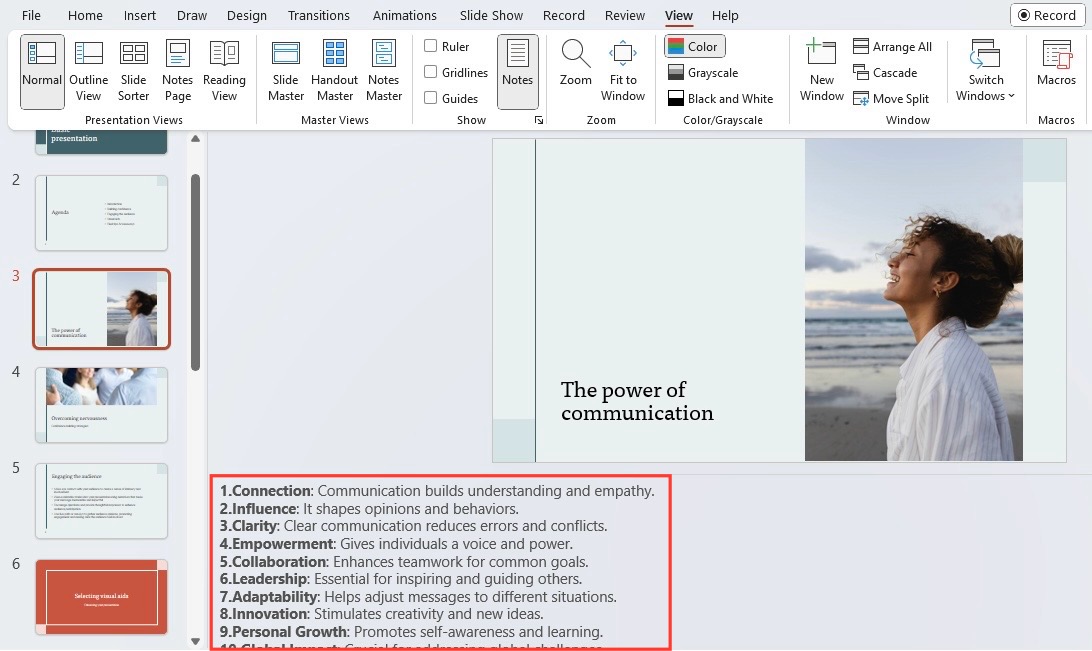
In the desktop version of PowerPoint (both Windows and macOS), the Notes Pane is located directly beneath the main slide window. From a UI/UX perspective, Microsoft has designed this to be toggleable. Users can click the “Notes” button in the status bar at the bottom of the screen or drag the border of the pane upward to expand the workspace. This flexibility allows users to switch between a “design-first” workflow and a “content-first” workflow where the script takes precedence.
Mastering Presenter View: The Hardware-Software Synergy
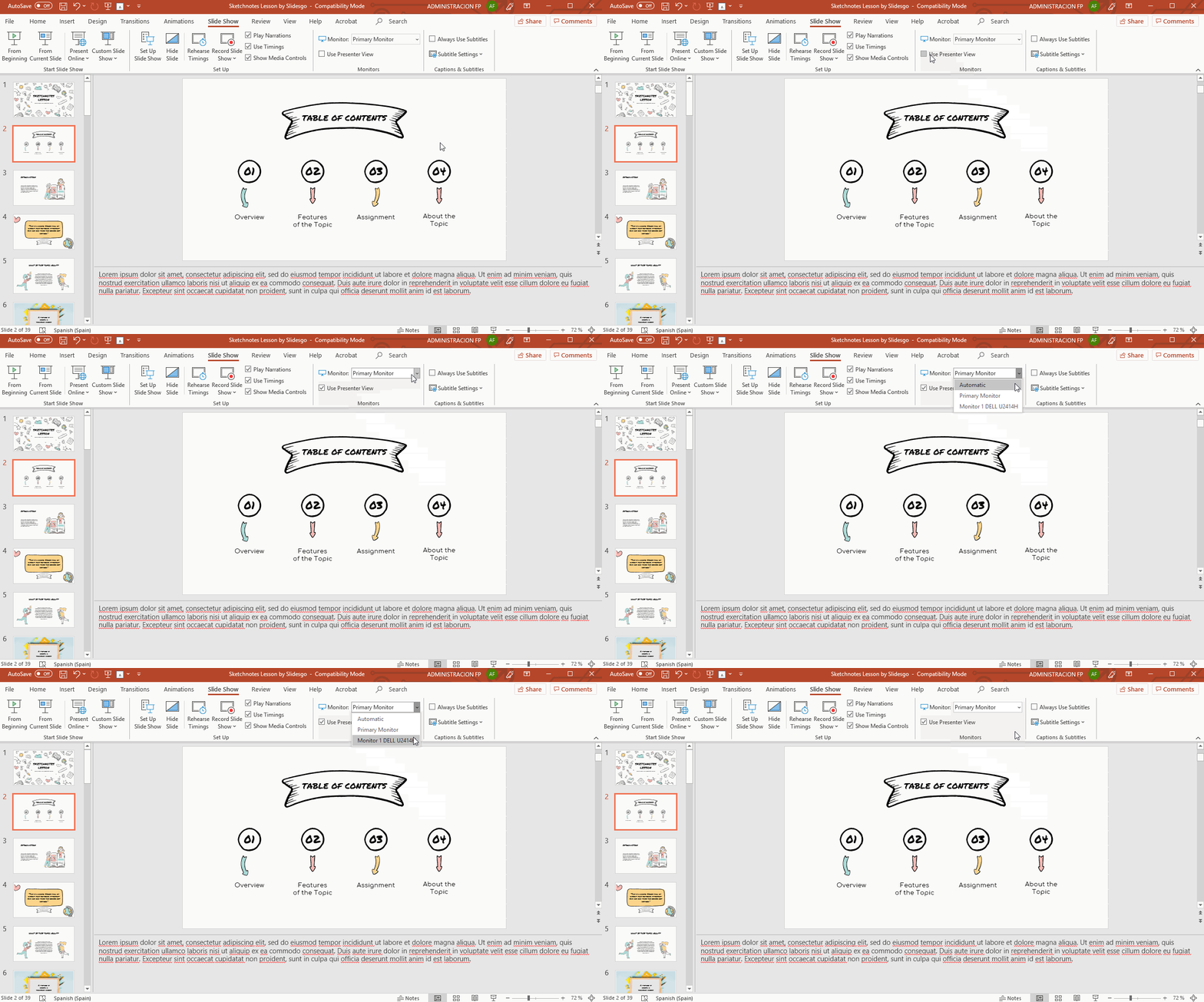
The true technical power of speaker notes is unlocked through a feature called Presenter View. This is a specialized display mode that leverages dual-monitor technology to show the presenter a different interface than what the audience sees.
The Dual-Display Logic
When a computer is connected to a projector or an external monitor, the operating system (Windows or macOS) can either “Mirror” the displays or “Extend” them. Presenter View relies on the “Extend” setting. Technically, PowerPoint sends the full-screen slideshow signal to the secondary output (the projector) while generating a comprehensive control dashboard on the primary output (the laptop screen).
The Presenter View dashboard includes:
- The current slide (large view).
- A preview of the next slide or animation.
- The Speaker Notes pane, featuring adjustable text sizes.
- A running timer and clock for pacing.
- Annotation tools like digital lasers and pens.
Customizing the Presenter UI
One of the most valuable tech features within Presenter View is the ability to scale text dynamically. For presenters standing several feet away from their laptop, the standard font size in the notes pane might be illegible. PowerPoint includes “A” icons (Increase/Decrease Font) specifically within the Presenter View interface. This does not change the font size of the notes themselves in the file; it only scales the UI rendering for the presenter’s current session, demonstrating a thoughtful approach to user accessibility.
Technical Implementation: Adding and Formatting Notes Across Devices
While the basic utility of speaker notes is straightforward, the technical implementation varies across different versions of the Microsoft 365 ecosystem. Mastering these variations ensures that your data remains accessible regardless of the hardware you are using.
Desktop vs. Web: Feature Parity
On the PowerPoint Desktop App, users have access to rich text formatting within the notes. You can use bold, italics, and bullet points to make your script easier to scan. However, when using PowerPoint for the Web, the interface is slightly more streamlined. The notes are still there, but the formatting options may be more limited in the browser-based UI. Despite this, the synchronization is near-instantaneous via OneDrive, meaning notes typed on a desktop will appear on a tablet or web interface within seconds.
Mobile and Tablet Integration
For professionals who present using an iPad or an Android tablet, the tech stack for speaker notes changes. The mobile app utilizes a “Slide Show” mode that can display notes in a “side-car” fashion. This is particularly useful for presenters who prefer to hold a tablet while moving around a stage. The mobile version uses the device’s internal gyroscope and touch interface to scroll through notes, offering a tactile way to keep track of a presentation without being tethered to a lectern.
Accessibility and Dictation
A significant advancement in the technical delivery of speaker notes is the integration of AI-powered Dictation. Instead of typing long scripts, users can use the “Dictate” feature (found on the Home tab) to speak their notes directly into the pane. PowerPoint uses Microsoft’s Azure Speech services to transcribe audio to text in real-time. This not only speeds up the content creation process but also serves as an essential accessibility feature for users with motor impairments or dyslexia.
Advanced Data Management: Printing and Exporting Notes
Speaker notes aren’t just for live performances; they serve as a vital form of documentation. From a technical standpoint, the ability to export these notes allows for the creation of “handout” materials that provide more context than a simple slide deck.
Generating Handouts in Word
PowerPoint offers a sophisticated export function that sends your slides and their corresponding notes to Microsoft Word. This isn’t a simple copy-paste; the software creates a linked table in Word where the slide image sits next to the text. This is a common requirement in corporate and technical environments where a “Leave Behind” document is necessary for stakeholders to review the technical details mentioned during the presentation.
PDF Configuration and Printing
When saving a presentation as a PDF, the default setting often excludes speaker notes. To include them, one must navigate to the “Print” settings and change the “Print Layout” to Notes Pages. Technically, this instructs the software to render a new layout for each page, featuring the slide at the top and the notes below. This is an essential step for presenters who prefer a physical backup in case of hardware failure on-site.
Troubleshooting and Performance Optimization
Even with robust software like PowerPoint, technical glitches can occur. Understanding how to troubleshoot speaker notes can save a presentation from a critical failure.
Resolving Display Conflicts
The most common technical issue with speaker notes is the failure of Presenter View to trigger. This usually stems from the computer’s display settings being set to “Duplicate” instead of “Extend.” If the audience can see your notes, the privacy layer has been breached. Presenters should be familiar with the shortcut Win + P on Windows or the Display settings on Mac to ensure the operating system recognizes the external monitor as a separate workspace.
Security and Privacy of Notes
It is important to remember that speaker notes are embedded within the .pptx file. If you share the file with a client or colleague, they can see your notes. From a digital security perspective, if your notes contain sensitive “off-the-record” information or internal commentary, you should use the Document Inspector tool before sharing. The Document Inspector can automatically scan the file and strip out all speaker notes, creating a “clean” version of the deck for external distribution.
The Future: AI and Presenter Coach
Microsoft is currently evolving speaker notes through “Presenter Coach” (now often called Speaker Progress). This AI tool listens to you practice your presentation and compares your spoken words to the text in your speaker notes. Technically, it uses natural language processing (NLP) to detect if you are simply reading the notes verbatim (which leads to poor engagement) or if you are using too many filler words. This turns the speaker notes pane from a passive storage area into an active training tool.
In conclusion, speaker notes are far more than a digital “cheat sheet.” They are a sophisticated technical feature that leverages dual-display hardware, AI-driven transcription, and complex metadata structures to enhance professional communication. By mastering the Notes Pane and Presenter View, users can ensure their presentations are polished, professional, and technically seamless.
aViewFromTheCave is a participant in the Amazon Services LLC Associates Program, an affiliate advertising program designed to provide a means for sites to earn advertising fees by advertising and linking to Amazon.com. Amazon, the Amazon logo, AmazonSupply, and the AmazonSupply logo are trademarks of Amazon.com, Inc. or its affiliates. As an Amazon Associate we earn affiliate commissions from qualifying purchases.