
In an increasingly mobile world, the ability to perform complex tasks from the palm of your hand has become not just a luxury, but a fundamental expectation. From managing finances to designing brand strategies, our smartphones are central to nearly every aspect of our digital lives. Printing, once a tethered, desktop-bound chore, has undergone a similar revolution, largely thanks to technologies like Apple’s AirPrint. For iPhone users, AirPrint transforms the often-frustrating process of getting digital content onto paper into a fluid, almost magical experience.
Gone are the days of transferring files to a computer, installing drivers, or wrestling with USB cables. AirPrint empowers you to print documents, photos, emails, and web pages directly from your iPhone with just a few taps, wirelessly and effortlessly. This guide delves deep into the world of AirPrint, offering a comprehensive walkthrough on how to leverage this powerful feature, troubleshoot common issues, and integrate it seamlessly into your daily workflow, enhancing your productivity and digital freedom.

Understanding AirPrint: The Foundation of Wireless Printing
Before diving into the practical steps of installation and usage, it’s crucial to grasp what AirPrint is and why it stands out in the crowded landscape of printing solutions. AirPrint is Apple’s proprietary technology that allows iOS, iPadOS, and macOS devices to print to compatible printers over a local Wi-Fi network without the need for additional drivers or software. It’s designed for simplicity and universality, eliminating the traditional barriers associated with printer setup.
What Makes AirPrint a Game-Changer?
The “tech” behind AirPrint is deceptively simple but incredibly effective. It leverages standard network protocols to discover and communicate with printers, meaning your iPhone can “see” and interact with any AirPrint-enabled printer on the same Wi-Fi network. This “plug-and-play” (or rather, “connect-and-print”) functionality is a cornerstone of Apple’s user-experience philosophy, extending the familiar ease of use from your device’s interface to external peripherals.
- Driverless Printing: This is perhaps the biggest advantage. Historically, connecting a computer to a printer required installing specific software drivers, which could often be cumbersome and lead to compatibility issues. AirPrint bypasses this entirely, as the necessary printing protocols are built directly into iOS.
- Cross-Application Compatibility: AirPrint isn’t limited to a single app. Whether you’re in Photos, Mail, Safari, Pages, Numbers, Keynote, or many third-party apps, if the app supports sharing or printing, it almost certainly supports AirPrint. This universal integration is a massive boost to productivity, allowing you to print from virtually any context on your iPhone.
- Enhanced Security: Because AirPrint operates over your local Wi-Fi network, your print jobs typically remain within the confines of your secure home or office network. This provides a layer of privacy and security often preferred over cloud-based printing solutions that route data through external servers.
- Cost-Effectiveness and Sustainability: By simplifying the printing process and making it accessible from mobile devices, AirPrint encourages more thoughtful printing. Users are less likely to print unnecessary documents when the process is so quick and visible, potentially leading to reduced paper and ink waste over time. From a “money” perspective, while not directly saving cash on every print, the streamlined workflow contributes to overall operational efficiency in a business context, indirectly saving time and resources.
In essence, AirPrint is not just a feature; it’s a statement about how technology should interact with our lives – seamlessly, intuitively, and without unnecessary friction. It exemplifies a smart technological integration that enhances the user’s control and convenience.
Preparing for AirPrint: Essential Prerequisites
While AirPrint is incredibly user-friendly, a few foundational elements must be in place for it to function correctly. These prerequisites ensure that your iPhone and printer can communicate effectively.
Your iPhone and iOS Compatibility
First and foremost, your iPhone needs to be running a compatible version of iOS. AirPrint was introduced with iOS 4.2.1, meaning virtually any modern iPhone will support it. If your iPhone is running a significantly older operating system, an update would be necessary. To check your iOS version:
- Go to Settings.
- Tap General.
- Tap About.
- Look for iOS Version.
Keeping your iPhone updated not only ensures AirPrint compatibility but also brings the latest security patches, performance improvements, and new features, which is a crucial aspect of responsible digital security and productivity.
Identifying an AirPrint-Enabled Printer
Not all printers are created equal when it comes to AirPrint. This technology requires specific hardware and firmware on the printer’s side to interpret and execute AirPrint commands. Most major printer manufacturers (HP, Epson, Canon, Brother, Lexmark, Samsung, etc.) have a wide range of AirPrint-compatible models.
How to check if your printer is AirPrint-enabled:
- Look for the AirPrint logo: Some printers will have a small AirPrint logo on the device itself or on its packaging.
- Check the manufacturer’s website: The most reliable way is to visit your printer manufacturer’s official website and search for your specific model. The product specifications will clearly indicate AirPrint compatibility. Many manufacturers also maintain lists of their AirPrint-compatible models.
- Consult the printer’s manual: The user manual that came with your printer will often mention AirPrint if it’s supported.
If your current printer doesn’t support AirPrint, don’t despair entirely. There are often workarounds, such as using specific manufacturer apps (e.g., HP Smart, Epson iPrint), or even third-party solutions that can sometimes bridge the gap, although these often lack the seamlessness of native AirPrint. When purchasing a new printer, especially for a tech-savvy household or business reliant on mobile devices, making sure it explicitly states “AirPrint Compatible” is a smart investment.
The Crucial Wi-Fi Connection
The linchpin of AirPrint functionality is a stable and shared Wi-Fi network. Both your iPhone and your AirPrint-enabled printer must be connected to the same Wi-Fi network. This means they should be connected to the same router and ideally within range of its signal.
To ensure a proper Wi-Fi setup:
- Connect your iPhone to Wi-Fi: Go to Settings > Wi-Fi and ensure your iPhone is connected to your desired network.
- Connect your printer to Wi-Fi: Most modern printers have a setup wizard on their control panel that guides you through connecting to a wireless network. Refer to your printer’s manual for specific instructions, as this process varies by model. For many printers, it involves navigating to a “Wireless” or “Network” settings menu, selecting your Wi-Fi network, and entering the password.
- Verify Network Consistency: Double-check that both devices are on the exact same network name (SSID). If your router broadcasts both 2.4GHz and 5GHz bands with different names (e.g., “MyHomeNetwork” and “MyHomeNetwork_5G”), ensure both devices are connected to the same one. For optimal compatibility, connecting both to the 2.4GHz band can sometimes resolve discovery issues, as some older printers might not fully support 5GHz.
- Network Stability: A strong Wi-Fi signal is essential for reliable printing. If your printer is far from your router, consider using a Wi-Fi extender or moving the printer closer to improve connectivity. Unstable Wi-Fi can lead to failed print jobs or the printer disappearing from your iPhone’s list.
Once these prerequisites are met, your iPhone and printer are ready to communicate, paving the way for effortless wireless printing.
Step-by-Step Guide: How to Print from Your iPhone Using AirPrint
With your iPhone updated and your AirPrint-enabled printer connected to the same Wi-Fi network, you’re ready to experience the magic of wireless printing. The process is remarkably consistent across various applications, reflecting Apple’s commitment to intuitive user interfaces.
Initiating the Print Command
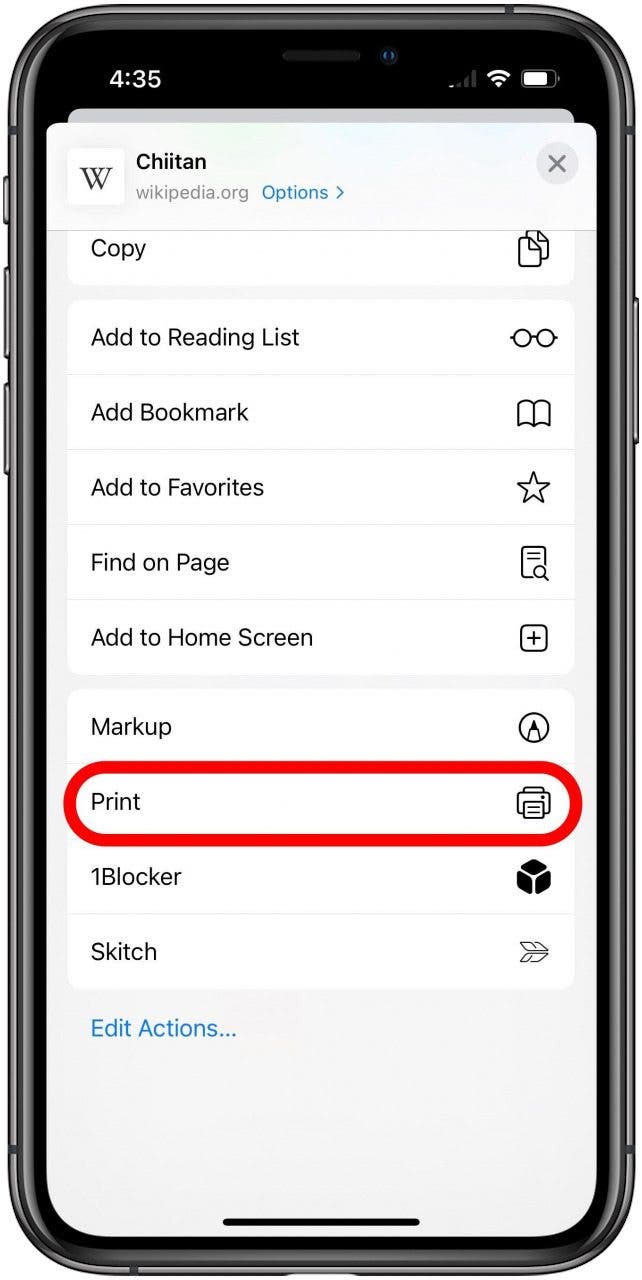
The first step in any AirPrint job is to locate the print option within the app you’re using. This is almost always found within the “Share Sheet” or directly labeled as “Print.”
- Open the App and Content: Navigate to the document, photo, email, or web page you wish to print. Examples include:
- Photos app: Select a photo or album.
- Mail app: Open an email.
- Safari: Browse to a webpage.
- Pages, Numbers, Keynote: Open a document.
- Notes app: Open a note.
- Many third-party apps: Look for a share or action icon.
- Find the Share/Action Icon: This is usually represented by a square with an arrow pointing upwards (↑). Tap this icon. It’s typically located at the bottom of the screen in many apps, or sometimes in the top right corner.
- Scroll and Select “Print”: In the Share Sheet that appears, scroll down through the options until you see “Print.” Tap on it.
This action will open the “Printer Options” screen, which is your control panel for the print job.
Selecting Your AirPrint Printer
Upon opening the “Printer Options” screen, your iPhone will automatically scan the local Wi-Fi network for available AirPrint printers.
- Tap “Select Printer”: At the top of the “Printer Options” screen, you’ll see “No Printer Selected” if you haven’t printed recently, or the name of a previously used printer. Tap on this option.
- Choose Your Printer: A list of all discovered AirPrint printers on your network will appear. Select your desired printer from this list. If your printer does not appear, review the troubleshooting section below. Ensure your printer is powered on and fully awake.
- Confirmation: Once selected, the printer’s name will appear next to “Printer” on the “Printer Options” screen.
Customizing Print Options
Before hitting print, you have the opportunity to customize various aspects of your print job. The available options may vary slightly depending on the app and the capabilities of your printer.

- Copies: Tap the “+” or “-” buttons next to “Copies” to adjust the number of identical copies you want to print.
- Range (for multi-page documents): If you’re printing a multi-page document (e.g., a PDF or a document from Pages), you can tap “Range” to specify which pages to print (e.g., “All Pages,” or a custom range like “1-3”).
- Duplex Printing (Two-Sided): If your printer supports it, you’ll see an option for “Duplex Printing” or “Two-Sided.” You can toggle this on or off to print on both sides of the paper, saving paper and enhancing sustainability – a practical “money” saving tip for bulk printing.
- Black & White/Color: Some apps or printers may offer an option to print in black & white instead of color, which can save on color ink costs.
- Other Settings: Depending on the printer and content, you might occasionally see options for paper size, paper type, or orientation, though these are less common directly within the iPhone’s AirPrint interface compared to a desktop driver.
Executing the Print Job
Once you’ve configured your settings:
- Tap “Print”: Located in the top right corner of the “Printer Options” screen.
- Monitor Your Print Job: Your iPhone will send the data to the printer. You can often monitor the progress by tapping the “Print Center” icon that temporarily appears on your Home Screen (it looks like a document with a printer icon). From here, you can also cancel print jobs if needed.
Your document should now begin printing. It’s that simple!
Troubleshooting Common AirPrint Issues: When Things Don’t Go as Planned
While AirPrint is designed for reliability, technology can sometimes be temperamental. Encountering issues like “No AirPrint Printers Found” or a stalled print job can be frustrating, but most problems have straightforward solutions. This section covers common troubleshooting steps, rooted in practical “tech” diagnostics.
“No AirPrint Printers Found”
This is perhaps the most common issue. If your iPhone can’t detect your printer, here’s a systematic approach to diagnose and resolve the problem:
- Verify Wi-Fi Connection (iPhone & Printer):
- iPhone: Go to Settings > Wi-Fi and ensure your iPhone is connected to the correct network.
- Printer: Check your printer’s control panel or status lights to confirm it’s connected to the exact same Wi-Fi network as your iPhone. Ensure it’s not connected via a guest network, as these often isolate devices for security.
- Power Cycle Everything:
- Printer: Turn your printer off, wait 30 seconds, and turn it back on. This clears its memory and forces it to re-establish network connections.
- iPhone: Restart your iPhone.
- Wi-Fi Router: Unplug your Wi-Fi router from power, wait for 60 seconds, then plug it back in. Allow it a few minutes to fully boot up and re-establish internet and network connections. A router reboot often resolves many network-related communication issues.
- Check Printer Firmware: Ensure your printer’s firmware is up to date. Manufacturers frequently release updates to improve connectivity, fix bugs, and enhance AirPrint compatibility. You can usually find firmware update instructions on your printer manufacturer’s website.
- Network Isolation: Some advanced router settings, like “AP Isolation” or “Client Isolation,” prevent devices on the same network from seeing each other. Check your router’s settings (you’ll usually access these by typing your router’s IP address into a web browser, e.g., 192.168.1.1) and ensure these features are disabled. If you’re using a guest network, switch to the main network.
- Distance and Interference: Ensure your iPhone and printer are within a reasonable range of your Wi-Fi router. Walls, other electronics, and even microwaves can interfere with Wi-Fi signals.
- Reset Network Settings (iPhone): As a last resort on the iPhone side, you can reset its network settings. Go to Settings > General > Transfer or Reset iPhone > Reset > Reset Network Settings. This will clear all Wi-Fi passwords and network configurations, requiring you to reconnect to your Wi-Fi, but it can often resolve persistent connectivity glitches. (Note: this does not erase personal data).
Print Job Fails or Gets Stuck
If your printer appears, but the job doesn’t print or gets stuck in the queue:
- Clear the Print Queue:
- On your iPhone, double-tap the Home button (or swipe up from the bottom on Face ID iPhones) to open the App Switcher.
- Look for the “Print Center” app icon (it appears automatically when a print job is active). Tap it.
- You’ll see your active print jobs. Tap on the job that’s stuck and choose “Cancel Printing.”
- Check Printer Status:
- Look at your printer’s control panel for any error messages (e.g., “Out of Paper,” “Paper Jam,” “Low Ink,” “Cartridge Error”).
- Ensure there’s enough paper and ink/toner.
- Clear any paper jams physically according to your printer’s manual.
- Retry Printing: After resolving any printer-side issues or clearing the queue, try sending the print job again.
- Reboot Printer: Again, a simple power cycle of the printer can often resolve internal processing errors that lead to stalled jobs.
Quality Concerns and Other Printer-Specific Problems
If the print job goes through but the quality is poor (streaks, faded text, incorrect colors):
- Check Ink/Toner Levels: Low ink or toner is the most common cause of poor print quality. Replace cartridges as needed. From a “money” perspective, always buying genuine cartridges or high-quality compatible ones from reputable brands can prevent future quality issues and potential printer damage.
- Clean Print Heads: Most inkjet printers have a built-in cleaning cycle accessible through their control panel or a manufacturer utility app. Running this can clear clogged nozzles.
- Perform Print Head Alignment: If text is blurry or misaligned, your printer might need a print head alignment, also typically found in the printer’s maintenance settings.
- Paper Type: Ensure you are using the correct paper type for your print job. Using plain paper for high-resolution photos, for instance, will yield poor results.
By systematically addressing these troubleshooting steps, you can typically resolve most AirPrint-related issues, ensuring your iPhone printing experience remains smooth and efficient.
Beyond Basic Printing: Maximizing Your AirPrint Experience
AirPrint is more than just a convenient way to print; it’s a tool that can significantly impact productivity, efficiency, and even how you manage your digital life. Exploring its broader implications reveals why it’s a key feature for any iPhone user.
The Benefits of AirPrint Integration for Productivity
For individuals and businesses alike, AirPrint offers tangible benefits that tie directly into “productivity” and “technology trends”:
- On-the-Go Efficiency: Imagine receiving an urgent email with a document that needs to be signed and submitted immediately. With AirPrint, you can open the attachment on your iPhone, print it, sign it, and then use your iPhone again to scan and email it back—all without touching a desktop computer. This streamlines workflows dramatically.
- Mobile Workforce Empowerment: For professionals constantly on the move, AirPrint transforms public Wi-Fi zones (where available and secure) or even client offices (with permission) into potential print hubs. Consultants, real estate agents, or field technicians can print contracts, reports, or handouts directly from their mobile devices, making them more agile and responsive.
- Reduced IT Overhead: In small businesses or home offices, AirPrint significantly reduces the need for IT support related to printer driver installations and compatibility issues. It’s a true “set it and forget it” solution that frees up valuable time and resources.
- Seamless Integration with Cloud Services: As more documents reside in cloud storage (iCloud Drive, Dropbox, Google Drive), AirPrint facilitates the quick printing of these files once accessed on your iPhone, maintaining the fluidity of your digital-to-physical workflow.
Addressing Limitations and Alternative Solutions
While AirPrint excels in its designated role, it does have limitations. Understanding these, and potential “alternative solutions,” is vital for a comprehensive tech strategy:
- Wi-Fi Dependency: AirPrint is strictly a local network solution. You cannot use AirPrint to print to a printer at another location over the internet (unless you’re connected to that remote network via VPN, which is a more advanced scenario).
- AirPrint-Specific Printers: As discussed, only AirPrint-enabled printers work natively. For older or non-AirPrint printers, you might need:
- Manufacturer Apps: Many printer brands offer their own mobile apps (e.g., HP Smart, Epson iPrint, Canon PRINT Inkjet/SELPHY). These apps often provide more advanced printer settings and can print to non-AirPrint models from the same brand.
- Third-Party Print Servers: Solutions like Printopia (for Mac) or various Windows-based services can “AirPrint-enable” older printers by acting as a bridge, though these require a computer to be constantly on and connected to the printer.
- Cloud Printing Services: Services like Google Cloud Print (though being deprecated) or direct email-to-print features offered by some manufacturers allow printing over the internet by sending documents to a printer’s unique email address. These are more suitable for remote printing.
These alternatives represent different “tech trends” in printing, offering flexibility where AirPrint’s directness might fall short. Choosing the right solution depends on your specific needs, existing hardware, and network setup.
Security and Privacy Considerations
In the realm of “digital security,” printing, like any network activity, warrants consideration:
- Local Network Focus: AirPrint’s reliance on your local Wi-Fi network is a double-edged sword. While it keeps your print data within your private network, it also means that anyone else on that same network could potentially print to your printer if they have an iOS device. In a home setting, this is usually fine. In a business or shared office environment, ensure your Wi-Fi is secured with a strong password.
- Secure Wi-Fi: Always use WPA2 or WPA3 encryption for your Wi-Fi network. An open or WEP-encrypted network is highly insecure and could expose not only your print jobs but all your network traffic to eavesdropping.
- Printer Security: Many modern printers have their own security settings, including administrator passwords and network access controls. It’s good practice to secure your printer’s web interface to prevent unauthorized changes to its settings.
- Sensitive Documents: For highly sensitive documents, direct USB connection to a trusted computer remains the most secure method, bypassing network risks entirely.
By understanding these security facets, users can integrate AirPrint responsibly into their digital security practices, ensuring both convenience and peace of mind.
Conclusion
AirPrint has truly revolutionized how we interact with our printers, transforming what was once a cumbersome process into an intuitive and efficient mobile experience. For iPhone users, it embodies the spirit of modern technology – empowering, seamless, and deeply integrated into the digital ecosystem. By understanding its foundational principles, preparing your devices correctly, following the simple steps for printing, and knowing how to troubleshoot common hiccups, you can unlock a new level of productivity and convenience.
From quick photo prints to urgent business documents, AirPrint frees you from the desktop, allowing your iPhone to truly become your ultimate mobile command center. As technology continues to evolve, features like AirPrint will only become more refined, further blurring the lines between our digital content and its physical manifestations. Embrace this powerful feature, and enjoy the effortless freedom of wireless printing directly from your iPhone.
aViewFromTheCave is a participant in the Amazon Services LLC Associates Program, an affiliate advertising program designed to provide a means for sites to earn advertising fees by advertising and linking to Amazon.com. Amazon, the Amazon logo, AmazonSupply, and the AmazonSupply logo are trademarks of Amazon.com, Inc. or its affiliates. As an Amazon Associate we earn affiliate commissions from qualifying purchases.