
In the rapidly evolving landscape of personal computing, the “vintage” of your hardware is more than just a chronological footnote. For Apple users, knowing the exact year and model of a Mac is the cornerstone of effective device management. Whether you are looking to install the latest version of macOS, troubleshooting a hardware glitch, or preparing your device for the secondary market, the question “What year is my Mac?” is the starting point for every technical journey.
Apple’s ecosystem is famous for its longevity, but it is also defined by strict hardware-software synergy. As the transition from Intel-based processors to Apple Silicon continues to reshape the industry, understanding where your specific machine sits on the timeline is essential. This guide provides a deep dive into the technical methodologies for identifying your Mac and explores why this information is critical for your digital security and performance.
Why Identifying Your Mac’s Model Year is Crucial for Performance and Longevity
Before delving into the “how,” it is important to understand the “why.” A Mac’s model year dictates its capabilities, its limitations, and its ultimate lifespan. Apple categorizes its products with surgical precision, and missing a model year by even a few months can mean the difference between a supported machine and a legacy device.
Software Compatibility and macOS Updates
Apple typically provides macOS updates for about seven years after a model’s release. If you are trying to download the latest operating system—such as macOS Sonoma—your Mac must meet specific hardware requirements. Identifying your model year allows you to check Apple’s official compatibility list. Using an outdated OS not only deprives you of new features but also exposes you to security vulnerabilities that are only patched in newer versions.
Hardware Repairability and Vintage Status
Apple maintains a specific classification system for older hardware: “Vintage” and “Obsolete.”
- Vintage products are those that have not been sold for more than five and less than seven years ago. For these, hardware service may still be available from Apple or authorized service providers, subject to part availability.
- Obsolete products are those whose sales were discontinued more than seven years ago. Apple discontinues all hardware service for obsolete products.
Knowing your year helps you manage expectations regarding repairs and battery replacements.
Determining Resale and Trade-In Value
The secondary market for Macs is robust. Unlike many PC manufacturers, Apple devices retain significant value over time. However, a “2019 MacBook Pro” with an Intel chip has a vastly different market value than a “2020 MacBook Pro” with the M1 chip. Accurate identification ensures you receive a fair price when selling or a fair deal when buying used.
The Standard Method: Using the ‘About This Mac’ Feature
For most users whose computers are functional and powered on, the most straightforward path to identification lies within the operating system itself. Apple has integrated a comprehensive summary tool that provides the model name and year within two clicks.
Navigating the Apple Menu
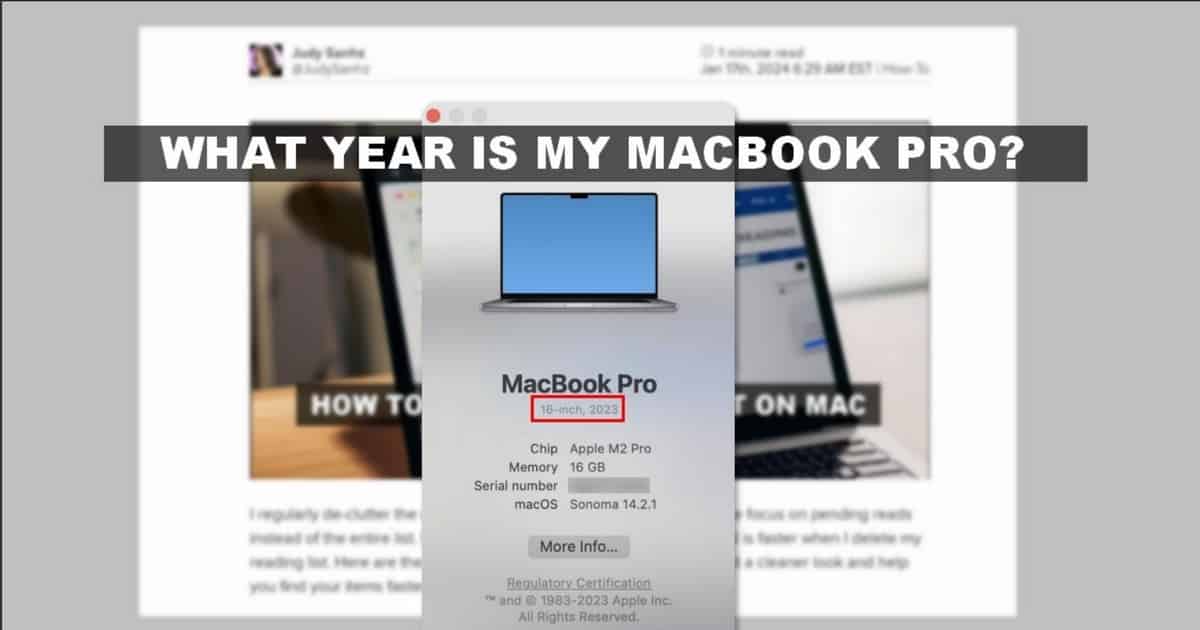
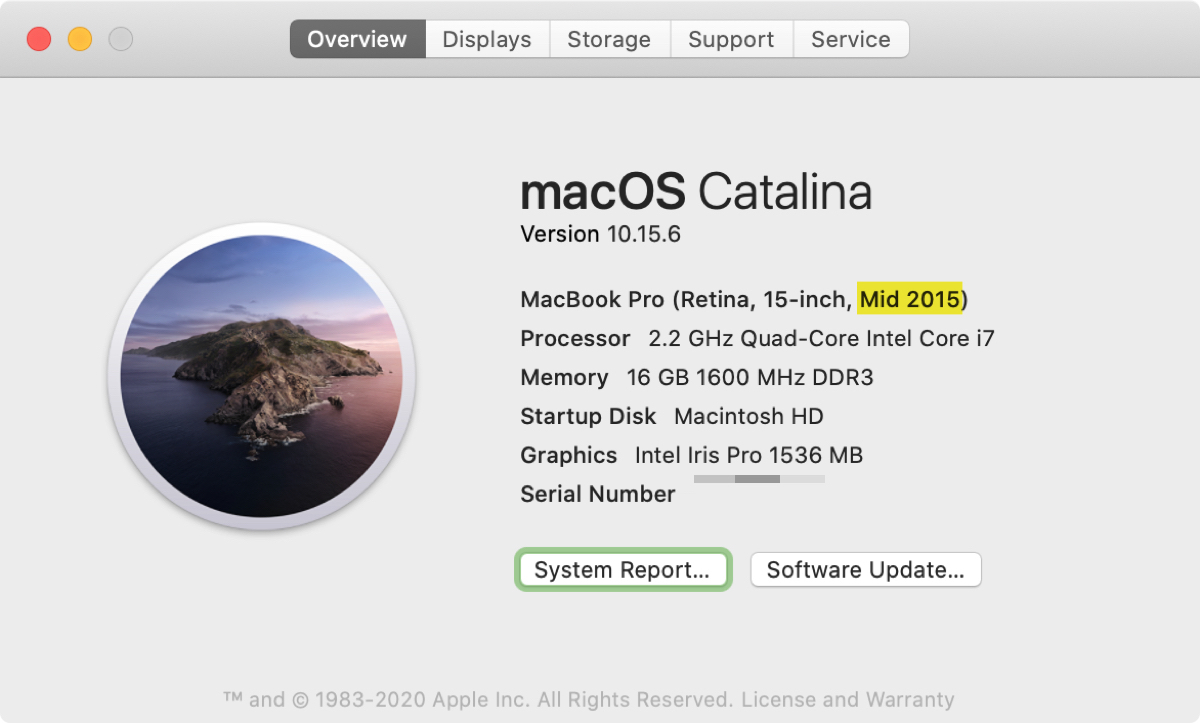
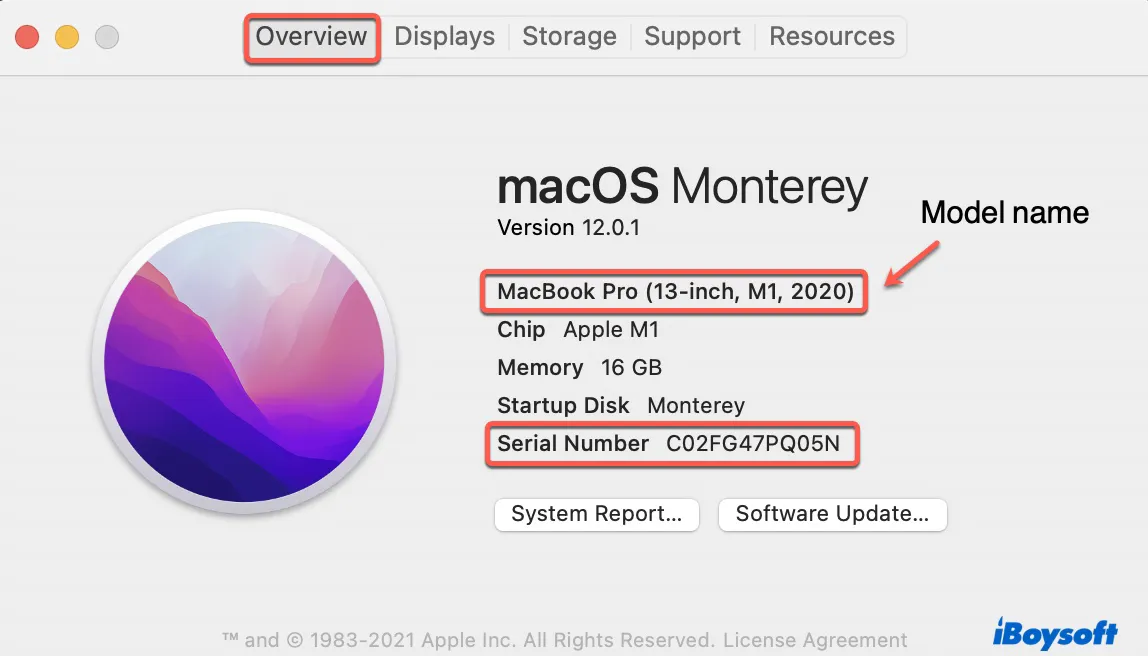
To find your Mac’s information, click the Apple logo () in the top-left corner of your screen and select About This Mac. A window will appear, prominently displaying the model name and year. For example, it might say “MacBook Air (M2, 2022)” or “iMac (Retina 5K, 27-inch, Late 2015).”
This interface also provides crucial data points such as:
- Processor/Chip: This tells you if you are running on an Intel Core i5/i7 or Apple’s M-series (M1, M2, M3).
- Memory: The amount of RAM installed.
- Serial Number: A unique alphanumeric code tied to your specific unit.
Understanding the Model Identifier vs. Marketing Name
While the marketing name (e.g., MacBook Pro 14-inch, 2023) is useful for general purposes, technical support and parts procurement often require the Model Identifier. This is a more granular label, such as “Mac14,5.” You can find this by clicking “More Info” in the About This Mac window (on newer macOS versions) or by opening the System Report. The identifier is the “internal” name used by developers and technicians to distinguish between sub-variants of a specific model year.
Alternative Identification Methods for Non-Booting or Remote Devices
There are scenarios where you cannot simply click the Apple menu—perhaps the screen is broken, the battery is dead, or you are looking at a device you intend to purchase online. In these cases, you must rely on external markers and Apple’s online database.
Using the Serial Number and Apple’s Coverage Page
Every Mac has a serial number printed on its chassis. On MacBooks, this is typically located on the bottom of the case, near the regulatory markings. On iMacs, it is often found on the bottom of the stand. On Mac minis and Mac Studios, it is on the bottom panel.
Once you have the serial number, you can navigate to Apple’s Check Coverage website. By entering the code, Apple’s database will return the exact model name, the year of release, and the status of your warranty. This is the most foolproof way to verify a machine’s identity without booting into the OS.
Checking the Physical Chassis and Packaging
If you still have the original retail packaging, the serial number and full technical specifications are listed on a white label on the box. Additionally, the physical design of the Mac can provide clues. For instance, the presence of a “Touch Bar” indicates a MacBook Pro released between 2016 and 2022. The transition from MagSafe 2 to USB-C charging (and the subsequent return to MagSafe 3) also serves as a chronological roadmap for hardware enthusiasts.
Utilizing System Report for Deep Technical Specs
For those who need to know more than just the year, the System Information app (found in Applications > Utilities) provides a granular look at the hardware. This report includes the “Boot ROM” version, the specific “SMC” (System Management Controller) version, and detailed battery cycle counts. This data is vital for “power users” who are optimizing their machines for high-intensity tasks like video editing or software development.
The Evolution of Mac Generations: Intel vs. Apple Silicon
Understanding the “year” of your Mac is often a quest to understand its architecture. The most significant shift in Apple’s recent history occurred in late 2020, dividing the timeline into two distinct eras.
The Tipping Point: 2020 and the M1 Revolution
In November 2020, Apple began transitioning from Intel processors to its own custom ARM-based chips, known as Apple Silicon. If your Mac is from 2020 or later, it is likely powered by an M1, M2, or M3 chip. This distinction is vital because Apple Silicon Macs offer significantly better performance-per-watt, integrated memory architecture, and the ability to run iPhone and iPad apps natively. Identifying your Mac as “Post-2020” usually means you have a device that will receive software support for many years to come.
How Model Years Dictate Port Selection and Design Language
The year of your Mac also dictates your peripheral ecosystem.
- 2012–2015: These models were the “workhorses,” featuring USB-A ports, HDMI, and SD card slots.
- 2016–2020 (Intel): This era was defined by “minimalism,” where Apple moved exclusively to Thunderbolt 3 (USB-C) ports, necessitating the use of dongles for many users.
- 2021–Present: The modern era has seen a return to “functional” design, with the re-introduction of HDMI ports, SDXC slots, and MagSafe 3 on Pro models.
Security Implications and Long-term Maintenance
Finally, the age of your Mac is a primary factor in your digital security posture. Technology does not just get slower as it ages; it becomes more vulnerable.
Security Patches for “Obsolete” Models
Apple generally provides security updates for the current version of macOS and the two previous versions (the “n and n-2” rule). If your Mac’s year prevents it from running any of the three most recent operating systems, you are likely not receiving critical security patches. In the world of tech, an unpatched machine is a liability. Identifying your Mac’s age allows you to determine if it is time to move your sensitive data to a newer, more secure environment.
Upgrading vs. Replacing Based on Your Mac’s Age
In the past, knowing your Mac’s year helped you decide if you should buy more RAM or a larger SSD. However, in modern Macs (especially those from 2018 onwards), almost all components are soldered to the logic board. This makes the “year” even more definitive. If a 2022 MacBook Air no longer meets your needs, you cannot simply upgrade the hardware; you must replace the machine. Understanding this lifecycle helps in financial planning and ensures that your tech stack remains aligned with your professional or creative requirements.
By mastering the identification of your Mac, you gain full control over your hardware’s lifecycle. From ensuring software compatibility to maximizing resale value, knowing your machine’s vintage is the first step toward a more efficient and secure computing experience.
aViewFromTheCave is a participant in the Amazon Services LLC Associates Program, an affiliate advertising program designed to provide a means for sites to earn advertising fees by advertising and linking to Amazon.com. Amazon, the Amazon logo, AmazonSupply, and the AmazonSupply logo are trademarks of Amazon.com, Inc. or its affiliates. As an Amazon Associate we earn affiliate commissions from qualifying purchases.