
In the vast and diverse world of Linux, package management is a cornerstone of system administration and software deployment. For users of Debian-based distributions like Ubuntu, Mint, Pop!_OS, and countless others, the .deb package format is the standard method for distributing and installing software. Understanding how to effectively handle .deb files is a fundamental skill that empowers users to install applications not found in official repositories, deploy custom software, or access the latest versions of their favorite tools.
This comprehensive guide will walk you through everything you need to know about .deb packages, from their basic structure to various installation methods, dependency management, and essential troubleshooting tips. Whether you’re a budding Linux enthusiast or an experienced user seeking to refine your knowledge, mastering .deb package installation will significantly enhance your productivity and control over your system, aligning perfectly with the technological empowerment ethos of our platform.
Understanding .deb Packages and Their Role in Debian-based Systems
Before diving into the practical steps of installation, it’s crucial to grasp what a .deb package is and why it’s so integral to the Debian ecosystem. This foundational knowledge will demystify the process and help you make informed decisions about the software you install.
What Exactly is a .deb Package?
A .deb file is essentially a standard Unix ar archive that contains all the necessary files and metadata required to install a piece of software on a Debian-based system. Think of it as the Linux equivalent of a .msi file on Windows or a .dmg on macOS, but with a more robust and integrated package management system behind it.
Inside a .deb package, you’ll typically find:
- Control Archive: This directory (
control.tar.gzorcontrol.tar.xz) contains essential metadata about the package, such as its name, version, architecture, a brief description, and—most critically—its dependencies (other packages it requires to function correctly). It also includes maintainer scripts that run before and after installation, upgrade, or removal. - Data Archive: This directory (
data.tar.gzordata.tar.xz) holds the actual program files, libraries, documentation, configuration files, and any other resources that make up the software. These files are unpacked and placed into their respective locations across the file system during installation (e.g.,/usr/binfor executables,/usr/libfor libraries,/etcfor configuration).
The entire system relies on package managers like dpkg, apt, and aptitude to read these .deb files, resolve dependencies, install files to the correct locations, and keep track of all installed software.
Why Use .deb Packages?
While most users primarily interact with software through their distribution’s official repositories and graphical software centers, there are several compelling reasons why you might need to install software directly from a .deb file:
- Access to Newer Versions: Official repositories sometimes lag behind the latest software releases to ensure stability. If you need a cutting-edge feature or a bug fix available only in the newest version, a
.debfile provided by the developer might be your best option. - Proprietary Software: Many proprietary applications (e.g., Google Chrome, Microsoft Teams, Zoom) are not open source and thus aren’t typically included in official open-source repositories. Their developers usually provide official
.debpackages for easy installation on Debian-based systems. - Software Not in Repositories: Smaller projects, niche tools, or beta software might not be widely adopted enough to be included in official distribution repositories. Developers often offer
.debfiles for direct distribution. - Custom Builds or Internal Tools: For developers or organizations,
.debpackages offer a convenient way to distribute custom-built applications or internal tools across multiple machines with consistent configuration. - Offline Installation: If you’re setting up a system without internet access, you can download
.debfiles on another machine and transfer them for offline installation.
While alternatives like Snap, Flatpak, and AppImage offer sandboxed environments and universal packaging, .deb packages remain the native, deeply integrated method for software management on Debian-based systems, offering optimal performance and system integration.
Key Components of a .deb Package
Delving deeper into the structure, understanding the critical components within the control archive provides insight into how package managers operate:
controlfile: This plain text file is the heart of the package metadata. It specifies thePackagename,Version,Architecture,Maintainer,Description, and crucial dependency information (Depends,Recommends,Suggests,Conflicts).preinstscript: Executed before the package is installed. Often used for tasks like stopping services if an older version is running.postinstscript: Executed after the package is installed. Common uses include starting services, updating caches, registering the application, or performing final configuration steps.prermscript: Executed before the package is removed.postrmscript: Executed after the package is completely removed.
These scripts give package maintainers immense power to manage the lifecycle of software, ensuring a smooth and clean installation, upgrade, or removal process.
Preparing Your System for .deb Package Installation
Before you attempt to install any .deb package, a few preparatory steps can prevent common issues and ensure a smooth installation process. Think of this as laying the groundwork for a stable and secure software environment.
Identifying Your Linux Distribution
While .deb packages are primarily for Debian-based systems, it’s good practice to confirm your distribution. Tools like lsb_release -a or checking the contents of /etc/os-release can confirm if you are running Ubuntu, Debian, Mint, Pop!_OS, Kali Linux, or another derivative. This is important because some .deb packages might have specific dependencies or configurations tailored to particular versions or distributions, although most are broadly compatible.
Ensuring System Updates and Prerequisites
A well-maintained system is a happy system. Before installing new software, it’s always recommended to update your existing package lists and upgrade any installed packages. This ensures that you have the latest security patches, bug fixes, and that your system’s core libraries and dependencies are up-to-date, which can prevent conflicts with new installations.
Open your terminal (Ctrl+Alt+T) and run:
sudo apt update         # Refreshes the list of available packages from repositories
sudo apt upgrade        # Upgrades all currently installed packages to their latest versions
The sudo command is essential as it grants administrative privileges required for system-wide changes. You will be prompted to enter your password.
Understanding Software Sources and Repositories
Your system uses /etc/apt/sources.list (and files in /etc/apt/sources.list.d/) to determine where to fetch packages. These are your “software sources” or “repositories.” When you download a .deb package directly, you are essentially bypassing these sources for that specific package, trusting the developer’s provided file.
While most installations will be straightforward, understanding that your system typically relies on trusted repositories for stability and security is crucial. Installing .deb files from unknown or untrusted sources can introduce security risks or system instability due to incompatible dependencies or malicious code. Always prioritize downloading .deb files from official developer websites or highly reputable sources.
Methods for Installing .deb Packages
You have two primary ways to install .deb packages: through a graphical user interface (GUI) or via the command line. Each method has its advantages, catering to different levels of user comfort and specific situations.
The Graphical Way: User-Friendly Installation
For those who prefer a visual interface, several graphical tools make .deb package installation intuitive. These methods are generally recommended for beginners due to their simplicity.
Using the Default Software Center (Ubuntu Software, Gnome Software)
Most modern Debian-based distributions come with a built-in software center that can handle .deb files. This is often the simplest method:
- Locate the .deb file: Navigate to the directory where you downloaded the
.debpackage using your file manager (e.g., Files in Ubuntu). - Double-click the file: Simply double-click the
.debfile. - Open with Software Center: Your system should automatically open the file with the default Software Center (e.g., Ubuntu Software, Gnome Software).
- Install: The Software Center will display information about the package. Click the “Install” button. You may be prompted for your password.
- Wait for installation: The Software Center will download any necessary dependencies and install the package. Once complete, you should see an “Uninstall” button, indicating success.
- Pros: Extremely easy, familiar interface, often handles basic dependencies.
- Cons: Sometimes less robust at resolving complex dependency issues compared to
apt, can be slower for large packages.
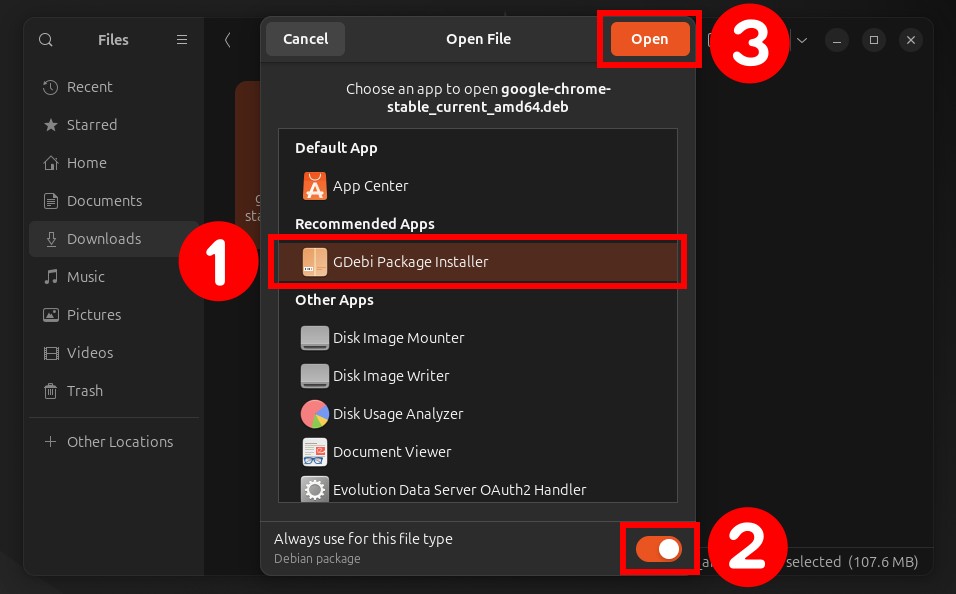
Leveraging GDebi Package Installer
GDebi is a lightweight tool specifically designed to install .deb packages. Its main advantage over the default Software Center is its superior dependency handling for local .deb files, often providing more precise error messages and better suggestions if dependencies are missing.
First, ensure GDebi is installed. If not, open your terminal and run:
sudo apt install gdebi
Once GDebi is installed:
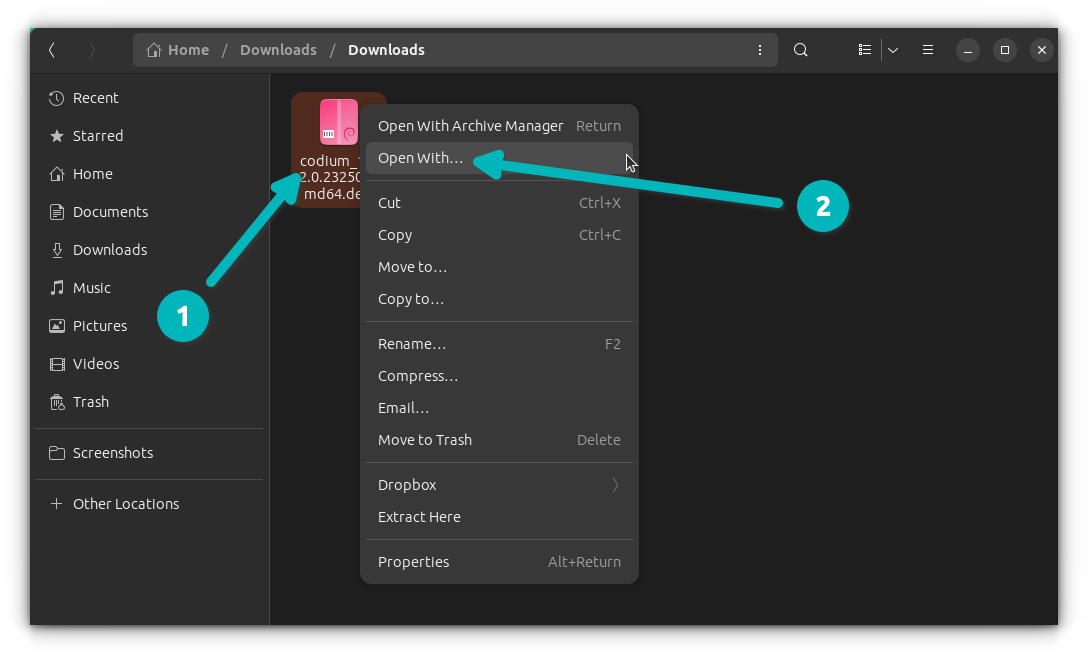
- Locate the .deb file: Find your
.debfile in your file manager. - Right-click and Open With: Right-click on the
.debfile. From the context menu, choose “Open With” and then select “GDebi Package Installer.” - Review and Install: GDebi will open, showing details about the package and a clear indicator of whether dependencies are met. If dependencies are missing, it will list them. Click the “Install Package” button.
- Authenticate: Enter your password when prompted.
- Monitor progress: GDebi will display the installation progress. Upon completion, the “Install Package” button will change to “Reinstall Package” or “Remove Package.”
- Pros: Excellent dependency resolution for local
.debfiles, clear interface, faster than full software centers for simple installs. - Cons: Requires separate installation if not pre-installed.
The Command-Line Approach: Power and Precision
For users comfortable with the terminal, the command-line interface offers greater control, transparency, and often more robust dependency management, especially with apt.
Using dpkg (Basic Installation)
dpkg is the underlying package management system for Debian-based distributions. It directly installs, removes, and manages .deb packages. However, dpkg does not automatically handle dependencies. If a package requires other software that isn’t installed, dpkg will fail.
- Navigate to the directory: Open your terminal and use
cdto go to the directory where your.debfile is located. For example, if it’s in your Downloads folder:
bash

cd ~/Downloads
- Install the package: Use the
dpkg -icommand, where-istands for install:
bash

sudo dpkg -i package_name.deb
Replacepackage_name.debwith the actual name of your file.
- Pros: Direct control, fundamental tool for package management.
- Cons: Does not resolve dependencies automatically. If dependencies are missing, the installation will fail or result in a broken package state, requiring manual intervention. This is why
aptis often preferred for local.debfiles.
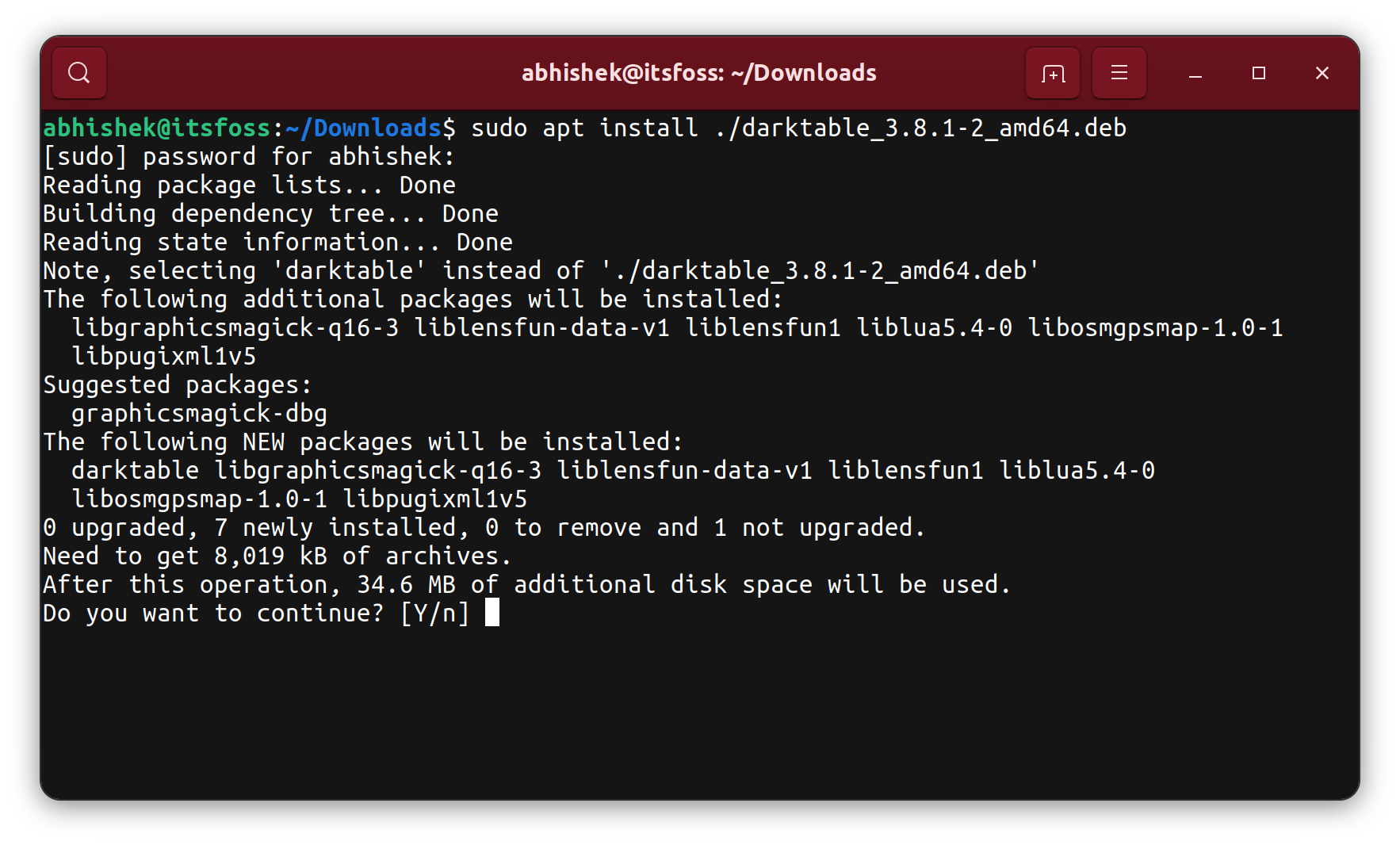
Using apt with Local .deb Files (Recommended Method)
Since Ubuntu 14.04 and Debian 8, the apt command-line tool (a higher-level interface to dpkg) gained the ability to install local .deb files while automatically resolving and installing any missing dependencies. This is generally the most recommended command-line method.
- Navigate to the directory: As with
dpkg, navigate to the directory containing your.debfile:
bash

cd ~/Downloads
- Install the package: Use the
apt installcommand, but crucially, prefix the.debfile name with./to indicate it’s a local file:
bash

sudo apt install ./package_name.deb
Replacepackage_name.debwith the actual name of your file.
apt will scan the .deb file, identify all its dependencies, attempt to fetch them from your configured repositories, and then proceed with the installation of both the .deb file and its prerequisites.
- Pros: Automatically resolves and installs dependencies, robust, provides clear feedback, integrates well with the rest of your system’s package management.
- Cons: Requires internet access if dependencies need to be downloaded.
Managing Dependencies and Troubleshooting Common Issues
Even with the best preparation, you might encounter issues during .deb package installation, most commonly related to dependencies. Understanding how to resolve these problems is key to successful software deployment.
Resolving Dependency Problems
The “unmet dependencies” error is perhaps the most frequent roadblock when installing .deb files, especially if you used dpkg -i. It means the software you’re trying to install relies on other packages that aren’t present on your system.
If dpkg -i failed due to unmet dependencies, the solution is usually simple:
sudo apt install -f
or the more modern equivalent:
sudo apt --fix-broken install
This command tells apt to find and install any missing dependencies for packages that are in a “broken” state (partially installed or configured but with unmet dependencies). apt will then attempt to download and install the required packages from your repositories and complete the configuration of the .deb file you initially tried to install.
In rare cases, if apt --fix-broken install doesn’t work (e.g., if a dependency is too old, or not available in your repositories), you might need to:
- Manually identify and download missing dependencies: The error message will usually list the specific packages and versions required. You might have to search for these
.debfiles online and install them manually before retrying. - Consider alternative sources: Look for a
.debpackage compatible with your specific distribution version, or consider using Snap/Flatpak if available for that software.
Dealing with Broken Packages
Sometimes, an installation or update process might be interrupted, leaving packages in a “broken” or “unconfigured” state.
sudo dpkg --configure -a: This command attempts to configure any packages that are currently unconfigured. It’s often useful afterapt --fix-broken installor if you manually resolve dependencies and needdpkgto complete its job.sudo apt clean: This command clears the local repository of retrieved package files (.debfiles). While it doesn’t fix broken packages directly, it frees up disk space and ensuresaptfetches fresh package data if there was an issue with a corrupted downloaded.debfile.sudo apt autoremove: This removes packages that were automatically installed to satisfy dependencies for other packages but are no longer needed. It can sometimes help clean up a system after dependency issues.
Common Error Messages and Their Solutions
- “Unmet dependencies”: (As discussed above) Use
sudo apt --fix-broken install. - “Permission denied”: You attempted to run a command that requires administrative privileges without
sudo. Always usesudoforaptanddpkgcommands that modify the system. - “Package architecture (i386) does not match system (amd64)”: You downloaded a
.debfile for a different system architecture (e.g., 32-bit package on a 64-bit system). Ensure you download the correct version (e.g.,amd64for 64-bit systems). - “Package not found” / “Unable to locate package”: This usually happens with
apt installif you forget the./prefix for a local.debfile. Remembersudo apt install ./package_name.deb. If you’re trying to install from a repository and get this, it means the package name is wrong, or the package isn’t in your configured repositories. - “E: Sub-process /usr/bin/dpkg returned an error code (1)”: A generic error indicating
dpkgencountered an issue. Often this accompanies “unmet dependencies” or problems with pre/post-installation scripts. Check the output just before this error for more specific clues.
Post-Installation and Maintenance
Once your .deb package is successfully installed, a few final steps and considerations ensure everything is working as expected and your system remains healthy.
Verifying Successful Installation
After installing a .deb package, you’ll want to confirm that the application is indeed installed and functioning correctly.
- Check your application launcher: Most graphical desktops will automatically add newly installed applications to your application menu or launcher. Search for the application’s name.
- Command-line verification: If it’s a command-line tool, you can check its presence using:
bash

dpkg -l | grep package_name
This command lists all installed packages and filters for yourpackage_name. Look forii(install ok installed) next to its entry.
You can also try to locate the executable:
bash

which executable_name
If it returns a path (e.g.,/usr/bin/executable_name), the application’s executable is in your PATH. - Run the application: The most straightforward verification is to simply launch the application and ensure it starts without errors.
Uninstalling .deb Packages
If you no longer need a package or want to remove a problematic installation, apt provides simple commands for removal:
-
Remove the package (keep config files):
sudo apt remove package_nameThis command removes the application’s binary files and libraries but often leaves behind configuration files and user data. This is useful if you might reinstall the package later and want to retain your settings.
-
Purge the package (remove everything):
bash

sudo apt purge package_name
This command removes the package along with all its configuration files. Use this for a complete cleanup, especially if you suspect configuration files are causing issues or you want to completely erase traces of the software.
After removal, it’s good practice to run sudo apt autoremove to clean up any dependencies that are no longer needed by other installed software.
Security Considerations and Best Practices
While .deb packages offer immense flexibility, it’s vital to exercise caution, especially when installing software from outside official repositories. This directly ties into digital security, a critical aspect of technology management.
- Download from Trusted Sources Only: Always download
.debfiles directly from the official developer’s website or other highly reputable, verified sources. Avoid obscure forums, suspicious download sites, or unverified mirrors, as these could potentially host malicious or tampered packages. - Verify Integrity with Checksums: Many developers provide checksums (like SHA256 or MD5) for their
.debfiles. After downloading, you can compare the downloaded file’s checksum with the one provided by the developer to ensure the file hasn’t been corrupted or tampered with during download.
bash

sha256sum package_name.deb
Compare the output with the official checksum. - Understand What You’re Installing: While you can’t easily inspect every file within a
.debpackage, be aware of the permissions you’re granting. Installing a.debpackage requiressudoprivileges, meaning the installation script runs with root access and can potentially modify any part of your system. - Keep Your System Updated: Regularly updating your system (
sudo apt update && sudo apt upgrade) is your best defense against known vulnerabilities, ensuring that even if a package had a flaw, it’s patched quickly. - Consider Alternatives: For some applications, Snap or Flatpak versions might offer an additional layer of security through sandboxing, isolating the application from the rest of your system. Evaluate if these are suitable alternatives for your needs.
By following these best practices, you can leverage the power and flexibility of .deb packages while maintaining a secure and stable Linux environment.
Conclusion
The .deb package format stands as a testament to the robust and flexible nature of Debian-based Linux distributions. From their intricate structure designed for efficient software delivery to the various methods available for installation, understanding .deb files is an indispensable skill for any Linux user. Whether you opt for the simplicity of a graphical installer like GDebi or harness the power of apt on the command line, mastering this aspect of package management empowers you with greater control over your system’s software landscape.
By learning to identify appropriate .deb packages, resolve dependencies, troubleshoot common errors, and adhere to essential security practices, you not only ensure the smooth operation of your applications but also contribute to the overall stability and security of your digital environment. In an era where technology constantly evolves, equipping yourself with these fundamental “Tech” skills enhances your personal productivity and safeguards your computing experience. Embrace the .deb package, and unlock a new level of command over your Linux machine.