
In an increasingly digital world, where efficiency often dictates success and convenience enhances daily life, tools that automate repetitive tasks have become invaluable. Among these, the auto clicker stands out as a simple yet powerful utility, capable of simulating mouse clicks at incredible speeds and with tireless precision. Whether you’re a gamer looking to optimize repetitive actions, a professional automating data entry, or simply someone trying to streamline monotonous digital chores, learning how to install and effectively use an auto clicker is a fundamental step towards unlocking a new level of digital productivity.
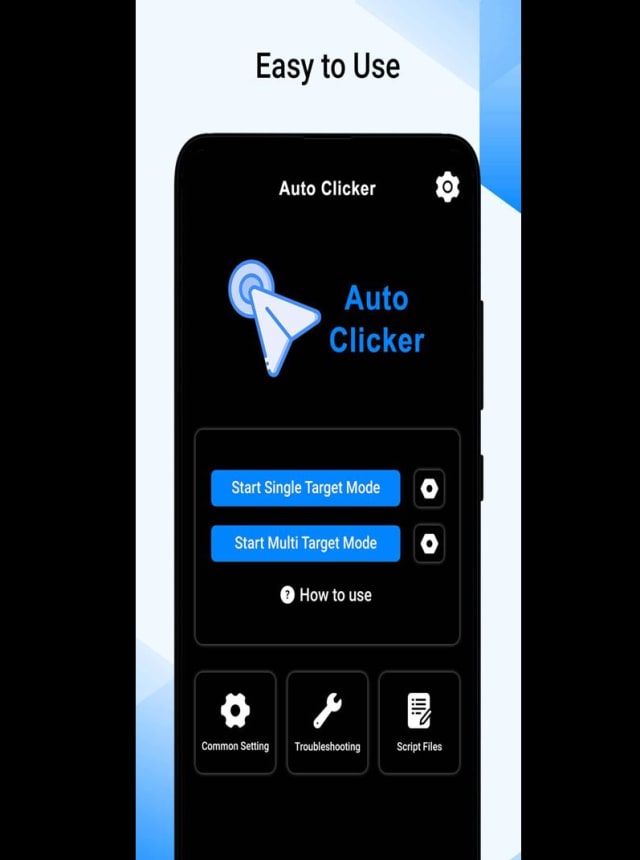
This comprehensive guide will walk you through everything you need to know about auto clickers, from understanding their core function and diverse applications to selecting the right software and navigating the installation process on various operating systems. We’ll also delve into best practices, security considerations, and how these tools fit into the broader landscape of technology and productivity, touching upon how they can even influence online income streams. Get ready to transform your digital workflow and reclaim precious time with the power of automated clicking.
Understanding Auto Clickers: Your Gateway to Digital Efficiency
At its core, an auto clicker is a piece of software (or sometimes hardware) designed to automate the action of clicking a mouse button. Instead of manually clicking hundreds or thousands of times, an auto clicker can perform these actions automatically, at predetermined intervals, and even at specific screen locations. This automation can drastically reduce effort and accelerate processes that would otherwise be tedious and time-consuming.
What is an Auto Clicker?
An auto clicker is essentially a virtual hand that can click your mouse button for you. These programs detect your desired click type (left, right, middle), speed (clicks per second/minute), and often the duration or number of clicks. Some advanced auto clickers can even record complex sequences of clicks and mouse movements, allowing for highly sophisticated automation scripts. They operate in the background, freeing up the user to focus on more analytical or creative tasks, or simply to take a break from mind-numbing repetition.
Why Use an Auto Clicker? Unlocking Productivity and Convenience
The applications for auto clickers are surprisingly broad, extending beyond niche uses to impact various aspects of digital interaction. Their primary benefit lies in their ability to enhance productivity and introduce an unprecedented level of convenience to digital tasks.
For gamers, auto clickers are frequently used in clicker games, RPGs, or simulations where repetitive clicking is required to gather resources, attack enemies, or progress through stages. This allows players to achieve in-game goals without the physical strain or tedium of constant manual input, often referred to as “grinding.”
In the professional sphere, auto clickers can be indispensable for data entry specialists who need to perform repetitive clicks to navigate interfaces or confirm entries. They can also aid software testers in simulating user interactions rapidly and consistently, ensuring thorough testing of applications. For those engaging in online surveys or tasks requiring frequent confirmations, an auto clicker can significantly speed up the process, making these tasks more viable for generating online income or participating in market research.
Furthermore, these tools are excellent for general productivity enhancement. Imagine repeatedly downloading files, refreshing a webpage for updates, or clicking through a gallery of images – an auto clicker can handle these tasks while you dedicate your cognitive resources to more meaningful activities. This ties directly into the “Tech” and “Money” aspects of our website’s focus, demonstrating how clever software can directly lead to improved output and financial gain, or at least save time that can be reinvested.
Types of Auto Clickers: From Simple Tools to Advanced Automation
The auto clicker market offers a spectrum of solutions, ranging from basic, free utilities to sophisticated, feature-rich paid applications. Understanding these distinctions is crucial for selecting the right tool for your specific needs.
- Simple Auto Clickers: These are typically free, lightweight programs designed for basic functionality – continuous clicking at a set interval. They are ideal for users who need straightforward, no-frills automation. Many popular free auto clickers fall into this category, offering hotkey activation, customizable click speed, and sometimes the option to choose between left or right clicks.
- Programmable/Macro Auto Clickers: These advanced versions go beyond simple clicking. They allow users to record entire sequences of mouse movements and clicks (macros), play them back, and even introduce random delays to simulate more human-like behavior. Some can target specific screen coordinates, integrate with scripts, or be triggered by specific events. These are often preferred by power users or those with more complex automation requirements.
- Hardware Auto Clickers: While less common for general users, some specialized devices or modified mice can include built-in auto-clicking capabilities. These are usually found in gaming peripherals designed for competitive play.
- Browser Extensions: For tasks confined to web browsers, auto clicker extensions offer a convenient, installation-free solution. However, their functionality is limited to the browser environment.
When considering which type to use, always weigh the complexity of your task against the features offered. For most users, a simple, reliable software-based auto clicker will suffice.
Choosing the Right Auto Clicker Software for Your Needs
Selecting the ideal auto clicker isn’t just about finding the first program that pops up in a search engine. It involves a thoughtful consideration of several factors to ensure compatibility, security, and functionality that matches your specific requirements. This decision impacts not only your ability to automate tasks but also the overall digital security of your system, a key aspect of our “Tech” focus.
Key Factors to Consider Before Installation
Before you even download a file, ask yourself the following questions:
-
Operating System Compatibility: Is the auto clicker compatible with your operating system (Windows, macOS, Linux)? While many are Windows-specific, cross-platform options exist. Mac users, in particular, need to pay attention to macOS versions and potential security restrictions.
-
Features and Functionality:
- Click Speed and Type: Does it allow you to set precise click intervals (milliseconds, seconds) and choose between left, right, or middle clicks?
- Activation Method: Does it support hotkeys for easy start/stop? Can it run in the background?
- Targeting Options: Can it click at a fixed point, current mouse location, or even record a path?
- Looping and Repetition: Can it click a specific number of times or indefinitely?
- Macro Recording: For more advanced users, does it offer the ability to record and playback sequences of clicks and movements?
- Randomization: Some advanced auto clickers offer random delay functions to make automated clicks appear more human-like, which can be useful for avoiding detection in certain online environments.
-
Safety and Reputation: This is perhaps the most critical factor, tying into “Digital Security” and “Brand Reputation.”
- Source: Always download auto clickers from reputable sources. Official developer websites are best. Avoid obscure download sites that bundle software with adware or malware.
- Reviews and User Feedback: Check online reviews and community discussions. What do other users say about its performance and safety?
- Antivirus Scan: Always run a virus scan on any downloaded executable file before opening it.
- Permissions: Be wary of auto clickers that request excessive system permissions that seem unrelated to their core function.
-
User Interface (UI): Is the interface intuitive and easy to navigate? A clunky UI can make even a powerful tool frustrating to use.
-
Price: Many excellent auto clickers are free. Paid versions usually offer more advanced features, better support, or a polished user experience. Determine if the additional features justify the cost for your specific needs.
Popular Auto Clicker Options: A Quick Overview
While we won’t endorse specific brands, it’s helpful to know the types of auto clickers that are widely available and well-regarded in the community. Generic examples often include:
- Free Mouse Auto Clicker: Known for its simplicity and ease of use, often with hotkey support.
- OP Auto Clicker: Another popular free option, offering customizable hotkeys, click intervals, and click types.
- GS Auto Clicker: A very straightforward tool that focuses on basic, repetitive clicking without complex features.
- Auto Clicker by MurGaa: Offers a range of specialized auto-clicking tools, some free, some paid, covering various scenarios.
When you encounter these or similar names, remember to cross-reference them with the “Safety and Reputation” checklist. A quick search for “[Auto Clicker Name] review” or “[Auto Clicker Name] safe” can often provide valuable insights.
Step-by-Step Installation Guides
Once you’ve identified a suitable auto clicker, the installation process is generally straightforward. However, there are nuances depending on your operating system. We’ll cover the two most common desktop environments: Windows and macOS.
Installing an Auto Clicker on Windows
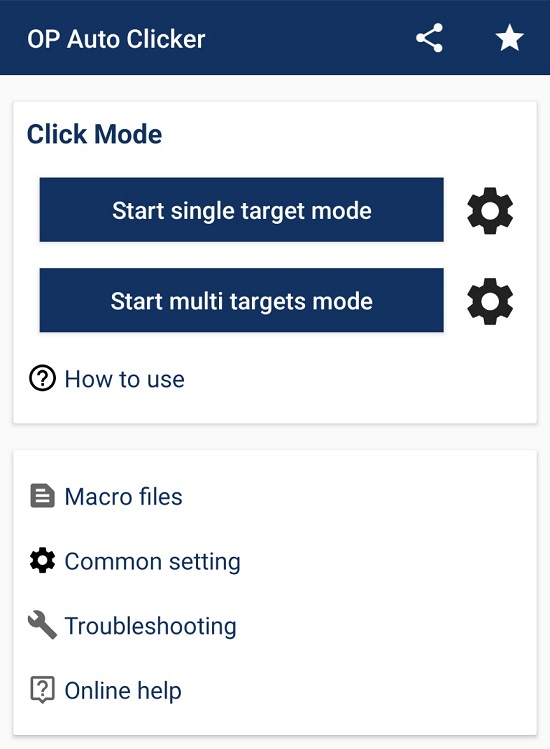
Windows remains the most common platform for auto clickers, offering a wide array of choices.
- Download the Software:
- Navigate to the official website of your chosen auto clicker.
- Locate the download link. Ensure you download the correct version for your Windows system (e.g., 64-bit).
- Security Tip: Always download from the developer’s official site to avoid modified or malicious versions.
- Run the Installer (if applicable):
- Most auto clickers for Windows come as a
.exefile. Some might be portable (no installation needed, just run the .exe). - If it’s an installer, double-click the
.exefile. - User Account Control (UAC): Windows might prompt you with a UAC window asking, “Do you want to allow this app to make changes to your device?” If you trust the source, click “Yes.”
- Follow Installation Wizard: Proceed through the installation wizard, which usually involves:
- Accepting the End-User License Agreement (EULA).
- Choosing an installation directory (the default is usually fine).
- Deciding whether to create desktop shortcuts.
- Click “Install” or “Next” until the installation is complete.
- Most auto clickers for Windows come as a
- Launch the Auto Clicker:
- Once installed, you can usually launch the program from a desktop shortcut, the Start Menu, or by navigating to the installation directory and double-clicking the main executable.
- For portable versions, simply double-click the downloaded
.exefile to run it.
Installing an Auto Clicker on macOS
Installing software on macOS often involves a slightly different process due to its robust security features, particularly concerning applications that interact with other parts of the system like an auto clicker.
- Download the Software:
- Go to the official website of the macOS-compatible auto clicker.
- Download the
.dmg(Disk Image) file. - Security Tip: macOS has “Gatekeeper” which helps prevent malicious software. If you download from outside the App Store, you might need to adjust security settings temporarily.
- Mount the Disk Image:
- Double-click the downloaded
.dmgfile. This will “mount” it as a virtual drive on your desktop, opening a new Finder window.
- Double-click the downloaded
- Install the Application:
- In the Finder window, you’ll typically see the application icon and an “Applications” folder alias.
- Drag and Drop: Drag the auto clicker application icon into the “Applications” folder alias. This copies the app to your Applications folder, making it available system-wide.
- Eject the Disk Image: After copying, drag the mounted disk image icon from your desktop (or Finder sidebar) to the Trash to “eject” it.
- Grant Security Permissions (Crucial for macOS):
- Launch the App: Go to your Applications folder and double-click the auto clicker to launch it.
- Gatekeeper Warning: For apps downloaded outside the App Store, macOS might show a warning like “‘[App Name]’ cannot be opened because the developer cannot be verified.”
- To bypass this, go to System Settings (or System Preferences) > Privacy & Security.
- Scroll down to the “Security” section. You should see a message about the blocked app with an “Open Anyway” button. Click it and confirm.
- Accessibility Permissions: For an auto clicker to function correctly on macOS (i.e., to control your mouse), it must be granted “Accessibility” permissions.
- The app might prompt you automatically. If not, go to System Settings > Privacy & Security > Accessibility.
- Click the padlock icon at the bottom left and enter your password to make changes.
- Find your auto clicker in the list and check the box next to it. If it’s not listed, you might need to click the ‘+’ button, navigate to your Applications folder, and add it manually.
- Without these Accessibility permissions, your auto clicker will likely fail to register clicks.
Post-Installation: Initial Setup and Configuration
Once installed, whether on Windows or macOS, the initial setup is generally similar across most auto clickers.
- Open the Auto Clicker: Launch the application.
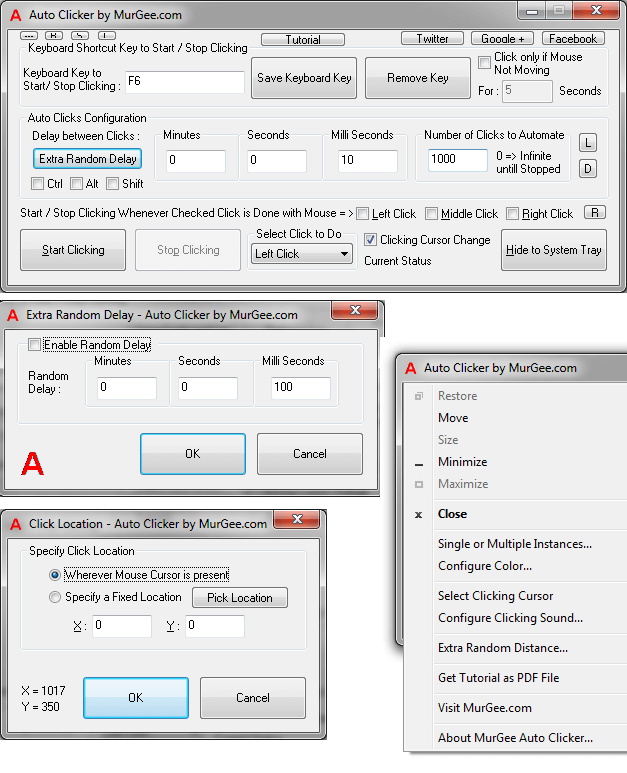
- Set Click Interval: This is usually the first setting you’ll see. Configure how fast you want the clicks to occur (e.g., 100 milliseconds, 1 second). Experiment to find the optimal speed for your task.
- Choose Click Type: Select between left click, right click, or potentially middle click.
- Set Repeat Options: Decide if you want to click a specific number of times or continuously until stopped.
- Configure Hotkeys: Most auto clickers use hotkeys (keyboard shortcuts) to start and stop clicking. Assign easily accessible keys (e.g., F6, Ctrl+Alt+Z) that won’t interfere with your other applications.
- Define Click Location (Optional): Some auto clickers allow you to specify a fixed screen coordinate for clicking, while others simply click wherever your mouse pointer is currently positioned.
Maximizing Your Auto Clicker: Tips, Tricks, and Best Practices
Installing an auto clicker is just the first step. To truly leverage its potential for productivity and even impact your “Money” through efficiency, you need to understand how to use it effectively, safely, and ethically. This section delves into optimizing performance, securing your digital environment, and troubleshooting common issues.
Mastering Basic Settings and Advanced Features
Once you’re comfortable with the basic “start” and “stop” functions, explore the advanced features of your chosen auto clicker:
- Randomized Delays: For tasks where human-like behavior is preferred (e.g., to avoid detection by anti-bot systems), look for options to introduce slight, random variations in click intervals. This makes the clicks less predictable.
- Macro Recording: If your auto clicker supports it, learn to record and play back complex sequences of mouse movements and clicks. This is invaluable for automating multi-step processes, like navigating menus, filling forms, or interacting with intricate software interfaces.
- Targeting Specific Windows/Elements: Some advanced auto clickers can be configured to only click within a specific application window or even on a particular UI element, preventing unintended clicks elsewhere on your screen.
- Customizable Hotkeys: Go beyond the default. Set hotkeys that are intuitive for your workflow and don’t conflict with other software you frequently use. Consider separate hotkeys for starting, stopping, and even pausing the clicking.
- Profiles/Settings Management: If you use your auto clicker for different tasks, check if it allows saving different configuration profiles. This saves time from reconfiguring settings repeatedly.
Digital Security and Ethical Considerations
While auto clickers are powerful tools for efficiency, their use comes with responsibilities related to digital security and ethical conduct, reinforcing the importance of our “Tech” focus on “Digital Security.”
- Source Vigilance: As mentioned, always download from reputable sources. Free software, especially tools that interact deeply with your system, can be tempting targets for malware distributors. A compromised auto clicker could log your keystrokes, steal data, or install other malicious software.
- Antivirus and Firewall: Keep your antivirus software updated and actively scan any new downloads. Ensure your firewall is configured to monitor outbound connections from unfamiliar applications.
- Terms of Service (ToS): Be aware that using auto clickers in certain online environments (e.g., competitive online games, specific online platforms that track user engagement for rewards) might violate their Terms of Service. This can lead to account suspension or bans. Always check the rules of the platform you’re interacting with.
- Ethical Use: While auto clickers boost productivity, their misuse can create unfair advantages or disrupt systems. Use them responsibly and ethically. The goal is efficiency, not exploitation.
Troubleshooting Common Auto Clicker Issues
Even with careful installation, you might encounter issues. Here are some common problems and their solutions:
- Auto Clicker Not Responding/Clicking:
- Permissions (macOS): Double-check that you’ve granted Accessibility permissions in System Settings > Privacy & Security > Accessibility.
- Admin Rights (Windows): Try running the auto clicker as an administrator (right-click the icon > “Run as administrator”).
- Conflicting Hotkeys: Ensure your auto clicker’s hotkeys don’t conflict with system shortcuts or other running applications.
- Antivirus/Firewall Interference: Your security software might be blocking the auto clicker. Temporarily disable it to test, then create an exception if it’s the culprit.
- Clicks Not Registering in Specific Applications:
- Some applications, especially games with anti-cheat measures, might block automated input. There might be no workaround for these cases.
- Ensure the auto clicker is set to click in the foreground if the application requires active focus.
- Lag or System Slowdown:
- An overly aggressive click speed (e.g., thousands of clicks per second) can sometimes consume significant CPU resources, especially on older machines. Reduce the click interval.
- Check for other resource-intensive applications running in the background.
- Auto Clicker Keeps Closing Unexpectedly:
- This could indicate a software bug or a conflict with your OS or other programs. Check for updates to the auto clicker, or try an alternative if the problem persists.
- Review event logs (Windows Event Viewer) or crash reports (macOS Console) for clues.
Beyond Basic Clicking: The Future of Automation and Productivity
While auto clickers excel at simple, repetitive tasks, they are just one facet of a much larger and rapidly evolving landscape of automation. Understanding this broader context can provide insights into how these tools, and more advanced ones, continue to shape our “Tech” and influence avenues for “Money” generation through increased “Productivity.”
Auto Clickers in the Broader Automation Landscape
Auto clickers represent an entry point into Robotic Process Automation (RPA), which involves using software robots (bots) to automate business processes. While an auto clicker handles basic mouse input, full-fledged RPA tools can interact with multiple applications, extract data, and even make decisions based on predefined rules.
As AI tools become more sophisticated, the line between simple automation and intelligent automation blurs. Future auto clickers might integrate AI to “learn” optimal clicking patterns, adapt to changing UI elements, or even predict user intent to offer proactive automation suggestions. This evolution highlights a significant trend in technology: moving from merely executing commands to understanding and anticipating needs, fundamentally transforming how we interact with digital systems.
Enhancing Productivity and Potential for Online Income
The ability to automate repetitive tasks directly translates into enhanced productivity. For individuals, this means freeing up time to focus on more complex, creative, or strategic work. For businesses, it translates into operational efficiency, reduced labor costs for mundane tasks, and faster turnaround times.
From a “Money” perspective, especially concerning “Online Income” and “Side Hustles,” auto clickers and similar automation tools can be game-changers. By automating data entry, speeding up survey completion, or assisting in tasks that require constant monitoring and clicking, individuals can amplify their output. While not a magic bullet for wealth, judicious use of automation can make certain online earning opportunities more viable and less laborious, turning previously unprofitable or tedious tasks into manageable income streams. The key is responsible and ethical application, ensuring that automation augments rather than exploits.
Conclusion: Empowering Your Digital Workflow
Learning how to install an auto clicker is more than just acquiring a new piece of software; it’s about embracing a mindset of digital efficiency and reclaiming control over your valuable time. From boosting your performance in games to streamlining professional data entry or maximizing your potential for online income, these simple tools offer tangible benefits across a spectrum of digital activities.
By carefully selecting a reputable auto clicker, following the correct installation procedures for your operating system, and adhering to best practices for security and ethical use, you can confidently integrate this powerful automation into your daily routine. As technology continues to evolve, tools like the auto clicker serve as a reminder of how thoughtful software design can empower individuals to achieve more, work smarter, and navigate the digital landscape with greater ease and productivity. Embrace the power of automation, and unlock a more efficient and productive digital future.
aViewFromTheCave is a participant in the Amazon Services LLC Associates Program, an affiliate advertising program designed to provide a means for sites to earn advertising fees by advertising and linking to Amazon.com. Amazon, the Amazon logo, AmazonSupply, and the AmazonSupply logo are trademarks of Amazon.com, Inc. or its affiliates. As an Amazon Associate we earn affiliate commissions from qualifying purchases.