
The Amazon Firestick has revolutionized how millions access their favorite entertainment, transforming any TV with an HDMI port into a smart streaming hub. Out of the box, it offers a vast library of content through the Amazon Appstore, including popular services like Netflix, Prime Video, Hulu, Disney+, and many more. However, the true power of this compact device lies in its hidden potential: the ability to install “3rd party apps,” also known as sideloading. This process allows users to break free from the confines of Amazon’s curated selection and unlock a world of unofficial apps, niche streaming services, utility tools, and even custom builds that significantly enhance the Firestick experience.
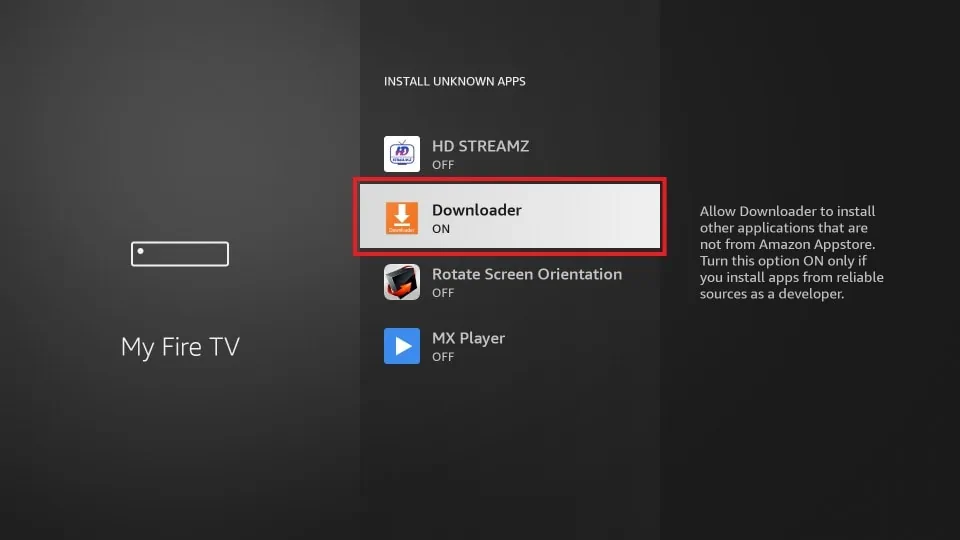
For tech enthusiasts, cord-cutters, and anyone looking to fully customize their digital entertainment, understanding how to install these external applications is a game-changer. It’s about taking control of your device and tailoring it precisely to your needs, whether that means accessing geo-restricted content, finding specific niche apps not available on the official store, or exploring open-source media players. This comprehensive guide will walk you through every step, from preparing your Firestick to safely installing and managing third-party applications, ensuring you can unlock its full capabilities with confidence and security.
Understanding Firestick Sideloading: Why Go Beyond the App Store?
Sideloading refers to the process of installing applications on a device from sources other than the official app store. In the context of the Amazon Firestick, this means installing apps that are not available through the Amazon Appstore. While Amazon’s official store is robust and constantly expanding, it still has limitations. Many applications, for various reasons—be it regional restrictions, specific content policies, or simply a developer’s choice not to list their app there—are not officially available. This is where sideloading steps in, offering a gateway to a much broader ecosystem of applications.
The motivations for sideloading are diverse and compelling. For many, it’s about expanding their streaming options. Imagine accessing a specific international streaming service, a lesser-known independent media player, or an app designed for specific content types that Amazon doesn’t promote. Sideloading makes this possible. Beyond entertainment, it also allows for the installation of utility apps that can enhance the Firestick’s functionality, such as advanced file managers, system optimization tools, or even specific browser versions not available in the default store.
Furthermore, sideloading empowers users to fully customize their Firestick experience. It fosters a sense of digital freedom, allowing you to bypass curated selections and shape your device according to your personal preferences rather than being limited by corporate decisions. While the concept might sound intimidating to beginners, the process is straightforward once you understand the necessary steps and take appropriate precautions. It’s about leveraging the Android operating system that underpins the Firestick, giving you a level of control typically associated with more open platforms.
Essential Preparations: Configuring Your Firestick for Sideloading
Before you can begin installing any third-party apps, your Firestick needs to be configured to allow installations from “unknown sources.” This is a security feature built into Android (and thus Fire OS) to protect users from inadvertently installing malicious software. While it’s a necessary step for sideloading, it also underscores the importance of exercising caution and only downloading apps from trusted sources.
Enabling Developer Options
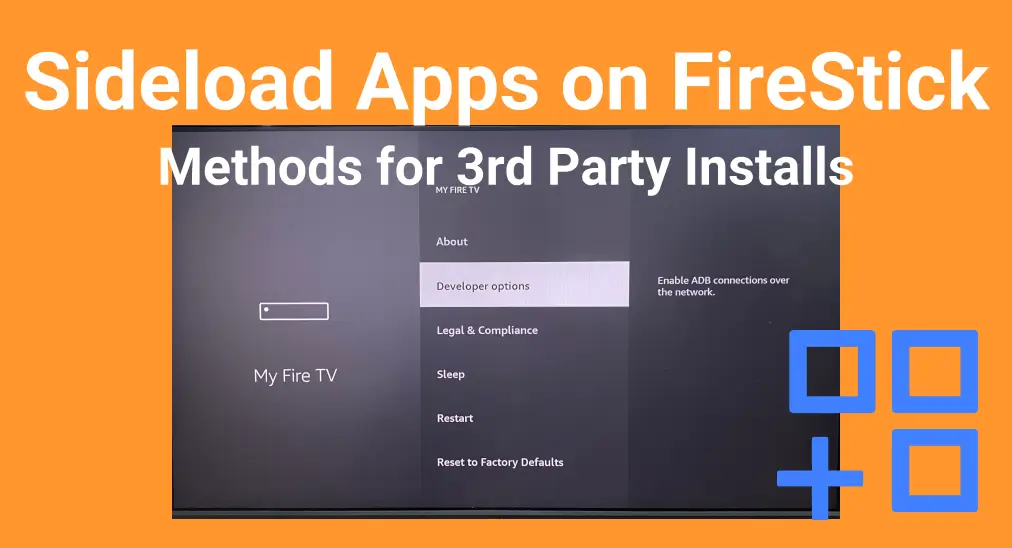
The first step in preparing your Firestick is to unlock the “Developer Options” menu. Amazon, much like Google with Android devices, keeps this menu hidden from casual users to prevent accidental changes that could affect device stability. Accessing it is a simple trick:
- From the Firestick Home Screen: Navigate to the main menu bar at the top and select Settings.
- Go to “My Fire TV”: Within the Settings menu, scroll down and select My Fire TV (or “Device & Software” on older Fire OS versions).
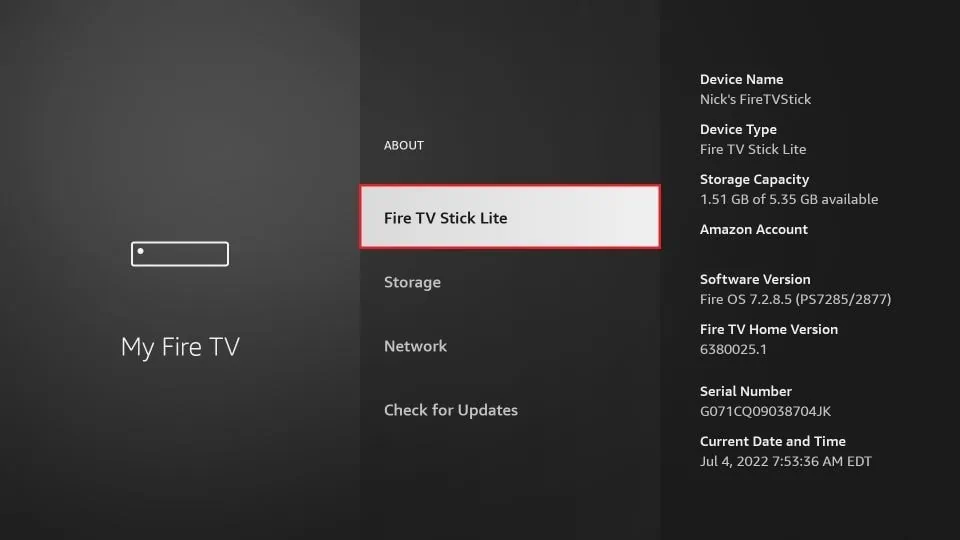
- Find “About”: Inside “My Fire TV,” select About.
- Rapidly Click Your Device Name: Highlight your specific Fire TV Stick model (e.g., “Fire TV Stick 4K Max,” “Fire TV Stick Lite”). Now, rapidly click the Select button on your remote about 7-8 times consecutively. You’ll see a small on-screen notification that counts down (“You are X steps away from being a developer!”), and once successful, it will say, “No need, you are already a developer!”
You have now successfully enabled Developer Options. This menu will now appear as a new entry within the “My Fire TV” section, allowing you to proceed with the next crucial step.
Turning on “Apps from Unknown Sources”
With Developer Options unlocked, you can now enable the setting that permits the installation of applications from outside the Amazon Appstore.
- Navigate to Developer Options: Go back to the Settings menu, then select My Fire TV, and you will now see Developer Options listed. Select it.
- Enable “Apps from Unknown Sources”: Inside Developer Options, you will find two primary settings: “ADB debugging” and “Apps from Unknown Sources.” Toggle the switch next to Apps from Unknown Sources to ON.
- Confirm the Warning: A warning message will appear, explaining the potential risks of installing apps from unknown sources. Read it, understand the implications (e.g., potential for malware, performance issues), and then select Turn On to confirm.
- Disable “Collect App Usage Data” (Recommended for Privacy): While you’re in the Settings, it’s a good practice for privacy-conscious users to disable app usage data collection. Navigate back to Settings > Preferences > Privacy Settings. Here, you can toggle off options like “Device Usage Data” and “Collect App Usage Data.” This helps prevent Amazon from collecting information on how you use your Firestick, especially with third-party apps.
With these settings configured, your Firestick is now ready to sideload apps. The next step involves using a dedicated tool to facilitate the download and installation process.
The Primary Method: Installing Apps with the Downloader App
While several methods exist for sideloading apps on a Firestick, the most popular, user-friendly, and recommended approach for most users is undoubtedly through the Downloader app. This free application, developed by AFTVnews, is specifically designed to streamline the sideloading process on Fire OS devices, making it incredibly simple to download files directly from the internet and install them. Its built-in browser and file manager capabilities eliminate the need for complex command-line interactions or external devices.
Step-by-Step: Getting and Using Downloader
Using the Downloader app is intuitive and efficient. Here’s how to install it and leverage its features to get your desired third-party apps onto your Firestick.
Step 1: Install the Downloader App
Before you can use Downloader, you need to install it from the official Amazon Appstore, as it is one of the few officially approved tools for this purpose.
- From the Firestick Home Screen: Navigate to the Find icon (magnifying glass) on the top menu bar.
- Search for “Downloader”: Use the on-screen keyboard or voice search (if available) to type “Downloader.”
- Select the App: Look for the orange icon with a download arrow, typically labeled “Downloader” by AFTVnews. Select it.
- Download and Install: Click the Download (or “Get”) button to install the app.
- Open Downloader: Once installed, you can either open it directly from the installation screen or find it in your Apps & Channels list.
- Grant Permissions: The first time you open Downloader, it will ask for permission to access photos, media, and files on your device. You must click Allow for it to function correctly, as it needs to store the downloaded APK files.
- Dismiss Quick Start Guide: A quick start guide might appear. You can read it or simply click OK to dismiss it.
Step 2: Downloading and Installing an APK
Now that Downloader is ready, you can use it to fetch and install any Android Package Kit (APK) file, which is the file format for Android apps.
- Enter the APK URL: In the Downloader app, you’ll see a prominent URL field on the home screen. This is where you’ll paste or type the direct link to the APK file you wish to download.
- Important Note on Sources: Always obtain APK links from reputable and trusted websites. Be wary of unofficial forums or sites that look suspicious, as downloading from unreliable sources significantly increases the risk of malware or corrupted files.
- Example URLs: While I cannot provide live links, you would typically look for the direct download link for an app like Aptoide TV, a specific streaming service, or a browser like Firefox. Many reputable tech sites and official developer pages offer direct APK downloads.
- Click “Go”: After entering the URL, click the Go button. Downloader will begin downloading the APK file to your Firestick.
- Initiate Installation: Once the download is complete, Downloader will automatically prompt you to install the application. A new screen will appear showing the app’s permissions and an “Install” button at the bottom right. Scroll down and click Install.
- Complete Installation: The installation process will run for a few seconds. Once finished, you’ll see a screen saying “App installed.” You’ll then have two options: Done or Open.
- Selecting Open will launch the newly installed app immediately.
- Selecting Done will return you to the Downloader app.
- Delete the APK (Recommended): After successfully installing an app, it’s highly recommended to delete the APK file. The APK is just the installation package, and once the app is installed, it’s no longer needed. Keeping it consumes valuable storage space, which is often limited on Firestick devices.
- If you clicked Done after installation, Downloader will ask you if you want to delete the file. Select Delete, and then confirm by selecting Delete again.
Step 3: Accessing Your Sideloaded Apps
Once installed, your new third-party app won’t necessarily appear on the Firestick’s home screen alongside your official apps. Here’s how to find and launch it:
- Access the Apps & Channels List: From the Firestick home screen, navigate to the Apps icon (three squares and a plus sign) or hold down the Home button on your remote for a few seconds until the “Apps” shortcut appears.
- Find Your App: Scroll to the very bottom of your “Apps & Channels” list. Newly sideloaded apps often appear at the end.
- Move to Front (Optional): To make access easier, you can highlight the app, press the Options button (three horizontal lines) on your remote, and select Move or Move to Front to place it higher up in your list or directly on the home screen.
Maximizing Your Firestick: Tips, Safety, and Troubleshooting
While sideloading opens up a world of possibilities for your Firestick, it also comes with responsibilities regarding security, privacy, and device management. Adhering to best practices will ensure a smooth, safe, and enjoyable experience.
Essential Safety & Security Considerations
Sideloading bypasses the official Amazon Appstore’s vetting process, meaning you are solely responsible for the integrity of the apps you install.
VPN Usage
One of the most critical security and privacy measures when sideloading, especially for streaming content from unofficial sources, is to use a Virtual Private Network (VPN).
- Privacy Protection: A VPN encrypts your internet traffic, hiding your online activities from your Internet Service Provider (ISP), government agencies, and potential snoopers. This is vital if you’re accessing content that might be in a legal gray area.
- Bypass Geo-Restrictions: Many third-party apps and even official services are geo-restricted. A VPN allows you to virtually change your location, granting access to content otherwise unavailable in your region.
- Prevent ISP Throttling: Some ISPs might throttle (slow down) your internet speed when they detect high-bandwidth activities like streaming. A VPN can help circumvent this by masking your activity.
- Choosing a VPN: Opt for a reputable VPN service known for strong encryption, no-logging policies, and fast servers. Many top-tier VPNs offer dedicated apps for Android devices, which are compatible with Firestick. Install it first (either via official store or sideloading if not available) and connect before launching any third-party streaming apps.
Reliable Sources
Never download APK files from unknown or untrusted websites. The internet is unfortunately rife with malicious software disguised as legitimate apps.
- Reputable Tech Sites: Stick to well-known Android tech websites or forums that have a long-standing reputation for providing safe APK downloads.
- Official Developer Websites: If the developer offers a direct APK download on their official site, this is often the safest option.
- App Stores for Sideloaded Apps: Consider installing a reputable third-party app store like Aptoide TV via Downloader. These stores often have their own vetting processes for apps, offering a safer environment than random web searches.
Storage Management
Firestick devices typically have limited internal storage (8GB or 16GB), which can quickly fill up with apps, their data, and downloaded APKs.
- Delete APKs After Installation: As mentioned, always delete the APK file after an app is successfully installed using Downloader.
- Clear Cache Regularly: Over time, apps accumulate cache data, which can hog storage and slow down your device. Go to Settings > Applications > Manage Installed Applications, select an app, and choose Clear Cache.
- Uninstall Unused Apps: Periodically review your installed apps and uninstall any you no longer use.
- Consider External Storage (if applicable): Some Firestick models (like certain Fire TV Cubes) support external storage via USB, but most standard Firesticks do not. If your model does, this can be a great way to expand storage.
Common Troubleshooting Tips
Even with careful preparation, you might encounter issues. Here are some common problems and their solutions:
- App Not Installing:
- “Apps from Unknown Sources” Disabled: Double-check that Apps from Unknown Sources is enabled in Developer Options.
- Insufficient Storage: Clear space on your Firestick by deleting old APKs, clearing app caches, or uninstalling unused apps.
- Corrupt APK File: The downloaded APK might be damaged. Try downloading it again from a different, reliable source.
- Compatibility Issues: Some Android apps are not optimized for Fire OS or TV interfaces. While many work, some might not.
- App Crashing/Not Working Correctly:
- Clear Cache and Data: Go to Settings > Applications > Manage Installed Applications, select the problematic app, and choose Clear Cache, then Clear Data. (Note: Clearing data will reset the app, requiring you to log in again).
- Restart Firestick: A simple restart can often resolve temporary glitches. Go to Settings > My Fire TV > Restart.
- Reinstall the App: Uninstall the app completely and then reinstall it using a fresh APK.
- Update the App: Check if a newer version of the APK is available from your trusted source.
- Check Internet Connection: Ensure your Firestick has a stable and strong internet connection.
- Slow Performance:
- Clear Cache of All Apps: Regularly clearing cache helps free up RAM and storage.
- Restart Firestick: A fresh start can often improve responsiveness.
- Close Background Apps: While Fire OS manages this somewhat, too many active apps can slow things down.
- Check for System Updates: Ensure your Firestick’s operating system is up to date. Go to Settings > My Fire TV > About > Check for Updates.
Beyond Downloader: Other Sideloading Tools (Brief Mention)
While Downloader is the king, a few other methods exist for more niche or advanced use cases:
- ADB (Android Debug Bridge): This command-line tool is for advanced users and developers. It allows for more intricate control over your Firestick, including installing apps from a computer, but requires technical knowledge and setting up ADB debugging.
- Send Files to TV: This app provides a convenient way to wirelessly transfer files (including APKs) from your phone or computer to your Firestick, especially useful if you already have the APK on another device.
- ES File Explorer (with caution): Historically, ES File Explorer was a popular option due to its built-in browser and file manager. However, it has been associated with privacy concerns and bloatware in the past, making Downloader the safer and more reliable choice for most users today.
By sticking with Downloader for most sideloading tasks and using other tools only when necessary and understood, you can maintain a secure and efficient Firestick setup.
Conclusion
The Amazon Firestick is a versatile streaming device, and by understanding how to install 3rd party apps, you unlock its true potential. Sideloading transforms your Firestick from a simple media consumption device into a highly customizable entertainment hub, giving you unparalleled freedom to access content and tools that extend far beyond the confines of the Amazon Appstore.
From enabling Developer Options and allowing “Apps from Unknown Sources” to mastering the intuitive Downloader app, the process is straightforward and accessible to anyone willing to follow the steps. Remember that with great power comes great responsibility. Always prioritize your digital security and privacy by using a reputable VPN, sourcing APKs only from trusted websites, and practicing good device hygiene like deleting unnecessary files and clearing caches.
By embracing sideloading, you’re not just installing apps; you’re taking control of your streaming experience, tailoring it precisely to your desires, and making your Firestick truly yours. Enjoy the expanded world of possibilities and the enhanced functionality that awaits!
aViewFromTheCave is a participant in the Amazon Services LLC Associates Program, an affiliate advertising program designed to provide a means for sites to earn advertising fees by advertising and linking to Amazon.com. Amazon, the Amazon logo, AmazonSupply, and the AmazonSupply logo are trademarks of Amazon.com, Inc. or its affiliates. As an Amazon Associate we earn affiliate commissions from qualifying purchases.