
A fresh installation of Windows 10 is akin to giving your computer a brand-new start. It’s a process that can breathe new life into a sluggish machine, resolve persistent software conflicts, and ensure you’re running the latest, most secure version of Microsoft’s operating system. Whether you’re building a new PC, upgrading an older machine, or simply looking to eliminate accumulated digital clutter, understanding how to perform a clean install is an invaluable skill in your tech arsenal. This guide will walk you through the entire process, from preparation to post-installation, ensuring a smooth and successful outcome.

The allure of a fresh install lies in its ability to eliminate the layers of software, registry entries, and potential malware that can accumulate over time, slowing down your system and causing unexpected issues. Think of it as tidying up your digital home – removing old, unused items and organizing everything for optimal performance. This is particularly beneficial for users who have experienced performance degradation, frequent crashes, or peculiar software behaviors that troubleshooting hasn’t resolved.
Understanding the “Why” and “When” of a Fresh Install
Before diving into the “how,” it’s crucial to understand why you might opt for a fresh install and when it’s the most appropriate solution.
When a Fresh Install is Your Best Bet
- Performance Degradation: If your computer has become noticeably slower over time, taking longer to boot up, open applications, or perform everyday tasks, a fresh install can often restore it to its former speed.
- Persistent Software Issues: When applications crash frequently, you encounter recurring error messages, or specific features stop working without a clear cause, a clean slate can resolve these underlying conflicts.
- Malware or Virus Infections: While antivirus software is essential, some deep-seated infections can be difficult to remove entirely. A fresh install is a guaranteed way to eliminate all traces of malware.
- Preparing for a New Component: If you’re installing a new hard drive, a significant motherboard upgrade, or other core hardware components, a fresh Windows installation ensures optimal driver compatibility and system stability.
- Selling or Donating Your Computer: Before passing on your device, a fresh install is paramount for erasing all your personal data and ensuring privacy.
- Major Windows Updates: Although Windows 10 updates are generally designed to be seamless, occasionally, a clean install can prevent issues that might arise from a complex upgrade path.
- Digital Decluttering: For those who enjoy trying out new software or have a habit of installing and uninstalling programs frequently, a fresh install offers a clean environment free from lingering remnants.
The “Clean Install” vs. “Upgrade” Distinction
It’s important to differentiate a “fresh install” (also known as a clean install) from an “upgrade.”
- Upgrade: An upgrade installs a new version of Windows over your existing one, attempting to preserve your files, settings, and applications. While convenient, it can sometimes carry over existing issues from the previous installation.
- Fresh Install: A fresh install wipes the target drive clean, removing everything before installing Windows from scratch. This provides the ultimate clean slate, free from any existing software conflicts or corrupted files.
For this guide, we are focusing on the latter – the fresh install, which offers the most profound benefits for system health and performance.
Preparing for a Seamless Fresh Installation
A successful fresh install requires careful preparation to ensure you don’t lose vital data and that the process goes smoothly. This stage is arguably the most critical.
1. Back Up Your Important Data: The Non-Negotiable Step
This is the single most important step. A fresh installation will erase everything on the drive where Windows is installed. Therefore, backing up your personal files, documents, photos, videos, music, and any other data you cannot afford to lose is absolutely essential.
- External Hard Drives/SSDs: The most common and reliable method. Connect an external drive and copy all your important folders and files.
- Cloud Storage Services: Services like OneDrive, Google Drive, Dropbox, or iCloud can be used to sync or upload critical files. Ensure you have enough storage space.
- Network Attached Storage (NAS): If you have a home network with a NAS device, this is an excellent option for centralized backups.
- USB Flash Drives: Suitable for smaller amounts of data or specific important files.
Pro Tip: Don’t just copy; verify your backups. Open a few files from your backup location to ensure they are intact and accessible.
2. Gather Your Product Keys and License Information
If your Windows 10 installation is tied to a specific product key, make sure you have it readily available. While many modern PCs have digital licenses linked to your Microsoft account or hardware, having the key provides an extra layer of security and convenience.
- Digital Licenses: If you upgraded from Windows 7 or 8, or purchased Windows 10 digitally, your license is likely tied to your Microsoft account. You can usually activate Windows by signing in with your Microsoft account after installation.
- Product Key: If you have a physical copy of Windows 10 or a purchased product key, locate it. It’s often on a sticker on your computer, in an email from Microsoft, or on the software packaging.
3. Identify and Download Necessary Drivers
While Windows 10 includes many generic drivers, it’s highly recommended to have the specific drivers for your computer’s hardware, especially for your motherboard, graphics card, network adapter (Wi-Fi and Ethernet), and audio.
- Manufacturer’s Website: The best place to find these is on the support or downloads section of your computer manufacturer’s (Dell, HP, Lenovo, etc.) or component manufacturer’s (NVIDIA, AMD, Intel, Realtek) website.
- Download and Save: Download the latest drivers for your specific model and operating system (Windows 10 64-bit is most common). Save them to a USB flash drive or an external hard drive that you can access after the fresh install.
Why is this important? Without the correct network driver, you might not be able to connect to the internet after installation, which is crucial for downloading further updates and drivers.
4. Create Windows 10 Installation Media
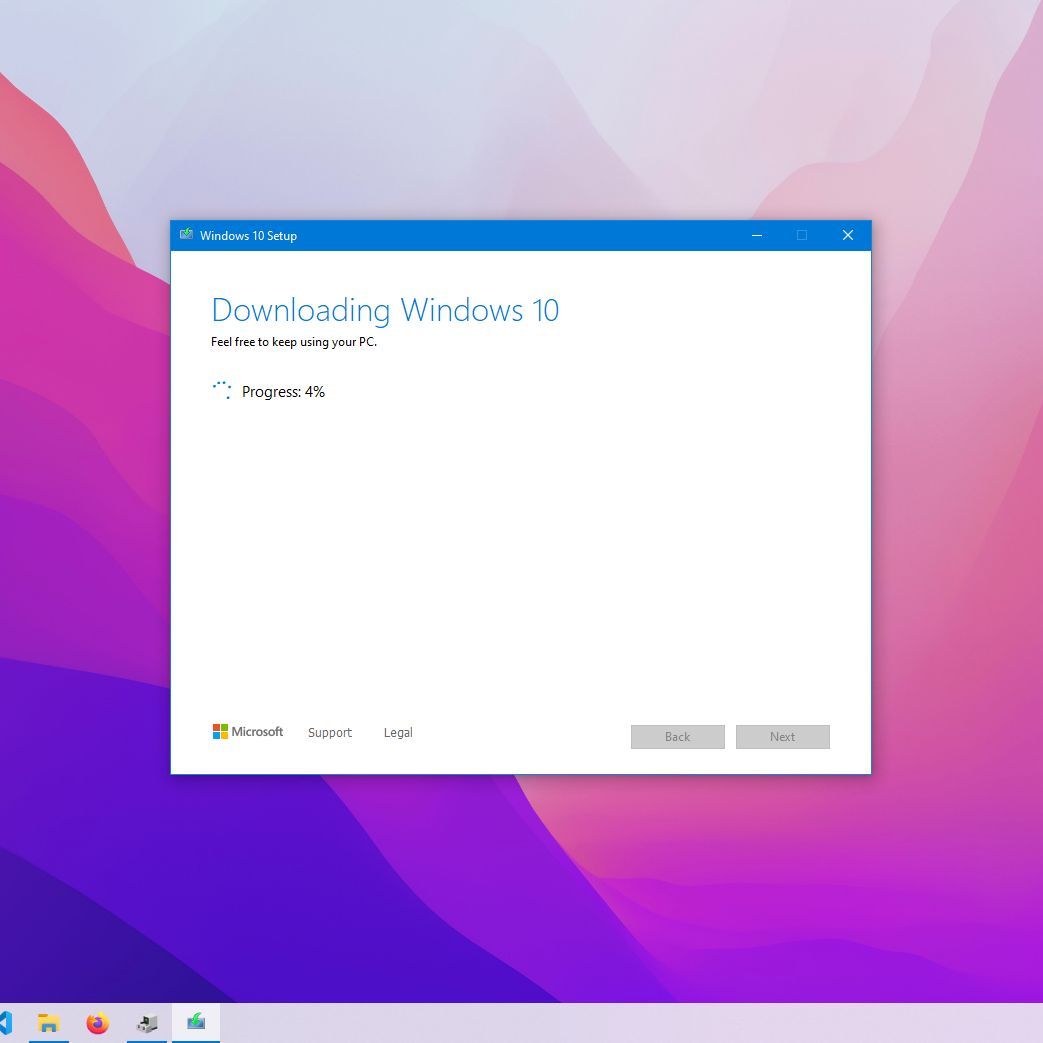
To perform a fresh install, you’ll need a bootable USB drive or DVD containing the Windows 10 installation files. Microsoft provides a free tool for this.

- Download the Media Creation Tool: Go to the official Microsoft Windows 10 download page and download the “Media Creation Tool.”
- Run the Tool: Execute the downloaded tool and select “Create installation media (USB flash drive, DVD, or ISO file) for another PC.”
- Choose Options: Select the language, edition (Windows 10), and architecture (64-bit is standard for most modern PCs).
- Select USB Flash Drive: Choose “USB flash drive” and ensure you have a USB drive with at least 8GB of free space. The tool will format the drive and download the necessary Windows 10 files.
- Alternatively, Download an ISO: You can also choose to download an ISO file, which you can then use with third-party tools like Rufus to create a bootable USB.
5. Prepare Your Software List
Make a list of all the applications you regularly use. This will help you quickly reinstall them after Windows is up and running. Consider having installers ready for critical software, especially if you have them stored locally.
The Fresh Installation Process: Step-by-Step
With your preparations complete, it’s time to embark on the installation itself.
1. Booting from Your Installation Media
- Insert the USB/DVD: Plug in your bootable USB drive or insert the DVD into your computer.
- Restart Your PC: Reboot your computer.
- Enter BIOS/UEFI: As your computer starts, you’ll need to access its BIOS or UEFI settings to tell it to boot from your USB drive or DVD instead of your hard drive. The key to press varies by manufacturer but is commonly
F2,F10,F12,DEL, orESC. Look for a message on your screen during startup, such as “Press [Key] to enter Setup” or “Press [Key] for Boot Menu.” - Change Boot Order: Within the BIOS/UEFI settings, navigate to the “Boot” or “Boot Order” section. Move your USB drive or DVD drive to the top of the boot priority list.
- Save and Exit: Save your changes and exit the BIOS/UEFI. Your computer will restart and should now boot from your installation media.
2. Installing Windows 10
- Initial Setup: When prompted, press any key to boot from the USB or DVD. The Windows 10 setup screen will appear.
- Language, Time, and Keyboard: Select your preferred language, time and currency format, and keyboard layout. Click “Next.”
- Install Now: Click the prominent “Install now” button.
- Product Key (Optional): You’ll be asked for a product key. If you have a digital license, you can click “I don’t have a product key” and Windows will activate automatically later when you connect to the internet and sign in with your Microsoft account.
- Select Operating System: Choose the edition of Windows 10 you want to install (e.g., Windows 10 Home, Windows 10 Pro). Ensure it matches your license.
- Accept License Terms: Read and accept the license terms.
- Choose Installation Type: The Critical Choice
- You will be presented with two options: “Upgrade: Install Windows and keep files, settings, and applications” and “Custom: Install Windows only (advanced).”
- Crucially, select “Custom: Install Windows only (advanced).” This is the option that performs a clean install.
3. Disk Partitioning and Formatting
This is where you will select the drive to install Windows on and erase its contents.
- Select Drive: You’ll see a list of drives and partitions. Identify the drive where you want to install Windows (usually “Drive 0”).
- Delete Existing Partitions: For a true fresh install, it’s best to delete all existing partitions on the target drive. Select each partition associated with your current Windows installation and click “Delete.” Be absolutely certain you have backed up everything from this drive, as this action is irreversible.
- Create New Partition (Optional but Recommended): After deleting, you’ll have “Unallocated Space.” Select this space and click “New” to create a new partition. Windows will typically create a primary partition and some system partitions automatically. You can use the default settings.
- Select Primary Partition: Once the partitions are created, select the primary partition (where you want Windows installed) and click “Next.”
Windows will now begin copying files, installing features, and installing updates. Your computer will restart multiple times during this process. Important: During these restarts, do not press a key to boot from the USB/DVD again. Let it boot from the hard drive. You might need to remove the USB/DVD or change the boot order back in the BIOS/UEFI after the first successful boot from the hard drive.
Post-Installation: Setting Up and Securing Your Fresh System
Once Windows 10 has finished installing and you’ve completed the initial setup (region, keyboard, account sign-in), it’s time to get your system fully functional and secure.
1. Install Drivers
Now is the time to install the drivers you downloaded earlier.
- Network Driver First: If you haven’t connected to the internet yet, install your network adapter drivers first. This is the priority.
- Install Other Drivers: Proceed to install drivers for your graphics card, audio, chipset, and any other hardware. Follow the instructions provided with the drivers.
- Windows Update: After installing your essential drivers, run Windows Update to download any remaining Microsoft-provided drivers and crucial security patches. Go to
Settings>Update & Security>Windows Updateand clickCheck for updates.
2. Restore Your Data and Reinstall Applications
- Data Restoration: Connect your external drive or access your cloud storage and copy your backed-up files back to their appropriate locations.
- Application Reinstallation: Install your essential software, such as web browsers, office suites, media players, and any specialized applications you use.
- Windows Activation: If you didn’t enter a product key during installation, sign in with your Microsoft account. Windows should activate automatically if you have a digital license linked to that account. If not, you may need to enter your product key.
3. Enhance Digital Security
A fresh install is a perfect opportunity to bolster your digital security.
- Enable Windows Defender: Windows 10 comes with built-in antivirus and antimalware protection (Windows Defender). Ensure it is enabled and running.
- Enable Firewall: Verify that Windows Firewall is active.
- Strong Passwords and Two-Factor Authentication: Use strong, unique passwords for your accounts and enable two-factor authentication wherever possible.
- Regular Updates: Keep Windows and all your applications updated to patch security vulnerabilities.
- Consider a Password Manager: Tools like LastPass, Bitwarden, or 1Password can help you manage strong, unique passwords across all your online accounts.
4. Optimize and Personalize
- Disk Cleanup and Defragmentation: Run Disk Cleanup to remove temporary files and then consider defragmenting your hard drive (or optimizing it if it’s an SSD) to improve performance.
- Personalize Settings: Adjust display settings, power options, privacy settings, and other preferences to your liking.
- Review Startup Programs: Check which programs are set to launch at startup and disable unnecessary ones to speed up boot times. You can do this via Task Manager (
Ctrl+Shift+Esc>Startuptab).
Performing a fresh install of Windows 10 might seem like a daunting task, but with proper preparation and by following these steps, it becomes a manageable and rewarding process. You’ll be rewarded with a faster, more stable, and more secure computing experience, ready to tackle your daily tasks with renewed vigor.
aViewFromTheCave is a participant in the Amazon Services LLC Associates Program, an affiliate advertising program designed to provide a means for sites to earn advertising fees by advertising and linking to Amazon.com. Amazon, the Amazon logo, AmazonSupply, and the AmazonSupply logo are trademarks of Amazon.com, Inc. or its affiliates. As an Amazon Associate we earn affiliate commissions from qualifying purchases.