
In the modern digital landscape, our smartphones have become extensions of our personal and professional lives. Motorola, a pioneer in the mobile industry, provides users with a “near-stock” Android experience, known for its clean interface and lack of unnecessary bloatware. However, with the ease of downloading applications from the Google Play Store, it is remarkably easy for our devices to become cluttered. Whether you are troubleshooting a sudden drop in battery life, managing your storage, or simply trying to find a tool you downloaded last night, knowing how to track your most recent installations is a fundamental skill for any tech-savvy user.

This guide provides a comprehensive walkthrough on how to check and manage your most recently installed apps on a Motorola device, utilizing both native system settings and integrated Google tools.
Utilizing Built-in Android Tools for App Management
Motorola’s commitment to a streamlined Android experience means that most of your app management occurs within the core system settings. Unlike some manufacturers that bury these options under proprietary skins, Motorola keeps them accessible and intuitive.
Navigating the Settings Menu
The primary method for viewing your applications is through the Settings app. To begin, swipe down from the top of your screen to access the notification shade and tap the gear icon, or locate the “Settings” app in your app drawer. From there, navigate to “Apps & notifications” (on some newer versions of Android, this may simply be labeled “Apps”).
Once inside, tap on “See all [number] apps.” This opens the complete list of every application currently residing on your Motorola device. While this list is typically alphabetical by default, it serves as the command center for deeper investigation into your software environment.
Sorting by Installation Date and Usage
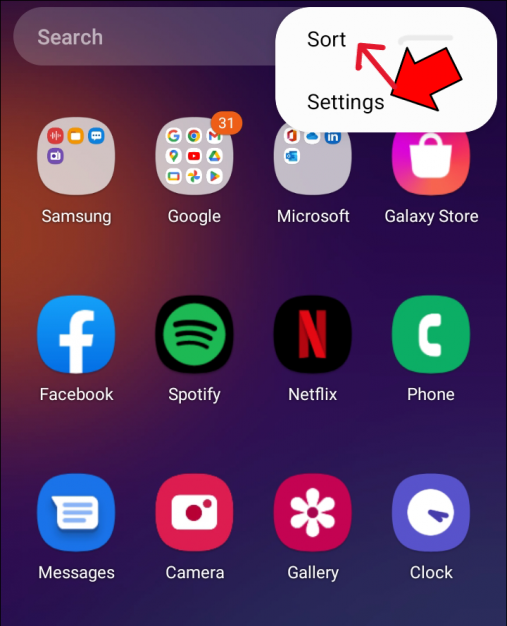
While the standard list provides a broad overview, identifying the most recent apps requires a bit more filtering. In the “All Apps” view, look for a sort icon or a dropdown menu (often represented by three vertical dots or a funnel icon in the top right corner).
In many versions of the Motorola Android build, you can sort this list by “Recent.” This doesn’t just show which apps you opened last, but can often be toggled to show which were most recently updated or installed. If your specific software version lacks a direct “Sort by Date” button in the main list, clicking on individual apps will reveal their “App Info,” which includes data on when the app was last used and its current version.
Leveraging the Google Play Store for Comprehensive App History
Since Motorola devices rely on the Google Play Store as their primary software repository, the Play Store app itself is often the most accurate way to track your installation history. This method is particularly useful because it tracks your account activity across devices, not just the local hardware.
Accessing the Manage Apps & Device Section
To find your installation history via the Play Store, open the Google Play Store app on your Motorola phone. Tap your profile icon located in the top-right corner of the search bar. From the menu that appears, select “Manage apps & device.”
This section is divided into two main tabs: “Overview” and “Manage.” The Overview tab will show you if there are pending updates or if “Play Protect” has recently scanned your apps for threats. However, for our specific goal, you must click on the “Manage” tab.
Sorting by Recently Updated and Installed
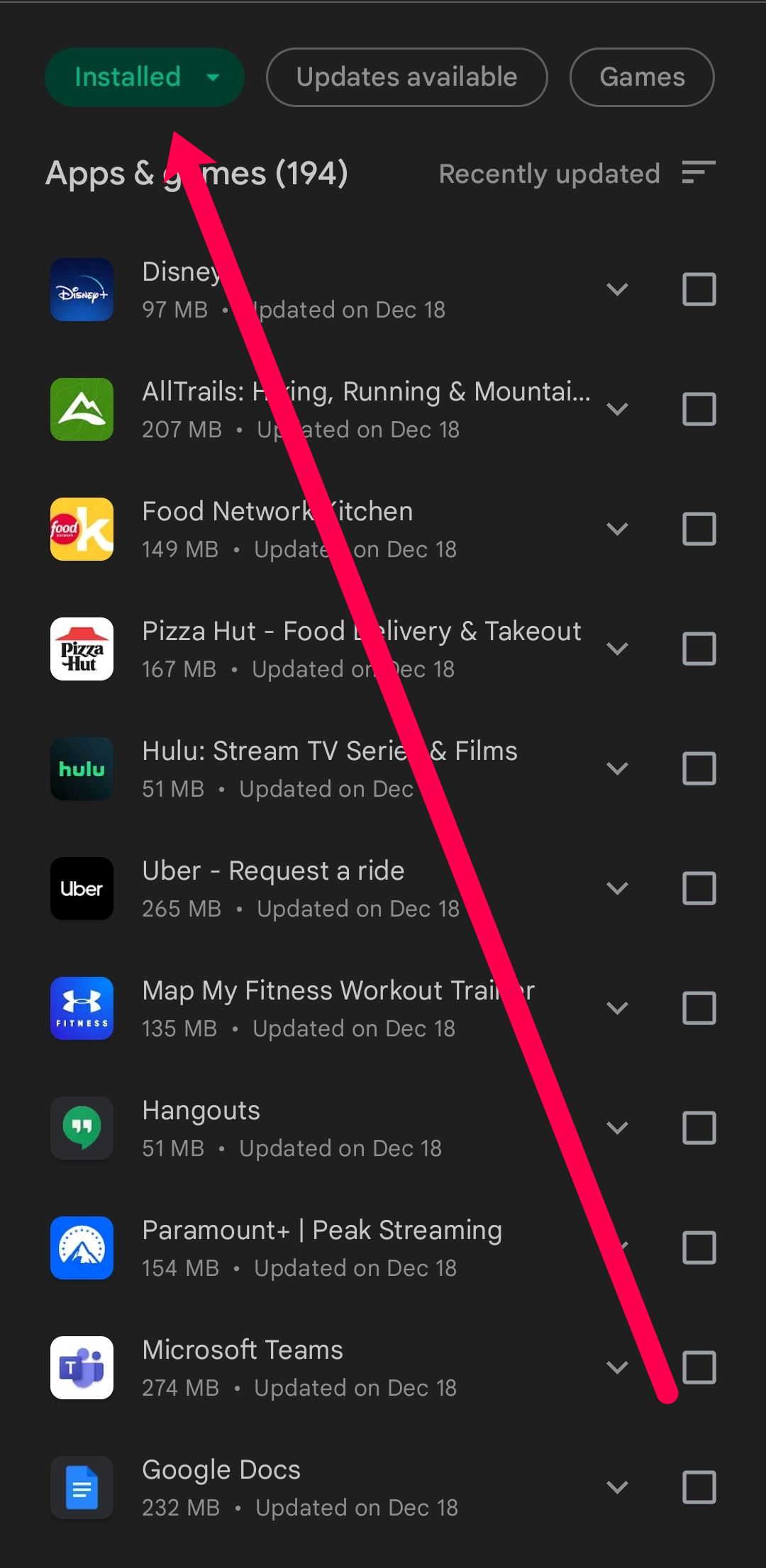
Once in the “Manage” tab, you will see a list of your apps with checkboxes next to them. Above the list, there is a filter button that usually says “Recently updated” by default. Tap this to open a menu that allows you to sort by:
- Name: Alphabetical order.
- Most used: Apps that consume the most of your time.
- Recently updated: Apps that have received recent patches.
- Size: Apps taking up the most storage.
By selecting “Recently updated,” you can see which applications have been modified on your device most recently. This is often synonymous with your newest installs, as new apps are frequently updated immediately after the initial download. Furthermore, you can toggle the “Installed” button to “Uninstalled.” This is a powerful feature that allows you to see every app you have ever downloaded on your Google account but have since deleted from your Motorola device, listed in reverse chronological order.
Enhancing Productivity with Motorola-Specific Features and Shortcuts
Motorola’s “My UX” provides subtle enhancements to the Android experience that can help you organize and identify new software without digging through deep menus.
Using the App Drawer Search and Sort Functions
The app drawer is the most frequent point of interaction for users. On a Motorola device, swiping up from the home screen reveals all your apps. Motorola’s launcher often includes a “Suggested Apps” row at the very top. These are dynamically generated based on your usage patterns and recent activity. Often, a newly installed app will appear here automatically because the system anticipates you will want to open it.
If you cannot find a recently installed app, the search bar at the top of the app drawer is your best tool. As you type the name, the system filters your apps in real-time. This is significantly faster than scrolling through a long list, especially if you have over 100 applications installed.
The Role of Digital Wellbeing in Monitoring App Activity
Introduced to help users manage their screen time, the “Digital Wellbeing & Parental Controls” tool in your Motorola settings is an accidental goldmine for tracking app usage. By navigating to Settings > Digital Wellbeing, you can view a dashboard that shows which apps you have used today and for how long.
While it doesn’t explicitly list “installation dates,” it shows the first time an app was launched during the current 24-hour cycle. If you downloaded a new utility and used it immediately, it will appear at the top of your dashboard. This provides a clear timeline of your interaction with new software, helping you verify if a recently installed app is contributing to excessive background activity.
Security and Maintenance: Why Tracking Recent Installs Matters
Monitoring your recently installed apps is not just about organization; it is a critical component of digital security and device maintenance.
Identifying Potential Bloatware and Malicious Software
Mobile security threats often masquerade as legitimate utilities—calculators, wallpaper apps, or QR code scanners. If your Motorola phone starts behaving strangely—such as showing frequent pop-up ads, overheating, or experiencing rapid battery drain—the first step is to check your most recent installs.
By using the Google Play Store “Manage” tab or the “Apps” section in Settings, you can identify if a third-party app was installed around the same time the performance issues began. If you see an app you don’t remember downloading, it could be “bloatware” bundled with another service or, worse, potentially harmful software (PUPs). Identifying and removing these “most recent” additions is the quickest way to restore your device’s integrity.
Optimizing Storage and System Performance
Modern apps are storage-intensive. A few high-end games or social media platforms can quickly fill up your Motorola’s internal storage, especially on models with 64GB or 128GB of space. By regularly checking your recent installs and sorting them by size, you can make informed decisions about what to keep.
If you find that your device is slowing down, check the “Recently Updated” list. Sometimes, a new update to an old app can introduce bugs or increased resource consumption. Knowing which app was updated last allows you to “Roll Back” or clear the cache of that specific app to resolve performance bottlenecks.
Advanced Methods for Tech-Savvy Users
For those who want even more control over their Motorola device, there are advanced ways to monitor app activity and installation logs.
Using Third-Party App Managers and Activity Launchers
While the native tools are sufficient for most, power users may opt for third-party “App Managers” available on the Play Store. These tools can provide detailed timestamps of the exact second an app was installed.
Furthermore, “Activity Launchers” can be used to access hidden menus within the Android system. Every Motorola phone keeps a “Package Installer” log. While this is usually reserved for developers, using an activity launcher can sometimes reveal the “Recent Tasks” list or “Usage Stats” that are more detailed than the standard Digital Wellbeing dashboard. This allows you to see precisely which packages were added to the system and what permissions they were granted upon installation.
Conclusion: Maintaining a Healthy Motorola Ecosystem
Mastering the ability to check your most recently installed apps on a Motorola device is essential for maintaining a fast, secure, and organized smartphone. By alternating between the System Settings for local management and the Google Play Store for account-wide history, you gain a 360-degree view of your software environment. Regular audits of your app list ensure that your device remains optimized and that you remain in full control of your digital life. Whether for productivity or security, these simple navigation steps empower you to get the most out of your Motorola’s clean and efficient hardware.
aViewFromTheCave is a participant in the Amazon Services LLC Associates Program, an affiliate advertising program designed to provide a means for sites to earn advertising fees by advertising and linking to Amazon.com. Amazon, the Amazon logo, AmazonSupply, and the AmazonSupply logo are trademarks of Amazon.com, Inc. or its affiliates. As an Amazon Associate we earn affiliate commissions from qualifying purchases.