
In the modern era, our smartphones are more than just communication tools; they are the central repositories of our digital identities, financial records, and personal memories. Apple’s iPhone, renowned for its robust security architecture, employs sophisticated encryption to ensure that this data remains private. However, the very security measures designed to protect us can become a significant hurdle when we find ourselves on the wrong side of the lock screen.
Forgetting an iPhone passcode is a common occurrence, yet it triggers an immediate sense of tech-induced anxiety. Because Apple prioritizes user privacy, there is no “backdoor” or simple password reset via email. If the passcode is lost, the device must be erased to regain access. This article serves as a technical deep dive into the mechanisms of iPhone security and provides a structured, professional guide on how to navigate a lockout while maintaining the integrity of your digital ecosystem.

1. Understanding the Architecture of iPhone Security
To effectively manage a forgotten passcode, one must first understand why the process is so intentionally difficult. Apple’s security model is built on the principle of “encryption at rest,” which ensures that without the specific passcode, the data on the device is virtually unreadable.
The Role of the Secure Enclave
At the heart of every modern iPhone is the Secure Enclave—a dedicated hardware-based key manager isolated from the main processor. When you set a passcode, it is not simply stored in a database. Instead, the Secure Enclave uses your passcode to derive a unique encryption key. This hardware-level isolation means that even if the main iOS software were compromised, your biometric data and passcode-derived keys remain protected. This is why a forgotten passcode cannot be “recovered”; it must be bypassed through a complete system wipe.
Brute-Force Protection and “iPhone Unavailable”
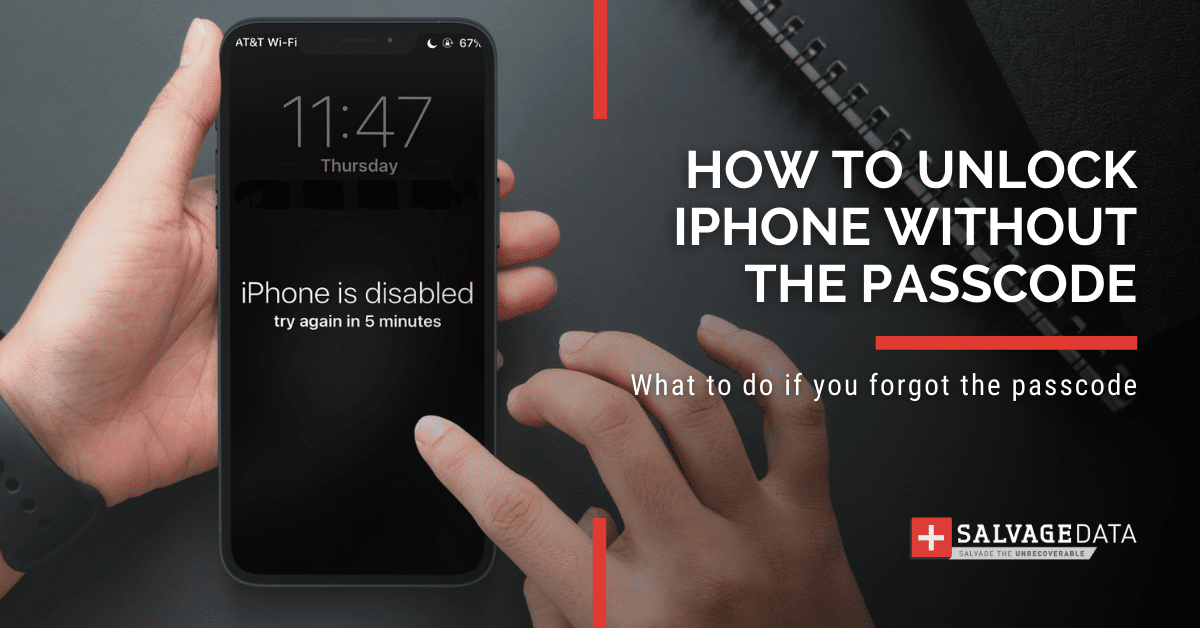
iOS includes a “self-preservation” mechanism to prevent brute-force attacks (where a computer tries thousands of combinations per second). After several incorrect attempts, the device will impose escalating time delays. Eventually, the device enters “Security Lockout” or “iPhone Unavailable” mode. At this stage, the encryption keys are effectively purged from the active memory, making a restore the only path forward. Understanding this timeline is crucial for users who hope to “remember” their code before the final lockout occurs.
The Trade-off Between Privacy and Accessibility
Apple’s stance on digital security is uncompromising. By ensuring that only the user knows the passcode, Apple prevents unauthorized access from hackers, or even law enforcement, but it also means Apple Support cannot remotely unlock a device for you. This professional-grade security requires users to take personal responsibility for their credentials and backup strategies.
2. Primary Methods for Device Restoration
When a passcode is truly forgotten, the objective shifts from “unlocking” to “restoring.” Depending on your hardware and software version, there are several technical pathways to regain control of your device.
The “Erase iPhone” On-Device Method (iOS 15.2 and Later)
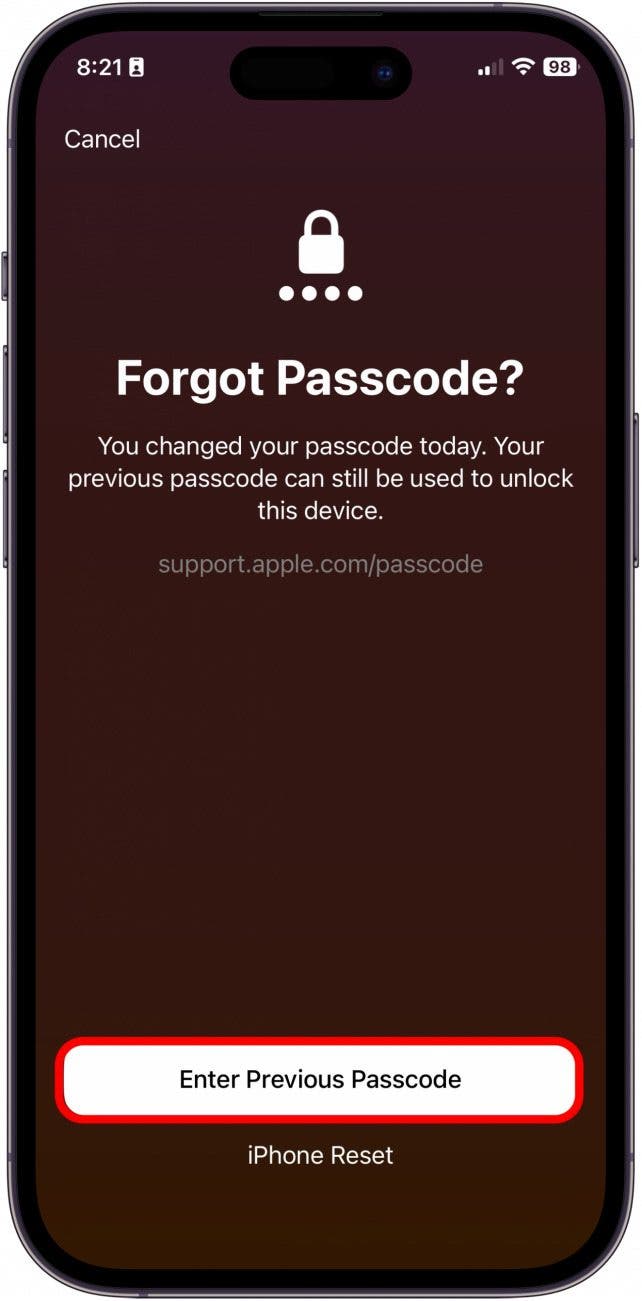
In recent iterations of iOS, Apple introduced a more user-friendly “Forgot Passcode?” or “Erase iPhone” option directly on the lock screen. If your device is connected to a cellular or Wi-Fi network and has “Find My” enabled, you can tap this option after several failed attempts. You will be prompted to enter your Apple ID password. Once authenticated, the device will initiate a factory reset wirelessly. This is the most efficient method as it bypasses the need for external hardware, provided you remember your Apple ID credentials.
Utilizing Recovery Mode via Mac or PC
For devices that aren’t connected to the internet or are running older software, Recovery Mode is the standard protocol. This involves putting the iPhone into a state where it can communicate with a computer’s operating system without needing the passcode.
- The Process: For an iPhone 8 or later, this involves a specific sequence: press and quickly release Volume Up, then Volume Down, and then hold the Side button until the recovery screen (a computer and cable icon) appears.
- The Software: On a Mac running macOS Catalina or later, you use the Finder. On older Macs or Windows PCs, iTunes is the required interface. The computer will detect a “problem” with the iPhone and offer an “Restore” option. This downloads the latest version of iOS and performs a clean installation.
Remote Wipe via iCloud “Find My”
If you do not have physical access to a computer but have another device (like an iPad or a friend’s phone), you can use the Find My app or sign in to iCloud.com. By selecting the locked iPhone and choosing “Erase This Device,” a command is sent via Apple’s servers to wipe the device immediately upon its next internet connection. This is particularly useful for remote management of devices.
3. Advanced Troubleshooting and Security Considerations
Restoring an iPhone is rarely the end of the story. Once the device is wiped, several security layers must be addressed to ensure the phone remains functional and secure.
Navigating Activation Lock
The most significant hurdle after a factory reset is “Activation Lock.” Part of the Find My network, this feature prevents anyone from using your iPhone if it is stolen. Even after a total wipe, the device will require the Apple ID and password previously linked to it. This is a critical security feature, but for a user who has forgotten both their passcode and their Apple ID password, it can result in a “bricked” device. It is essential to ensure your Apple ID recovery information (recovery phone numbers and emails) is always up to date.
Third-Party Software: Risks and Realities
A simple search for “forgot iPhone passcode” will yield dozens of results for third-party “iPhone Unlocker” tools. Professionally speaking, these should be approached with extreme caution. Most of these tools simply provide a graphical interface for putting your phone into Recovery Mode—something you can do for free. Furthermore, using unverified software can expose your computer and your iPhone’s data to malware. In almost all cases, Apple’s native tools are safer and more effective.
Managing Managed Devices (MDM)
If the iPhone is a corporate or educational device, it may be under Mobile Device Management (MDM). In these instances, the standard restore methods might be blocked or might require the IT department’s authorization to re-enroll. If you are locked out of a work device, the most efficient route is contacting your organization’s IT help desk, as they have administrative bypass codes designed for exactly this scenario.
4. Future-Proofing: Proactive Digital Security Hygiene
The “forgotten passcode” crisis is an opportunity to re-evaluate your digital habits. Preventing a repeat scenario requires a balance of biometric convenience and robust backup protocols.
Implementing Biometrics: Face ID and Touch ID
While a passcode is the master key, biometrics like Face ID and Touch ID serve as the daily interface. Ensuring these are properly calibrated reduces the frequency with which you must enter your passcode, but it also increases the risk of forgetting it. To mitigate this, iOS periodically requires a passcode entry every few days or after a restart. Do not view this as an inconvenience; view it as a necessary “memory exercise” to ensure you retain access to your device.
The Importance of the “3-2-1” Backup Strategy
The loss of data is the only truly permanent consequence of a forgotten passcode. To prevent this, adopt a professional-grade backup strategy:
- iCloud Backup: Ensure “iCloud Backup” is toggled on. This ensures your photos, messages, and app data are synced daily when the phone is charging and on Wi-Fi.
- Local Backups: Occasionally back up your iPhone to a physical computer (Mac or PC). This provides a secondary recovery point that does not rely on cloud storage limits or internet speeds.
- Encrypted Backups: If backing up to a computer, ensure “Encrypt Local Backup” is selected. This allows the backup to include sensitive data like health information and saved passwords, making the transition to a restored device much smoother.
Stolen Device Protection
With the release of iOS 17.3, Apple introduced “Stolen Device Protection.” This feature adds a layer of security when your iPhone is away from familiar locations (like home or work). It requires Face ID or Touch ID for sensitive actions (like changing an Apple ID password) and implements a one-hour security delay for certain changes. Enabling this ensures that even if someone were to shoulder-surf your passcode, they could not easily lock you out of your entire Apple ecosystem.
Conclusion: The Path Forward
Forgetting an iPhone passcode is a stressful experience, but it is a manageable technical challenge. By understanding the underlying security architecture of iOS, you can navigate the restoration process with confidence. Whether you use the on-device “Erase” feature, Recovery Mode, or iCloud, the key is to remain calm and follow the authenticated protocols provided by Apple.
Ultimately, the best defense against a lockout is a proactive offense. By maintaining regular backups, keeping your Apple ID credentials secure, and leveraging the latest security features like Stolen Device Protection, you ensure that even if you lose your passcode, you never lose your data. In the world of technology, security and accessibility are often at odds; however, with the right digital hygiene, you can enjoy the benefits of Apple’s world-class encryption without the fear of being permanently locked out of your digital life.
aViewFromTheCave is a participant in the Amazon Services LLC Associates Program, an affiliate advertising program designed to provide a means for sites to earn advertising fees by advertising and linking to Amazon.com. Amazon, the Amazon logo, AmazonSupply, and the AmazonSupply logo are trademarks of Amazon.com, Inc. or its affiliates. As an Amazon Associate we earn affiliate commissions from qualifying purchases.