
When the first Chromebooks arrived on the scene in 2011, they were met with a mixture of curiosity and skepticism. Critics often dismissed them as “just a browser in a box.” However, over a decade later, these devices have captured a significant share of the global laptop market, dominating the education sector and making massive inroads into the enterprise and consumer spaces. At the heart of this success is a unique, lightweight, and incredibly secure operating system.
To answer the fundamental question: A Chromebook runs ChromeOS.
ChromeOS is a Linux-based operating system designed by Google. Unlike traditional operating systems like Windows or macOS, which were built in an era of local file storage and heavy desktop applications, ChromeOS was engineered for a world where the internet is the primary platform for work and play. In this article, we will dive deep into the architecture, capabilities, and future of ChromeOS, exploring why it has become a formidable player in the technology landscape.
Understanding ChromeOS: The Cloud-First Architecture
ChromeOS is often misunderstood as a simple extension of the Google Chrome web browser. While the browser is indeed the primary interface, the underlying architecture is a sophisticated, layered system built for speed and security.
The Linux Kernel Foundation
At its most basic level, ChromeOS is built on the Linux kernel. Specifically, it is a derivative of Gentoo Linux. By using Linux as its foundation, Google ensured that the OS would be inherently stable, efficient, and capable of supporting a wide range of hardware configurations. This foundation allows the OS to interact directly with the device’s hardware—processors, RAM, and storage—while maintaining a footprint that is significantly smaller than that of its competitors. Because the OS is so lightweight, Chromebooks can boot up in seconds and maintain high performance even on modest hardware.
The Role of the Chrome Browser
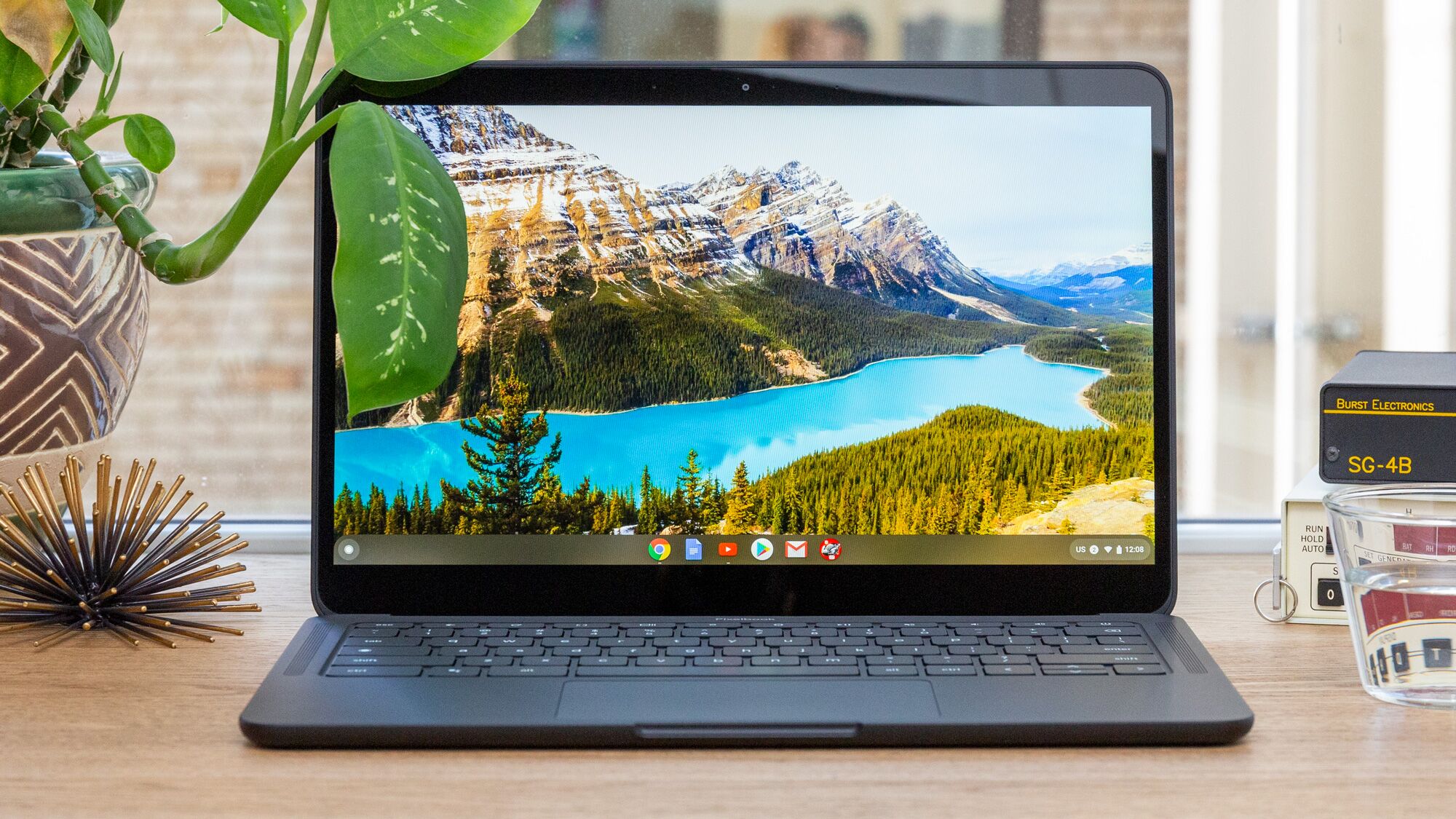
For the end user, the “shell” of the operating system is the Google Chrome browser. In the early days, almost everything happened within a browser tab. Today, while the browser remains the central hub, it has evolved. The UI now includes a taskbar (known as the “Shelf”), a notification center, and an app launcher similar to what you would find on Windows or macOS. However, the philosophy remains “web-first.” By prioritizing web technologies, ChromeOS ensures that users have access to a vast ecosystem of tools without the need for cumbersome installations.
Security by Design: Sandboxing and Verified Boot
One of the most compelling tech-driven reasons to use ChromeOS is its security model. ChromeOS employs a concept called “sandboxing.” Every time you open a webpage or an app, it runs in its own restricted environment (a sandbox). If one tab is infected by malware, it cannot escape that sandbox to infect the rest of the system or steal your data.
Furthermore, ChromeOS features “Verified Boot.” Every time the device starts up, the system performs a self-check to ensure the operating system hasn’t been tampered with or corrupted. If the system detects any changes to the core files, it automatically repairs itself by reverting to a known-good version of the OS stored on a separate partition.
The Evolution of App Support: Beyond the Web
The most significant criticism of early Chromebooks was their reliance on a constant internet connection and a perceived lack of “real” apps. Google addressed this by systematically expanding what ChromeOS can run, transforming it from a “thin client” into a versatile workstation.
Progressive Web Apps (PWAs)
The first layer of the ChromeOS app ecosystem is the Progressive Web App. PWAs are essentially websites that have been optimized to behave like native software. They can be “installed” on the Shelf, work offline, and send push notifications. Applications like Spotify, Microsoft Office 365, and Zoom utilize PWA technology on Chromebooks, providing a seamless experience that feels native while benefiting from the speed of the web.
Android App Integration via the Google Play Store
In 2016, Google made a revolutionary move by bringing the Google Play Store to ChromeOS. This allowed Chromebooks to run millions of Android apps natively. Whether it is mobile games, social media apps like Instagram, or creative tools like Lightroom, the inclusion of Android support bridged the gap between mobile and desktop computing. To make this work, Google uses a containerized version of Android within ChromeOS, ensuring that these apps can run without compromising the security of the host operating system.

Linux (Crostini) for Power Users and Developers
For the tech-savvy crowd, ChromeOS offers a feature called “Crostini.” This allows users to run a full Linux development environment on their Chromebook. By enabling this feature, users can install Linux desktop applications, such as VS Code, Inkscape, or GIMP, and run command-line tools. This has turned Chromebooks into a legitimate choice for software developers and IT professionals who need a secure, portable device that can handle coding and server management.
Hardware and Performance: How ChromeOS Manages Resources
A key differentiator for ChromeOS is how it interacts with hardware. Because the OS is not bogged down by decades of legacy code and background processes typical of Windows, it can achieve “more with less.”
Lightweight Nature and Speed
On a traditional PC, as you install more software, the system tends to slow down due to registry bloat and startup items. ChromeOS avoids this entirely. Apps are either web-based or containerized, meaning they don’t leave “junk” behind in the system files. This is why a $300 Chromebook often feels snappier for daily tasks—like browsing, streaming, and document editing—than a Windows laptop at the same price point.
Automatic Updates and Longevity
In the world of tech, firmware and OS updates are often a source of frustration. ChromeOS handles this differently through “A/B partitioning.” The device has two copies of the operating system. When an update is released, it downloads and installs on the secondary partition in the background while you continue to work. When you restart your device, it simply swaps the partitions. This process takes seconds, ensuring that users are always running the most secure and up-to-date version of the software without downtime.
The “Chromebook Plus” Standard
Recognizing that users now want to do more than just browse, Google recently introduced the “Chromebook Plus” category. This is a hardware certification that ensures a device has at least a 12th Gen Intel Core i3 or AMD Ryzen 7000 series processor, 8GB of RAM, and a 1080p webcam. By setting these software-mandated hardware benchmarks, Google is ensuring that ChromeOS can handle more intensive tasks like video editing and advanced multitasking, moving the OS further into the “pro” territory.
The Future of ChromeOS: AI and Enterprise Integration
As we look toward the future of software, ChromeOS is positioning itself at the intersection of Artificial Intelligence and cloud-based enterprise solutions.
Integrating Generative AI (Gemini)
Google is aggressively integrating its “Gemini” AI into the fabric of ChromeOS. From “Help Me Write” features that assist in drafting emails and documents to AI-generated wallpapers and video call backgrounds, the OS is becoming smarter. These AI features are often offloaded to Google’s cloud servers, meaning even entry-level Chromebooks can benefit from powerful machine learning models that would normally require a high-end GPU.
ChromeOS Flex: Reviving Old Hardware
In a masterstroke for sustainability and digital security, Google released “ChromeOS Flex.” This is a version of the OS that can be installed on old Windows PCs and Macs. Because ChromeOS is so lightweight, it can turn a ten-year-old, sluggish laptop into a fast, functional machine. For businesses and schools with aging hardware, this offers a way to extend the life of their gadgets while transitioning to a more secure, manageable software ecosystem.
Enterprise Management and Security
For IT administrators, the OS provides the “Google Admin Console,” allowing for the management of thousands of devices from a single dashboard. Features like remote wipe, forced updates, and granular app control make it one of the most manageable operating systems in existence. As more companies move toward “Software as a Service” (SaaS) models, the need for a heavy local OS diminishes, making ChromeOS the logical choice for the modern digital workplace.

Conclusion
So, what OS does a Chromebook run? It runs ChromeOS—a Linux-based, cloud-centric, and security-hardened operating system that has redefined our expectations of what a computer can be.
ChromeOS has proven that an operating system doesn’t need to be complex to be powerful. By focusing on the browser as the primary interface, while expanding to support Android and Linux applications, Google has created a versatile platform that caters to students, professionals, and casual users alike. In an era where digital security is paramount and speed is a necessity, the “less is more” philosophy of ChromeOS isn’t just a design choice—it is a significant technological advantage. Whether you are looking for a simple device for web browsing or a secure workstation for software development, the OS inside your Chromebook is more than capable of meeting the challenge.
aViewFromTheCave is a participant in the Amazon Services LLC Associates Program, an affiliate advertising program designed to provide a means for sites to earn advertising fees by advertising and linking to Amazon.com. Amazon, the Amazon logo, AmazonSupply, and the AmazonSupply logo are trademarks of Amazon.com, Inc. or its affiliates. As an Amazon Associate we earn affiliate commissions from qualifying purchases.