
In the world of Windows server management and web development, few processes are as ubiquitous—or as misunderstood—as w3wp.exe. If you have ever opened the Windows Task Manager on a server running Internet Information Services (IIS) and noticed a process consuming a significant portion of your CPU or RAM, you have likely encountered this executable.
Commonly referred to as the IIS Worker Process, w3wp.exe is the engine that powers web applications within the Microsoft ecosystem. Whether you are a system administrator troubleshooting a slow website, a developer optimizing an ASP.NET application, or a security professional auditing server health, understanding the mechanics of w3wp.exe is essential. This article explores what this process does, how it interacts with the operating system, and how to manage its performance effectively.
The Mechanics of w3wp.exe: What It Is and What It Does
At its most basic level, w3wp.exe is the worker process for the IIS web server. When a client (such as a web browser) sends a request to a website hosted on a Windows server, it is the worker process that handles the heavy lifting of processing that request and returning the appropriate response.
Definition and Role in IIS
IIS is a modular web server developed by Microsoft. Unlike some web servers that handle all tasks within a single monolithic process, IIS utilizes a decoupled architecture for better stability and security. When a request arrives, it is first intercepted by HTTP.sys, a kernel-mode HTTP listener. If the request is valid, HTTP.sys passes it to the corresponding Application Pool.
This is where w3wp.exe comes into play. Each Application Pool in IIS runs its own instance of w3wp.exe. This process is responsible for loading the necessary web application files, executing the code (such as ASP.NET, PHP, or static HTML), and managing the request-response cycle. Because the worker process operates in “user mode,” it is isolated from the core operating system, which prevents a single web application failure from crashing the entire server.
How Application Pools Manage w3wp.exe
The relationship between an Application Pool and w3wp.exe is fundamental to Windows web hosting. An Application Pool serves as a container that provides isolation between different web applications.
By default, if you have five different websites on a server, you can assign them to five different Application Pools. This results in five distinct w3wp.exe processes appearing in your Task Manager. The primary advantage of this architecture is “Process Isolation.” If a memory leak occurs in one application, it will only affect its specific w3wp.exe instance, leaving the other four websites running smoothly. This granularity allows administrators to assign specific security identities and resource limits to individual applications, ensuring that a high-traffic site does not starve a smaller site of necessary resources.
Identifying and Troubleshooting High CPU and Memory Usage
One of the most frequent reasons people search for “what is w3wp.exe” is because they see it consuming 90% or more of their server’s CPU. While the process itself is legitimate, its resource consumption is a direct reflection of the application code it is running.
Common Causes for Performance Spikes
High CPU or memory usage in w3wp.exe is rarely a fault of IIS itself; rather, it is usually indicative of an issue within the hosted application. Several common scenarios include:
- Inefficient Code or Infinite Loops: A programming error, such as a loop that never terminates or a complex mathematical calculation, can cause the worker process to max out the CPU.
- Memory Leaks: If an application allocates memory but fails to release it back to the system, the
w3wp.exeprocess will grow in size until the server runs out of physical RAM, leading to “Out of Memory” errors. - High Traffic Volume: In simple terms, if thousands of users hit a site simultaneously, the worker process must work harder to serve those requests.
- Database Bottlenecks: If an application is waiting on a slow SQL query, threads within
w3wp.exemay stay open longer than necessary, leading to a backlog of requests and increased resource pressure.
Debugging with Windows Task Manager and Resource Monitor
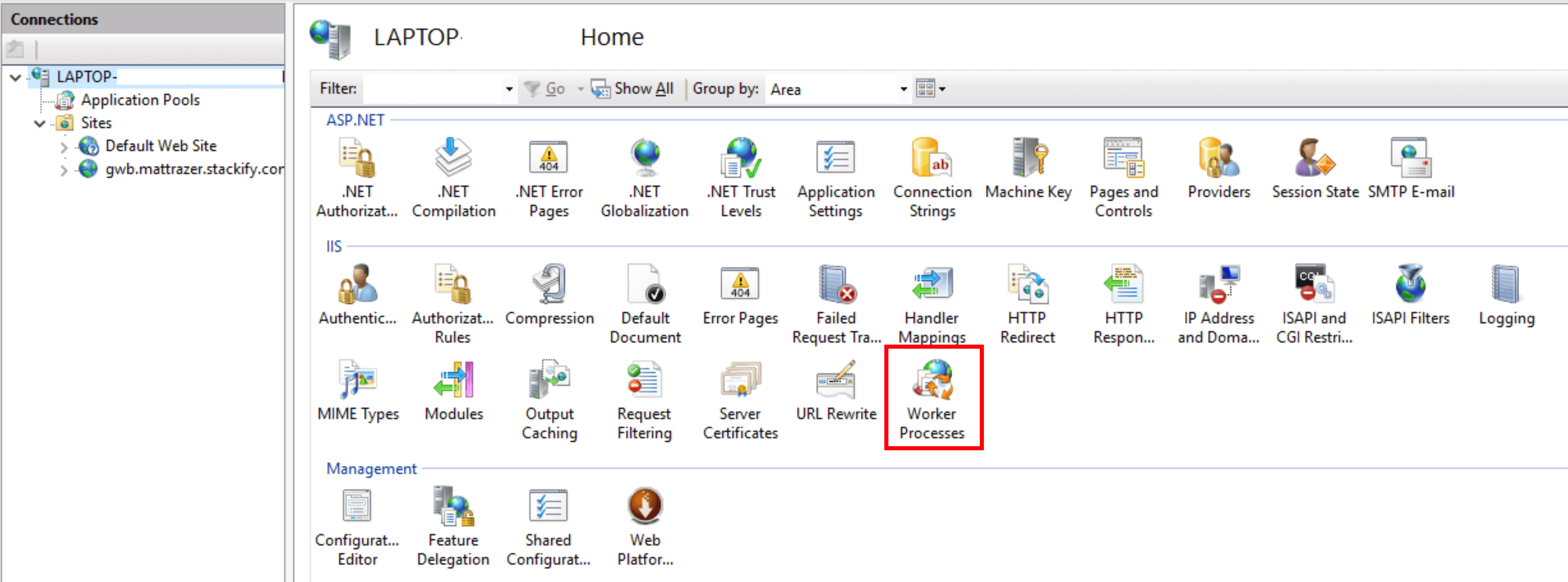
To troubleshoot which specific website is causing the issue, you cannot simply look at the process name, as all worker processes are named w3wp.exe. Instead, you must identify which Application Pool corresponds to which process ID (PID).
Using the command line, you can run appcmd list wp to see a list of all active worker processes and their associated Application Pools. Once you have identified the culprit, you can use the Windows Resource Monitor to look at disk I/O and network activity. For deeper analysis, developers often use “Performance Profilers” or “Debug Diagnostics Tools” to take a memory dump of the w3wp.exe process. This allows them to see exactly which line of code or which specific object is consuming the most resources, facilitating a surgical fix rather than a broad server reboot.
Security Implications: Is w3wp.exe a Virus?
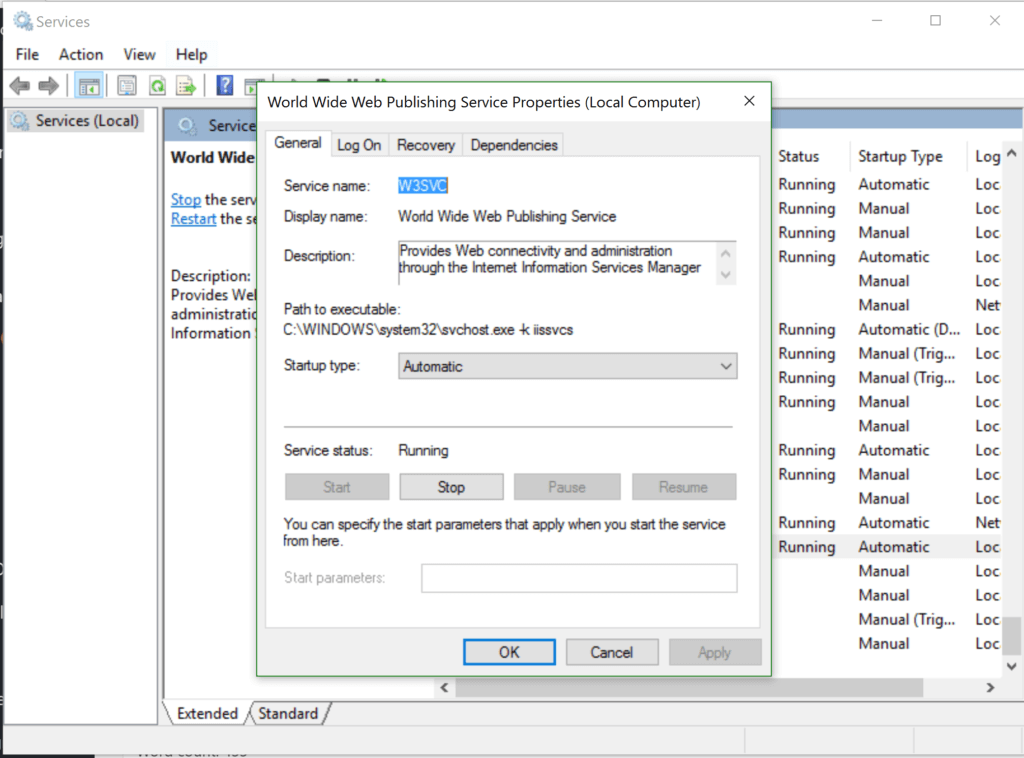
In the vast majority of cases, w3wp.exe is a legitimate Windows component. However, because it is a known system process, malware authors occasionally attempt to disguise their malicious files by using the same or similar names.
Distinguishing Legitimate Processes from Malware
A legitimate w3wp.exe file is always located in the %SystemRoot%System32inetsrv directory. If you find an executable with this name in your Downloads folder, Temp directory, or any other unusual path, it is likely a virus or a trojan.
Another way to verify the process is to check its “User Name” in the Task Manager. A legitimate IIS worker process typically runs under the identity of the Application Pool (e.g., IIS AppPoolDefaultAppPool) or a dedicated service account like NetworkService. If the process is running under a suspicious user account or has no description, it warrants a security scan. Furthermore, legitimate instances of w3wp.exe only run when the IIS service is active. If your machine is not configured as a web server and you see this process running, it is a significant red flag.
Best Practices for Web Server Security
To keep w3wp.exe secure, it is vital to follow the principle of “Least Privilege.” You should never run an Application Pool under an Administrator account. By using the “Application Pool Identity,” IIS creates a virtual account with just enough permissions to run the web application and nothing more.
Additionally, ensuring that your web applications are protected against common vulnerabilities like SQL injection and Cross-Site Scripting (XSS) prevents attackers from hijacking the worker process. If an attacker manages to exploit a vulnerability in your code, they gain the permissions of the w3wp.exe process. If that process is properly sandboxed, the damage they can do to the rest of the server is significantly minimized.
Optimizing the IIS Worker Process for Peak Performance
For high-demand environments, simply “letting IIS run” isn’t enough. Administrators must fine-tune how w3wp.exe behaves to ensure maximum uptime and responsiveness.
Recycling Settings and Their Impact
IIS has a feature called “Recycling,” which involves shutting down an old w3wp.exe process and starting a fresh one. This is a defensive mechanism used to clear out memory leaks or “stale” resources that accumulate over time.
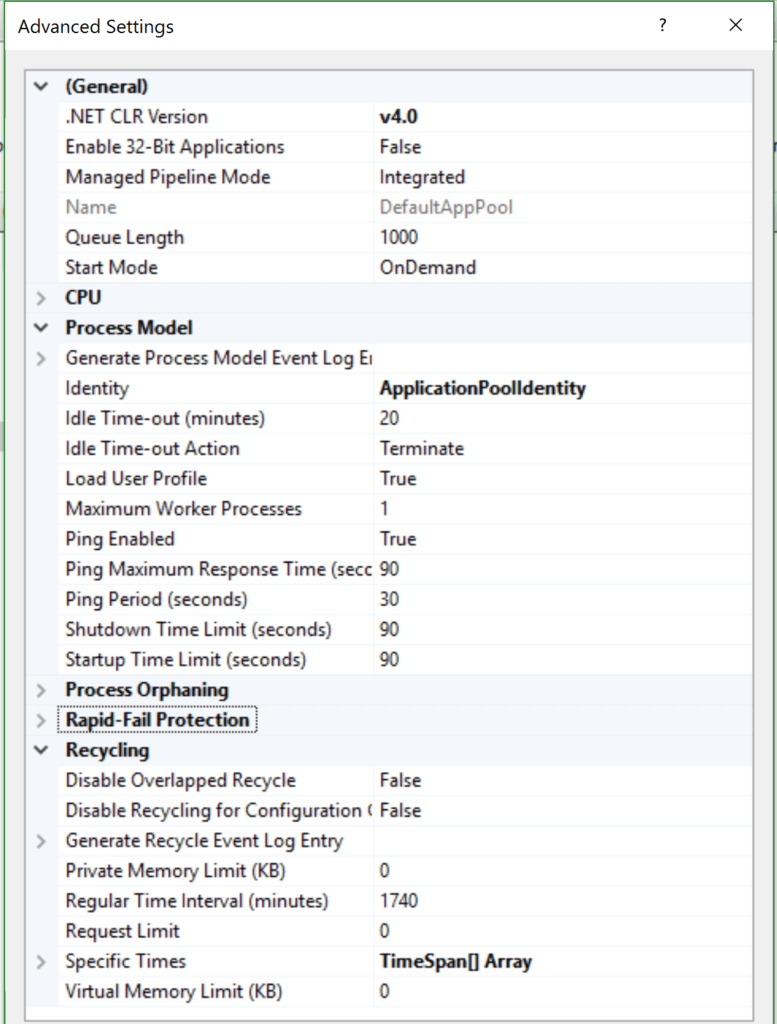
By default, IIS is set to recycle the worker process every 1,740 minutes (29 hours). However, this can be customized based on specific needs. For example, you might set a “Private Memory Limit” so that if the process exceeds 2GB of RAM, it automatically restarts. This prevents a single application from crashing the entire server due to memory exhaustion. It is important to note that recycling can cause a brief moment of latency for the first user who hits the site afterward, as the application must “warm up” (re-compile and re-cache data).
Configuring Resource Limits
In modern versions of Windows Server, IIS allows for even more granular control through “CPU Throttling.” You can configure an Application Pool to limit its CPU usage to a specific percentage. If the w3wp.exe process exceeds this limit, IIS can either throttle it or kill the process entirely.
Furthermore, the “Idle Time-out” setting is crucial for resource management. By default, if a website receives no traffic for 20 minutes, IIS will shut down the w3wp.exe process to save RAM. For mission-critical sites, administrators often change the “Start Mode” to “AlwaysRunning” and set the idle time-out to zero. This ensures that the worker process is always active and ready to serve requests instantly, providing a better user experience at the cost of constant memory reservation.
Conclusion: Maintaining a Healthy Server Environment
The w3wp.exe process is the heartbeat of any IIS-based web infrastructure. While it can occasionally be a source of frustration when it consumes excessive resources, it is a highly optimized and sophisticated tool designed to keep web applications running in a stable, isolated environment.
Understanding that w3wp.exe is merely an executor of your application’s code shifts the focus from “fixing the process” to “optimizing the application.” By monitoring Application Pools, setting sensible recycling boundaries, and maintaining strict security protocols, you can ensure that your server remains performant and secure. Whether you are hosting a small personal blog or a massive enterprise-grade API, mastering the nuances of the IIS Worker Process is a cornerstone of professional technical management.