
In an age where digital communication forms the bedrock of personal and professional interactions, the sanctity and security of our emails have never been more critical. From sensitive personal information to confidential business strategies, a vast amount of data traverses the digital ether daily, making robust security measures not just advisable, but imperative. Among the arsenal of tools designed to safeguard this digital flow, Microsoft Outlook offers a feature that often piques curiosity and, sometimes, confusion: “Encrypt Only.” Far more than a simple lock and key, this option represents a sophisticated layer of protection designed to keep your email content private and secure.
This article delves deep into the meaning, functionality, and implications of “Encrypt Only” in Outlook. We’ll explore its technical underpinnings, walk through its practical application, differentiate it from other security features, and ultimately underscore why this seemingly small option holds significant weight for individuals and organizations alike in protecting their technology, brand, and financial well-being.
Understanding the Core Concept: A Digital Vault for Your Emails
At its heart, “Encrypt Only” in Outlook is a specific application of Information Rights Management (IRM) within the Microsoft ecosystem. When you select “Encrypt Only” for an email, you are essentially applying a digital wrapper around your message that ensures its content remains private, viewable only by authorized recipients, even after it has left your outbox.
More Than Just Transit Encryption
It’s crucial to distinguish “Encrypt Only” from the standard encryption protocols (like TLS – Transport Layer Security) that are often used to secure email in transit. Most reputable email providers automatically encrypt emails as they travel between servers, protecting them from eavesdropping during their journey. However, once an email reaches its destination server and sits in a recipient’s inbox, this transit encryption typically ceases to apply to the content itself. The email can then be viewed by anyone with access to that inbox, or potentially intercepted if the inbox itself isn’t adequately secured.
“Encrypt Only” goes a step further. It encrypts the actual content of the email message (and any attachments) in such a way that the recipient must authenticate their identity before they can view it. This means the protection isn’t just during transit; it persists even when the email is at rest in the recipient’s mailbox. Only individuals who successfully verify their identity, typically through a Microsoft account or a one-time passcode sent to their email address, can decrypt and read the message.
The Recipient’s Experience: Controlled Access
For the sender, applying “Encrypt Only” is straightforward. For the recipient, the experience is designed to be secure yet accessible. When an encrypted email arrives, the recipient will see a notification indicating that the message is encrypted and requires specific steps to view. Instead of the email content appearing directly in their preview pane, they might see a message like “This message is encrypted. Click here to read it.”
Upon clicking, they will typically be redirected to a web browser where they will be prompted to sign in with a Microsoft account (if they have one associated with the receiving email address) or to request a one-time passcode. This passcode is sent to their email address, and once entered, grants them access to view the email in a secure online portal. This authentication step ensures that only the intended recipient, or someone with access to their authenticated email account, can unlock and read the confidential content.
Crucially, with “Encrypt Only,” recipients generally retain the ability to reply, reply all, and forward the email. However, when they do so, the encryption policies persist. This means that any replies or forwards will also be encrypted, extending the protection to the ongoing conversation thread, and requiring subsequent recipients to also authenticate to view the content. This persistent protection is a key differentiator from other Outlook security features.
How to Use ‘Encrypt Only’: A Practical Guide
Leveraging the “Encrypt Only” feature in Outlook is a simple yet powerful way to enhance your digital security posture. The steps are intuitive, whether you’re using the desktop application, the web interface, or a mobile device.
For Outlook Desktop (Windows/macOS)
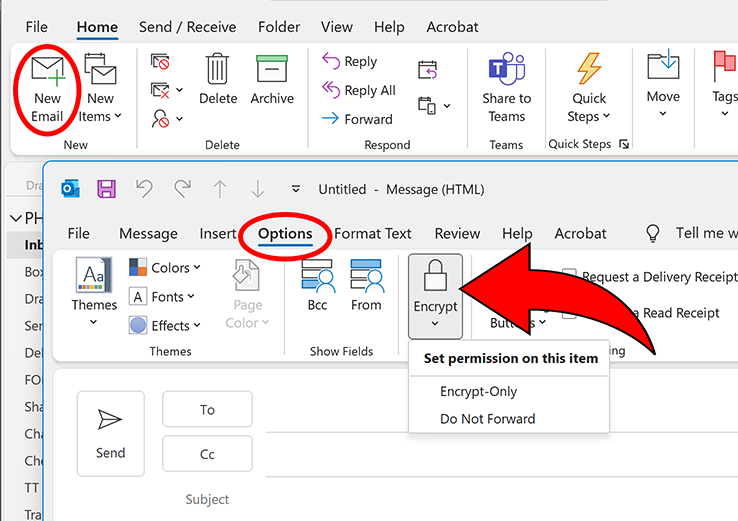
- Compose a New Email: Start by clicking “New Email” as you normally would.
- Navigate to the Options Tab: In the new message window, look for the “Options” tab in the ribbon at the top.
- Select Encrypt: Within the “Options” tab, you’ll typically find a section related to permissions or encryption. Click on “Encrypt.”
- Choose ‘Encrypt Only’: A dropdown menu will appear. Select the “Encrypt Only” option. You might also see other options like “Do Not Forward” or custom permissions if your organization has configured them.
- Compose and Send: Once “Encrypt Only” is selected, a notification will usually appear above your email content, confirming that the message is encrypted. Now, compose your email and attachments as usual, and send it.
For Outlook on the Web (Outlook.com or Microsoft 365 Web Access)
- Compose a New Email: Log in to Outlook on the web and click “New Message.”
- Access Encryption Options: In the compose window, look for the “Encrypt” button. This often appears as a padlock icon or an “Encrypt” text label, usually located in the toolbar at the bottom of the compose window or within a “…” (more options) menu.
- Choose ‘Encrypt Only’: Click the “Encrypt” button, and from the available options, select “Encrypt Only.”
- Compose and Send: A banner will confirm that “Encrypt Only” is applied. Write your message, attach files, and click “Send.”
For Outlook Mobile App (iOS/Android)
- Compose a New Email: Open the Outlook app and tap the “+” icon to start a new email.
- Find Encryption Settings: In the new message screen, look for an icon that resembles a padlock or an ellipsis (“…”) for more options. Tap on it.
- Select ‘Encrypt’: In the options menu that appears, you should see an “Encrypt” toggle or selection. Tap to enable it.
- Choose ‘Encrypt Only’: If multiple encryption options are available, select “Encrypt Only.”
- Compose and Send: Confirm the encryption is active, compose your message, and send it.
It’s worth noting that the exact placement of these options can vary slightly depending on your Outlook version, platform, and whether your organization has custom configurations or sensitivity labels enabled through Microsoft Purview (formerly Microsoft Information Protection).
Beyond Encryption: Contextualizing Outlook’s Security Features
While “Encrypt Only” is a powerful tool, it’s just one facet of Outlook’s broader security capabilities. Understanding how it fits into the larger picture, and how it differs from other features like “Do Not Forward” or sensitivity labels, is crucial for choosing the right level of protection for your digital communications.
Encrypt Only vs. Do Not Forward
These two options are often found side-by-side and can be confused, but they serve distinct purposes:
- Encrypt Only: Focuses primarily on content privacy. It ensures that the message content is encrypted and requires authentication to view. Once viewed, the recipient can generally reply and forward, but the encryption policy travels with the email. This means replies and forwards will also be encrypted, requiring authentication from subsequent recipients. The core purpose is to prevent unauthorized viewing of the content.
- Do Not Forward: Focuses on content control and restriction. While it also encrypts the message and requires authentication, its primary purpose is to prevent recipients from forwarding, printing, or copying the content. Recipients can read and reply to the sender, but they cannot disseminate the information further. This is ideal for highly confidential information where you want to restrict its spread.
In essence, “Encrypt Only” is about who can see it, while “Do Not Forward” is about who can see it and what they can do with it.
The Role of Sensitivity Labels and Information Rights Management (IRM)
“Encrypt Only” is a specific manifestation of a broader technology known as Information Rights Management (IRM), which is a core component of Microsoft Purview. IRM allows organizations to define granular permissions and restrictions for sensitive documents and emails.

- Sensitivity Labels: Many organizations use Sensitivity Labels (e.g., “Confidential,” “Highly Confidential,” “Public”) which can be configured to automatically apply specific IRM policies. For example, a “Confidential” label might automatically enforce “Encrypt Only,” while a “Highly Confidential” label might apply “Do Not Forward” and restrict printing. These labels streamline the process of applying appropriate security measures, ensuring consistency and compliance across the organization.
- Custom Permissions: IRM also allows for custom permissions, where a sender can define who can view, edit, print, or forward a document or email. “Encrypt Only” is a predefined, common policy within this framework.
Understanding these broader capabilities helps place “Encrypt Only” in its proper context as a powerful, user-friendly option within a sophisticated suite of data protection tools.
Why ‘Encrypt Only’ Matters: Benefits for Individuals and Businesses
The importance of “Encrypt Only” extends far beyond mere technical functionality. It touches upon critical aspects of digital security, reputation management, and financial integrity, aligning perfectly with the core themes of technology, brand, and money.
1. Enhancing Digital Security and Productivity (Tech)
From a pure technology standpoint, “Encrypt Only” is an invaluable feature for bolstering digital security.
- Protecting Sensitive Data: It provides a robust defense against unauthorized access to Personally Identifiable Information (PII), intellectual property, trade secrets, legal documents, and other critical data. Even if a recipient’s email account is compromised, the encrypted content remains unreadable without the additional authentication step.
- Meeting Compliance Standards: For many industries, regulatory frameworks like GDPR, HIPAA, CCPA, and others mandate strict data protection measures. “Encrypt Only” helps organizations meet these compliance requirements by ensuring that sensitive communications are adequately safeguarded. This reduces the risk of legal penalties and reputational damage.
- Streamlined Secure Communication: Unlike complex end-to-end encryption solutions that require key exchanges or third-party software, “Encrypt Only” is integrated directly into Outlook, making it easy for users to apply robust security without disrupting their workflow or requiring specialized technical knowledge. This boosts productivity by making secure communication a seamless part of daily operations.
2. Safeguarding Your Digital Brand and Reputation (Brand)
In today’s interconnected world, a single data breach or leak of confidential information can severely tarnish a brand’s reputation, erode customer trust, and even lead to long-term financial consequences. “Encrypt Only” acts as a proactive measure in brand protection.
- Building Trust with Stakeholders: When clients, partners, and employees know that you prioritize the security of their communications, it fosters trust and reinforces your brand’s commitment to professionalism and data privacy. This is particularly crucial for businesses handling sensitive customer data.
- Preventing Reputational Damage: Leaks of internal discussions, financial projections, or legal advice can be devastating. By using “Encrypt Only” for such communications, organizations significantly reduce the risk of accidental exposure that could lead to public backlash, loss of confidence, and negative media coverage.
- Demonstrating Due Diligence: In the event of an incident, being able to demonstrate that appropriate security measures, such as “Encrypt Only,” were in place can be vital in mitigating legal and reputational fallout. It shows a proactive and responsible approach to data governance.
3. Preventing Financial Fraud and Protecting Assets (Money)
The financial implications of unsecured email can be catastrophic, ranging from direct monetary losses due to fraud to indirect costs associated with data breaches. “Encrypt Only” plays a critical role in mitigating these financial risks.
- Protecting Financial Transactions and Data: Emails containing bank account details, credit card numbers, investment strategies, or merger and acquisition plans are prime targets for cybercriminals. Using “Encrypt Only” for such communications provides a critical layer of defense against phishing attempts, business email compromise (BEC) scams, and insider threats that aim to siphon off funds or gain an unfair market advantage.
- Reducing Costs of Data Breaches: The financial cost of a data breach is immense, encompassing investigation, remediation, legal fees, regulatory fines, public relations efforts, and lost business. By preventing data breaches stemming from unsecured email, “Encrypt Only” directly contributes to financial risk management and cost savings.
- Securing Intellectual Property and Business Secrets: Much of a company’s financial value is tied to its intellectual property and proprietary business strategies. Leaks of these secrets can lead to competitive disadvantages, loss of market share, and significant revenue decline. “Encrypt Only” helps protect these valuable assets, safeguarding the company’s long-term financial health.
Best Practices and Considerations for ‘Encrypt Only’
While “Encrypt Only” is a powerful tool, its effectiveness depends on proper use and an understanding of its limitations.
When to Opt for ‘Encrypt Only’
Consider using “Encrypt Only” in the following scenarios:
- Sharing Personally Identifiable Information (PII): Social security numbers, driver’s license numbers, medical information, or other sensitive personal data.
- Financial Details: Bank account numbers, credit card information (though direct transmission of these should generally be avoided if possible), investment statements.
- Legal Documents: Contracts, legal advice, court filings.
- Confidential Business Information: Strategic plans, intellectual property, internal audit reports, HR documents, merger and acquisition discussions.
- Compliance Requirements: Any communication that falls under regulatory mandates for data protection.
What Recipients See and Potential Workarounds
As discussed, recipients will be prompted to authenticate. While Microsoft users typically have a smooth experience, non-Microsoft users might find the one-time passcode process slightly less convenient. It’s good practice to inform recipients beforehand that an encrypted email is coming, especially if they are new to the process, to manage expectations and ensure timely access.
It’s also important to remember what “Encrypt Only” does not protect:
- Subject Lines: The subject line of an encrypted email is typically not encrypted and remains visible. Avoid putting highly sensitive information in the subject.
- Human Error Post-Access: Once a recipient has authenticated and viewed the message, the protection cannot prevent them from taking a screenshot, manually copying information, or misusing the content if they are malicious or careless. It’s a digital lock, but it doesn’t prevent authorized users from seeing and acting on the information within the bounds of their access.
- Sender Responsibility: The sender is ultimately responsible for choosing the correct level of protection. If an email is accidentally sent without “Encrypt Only,” the protection isn’t retroactive.
The Importance of User Education
For “Encrypt Only” and other IRM features to be truly effective within an organization, comprehensive user education is paramount. Employees need to understand:
- What sensitive information is.
- When to use “Encrypt Only” or other protection options.
- How to apply these features correctly.
- The recipient experience, so they can guide external parties if needed.
Without proper training, even the most robust security tools can be underutilized or misused, creating vulnerabilities.
Conclusion
The “Encrypt Only” feature in Outlook is a powerful, yet often misunderstood, tool for securing digital communications. It moves beyond basic transit encryption to provide persistent content protection, ensuring that only authenticated recipients can access sensitive information. By encrypting emails and attachments, it addresses critical concerns related to digital security, helps organizations meet compliance mandates, and acts as a vital safeguard against data breaches that can severely impact a brand’s reputation and financial stability.
In a world where data is both an asset and a liability, leveraging features like “Encrypt Only” is not merely a technical preference; it’s a strategic imperative. It empowers individuals and businesses to communicate with confidence, fostering trust, preserving brand integrity, and protecting financial assets in an increasingly complex digital landscape. Understanding and consistently applying this feature is a significant step towards a more secure and responsible approach to email communication in the modern era.
aViewFromTheCave is a participant in the Amazon Services LLC Associates Program, an affiliate advertising program designed to provide a means for sites to earn advertising fees by advertising and linking to Amazon.com. Amazon, the Amazon logo, AmazonSupply, and the AmazonSupply logo are trademarks of Amazon.com, Inc. or its affiliates. As an Amazon Associate we earn affiliate commissions from qualifying purchases.