
In the fast-paced world of social media, apps like Instagram have become integral to how we connect, share, and consume content. Behind the seamless scrolling and instant photo uploads lies a complex system designed to deliver a smooth and responsive user experience. A key component of this system is the “cache,” a temporary storage area that plays a crucial role in how quickly and efficiently Instagram (and indeed, most apps) operates. Yet, many users remain unaware of what the cache is, what it does, and more importantly, the significant benefits that can be reaped by periodically clearing it.
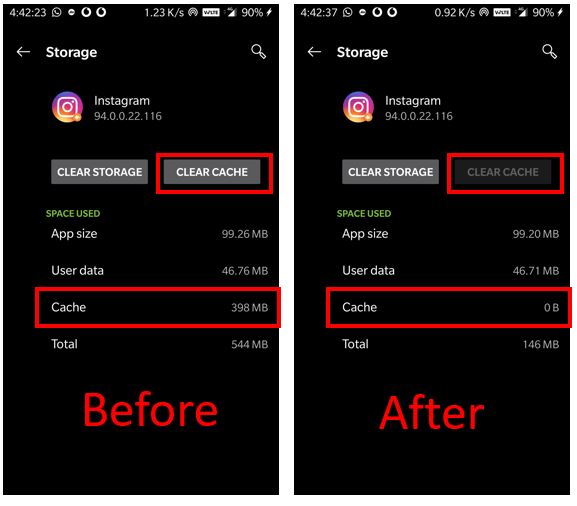
From reclaiming precious storage space to troubleshooting frustrating app glitches, understanding and managing your Instagram cache is a fundamental aspect of digital literacy in today’s tech-driven landscape. This guide will dive deep into the mechanics of app caching, illuminate the various advantages of a clean cache, outline potential considerations, and provide clear, step-by-step instructions for performing this essential maintenance task on both Android and iOS devices. Whether you’re a casual scroller, a budding influencer, or a small business leveraging Instagram for branding and sales, optimizing your app’s performance starts with a solid grasp of its underlying technology.
Understanding the Instagram Cache: What It Is and How It Works
At its core, a cache is a hardware or software component that stores data so that future requests for that data can be served faster. The data stored in a cache might be the result of an earlier computation or a copy of data stored elsewhere. When it comes to mobile applications like Instagram, the app cache specifically refers to temporary files, images, videos, and other data that the app saves to your device’s local storage. This data is collected as you use the app, designed to anticipate your needs and reduce the time it takes to load content.
Think of it like this: every time you open Instagram and scroll through your feed, view a friend’s story, or visit a profile, the app downloads various pieces of information. Instead of discarding this information immediately after you’ve viewed it, Instagram intelligently saves a copy of it in your device’s cache. The next time you encounter that same image, video, or profile, the app doesn’t need to re-download it from Instagram’s servers over the internet. Instead, it can quickly retrieve the cached version from your phone’s storage, resulting in faster loading times and a much smoother overall experience. This mechanism is a cornerstone of modern app design, ensuring that even with limited bandwidth or during offline periods (for already viewed content), the user experience remains as fluid as possible.
The Mechanics of Application Caching
The caching process is a dynamic one. When you launch Instagram, the app first checks its local cache for any data it needs. If the data is found (a “cache hit”), it’s loaded almost instantly. If not (a “cache miss”), the app fetches the data from the internet, displays it to you, and then often saves a copy to the cache for future use. This continuous cycle of fetching and storing optimizes network bandwidth usage and reduces the load on Instagram’s remote servers. It’s a delicate balance: a cache that’s too small won’t offer many benefits, while a cache that’s too large can consume excessive storage and potentially lead to performance issues if the device struggles to manage it.
Modern operating systems and applications employ sophisticated algorithms to manage the cache, deciding what data to store, for how long, and what to discard when space is needed. Instagram’s cache specifically focuses on elements that are likely to be revisited or are part of the core user experience, such as profile pictures, thumbnails, previously viewed posts, and even some search suggestions.
Why Instagram Uses a Cache (Speed, Offline Access, User Experience)
The primary motivations behind Instagram’s use of a cache are multifaceted, all revolving around enhancing the user experience:
- Speed and Performance: This is arguably the most significant benefit. By serving content from local storage rather than constantly downloading it, Instagram loads faster. Scrolling through feeds becomes smoother, stories play without buffering, and switching between different sections of the app feels snappier. This responsiveness is crucial for an app designed for rapid consumption of visual content.
- Reduced Data Usage: While not immediately apparent to the user, caching significantly reduces the amount of mobile data consumed. Each time cached content is displayed, it saves you from using your data plan to re-download the same information. This is particularly beneficial for users with limited data allowances or those in areas with slower, less reliable internet connections.
- Improved Offline Experience: While Instagram is primarily an online application, the cache allows for a limited “offline” experience. If you lose internet connectivity, you might still be able to view previously loaded posts, profiles, or stories that are stored in your cache, albeit without the ability to interact or load new content.
- Optimized Server Load: From Instagram’s perspective, caching on user devices reduces the number of requests its servers have to handle. This distributed workload helps maintain the stability and scalability of their service, especially during peak usage times.
What Kind of Data Does Instagram Cache?
The Instagram cache is a repository for various types of temporary files and data. This includes:
- Images and Videos: Thumbnails, full-resolution photos, and video snippets from your feed, stories, DMs, and profiles you’ve visited.
- Profile Information: Profile pictures, bios, and follower counts of accounts you frequently interact with or view.
- Explore Tab Content: Suggestions and content from the Explore page, designed to load quickly if you revisit it.
- Search History and Suggestions: Recent searches and autocomplete suggestions are often cached for quicker access.
- Temporary Files: Any other transient data generated during app usage that aids in performance but isn’t critical for long-term storage or account integrity.
It’s important to differentiate this from your core account data, such as your login credentials, messages, saved posts, followers list, and actual uploaded content, which are securely stored on Instagram’s cloud servers and are not part of the local cache.
The Benefits of Clearing Your Instagram Cache
While the cache is designed to enhance your Instagram experience, it’s not without its drawbacks when left unmanaged. Over time, the accumulated cached data can swell to several gigabytes, impacting your device’s performance and even the app’s functionality. This is where clearing the cache becomes a valuable maintenance tool.
Reclaiming Valuable Storage Space
One of the most immediate and tangible benefits of clearing your Instagram cache is the liberation of storage space on your device. For users with phones that have limited internal storage, every megabyte counts. Instagram, being a highly visual app, can accumulate an enormous amount of cached photos and videos. It’s not uncommon for the app’s cache to grow to several gigabytes over weeks or months of heavy use. Clearing this cache can instantly free up a significant chunk of space, making room for new photos, apps, or other important files without having to delete cherished memories or essential applications. This can extend the usable life of your device and delay the need for a costly upgrade, impacting your “Money” aspect indirectly by saving you from early device replacement costs.
Resolving Performance Issues and Lag
A bloated or corrupted cache can lead to a host of performance problems. As the cache grows, your device and the Instagram app itself have to manage more data. This can manifest as:
- Laggy Scrolling: The feed might not scroll smoothly, with noticeable delays between your swipe and the content moving.
- Slow Loading Times: Posts, stories, or profiles might take longer to load, even on a fast internet connection.
- Unresponsive Interface: Tapping buttons or navigating through the app might feel sluggish.
- Increased Battery Drain: A struggling app working harder to manage and access its cache can consume more power.
Clearing the cache essentially gives Instagram a clean slate, allowing it to start rebuilding its temporary data more efficiently. This often results in a noticeably smoother, faster, and more responsive app experience.
Troubleshooting Common App Glitches and Crashes
Many common app problems, from minor visual glitches to full-blown crashes, can be attributed to a corrupted or conflicting cache. Imagine the cache as a collection of puzzle pieces; if some pieces are damaged or misplaced, the whole picture (the app’s display) can become distorted or fail to render entirely.
Users often report issues such as:
- Images not loading: Pictures appearing as blank squares or broken files.
- Videos freezing or not playing: Stories or reels failing to load correctly.
- App crashing repeatedly: Instagram unexpectedly closing itself.
- Features not working: Specific functionalities, like the camera or direct messages, acting erratically.
- Incorrect data display: Old profile pictures or posts showing up instead of updated versions.
Clearing the cache is often the first troubleshooting step recommended by tech support for these kinds of issues because it frequently resolves them by removing the problematic temporary data that might be causing the conflict.
Refreshing Your Feed and Content
Sometimes, your Instagram feed might seem stale, or you might notice that you’re repeatedly seeing old posts from accounts you follow. While Instagram’s algorithm plays a significant role in content delivery, a persistent cache can sometimes contribute to this issue by prioritizing older, locally stored versions of content.
Clearing the cache forces the app to fetch all content anew from Instagram’s servers. This can result in a refreshed feed, ensuring you’re seeing the absolute latest posts, stories, and updates from the accounts you follow. It can also help resolve instances where you’re not seeing new posts from specific individuals or brands, providing a more current and relevant content experience, which is particularly beneficial for users who follow numerous businesses or content creators.
Enhancing Privacy (Though Limited)
While clearing the Instagram cache does not delete your account data, messages, or login information, it does remove some temporary, localized data. This includes your recent search suggestions and certain pieces of content you’ve viewed. For users who are mindful of their digital footprint and wish to keep temporary traces of their activity minimal on their device, clearing the cache offers a small but tangible step towards enhancing device-level privacy. It prevents casual snooping of your recent viewing habits if someone were to gain access to your unlocked phone, although it doesn’t impact Instagram’s server-side data retention policies.
Potential Downsides and Considerations Before Clearing Cache
While the benefits of clearing your Instagram cache are compelling, it’s essential to be aware of a few minor considerations and what this action specifically does not achieve. Understanding these nuances will help you manage your app more effectively and avoid unnecessary actions.
The Need to Re-download Data (Temporary Slower Loading)
The immediate consequence of clearing your cache is that Instagram loses all its stored temporary data. This means that the next time you open the app, it will have to re-download everything it needs from scratch: profile pictures, post images, video snippets, and more. For a brief period, usually just after clearing the cache, you might experience slightly slower loading times. Images might appear pixelated for a moment before fully rendering, and videos might take longer to buffer as the app repopulates its cache.
This temporary slowdown is entirely normal and expected. It’s a necessary trade-off for the long-term benefits of a cleaner, more efficient app. Once Instagram rebuilds a new, optimized cache based on your current usage patterns, the speed and responsiveness should return to (or exceed) their previous levels. The duration of this “slowdown” depends on your internet speed and how extensively you use the app immediately after clearing the cache.
What Clearing Cache DOESN’T Do (Logins, Saved Posts, Messages, Account Data)
It’s crucial to understand the distinction between cached data and core application data or user account data. Clearing the cache is a relatively harmless operation because it does not delete any of the following critical information:
- Your Login Credentials: You will remain logged into your Instagram account. Clearing the cache does not log you out.
- Your Profile Information: Your bio, username, password (which is server-side), profile picture (the main one, not just cached copies), and account settings remain intact.
- Your Posts and Stories: All the photos and videos you have uploaded to Instagram are stored on Instagram’s servers, not in your device’s cache. They will not be deleted.
- Your Saved Posts and Collections: Any posts you have saved or organized into collections remain accessible.
- Your Direct Messages (DMs): Your conversations and shared media in DMs are also stored on Instagram’s servers and will not be affected.
- Your Followers and Following Lists: Your network remains unchanged.
- App Permissions: Any permissions you’ve granted Instagram (e.g., access to your camera, microphone, photos) will generally remain as set.
The distinction is important for digital security and data management. Clearing the cache is a local device action that deals with temporary performance files, not your permanent account data or online interactions. If you want to delete your account, manage saved data, or log out, those actions require different steps within the app or Instagram’s web interface.
When to Clear Cache vs. Reinstall App
Often, when troubleshooting an app, “clear cache” and “reinstall app” are both suggested. It’s important to know when to use which:
- Clear Cache: This is your first line of defense for performance issues, lag, minor glitches, and reclaiming storage. It’s quick, easy, and generally non-disruptive as you remain logged in.
- Reinstall App: This is a more drastic step. Uninstalling an app removes all its data from your device – not just the cache, but also any saved settings, databases, and sometimes even login tokens. You will need to re-download the entire app and log in again. Reinstalling is typically reserved for persistent, severe issues that clearing the cache didn’t resolve, such as critical bugs, constant crashing, or if the app is taking up an inexplicably huge amount of storage that even clearing the cache doesn’t fix. It ensures you have a completely fresh installation of the app.
For most common Instagram hiccups, clearing the cache is sufficient and less hassle.
How to Clear Your Instagram Cache (Step-by-Step Guide)
The process for clearing your Instagram cache varies slightly depending on whether you’re using an Android or iOS device. Both methods are straightforward and can be completed in a few taps.
On Android Devices
Android offers a direct and explicit way to clear the cache for individual apps.
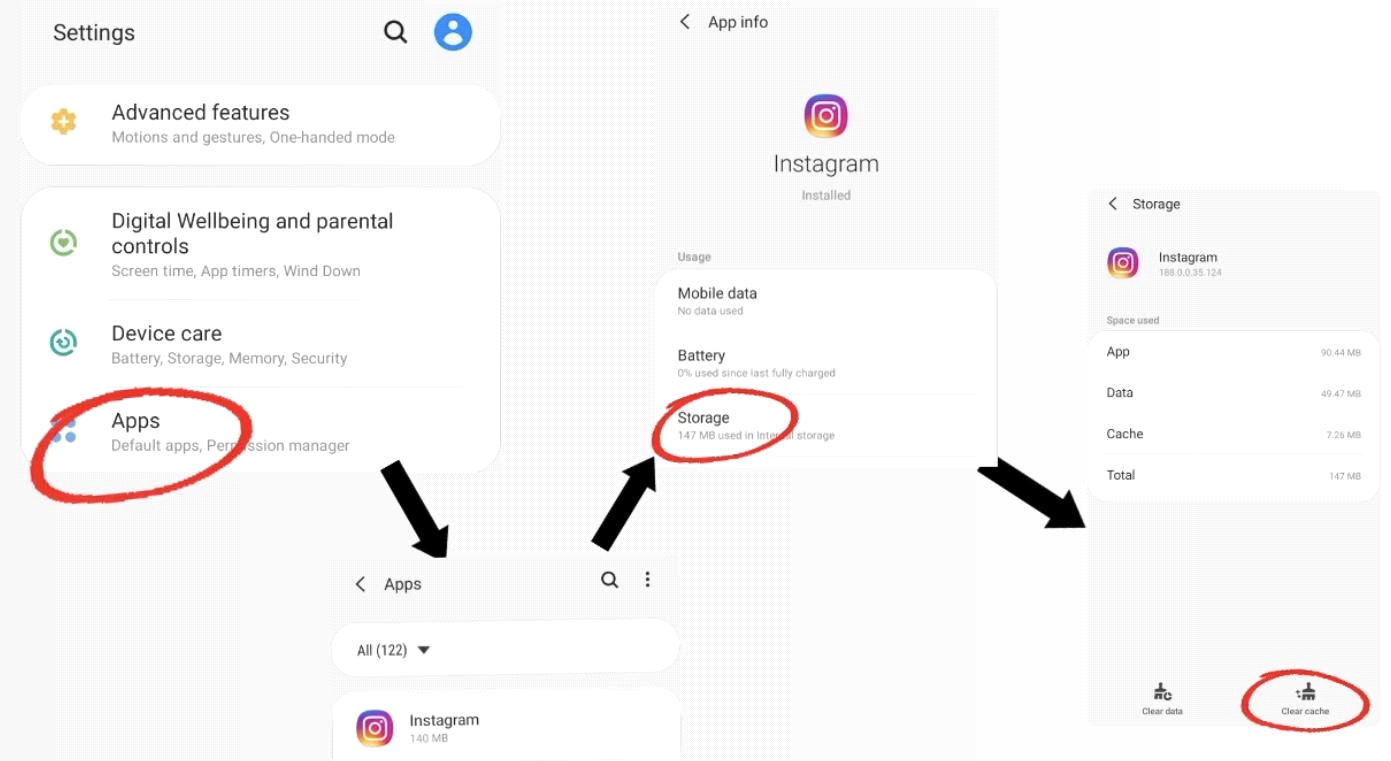
- Open Settings: Navigate to your device’s “Settings” app. This is usually represented by a gear icon.
- Go to Apps or Apps & Notifications: The exact wording might vary slightly depending on your Android version and phone manufacturer (e.g., “Apps,” “Apps & notifications,” “Applications,” “App manager”).
- Find Instagram: Scroll through the list of installed applications until you find “Instagram” and tap on it.
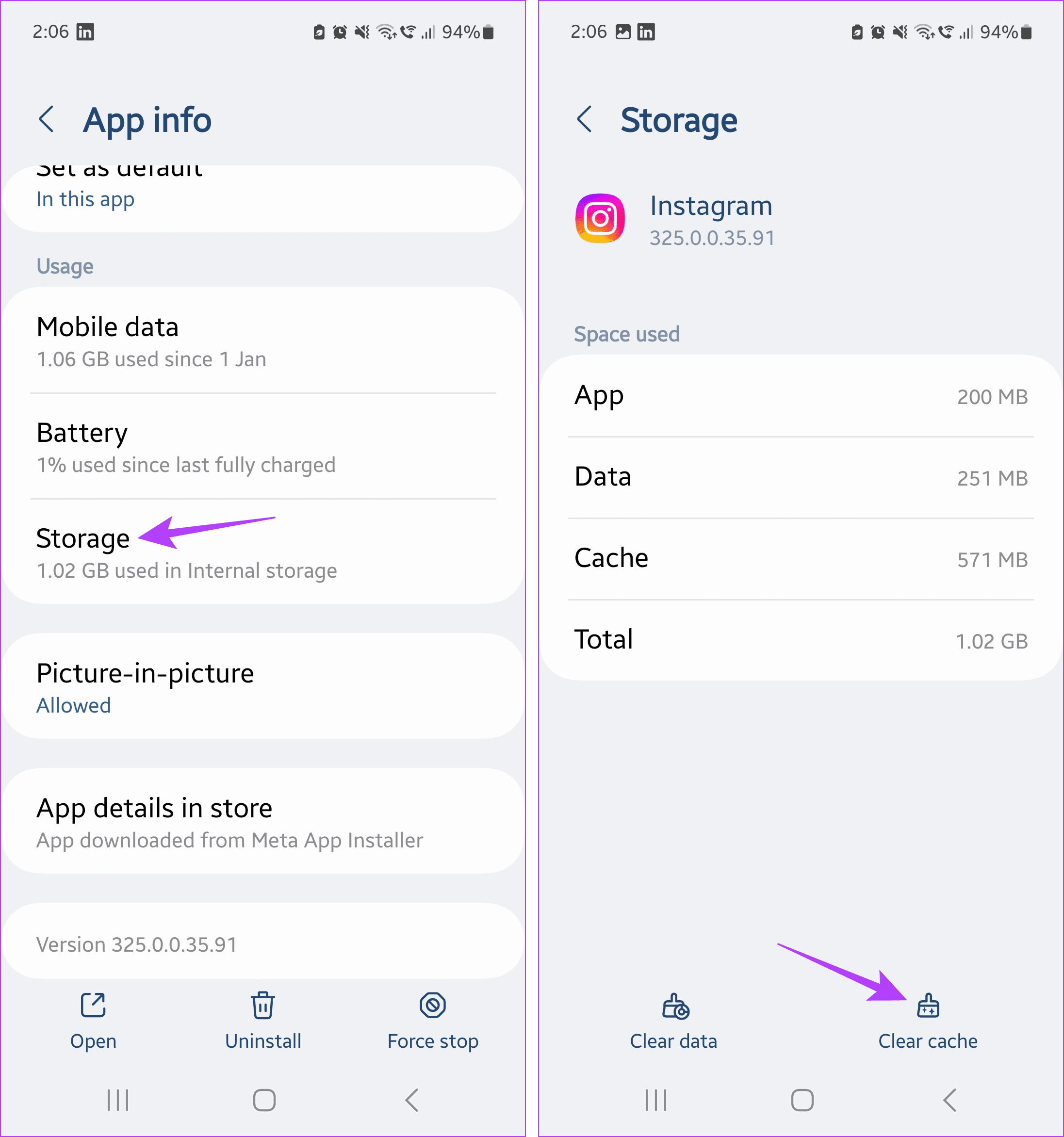
- Select Storage & Cache: Within the Instagram app info page, look for an option like “Storage & cache” or just “Storage.” Tap on it.
- Tap Clear Cache: You will typically see two options: “Clear storage” (or “Clear data”) and “Clear cache.” Tap “Clear cache.”
- Warning: Do NOT tap “Clear storage” or “Clear data” unless you want to delete all app data, including settings and potentially requiring you to log back in. For Instagram, this usually just means you’ll have to log back in, but for other apps, it can mean losing progress or custom settings. Always stick to “Clear cache” for performance issues.
- Verify: The “Cache” amount should now show “0 B.” You can then close Settings and reopen Instagram.
On iOS Devices
Apple’s iOS handles app data management differently. Unlike Android, iOS does not provide a direct “Clear Cache” button for individual apps. To clear Instagram’s cache on an iPhone or iPad, you typically have two primary options: “Offload App” or “Delete App.” For Instagram, deleting and reinstalling is the most effective way to clear its cache.
Option 1: Offload App (Retains Documents & Data, but clears temporary files)
“Offloading” an app frees up storage used by the app itself, but keeps its documents and data. For Instagram, while it doesn’t explicitly delete the cache, it often has a similar effect by removing temporary files and forcing a fresh install of the app’s core components.
- Open Settings: Go to your iPhone/iPad “Settings” app.
- Go to General: Tap on “General.”
- Select iPhone Storage (or iPad Storage): Tap on “iPhone Storage.”
- Find Instagram: Scroll down the list of apps until you find “Instagram” and tap on it.
- Tap Offload App: Select “Offload App.” Confirm your choice when prompted.
- Reinstall App: After the app is offloaded, the icon will still be on your home screen but will show a cloud symbol. Tap the Instagram icon on your home screen to reinstall it, or go back to the “iPhone Storage” page and tap “Reinstall App.” This will download a fresh version of the app from the App Store, effectively clearing out much of the old cached data in the process. You will remain logged in.
Option 2: Delete App (Most effective for full cache clear, requires re-login)
This is the most thorough method and is equivalent to an Android “Clear Storage” followed by an uninstall/reinstall.
- Open Settings: Go to your iPhone/iPad “Settings” app.
- Go to General: Tap on “General.”
- Select iPhone Storage (or iPad Storage): Tap on “iPhone Storage.”
- Find Instagram: Scroll down the list of apps until you find “Instagram” and tap on it.
- Tap Delete App: Select “Delete App.” Confirm your choice when prompted.
- Reinstall Instagram: Go to the App Store, search for “Instagram,” and download it again.
- Log In: You will need to log back into your Instagram account after reinstalling the app.
While Option 1 (Offload App) is less disruptive, Option 2 (Delete App) guarantees a complete removal of all local Instagram data, including all cached files, and is the recommended method if you’re experiencing severe or persistent issues.
Best Practices for Managing Your Instagram App (and Other Apps)
Clearing the cache is just one aspect of maintaining a healthy digital experience. Adopting a few best practices can ensure your apps, and your device as a whole, operate smoothly and efficiently over time.
Regular Maintenance for Optimal Performance
Just like a car needs oil changes, your apps benefit from regular maintenance. Make clearing your Instagram cache a routine. For heavy users, doing it once a month might be beneficial. For lighter users, once every few months should suffice. This proactive approach prevents the cache from growing excessively and pre-empts performance issues before they become noticeable. Extending this practice to other data-heavy apps like Facebook, TikTok, or YouTube can yield similar benefits for overall device performance and storage.
Beyond cache clearing, consider these:
- Update Apps Regularly: App developers frequently release updates that include bug fixes, performance enhancements, and new features. Keeping your apps updated ensures you’re running the most optimized version.
- Restart Your Device: A simple restart can often resolve minor glitches, clear temporary system files, and refresh your device’s memory.
- Manage Notifications: Excessive notifications can drain battery and distract. Periodically review app notification settings and disable unnecessary ones.
Understanding App Permissions and Data Usage
Part of being tech-savvy is understanding what data your apps are accessing and how much of your device’s resources they are consuming.
- Review App Permissions: Regularly check the permissions you’ve granted to Instagram (and other apps). Does Instagram truly need access to your microphone all the time? Can you limit its access to photos only when the app is in use? Limiting permissions can enhance your digital security and privacy.
- Monitor Data Usage: Your phone’s settings allow you to see how much mobile data each app consumes. If Instagram is using an unexpectedly high amount, it might indicate an issue, or it could simply mean you’re watching a lot of videos. Being aware of your data usage helps you manage your plan and identify potential background activity you might want to curtail.
- Check Storage Usage: Beyond the cache, Instagram’s “Documents & Data” can also grow. While clearing the cache addresses temporary files, a consistently large “Documents & Data” might indicate a need to review what you’re saving within the app or consider a full reinstall if offloading doesn’t help.
The Broader Impact on Digital Wellbeing and Device Longevity
A well-maintained device and optimized apps contribute to more than just speed; they impact your overall digital wellbeing and the longevity of your hardware. A device that constantly lags or runs out of storage can be a source of frustration, reducing your enjoyment of technology. By taking simple steps like clearing the cache, you ensure your interactions with technology are smoother and more positive.
Furthermore, reducing the strain on your device’s processor and storage can, in the long run, contribute to its health. Less constant writing and reading to storage and a less overworked CPU can theoretically extend the life of your device, saving you money and reducing electronic waste. It’s a small but significant step towards more mindful technology consumption.
Conclusion
The Instagram cache, while designed to be a helpful accelerator, can become a burden if left unchecked. Understanding “what clearing cache does on Instagram” is a fundamental piece of knowledge for any smartphone user, bridging the gap between passive app usage and active device management. From freeing up gigabytes of valuable storage space and resolving annoying app performance issues to troubleshooting crashes and ensuring your feed is fresh with the latest content, the benefits of this simple action are clear and impactful.
While the methods vary slightly between Android and iOS, the principle remains the same: a periodic refresh of your app’s temporary data can dramatically improve your user experience. By integrating cache clearing into your regular digital maintenance routine and adopting broader best practices for app management, you not only ensure your Instagram experience is as fluid and enjoyable as possible but also contribute to the overall health and longevity of your device. In an era where our digital lives are increasingly intertwined with our physical ones, taking control of these small technical details empowers us to navigate the vast world of technology with greater confidence and efficiency.
aViewFromTheCave is a participant in the Amazon Services LLC Associates Program, an affiliate advertising program designed to provide a means for sites to earn advertising fees by advertising and linking to Amazon.com. Amazon, the Amazon logo, AmazonSupply, and the AmazonSupply logo are trademarks of Amazon.com, Inc. or its affiliates. As an Amazon Associate we earn affiliate commissions from qualifying purchases.