
In the increasingly connected world, setting up a new Wi-Fi device should be as effortless as possible. No one wants to spend precious time fumbling with long, complex network passwords, especially when integrating a new printer, smart home gadget, or another device into their existing setup. This is where the WPS button comes into play – a seemingly small, often overlooked feature that promises to simplify Wi-Fi connectivity. But for many, its existence remains a mystery, or they struggle to identify it among the myriad of ports and indicators on their router.
This article aims to demystify the WPS button, shedding light on its appearance, its function, and its broader implications in the realms of technology, brand perception, and even personal finance. We’ll explore its common designs and locations, delve into the technology that makes it work, weigh its convenience against potential security concerns, and consider its role in our ever-evolving digital ecosystem. Whether you’re a tech enthusiast, a brand strategist, or simply someone looking to optimize your home network, understanding the WPS button is key to navigating the modern wireless landscape.
Unveiling the WPS Button: Appearance and Location
The journey to understanding the WPS button begins with recognizing it. While its functionality is universal, its physical manifestation can vary subtly between different router brands and models. Knowing what to look for and where to find it is the first step in leveraging this handy feature.
The Physical Button: Common Designs and Where to Find It
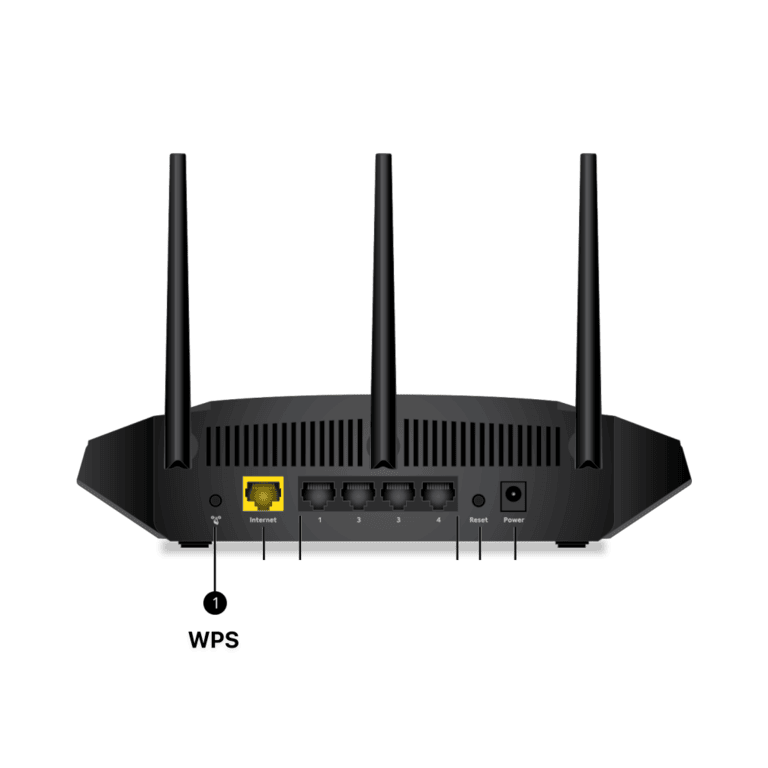
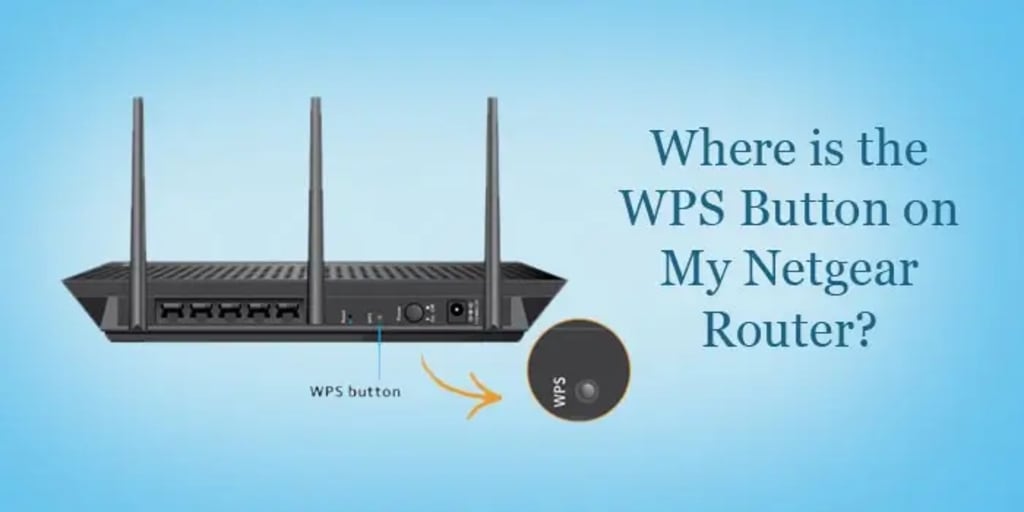
The most common form of a WPS feature is a dedicated physical button on your wireless router. Typically, this button is small, often circular or rectangular, and can be found on the back panel of the router, adjacent to other ports like Ethernet connections, or sometimes on the side. Less frequently, it might be located on the front panel for easier access, though this is rare on more robust router designs.
In terms of labeling, you’ll often see the letters “WPS” printed directly on or next to the button. However, many manufacturers opt for a universal icon to signify its function, which helps in cross-cultural usability and avoids cluttering the device with text. Common icons include:
- Two Arrows Circling Each Other: This often represents a refresh or connection process.
- A Wi-Fi Symbol with a Lock: Signifying a secure, simplified connection.
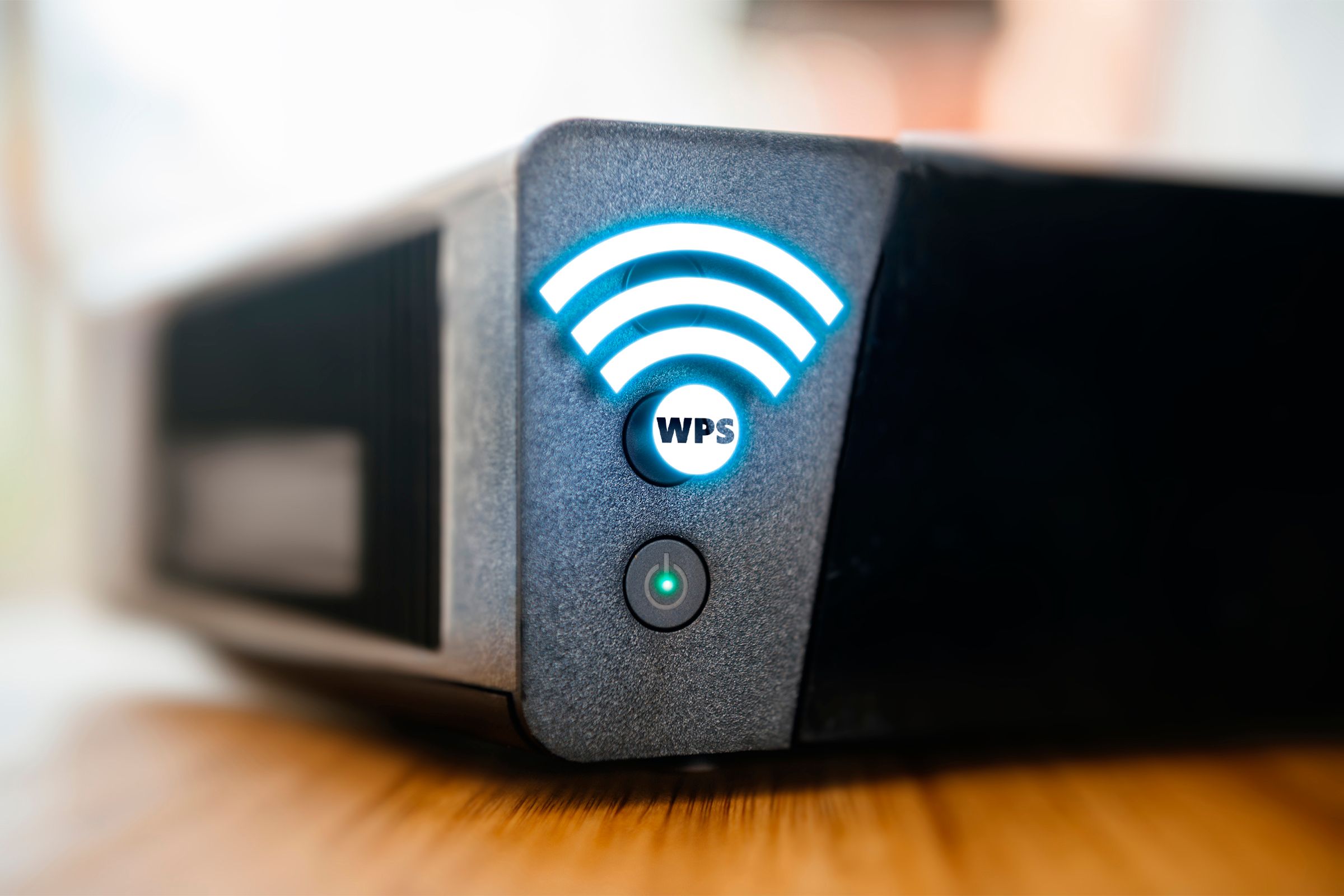
- A Simple Wi-Fi Signal Icon: Indicating its role in wireless connectivity.
The color of the button usually blends with the router’s aesthetic, often black or grey, but some brands might use a contrasting color like blue or green to make it stand out. For instance, Linksys routers might feature a subtly recessed WPS button, while some TP-Link models could have a more prominent, distinctively labeled button. Netgear often integrates it with a Wi-Fi on/off toggle. These minor design choices reflect a brand’s approach to user interface and hardware aesthetics, aiming to balance functionality with industrial design. The button might also be slightly recessed to prevent accidental presses, requiring a deliberate push to activate.
Beyond the Physical: Software-Based WPS
While a physical button is the most direct way to initiate a WPS connection, it’s not the only method. Many modern routers, especially those with advanced management interfaces or companion mobile apps, offer a software-based WPS option. This is particularly prevalent in routers designed for a more tech-savvy audience or those emphasizing remote management.
In these instances, you wouldn’t be looking for a physical button at all. Instead, you would access your router’s administration panel, typically through a web browser (by typing its IP address, like 192.168.1.1, into your browser’s address bar) or via the manufacturer’s dedicated mobile app. Within the wireless settings or a dedicated WPS section, you would find an option to “Enable WPS,” “Start WPS,” or “Push Button Connect” virtually.
The process then mimics the physical button: you activate the software WPS on the router, then initiate the connection on your client device within a specified time frame (usually two minutes). Some software implementations also support the PIN method of WPS, where you enter an 8-digit PIN generated by the client device into the router’s interface, or vice versa. This software-based approach offers flexibility and control, especially for users who might have their router in an inaccessible location or prefer managing their network digitally. It’s an example of how technological advancements often provide alternative interaction methods for hardware features, catering to diverse user preferences and brand strategies.
The Technology Behind the Button: How WPS Simplifies Connectivity
Having identified the WPS button, the next logical step is to understand its purpose and the underlying technology that makes it work. At its core, WPS is a protocol designed to streamline the notoriously complex process of connecting devices to a secure wireless network.
WPS Explained: A Convenience Feature for Your Network
WPS stands for Wi-Fi Protected Setup. It is a network security standard developed by the Wi-Fi Alliance to create a secure wireless home network. The primary goal of WPS is to simplify the process of establishing connections between a wireless router and other Wi-Fi enabled devices, such as printers, smart TVs, game consoles, and range extenders. Before WPS, connecting a new device typically involved accessing the router’s web interface, finding the Wi-Fi password (SSID and passphrase), manually entering it into the new device, and ensuring all settings matched. This could be a cumbersome and error-prone process, especially for non-technical users.
WPS bypasses this manual entry of passwords by establishing an encrypted connection automatically. It offers two main methods for doing this:
- Push Button Connect (PBC): This is the method directly associated with the physical WPS button. The user simply presses the WPS button on the router and then, within a short time window (usually two minutes), initiates the connection process on the client device. The router and the device then automatically exchange network credentials and establish a secure, encrypted connection (typically WPA2 or WPA3).
- PIN Method: This method involves an 8-digit Personal Identification Number. Either the client device displays a PIN that the user enters into the router’s configuration interface, or the router generates a PIN that the user enters into the client device. This method, while still simpler than full manual configuration, is less intuitive than PBC.
The brilliance of WPS lies in its ability to abstract away the technical complexities. It allows devices to negotiate and establish a secure connection using robust encryption standards, all with minimal user intervention. This focus on ease-of-use has been a significant selling point for router manufacturers and device makers alike, contributing to their brand promise of user-friendly technology.
The Setup Process: A Step-by-Step Guide
Using the WPS button to connect a device to your Wi-Fi network is remarkably straightforward, exemplifying the “plug and play” ideal of modern technology. Here’s a typical step-by-step guide for using the physical Push Button Connect (PBC) method:
- Power On Devices: Ensure both your wireless router and the device you wish to connect (e.g., a printer, smart speaker, or range extender) are powered on and within range of each other.
- Locate WPS Button on Router: Find the WPS button on your router, as described in the previous section.
- Initiate WPS on Router: Press and hold the WPS button on your router for a few seconds (usually 1-3 seconds, depending on the manufacturer). You’ll typically see an indicator light (often labeled WPS or with a Wi-Fi symbol) on the router begin to blink, signaling that it’s in WPS pairing mode. This mode is active for a limited time, usually around two minutes.
- Initiate WPS on Client Device: Within that two-minute window, go to the device you want to connect. Look for a WPS option in its settings menu, or if it also has a physical WPS button, press and hold it. Many devices will automatically scan for a WPS-enabled router when prompted. For example, on a Wi-Fi printer, there might be a dedicated WPS button; on a smart TV, you’d navigate to “Network Settings” and select “WPS Push Button.”
- Connection Established: Once both devices are in WPS pairing mode, they will communicate and exchange the necessary network credentials. After a few seconds to a minute, the indicator lights on both devices should stop blinking and either turn solid or go off, indicating a successful connection. The client device should now be connected to your Wi-Fi network and ready for use.
This process eliminates the need to remember or type out long Wi-Fi passwords, making it particularly useful for devices without keyboards or screens, or for users who find network configuration daunting. The simplicity it offers directly translates into increased productivity for individuals and businesses, as new devices can be integrated into the network swiftly, minimizing downtime and setup frustrations. For brands, this smooth onboarding experience significantly enhances customer satisfaction and reinforces a positive user perception.
The WPS Dilemma: Balancing Convenience, Security, and Brand Perception
While the convenience of WPS is undeniable, its journey hasn’t been without controversy. The very feature designed to simplify connectivity has also been a point of contention regarding network security, creating a dilemma for users and manufacturers alike.
Security Concerns and Recommendations
The most significant controversy surrounding WPS emerged with the discovery of a critical vulnerability in the PIN method of Wi-Fi Protected Setup in 2011. This flaw allowed attackers to brute-force the 8-digit PIN in a relatively short amount of time (hours), thereby gaining access to the network’s Wi-Fi password and, consequently, the entire network. This exploit severely undermined the security posture of WPS, leading many experts to recommend disabling it.
However, it’s crucial to differentiate between the PIN method and the Push Button Connect (PBC) method associated with the physical WPS button. The PBC method is generally considered more secure for several reasons:
- Physical Access Required: An attacker would need physical access to your router to press the WPS button, which is usually located within a secure home or office environment.
- Time Window: The pairing mode is active for only a short duration (typically two minutes), limiting the window of opportunity for any potential exploitation.
- No PIN to Brute-Force: Since no PIN is involved, the brute-force attack vector used against the PIN method is not applicable to PBC.
Despite the PBC method being inherently more robust, the stigma from the PIN vulnerability has led to a cautious approach towards WPS. Many routers now disable the PIN method by default or remove it entirely, while the physical button remains.
For optimal digital security, users should consider the following recommendations:
- Disable WPS (if you don’t use it): Many routers allow you to disable WPS through their web interface. If you don’t use it, turning it off eliminates a potential (albeit low-risk for PBC) attack vector.
- Use Strong Passwords: Regardless of WPS, always use a strong, unique WPA2 or WPA3 password for your Wi-Fi network.
- Update Firmware: Keep your router’s firmware updated to ensure you have the latest security patches and enhancements.
- Be Mindful of Physical Security: If you use WPS, ensure your router is in a secure location where unauthorized individuals cannot easily access it.
These measures contribute to a robust digital security posture, protecting not just personal data but also potentially sensitive financial information accessed over the network. The cost of a security breach, whether in terms of data loss, identity theft, or business downtime, far outweighs the minor inconvenience of a slightly more complex setup.
Brand Promise vs. Practicality: A Manufacturer’s Perspective
For router manufacturers and tech brands, WPS presents a fascinating dichotomy between their brand promise of user-friendliness and the practical realities of network security. Brands strive to make their products as accessible and easy to use as possible, as this directly influences customer satisfaction, positive reviews, and ultimately, sales. WPS perfectly embodies this “ease of use” promise, allowing customers to quickly integrate new devices without technical hassle.
This feature is often highlighted in marketing materials and product descriptions, appealing to a broad demographic, including those who are less technically inclined. The ability to simply “push a button and connect” resonates with consumers seeking convenience and a seamless digital experience. From a brand perspective, WPS helps differentiate products in a crowded market, positioning them as intuitive and customer-centric.
However, the security concerns raised by the WPS PIN vulnerability forced manufacturers to re-evaluate their implementation and communication strategies. Brands had to balance the desire for convenience with the imperative to provide secure products. This led to:
- Default Disablement of PIN Method: Many brands now disable the less secure PIN method by default or have removed it entirely from their firmware.
- Clearer Communication: Manufacturers are becoming better at providing clearer instructions and warnings about WPS usage, often including security best practices in their user manuals and support pages.
- Alternative Simplicity: As a response, some brands have also developed proprietary app-based setup processes or integrated QR code scanning for simplified device onboarding, offering secure alternatives to WPS.
The challenge for brands is to maintain their reputation for innovation and user-friendliness while also demonstrating a strong commitment to digital security. This involves continuous product development, transparent communication, and offering users choices that allow them to tailor their network’s security and convenience to their specific needs. Ultimately, a brand’s ability to navigate this tension effectively plays a crucial role in building trust and fostering long-term customer loyalty.
WPS in the Modern Ecosystem: Productivity, Smart Homes, and Future Trends
Beyond its appearance and technical specifics, the WPS button plays a role in broader technological trends, impacting productivity, the integration of smart devices, and the future evolution of connectivity. Its existence, and how we choose to use it, subtly influences how we interact with our digital world.
Enhancing Productivity and Smart Home Integration
The sheer simplicity of WPS has a direct, albeit often unquantified, impact on productivity. In a home office or small business environment, the time saved by quickly connecting a new wireless printer, scanner, or network-attached storage (NAS) device via WPS can add up. Instead of spending 10-15 minutes manually configuring each device, a WPS connection can be established in less than a minute. For busy professionals or small teams, this translates into more time focused on core tasks and less on IT troubleshooting. The principle “time is money” applies here; reducing setup friction directly enhances operational efficiency.
The rise of the smart home ecosystem has further amplified the utility of WPS. Connecting a multitude of smart devices – from light bulbs and thermostats to security cameras and smart speakers – can be a daunting task. Many of these devices, especially the smaller ones, lack screens or keyboards, making manual Wi-Fi password entry extremely challenging. WPS provides a crucial bridge:
- Simplified Onboarding: Smart hubs and individual smart devices often feature WPS compatibility, allowing them to join the home network with a simple button press. This reduces the barrier to entry for smart home adoption.
- Reduced Frustration: Imagine setting up ten smart lights; using WPS for each significantly cuts down on the frustration and time spent.
- Seamless Expansion: As users add more devices to their smart home, WPS enables quick integration, making the expansion process smooth and encouraging further investment in smart technology.
While more sophisticated app-based setup methods are emerging for smart devices, WPS continues to be a viable and accessible option, particularly for entry-level devices or users who prefer a straightforward, hardware-centric approach. Its contribution to streamlining device integration indirectly supports the growth of the smart home market and enhances the value proposition of these often costly smart investments by making them easier to set up and enjoy.
The Evolving Landscape: WPS in an Age of Advanced Networking
The world of networking is constantly evolving, with new standards like Wi-Fi 6, Wi-Fi 7, and advanced mesh networking systems pushing the boundaries of speed and reliability. In this rapidly advancing landscape, questions arise about the continued relevance of WPS. Is a “push button” approach still necessary when QR codes, NFC (Near Field Communication), and highly intuitive mobile apps are offering even more streamlined and secure setup experiences?
While these newer technologies are gaining traction, especially in premium devices and systems, WPS retains its place for several reasons:
- Legacy Device Support: Many older, yet still functional, Wi-Fi devices rely on WPS for easy setup. Discarding WPS entirely would create compatibility issues for a vast installed base.
- Simplicity for Non-Techies: For users who are not comfortable with smartphone apps or scanning QR codes, the tactile simplicity of pressing a button remains appealing and understandable.
- Cost-Effectiveness: Implementing WPS on a device is generally less complex and thus potentially less costly than integrating NFC chips or developing sophisticated mobile apps, making it a viable option for budget-friendly electronics.
However, the future of simplified connectivity points towards methods that offer both convenience and enhanced security. Many modern Wi-Fi routers and devices now leverage a combination of technologies:
- App-Based Configuration: Dedicated mobile apps that guide users through setup step-by-step, often involving scanning a QR code on the router.
- Zero-Touch Provisioning: Advanced enterprise solutions that automatically configure devices upon connection.
- Enhanced Security Protocols: The continuous improvement of Wi-Fi security standards (WPA3) and more robust authentication methods.
The role of tutorials and digital security education also remains paramount. As technology becomes more complex, clear, accessible information is vital. Users need to understand not just how to use features like WPS, but also when and why it’s appropriate, along with its potential implications for security and productivity. For businesses and individuals, understanding these tech trends, including the evolution of features like WPS, directly impacts purchasing decisions, network management strategies, and ultimately, financial resource allocation for technology infrastructure.
In conclusion, the WPS button, though often small and unassuming, represents a significant chapter in the quest for simpler, more accessible technology. It embodies a brand’s promise of ease-of-use, enables enhanced productivity in our connected lives, and plays a tangible role in the integration of smart home devices. While the discussion around its security implications highlights the constant trade-off between convenience and protection, understanding its function and judiciously applying best practices ensures that this little button continues to serve its intended purpose in our dynamic digital world.
aViewFromTheCave is a participant in the Amazon Services LLC Associates Program, an affiliate advertising program designed to provide a means for sites to earn advertising fees by advertising and linking to Amazon.com. Amazon, the Amazon logo, AmazonSupply, and the AmazonSupply logo are trademarks of Amazon.com, Inc. or its affiliates. As an Amazon Associate we earn affiliate commissions from qualifying purchases.