
In the vast and powerful world of Linux, efficiency is not just a buzzword; it’s a foundational principle. From managing servers and deploying applications to maintaining personal workstations, the ability to automate repetitive processes is a game-changer. It frees up valuable time, reduces human error, and ensures consistency across operations. But what exactly are these automated tasks called, and how are they implemented in the Linux environment?
At its core, Linux offers a robust suite of tools that allow users and administrators to schedule and execute commands or scripts automatically. While there isn’t one single overarching term that encompasses all forms of automation, the most common and pivotal mechanism for scheduling recurring tasks is cron, and the tasks themselves are often referred to as cron jobs. However, the landscape of Linux automation extends far beyond cron, encompassing more modern solutions like systemd timers, one-time scheduling with the at command, and the foundational power of shell scripting.

Understanding these tools is not merely a technical exercise; it’s a strategic imperative for anyone operating in the digital realm. Whether you’re a tech enthusiast aiming to streamline your workflow, a brand looking to optimize its digital infrastructure, or an entrepreneur focused on maximizing financial efficiency, mastering Linux automation is an invaluable skill. This article will delve into the various ways automated tasks are defined and managed in Linux, exploring their technical nuances and highlighting their strategic importance across the domains of technology, branding, and finance.
The Core of Linux Automation: Cron Jobs
When most users think of scheduling tasks in Linux, their minds immediately turn to cron. Originating from the Greek word for “time,” cron is a venerable daemon (a background process) that runs on virtually all Unix-like operating systems, including Linux. Its primary function is to execute commands or scripts at specified intervals. These scheduled tasks are universally known as cron jobs.
Cron jobs are incredibly versatile, used for everything from daily backups and log file rotations to checking for system updates or sending automated reports. The configuration for cron jobs resides in a special file called a crontab (short for “cron table”). Each user on a system can have their own crontab, and there’s also a system-wide crontab for tasks that affect the entire operating system.
Understanding the crontab Syntax
The power of cron lies in its elegant, albeit sometimes initially perplexing, syntax. Each line in a crontab file typically represents a single cron job and follows a specific pattern of five time fields followed by the command to be executed.
The five time fields, in order, are:
- Minute (0-59)
- Hour (0-23)
- Day of Month (1-31)
- Month (1-12 or Jan-Dec)
- Day of Week (0-7 or Sun-Sat, where both 0 and 7 represent Sunday)
Special characters can be used to define more complex schedules:
*(asterisk): Represents “every” unit. E.g.,*in the minute field means “every minute.”,(comma): Specifies a list of values. E.g.,1,15,30in the minute field means “at minute 1, 15, and 30.”-(hyphen): Denotes a range of values. E.g.,9-17in the hour field means “every hour from 9 AM to 5 PM.”/(slash): Indicates step values. E.g.,*/5in the minute field means “every 5 minutes.”
There are also several convenient shortcuts (often referred to as “cron strings” or “cron expressions”) for common schedules:
@reboot: Run once at startup.@yearlyor@annually: Run once a year (equivalent to0 0 1 1 *).@monthly: Run once a month (equivalent to0 0 1 * *).@weekly: Run once a week (equivalent to0 0 * * 0).@dailyor@midnight: Run once a day (equivalent to0 0 * * *).@hourly: Run once an hour (equivalent to0 * * * *).
To edit your personal crontab, you simply run crontab -e in the terminal, which opens the file in your default text editor.
Practical Examples and Best Practices
Let’s look at some common cron job examples:
0 2 * * * /usr/local/bin/backup_script.sh: This job will executebackup_script.shevery day at 2:00 AM.*/15 * * * * /home/user/check_service.py: This Python script will run every 15 minutes, 24/7.0 0 * * 0 /usr/bin/apt update && /usr/bin/apt upgrade -y: Every Sunday at midnight, the system will check for and install updates. (Note: For security and stability reasons, automating system upgrades directly via cron without error handling or human oversight should be approached with caution, especially in production environments).
When setting up cron jobs, several best practices are crucial:
- Use absolute paths: Always specify the full path to your scripts and commands (e.g.,
/usr/bin/python, not justpython). This avoids issues with cron’s limited PATH environment variable. - Redirect output: Cron jobs run in the background and don’t have an interactive terminal. Any output (stdout or stderr) will be emailed to the user running the cron job, which can quickly fill up mailboxes. To prevent this, redirect output to a log file or
/dev/null:command > /path/to/log.log 2>&1orcommand > /dev/null 2>&1. - Error handling: Ensure your scripts have robust error handling and logging to diagnose issues.
- Test thoroughly: Before deploying a cron job, test the command or script manually to ensure it functions as expected.
Dealing with Disconnected Systems: Anacron
While cron is excellent for systems that run continuously (like servers), it has a limitation: if a system is turned off when a scheduled cron job is supposed to run, that job will simply be skipped. This is where anacron comes into play. Anacron (short for “anachronistic cron”) is designed for systems that are not continuously running, such as laptops or desktop PCs.
Anacron checks if daily, weekly, or monthly jobs were missed while the system was off. If they were, it executes them shortly after the system boots up. Anacron typically operates at predefined frequencies (daily, weekly, monthly) rather than minute-by-minute scheduling like cron. It uses timestamps to determine when a job was last run and whether it needs to be re-executed. Anacron jobs are usually configured in /etc/anacrontab. This ensures that important maintenance tasks, like system cleanups or log archiving, still get performed even if your machine isn’t always on.
Modern Automation with Systemd Timers
While cron remains a staple, the modern Linux landscape, particularly distributions that have adopted systemd as their init system, offers a powerful alternative for scheduled tasks: systemd timers. Systemd, the system and service manager, introduced timers as a more robust, flexible, and integrated way to schedule events.
Systemd timers address several perceived shortcomings of cron, especially in complex system management scenarios. They are essentially unit files (like service files) that control when another unit file (typically a service unit) should be activated.
Beyond Cron: The Advantages of Systemd Timers
Systemd timers offer several advantages over traditional cron jobs:
- Better logging: Systemd integrates seamlessly with
journalctl, providing centralized and structured logging for scheduled tasks, making it easier to debug and monitor. - Dependency management: Timers can depend on other systemd units, ensuring that a service is only started after its prerequisites are met (e.g., a network service is up before a network-dependent script runs).
- Resource control: Systemd provides granular control over resources like CPU and memory for tasks, which can be defined directly in the service unit.
- Event-driven triggers: Timers can be configured to run based on events, not just time, although time-based scheduling is their primary use.
- No missed jobs: Like anacron, systemd timers can be configured with
OnCalendarevents that execute a job if the system was off during the scheduled time. This is done using thePersistent=trueoption. - Standardized format: All systemd configurations use a consistent INI-like format, which can be easier to manage for complex systems compared to cron’s line-based format.
Crafting Systemd Timer Units
A systemd timer job typically involves two unit files:
- A service unit (
.servicefile): This defines what command or script to execute. - A timer unit (
.timerfile): This defines when the service unit should be executed.
Let’s illustrate with an example of a service that runs a backup script daily:
/etc/systemd/system/mybackup.service:
[Unit]
Description=My daily backup service
Requires=network-online.target
After=network-online.target

[Service]
Type=oneshot
ExecStart=/usr/local/bin/mybackup_script.sh
User=your_username
Group=your_groupname
/etc/systemd/system/mybackup.timer:
[Unit]
Description=Run my daily backup service daily

[Timer]
OnCalendar=daily
Persistent=true
# Randomize the execution time by up to 1 hour after the scheduled time
RandomizedDelaySec=1h

[Install]
WantedBy=timers.target
After creating these files, you enable and start the timer:
sudo systemctl enable mybackup.timer
sudo systemctl start mybackup.timer
You can check its status with systemctl list-timers or systemctl status mybackup.timer.
Systemd Timers vs. Cron: A Feature Comparison
| Feature | Cron (crontab) | Systemd Timers |
|---|---|---|
| Configuration | /etc/crontab, /var/spool/cron/crontabs/user |
/etc/systemd/system/*.timer, ~/.config/systemd/user/*.timer |
| Syntax | Five fields (minute, hour, day, month, weekday) | OnCalendar, OnBootSec, OnUnitActiveSec |
| Logging | Mail to user, requires redirection | journalctl (centralized and structured) |
| Missed Jobs | Skipped (unless using Anacron) | Can be persistent (Persistent=true) |
| Dependencies | Manual handling within scripts | Native systemd unit dependencies |
| Resource Control | Limited (via nice command) |
Granular control via service unit files |
| Environment | Limited PATH, simple environment |
Full systemd environment, easy variable setting |
| Output Handling | Manual redirection required (> /dev/null 2>&1) |
Standard output captured by journalctl |
| Integration | Standalone daemon | Fully integrated with systemd service management |
For new deployments or systems heavily reliant on systemd, timers often represent a more modern and robust approach to task automation, especially in complex server environments.
Executing One-Time Scheduled Tasks: The at Command
While cron and systemd timers are designed for recurring tasks, sometimes you only need to run a command or script once at a specific time in the future. For this, Linux provides the simple yet effective at command. The at utility allows users to queue commands for later execution, and once executed, they are removed from the queue.
Scheduling Ad-Hoc Tasks with at
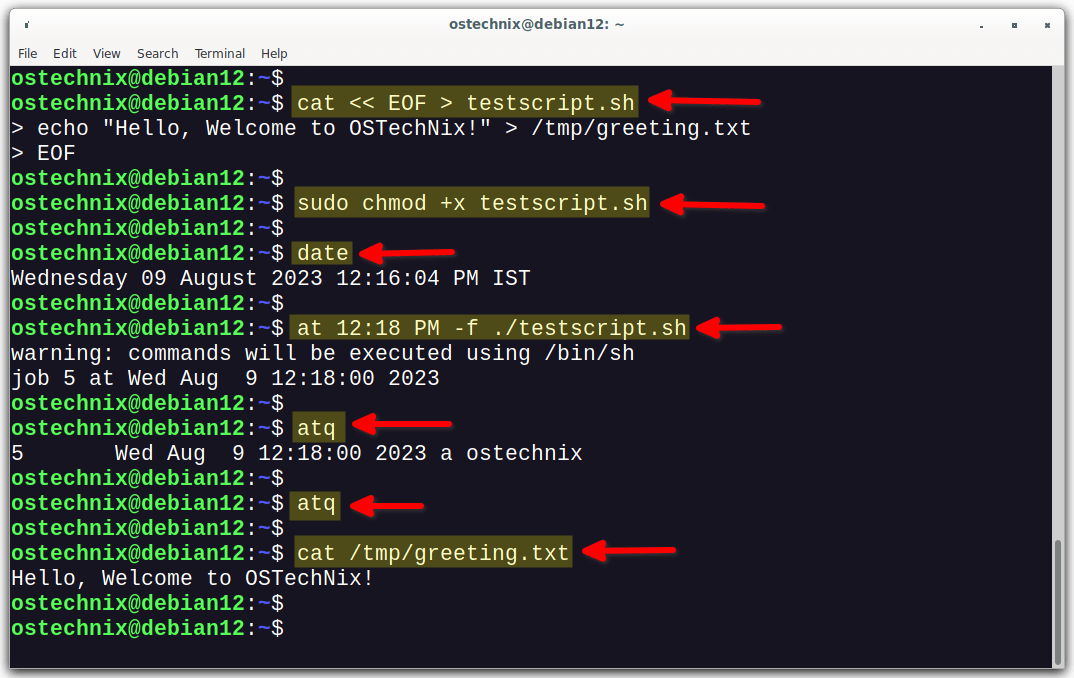
Using at is straightforward. You invoke at with a time specification, and then it prompts you to enter the commands you want to execute. You press Ctrl+D on a blank line to finish.
Example:
at 10:30 tomorrow
ls -l /var/log > /home/user/log_listing.txt
Ctrl+D
This will execute the ls -l /var/log command at 10:30 AM tomorrow, saving its output to log_listing.txt.
Time specifications can be quite flexible:
at now + 5 minutesat 3:00 PM next Fridayat 23:59 2024-12-31at noon
To view pending at jobs, use atq (or at -l). To remove a scheduled job, use atrm (or at -d) followed by the job number.
The at command is particularly useful for ad-hoc administrative tasks, delayed software installations, or any scenario where a single, future execution is required without setting up a permanent cron entry.
Scripting and Advanced Automation: The Power Behind the Schedule
It’s important to remember that cron, systemd timers, and the at command are primarily schedulers. They dictate when a task runs. The task itself is often a script – a sequence of commands written in a scripting language. This is where the true power and flexibility of Linux automation lie.
The Engine of Automation: Shell Scripting
Shell scripting, particularly Bash scripting (as Bash is the default shell on most Linux distributions), is the bedrock of Linux automation. A shell script is essentially a text file containing a series of commands that the shell can execute sequentially. These scripts can perform complex operations, automate workflows, and integrate various Linux utilities.
Fundamentals of shell scripting include:
- Variables: Storing data like file paths, usernames, or configuration values.
- Control Flow: Using
if/elsestatements for conditional execution andfor/whileloops for iterating over lists or performing actions repeatedly. - Functions: Encapsulating reusable blocks of code.
- Input/Output Redirection: Managing where a script’s output goes and where it takes its input from.
- Piping: Chaining commands together, where the output of one command becomes the input of another.
For example, a cron job might simply call a Bash script that performs a multi-step backup: compressing directories, transferring them to a remote server, and then logging the operation’s success or failure. This modular approach keeps the crontab clean and the actual logic within a manageable script.
Beyond Bash: Leveraging Python and Other Languages
While Bash is excellent for gluing together commands and system utilities, for more complex logic, data processing, or interaction with web services, other scripting languages are often preferred. Python stands out as a dominant force in this area. Its clear syntax, extensive standard library, and vast ecosystem of third-party modules make it ideal for:
- Data processing and analysis: Automating reports, parsing logs, generating insights.
- Web automation: Scraping websites, interacting with APIs, deploying web applications.
- System administration: More sophisticated system health checks, user management, configuration management.
- AI/Machine Learning: Automated data pipelines for training and deploying models (though the scheduling part might still be handled by cron/systemd).
Other languages like Perl, Ruby, and Node.js also have their place in advanced Linux automation, depending on the specific task and the developer’s preference. The key takeaway is that the “automated task” called by a scheduler is often a sophisticated program, written in a language best suited for its purpose, making Linux a truly programmable and adaptable environment.
The Strategic Imperative: Why Linux Automation Matters for Tech, Brand, and Money
Understanding what automated tasks are called and how they are implemented is just the first step. The true value lies in recognizing their transformative impact across various facets of professional and business life, directly aligning with the core topics of technology, branding, and finance.
Enhancing Technical Operations and Productivity
For anyone in the tech sphere, Linux automation is synonymous with productivity and efficiency.
- System Maintenance: Automated backups, log rotation, disk cleanup, and security updates ensure system health and compliance with minimal manual intervention. This dramatically reduces downtime and potential security vulnerabilities.
- DevOps and Cloud Computing: In modern DevOps pipelines, automation is king. Linux automation tools are fundamental for continuous integration/continuous deployment (CI/CD), automating software builds, testing, and deployments across cloud infrastructure.
- Monitoring and Alerting: Scheduled scripts can periodically check service statuses, resource usage, or specific application metrics, triggering alerts if anomalies are detected, leading to proactive problem-solving.
- Scalability: Automation allows systems to scale effortlessly. New servers can be provisioned, configured, and integrated into an existing setup automatically, responding to increased demand.
- Innovation: By offloading repetitive tasks to machines, human talent is freed to focus on more creative, problem-solving, and innovative endeavors, driving technological advancement.
Fortifying Brand Reputation and Strategy
The impact of Linux automation extends directly to a brand’s reputation and overall strategy.
- Consistency and Reliability: Automated processes ensure that tasks are performed uniformly every time. This consistency translates into reliable service delivery, which is a cornerstone of a strong brand. Customers and clients expect smooth, uninterrupted service, and automation helps deliver it.
- Competitive Advantage: Businesses that effectively leverage automation can respond faster to market changes, deploy new features more rapidly, and manage their infrastructure more cost-effectively than competitors relying on manual processes. This agility becomes a significant competitive edge.
- Resource Optimization: Automation reduces the need for constant human oversight on routine tasks, allowing valuable personnel to focus on strategic initiatives, customer engagement, and innovation, thereby optimizing human capital.
- Security and Compliance: Automated security checks, vulnerability scanning, and patch management contribute to a secure digital environment. A brand known for its robust security posture builds trust and protects its reputation from costly breaches.
- Personal Branding: For individuals, demonstrating proficiency in Linux automation (e.g., in a portfolio of projects) showcases high-value technical skills, enhancing personal brand visibility and career opportunities in technology.
Driving Financial Efficiency and Growth
The money aspect is profoundly influenced by Linux automation. The investment in setting up automated systems often yields substantial returns.
- Cost Savings: The most direct financial benefit is the reduction in labor costs. Automating repetitive tasks means fewer person-hours are spent on routine operations, freeing up employees for higher-value work or reducing the need for additional hires.
- Increased Revenue Potential: For online businesses, automation can directly contribute to income. Automated content publishing, data processing for marketing campaigns, automated e-commerce operations, or even algorithmic trading systems leveraging Linux automation can create new revenue streams or optimize existing ones.
- Investment in Efficiency: Implementing robust automation tools is an investment that pays dividends by making operations more efficient, reducing errors, and improving overall system reliability. This leads to a better ROI on IT infrastructure and personnel.
- Side Hustles and Online Income: Individuals pursuing online income or side hustles can leverage Linux automation to manage websites, process data, run bots, or perform background tasks efficiently, making their ventures more scalable and profitable.
- Business Finance and Reporting: Financial tools and data can be automated to generate reports, analyze trends, or manage inventory systems, providing real-time insights that aid in strategic financial decision-making and reduce manual accounting overhead.
In essence, Linux automation is not just about scheduling commands; it’s about building a foundation for scalable, resilient, and cost-effective operations that drive technological advancement, bolster brand trust, and foster financial prosperity.
Conclusion
Linux offers a comprehensive suite of tools for task automation, each suited for different scenarios. From the ubiquitous cron jobs for recurring schedules and the modern, feature-rich systemd timers for integrated system management, to the flexible at command for one-time future tasks, the Linux ecosystem provides robust solutions for nearly any automation need. Underpinning these schedulers is the indispensable power of scripting, allowing users to define intricate workflows and integrate complex logic using languages like Bash and Python.
Mastering these tools is more than just a technical skill; it’s a strategic advantage in today’s fast-paced digital world. By embracing Linux automation, individuals and organizations can dramatically enhance their technical operations, build a reputation for reliability and efficiency, and achieve significant financial savings and growth. The ability to offload repetitive tasks to intelligent, scheduled processes is a cornerstone of modern digital productivity, enabling greater focus on innovation, strategic planning, and the human elements that truly drive progress. Whether you’re a system administrator, a developer, an entrepreneur, or simply a tech-savvy individual, understanding and utilizing Linux automation is an essential step towards unlocking your full potential.
aViewFromTheCave is a participant in the Amazon Services LLC Associates Program, an affiliate advertising program designed to provide a means for sites to earn advertising fees by advertising and linking to Amazon.com. Amazon, the Amazon logo, AmazonSupply, and the AmazonSupply logo are trademarks of Amazon.com, Inc. or its affiliates. As an Amazon Associate we earn affiliate commissions from qualifying purchases.