
In the intricate world of technology, understanding the fundamental components of your devices is paramount. For Apple Mac users, one of the most crucial pieces of information is knowing which version of macOS your computer is running. Far from a mere technical detail, your macOS version is a gateway to understanding compatibility, ensuring security, enhancing productivity, and even impacting the perceived “brand” of your digital presence. Whether you’re troubleshooting an issue, planning a software upgrade, or simply curious about your machine’s capabilities, pinpointing your macOS version is a foundational step.
This guide will walk you through the straightforward process of identifying your macOS version, delve into why this knowledge is so critical, and explore its broader implications across technology, personal branding, and financial decision-making, aligning with the core themes of digital security, productivity, and smart investments.

Why Knowing Your macOS Version Matters
At first glance, identifying your macOS version might seem like a trivial pursuit. However, in an ecosystem as dynamic as Apple’s, this piece of information holds significant weight, influencing everything from app functionality to your digital safety and even your long-term financial planning regarding your tech assets.
Software Compatibility and Performance
One of the most immediate reasons to know your macOS version is for software compatibility. Every application, from professional design suites to simple utility tools, is designed to run on specific operating system versions. An older macOS might not support the latest features of a new app, while a brand-new macOS might deprecate support for very old software.
- App Functionality: Many popular applications, especially those from major developers like Adobe, Microsoft, or even Apple itself, often list minimum macOS requirements. Attempting to install or run incompatible software can lead to crashes, lost work, or simply a non-functional application, wasting your time and potentially your money if you’ve purchased a license.
- Hardware Drivers: Peripherals like printers, scanners, or external audio interfaces often require specific drivers. These drivers are frequently tied to particular macOS versions, and an outdated OS might prevent your hardware from working correctly or accessing its full feature set.
- System Performance: While newer macOS versions often introduce performance enhancements, sometimes older hardware might struggle with the demands of a modern OS. Conversely, an older macOS running on powerful new hardware might not fully leverage its capabilities. Knowing your version helps you gauge whether your software and hardware are optimally matched for peak performance and a smooth user experience.
Digital Security and Updates
In today’s interconnected world, digital security is non-negotiable. Your macOS version plays a critical role in how well your system is protected against vulnerabilities, malware, and cyber threats.
- Security Patches: Apple, like all major operating system developers, regularly releases security updates and patches. These updates address newly discovered vulnerabilities that could otherwise be exploited by malicious actors. Running an outdated macOS version means you are deliberately foregoing these crucial protections, leaving your data and privacy exposed.
- Protection Against Malware: Newer macOS versions often incorporate advanced security features, such as Gatekeeper enhancements, improved sandboxing, and better protections against ransomware and phishing attempts. Staying current means you benefit from Apple’s ongoing efforts to create a safer computing environment.
- Data Protection: The integrity of your personal and financial data is directly tied to your system’s security. An unpatched macOS can be an open door for data breaches, potentially leading to identity theft or significant financial loss. Regularly checking your macOS version and keeping it updated is a fundamental step in your digital security strategy.
Unlocking New Features and Productivity
Each major macOS release brings a host of new features, user interface refinements, and underlying performance improvements designed to enhance productivity and user experience.
- Enhanced Productivity Tools: From improved multitasking capabilities (like Stage Manager in Ventura) to more integrated ecosystem features (like Universal Control), new macOS versions often provide tools that streamline workflows and boost efficiency. Missing out on these can hinder your productivity.
- User Experience (UX) Improvements: Apple consistently refines its user interface and overall user experience. Newer macOS versions often feature redesigned apps, more intuitive navigation, and aesthetic improvements that make computing more enjoyable and less frustrating.
- Integration with Apple Ecosystem: A core strength of Apple products is their seamless integration. Newer macOS versions often introduce enhanced continuity features, allowing your Mac to work even better with your iPhone, iPad, and Apple Watch, creating a more cohesive and powerful digital environment. Leveraging these features requires keeping your macOS up-to-date.
The “Brand” of Your Mac Experience
While “brand” might seem tangential to a technical detail, it’s deeply interwoven with how you perceive and utilize your Mac, and how others perceive your digital professionalism.
- Apple’s Brand Promise: Apple’s brand identity is built on innovation, seamless design, and a premium user experience. Staying current with macOS updates allows you to fully experience and benefit from this brand promise, reinforcing your investment in the Apple ecosystem.
- Personal and Professional Branding: For professionals, creators, or anyone whose digital work reflects on their personal brand, using modern, updated software signals professionalism and a commitment to efficiency. An outdated operating system can lead to compatibility issues with clients, present security risks for shared projects, and potentially reflect negatively on your image as a tech-savvy individual. It impacts the “brand” you present to the world.
- Design and Aesthetic Consistency: macOS versions often introduce significant design changes. For designers, marketers, or anyone focused on visual consistency, understanding which macOS version you (and your team) are running ensures that shared assets, software interfaces, and visual elements are consistent, contributing to a coherent corporate identity.
The Simplest Path: Using “About This Mac”
The most straightforward and widely used method to determine your macOS version is through the “About This Mac” window. It’s designed to give you a quick overview of your system’s essential specifications, including the operating system.
Step-by-Step Guide to “About This Mac”
- Click the Apple Menu: In the top-left corner of your screen, you’ll see the Apple logo (). Click on it. This will open a dropdown menu.
- Select “About This Mac”: From the dropdown menu, click on “About This Mac.”
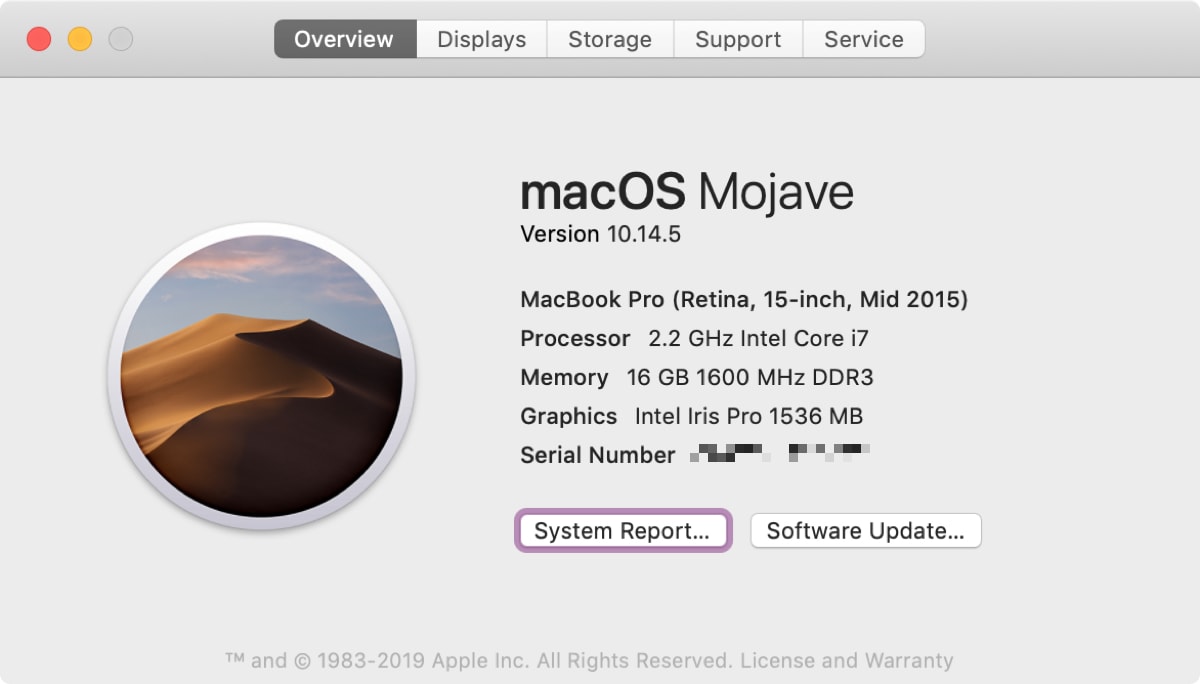
- View the Overview: A window will pop up displaying a concise summary of your Mac’s details. The very first line, usually under the bold “macOS” heading, will show you the name and version number of your operating system. For example, it might say “macOS Ventura Version 13.5.”
This window also provides other useful information at a glance, such as your Mac model, processor type, memory (RAM), graphics card, and serial number. It’s an invaluable first stop for troubleshooting or simply getting to know your machine better.
Deciphering the Information: Version Names and Numbers
Apple has evolved its naming convention for macOS over the years, moving from big cat names (e.g., Mountain Lion) to Californian landmarks (e.g., Yosemite) and now to more abstract concepts or unique identifiers (e.g., Ventura). Understanding both the name and the version number is helpful.
Here’s a list of recent macOS versions, their names, and corresponding version numbers:
- macOS Sonoma: Version 14 (Released Fall 2023)
- macOS Ventura: Version 13 (Released Fall 2022)
- macOS Monterey: Version 12 (Released Fall 2021)
- macOS Big Sur: Version 11 (Released Fall 2020)
- macOS Catalina: Version 10.15 (Released Fall 2019)
- macOS Mojave: Version 10.14 (Released Fall 2018)
- macOS High Sierra: Version 10.13 (Released Fall 2017)
- macOS Sierra: Version 10.12 (Released Fall 2016)
- OS X El Capitan: Version 10.11 (Released Fall 2015)
- OS X Yosemite: Version 10.10 (Released Fall 2014)
The main version number (e.g., 13 for Ventura) signifies a major release, while the subsequent decimal points (e.g., 13.5) indicate minor updates that typically include bug fixes, security patches, and sometimes small feature enhancements. Keeping track of these minor updates is just as important as knowing the major version.
Beyond the Basics: Deeper Dives with System Information
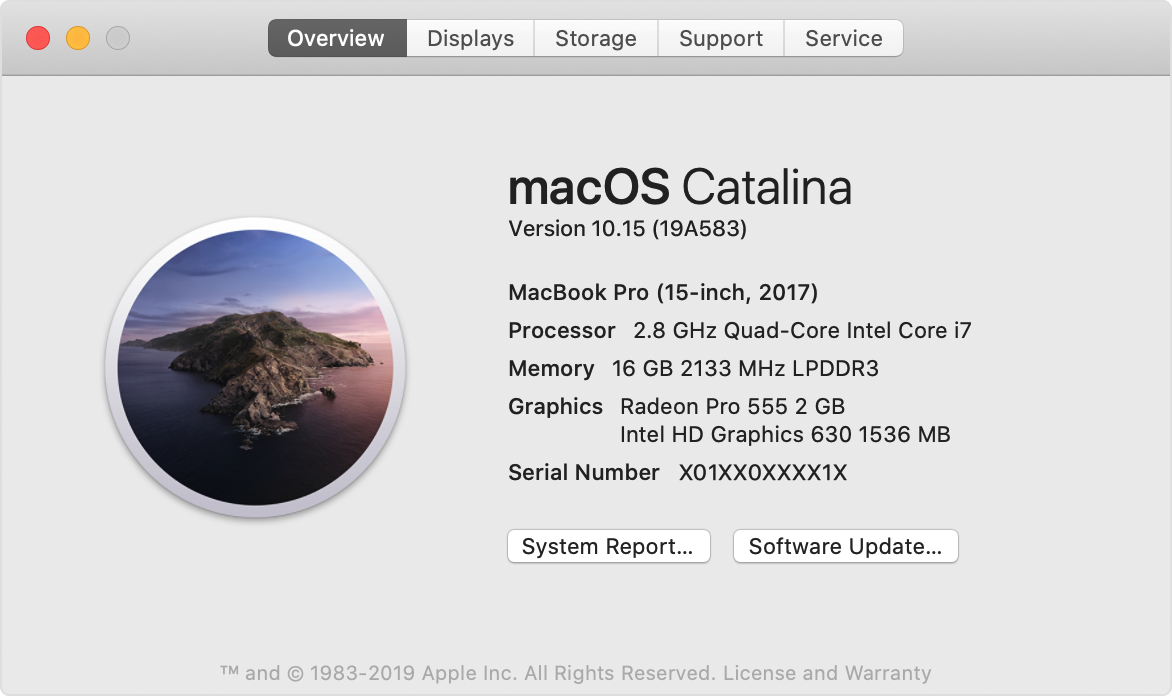
While “About This Mac” offers a convenient overview, there are times when you need more granular details about your system. For these instances, the “System Information” application (formerly “System Report”) provides an exhaustive breakdown of your Mac’s hardware and software configuration.
Accessing the System Information App
There are a couple of ways to get to System Information:
- From “About This Mac”: Open “About This Mac” as described above. In the overview window, you’ll usually find a button labeled “System Report…” or “More Info…”. Clicking this will open the System Information app.
- Via Spotlight Search: Press Command (⌘) + Space bar to open Spotlight Search. Type “System Information” and press Enter.
- Through Finder: Navigate to Applications > Utilities > System Information.
What You’ll Find in System Information
The System Information app presents a comprehensive list of categories in its sidebar, each detailing specific aspects of your Mac. Under the “Software” section, you can find incredibly detailed information about your operating system, applications, frameworks, and more.
While “About This Mac” quickly gives you “macOS Ventura Version 13.5,” System Information goes further, potentially listing the build number, kernel version, boot volume details, and other technical specifications that are invaluable for advanced troubleshooting, developer tasks, or when communicating with tech support. This level of detail can be particularly useful for identifying obscure software conflicts or verifying specific hardware capabilities when planning major upgrades or seeking professional assistance.
The Financial & Strategic Implications of Your macOS Version
Understanding your macOS version isn’t just a technical exercise; it has tangible financial and strategic consequences that can impact your budget, productivity, and the long-term value of your Mac.
Optimizing Software Investments and Avoiding Pitfalls
Software can be a significant investment, especially for creative professionals or businesses. Knowing your macOS version allows you to make informed purchasing decisions and avoid costly mistakes.
- Preventing Incompatible Purchases: Before buying new software, check its macOS compatibility requirements. An outdated OS might mean a new application won’t run, turning a software purchase into a wasted expense. This also applies to subscriptions; why pay monthly for a tool you can’t fully use?
- Strategic Upgrades: If a crucial new application requires a newer macOS, you can strategically plan your OS upgrade rather than reacting to an immediate need. This allows for proper backups and preparation, minimizing downtime.
- Leveraging Free Updates: macOS updates are free from Apple. Regularly updating means you’re getting new features, security enhancements, and performance improvements without additional cost. This maximizes the value of your existing hardware investment by keeping its software capabilities current.
Protecting Your Digital Assets and Financial Security
As discussed, an outdated macOS is a security risk. The financial implications of a security breach can be severe and far-reaching.
- Mitigating Financial Loss from Cybercrime: An unpatched system is vulnerable to malware, ransomware, and phishing attacks. These can lead to unauthorized access to bank accounts, credit card details, or sensitive business data. The cost of recovery, potential financial fraud, or reputational damage for a business can be astronomical. Regularly updating your macOS is a direct investment in your financial security and digital asset protection.
- Data Recovery Costs: If an old macOS succumbs to a severe virus or data corruption due to vulnerabilities, the cost and effort of professional data recovery can be substantial. In some cases, data may be unrecoverable, leading to irreplaceable loss of personal memories or critical business documents.
- Compliance and Regulation: For businesses, operating with outdated and vulnerable software can lead to non-compliance with data protection regulations (like GDPR or HIPAA), resulting in hefty fines and legal repercussions.
Maintaining Your Mac’s Value and Longevity
Your Mac is an investment. Understanding and managing its macOS version contributes to its longevity and potential resale value.
- Extending Hardware Lifespan: While older Macs may not run the very latest macOS, keeping them updated to the newest supported version ensures they remain secure and compatible with a wide range of current applications. This can extend the usable life of your hardware, delaying the need for an expensive new computer purchase.
- Optimizing Resale Value: When it comes time to upgrade, a Mac running a relatively recent and supported macOS version will command a significantly higher resale value than one stuck on an ancient, unsupported OS. Buyers are looking for functionality, security, and compatibility, all of which are linked to the macOS version.
- Productivity ROI: A well-maintained Mac running an efficient, updated macOS version is a productive machine. This translates to time saved, fewer frustrations, and more efficient work, contributing directly to your personal or business financial bottom line.
Keeping Your macOS Up-to-Date: A Smart Move
Once you know your macOS version, the next logical step is to consider if it’s the latest one compatible with your Mac, and if not, whether an update is warranted. Keeping your macOS current is one of the most proactive steps you can take to ensure a secure, efficient, and enjoyable computing experience.
How to Check for Updates
Checking for and applying macOS updates is a straightforward process:
- Open System Settings/System Preferences:
- For macOS Ventura (13) or later: Click the Apple menu () > System Settings. Then click “General” in the sidebar, and then “Software Update” on the right.
- For macOS Monterey (12) or earlier: Click the Apple menu () > System Preferences. Then click “Software Update.”
- Check for Available Updates: Your Mac will automatically check for any available macOS updates. If an update is available, you’ll see an option to download and install it.
- Install Updates: Follow the on-screen prompts to download and install the update. Your Mac will likely need to restart during this process.
It’s advisable to enable automatic updates to ensure you’re always running the latest minor version for security patches, even if you choose to defer major version upgrades.
Best Practices for Upgrading Your macOS
While updating is generally safe, it’s a significant system change. Here are some best practices:
- Back Up Your Mac: Always back up your data before a major macOS upgrade. Use Time Machine, iCloud, or a third-party backup solution. This protects your data in case something goes wrong during the installation.
- Check Compatibility: Ensure your Mac model is compatible with the version of macOS you intend to install. Apple provides a list of compatible Macs for each new macOS release.
- Free Up Storage Space: Major macOS upgrades require a substantial amount of free disk space. Make sure you have enough room (typically 20-30GB or more recommended) before beginning the download.
- Plug into Power: Ensure your MacBook is connected to a power source to prevent it from shutting down midway through the update.
- Allocate Time: A major OS upgrade can take anywhere from an hour to several hours, depending on your internet speed and Mac’s age. Plan accordingly.
In conclusion, understanding “how to know what macOS I have” is far more than a simple technical query. It’s a fundamental aspect of intelligent tech management that empowers you to make informed decisions about software, security, productivity, and your valuable financial investments in the Apple ecosystem. By staying informed and proactive, you ensure your Mac remains a powerful, secure, and efficient tool, fully embodying the innovation Apple promises.
aViewFromTheCave is a participant in the Amazon Services LLC Associates Program, an affiliate advertising program designed to provide a means for sites to earn advertising fees by advertising and linking to Amazon.com. Amazon, the Amazon logo, AmazonSupply, and the AmazonSupply logo are trademarks of Amazon.com, Inc. or its affiliates. As an Amazon Associate we earn affiliate commissions from qualifying purchases.