
The motherboard is the unsung hero of your computer. It’s the central nervous system, the backbone that connects every single component – from your CPU and RAM to your graphics card and storage drives. Without it, your powerful processor would be an isolated island, unable to communicate with anything else. Understanding your motherboard is crucial for a variety of reasons, especially if you’re looking to upgrade your system, troubleshoot issues, or even just gain a deeper appreciation for the technology powering your digital life. This article will guide you through the process of identifying your motherboard, explaining why it matters, and offering practical steps you can take right now.
Why Knowing Your Motherboard is Important
Before we dive into the “how-to,” let’s establish the “why.” Knowing your motherboard’s make and model offers a significant advantage in several key areas, aligning perfectly with the core pillars of our website: Tech, Brand, and Money.
Tech: Unlocking Your System’s Potential
From a Technology perspective, your motherboard dictates several critical aspects of your system’s capabilities and future upgrade paths.
- Compatibility: This is perhaps the most significant reason. When you want to upgrade your CPU, RAM, or even add certain expansion cards, compatibility is paramount. Different CPUs require specific socket types, and the motherboard is what houses that socket. Similarly, RAM type (DDR4, DDR5) and speed are governed by what your motherboard supports. Trying to install incompatible hardware is a recipe for frustration and potential damage.
- Performance Limitations: The chipset on your motherboard influences the overall performance of your system. It manages communication between components, and a more advanced chipset can offer better overclocking potential, faster data transfer speeds for storage (like NVMe SSDs), and support for newer technologies.
- Feature Set: Motherboards come with varying feature sets. Some might have more USB ports, others might support Wi-Fi 6E, have multiple M.2 slots for SSDs, or boast enhanced audio solutions. Knowing your motherboard helps you understand what features you currently have and what you might gain with an upgrade.
- Troubleshooting: When your computer starts acting up – be it a boot failure, a device not being recognized, or strange error codes – identifying your motherboard is often the first step in diagnosing the problem. Motherboard-specific diagnostic lights, error codes, and firmware updates can be crucial in resolving these issues.
- Driver Updates: Manufacturers regularly release driver updates for their motherboards to improve stability, security, and performance. Knowing your model ensures you can find and install the correct drivers from the manufacturer’s official website.
Brand: Understanding Your Hardware’s Identity
In the realm of Brand, understanding your motherboard isn’t just about technical specifications; it’s about recognizing the manufacturer’s quality, design philosophy, and the ecosystem they offer.
- Manufacturer Reputation: Companies like ASUS, Gigabyte, MSI, and ASRock have built their Reputation on different strengths. Some are known for their gaming-focused boards with robust features, while others might excel in offering stable, business-oriented solutions. Knowing your brand helps you understand the expected quality and support.
- Design and Aesthetics: For many, especially those building a custom PC for show, the Design and aesthetics of the motherboard are important. Brands often have distinct visual styles, RGB lighting implementations, and heatsink designs.
- BIOS/UEFI Interface: The user interface for your motherboard’s firmware (BIOS or UEFI) can vary significantly between manufacturers. Familiarizing yourself with your specific brand’s interface is essential for making advanced settings adjustments, such as overclocking or fan curves.
- Warranty and Support: Knowing the brand is vital for understanding your warranty terms and accessing customer support if you encounter hardware failures.
Money: Making Informed Decisions for Your Investment
From a Money perspective, identifying your motherboard empowers you to make smarter financial decisions regarding your PC.
- Upgrade Cost-Effectiveness: Before spending money on a new CPU or RAM, knowing your motherboard’s limitations is crucial. It prevents you from buying expensive components that your current board simply cannot support, saving you from wasted expenditure. This is particularly relevant for Personal Finance and Investing in your computer as a tool for income or productivity.
- Resale Value: When you decide to sell your computer or its components, knowing the specifications of your motherboard can help you accurately price your items, ensuring you get a fair return on your Investment.
- Identifying Bottlenecks: If you’re experiencing performance issues that you can’t pinpoint, understanding your motherboard might reveal that it’s the limiting factor, preventing you from upgrading other components to achieve better performance. This can help you prioritize future spending for maximum Online Income or productivity gains.
- Budgeting for Future Builds: If you’re planning a new PC build, understanding the features and price points of different motherboards will allow you to allocate your Business Finance or personal budget more effectively.
Methods to Check Your Motherboard Type
Now that you understand the importance of knowing your motherboard, let’s explore the various methods to discover its identity. We’ll cover the easiest, most common approaches first.
Using System Information in Windows
This is the most straightforward and accessible method for most Windows users.
Via System Information Tool
- Open the Run Dialog: Press the
Windows key + Ron your keyboard simultaneously. - Type
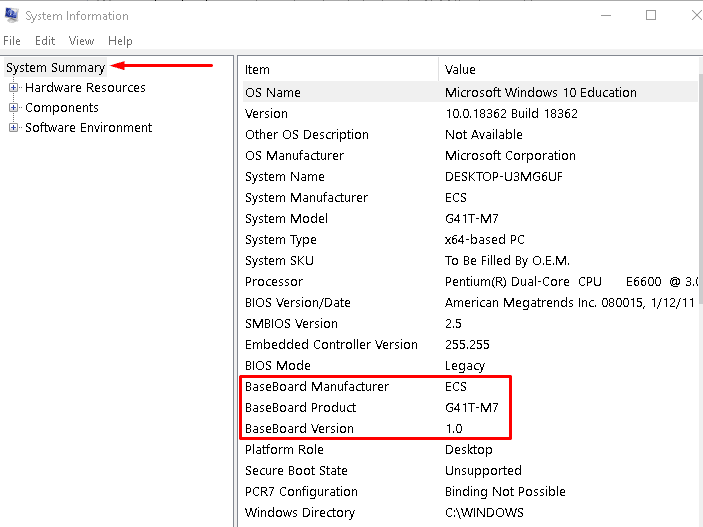
msinfo32: In the Run dialog box, typemsinfo32and press Enter or click OK. This will open the System Information utility. - Locate Motherboard Information: In the System Information window, you’ll see a tree-like structure on the left pane. Navigate to System Summary. On the right pane, scroll down until you find the entries for BaseBoard Manufacturer, BaseBoard Product, and BaseBoard Version. These will clearly state the manufacturer and model of your motherboard.
Via Command Prompt
If you prefer using the command line, the Command Prompt offers a quick way to retrieve this information.
- Open Command Prompt: Search for “Command Prompt” in the Windows search bar and open it.
- Enter the Command: Type the following command and press Enter:
wmic baseboard get product,manufacturer,version,serialnumber - View the Output: The command will directly display the manufacturer, product (model name), version, and serial number of your motherboard.
Using CPU-Z (Third-Party Software)
CPU-Z is a free, lightweight utility that provides detailed information about your CPU, cache, motherboard, memory, and graphics card. It’s a favorite among PC enthusiasts for its comprehensive data.
- Download CPU-Z: Visit the official CPU-Z website (www.cpuid.com/softwares/cpu-z.html) and download the installer.
- Install and Run: Install CPU-Z as you would any other program. Once installed, launch the application.
- Navigate to the “Mainboard” Tab: In the CPU-Z window, you’ll see several tabs. Click on the Mainboard tab.
- Identify Motherboard Details: The “Mainboard” tab will prominently display the Manufacturer and Model of your motherboard at the top. You’ll also find information about the chipset.
Checking Directly on the Motherboard (Physical Inspection)
While the software methods are convenient, sometimes the most definitive answer comes from looking at the hardware itself. This method is particularly useful if you’re having trouble booting into Windows or if the system information is displaying incorrect details.
Opening Your PC Case
Safety First: Before opening your PC case, ensure it’s powered off and unplugged from the wall. It’s also a good idea to ground yourself by touching a metal part of the case to discharge any static electricity that could damage components.
- Locate and Remove Side Panel: Most PC cases have a side panel that can be removed by unscrewing thumbscrews at the back or by releasing latches. Consult your case’s manual if you’re unsure.
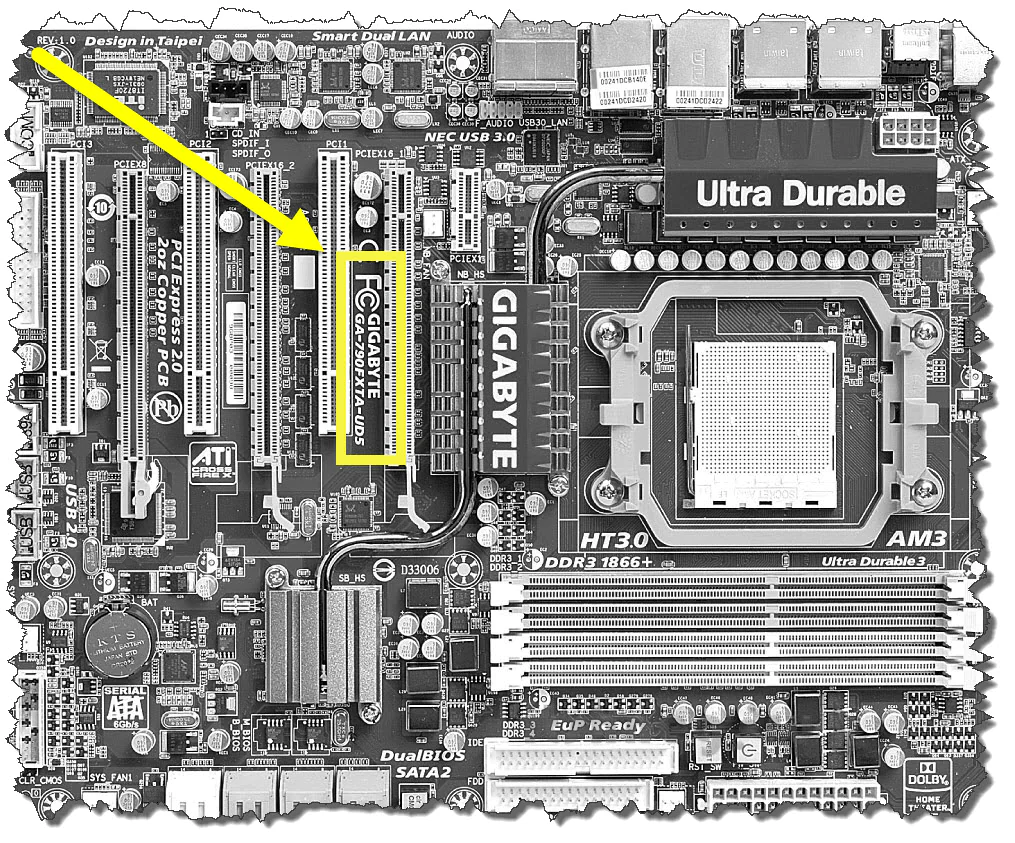
- Visually Inspect the Motherboard: Once the case is open, you’ll see the motherboard laid out. Look for prominent text printed directly on the board itself. The manufacturer’s name and the model number are usually printed in large, clear font, often near the CPU socket, RAM slots, or PCI-e slots. Common locations include the area around the CPU socket, the edge near the SATA ports, or near the main ATX power connector.
Tips for Visual Inspection:
- Look for Logos: Motherboard manufacturers have distinct logos that are often printed on the board.
- Read Carefully: The model number is typically a combination of letters and numbers.
- Take a Photo: If you’re having trouble reading it, take a clear photo with your phone and zoom in to decipher the text.
Using PowerShell (Advanced)
For users who are comfortable with PowerShell, this command-line interface offers another programmatic way to retrieve motherboard information.
- Open PowerShell: Search for “PowerShell” in the Windows search bar and open it (you can also run it as an administrator if needed).
- Enter the Command: Type the following command and press Enter:
Get-CimInstance win32_baseboard - Interpret the Output: This command will return a wealth of information, including the
Manufacturer,Product(model name),SerialNumber, andVersionof your motherboard.
What to Do With Your Motherboard Information
Once you’ve successfully identified your motherboard, you can leverage this knowledge to:
Upgrade Your System
- CPU Compatibility: Visit the motherboard manufacturer’s website and look for the “CPU Support List” or “Compatibility List” for your specific model. This list will tell you exactly which processors are compatible.
- RAM Upgrade: Check your motherboard’s specifications for the type of RAM it supports (e.g., DDR4, DDR5), the maximum speed it can handle, and the maximum capacity.
- Expansion Cards: Understand how many PCI-e slots you have and their versions (e.g., PCI-e 3.0, 4.0, 5.0) to ensure compatibility with graphics cards, sound cards, or network adapters.
Troubleshoot Issues
- Driver Downloads: Go to the support section of your motherboard manufacturer’s website, find your specific model, and download the latest drivers for your chipset, audio, network, and other onboard components.
- BIOS/UEFI Updates: If you’re experiencing stability issues or want to enable new features, you might need to update your BIOS/UEFI. Always follow the manufacturer’s instructions carefully when performing a BIOS update.
- Consult Manufacturer Support: If you encounter persistent problems, having your motherboard model readily available will make it easier to search online forums or contact the manufacturer’s technical support.
Understand Your PC’s Limitations and Potential
Knowing your motherboard is the foundation for understanding your entire system’s capabilities. It helps you make informed decisions about where to invest your time and money, whether you’re optimizing for productivity, pursuing a side hustle, or simply enjoying the latest games.
By following these simple steps, you can confidently identify your motherboard and unlock a deeper understanding of the technology that powers your digital world. This knowledge is a powerful tool for any tech-savvy individual, from the casual user to the seasoned builder.
aViewFromTheCave is a participant in the Amazon Services LLC Associates Program, an affiliate advertising program designed to provide a means for sites to earn advertising fees by advertising and linking to Amazon.com. Amazon, the Amazon logo, AmazonSupply, and the AmazonSupply logo are trademarks of Amazon.com, Inc. or its affiliates. As an Amazon Associate we earn affiliate commissions from qualifying purchases.