
In the intricate ecosystem of a personal computer, few components are as vital, yet as often overlooked, as the Power Supply Unit (PSU). This unassuming box is the lifeblood of your entire system, converting wall power into the precise voltages your motherboard, CPU, GPU, and other peripherals need to function. Whether you’re planning an upgrade, troubleshooting a performance issue, or simply aiming to optimize your PC’s energy efficiency, knowing the specifications of your PSU is not just helpful—it’s absolutely crucial. This guide will walk you through various methods to identify your power supply, delve into why this information is so important for both your technology and your wallet, and highlight how a reputable PSU contributes to the overall “brand” and reliability of your entire setup.
Why Knowing Your Power Supply is Crucial
Understanding the specifics of your power supply goes far beyond mere curiosity. It underpins critical decisions related to your system’s performance, stability, future upgrades, and even your electricity bill. For any tech enthusiast, PC builder, or even the average user, this knowledge is power, quite literally.
Performance and Upgrades
The power supply is the gatekeeper of your system’s potential. If you’re eyeing a powerful new graphics card, a beefier CPU, or adding more storage drives, your existing PSU must be capable of delivering the necessary wattage. An underpowered PSU can lead to system instability, crashes, and, in severe cases, damage to components. Knowing your PSU’s capacity allows you to gauge whether it can support your desired upgrades, preventing costly mistakes and ensuring optimal performance from new hardware. It also helps you plan for future expansions, aligning with smart technology management.
System Stability and Longevity
A stable power supply ensures consistent, clean power delivery to all components. Fluctuations or insufficient power can stress hardware, leading to premature failure, data corruption, and frustrating intermittent issues that are difficult to diagnose. High-quality PSUs incorporate protective features against over-voltage, under-voltage, short circuits, and over-current, safeguarding your valuable components. By knowing the quality and specifications of your PSU, you can better assess its role in maintaining system stability and extending the lifespan of your entire PC, saving you money on repairs and replacements in the long run.
Energy Efficiency and Cost Savings
Modern power supplies come with “80 Plus” efficiency ratings (Bronze, Silver, Gold, Platinum, Titanium) that indicate how efficiently they convert AC power from the wall into DC power for your components. A higher efficiency rating means less energy is wasted as heat, translating directly into lower electricity bills and reduced environmental impact. While a more efficient PSU might have a higher upfront cost, the savings over its lifespan can be substantial, especially for systems that run for long hours. Understanding your PSU’s efficiency rating empowers you to make financially savvy decisions about your hardware.
Brand Reputation and Reliability
The power supply’s brand often speaks volumes about its quality and reliability. Reputable manufacturers invest in better components, more robust designs, and stricter quality control, leading to PSUs that are safer, more stable, and last longer. Choosing a well-regarded brand for your PSU contributes to the overall perceived “brand” and reliability of your entire computer system, whether it’s a personal build you showcase or a workstation crucial for your professional brand image. A cheap, generic PSU can jeopardize not just your hardware but also the trust in your technical judgment.
Methods to Identify Your Power Supply
Identifying your power supply doesn’t always require expert technical skills. There are several straightforward methods, ranging from physical inspection to software solutions and consulting documentation. Each method offers a different level of detail and convenience.
The Easiest Way: Physical Inspection
The most direct and often most comprehensive way to ascertain your PSU’s specifications is to physically examine the unit itself.
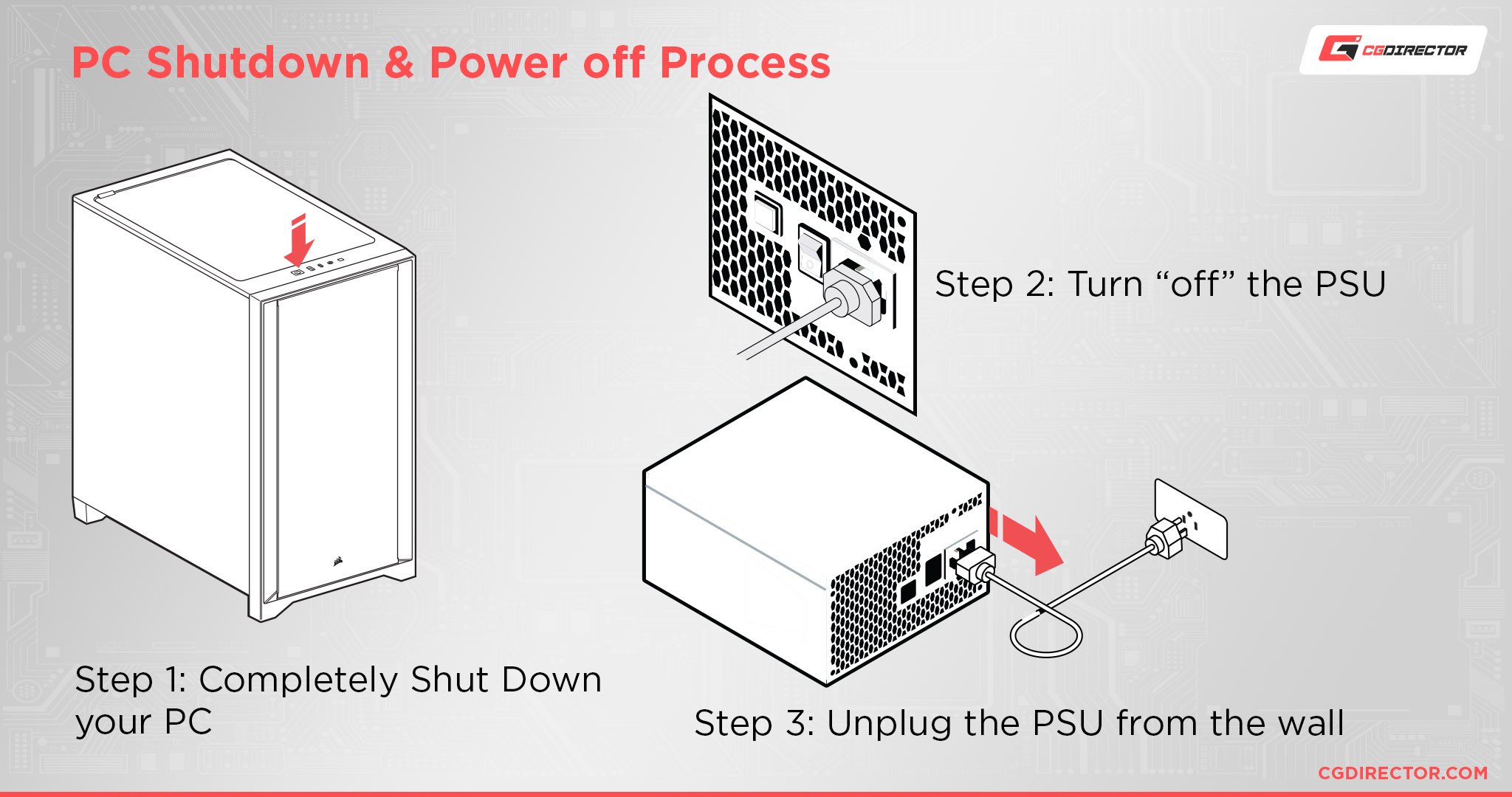
- Accessing Your PSU: For most desktop PCs, the PSU is typically located at the bottom or top rear of the case. You’ll need to open the side panel of your computer case. Before doing so, always unplug your PC from the wall socket and press the power button a few times to discharge any residual power. Safety first!
- Locating the Label: Once inside, look for a sticker or label on the side of the power supply unit. This label is a goldmine of information.
- What to Look For:
- Brand and Model Name: This identifies the manufacturer (e.g., Corsair, EVGA, Seasonic, Cooler Master) and the specific model number.
- Total Wattage (W): This is the most critical number, indicating the maximum power output your PSU can deliver (e.g., 650W, 750W).
- 80 Plus Efficiency Rating: Look for “80 Plus” followed by Bronze, Silver, Gold, Platinum, or Titanium.
- Amperage on 12V Rails (A): Modern PSUs typically have one or more +12V rails. The combined amperage on these rails is crucial for powering high-demand components like your CPU and GPU.
- Input Voltage and Frequency: (e.g., 100-240V, 50-60Hz) This specifies the range of AC power it can accept.
- Certifications: Safety certifications (e.g., CE, FCC, UL) indicate compliance with industry standards.
Physical inspection provides the most accurate and complete picture, as software tools might not always be able to read all the detailed internal specifications of the PSU.
Software Solutions
While software generally cannot directly read all the internal specifications of a PSU (such as its efficiency rating or specific rail configurations), it can often infer its presence, monitor voltages, and sometimes even report basic model information if the PSU communicates this data via internal bus.
- Built-in Operating System Tools:
- Windows System Information (msinfo32): You can access this by typing
msinfo32into the Run dialog (Windows Key + R). While it provides extensive hardware details, it typically won’t list your PSU’s wattage or efficiency. It might show basic power management settings, but not the PSU’s core specs. - Device Manager: Similarly, Device Manager lists connected hardware, but the PSU isn’t usually listed as an independent, identifiable device with its wattage in a way that is immediately useful for upgrade planning.
- Windows System Information (msinfo32): You can access this by typing
- Third-Party Utilities: These are far more effective for monitoring power-related metrics, though still limited in directly reporting all PSU specs.
- HWMonitor, HWiNFO64: These powerful monitoring tools can read sensor data from your motherboard, CPU, and GPU. They display real-time voltage readings for various rails (+3.3V, +5V, +12V). While they don’t explicitly state the PSU’s wattage or 80 Plus rating, consistent, stable voltage readings under load suggest a healthy PSU. Large fluctuations might indicate a struggling unit.
- Speccy, CPU-Z: These programs provide comprehensive system information. Like HWMonitor, they focus more on reporting detected components and their operational parameters rather than the deep specifications of the PSU itself.
- AIDA64 Extreme: This is a more professional-grade diagnostic tool that can provide very detailed information about almost every component. While it still might not directly pull the wattage of a PSU in all cases, its advanced sensor monitoring can give excellent insights into power delivery stability.
It’s important to understand that no software can tell you the original factory wattage or the 80 Plus rating of a PSU with absolute certainty, as this information isn’t typically transmitted digitally in a standardized way. These tools are best for monitoring performance after you’ve identified the PSU’s core specs via physical inspection.
Checking Your PC’s Documentation
Often overlooked, the original documentation that came with your computer or individual components can be an invaluable resource.
- User Manuals: If you purchased a pre-built PC, the manufacturer’s manual will almost certainly list the specifications of the installed power supply.
- Purchase Receipts/Invoices: Your sales receipt or online order history from where you bought your PC or PSU (if purchased separately) will detail the exact model and wattage.
- Manufacturer’s Website: For pre-built systems, entering your PC’s serial number or model number on the manufacturer’s support website can lead you to its original specifications, including the PSU.
This method is particularly useful if you’re hesitant to open your PC case or if the PSU label is in an awkward position to read. It’s a testament to the importance of keeping good records, both for your tech and your financial purchases.
Decoding Your Power Supply’s Specifications
Once you’ve identified your power supply, understanding its various specifications is key to making informed decisions about your system. These numbers aren’t just technical jargon; they represent real-world implications for performance, safety, and your budget.
Understanding Wattage and Amperage
The most prominent specification on any PSU label is its total wattage (W). This is the maximum combined power the unit can deliver to all your components. To determine if your PSU is sufficient, you need to estimate the power draw of your system. Online PSU calculators (e.g., from OuterVision, PCPartPicker) are excellent tools for this, allowing you to input your CPU, GPU, motherboard, and other components to get an estimated total wattage requirement. Always aim for a PSU with a wattage rating comfortably above your system’s peak estimated draw, ideally with a 20-30% buffer, to ensure efficiency and provide headroom for future upgrades.
Equally important, especially for powerful GPUs, is the amperage on the +12V rails. Modern CPUs and GPUs primarily draw power from the +12V rail. A PSU with multiple +12V rails will distribute the load, while a single-rail design aggregates it. Ensure that the combined amperage on your PSU’s +12V rails meets or exceeds the requirements of your most power-hungry components, particularly the graphics card. Neglecting this can lead to instability even if the overall wattage seems sufficient.
80 Plus Efficiency Ratings
The 80 Plus certification is a voluntary program designed to promote energy efficiency in power supplies. It indicates that a PSU is at least 80% efficient at 20%, 50%, and 100% of its rated load. The higher the tier, the more efficient the PSU:
- 80 Plus Standard/White: 80% efficient
- 80 Plus Bronze: 82-85% efficient
- 80 Plus Silver: 85-88% efficient
- 80 Plus Gold: 87-90% efficient
- 80 Plus Platinum: 89-92% efficient
- 80 Plus Titanium: 90-94% efficient (at 10% load also)
Investing in a higher-efficiency PSU (Gold, Platinum, Titanium) means less energy is wasted as heat, leading to lower operating temperatures inside your case and, significantly, lower electricity bills over time. While these units typically cost more upfront, the long-term financial savings can be substantial, especially for systems that are frequently used. This is where the “money” aspect of PSU choice becomes very clear.
Modular vs. Non-Modular vs. Semi-Modular
This refers to how the cables are connected to the PSU:
- Non-Modular: All cables are permanently attached. This is often found in budget PSUs and can lead to cluttered cases and poorer airflow due to unused cables.
- Semi-Modular: The essential cables (24-pin motherboard, 8-pin CPU) are fixed, but peripheral cables (PCIe, SATA, Molex) are detachable. This offers a good balance between cost and cable management.
- Full Modular: All cables are detachable. This provides the ultimate flexibility for cable management, leading to cleaner builds and improved airflow. While often more expensive, it greatly enhances the aesthetic and practicality of PC building, aligning with a premium “brand” experience for custom builds.
PSU Form Factors
Power supplies come in different physical sizes, known as form factors, to fit various PC cases:
- ATX: The most common form factor for desktop PCs.
- SFX: Smaller form factor for Small Form Factor (SFF) cases, popular for compact gaming or HTPC builds.
- TFX: Even smaller, often found in slimline or pre-built office PCs.
- Flex ATX: Another small form factor, usually for very compact industrial or embedded systems.
Knowing your PSU’s form factor is critical for compatibility when buying a replacement or building a new system. An ATX PSU simply won’t fit into an SFX-only case, regardless of its wattage.
Common Pitfalls and Best Practices
Choosing and maintaining a power supply involves more than just matching numbers. There are common mistakes to avoid and best practices to adopt to ensure your system runs smoothly and reliably.
The Dangers of Underpowered or Generic PSUs
One of the most critical pitfalls is using an underpowered or generic, no-name power supply. An underpowered PSU will struggle to meet the demands of your components, leading to frequent system crashes, freezes, and instability. This not only frustrates the user but also puts undue stress on expensive components like your CPU and GPU, potentially shortening their lifespan or causing irreversible damage.
Generic PSUs, often bundled with cheap cases, frequently claim high wattages that they cannot reliably deliver, especially under sustained load. They also tend to use lower-quality components, lack essential protective circuitry, and have poor voltage regulation. This can result in unstable power delivery, ripple (noise) on power lines, and a higher risk of catastrophic failure that could take other components with it. Saving a few dollars on a PSU is a false economy that can lead to significant financial losses and damage to your brand as a PC builder or owner.
When to Upgrade Your Power Supply
Knowing when to upgrade your PSU is as important as knowing its current specs. Here are common scenarios necessitating an upgrade:
- Major GPU Upgrade: This is the most frequent reason. New, powerful graphics cards often demand significantly more wattage and amperage on the +12V rails.
- Adding More Components: Installing multiple hard drives, SSDs, or a powerful CPU cooler can increase your system’s overall power draw.
- System Instability/Age: If your PC experiences random reboots, crashes, or strange behavior, and you’ve ruled out other components, an aging or failing PSU could be the culprit. Electrolytic capacitors inside PSUs can degrade over time, leading to reduced performance and stability.
- Seeking Better Efficiency: Upgrading to an 80 Plus Gold or Platinum unit can save you money on electricity, especially if your PC runs for extended periods. This is a long-term investment in financial efficiency.
Investing in Quality: The Long-Term View
While a quality power supply might seem like an unexciting purchase compared to a new graphics card, it is arguably one of the most important investments you can make for your PC. A reputable PSU from a trusted brand (e.g., Seasonic, Corsair, EVGA, be quiet!, Cooler Master, Fractal Design, Super Flower) offers:
- Reliability: Consistent, stable power delivery reduces stress on components.
- Protection: Built-in safeguards against power anomalies protect your expensive hardware.
- Longevity: High-quality components mean the PSU itself will last longer.
- Efficiency: Lower electricity bills and less heat generation.
- Peace of Mind: Knowing your system has a stable foundation allows you to focus on productivity, gaming, or content creation without worrying about power issues.
From a “money” perspective, a slightly higher upfront cost for a quality PSU pales in comparison to the cost of replacing damaged components or dealing with system downtime. From a “brand” perspective, it reinforces the integrity and thoughtful design of your PC setup.
Conclusion
Understanding “how to check what power supply you have” is more than a simple technical inquiry; it’s a foundational step towards responsible PC ownership, astute financial management, and maintaining the integrity of your technological investments. Whether you’re physically inspecting the unit, leveraging software tools, or reviewing documentation, gaining this knowledge empowers you to make informed decisions about upgrades, troubleshoot issues effectively, and optimize your system’s efficiency. By recognizing the critical role your PSU plays in performance, stability, energy consumption, and overall system reliability, you not only safeguard your hardware but also ensure your PC continues to serve you efficiently and dependably for years to come. In the world of technology, some details are too important to overlook, and your power supply sits firmly at the top of that list.
aViewFromTheCave is a participant in the Amazon Services LLC Associates Program, an affiliate advertising program designed to provide a means for sites to earn advertising fees by advertising and linking to Amazon.com. Amazon, the Amazon logo, AmazonSupply, and the AmazonSupply logo are trademarks of Amazon.com, Inc. or its affiliates. As an Amazon Associate we earn affiliate commissions from qualifying purchases.