
Waze, the crowd-sourced navigation app, has become an indispensable tool for millions of drivers worldwide. Its intuitive interface, real-time traffic updates, and community-driven alerts transform the often-frustrating experience of commuting into a more informed and efficient journey. However, the Waze interface is populated with a rich tapestry of icons, each representing a specific piece of information or functionality. For users to truly harness the power of this app, a comprehensive understanding of these visual cues is paramount. This article delves deep into the semantic meaning behind Waze’s diverse icon set, categorizing them for clarity and providing insights into how they contribute to a smarter, safer, and more streamlined driving experience.

Decoding the Core Navigation and Alert Icons
At the heart of Waze’s functionality lies its ability to guide users and inform them of potential hazards or opportunities on the road. The icons representing these core functions are the most frequently encountered and crucial for immediate comprehension.
Guiding Your Journey: Essential Navigation Cues
The primary purpose of Waze is navigation, and its icons clearly communicate the path forward. Understanding these is fundamental to reaching your destination efficiently.
Route Guidance and Turn Indicators
When Waze calculates a route, it employs a clear set of icons to keep you on track. The most prominent is the blue line, which represents your planned route. Deviating from this line will trigger a recalculation, visually indicated by Waze briefly showing alternative routes in lighter shades of blue. Arrows within the blue line dynamically update to show your current direction of travel and upcoming turns. For example, a straight arrow indicates continuing on your current road, while a sharp right or left arrow signifies an immediate turn. Exit ramps are often depicted with specific iconography, sometimes including the highway or street name associated with the exit.
Lane Guidance
In complex interchanges or multi-lane highways, Waze often employs lane guidance icons. These typically appear as a larger graphic at the top of the screen, illustrating the upcoming road layout. They will highlight which lanes you should be in to make your next turn or exit. For instance, if you need to take the rightmost lane for an upcoming exit, the lane guidance icon will visually emphasize that lane, often with a highlighted color and an arrow pointing to the exit. This feature is a lifesaver in unfamiliar areas or during busy traffic, preventing last-minute, potentially dangerous lane changes.
Road Hazards and Incidents: The Community-Driven Intelligence
The true power of Waze lies in its community reporting. Drivers can alert each other to various situations on the road, and these reports are visualized through distinct icons, fostering a collective approach to road safety and efficiency.
Traffic Flow Indicators
The color of the road on your Waze map directly reflects the traffic conditions ahead. Green indicates free-flowing traffic, orange signifies moderate congestion, and red represents heavy traffic or a complete standstill. This immediate visual cue allows drivers to anticipate delays and make informed decisions about rerouting.
Reported Incidents and Hazards
A diverse range of icons populates the map to alert drivers to specific events. The most common are:
- Police (Speed Trap): Often depicted as a police car icon, this alerts drivers to the presence of speed enforcement.
- Traffic Jam: Represented by a car with waves behind it, indicating a slowdown due to congestion.
- Accident: A car icon with an exclamation mark or a specific accident symbol signifies a collision.
- Construction: Usually a cone or a roadwork symbol, indicating ongoing road maintenance or construction that may cause delays or detours.
- Road Hazard: This broad category can encompass various issues like potholes, debris on the road, or unexpected obstacles. The icon might be a general hazard symbol like an exclamation mark in a triangle.
- Disabled Vehicle: A car icon with a tow truck or a hazard light symbol warns of a stranded vehicle.
- Red Light Camera: Similar to police icons, these alert drivers to automated enforcement.
- Road Closure: A barrier or a cross symbol signifies a section of road that is completely impassable.
These icons are not static; they often have a countdown timer or a fading effect, indicating how recently the report was made. The more reports for a specific issue, the higher its perceived accuracy and urgency.
Understanding User-Generated Content and Community Features
Beyond immediate road conditions, Waze fosters a sense of community through various icons that highlight user interactions and shared information.
Information Sharing and Social Interaction
Waze’s strength as a social navigation app is reinforced by icons that denote user contributions and community-driven features.
Reporting Tools and User Flags
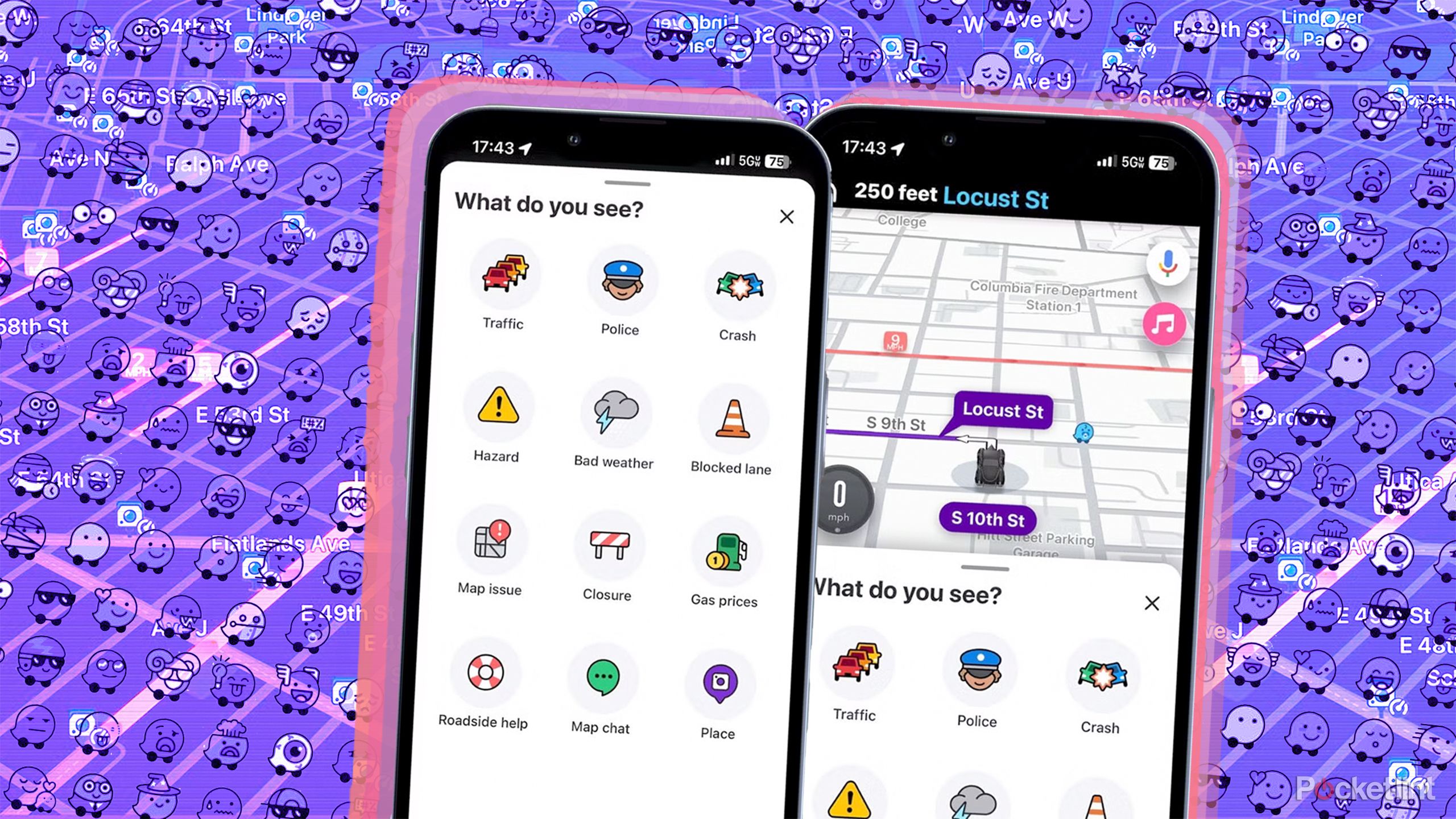
When you encounter something on the road that warrants reporting, Waze provides an easy-to-access reporting interface. The icons within this interface correspond to the categories mentioned earlier. For instance, tapping a button that looks like a police car will allow you to report a speed trap. Similarly, icons for traffic jams, accidents, and road hazards are readily available.
Points of Interest (POIs) and User-Added Locations
Waze also leverages user-generated data for Points of Interest. While not exclusively for navigation, these icons can be incredibly useful:
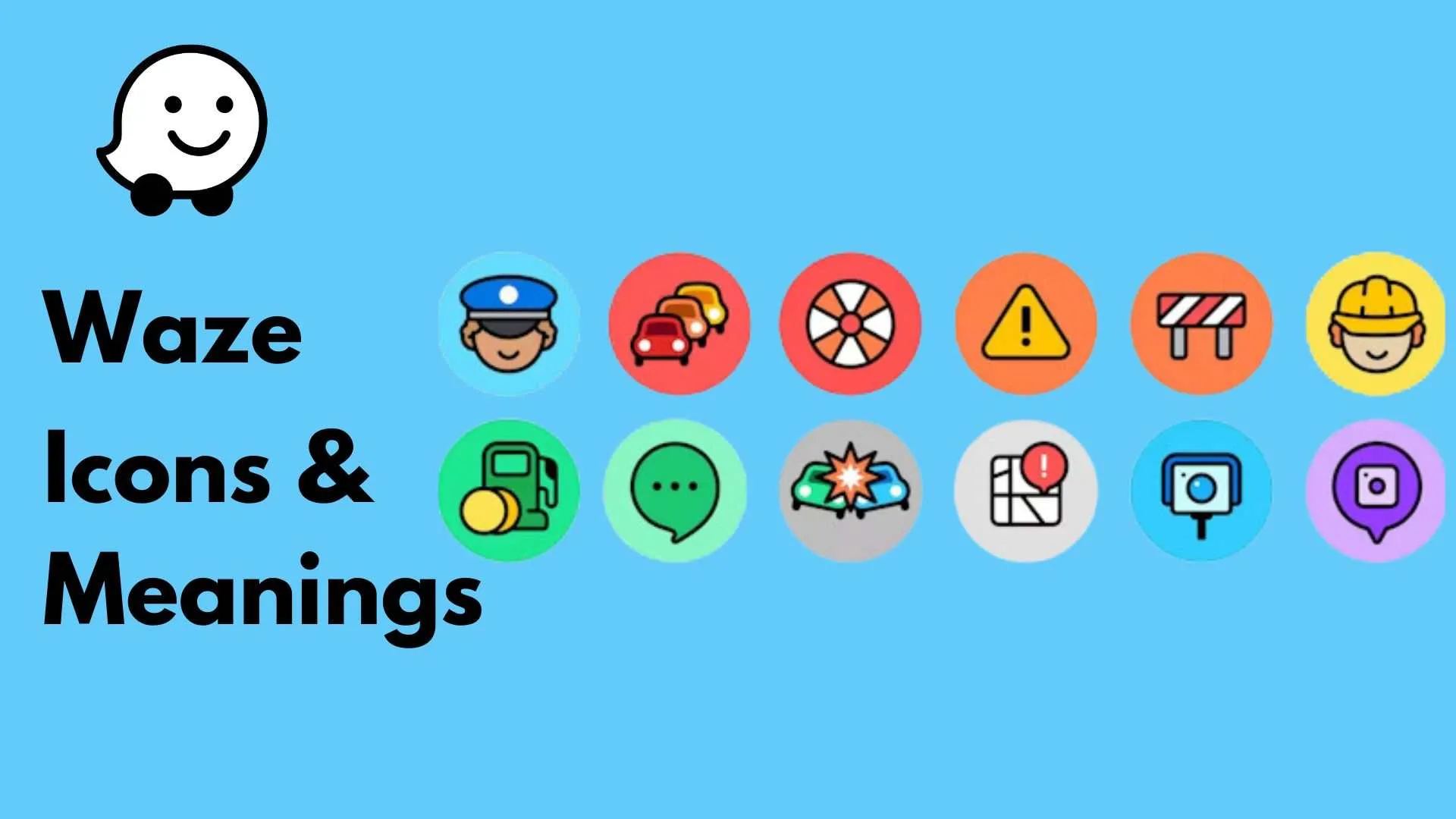
- Gas Stations: Typically represented by a gas pump icon, these often show real-time fuel prices reported by users.
- Parking: A “P” in a circle indicates available parking.
- Restaurants, Shops, and Services: Waze can display various icons representing different types of businesses, allowing users to find amenities along their route.
- User-Added Landmarks: Community members can add custom icons for specific landmarks or points of interest that aren’t standard POIs.
These POI icons not only enhance the utility of the app but also contribute to the richness of the map data, making Waze more than just a navigation tool but a comprehensive guide to your surroundings.
Customization and Personalization Options
Waze allows users to personalize their experience, and several icons relate to these settings and features.
Avatar and Vehicle Icons
Users can customize their avatar, the icon representing their vehicle on the map. This can range from a simple car icon to more playful or themed options. Similarly, users can select their vehicle type, which can subtly influence routing decisions in some instances (e.g., avoiding low bridges for larger vehicles).
Settings and Menu Navigation
Within the app’s menus, standard icons are used for navigation and functionality:
- Gear Icon: Typically represents “Settings” or “Preferences.”
- Magnifying Glass: Denotes “Search” or “Find.”
- Home Icon: Usually takes you back to the main map or your home location.
- Hamburger Menu (three horizontal lines): Often opens a side menu with various options and features.
- Voice Command Icon: A microphone symbol indicates the activation of voice control.
Understanding these common UI elements is essential for navigating the app’s various features, from adjusting route preferences to managing notifications.
Advanced Features and Icon Interpretation
As users become more familiar with Waze, they’ll encounter icons representing more advanced features and nuances of the app’s functionality.
Dynamic Routing and Predictive Information
Waze’s sophisticated algorithms utilize a variety of data points, some of which are visually represented by specific icons or through dynamic map changes.
Traffic Flow Prediction and Estimated Time of Arrival (ETA)
While traffic flow is indicated by color, Waze also provides real-time ETA which is a critical piece of information. The ETA is usually displayed prominently at the top of the screen. Subtle changes in the ETA, especially when they increase significantly, often correlate with underlying traffic events that might not be immediately obvious from the road itself.
Alerts for Specific Events
Waze can alert users to specific upcoming events that might impact their journey:
- Speed Limit Alerts: The app can display the current speed limit on the road, and if you exceed it, the speed limit icon might turn red or flash, accompanied by an audible alert.
- Waze Carpool Integration: If you use Waze for carpooling, specific icons might appear related to pickup points, passenger locations, or driver status.
- Gas Price Alerts: As mentioned earlier, gas station icons can display fluctuating prices, and Waze might proactively alert you if it detects a significantly lower price on your route.
Gamification and Community Engagement Icons
Waze incorporates elements of gamification to encourage user participation and contributions.
Wazer Ranks and Badges
Active Waze users can earn badges and progress through different Wazer ranks (e.g., Junior Wazer, Senior Wazer, Waze Guru). These achievements are often displayed on a user’s profile and contribute to their reputation within the community. While not directly on the navigation map, these icons signify a user’s dedication and knowledge of the app.
Moods and Stickers
Users can set their mood on Waze, which is represented by a small icon next to their avatar. These moods can range from happy to frustrated, providing a lighthearted touch to the social aspect of the app. Additionally, users can share stickers with other Wazers, adding a playful element to the community interaction.
In conclusion, the seemingly simple interface of Waze is, in fact, a sophisticated language of icons designed to convey a wealth of information efficiently. From guiding your turns and alerting you to hazards to fostering a vibrant community and offering personalized experiences, each icon plays a crucial role in making your journey smarter, safer, and more enjoyable. By understanding the meaning behind these visual cues, Waze users can unlock the full potential of this powerful navigation application, transforming their daily commutes into informed and empowered experiences.
aViewFromTheCave is a participant in the Amazon Services LLC Associates Program, an affiliate advertising program designed to provide a means for sites to earn advertising fees by advertising and linking to Amazon.com. Amazon, the Amazon logo, AmazonSupply, and the AmazonSupply logo are trademarks of Amazon.com, Inc. or its affiliates. As an Amazon Associate we earn affiliate commissions from qualifying purchases.