
In an increasingly connected world, our televisions have evolved far beyond mere displays for broadcast signals. Smart TVs, now a staple in most modern homes, offer a gateway to a universe of digital content, interactive experiences, and integrated services. The “smart” in Smart TV fundamentally refers to its ability to connect to the internet and run applications – much like your smartphone or computer. These apps transform your television from a passive viewing device into a dynamic entertainment hub, capable of streaming movies, playing games, browsing social media, and much more.
However, for those new to the smart TV ecosystem or transitioning between different brands, the process of finding and installing these apps can sometimes seem daunting. With a multitude of operating systems and proprietary app stores, knowing where to start is key. This comprehensive guide will walk you through the various methods of installing apps on your smart TV, covering everything from the straightforward official app store routes to more advanced sideloading techniques, ensuring you can unlock the full potential of your device. We’ll delve into the nuances of popular platforms, offer troubleshooting tips, and provide insights to optimize your smart TV experience, making it a truly personalized digital command center for your home entertainment.
Understanding Smart TV Operating Systems and App Stores
Before diving into the “how-to,” it’s crucial to understand the foundational architecture of your smart TV: its operating system (OS). Just like Android or iOS on your phone, or Windows and macOS on your computer, smart TVs run on specific operating systems that dictate their interface, features, and crucially, which apps they can run and how those apps are installed.
A Quick Look at Popular Smart TV Platforms
The smart TV market is diverse, dominated by a few key players, each with its unique platform:
- Android TV / Google TV: Found on brands like Sony, Philips, TCL, Hisense, and Chromecast with Google TV, this platform leverages Google’s vast ecosystem. It offers the Google Play Store, providing access to thousands of apps, games, and services. Google TV is a newer, more content-centric overlay on Android TV, offering a more personalized discovery experience. Its open nature makes it relatively versatile for app installation.
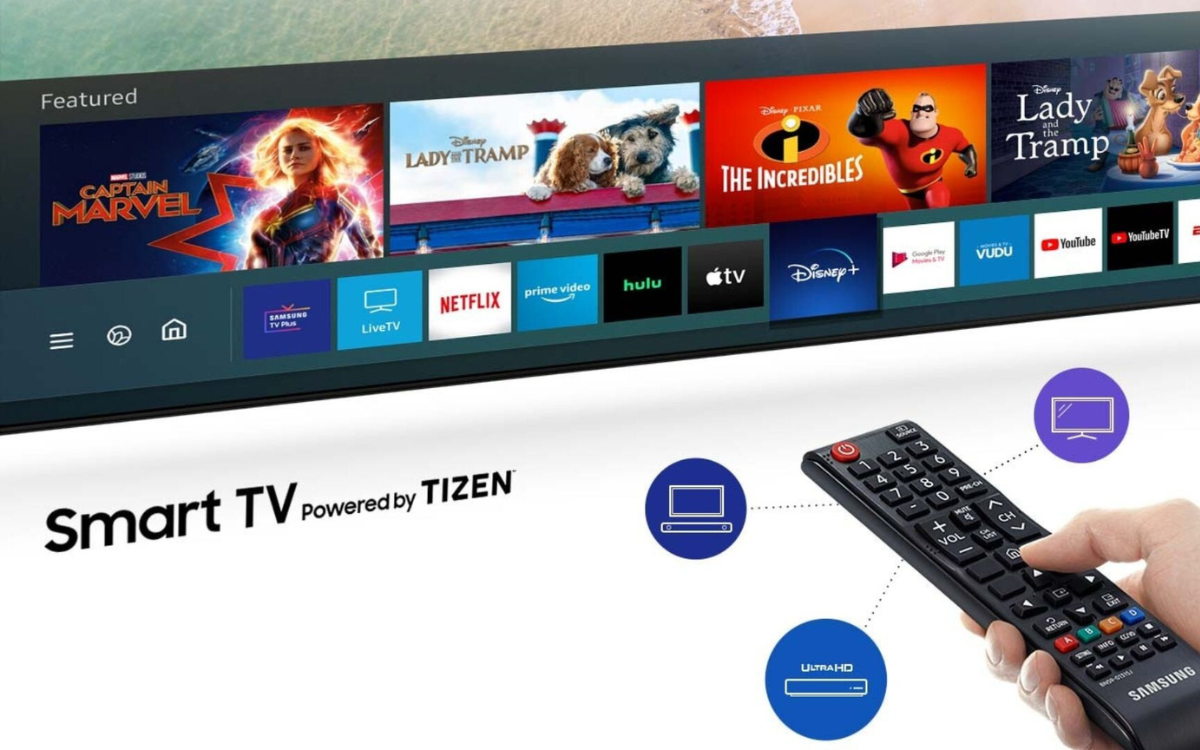
- Tizen (Samsung): Exclusive to Samsung smart TVs, Tizen is known for its sleek, intuitive interface and robust performance. It features the Samsung App Store, which boasts a wide array of apps tailored for Samsung devices, often including exclusive content or optimized versions of popular services.
- webOS (LG): LG’s proprietary webOS is celebrated for its distinctive “Magic Remote” and user-friendly, card-based interface. The LG Content Store is its dedicated app marketplace, offering a curated selection of apps designed for seamless integration with LG’s unique control mechanisms.
- Roku OS: Primarily known through Roku streaming sticks and boxes, Roku OS also powers smart TVs from brands like TCL, Hisense, and Sharp. Its strength lies in its simplicity and an extensive “Channel Store” (Roku’s term for apps), offering a vast selection of streaming services. Roku’s ecosystem is highly secure and somewhat closed, limiting non-official app installation.
- Fire TV OS (Amazon): Found on Amazon’s own Fire TV Omni and 4-Series TVs, as well as models from Insignia and Toshiba, Fire TV OS is built on Android but heavily customized by Amazon. It uses the Amazon Appstore, providing access to a broad range of apps, often with a strong emphasis on Amazon’s own services like Prime Video and Music, and excellent Alexa voice integration.
Each of these platforms has its own unique app store, which serves as the primary and most secure gateway for acquiring applications.
The Central Role of Official App Stores
The official app store for your smart TV’s operating system is your first and most recommended stop for installing apps. These stores offer several critical advantages:
- Security: Apps found in official stores are vetted for malware and security vulnerabilities, significantly reducing the risk of downloading malicious software that could compromise your device or personal data.
- Compatibility: Apps are specifically designed and optimized for your TV’s OS and hardware, ensuring smooth performance and proper functionality.
- Updates: Official app stores manage automatic updates, keeping your apps current with the latest features, bug fixes, and security patches.
- User Experience: They provide a structured, easy-to-navigate interface for discovering, installing, and managing your apps, often with user reviews and ratings.
Always prioritize using the official app store whenever possible. It’s the safest and most reliable method to enhance your smart TV’s capabilities.
Official Methods: Installing Apps Through Your Smart TV’s App Store
The process of installing apps via your smart TV’s official app store is generally straightforward, though the exact steps and terminology may vary slightly depending on your specific TV brand and OS. Here’s a general rundown followed by platform-specific tips.
General Steps for Most Smart TVs
- Ensure Internet Connection: Your smart TV must be connected to the internet, either via Wi-Fi or an Ethernet cable, to access the app store. Navigate to your TV’s settings menu (usually represented by a gear or cog icon) and find the ‘Network’ or ‘Connectivity’ section to confirm or set up your connection.
- Log In or Create an Account: Many smart TV platforms require you to log in with an account (e.g., Google account for Android TV, Samsung account for Tizen, LG account for webOS). If you don’t have one, you’ll typically be prompted to create one during the initial setup or when you first access the app store. This account helps personalize your experience, synchronize settings, and track app purchases or subscriptions.
- Navigate to the App Store:
- On your TV’s home screen, look for an icon labeled “Apps,” “App Store,” “Google Play Store,” “Samsung Apps,” “LG Content Store,” “Channel Store,” or “Amazon Appstore.” It’s usually prominently displayed.
- You might also find it by pressing a dedicated ‘Home’ or ‘Smart Hub’ button on your remote, which brings up a launcher bar or full-screen menu.
- Search or Browse for Apps:
- Most app stores feature categories (e.g., “Movies & TV,” “Games,” “Lifestyle”), featured apps, and trending selections.
- Use the search function (often a magnifying glass icon) to find specific apps by name. You can usually type with an on-screen keyboard, or if your remote supports it, use voice commands.
- Select and Install the App:
- Click on the app you wish to install. This will typically take you to a detail page with a description, screenshots, ratings, and reviews.
- Look for an “Install,” “Get,” or “Add” button. Free apps will install directly. For paid apps, you may need to confirm a purchase using your linked payment method.
- Launch the App: Once installation is complete, you’ll usually see an “Open” or “Launch” button. The app will also appear on your TV’s home screen, app launcher, or in a dedicated “My Apps” section, ready for future use.
Platform-Specific Guidance
While the general steps remain consistent, here are some platform-specific nuances:
- Android TV / Google TV:
- Google Play Store: Easily accessible from the home screen. Supports voice search via Google Assistant.
- Recommendations: Google TV particularly excels at surfacing content recommendations, often prompting you to install apps for services you might be interested in based on your viewing habits.
- “For You” Tab: On Google TV, apps are tightly integrated into the “For You” tab, where content from your installed apps is aggregated.
- Samsung Tizen TVs:
- Samsung App Store: Found within the “Smart Hub.” The interface is clean, often organized with visually appealing tiles.
- My Apps: Installed apps are typically found under the “Apps” section of the Smart Hub, which allows for easy organization and removal.
- LG webOS TVs:
- LG Content Store: Access it via the ‘Home’ button (launcher bar) on your Magic Remote.
- Magic Remote Advantages: The Magic Remote’s point-and-click functionality makes navigating the Content Store particularly intuitive, almost like using a computer mouse.
- Roku Devices:
- Roku Channel Store: Accessible from the home screen. Roku refers to apps as “channels.”
- Adding Channels: Select a channel and then choose “Add channel.” It will appear at the bottom of your home screen’s channel list, which you can then rearrange.
- Roku Mobile App: You can also browse and install channels remotely using the Roku mobile app on your smartphone.
- Amazon Fire TV Devices:
- Amazon Appstore: Integrated directly into the Fire TV interface.
- Alexa Voice Commands: A major advantage is using Alexa. Simply say, “Alexa, open [App Name]” or “Alexa, find [App Name]” to search and launch. You can also say, “Alexa, install [App Name]” if the app is free and you’re logged into your Amazon account.
- “My Apps & Games”: Installed apps are found in the “My Apps & Games” section, usually accessible from the home screen.
Advanced Installation: Sideloading Apps on Smart TVs
While official app stores cover the vast majority of user needs, there are situations where you might want to install an app that isn’t available through the standard channels. This is where “sideloading” comes into play.
What is Sideloading and When is it Necessary?
Sideloading refers to the process of installing applications onto a device from a source other than its official app store. It’s akin to downloading an .exe file on a Windows PC from a website rather than using the Microsoft Store.
Reasons for Sideloading:
- Unavailable Apps: Some apps might not be available in your region, or the developer hasn’t published them on your specific smart TV platform’s store.
- Beta Versions or Custom Apps: You might want to test a beta version of an app or use a custom-developed application.
- Legacy Apps: Older apps that are no longer supported on the official store might still function via sideloading.
Risks and Precautions:
It’s crucial to understand that sideloading carries inherent risks, which is why it’s generally discouraged unless you know exactly what you’re doing:
- Security Risks: Sideloaded apps bypass the security vetting of official app stores. They could contain malware, viruses, or spyware that compromises your TV’s security or steals personal data. Always download APK files (Android Package Kit, used for Android TV/Fire TV) from trusted sources.
- Compatibility Issues: Sideloaded apps might not be optimized for your TV’s hardware or OS version, leading to crashes, poor performance, or complete non-functionality.
- No Automatic Updates: You’ll need to manually check for and install updates for sideloaded apps.
- Voiding Warranty: In rare cases, extensive modification or installation of unauthorized software could potentially void your TV’s warranty, though this is less common with simple app sideloading.

Proceed with caution and only if you fully trust the source of the application.
Sideloading on Android TV / Google TV
Android TV and Google TV are the most accommodating platforms for sideloading due to their Android foundation.
- Enable Unknown Sources:
- Go to Settings > System > About and click on “Build” several times until you see “You are now a developer!” (Similar to enabling developer options on an Android phone).
- Go back to Settings > Apps > Security & Restrictions > Unknown Sources.
- Find the file manager app (or browser app) you intend to use for installation and toggle on “Allow from this source.”
- Download the APK File:
- Via USB Drive: Download the
.apkfile to a computer, transfer it to a USB flash drive, and plug the drive into your smart TV. - Via Cloud Storage/Browser: Use a browser app on your TV (if available) to download the APK directly, or use an app like “Send Files to TV” to transfer files wirelessly from your phone or computer to your TV.
- Via USB Drive: Download the
- Install Using a File Manager:
- You’ll need a file manager app on your TV (e.g., “File Commander,” “FX File Explorer”). If you don’t have one, install it from the Google Play Store first.
- Open the file manager, navigate to where you saved the
.apkfile (USB drive, Downloads folder), and click on it. - Follow the on-screen prompts to install the app.
- Popular Tool: “Downloader” app (from AFTVnews) is highly recommended for Fire TV and Android TV. Install it from the Play Store, then you can type in URLs to directly download APKs and install them, all within the app.
Sideloading on Amazon Fire TV
Sideloading on Fire TV devices is very similar to Android TV, given Fire OS is a fork of Android.
- Allow Apps from Unknown Sources:
- Go to Settings > My Fire TV > Developer Options.
- Enable “ADB Debugging” (optional, but good for advanced use) and “Apps from Unknown Sources.” You’ll receive a warning; confirm.
- Use the Downloader App:
- Go to the Amazon Appstore and search for “Downloader” (from AFTVnews). Install and open it.
- The Downloader app has a built-in browser. You can type in the URL of the
.apkfile you wish to download directly into the URL bar. - Once downloaded, Downloader will prompt you to install the app.
- After installation, you can safely delete the APK file to save space.
Limitations and Alternatives for Other Platforms (Tizen, webOS, Roku)
Samsung Tizen, LG webOS, and Roku OS are generally much more locked down, making direct sideloading of third-party APKs (or their equivalent) impossible or extremely difficult for the average user without significant modifications (which are not recommended and can brick your TV).
Alternatives for Restricted Platforms:
- Casting/Mirroring: Many apps on your smartphone or computer allow casting to your smart TV (e.g., YouTube, Netflix, Spotify). You can also mirror your entire device screen to the TV. This isn’t “installing” the app, but it allows you to view content from apps not natively available on your TV.
- External Streaming Devices: If you frequently encounter apps unavailable on your specific smart TV OS, consider purchasing an external Android TV box, Fire TV Stick, Apple TV, or Roku streaming device. These devices plug into your TV’s HDMI port and offer their own app ecosystems, which might have the app you’re looking for. This effectively bypasses the limitations of your TV’s native OS.
- Web Browsers: Some smart TVs have a built-in web browser. While not ideal for all apps, you might be able to access web-based versions of certain services.
Troubleshooting Common App Installation Issues
Even with the clearest instructions, sometimes things don’t go as planned. Here are some common problems you might encounter when installing apps on your smart TV and how to resolve them.
Connectivity Problems
- Symptom: App store won’t load, downloads fail, or you get network errors.
- Solution:
- Check Wi-Fi/Ethernet: Ensure your TV is properly connected to your home network. Go to Settings > Network and check the connection status.
- Restart Router/Modem: Power cycle your internet router and modem by unplugging them for 30 seconds, then plugging them back in.
- Restart TV: A simple restart of your smart TV can often resolve minor network glitches. Unplug it from the power outlet for a minute, then plug it back in.
- Test Other Devices: See if other devices (phone, laptop) can connect to the internet using the same network. If not, the issue is with your internet service.
Insufficient Storage Space
- Symptom: Error message “Not enough storage,” app download fails, or system performance slows down.
- Solution:
- Uninstall Unused Apps: Go to your TV’s “Apps” or “Settings” menu, find the list of installed applications, and uninstall any you no longer use.
- Clear Cache/Data: For apps you keep, clearing their cache can free up significant space without deleting app data. Go to Settings > Apps, select the problematic app, and choose “Clear Cache.” On Android TV, you can also “Clear Data,” but this will reset the app to its default state and log you out.
- External Storage (Android TV/Fire TV): Some Android TV devices and Fire TV models allow you to connect a USB drive or microSD card to expand storage for apps. Check your TV’s specifications.
App Not Found or Incompatible
- Symptom: You can’t find a specific app in the app store, or it says it’s not compatible with your device.
- Solution:
- Check Platform Compatibility: The app might simply not be available for your specific smart TV OS (Tizen, webOS, Roku, etc.). Cross-reference the app’s official website or support page.
- Regional Restrictions: Some apps are geo-restricted. If you’re using a VPN on your router, try disabling it, or if you’re not, consider if the app is simply not available in your country.
- Firmware Update: Ensure your TV’s firmware is up to date. Sometimes, new app versions require the latest TV software. Go to Settings > Support > Software Update (or similar path).
- Consider Alternatives: Look for similar apps that offer the same functionality and are available on your platform. As mentioned earlier, an external streaming device might be a better solution if a particular app is critical to your experience.
App Crashing or Not Launching
- Symptom: App crashes upon opening, freezes, or simply won’t launch.
- Solution:
- Restart the App: Close the app completely and try opening it again.
- Restart TV: A full power cycle of your smart TV can often clear temporary software glitches affecting apps.
- Clear App Cache/Data: Similar to storage issues, corrupted cache or data can cause crashes. Go to Settings > Apps, select the problematic app, and choose “Clear Cache” or “Clear Data” (remembering data wipe implications).
- Reinstall the App: Uninstall the app completely and then reinstall it from the official app store. This often resolves deeply rooted issues.
- Check for App Updates: Ensure the app itself is up to date. The app store should handle this automatically, but sometimes a manual check or forced update is needed.
- Check TV Firmware: As above, an outdated TV OS can cause compatibility issues with newer apps.
Optimizing Your Smart TV App Experience
Installing apps is just the beginning. To truly make your smart TV a powerhouse of entertainment and productivity, it’s essential to manage and optimize your app ecosystem.
Managing Your Apps
- Organize Your Home Screen: Most smart TVs allow you to reorder apps on your home screen or launcher bar. Place your most frequently used apps front and center for quick access. Create folders if your OS supports it to keep things tidy.
- Regular Updates: While official app stores usually handle automatic updates, it’s a good practice to periodically check for both app and TV firmware updates manually. Updates often bring new features, performance improvements, and crucial security patches.
- Uninstall Unused Apps: Just like on your smartphone, accumulated unused apps can consume valuable storage space and potentially slow down your TV. Regularly review your installed apps and uninstall those you no longer use.
- Monitor Data Usage: If you have a data cap with your internet provider, be mindful of how much data streaming apps consume. Some smart TVs or streaming boxes offer data usage monitoring features in their settings.
Enhancing Security and Privacy
In an era of increasing digital security concerns, protecting your smart TV and its data is paramount.
- Review App Permissions: Be aware of what permissions apps request when you install them, especially if sideloading. Does a game truly need access to your microphone or location?
- Strong Passwords: Use strong, unique passwords for your smart TV account and any streaming service accounts. Consider a password manager for convenience and security.
- Keep Software Updated: This cannot be stressed enough. Software updates for your TV’s OS and individual apps often include critical security fixes that protect against newly discovered vulnerabilities.
- Privacy Settings: Explore your TV’s privacy settings. Many smart TVs collect usage data for personalized recommendations and advertising. You often have the option to limit or disable some of these data collection practices.
- Use Official Sources: Reiterate the importance of installing apps from official app stores to minimize security risks. Sideloading should be done only from extremely trustworthy sources.
By proactively managing your apps and being mindful of security, you can ensure your smart TV remains a secure, efficient, and enjoyable centerpiece for your home entertainment needs. From the moment you unbox it to the discovery of niche content and beyond, understanding how to install and manage apps is key to truly globalizing your digital living room experience.
aViewFromTheCave is a participant in the Amazon Services LLC Associates Program, an affiliate advertising program designed to provide a means for sites to earn advertising fees by advertising and linking to Amazon.com. Amazon, the Amazon logo, AmazonSupply, and the AmazonSupply logo are trademarks of Amazon.com, Inc. or its affiliates. As an Amazon Associate we earn affiliate commissions from qualifying purchases.