
In the rapidly evolving landscape of home entertainment, the LG Smart TV stands out as a sophisticated hub for digital content, largely thanks to its intuitive webOS operating system. Gone are the days when a television was merely a display for broadcast channels. Today, smart TVs, particularly those from LG, are powerful devices that bring the internet, streaming services, games, and a host of interactive applications directly into your living room. The ability to install and manage these apps is fundamental to unlocking the full potential of your LG Smart TV, transforming it into a personalized entertainment and information center.

This comprehensive guide will walk you through everything you need to know about installing applications on your LG Smart TV. From the straightforward official methods to more advanced techniques, we’ll cover the steps, provide essential tips, and address common questions. By the end, you’ll be well-equipped to customize your LG Smart TV experience, ensuring you have instant access to your favorite content and services.
Understanding Your LG Smart TV and Its Ecosystem
Before diving into the “how-to,” it’s beneficial to grasp the foundation upon which your LG Smart TV operates and why apps are so central to its functionality.
The Power of webOS: LG’s Smart TV Platform
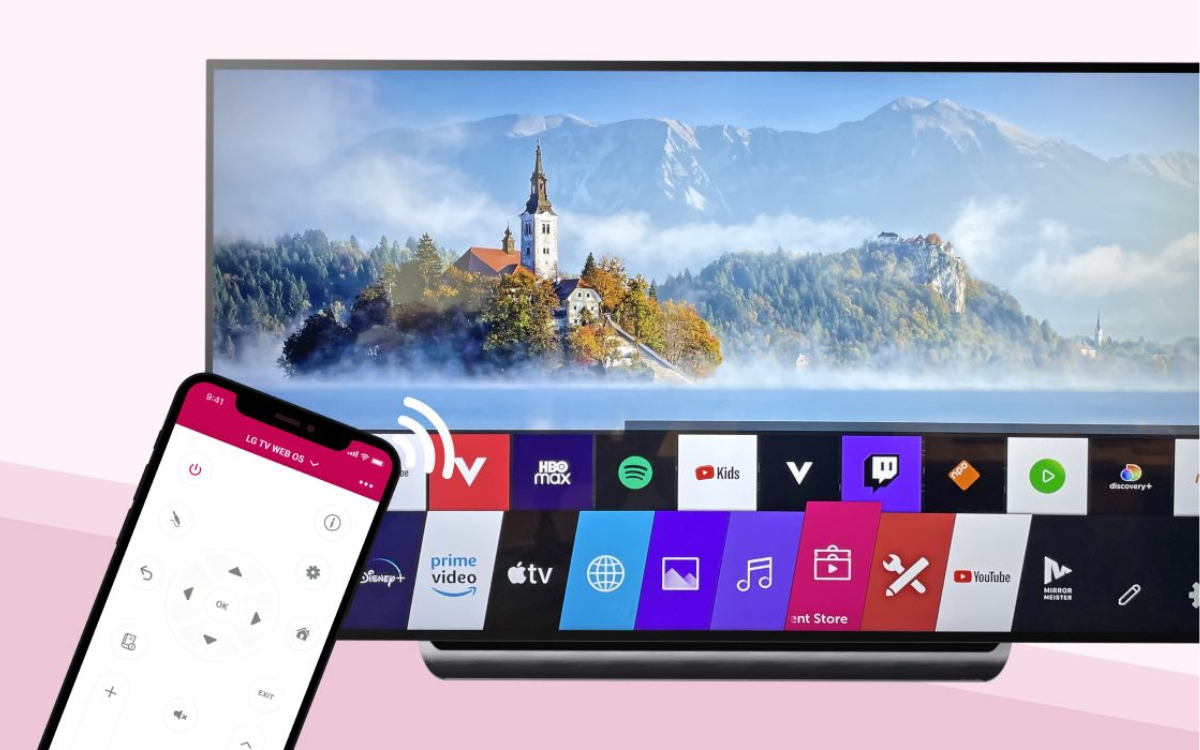
At the heart of every modern LG Smart TV lies webOS, a proprietary operating system renowned for its simplicity, speed, and user-friendly interface. Designed originally by Palm for mobile devices, webOS was acquired by LG in 2013 and subsequently re-engineered for televisions. Its distinctive “Launcher Bar” or “Magic Remote” interface allows users to effortlessly switch between live TV, connected devices, and, most importantly, a vast array of applications.
webOS is built on a Linux kernel, making it robust and capable of handling various applications efficiently. It supports cutting-edge features like AI integration (through ThinQ AI), voice control, and seamless connectivity with other smart home devices. This open yet controlled environment is what enables the rich app ecosystem that LG Smart TVs boast. Understanding webOS helps demystify the app installation process, as all official apps are specifically designed and optimized for this platform.
Why Apps Matter on Your Smart TV
The shift from linear television to on-demand streaming and interactive experiences has made apps indispensable for any modern Smart TV. For your LG Smart TV, apps provide:
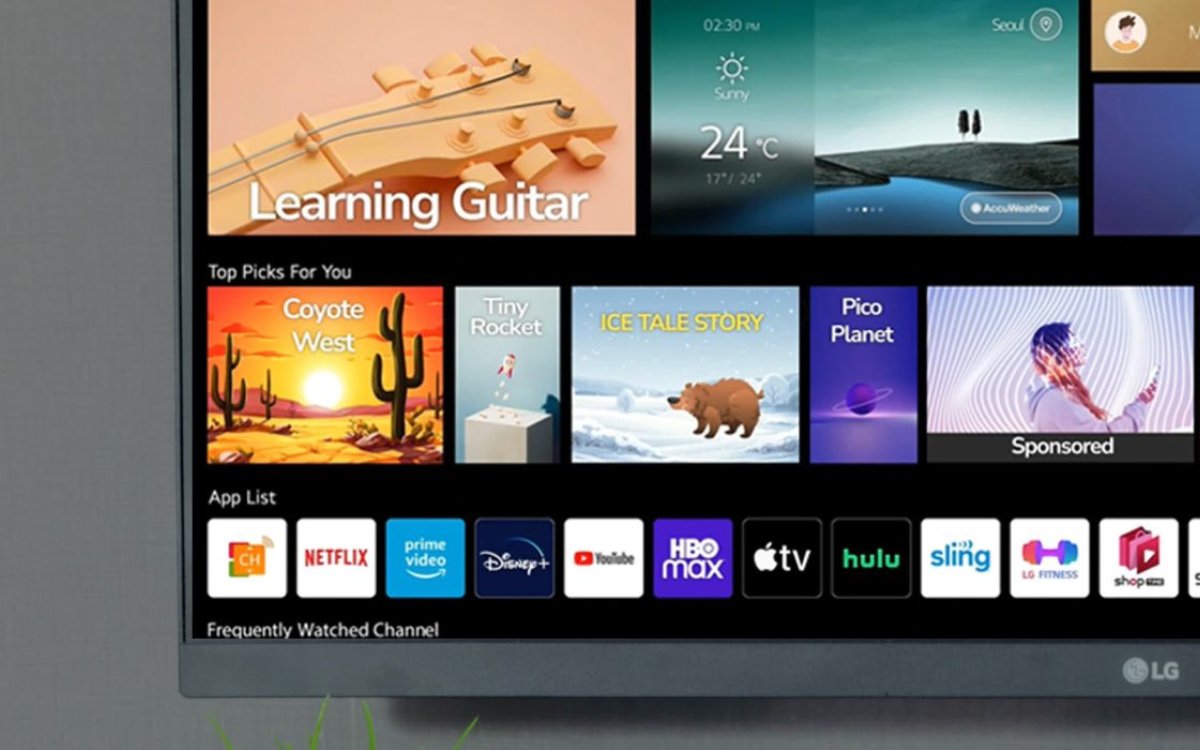
- Diverse Entertainment: Access to a seemingly endless library of movies, TV shows, documentaries, and sports through services like Netflix, Disney+, Amazon Prime Video, Hulu, YouTube, and many more.
- Personalized Content: Curated recommendations based on your viewing habits, allowing for a more tailored and enjoyable experience.
- Gaming: Simple casual games or even cloud gaming services that transform your TV into a console.
- Productivity and Utility: Apps for weather forecasts, news updates, fitness routines, or even controlling smart home devices directly from your TV.
- Enhanced Connectivity: Integration with social media platforms, web browsers, and media servers to stream content from your phone, computer, or network-attached storage (NAS).
Without apps, your LG Smart TV would be a sophisticated display lacking the intelligence and connectivity that define the “smart” experience. Installing the right apps is key to tailoring your TV to your specific interests and needs.
The Official Way: Installing Apps from the LG Content Store
The primary and most recommended method for installing apps on your LG Smart TV is through the LG Content Store. This is LG’s official marketplace for applications, movies, TV shows, and 3D content, designed to provide a secure and optimized experience for webOS users.
Prerequisites for a Smooth Installation
Before you begin installing apps from the LG Content Store, ensure you have the following in place:
- Internet Connection: Your LG Smart TV must be connected to the internet, either via Wi-Fi or an Ethernet cable. A stable and reasonably fast connection is crucial for downloading apps and streaming content.
- LG Account: You’ll need an LG Account to access the LG Content Store, download apps, and manage your purchases. If you don’t have one, you can easily create one directly on your TV or via the LG website. This account helps personalize your experience and sync your settings across devices.
- Sufficient Storage: While most apps are relatively small, ensure your TV has enough internal storage space. You can usually check this in your TV’s settings under ‘General’ or ‘System Info’.
- Updated webOS: For optimal performance and access to the latest app versions, ensure your LG Smart TV’s webOS software is up to date. You can check for updates in the TV’s settings, usually under ‘General’ > ‘About This TV’ > ‘Check for updates’.
Step-by-Step Guide to Using the LG Content Store
The process of finding and installing apps through the LG Content Store is intuitive and user-friendly:
- Turn On Your LG Smart TV: Power on your television.
- Access the Launcher Bar: Press the ‘Home’ button (usually represented by a house icon) on your LG Magic Remote. This will bring up the Launcher Bar at the bottom of the screen.
- Navigate to the LG Content Store: Scroll through the Launcher Bar using your remote’s arrow keys or the Magic Remote’s pointer until you find the “LG Content Store” icon. It often looks like a shopping bag or a stylized “LG.” Select it.
- Sign In or Create an Account: If you’re not already signed in, the Content Store might prompt you to log in with your LG Account. If you don’t have one, follow the on-screen instructions to create a new account.
- Browse or Search for Apps: Once inside the LG Content Store, you’ll see various categories like “Apps & Games,” “Movies,” and “TV Shows.”
- Browse: Explore featured apps, popular apps, or apps categorized by genre (e.g., Entertainment, Lifestyle, News).
- Search: If you know the name of the app you want, use the ‘Search’ function (often represented by a magnifying glass icon) located in the top right corner of the Content Store interface. Type the app’s name using the on-screen keyboard.
- Select the Desired App: Click on the app you wish to install from the search results or browsing categories. This will take you to the app’s dedicated page, where you can view its description, screenshots, user ratings, and permissions.
- Initiate Installation: On the app’s page, you’ll typically find an “Install” or “Free” button. Click on it. The app will begin downloading and installing onto your LG Smart TV. You might see a progress bar indicating the download status.
- Launch the App: Once the installation is complete, the “Install” button will usually change to “Launch” or “Open.” You can click this button to open the app immediately. Alternatively, the newly installed app will appear in your Launcher Bar, usually at the far right. You can drag and drop it to a more prominent position if desired.
Navigating the LG Content Store: Discovery and Search
The LG Content Store is designed for easy discovery. Utilize the different sections like “Recommended for You,” “New,” and “Popular” to find trending applications. The categorization helps narrow down your choices, whether you’re looking for a specific streaming service or just exploring new gaming options. The search function is robust, often suggesting apps as you type, making it efficient to locate even obscure titles. Always check the app’s rating and reviews to gauge its quality and user satisfaction before installing.
Exploring Advanced Installation Methods: Sideloading and Beyond (Optional/Advanced Users)
While the LG Content Store provides a secure and reliable way to get most apps, there might be instances where you encounter an app not available in the official store, or you want to experiment with third-party software. This is where “sideloading” comes into play. It’s important to note that sideloading is generally not officially supported by LG, can void warranties in some cases, and carries inherent risks.
What is Sideloading and When Might You Use It?
Sideloading refers to the process of installing applications onto a device from sources other than the official app store. For LG Smart TVs, this typically means installing webOS-compatible packages (.ipk files) directly onto the TV.
You might consider sideloading for reasons such as:
- Geographic Restrictions: Accessing apps that are not officially released in your region.
- Beta Testing: Installing beta versions of apps for testing purposes.
- Niche Applications: Running specialized or experimental apps developed by independent developers that aren’t available in the LG Content Store.
- Legacy Apps: Attempting to install older versions of apps if newer ones have compatibility issues (though this is rare with webOS).
Preparing Your TV for Sideloading (Developer Mode, USB Debugging)
Sideloading on LG Smart TVs usually requires enabling Developer Mode, which gives you more control over the webOS system. This process can be technical and varies slightly between webOS versions.
General Steps (may vary):
- Register as a webOS Developer: You often need to register for a developer account on the LG Developer website. This typically involves creating an LG Account and then enrolling in the developer program.
- Install webOS TV SDK and CLI: On your computer, you’ll need to install the webOS TV Software Development Kit (SDK) and Command Line Interface (CLI) tools. These tools allow you to connect to your TV and install applications.
- Enable Developer Mode on Your TV:
- Go to ‘Settings’ on your LG Smart TV.
- Navigate to ‘General’ > ‘About This TV’ > ‘TV Information’.
- Highlight the ‘webOS TV Version’ multiple times (usually 8-10 times rapidly) until a ‘Developer Mode’ dialog appears.
- Toggle ‘Developer Mode’ to ‘On’. You might be prompted to log in with your LG Developer Account.
- Note your TV’s IP address displayed in the Developer Mode app.
- Connect Your TV to Your PC: Using the webOS CLI on your computer, you’ll use commands like
ares-device --addto register your TV with your development environment. You’ll need your TV’s IP address and potentially a passphrase displayed on the TV.
The Process of Sideloading Apps (e.g., via USB, webOS Developer Tools)
Once your TV is in Developer Mode and connected to your development environment:
- Obtain the .ipk File: Acquire the
.ipk(webOS package) file for the app you wish to sideload from a trusted source. Be extremely cautious about where you download these files from, as they can contain malware. - Install via CLI: Open your command line interface on your computer and use the
ares-installcommand. For example:ares-install --device YourTVName /path/to/your/app.ipk. ReplaceYourTVNamewith the name you assigned your TV in the CLI, and/path/to/your/app.ipkwith the actual path to the downloaded.ipkfile. - Monitor Installation: The CLI will show the installation progress. Once complete, the app should appear in your TV’s Launcher Bar.
Note on USB Sideloading: While some older methods or specific apps might allow USB installation for certain media files, direct sideloading of application packages (IPK files) typically requires the developer tools mentioned above. Simply copying an IPK to a USB drive and plugging it into the TV usually won’t initiate an installation.
Important Considerations and Risks of Sideloading
- Security Risks: Sideloaded apps bypass LG’s security checks. Malicious apps can compromise your TV’s security, steal personal data, or introduce vulnerabilities.
- Stability Issues: Apps not optimized for your specific webOS version or TV model can lead to crashes, performance degradation, or even system instability.
- Warranty Void: Engaging in unofficial modifications like extensive sideloading might void your LG TV’s warranty.
- No Official Support: LG will not provide support for issues arising from sideloaded apps.
- Updates: Sideloaded apps typically do not receive automatic updates and must be manually updated by sideloading newer versions.
For these reasons, sideloading should only be attempted by advanced users who understand the risks and are comfortable with technical troubleshooting. For the vast majority of users, the LG Content Store offers all necessary applications.
Managing and Troubleshooting Your Apps
Installing apps is just the first step. To ensure a smooth and enjoyable experience, you also need to know how to manage them and troubleshoot common issues.
Updating and Deleting Apps
Updating Apps:
Most apps installed from the LG Content Store will update automatically in the background when new versions are available. However, you can manually check for updates:
- Go to the LG Content Store.
- Navigate to ‘My Apps’ or a similar section (sometimes accessed via your profile icon).
- Look for an ‘Updates’ tab or an option to check for updates for individual apps. Select the apps you want to update.
Deleting (Uninstalling) Apps:
If you no longer use an app or need to free up space, uninstalling is simple:
- Press the ‘Home’ button on your remote to open the Launcher Bar.
- Navigate to the app you want to delete.
- Highlight the app icon.
- Press and hold the ‘OK’ or ‘Scroll’ button on your Magic Remote (or equivalent on a standard remote) until the app icons start to “jiggle” or show an ‘X’ icon.
- Click the ‘X’ icon above the app you wish to remove.
- Confirm your decision when prompted. The app will be uninstalled from your TV.
Common Issues and Their Solutions
Even with a user-friendly system like webOS, you might encounter occasional app-related problems. Here are some common issues and their troubleshooting steps:
- App Not Loading/Crashing:
- Solution 1: Restart the app. Close the app completely (press ‘Back’ or ‘Exit’), then reopen it.
- Solution 2: Restart the TV. Perform a full power cycle: unplug the TV from the wall for 60 seconds, then plug it back in. This clears temporary data and can resolve many glitches.
- Solution 3: Clear App Cache (if available). Some apps might have an option in their internal settings to clear cache/data.
- Solution 4: Reinstall the app. Uninstall the problematic app and then reinstall it from the LG Content Store.
- Slow Performance/Buffering:
- Solution 1: Check Internet Connection. Ensure your Wi-Fi signal is strong or that your Ethernet cable is securely connected. Run a speed test on your TV or another device on the same network.
- Solution 2: Reduce Network Traffic. Disconnect other devices hogging bandwidth on your home network.
- Solution 3: Update webOS. Ensure your TV’s operating system is up to date, as updates often include performance improvements.
- Solution 4: Reduce Video Quality. Within the streaming app, try lowering the video quality setting temporarily.
- App Missing from Launcher Bar:
- Solution: Check ‘More’ or ‘Edit’ Options. The Launcher Bar might be full. Look for an ‘Edit’ or ‘More’ button (often a “+” icon) on the far right of the bar to see all installed apps and rearrange them.
- “Unable to Connect” or Network Errors:
- Solution 1: Verify Internet Connection. Go to TV settings > ‘Network’ and run a connection test.
- Solution 2: Restart Router/Modem. Power cycle your home network equipment.
- Solution 3: Check Server Status. The issue might be with the app provider’s servers, not your TV or network. Check their official social media or website for outage reports.
Optimizing Your Smart TV Experience
To get the most out of your LG Smart TV and its apps:
- Organize Your Launcher Bar: Drag your most frequently used apps to the front of the Launcher Bar for quick access.
- Utilize Voice Control: LG’s ThinQ AI and Magic Remote allow for voice commands, making app launching and content searching even faster.
- Explore Recommended Apps: Periodically check the LG Content Store’s “Recommended” sections for new and interesting applications.
- Manage Storage: Regularly uninstall apps you no longer use to free up space and maintain optimal performance.
- Keep Software Updated: Always ensure both your webOS and individual apps are up to date for the best features, security, and stability.
Maximizing Your LG Smart TV’s Potential
Beyond the basic installation and management, there are several ways to truly elevate your LG Smart TV experience, aligning with broader technology trends and digital security.
Beyond the Basics: Recommended Apps and Categories
While personal preference dictates much, some categories and specific apps are universally popular and can significantly enhance your TV’s utility:
- Streaming Services: Netflix, Disney+, Hulu, HBO Max, Apple TV+, Amazon Prime Video, Peacock, Paramount+ (depending on region and subscriptions).
- Live TV Streaming: YouTube TV, Sling TV, fuboTV, Hulu + Live TV for cord-cutters.
- Music: Spotify, Apple Music, YouTube Music, Pandora.
- News & Information: Dedicated apps from major news outlets (e.g., CNN, Fox News, BBC News) or aggregated news apps.
- Fitness & Wellness: Apps offering workout routines, meditation guides, or healthy living tips.
- Utility & Smart Home: Apps to control smart lights, thermostats, or view security camera feeds if integrated with LG ThinQ or other platforms.
- Web Browsers: While webOS has a built-in browser, dedicated browser apps might offer specific features.
Experiment with different categories to discover apps that align with your lifestyle, whether it’s for entertainment, education, or productivity.
Security and Privacy Best Practices
As your LG Smart TV becomes more integrated into your digital life, protecting your privacy and security is paramount, a key aspect of “Digital Security” in technology.
- Use Strong Passwords: For your LG Account and any streaming service accounts, use unique, strong passwords.
- Be Wary of Sideloading: As discussed, only sideload apps from trusted sources, and ideally, avoid it unless absolutely necessary and you understand the risks.
- Review App Permissions: When installing an app, pay attention to the permissions it requests. Does a simple game need access to your microphone or location?
- Update webOS Regularly: Software updates often include crucial security patches that protect against vulnerabilities.
- Secure Your Wi-Fi Network: Ensure your home Wi-Fi network is password-protected with WPA2 or WPA3 encryption to prevent unauthorized access to your Smart TV and other devices.
- Understand Data Collection: Be aware that smart TVs and their apps collect data on your viewing habits. Review LG’s privacy policy and the privacy policies of individual apps to understand what data is collected and how it’s used. You can often adjust privacy settings within your TV’s menu.
- Consider a VPN (Virtual Private Network): For enhanced privacy and to bypass geo-restrictions (where legal and permissible by service terms), some users employ VPNs on their router or directly on devices if the TV supports it. This encrypts your internet traffic and masks your IP address.
Future-Proofing Your Smart TV
Technology evolves rapidly. While no device is truly “future-proof,” you can take steps to prolong your LG Smart TV’s relevance and utility:
- Invest in Quality: LG is known for durable and high-performing TVs, which helps ensure longevity.
- Keep Connected: Ensure your TV has a strong and stable internet connection to receive updates and stream high-quality content.
- Explore New Features: LG frequently releases webOS updates that add new features or improve existing ones. Stay informed about these.
- Consider Smart Home Integration: As smart home ecosystems grow, integrating your LG Smart TV with other devices (e.g., through Google Assistant or Amazon Alexa) can enhance its utility and centralize control.
By thoughtfully installing and managing apps, staying vigilant about security, and embracing the continuous evolution of webOS, your LG Smart TV will remain a cutting-edge and deeply personal entertainment hub for years to come. The power to customize your digital experience is literally at your fingertips.
aViewFromTheCave is a participant in the Amazon Services LLC Associates Program, an affiliate advertising program designed to provide a means for sites to earn advertising fees by advertising and linking to Amazon.com. Amazon, the Amazon logo, AmazonSupply, and the AmazonSupply logo are trademarks of Amazon.com, Inc. or its affiliates. As an Amazon Associate we earn affiliate commissions from qualifying purchases.