
The transition from traditional cable television to over-the-top (OTT) streaming services has fundamentally changed how we consume media. At the forefront of this digital revolution is YouTube TV, a service that has successfully bridged the gap between live broadcast television and the on-demand flexibility of the internet. One of the most significant technological advantages YouTube TV offers over its predecessors is its sophisticated Cloud DVR (Digital Video Recorder) system. Unlike the clunky hardware boxes of the early 2000s, YouTube TV utilizes a massive, distributed server infrastructure to allow users to capture content seamlessly.
Understanding how to record on YouTube TV is not merely about clicking a button; it is about mastering a cloud-based ecosystem designed for the modern viewer. This guide explores the technical nuances of the YouTube TV DVR, providing a step-by-step tutorial and insightful analysis of why this technology represents the future of home entertainment.
1. The Architecture of the Cloud DVR: Why It Surpasses Hardware
Before diving into the “how-to,” it is essential to understand the technical “why.” Traditional DVRs provided by cable companies rely on physical hard drives located inside a set-top box. These units have limited storage (often measured in hours) and are prone to mechanical failure. YouTube TV eliminates these constraints by using a Cloud DVR.
Unlimited Storage Capacity
The most disruptive feature of YouTube TV’s recording technology is the lack of a storage cap. While competitors often limit users to 20 or 50 hours of HD recording, YouTube TV allows for unlimited simultaneous recordings. From a technical standpoint, this is achieved by Google’s vast server farms, which allocate virtual space to each user profile. You can record every single airing of “Law & Order” while simultaneously recording every NFL game of the season without ever seeing a “storage full” notification.
Retention and Expiration Policies
While the storage is unlimited in volume, it is limited in time. Every recording is stored for exactly nine months from the date of the broadcast. After nine months, the recording expires. However, if the program airs again within that window, the “timer” essentially resets for that specific episode. This automated management system removes the need for users to manually delete old files to make room for new ones.
Multi-Stream Recording
Because the recording happens on the server side (at Google’s data centers) rather than on your local device, there are no “tuner” limitations. In the past, you could only record two or three shows at once depending on your hardware. With YouTube TV, if there are 50 programs airing at 8:00 PM on a Sunday, you can record all 50 simultaneously without any degradation in stream quality or performance.
2. Step-by-Step: Adding Content to Your Library
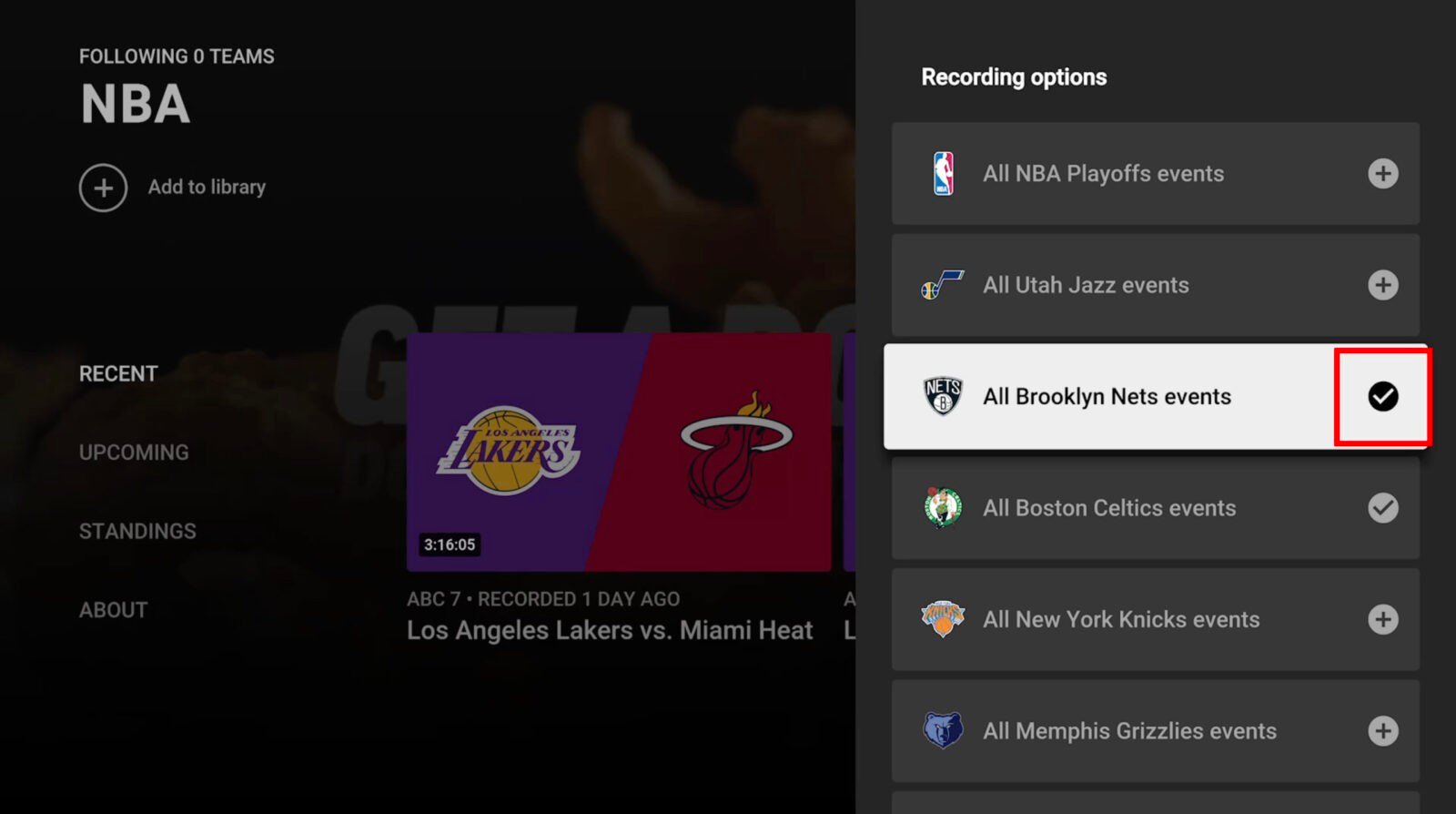
The process of recording on YouTube TV is synonymous with “Adding to Library.” There is no “record” button in the traditional sense; instead, you look for the “+” icon.
Recording via the Live Guide
If you are currently watching a show or browsing the Live tab and decide you want to save a program, the process is straightforward:
- Open the YouTube TV app on your Smart TV, mobile device, or browser.
- Navigate to the Live tab.
- Select the program currently airing or scheduled for later.
- Click on the “+” (Plus) icon labeled “Add to Library.”
Once clicked, the icon will turn into a checkmark. YouTube TV will now automatically record every upcoming episode of that series, including reruns and new premieres.
Using the Search Functionality
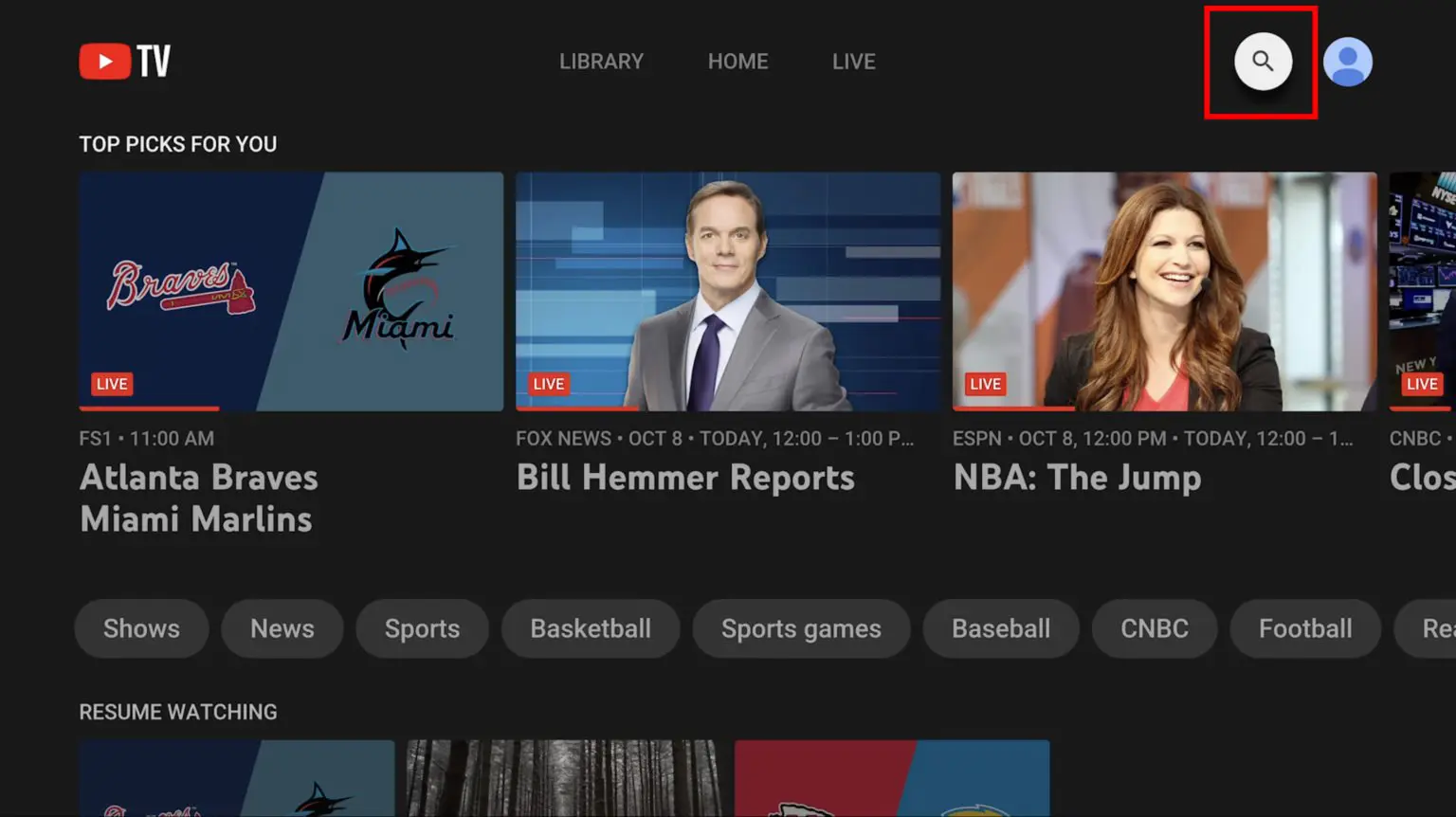
One of the most efficient ways to build your DVR library is through the search bar. Since YouTube TV is built on Google’s search infrastructure, the indexing is incredibly fast.
- Click the Search (magnifying glass) icon at the top of the interface.
- Type in the name of a show, movie, or even a specific sports team (e.g., “Golden State Warriors”).
- Select the result from the dropdown list.
- Click the “+” (Plus) icon on the show’s main page.
By adding a sports team to your library, the system intelligently tracks the schedule across all networks (ESPN, TNT, local affiliates) and records every televised game automatically.
Mobile and Remote Recording
A significant tech advantage of a cloud-based system is the ability to manage your recordings from anywhere. If you are at work and realize you forgot to record a season finale, you can open the YouTube TV app on your smartphone, find the show, and add it to your library. Because the instruction is sent to the cloud, your home TV will have the recording ready and waiting the moment the broadcast concludes.
3. Advanced Management: Customizing Your Viewing Experience
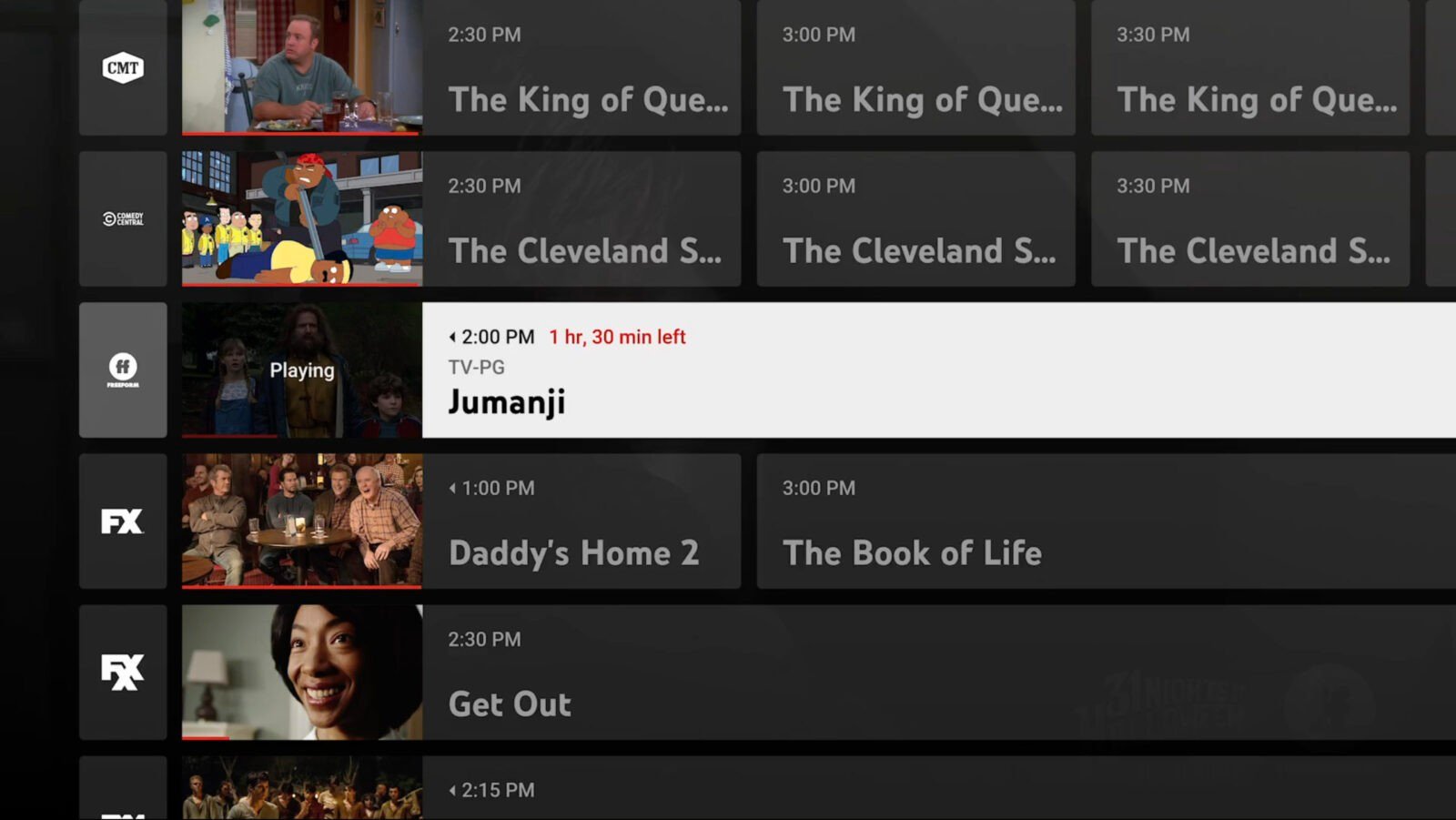
Recording content is only half the battle; managing that content for an optimal viewing experience is where the software truly shines. YouTube TV’s interface uses metadata to organize your recordings into logical categories.
Navigating the “Library” Tab
Your Library is the hub for all recorded content. It is categorized into “New in your library,” “Most watched,” “Scheduled,” and alphabetical lists of shows and movies.
- New in Your Library: Highlights recently aired episodes that you haven’t watched yet.
- Scheduled: This is a crucial section for power users. It shows you exactly what the DVR is prepared to record in the next 24 hours to two weeks. It is an excellent way to verify that a one-time event, like an awards show, is properly set to record.
Handling Live Events and Sports Extensions
One of the most common failures of traditional DVRs is the “cutoff” problem—where a football game goes into overtime and the recording stops before the final play. YouTube TV uses real-time data feeds to mitigate this. The system often detects when a live event is running long and automatically extends the recording window. While it isn’t 100% foolproof for every local broadcast, it is significantly more reliable than manual padding.
Individual User Profiles and Privacy
Technologically, YouTube TV allows for up to six individual profiles per household. Each profile has its own unique Library. This means a parent’s library won’t be cluttered with children’s cartoons, and vice versa. Each profile’s “record” instructions are isolated, ensuring a personalized recommendation engine and a clean DVR interface for every member of the family.
4. Troubleshooting and Technical Optimization
Despite the robustness of Google’s infrastructure, users may occasionally encounter issues. Understanding the technical side of these glitches can help in resolving them quickly.
Overcoming Playback Buffering in Recordings
Since your “recordings” are actually streams stored on a remote server, watching a DVR show requires a stable internet connection—just like watching live TV. If you experience buffering:
- Check Bitrate: Ensure your connection can handle at least 25 Mbps for 4K or 10 Mbps for 1080p.
- Toggle Quality: In the video player settings (the gear icon), you can manually lower the resolution from 1080p to 720p to ensure smooth playback on slower connections.
“VOD” vs. “DVR” Labels
Users are often confused when they see “VOD” (Video On Demand) instead of “DVR” on a recorded show.
- DVR: This is the version you recorded from the live broadcast. It allows you to fast-forward through commercials.
- VOD: This is provided by the network (e.g., FX or AMC). These versions often have “forced” commercials that cannot be skipped.
YouTube TV’s software usually prioritizes the DVR version if it’s available, but occasionally, networks will replace a DVR version with a VOD version for a short period. Understanding this distinction is key to managing your expectations regarding commercial skipping.
5. The Future of Recording: AI and Predictive Streaming
As we look toward the future of media technology, the act of “recording” is becoming increasingly automated through Artificial Intelligence. YouTube TV is already implementing features that suggest shows to add to your library based on your viewing history, but the next step is even more integrated.
Key Plays and Sports Integration
For sports recordings, YouTube TV utilizes machine learning to identify “Key Plays.” If you start a recorded game late, the software gives you the option to “Catch up through key plays.” It uses AI to curate a highlight reel of the game so far, allowing you to see the scoring drives before jumping into the live action. This is a feat of data processing that traditional hardware could never achieve.
The Shift Toward Universal Search
We are moving toward a “post-channel” era. The Cloud DVR is the final step in turning live television into a giant, searchable database. In the future, the distinction between a “recorded” show and a “streamed” show will likely disappear entirely. Every broadcast will be archived in the cloud, and the user’s “Library” will simply be a set of bookmarks for a universal video archive.
Conclusion
Mastering how to record on YouTube TV is a vital skill for anyone looking to optimize their digital life. By moving away from the limitations of local hardware and embracing the infinite scalability of the Cloud DVR, users gain unprecedented control over their time and entertainment. Whether it’s leveraging the “Add to Library” feature, managing multiple profiles, or using AI-driven highlights to catch up on a game, the technology behind YouTube TV represents a pinnacle of modern software engineering. As the service continues to evolve, the “Record” button will remain the most powerful tool in the viewer’s arsenal, ensuring that in the age of infinite content, you never have to miss a moment.
aViewFromTheCave is a participant in the Amazon Services LLC Associates Program, an affiliate advertising program designed to provide a means for sites to earn advertising fees by advertising and linking to Amazon.com. Amazon, the Amazon logo, AmazonSupply, and the AmazonSupply logo are trademarks of Amazon.com, Inc. or its affiliates. As an Amazon Associate we earn affiliate commissions from qualifying purchases.