
The Apple Watch has evolved from a mere time-telling device into a sophisticated extension of your digital life, a miniature computer strapped to your wrist. Its true power, however, lies not just in its sleek design or health-tracking capabilities, but in the expansive ecosystem of apps that transform it into a highly personalized and indispensable tool. Whether you’re tracking your fitness, managing your schedule, staying connected, or even controlling smart home devices, the right apps can dramatically enhance your daily routine and productivity.
For many new Apple Watch users, or even seasoned owners looking to unlock its full potential, understanding how to effectively install, manage, and optimize apps can seem a bit daunting. This guide aims to demystify the process, providing a step-by-step walkthrough of every method available, alongside essential tips for troubleshooting and maximizing your watch’s utility. By the end of this article, you’ll be well-equipped to curate a robust app library that perfectly suits your lifestyle, transforming your Apple Watch from a smart accessory into a truly intelligent companion. Get ready to dive deep into the world of watchOS apps and elevate your wearable experience to new heights.
Unlocking Your Apple Watch’s Potential: Why Apps Matter
The Apple Watch is more than just a gadget; it’s a personal assistant, a fitness coach, a communication hub, and a window to essential information, all conveniently accessible on your wrist. While its native features are impressive, it’s the rich tapestry of third-party applications that truly unleashes its versatility and makes it indispensable for millions.
Beyond Time-Telling: The Ecosystem of WatchOS Apps
Imagine being able to hail a ride with a tap, check your flight status at a glance, monitor your sleep patterns, or even unlock your car, all without ever reaching for your iPhone. This is the promise of Apple Watch apps. The app ecosystem for watchOS spans a vast array of categories, each designed to offer convenience and utility:
- Health and Fitness: Beyond Apple’s native Activity and Workout apps, third-party apps like Strava, Nike Run Club, AutoSleep, and WaterMinder offer specialized tracking, coaching, and insights into every aspect of your well-being.
- Productivity and Organization: Apps like Things 3, Fantastical, and Microsoft Outlook bring crucial task management, calendar events, and email notifications directly to your wrist, helping you stay on top of your schedule and responsibilities with minimal distraction.
- Communication: While Messages and Calls are built-in, apps like Telegram or even specialized walkie-talkie apps enhance connectivity.
- Travel and Navigation: Google Maps, Citymapper, and airline apps provide directions, public transport information, and boarding passes, making travel smoother and more intuitive.
- Smart Home Control: Apps for HomeKit, Philips Hue, or Nest allow you to control your lights, thermostat, and other smart devices right from your wrist, adding a layer of convenience to your smart home setup.
- Entertainment and Utilities: From Shazam to discover music playing around you to simple calculator apps, the utility extends to every niche.
The beauty of these apps lies in their ability to deliver information and functionality at a glance, minimizing the need to pull out your iPhone. They are designed for quick interactions, contextual awareness, and seamless integration with your daily life, truly making your Apple Watch a powerful extension of your digital self.
Prerequisites for a Seamless Installation
Before you dive into installing apps on your Apple Watch, ensuring a few foundational elements are in place will guarantee a smooth and frustration-free experience. These prerequisites are crucial for establishing the necessary connection and authorization for app downloads.
- Paired iPhone: Your Apple Watch must be paired with an iPhone (iPhone 8 or later, running the latest iOS version is generally recommended for the latest watchOS features). The iPhone acts as the primary conduit for many app installations and manages the watch’s settings. Without a paired iPhone, your Apple Watch has limited standalone functionality, especially regarding app management.
- Apple ID Signed In: Both your iPhone and Apple Watch need to be signed in to the same Apple ID. This is essential for accessing the App Store, downloading purchased or free apps, and syncing data between your devices. You can check this on your iPhone by going to Settings > [Your Name] and on your Apple Watch via the Watch app on your iPhone, under General > Apple ID.
- Stable Wi-Fi or Cellular Connection: To download apps, your Apple Watch or its paired iPhone needs an active internet connection.
- For iPhone-based installation: Your iPhone needs Wi-Fi or cellular data.
- For Watch-based installation (directly from the App Store on the Watch): Your Apple Watch needs to be connected to Wi-Fi, or if it’s a cellular model, it needs an active cellular plan.
- Sufficient Storage: While Watch apps are generally small, ensure your Apple Watch has enough available storage space for new installations. You can check this by opening the Watch app on your iPhone, then going to General > Usage.
- Latest Software Updates: Always ensure both your iPhone and Apple Watch are running the latest compatible versions of iOS and watchOS, respectively. Software updates often include performance improvements, bug fixes, and new features that enhance app compatibility and functionality. You can check for updates via Settings > General > Software Update on your iPhone, and via the Watch app on your iPhone under General > Software Update.
By ensuring these prerequisites are met, you’re setting yourself up for a hassle-free app installation journey, ready to customize your Apple Watch to its fullest potential.
Your Guide to Installing Apps: Automatic and Manual Methods
Installing apps on your Apple Watch offers flexibility, catering to both those who prefer a hands-off approach and those who want complete control over their wearable’s app library. Apple provides two primary avenues for app installation: automatically mirroring apps from your iPhone, and manually downloading them either directly from your watch or through the Watch app on your iPhone.
Effortless Integration: Automatic App Installation
For many users, the easiest way to get apps onto their Apple Watch is through automatic installation. This method leverages the seamless integration between your iPhone and Apple Watch, installing a watchOS counterpart whenever you download a compatible app on your iPhone. It’s ideal for ensuring your essential iPhone apps are always mirrored on your wrist without manual intervention.
How it works:
When you download an app on your iPhone that also has a watchOS version, your Apple Watch will automatically download and install its companion app in the background. This setting is enabled by default, ensuring a consistent app experience across your devices.
Managing Automatic Installations:
If you prefer to be more selective about which apps appear on your Apple Watch, or if you want to free up some storage, you can easily disable or customize this feature.
- Open the Watch App on Your iPhone: This is your central hub for managing all Apple Watch settings.
- Navigate to “General”: Scroll down and tap on “General.”
- Find “Automatic App Install”: You’ll see a toggle switch labeled “Automatic App Install.”
- To disable: Toggle this switch off if you want to prevent all future iPhone apps from automatically installing on your watch. This is useful if you have limited storage or prefer a minimalist app library on your wrist.
- To enable: Ensure the switch is on if you want new iPhone apps (with Watch companions) to install automatically.
- Manage Individual Apps (if Automatic is off): Even with “Automatic App Install” turned off, you can still manually install the watchOS versions of your iPhone apps.
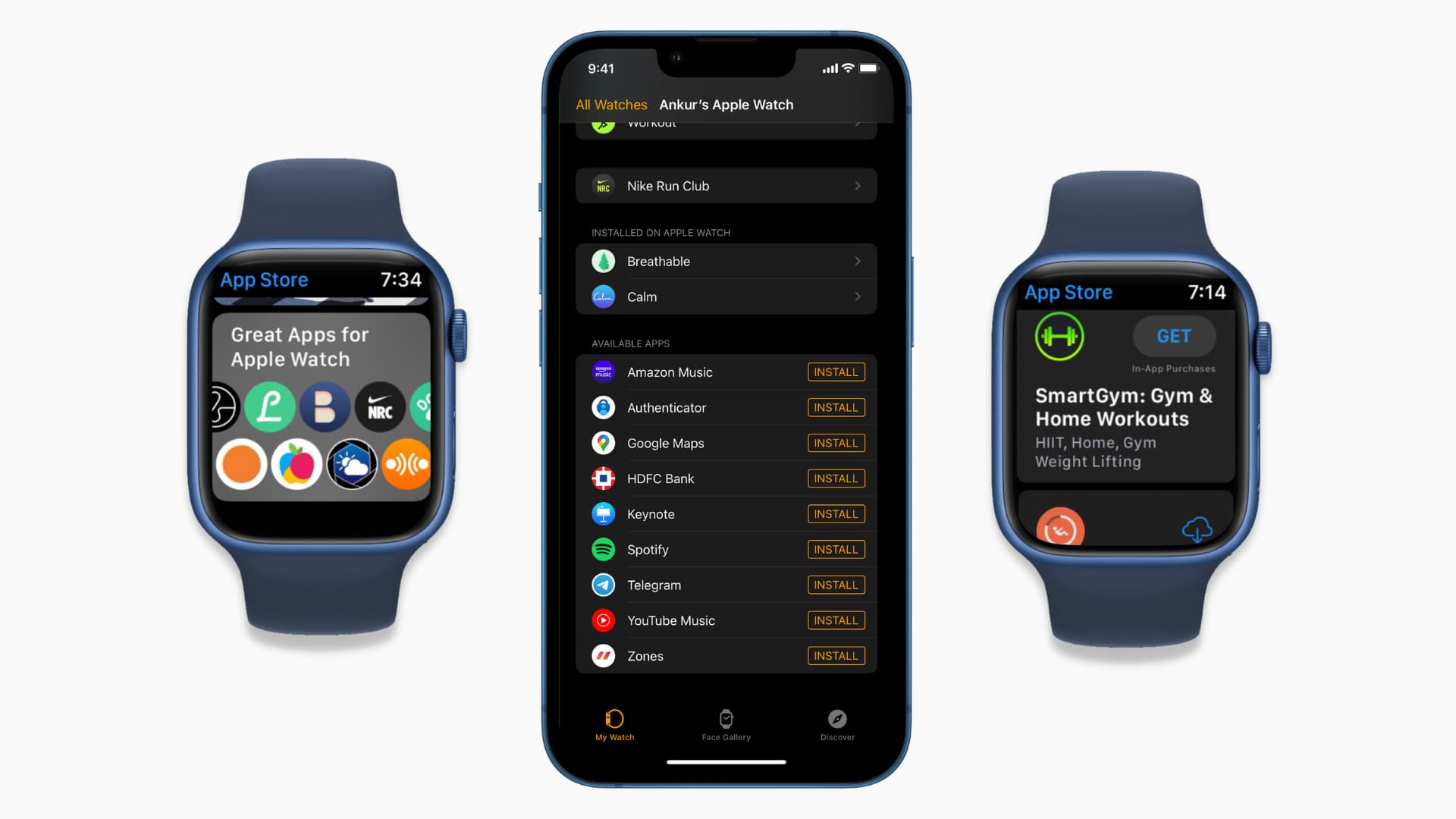
- In the Watch app on your iPhone, scroll down past the “Automatic App Install” toggle to the “Available Apps” section.
- Here, you’ll see a list of all iPhone apps that have a compatible Apple Watch version but are not currently installed on your watch.
- Next to each app, tap the “Install” button. The app will then download and appear on your Apple Watch.
Automatic app installation is a convenient feature designed for simplicity, ensuring your Apple Watch quickly gains the functionality of your favorite iPhone apps. However, for those who value precise control over their app library, manual installation provides the necessary granularity.
Taking Control: Manual Installation Directly on Your Apple Watch
For a truly independent experience, or if you don’t want to clutter your iPhone with apps you only need on your watch, you can browse and install apps directly from the App Store on your Apple Watch itself. This method is especially useful for cellular Apple Watch models, allowing you to discover and download apps even when your iPhone isn’t nearby.
Steps to Install Apps Directly from Your Apple Watch:
- Open the App Store on Your Apple Watch:
- From the watch face, press the Digital Crown to go to your app view (either grid or list view).
- Locate and tap the blue App Store icon. It looks like three overlapping white triangles.
- Browse or Search for Apps:
- Browse: The App Store on your watch will display curated collections, popular apps, and categories. Scroll through these to discover new apps.
- Search: Tap the “Search” button (magnifying glass icon) at the top of the App Store screen.
- You can use the Scribble feature (draw letters on the screen).
- You can use Dictation (tap the microphone icon and speak the app name).
- On newer watch models (Series 7 and later), you can also use a full QWERTY keyboard.
- Select an App: Once you find an app you’re interested in, tap on its icon to view its product page. Here, you can see screenshots, read a description, check ratings, and see compatibility information.
- Download and Install:
- If the app is free, tap the “GET” button.
- If it’s a paid app, tap the price button. You might be prompted to confirm your purchase using your Apple ID password or by double-clicking the side button.
- Monitor Installation: The app icon will appear on your watch’s home screen with a progress circle around it, indicating the download status. Once complete, it’s ready to use.
Installing directly from your Apple Watch empowers you to take full advantage of its standalone capabilities, offering a quick and convenient way to expand its functionality on the go.
The iPhone Companion: Installing Apps via the Watch App
While installing apps directly on your Apple Watch offers independence, the most common and often preferred method for managing and installing apps is through the dedicated Watch app on your iPhone. This provides a larger interface for browsing, searching, and fine-tuning app settings.
Steps to Install Apps Using the Watch App on Your iPhone:
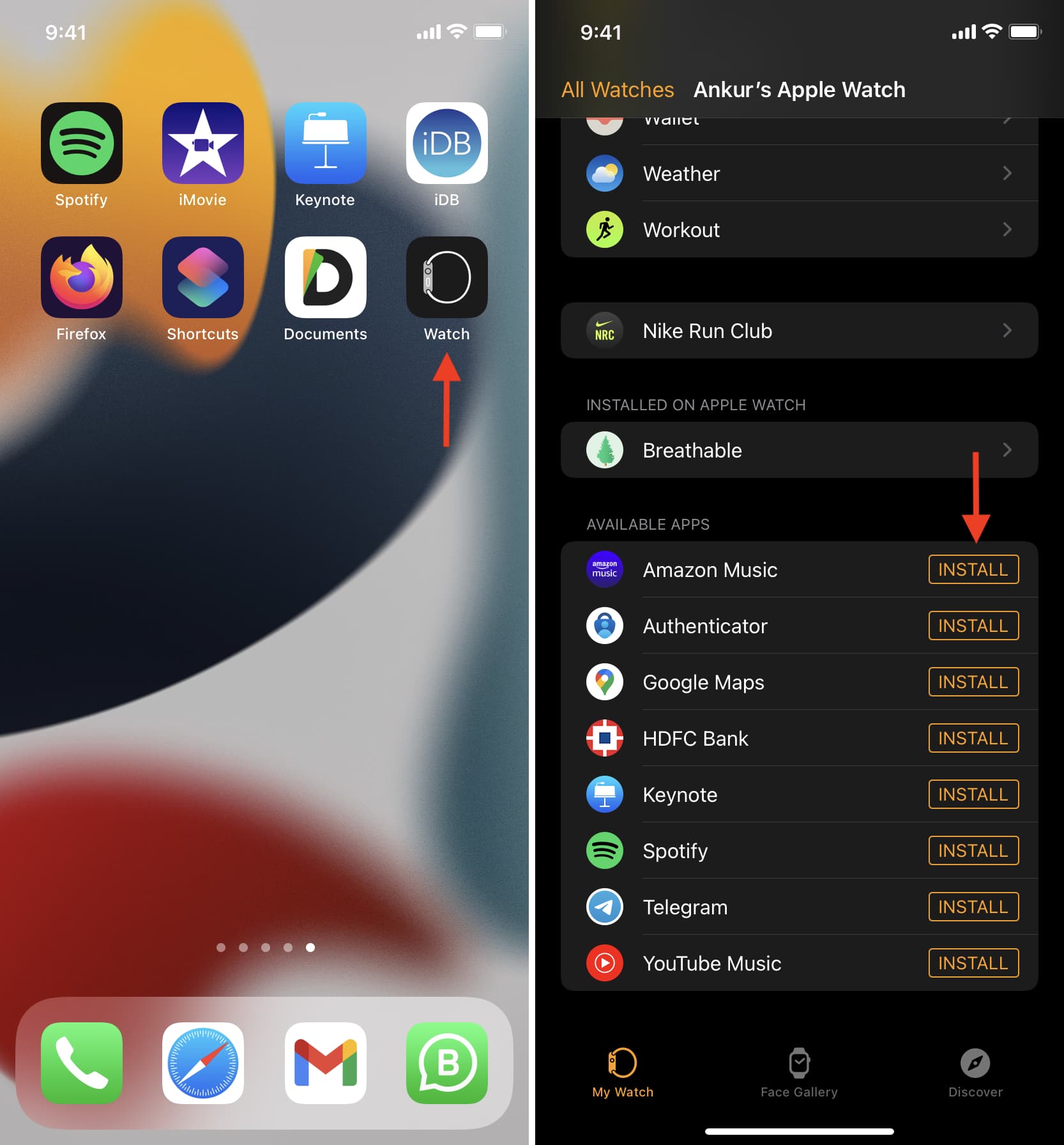
- Open the Watch App on Your iPhone: Tap the icon for the Watch app, typically found on your home screen or in your App Library.
- Navigate to the “My Watch” Tab: At the bottom of the screen, ensure you’re on the “My Watch” tab.
- Scroll to the “Available Apps” Section: Below the sections for complications and specific app settings, you’ll find “Available Apps.” This list displays all the iPhone apps you own that have a watchOS companion but are not currently installed on your Apple Watch.
- Install Desired Apps:
- Browse through the list of available apps.
- For each app you wish to install, tap the “Install” button located to the right of the app’s name.
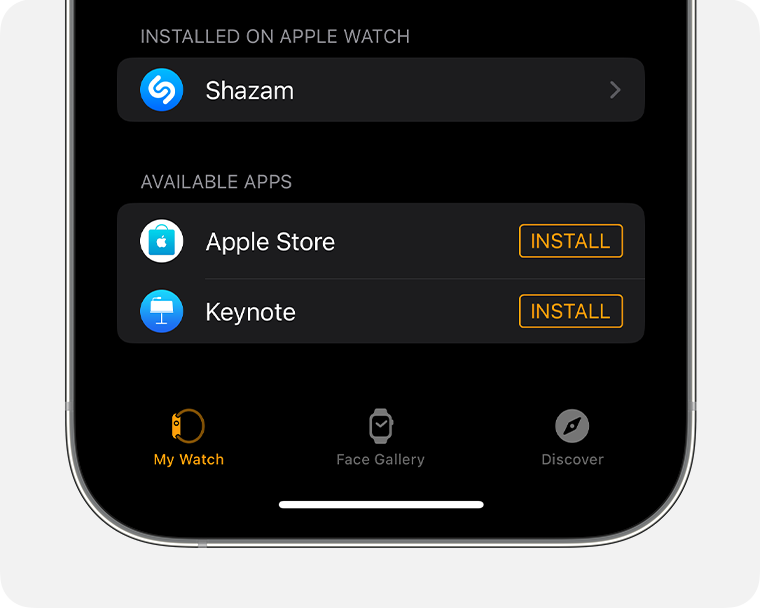
- Monitor Installation: The app will begin downloading to your Apple Watch. Once the installation is complete, the app will move from the “Available Apps” section to the “INSTALLED ON APPLE WATCH” section higher up on the “My Watch” tab. You’ll also see its icon appear on your Apple Watch’s home screen.
Tips for Using the Watch App for Installation:
- App Store Access: The Watch app also provides a shortcut to the Watch App Store (similar to the one on your watch). From the “My Watch” tab, scroll up and tap “App Store” near the top. This will take you to a dedicated App Store view tailored for watchOS apps, allowing you to browse and discover new apps with the convenience of your iPhone’s larger screen.
- Searching: Use the search bar within the Watch App Store (accessed via the “App Store” link) to quickly find specific apps.
- Manage Existing Apps: This section isn’t just for installing new apps. Further down the “My Watch” tab, in the “INSTALLED ON APPLE WATCH” section, you can tap on individual apps to adjust their settings, enable or disable notifications, and choose whether they appear on your watch face as complications.
Using the Watch app on your iPhone offers a comprehensive and user-friendly way to manage your Apple Watch app ecosystem, combining discovery, installation, and configuration in one convenient location.
Mastering Your App Library: Management and Optimization
Once you’ve started installing apps, effectively managing your Apple Watch app library becomes crucial for maintaining performance, optimizing storage, and ensuring a streamlined user experience. This includes knowing how to remove unwanted apps, organize your app layout, and keep everything updated.
Decluttering Your Digital Wrist: Uninstalling Unwanted Apps
Just as with your iPhone, your Apple Watch can accumulate apps you no longer use, taking up valuable storage space and potentially cluttering your app screen. Deleting these apps is a straightforward process, available directly from your watch or through the iPhone’s Watch app.
Method 1: Deleting Apps Directly from Your Apple Watch
- Access the App View: From your watch face, press the Digital Crown to go to your app layout (Grid View or List View).
- Enter Jiggle Mode (Grid View): If you’re in Grid View, touch and hold any app icon until all icons begin to jiggle.
- Delete the App: A small “X” will appear in the top-left corner of any third-party app that can be deleted. Tap the “X” on the app you wish to remove.
- Confirm Deletion: You’ll be prompted to confirm if you want to “Delete App Name.” Tap “Delete App” to proceed.
- Exit Jiggle Mode: Press the Digital Crown once to stop the apps from jiggling.
Note: Built-in Apple apps (like Activity, Workout, Mail, etc.) typically do not have an “X” and cannot be deleted from the watch.
Method 2: Deleting Apps Using the Watch App on Your iPhone
- Open the Watch App on Your iPhone: Go to the “My Watch” tab.
- Scroll to “INSTALLED ON APPLE WATCH”: This section lists all the apps currently installed on your watch.
- Select the App to Delete: Tap on the specific app you want to remove.
- Toggle Off “Show App on Apple Watch”: On the app’s settings page, you’ll see a toggle labeled “Show App on Apple Watch.” Turn this toggle off.
- Confirm Deletion (if prompted): Some apps might ask for confirmation.
- Verify: The app will disappear from your Apple Watch’s app screen and move back to the “Available Apps” section in the Watch app on your iPhone, ready to be reinstalled later if needed.
Regularly pruning your app library ensures a more efficient and less cluttered experience on your Apple Watch.
Personalizing Your Layout: Arranging App Icons
Your Apple Watch’s app screen can quickly become a maze of icons, especially if you have many apps installed. Apple provides tools to arrange these icons, making your most frequently used apps more accessible and creating a layout that makes sense to you.
Method 1: Arranging Apps Directly on Your Apple Watch
This method applies primarily to the Grid View.
- Access the App View: From your watch face, press the Digital Crown.
- Enter Jiggle Mode: Touch and hold any app icon until they all begin to jiggle.
- Drag and Drop: Tap and drag an app icon to your desired location on the screen. The other icons will shift to accommodate it. You can drag apps between screens by moving them to the edge of the display.
- Exit Jiggle Mode: Press the Digital Crown once when you’re satisfied with the arrangement.
Method 2: Arranging Apps Using the Watch App on Your iPhone
This method offers a larger and often more precise way to organize your apps.
- Open the Watch App on Your iPhone: Go to the “My Watch” tab.
- Tap “App Layout”: You’ll find this option near the top of the screen, just below “All Watches.”
- Rearrange Apps: You’ll see a visual representation of your Apple Watch’s app grid. Tap and hold any app icon, then drag it to your preferred position. You can move apps around the circular layout to create clusters of related apps or place frequently used apps closer to the center.
- Save Changes: The changes you make are saved automatically and will be reflected on your Apple Watch almost instantly.
Choosing Between Grid View and List View:
Remember that watchOS also offers a “List View” for your apps, which displays them alphabetically. If you find the Grid View too chaotic, you can switch to List View:
- On your Apple Watch, open the “Settings” app.
- Tap “App View.”
- Select “List View.”
While List View automatically sorts apps, arranging icons in Grid View allows for a truly personalized and efficient visual navigation.
Keeping Current: Updating Your Apple Watch Apps
Keeping your apps updated is vital for security, performance, and access to the latest features. App developers frequently release updates to fix bugs, introduce new functionalities, and ensure compatibility with the latest watchOS versions.
Automatic App Updates:
By default, your Apple Watch apps are configured to update automatically when the watch is connected to Wi-Fi, charging, and near your paired iPhone.
To ensure this setting is enabled:
- Open the Watch App on Your iPhone: Go to the “My Watch” tab.
- Tap “App Store”: Scroll down slightly and tap on “App Store.”
- Enable “Automatic Downloads”: Make sure the toggle switch for “Automatic Downloads” is turned on. This ensures app updates happen in the background without requiring manual intervention.
Manually Updating Apps (if Automatic Downloads are off or an update is stuck):
While rare, you might occasionally need to manually check for or force an app update. There isn’t a direct “Update All” button on the Apple Watch App Store itself. However, if an app has an available update, you’ll see it on its product page.
- Open the App Store on Your Apple Watch.
- Search for the specific app you want to update (or find it through browsing).
- Tap on the app’s icon to go to its product page.
- If an update is available, you will see an “Update” button instead of “Open” (if already installed) or “GET/price.” Tap “Update” to download the latest version.
By keeping your Apple Watch apps updated, you ensure you’re always benefiting from the best possible performance, security enhancements, and all the new features developers have to offer, ultimately extending the utility and lifespan of your wearable device.
Troubleshooting and Best Practices for a Smooth Experience
Even with the most straightforward installation processes, users can occasionally encounter hiccups. Knowing how to troubleshoot common issues and adopting best practices for app usage can significantly improve your Apple Watch experience.
Common Installation Hurdles and Their Solutions
Encountering a problem when installing or using an app on your Apple Watch can be frustrating. Here are some common issues and their easy fixes:
-
App Not Downloading or Stuck on “Loading”:
- Check Internet Connection: Ensure your iPhone has a strong Wi-Fi or cellular connection, or that your Apple Watch (if standalone) is connected to a stable Wi-Fi network.
- Restart Both Devices: A classic solution for a reason. Restart your Apple Watch (hold the side button until the Power Off slider appears) and your iPhone. This often resolves minor software glitches.
- Check Storage: Go to the Watch app on your iPhone > General > Usage. Ensure you have enough free space on your Apple Watch. Delete unnecessary apps or data if storage is low.
- Pause/Resume Download: Sometimes, pausing the download (if possible from the Watch App Store) and then resuming it can kickstart it.
- Try Again Later: App Store servers can occasionally be busy. If the issue persists, wait a few hours and try again.
-
App Installs But Doesn’t Open or Crashes Immediately:
- Restart the App: If an app is misbehaving, try forcing it to close (press the side button, then Digital Crown to go to app view, swipe left on the app, then tap the X) and reopening it.
- Delete and Reinstall: This often clears corrupted data. Delete the app from your Apple Watch (as described above) and then reinstall it.
- Check for Updates: An outdated app version might have compatibility issues. Ensure both the app and your watchOS are updated to the latest versions.
- Contact Developer: If a specific app consistently crashes, it might be an app-specific bug. Check the App Store reviews or contact the app developer directly for support.
-
App Settings Not Syncing or Working Correctly:
- Check iPhone App Settings: Many Watch apps rely on settings configured in their companion iPhone app. Ensure all permissions and preferences are correctly set on your iPhone.
- Restart Both Devices: Again, a full restart can often re-establish proper communication and syncing.
- Check for Background App Refresh: In the Watch app on iPhone > General > Background App Refresh, ensure it’s enabled for the problematic app.
By systematically going through these troubleshooting steps, you can resolve most common app installation and functionality issues on your Apple Watch.
Tips for Discovering and Maximizing App Utility
Beyond simply installing apps, there are several ways to enhance your app experience on the Apple Watch and truly make it work for you.
- Explore the Watch App Store Regularly: The App Store on both your iPhone’s Watch app and directly on your watch is constantly updated with new and featured apps. Look for “Editor’s Choice,” curated collections, and category browsing to discover hidden gems.
- Utilize Complications: Many Apple Watch apps offer “complications” – small pieces of information that can be displayed directly on your watch face. These allow for glanceable access to data like fitness stats, calendar events, weather, or task lists without opening the app itself. Experiment with different watch faces and complication slots to find the most useful setup for your daily needs.
- Manage Notifications Wisely: While apps extend functionality, too many notifications can be distracting and drain battery life. In the Watch app on your iPhone, go to “Notifications” and customize alerts for each app. Choose which apps can send notifications and whether they appear as alerts or just banners.
- Consider Battery Life: Some apps, particularly those with frequent background refreshing or GPS usage, can consume more battery. Monitor your watch’s battery usage (Settings > Battery on your Apple Watch) to identify power-hungry apps. If an app is a major drain, consider limiting its background refresh or notifications.
- Leverage Siri: For many apps, especially those that provide quick information or perform simple actions, using Siri on your Apple Watch can be faster than navigating through apps. For example, “Hey Siri, add milk to my shopping list” (if you use a compatible list app) or “Hey Siri, start a 20-minute run with Nike Run Club.”
- Experiment with Docks: The Dock (accessible by pressing the side button) provides quick access to your most recently used apps or a custom list of your favorite apps. Customizing the Dock (in the Watch app on iPhone > Dock) ensures your essential apps are always just a click away.
By actively managing your app library, customizing notifications, and strategically using features like complications and Siri, you can transform your Apple Watch into an even more powerful and personalized device, seamlessly integrated into your connected lifestyle.
The Apple Watch is more than just a wearable; it’s a testament to how technology can discreetly enhance our daily lives. Its true potential is unlocked through its vibrant app ecosystem, offering unparalleled convenience and functionality right on your wrist. By understanding how to install, manage, and optimize your app library, you transform your device from a mere gadget into a highly personalized and indispensable companion. Whether you’re a fitness enthusiast, a productivity guru, or simply someone seeking a more connected lifestyle, the world of watchOS apps offers a solution. So, go forth, explore, and customize your Apple Watch to perfectly reflect your needs and desires. The power of a smarter wrist is now in your hands.
aViewFromTheCave is a participant in the Amazon Services LLC Associates Program, an affiliate advertising program designed to provide a means for sites to earn advertising fees by advertising and linking to Amazon.com. Amazon, the Amazon logo, AmazonSupply, and the AmazonSupply logo are trademarks of Amazon.com, Inc. or its affiliates. As an Amazon Associate we earn affiliate commissions from qualifying purchases.