
Hisense has carved out a significant niche in the global television market, offering an impressive array of smart TVs that combine cutting-edge technology with remarkable value. For many users, the true power of a smart TV lies not just in its display quality but in its ability to run a diverse range of applications, transforming it into a personalized entertainment and information hub. Whether you’re looking to stream your favorite movies, catch up on TV shows, listen to music, or even play casual games, installing apps is the key.

However, the process of installing apps on a Hisense TV isn’t always a one-size-fits-all solution. Hisense utilizes various operating systems across its product lines, each with its own interface and app installation methodology. This comprehensive guide aims to demystify the process, providing clear, step-by-step instructions tailored to the different platforms you might encounter on your Hisense television. We’ll cover everything from navigating built-in app stores to advanced techniques like sideloading, all while touching upon important considerations for digital security and optimizing your smart TV experience.
Understanding Your Hisense TV’s Operating System
Before diving into the installation process, the first crucial step is to identify which operating system powers your specific Hisense TV model. This information is usually found in your TV’s settings under “About” or “System Information,” or you can refer to your TV’s manual or product specifications online. Hisense primarily employs three main operating systems: VIDAA OS, Android TV, and Roku TV. Each offers a unique user experience and dictates how you’ll acquire and manage applications.
VIDAA OS: Hisense’s Native Smart TV Platform
VIDAA OS is Hisense’s proprietary smart TV operating system, found on many of its newer and more widely available models, particularly in international markets. Designed for speed and simplicity, VIDAA offers a clean, intuitive interface and focuses on quick access to popular streaming services. While its app store, the VIDAA Store, has grown considerably, it typically offers a more curated selection compared to broader platforms like Android TV. This can be a boon for users who prefer a streamlined experience, but it might limit access to niche applications.
Android TV: Google’s Powerful Smart TV Solution
Some Hisense TV models, especially those targeting specific regions or higher-end specifications, come equipped with Android TV. As a Google-developed platform, Android TV provides a vast ecosystem of applications through the Google Play Store. This open-source nature means a much wider variety of apps, including many that are also available on Android smartphones and tablets. Android TV also integrates seamlessly with other Google services like Google Assistant and Chromecast built-in, offering a rich and highly customizable smart TV experience.
Roku TV: Simplicity and Extensive Content
Hisense also produces a line of “Hisense Roku TVs,” predominantly for the North American market. These TVs integrate the popular Roku OS directly into the hardware, offering a straightforward, user-friendly interface renowned for its simplicity and extensive content library. Roku’s strength lies in its “Channel Store,” which boasts thousands of streaming channels (Roku’s term for apps), making it incredibly easy to find and install popular services as well as a plethora of niche content providers.
Knowing your TV’s OS is paramount, as the instructions for installing apps will differ significantly for each platform. Let’s explore the step-by-step guides for each one.
Installing Apps on Hisense TVs with VIDAA OS
For many Hisense TV owners, especially those with newer models, VIDAA OS will be the operating system at play. It’s designed to be straightforward, making app installation a relatively simple process through its dedicated App Store.
Step-by-Step Guide: Using the VIDAA App Store
The VIDAA App Store is the primary hub for downloading applications on your VIDAA OS Hisense TV. Here’s how to use it:
- Ensure Internet Connection: First and foremost, make sure your Hisense TV is connected to the internet, either via Wi-Fi or an Ethernet cable. Without an active internet connection, you won’t be able to access the app store.
- Navigate to
Settings>Network>Network Configurationto check or set up your connection.
- Navigate to
- Access the VIDAA Smart TV Home Screen: Press the “Home” button on your Hisense remote control. This will take you to the main interface of your VIDAA TV, which typically features a ribbon of icons for various apps and functions.
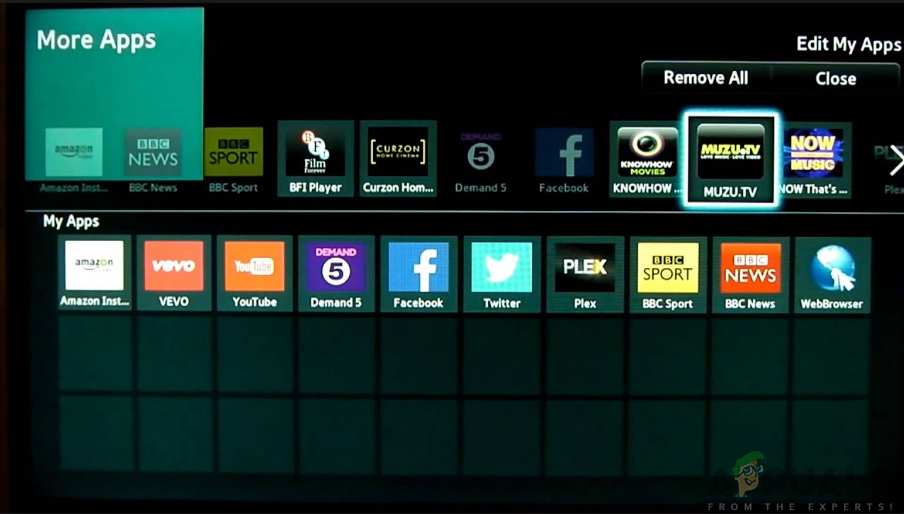
- Locate the “App Store” or “Apps” Icon: Look for an icon labeled “App Store,” “Apps,” “More Apps,” or sometimes simply a briefcase or shopping bag icon. It’s usually prominently displayed on the home screen or within a dedicated “Apps” section. Select this icon to open the VIDAA App Store.
- Browse or Search for Apps: Once inside the App Store, you’ll find various categories (e.g., Movies, Music, News) and featured applications.
- You can scroll through the available apps to find what you’re looking for.
- For a specific app, use the “Search” function, usually represented by a magnifying glass icon. Type in the name of the app using the on-screen keyboard.
- Select and Install the App:
- Once you’ve found the app you want, select it to view its details page. This page usually provides a description, ratings, and screenshots.
- Look for an “Install,” “Download,” or “Add” button and select it.
- Wait for Installation: The TV will then download and install the app. The time this takes will depend on the app’s size and your internet speed. A progress bar might appear on the screen.
- Launch the App: Once the installation is complete, you’ll typically see an “Open” or “Launch” button. Select it to start using your new app immediately. The app will also be added to your home screen or the “Apps” section for future access.
What If an App Isn’t Available on VIDAA?
While the VIDAA App Store offers a good selection of popular apps, it may not have every niche application you desire. If you can’t find a specific app, it likely means it hasn’t been developed or made available for the VIDAA platform. In such cases, unfortunately, there isn’t a direct method to “sideload” apps onto VIDAA OS like you can with Android TV, as VIDAA is a more closed ecosystem. Your options would be:
- Use an External Streaming Device: Consider connecting a separate streaming stick or box (like a Roku, Amazon Fire TV Stick, Apple TV, or Google Chromecast with Google TV) that does support the app you need. These devices can plug into your Hisense TV’s HDMI port.
- Check for Updates: Occasionally, new apps are added to the VIDAA store with software updates. Ensure your TV’s firmware is up to date (
Settings>Support>System Update). - Utilize Built-in Browser: For some web-based services, you might be able to access them through the Hisense TV’s built-in web browser, though the experience might not be as optimized as a dedicated app.
Installing Apps on Hisense TVs with Android TV
Hisense TVs running Android TV benefit from the vast ecosystem of the Google Play Store, providing users with an unparalleled selection of applications. This platform also offers the flexibility of sideloading, for those who need apps not officially available.
Accessing the Google Play Store
Installing apps via the Google Play Store on an Android TV Hisense model is very similar to how you’d install apps on an Android smartphone or tablet.
- Connect to the Internet: Ensure your Hisense Android TV is connected to a stable internet connection.
- Sign In with Your Google Account: You’ll need an active Google account to access the Play Store. If you haven’t already, the TV will prompt you to sign in during the initial setup. You can also add or manage accounts via
Settings>Accounts & Sign-In. - Navigate to the Google Play Store: From the Android TV home screen, look for the “Apps” section or the “Google Play Store” icon directly. It’s usually a colorful triangle logo. Select it to open the store.
- Browse or Search for Apps:
- The Play Store presents apps in categories, trending lists, and recommendations. You can navigate these sections using your remote.
- To find a specific app, use the “Search” icon (magnifying glass) at the top of the screen. You can use the on-screen keyboard, voice search (if your remote has a microphone button), or even a connected Bluetooth keyboard.
- Select and Install:
- Once you find the app, select it to open its detail page. Here you’ll see information, reviews, and screenshots.
- Select the “Install” button.
- Wait for Download and Installation: The app will download and install automatically. A progress indicator will show its status.
- Open the App: After successful installation, you’ll see an “Open” button. Select it to launch the app. The app icon will also appear on your Android TV home screen for easy access later.
Sideloading Apps: Expanding Your Options
Sideloading refers to installing apps from sources other than the official Google Play Store. This is useful for apps that aren’t officially available on Android TV or for testing purposes. However, it comes with important security considerations.
- Enable “Unknown Sources”: Before you can sideload, you must allow installations from unknown sources.
- Go to
Settings>Device Preferences>Security & Restrictions. - Find “Unknown Sources” and enable it for the specific app you plan to use for sideloading (e.g., a file manager or web browser). Warning: Enabling this globally for all apps or untrusted sources can expose your TV to security risks. Be selective and revert this setting after use if possible.
- Go to
- Download a File Manager: You’ll need a file manager app on your Hisense TV to navigate your storage and install APK files. Popular choices from the Play Store include “File Commander,” “FX File Explorer,” or “Solid Explorer.”
- Obtain the APK File: APK (Android Package Kit) files are the installation packages for Android apps. You’ll need to download the APK for the app you want to sideload.
- From a USB Drive: Download the APK file onto a USB flash drive from a trusted source on your computer. Insert the USB drive into an available USB port on your Hisense TV.
- Via Web Browser on TV: If your Hisense Android TV has a web browser (e.g., Chrome, Firefox), you can navigate to a trusted APK download site directly from your TV and download the APK.
- Install the APK:
- Open your chosen file manager app.
- Navigate to where you saved the APK file (e.g., your USB drive, or the “Downloads” folder if you downloaded it via browser).
- Select the APK file. The system will prompt you to install it.
- Confirm the installation.
- Launch the App: Once installed, the app might appear in your “Apps” section, or you may need to access it through the file manager or a dedicated app launcher if it doesn’t integrate perfectly with the Android TV home screen.
Crucial Security Warning for Sideloading: Always download APK files from reputable sources. Untrusted APKs can contain malware, compromise your privacy, and damage your device. Sideloading should only be done if you fully understand the risks and trust the source of the APK.
Installing Apps on Hisense TVs with Roku TV
Hisense Roku TVs offer one of the most streamlined app installation experiences thanks to Roku’s intuitive “Channel Store.”
Navigating the Roku Channel Store
Roku refers to apps as “channels,” and their installation is quick and easy.
- Connect to the Internet: Ensure your Hisense Roku TV is connected to the internet.
- Go to the Home Screen: Press the “Home” button on your Roku remote.
- Access the Channel Store: Scroll down the left-hand menu until you find “Streaming Channels” or “Channel Store.” Select it.
- Browse or Search for Channels:
- The Channel Store is organized by categories (e.g., Movies & TV, Kids & Family, News) and features popular and new channels. You can browse these sections.
- Use the “Search Channels” option to find a specific app by typing its name.
- Select and Add Channel:
- Once you’ve found the channel (app) you want, select it. This will take you to its details page.
- Select the “Add Channel” button.
- Confirmation and Launch: The channel will quickly download and install. A confirmation message will appear, and you’ll usually be given the option to “Go to channel” immediately. The new channel will also appear at the bottom of your home screen’s channel list; you can move it to a preferred position later.
Troubleshooting Common App Installation Issues
Even with the right steps, you might occasionally encounter problems installing or running apps on your Hisense TV. Here are some common issues and solutions:
General Tips for a Smooth Experience
- Check Internet Connection: A flaky or slow internet connection is the most common culprit for failed downloads. Test your connection, restart your router, or try connecting via Ethernet if Wi-Fi is unstable.
- Restart Your TV: A simple restart can often resolve temporary glitches. Turn off your TV, unplug it from the power outlet for a minute, then plug it back in and turn it on.
- Clear Cache/Data: If an app is having trouble installing or running, try clearing the cache and data for the App Store (on VIDAA/Android TV) or the specific app. Go to
Settings>Apps> select the relevant app >Clear CacheandClear Data. Be aware that clearing data will remove login information. - Free Up Storage Space: If your TV’s internal storage is full, you won’t be able to install new apps. Check your storage via
Settings>Storageand uninstall unused apps or delete unnecessary files (like downloaded media, if applicable). - Update Firmware: Ensure your Hisense TV’s operating system is up to date. Software updates often include bug fixes, performance improvements, and sometimes new app compatibility. Check for updates in
Settings>SupportorAbout>System Update. - Reset to Factory Settings (Last Resort): If all else fails, a factory reset can resolve deep-seated software issues. Warning: This will erase all your data, settings, and installed apps, returning the TV to its out-of-the-box state. You’ll need to set it up again. (
Settings>System>Reset & Admin>Factory Reset).
Enhancing Your Hisense TV’s Performance
Beyond just getting apps to install, ensuring your Hisense TV runs smoothly is key to a satisfying experience. Periodically reviewing your installed applications, uninstalling those you no longer use, and managing background processes can significantly improve your TV’s responsiveness. For Android TV users, specifically, limiting background app refresh and being judicious with the number of apps installed can prevent slowdowns. VIDAA OS and Roku OS tend to be more optimized out-of-the-box in terms of resource management, but even there, keeping the app list clean helps.
Optimizing Your Smart TV Experience: Beyond Installation
Installing apps is just the first step in maximizing your Hisense TV’s potential. Effective app management and an understanding of the broader digital landscape contribute to a more secure, productive, and enjoyable smart TV experience.
Managing Apps and Storage
As you accumulate apps, managing them becomes important, especially for TVs with limited internal storage.
- Uninstall Unused Apps: Regularly review your installed apps and remove those you no longer use. This frees up storage space and can improve overall system performance. The process usually involves navigating to the app on the home screen, pressing and holding the “OK” or “Menu” button on your remote, and selecting “Uninstall” or “Remove.” Alternatively, go to
Settings>Appsand select the app to uninstall. - Reorder Apps: Most Hisense TVs allow you to reorder apps on your home screen or within the app launcher. Place your most frequently used apps in easily accessible positions for quicker navigation.
- External Storage (Android TV): For Hisense Android TVs, some models may support connecting external USB storage to expand app storage, though not all apps can be moved to external storage. Check your TV’s specifications for this capability.
Digital Security and Smart TV Usage
In an increasingly connected world, digital security on your smart TV is as important as it is on your computer or smartphone.
- Only Install from Official Stores: Stick to the official VIDAA App Store, Google Play Store, or Roku Channel Store whenever possible. These platforms have security protocols to vet apps.
- Be Cautious with Sideloading: As discussed, sideloading on Android TV carries risks. Only download APKs from highly trusted sources.
- Review App Permissions: On Android TV, apps might request various permissions (e.g., access to storage, microphone). Be mindful of what you grant. If an app requests permissions that seem unnecessary for its function, reconsider installing it.
- Keep Software Updated: Regularly update your Hisense TV’s firmware. Updates often include critical security patches that protect against vulnerabilities.
- Strong Wi-Fi Password: Ensure your home Wi-Fi network is secured with a strong, unique password to prevent unauthorized access to your smart devices.
The Future of Smart TV Apps and Your Hisense
The smart TV landscape is constantly evolving, with new apps, features, and operating system improvements being rolled out regularly. Hisense, like other major manufacturers, continues to invest in its smart TV platforms, aiming to provide richer content ecosystems and more integrated experiences. This means that your Hisense TV, through its ability to install and update apps, will remain a dynamic and adaptable entertainment device for years to come. From AI-powered recommendations to deeper integration with smart home ecosystems, the potential of smart TV apps is only growing, making your Hisense TV a central hub in your digital life.

Conclusion
Installing apps on your Hisense TV is a straightforward process once you understand which operating system your device runs on. Whether you’re navigating the intuitive VIDAA App Store, exploring the vast options of the Google Play Store on Android TV, or adding channels through the Roku Channel Store, personalizing your viewing experience is just a few clicks away. By following the steps outlined in this guide, maintaining good app management practices, and keeping digital security in mind, you can unlock the full potential of your Hisense smart TV, transforming it into a versatile entertainment and information gateway tailored to your preferences. Enjoy the endless possibilities that smart TV apps bring to your living room!
aViewFromTheCave is a participant in the Amazon Services LLC Associates Program, an affiliate advertising program designed to provide a means for sites to earn advertising fees by advertising and linking to Amazon.com. Amazon, the Amazon logo, AmazonSupply, and the AmazonSupply logo are trademarks of Amazon.com, Inc. or its affiliates. As an Amazon Associate we earn affiliate commissions from qualifying purchases.