
In the ever-evolving landscape of digital technology, the lines between mobile and desktop computing continue to blur. Android applications, once confined to smartphones and tablets, can now seamlessly extend their functionality to your personal computer, thanks to powerful emulators like BlueStacks. For many users, BlueStacks serves as a gateway to an expansive world of mobile gaming, productivity apps, and even niche utilities that might not have a native desktop equivalent. While the Google Play Store is the primary source for applications within BlueStacks, there’s an equally vital method for installing apps that are not available there, are in beta, or are simply preferred in a specific version: installing an Android Package Kit (APK) file.
This comprehensive guide will walk you through the process of installing APKs on BlueStacks, transforming your desktop into a versatile Android powerhouse. Whether you’re a gamer looking for superior controls, a developer testing new builds, or simply someone seeking to expand their app horizons, mastering APK installation is a fundamental skill. We’ll delve into the “what,” “why,” and “how” of this process, ensuring you’re equipped with the knowledge to harness the full potential of BlueStacks.
Understanding the Essentials: APKs and BlueStacks
Before we dive into the practical steps, it’s crucial to grasp the fundamental components we’re working with: the Android Package Kit (APK) and the BlueStacks emulator. A clear understanding of these will illuminate the ‘why’ behind installing APKs and set the stage for a smooth installation process.
What is an APK? The Core of Android Applications
An APK, or Android Package Kit, is essentially the package file format used by the Android operating system for the distribution and installation of mobile applications. Think of it as the Windows equivalent of an .exe file, or a macOS .dmg file. When you download an app from the Google Play Store, you are, in essence, downloading and installing an APK file in the background.
However, APKs can also be obtained from sources other than the official Play Store. These “sideloaded” APKs are pivotal for several reasons:
- Access to Unavailable Apps: Some applications might not be available in your geographical region, or they might have been removed from the Play Store. An APK allows you to bypass these restrictions.
- Beta or Unreleased Versions: Developers often distribute beta versions of their apps as APKs for testing purposes before a public release.
- Older Versions: If a new update introduces bugs or removes a feature you rely on, an APK can help you revert to a previous, stable version.
- Customized Apps: Certain modified or specialized versions of apps are only available as APKs.
- Privacy and Control: Some users prefer to install apps directly to have more control over the installation process and permissions.
While APKs offer incredible flexibility, it’s imperative to exercise caution when downloading them from unofficial sources. Always prioritize trusted websites to minimize the risk of malware or corrupted files. We’ll elaborate on safe sourcing later in this guide.
What is BlueStacks? Your Android Gateway to PC
BlueStacks is one of the most popular and robust Android emulators available for Windows and macOS. An emulator is software that allows one computer system (the host) to behave like another computer system (the guest). In BlueStacks’ case, your PC acts as the host, and it emulates an Android device, allowing you to run Android apps and games as if they were native desktop applications.
BlueStacks has garnered immense popularity for several compelling reasons:
- Performance Optimization: It’s designed to run Android applications, especially games, with superior performance on PC hardware, often outperforming actual mobile devices in certain aspects.
- Enhanced Controls: BlueStacks maps touch controls to keyboard and mouse, offering a level of precision and comfort unattainable on a mobile screen. It also supports gamepads.
- Multi-Instance Manager: This feature allows users to run multiple instances of BlueStacks simultaneously, meaning you can play multiple games or use several apps at once. This is a game-changer for mobile gamers and power users alike.
- User-Friendly Interface: BlueStacks provides an intuitive interface that mimics the Android experience, making it easy for users to navigate and manage their apps.
- Developer-Friendly Features: For app developers, BlueStacks offers a convenient platform for testing apps on different Android versions and device configurations without needing a physical device for each.
In essence, BlueStacks bridges the gap between the mobile and desktop experience, providing a powerful platform to access Android’s vast ecosystem with the benefits of a larger screen, superior input devices, and the robust processing power of your computer.
Why Install APKs on BlueStacks? Unlocking Full Potential
The combination of APKs and BlueStacks opens up a wealth of possibilities that extend beyond typical app usage. Understanding these benefits can help you fully leverage this powerful duo.
For Gamers, BlueStacks is a haven. Installing game APKs can sometimes grant access to early beta tests, region-locked titles, or even modded versions that enhance gameplay. The ability to use a keyboard, mouse, or gamepad provides a significant competitive edge and a more immersive experience than a touchscreen.
Developers and App Testers find BlueStacks invaluable. It provides a stable environment to test apps across different Android versions without needing an array of physical devices. Installing APKs directly from their development environment onto BlueStacks simplifies the testing and debugging cycle, ensuring their applications perform optimally across various conditions. This directly impacts the quality and reach of their brand‘s software.
For General Users, the advantages are equally significant. You might encounter situations where a particular utility app or a social media client is more robust or feature-rich on Android than its web or desktop counterpart. Using its APK on BlueStacks allows you to access these enhanced functionalities. Furthermore, certain applications relevant to online income or side hustles might only exist in a mobile format. BlueStacks ensures you can access and manage these financial tools efficiently from your desktop. For instance, accessing crypto trading apps or specific market research tools that are mobile-only can be done with the comfort of a PC.
Finally, for Productivity, BlueStacks offers the ability to run Android-exclusive productivity apps alongside your desktop applications, creating a seamless multi-tasking environment. Imagine using an Android-only project management tool or a specific note-taking app on your big screen, integrated into your workflow. This enhances overall digital productivity, a key focus within the “Tech” category.
Preparing for Installation: Prerequisites and Best Practices
Before you begin installing APKs, a little preparation goes a long way. Ensuring your BlueStacks environment is ready and your APK files are secure will prevent common issues and guarantee a smooth experience.
Getting Your BlueStacks Ready
First and foremost, you need to have BlueStacks installed and running on your computer. If you haven’t already:
- Download BlueStacks: Visit the official BlueStacks website (bluestacks.com) and download the latest version suitable for your operating system (Windows or macOS).
- Install BlueStacks: Follow the on-screen instructions. The installation process is straightforward, but it might require a system restart.
- Initial Setup: Upon first launch, BlueStacks will guide you through an initial setup, including signing in with your Google account. This is crucial for accessing Google Play services and ensures full functionality.
- Update BlueStacks: Always ensure you’re running the latest version of BlueStacks. Updates often bring performance improvements, bug fixes, and compatibility enhancements, which are vital for a stable experience when installing various APKs. You can usually check for updates within the BlueStacks settings.
Sourcing Your APK Files Safely
This is perhaps the most critical step when dealing with APKs from outside the Google Play Store. The internet is full of various APK repositories, but not all are trustworthy. Downloading APKs from unreliable sources can expose your system to malware, viruses, or corrupted files, compromising your data and system security.
Always prioritize these trusted sources:
- Official Developer Websites: Many developers offer direct downloads of their APKs, especially for beta versions or region-specific apps.
- Reputable APK Repositories: Websites like APKMirror, APKPure, and F-Droid are generally considered safe. They often verify the authenticity of APKs by matching signatures with those from the Google Play Store.
- APKMirror: Known for uploading untouched, original APKs.
- APKPure: Offers a wide range of APKs and is generally reliable.
- F-Droid: A repository for free and open-source Android apps, focusing on transparency and security.
- Your Own Development Environment: If you’re a developer, you’ll be generating APKs directly from Android Studio or similar tools.
Red Flags to Watch Out For:
- Websites with excessive pop-up ads or redirects.
- Sites promising “cracked” or “modded” versions of paid apps for free (these are often laden with malware).
- APKs that require an excessive number of permissions that don’t align with the app’s function.
Before downloading, do a quick search for reviews of the APK source if you’re unfamiliar with it. Installing an untrusted APK on BlueStacks is akin to installing unknown software on your main PC; the emulator adds a layer of isolation, but the risk of malware affecting your Google account within BlueStacks or even your network remains. This highlights the digital security aspect of the “Tech” category.
Essential System Checks
While BlueStacks is robust, ensuring your system is prepared can prevent installation hiccups:
- Stable Internet Connection: A reliable internet connection is necessary for downloading APKs and for BlueStacks to perform initial setups or updates.
- Sufficient Storage: APK files can range in size. Ensure you have enough free disk space on your computer for both the APK file and the space the app will occupy within BlueStacks.
- Antivirus Software: Keep your antivirus software updated and active. It can provide an additional layer of defense against malicious APKs, even from seemingly reputable sources.
- Virtualization Enabled: For optimal performance, BlueStacks relies on hardware virtualization (VT-x for Intel, AMD-V for AMD) being enabled in your computer’s BIOS/UEFI settings. While BlueStacks often works without it, enabling virtualization dramatically improves speed and stability.
By taking these preparatory steps, you establish a secure and efficient environment, ready for seamless APK installation and an enhanced BlueStacks experience.
Step-by-Step Guide: Multiple Methods to Install an APK
BlueStacks offers several convenient ways to install APK files, catering to different user preferences and scenarios. We’ll explore the most common and straightforward methods, followed by a more advanced option for power users.
Method 1: The Simple Drag-and-Drop
This is by far the easiest and most intuitive method for installing an APK on BlueStacks. It leverages the direct interaction between your desktop file system and the BlueStacks interface.
Detailed Steps:
- Locate Your APK File: On your computer, navigate to the folder where you have downloaded or saved the APK file you wish to install.
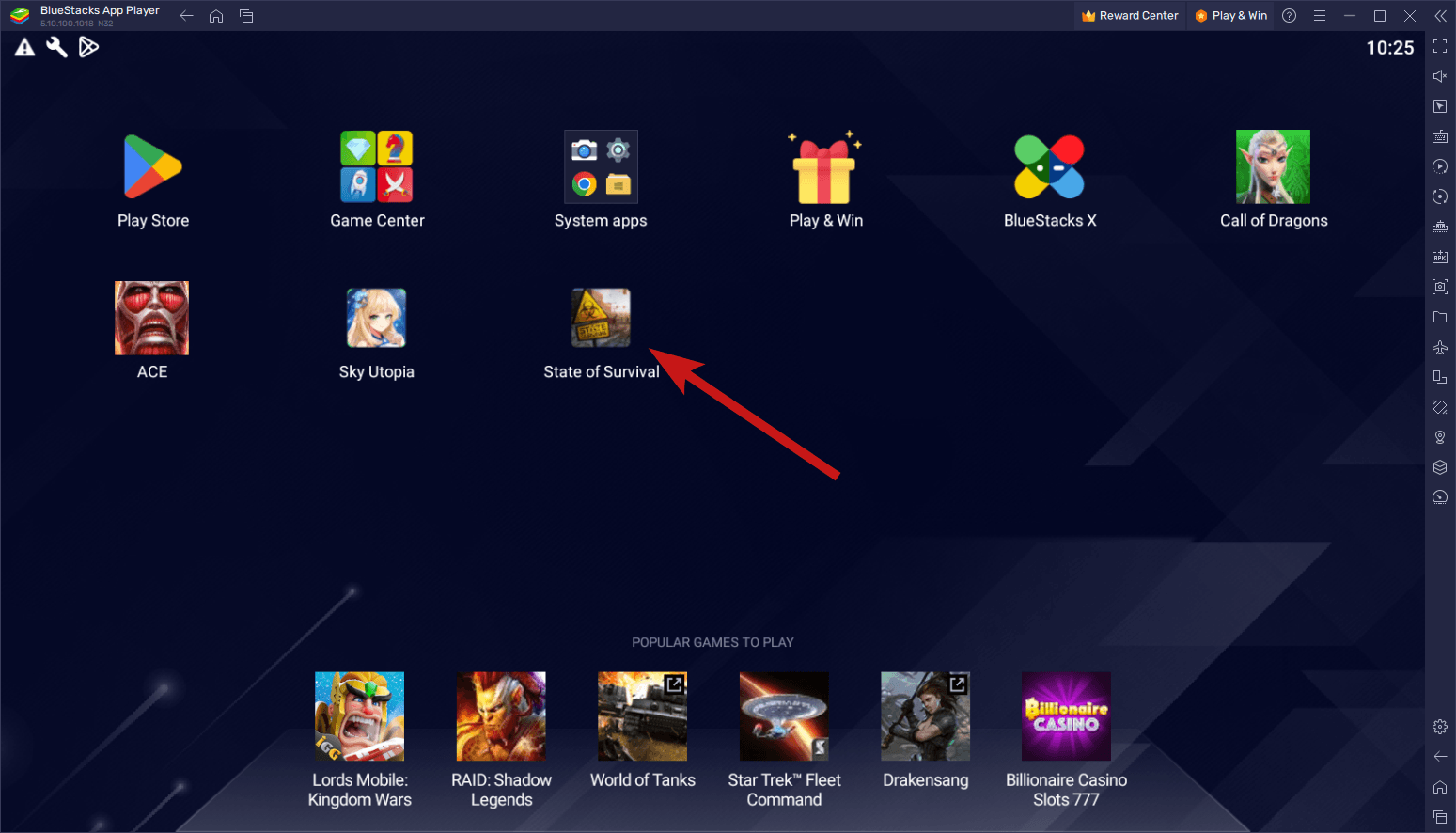
- Launch BlueStacks: Open BlueStacks on your computer. Ensure it’s fully loaded and you can see the home screen or app launcher within the emulator.
- Drag and Drop: Click and hold the APK file from your desktop or file explorer.
- Drop into BlueStacks: Drag the APK file directly into the BlueStacks window. You should see a visual cue indicating that BlueStacks is ready to receive the file.
- Installation Confirmation: Once you release the mouse button, BlueStacks will automatically initiate the installation process. You might see a notification or a progress bar indicating that the APK is being installed.
- Launch the App: After a few moments, depending on the size of the app and your system’s performance, the app will be installed. You’ll typically find its icon on the BlueStacks home screen or in the “My Games” section, ready to launch.
This method is quick, efficient, and requires minimal interaction, making it ideal for most users.
Method 2: Using BlueStacks’ “Install APK” Button
BlueStacks provides a dedicated button within its interface specifically for installing APK files. This method is a great alternative if drag-and-drop isn’t working for some reason, or if you prefer a more structured approach.
Detailed Steps:
- Launch BlueStacks: Open BlueStacks on your computer.
- Locate “Install APK” Button: On the right-hand sidebar of the BlueStacks window, you’ll find a series of icons. Look for an icon that typically resembles an APK file or has the text “Install APK” displayed when you hover over it. (In some BlueStacks versions, this might be located under the “More Apps” section or a similar menu icon.)
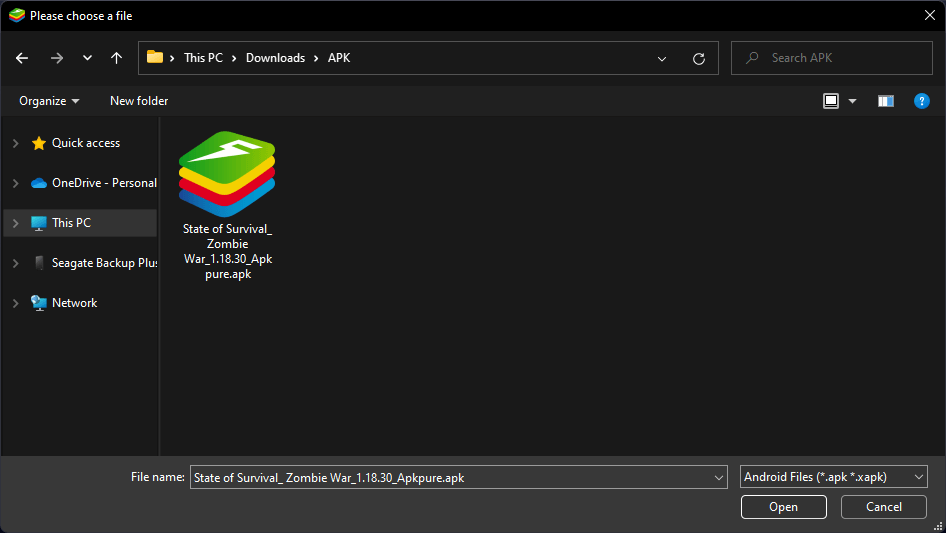
- Browse for APK: Click on the “Install APK” button. This will open a standard Windows File Explorer (or macOS Finder) window, allowing you to browse your computer’s file system.
- Select Your APK: Navigate to the location where your APK file is saved, select the file, and click “Open” (or double-click the file).
- Installation Initiated: BlueStacks will then take over and begin the installation process, similar to the drag-and-drop method.
- App Ready: Once the installation is complete, the app’s icon will appear on the BlueStacks home screen, ready for use.
This method offers a clear, guided path for APK installation, ensuring you select the correct file through a familiar file browsing interface.
Method 3: Advanced Installation via ADB (Android Debug Bridge)
For power users, developers, or those who encounter specific issues with the graphical methods, using the Android Debug Bridge (ADB) offers a robust command-line approach. ADB is a versatile command-line tool that lets you communicate with an emulator instance or connected Android device. This method is particularly useful for debugging or automating installations.
Prerequisites for ADB:
- Android SDK Platform-Tools: You need to download and set up the Android SDK Platform-Tools, which include ADB. You can get this from the official Android developer website.
- BlueStacks ADB Enabled: Ensure ADB debugging is enabled in BlueStacks settings. You might need to go to Android Settings within BlueStacks, then “About tablet” (or “About phone”), and tap “Build number” seven times to unlock Developer options. Then, enable “Android debugging” in Developer options.
Detailed Steps:
- Locate Your APK File: Place the APK file you want to install in an easily accessible directory, for example,
C:adb(where you’ve extracted your ADB tools). - Open Command Prompt/Terminal:
- On Windows: Search for “cmd” or “Command Prompt” in the Start menu and open it.
- On macOS/Linux: Open your Terminal application.
- Navigate to ADB Directory: Use the
cdcommand to navigate to the directory where yourplatform-tools(containingadb.exe) are located. For example:cd C:adbplatform-tools - Verify BlueStacks Device Connection: Type
adb devicesand press Enter. You should see a list of connected devices, and BlueStacks should appear as an emulator device (e.g.,emulator-5554 device). If BlueStacks is not listed, ensure it’s running and ADB debugging is enabled.- Note: BlueStacks often uses port 5555. You might need to manually connect using
adb connect 127.0.0.1:5555.
- Note: BlueStacks often uses port 5555. You might need to manually connect using
- Install the APK: Use the
adb installcommand followed by the full path to your APK file.- Example:
adb install C:adbapp_name.apk(replaceapp_name.apkwith your actual file name and path).
- Example:
- Confirm Installation: ADB will display “Success” if the installation is successful. The app icon should now appear on your BlueStacks home screen.
While more technical, the ADB method offers granular control and is an indispensable tool for advanced BlueStacks users and developers. This method taps directly into the technical underpinnings, appealing to the “Tech” focus of the website.
Troubleshooting Common Issues and Optimizing Your Experience
Even with the clearest instructions, sometimes things don’t go as planned. Here are common issues you might encounter when installing APKs on BlueStacks, along with solutions, and tips for optimizing your overall experience.
When Your APK Won’t Install
Several factors can prevent an APK from installing correctly.
- “App not installed” or “Failed to install” Error:
- Corrupted APK: The APK file itself might be damaged during download. Try downloading it again from a trusted source.
- Incompatible Version: The APK might be built for a newer Android version than what your BlueStacks instance is running, or it might be a 64-bit app on a 32-bit BlueStacks instance. Check the BlueStacks version and instance type. Consider creating a new BlueStacks instance with a different Android version if needed (e.g., Nougat 64-bit, Pie 64-bit).
- Insufficient Storage: BlueStacks might not have enough internal storage space allocated. Go to BlueStacks settings > “Performance” or “Engine” and check disk space.
- Security Restrictions: Sometimes, antivirus software can interfere. Temporarily disable it (at your own risk, and only if you trust the APK) to see if it resolves the issue.
- Conflicting App: A previous version or a similar app might be causing a conflict. Try uninstalling any related apps from BlueStacks before attempting the APK installation.
- “Application not compatible with your device” Error:
- This usually means the app requires specific hardware features (like GPS, specific sensors, or ARM architecture) that BlueStacks might not fully emulate, or it’s designed for a very specific device profile.
- Try creating a new BlueStacks instance with a different device profile or Android version.
- BlueStacks Freezing or Crashing During Installation:
- System Resources: Your computer might be running low on RAM or CPU resources. Close other demanding applications on your PC.
- BlueStacks Version: Ensure BlueStacks is updated to the latest version.
- Virtualization: Verify that hardware virtualization (VT-x or AMD-V) is enabled in your computer’s BIOS/UEFI. This is crucial for BlueStacks’ stability and performance.
Performance and Stability Tips
To ensure BlueStacks runs smoothly, especially when handling demanding apps installed via APKs, consider these optimization tips:
- Enable Virtualization (VT-x/AMD-V): As mentioned, this is paramount. It allows BlueStacks to use your CPU’s hardware virtualization capabilities, drastically improving performance.
- Allocate More Resources: In BlueStacks settings (usually under “Performance” or “Engine”):
- CPU Cores: Increase the number of CPU cores allocated to BlueStacks (e.g., 2 or 4, depending on your actual CPU cores).
- RAM: Allocate more RAM to BlueStacks (e.g., 2GB or 4GB, again depending on your system’s total RAM). Be careful not to allocate too much, leaving your host OS struggling.
- Graphics Mode: Experiment with “Graphics renderer” settings (e.g., OpenGL, DirectX). Some apps perform better with one over the other. Enable “Prefer dedicated graphics” if you have a discrete GPU.
- Disk Cleanup: Periodically clear BlueStacks’ disk space or run its “Disk Cleanup” utility to free up space and improve performance.
- Keep BlueStacks Updated: Regular updates often include performance enhancements and bug fixes.
- Close Unnecessary Apps: Both on your host PC and within BlueStacks, close any applications you’re not actively using to free up resources.
Post-Installation App Management
Once your APKs are installed, managing them effectively is key to a clean and efficient BlueStacks environment.
- Updating Apps: For apps installed via APK, you’ll generally need to manually download and install newer APK versions if you want to update them. BlueStacks might not automatically update them through the Play Store if they weren’t installed via the Play Store initially. You can install a newer APK over an existing one, and it will update the app.
- Uninstalling Apps: To remove an app, simply long-press its icon on the BlueStacks home screen, then drag it to the “Uninstall” option that appears, or go to BlueStacks settings > Apps, select the app, and choose “Uninstall.”
- Data Management: You can clear an app’s cache or data (similar to an Android phone) by going to BlueStacks settings > Apps, selecting the app, and then choosing “Storage” and then “Clear cache” or “Clear data.” This can resolve app-specific issues.
By understanding these troubleshooting techniques and optimization strategies, you can maintain a high-performing and stable BlueStacks setup, ensuring your APK-installed apps run smoothly and reliably.
Leveraging BlueStacks and APKs for Enhanced Productivity and Innovation
The ability to install APKs on BlueStacks goes beyond simply running mobile apps on a larger screen; it unlocks significant potential for productivity, innovation, and strategic advantage across various domains. This ties directly into the “Tech,” “Brand,” and “Money” categories of our website.
Empowering Developers and Testers
For software developers, BlueStacks is an indispensable tool in their workflow. The ease of installing custom-built APKs through drag-and-drop or ADB allows for:
- Rapid Prototyping and Iteration: Developers can quickly test new features, UI/UX changes, and bug fixes without constantly deploying to a physical device. This accelerates the development cycle, making the process more efficient.
- Cross-Device Compatibility Testing: While BlueStacks emulates a generic Android environment, its ability to create multiple instances with different Android versions and device profiles helps developers test how their app behaves on various virtual setups. This ensures a broader reach and better user experience for their brand‘s application across the Android ecosystem.
- Debugging and Performance Analysis: With ADB integration, developers can leverage powerful debugging tools to pinpoint issues, monitor resource consumption, and optimize their application’s performance, ensuring a polished final product. This directly contributes to the quality and reliability of the software (Tech).
Expanding Gaming Horizons
Gamers are among the primary beneficiaries of BlueStacks and APK installations. Beyond the sheer joy of playing mobile games with keyboard and mouse, APKs offer:
- Access to Beta and Pre-Release Games: Be among the first to experience new games by installing their beta APKs. This provides an early peek and often a competitive advantage.
- Region-Locked Titles: Many popular games are released in specific regions first. APKs allow gamers from anywhere in the world to download and play these titles, breaking geographical barriers.
- Enhanced Performance and Graphics: Leveraging PC hardware, BlueStacks can often run games at higher frame rates and graphical settings than what most mobile devices can handle, providing a superior visual and gameplay experience.
- Customization and Modding: Some game communities distribute modified APKs that offer custom features, skins, or other enhancements, extending the life and enjoyment of their favorite titles.
Business and Brand Applications
The utility of BlueStacks and APKs extends significantly into the business realm, touching upon brand management and financial strategies:
- Brand Monitoring and Social Media Management: Many businesses rely on Android-specific tools for monitoring their brand’s presence, tracking social media trends, or managing multiple social media accounts. Installing these app APKs on BlueStacks allows for more efficient management from a desktop environment, integrating these tasks into a larger workflow. This supports effective brand strategy.
- Accessing Niche Business Tools: Some specialized industry apps (e.g., field service management, specific CRM systems, or data analytics tools) are primarily available as Android applications. BlueStacks enables businesses to deploy these on desktop workstations, empowering employees with familiar controls and a larger display for complex tasks.
- Market Research and Geo-Restricted Apps: For businesses looking to understand global markets, installing APKs of region-specific apps allows researchers to experience and analyze competitors’ strategies or consumer behavior in different geographic locations without needing a physical device in that region. This can provide valuable insights for marketing and brand strategy.
- Online Income and Financial Tools: A growing number of platforms for online income, side hustles, and personal finance exist as mobile-only applications. Whether it’s gig economy apps, cryptocurrency trading platforms, or expense trackers, installing their APKs on BlueStacks provides a more comfortable and potentially more secure environment for managing money and financial activities. The ability to use a physical keyboard for data entry in budgeting apps or for quick trades in financial apps can be a significant advantage.
By strategically utilizing BlueStacks for APK installations, individuals and businesses can unlock new avenues for productivity, enhance their brand presence, and manage their finances with greater efficiency and control. It transforms the desktop into a dynamic hub for Android innovation.
Conclusion
The ability to install APKs on BlueStacks is more than just a technical trick; it’s a powerful capability that extends the utility of both your desktop and the vast Android ecosystem. From the simplicity of drag-and-drop to the precision of ADB commands, BlueStacks provides multiple pathways to bring virtually any Android application to your computer screen.
We’ve explored the fundamental concepts of APKs and BlueStacks, detailed the crucial preparation steps for safe and effective installation, and provided step-by-step guides for various methods. Furthermore, we’ve equipped you with troubleshooting tips and optimization strategies to ensure a smooth and stable experience.
Ultimately, by mastering APK installation on BlueStacks, you unlock a realm of possibilities: enhanced gaming, accelerated app development, improved productivity through specialized Android tools, and strategic advantages for brand management and financial oversight. As technology continues to converge, BlueStacks stands out as a critical tool for navigating the hybrid landscape of mobile and desktop computing, empowering users to leverage the best of both worlds. Embrace the flexibility, explore the vast app library, and transform your desktop into the ultimate Android powerhouse.
aViewFromTheCave is a participant in the Amazon Services LLC Associates Program, an affiliate advertising program designed to provide a means for sites to earn advertising fees by advertising and linking to Amazon.com. Amazon, the Amazon logo, AmazonSupply, and the AmazonSupply logo are trademarks of Amazon.com, Inc. or its affiliates. As an Amazon Associate we earn affiliate commissions from qualifying purchases.