
The modern television has evolved from a mere display monitor into a sophisticated computing hub. At the forefront of this revolution is LG with its proprietary webOS platform. Known for its fluid animations, intuitive “ribbon” interface, and robust application support, LG Smart TVs offer a premium gateway to global streaming services, gaming, and productivity tools. However, for those transitioning from traditional cable or other smart platforms, navigating the LG Content Store can initially seem daunting.
Understanding how to efficiently install, manage, and optimize applications on your LG Smart TV is essential for maximizing your hardware investment. This guide provides an in-depth exploration of the webOS ecosystem, offering a professional walkthrough of the installation process, troubleshooting common hurdles, and advanced tips for maintaining a high-performance digital entertainment center.

Understanding the LG webOS Ecosystem and Content Store
Before diving into the installation steps, it is vital to understand the software architecture that powers your LG television. Unlike many competitors that utilize Android TV or Roku, LG utilizes webOS—a Linux-based multitasking operating system designed specifically for smart devices.
The Role of the LG Content Store
The LG Content Store is the central repository for all third-party software available on your television. It functions similarly to the Apple App Store or Google Play Store but is curated specifically for the unique hardware specifications of LG’s OLED, QNED, and NanoCell displays. Within this hub, users can find premium streaming services like Netflix and Disney+, as well as niche applications for fitness, education, and cloud gaming.
Compatibility and webOS Versions
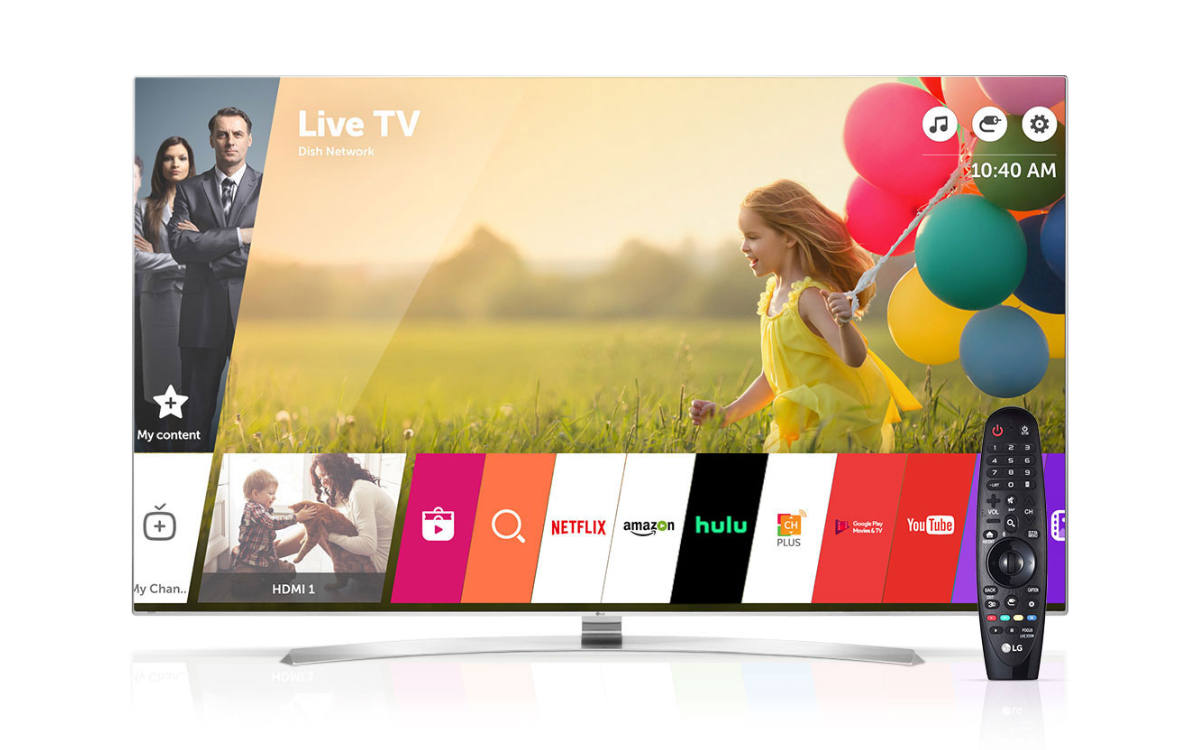
LG regularly updates its operating system. While the core functionality remains consistent, the visual layout may differ between older versions (like webOS 3.5 or 4.0) and the more modern, full-screen “New Home” interface found on webOS 6.0 and later (2021+ models). Regardless of your version, the underlying logic of the LG Content Store remains the same, ensuring that users across different hardware generations can access the tools they need.
Step-by-Step Guide to Installing Applications
Installing an app on an LG Smart TV is a streamlined process, provided your device is correctly configured and connected to a stable network. Follow these professional steps to expand your TV’s capabilities.
Preparing Your Connection and Account
The foundation of a successful installation is a stable internet connection. While LG TVs support both Wi-Fi and Ethernet, a wired connection is recommended for downloading large 4K streaming applications to ensure data integrity.
- Navigate to the Settings menu (gear icon) on your Magic Remote.
- Select All Settings > General > Network.
- Ensure your status shows “Connected to the Internet.”
- Crucial Step: You must sign in to an LG Account. While some free apps allow browsing without an account, most require an active LG profile to manage licenses and updates. You can create this via the “Account Management” section in the General settings.
Navigating to the LG Content Store
Once your network and account are ready, press the Home button on your remote. This will bring up the home dashboard or the app ribbon.
- Locate the LG Content Store icon. On newer models, this is prominently displayed in the main app list; on older models, it appears as a colorful shopping bag icon in the bottom ribbon.
- Upon entering the store, you will see categories such as “Apps,” “Games,” and “Premium.”
Searching and Downloading
If you have a specific application in mind, such as YouTube or Spotify:
- Select the Search icon (magnifying glass) at the top of the LG Content Store screen.
- Use the on-screen keyboard or the voice command button on your Magic Remote to type the name of the app.
- Select the desired app from the search results to open its description page.
- Click Install. The TV will begin downloading the package. Once completed, the “Install” button will change to “Launch.”
Managing and Optimizing Your App Library
Installing an app is only the first step. To maintain a fast, responsive interface, users must proactively manage their digital library. Overloading a Smart TV with unnecessary applications can lead to cached data build-up, which may slow down system navigation.
Organizing the Home Screen
As you install more apps, your home screen can become cluttered. LG allows for “Intelligent Edit” or manual reordering.
- Press the Home button.
- Scroll to the far right of the app list and select the Pencil icon (Edit mode).
- Highlight an app and press the wheel/OK button to move it. Place your most-used apps (like Netflix or Plex) at the beginning of the list for quicker access.
- On newer webOS versions, you can also use “App Cleanup,” which suggests removing apps you haven’t opened in months.
Updating Applications
Developers frequently release patches to fix security vulnerabilities or improve streaming quality. By default, LG Smart TVs are set to auto-update. However, you can manually check for updates:
- Open the LG Content Store.
- Navigate to My Apps or the User Icon.
- Select Update All to ensure every piece of software is running the latest version. This is a critical step for maintaining digital security and ensuring compatibility with the latest HDR and Dolby Vision standards.
Deleting Unused Apps to Free Up Storage
Smart TVs have limited internal flash memory compared to smartphones. If you encounter an “Insufficient Memory” error:
- Enter Edit Mode on the Home screen.
- Hover over the app you wish to remove.
- Select the ‘X’ or the trash can icon that appears above the app icon.
- Confirm the deletion. This removes the app and its associated cache, improving overall system snappiness.
Troubleshooting Common Installation Issues
Even with a high-end LG OLED, technical friction can occur. Understanding how to diagnose these issues prevents the need for a full factory reset.
Solving “App Not Found” or Regional Restrictions
If you cannot find a specific app in the LG Content Store, it is often due to regional licensing. The Content Store displays apps based on the “Service Country” set in your TV’s settings.
- Fix: Go to Settings > All Settings > General > System > Location. Ensure your “LG Services Country” is set correctly. Note that some apps are only available in specific markets (e.g., Hulu is primarily US-based).
Handling Installation Failures
If an installation stalls at 0% or returns an error code:
- Power Cycle: Perform a “Cold Boot.” Unplug the TV from the wall for 60 seconds, then plug it back in. This clears the system RAM and often resolves handshake issues with the LG servers.
- DNS Adjustment: Sometimes, ISP-provided DNS servers struggle to connect to LG’s content delivery networks. Changing your DNS to a public one (like Google’s 8.8.8.8) in the Network settings can often bypass download blocks.
The Importance of Firmware Updates
The LG Content Store itself is an application that relies on the underlying firmware. If the store refuses to open or shows a “Service Unavailable” message, your TV’s firmware might be outdated.
- Navigate to Settings > All Settings > Support > Software Update.
- Click Check for Updates. Installing the latest system software often includes mandatory updates for the Content Store’s security certificates.
Advanced Tips: Maximizing the LG Experience
For power users, the LG webOS experience goes beyond just clicking “Install.” Leveraging the deeper integration features can transform your viewing habits.
Using Voice Commands for Installation
The LG Magic Remote features an integrated microphone that supports AI ThinQ, Amazon Alexa, and Google Assistant. Instead of navigating menus, you can simply hold the microphone button and say, “Search for Disney Plus in the Content Store.” The TV will bypass several manual steps and take you directly to the download page.
Understanding Sideloading and Developer Mode
Unlike Android TV, webOS is a more “closed” system, meaning you cannot easily install APK files from a web browser. However, for developers or tech enthusiasts, LG offers a Developer Mode. By creating an LG Developer account and installing the “Developer Mode” app from the Content Store, users can “sideload” custom webOS applications for testing purposes. This is generally not recommended for average users but highlights the platform’s flexibility for those with technical expertise.
Smart Home Integration (Home Dashboard)
Many apps installed on your LG TV can integrate with the Home Dashboard. For instance, if you install smart home compatible apps, your TV can act as a hub for IoT devices. This tech-forward approach allows you to monitor security cameras or control lighting directly from your television interface while a movie is playing, representing the pinnacle of modern home automation.

Summary: A Seamless Digital Gateway
Mastering the installation and management of apps on an LG Smart TV is a fundamental skill in the digital age. By understanding the webOS environment, maintaining a clean app library, and knowing how to troubleshoot network or regional hurdles, you ensure that your television remains a high-performance center for entertainment and productivity.
LG’s commitment to a user-friendly, secure, and expansive app ecosystem makes it a leader in the smart display market. Whether you are adding the latest streaming giant or a simple weather widget, the process is designed to be as unobtrusive as possible, allowing the technology to fade into the background while the content takes center stage. Through regular updates and proactive management, your LG Smart TV will continue to provide a cutting-edge experience for years to come.
aViewFromTheCave is a participant in the Amazon Services LLC Associates Program, an affiliate advertising program designed to provide a means for sites to earn advertising fees by advertising and linking to Amazon.com. Amazon, the Amazon logo, AmazonSupply, and the AmazonSupply logo are trademarks of Amazon.com, Inc. or its affiliates. As an Amazon Associate we earn affiliate commissions from qualifying purchases.