
Microsoft Excel, a cornerstone of data management and analysis, is already an incredibly powerful tool. However, its true potential often lies hidden beneath the surface, waiting to be unleashed by add-ins. These small, specialized programs act as powerful extensions, significantly enhancing Excel’s capabilities and tailoring it to specific needs, from advanced financial modeling to sophisticated data visualization, and even niche industry applications. For professionals operating in technology, finance, or marketing, understanding how to effectively integrate and manage these tools is not just a convenience—it’s a critical skill for boosting productivity, efficiency, and the overall value derived from their data.
In an increasingly data-driven world, where efficiency and accuracy are paramount, leveraging every available resource within your tech stack is crucial. Excel add-ins represent a low-hanging fruit for immediate gains in productivity and analytical depth. Whether you’re a data analyst, a financial planner, a business strategist, or simply someone looking to streamline daily tasks, mastering the installation and management of Excel add-ins can transform your spreadsheet experience. This comprehensive guide will walk you through the process, covering various types of add-ins, their installation methods, and best practices for integrating them seamlessly into your workflow, ensuring you harness the full power of Excel.
Understanding Excel Add-ins: A Gateway to Enhanced Functionality
Before diving into the mechanics of installation, it’s essential to grasp what Excel add-ins are and why they are so pivotal for users across various domains. They are essentially mini-applications that run within Excel, adding custom commands, new functions, and automating complex tasks that would otherwise require extensive manual effort or advanced VBA coding.
What Are Excel Add-ins?
At their core, Excel add-ins are supplementary programs designed to extend Excel’s native functionality. Think of them as apps for your Excel environment. They can be developed by Microsoft itself (like the Solver or Analysis ToolPak), by third-party software companies, or even by individual developers using VBA (Visual Basic for Applications) or other programming languages. The beauty of add-ins lies in their ability to provide specialized features without cluttering Excel’s core interface until they are needed.
There are generally three primary categories of Excel add-ins you’ll encounter:
-
Modern Office Add-ins (formerly “Apps for Office”): These are web-based add-ins, often built using HTML, CSS, and JavaScript. They are installed from the Office Store and run in a task pane directly within Excel. They are cross-platform compatible (working on Excel for Windows, Mac, and web versions) and offer a modern, integrated user experience. Examples include specialized charting tools, data connectors, and productivity enhancers.
-
Traditional Excel Add-ins (.xla or .xlam files): These are files specifically saved in the Excel Add-in format. They are typically developed using VBA and are stored locally on your computer. When activated, their functions become available in your Excel workbooks. Many classic tools, and custom add-ins developed by users or small teams, fall into this category.
-
COM Add-ins (Component Object Model): These are more advanced, system-level add-ins often written in languages like C++ or C#. They integrate more deeply with Excel and other Office applications. COM add-ins are usually installed as part of a larger software package and are managed differently from the more common Excel add-ins. While less frequently managed by end-users, knowing about them is useful.
Why Integrate Add-ins into Your Workflow?
The reasons to incorporate add-ins into your Excel routine are numerous and compelling, particularly for professionals aiming for peak performance and strategic advantage:
- Enhanced Productivity: Add-ins automate repetitive tasks, provide quick access to complex calculations, and streamline workflows. This translates directly into time saved, allowing you to focus on analysis and decision-making rather than manual data manipulation.
- Specialized Functionality: Excel out-of-the-box is general-purpose. Add-ins bring industry-specific tools for finance (e.g., advanced valuation models), engineering (e.g., specific calculation libraries), statistics (e.g., enhanced regression analysis), and more.
- Improved Accuracy: By automating calculations and leveraging tested code, add-ins minimize the risk of human error, leading to more reliable and accurate results in your reports and analyses. This is crucial for financial reporting and critical business decisions.
- Better Data Visualization: Some add-ins offer advanced charting and graphing capabilities that go beyond Excel’s standard options, allowing for more impactful and insightful presentations of complex data.
- Data Integration: Many add-ins facilitate seamless connections to external data sources, databases, and APIs, allowing you to pull live data directly into your spreadsheets for real-time analysis.
- Competitive Edge: For businesses and individuals alike, leveraging cutting-edge tools and methodologies through add-ins can provide a distinct competitive advantage in efficiency, insight generation, and responsiveness.
Navigating Excel to Find Your Add-ins Options
Before you can install an add-in, you need to know where to find the relevant controls within Excel. The interface for managing add-ins is consolidated, but knowing a few key locations will make the process much smoother.
Enabling the Developer Tab (Optional but Recommended)
While not strictly necessary for all add-in installations, the Developer tab in the Excel Ribbon provides quick access to add-in management options, alongside VBA tools and form controls. Many power users find it indispensable. If you don’t see it:
- Click File > Options.
- In the Excel Options dialog box, click Customize Ribbon in the left pane.
- On the right side, under “Main Tabs,” check the box next to Developer.
- Click OK.
The Developer tab will now appear on your Excel Ribbon, usually between “View” and “Help.”
Accessing the Excel Add-ins Dialog
The primary gateway to managing traditional Excel add-ins and COM add-ins is through the “Excel Options” menu.
- Click File > Options.
- In the Excel Options dialog box, click Add-ins in the left pane.
- At the bottom of the right pane, you’ll see a “Manage:” dropdown menu. This is where you select the type of add-in you wish to manage (Excel Add-ins, COM Add-ins, Actions, XML Expansion Packs).
- Select the desired type and click Go…. This will open a specific dialog box for that add-in type.
For modern Office Add-ins from the store, the process is slightly different, and we’ll cover that next.
Step-by-Step Installation Guides for Different Add-in Types
Installing an add-in typically involves finding it, adding it to Excel, and then activating it. The exact steps vary depending on the type of add-in.
Installing Add-ins from the Office Store (Modern Office Add-ins)
These are the most user-friendly add-ins and are often recommended for new users due to their ease of installation and security.
- Open Excel: Start a new or existing Excel workbook.
- Access the Office Store:
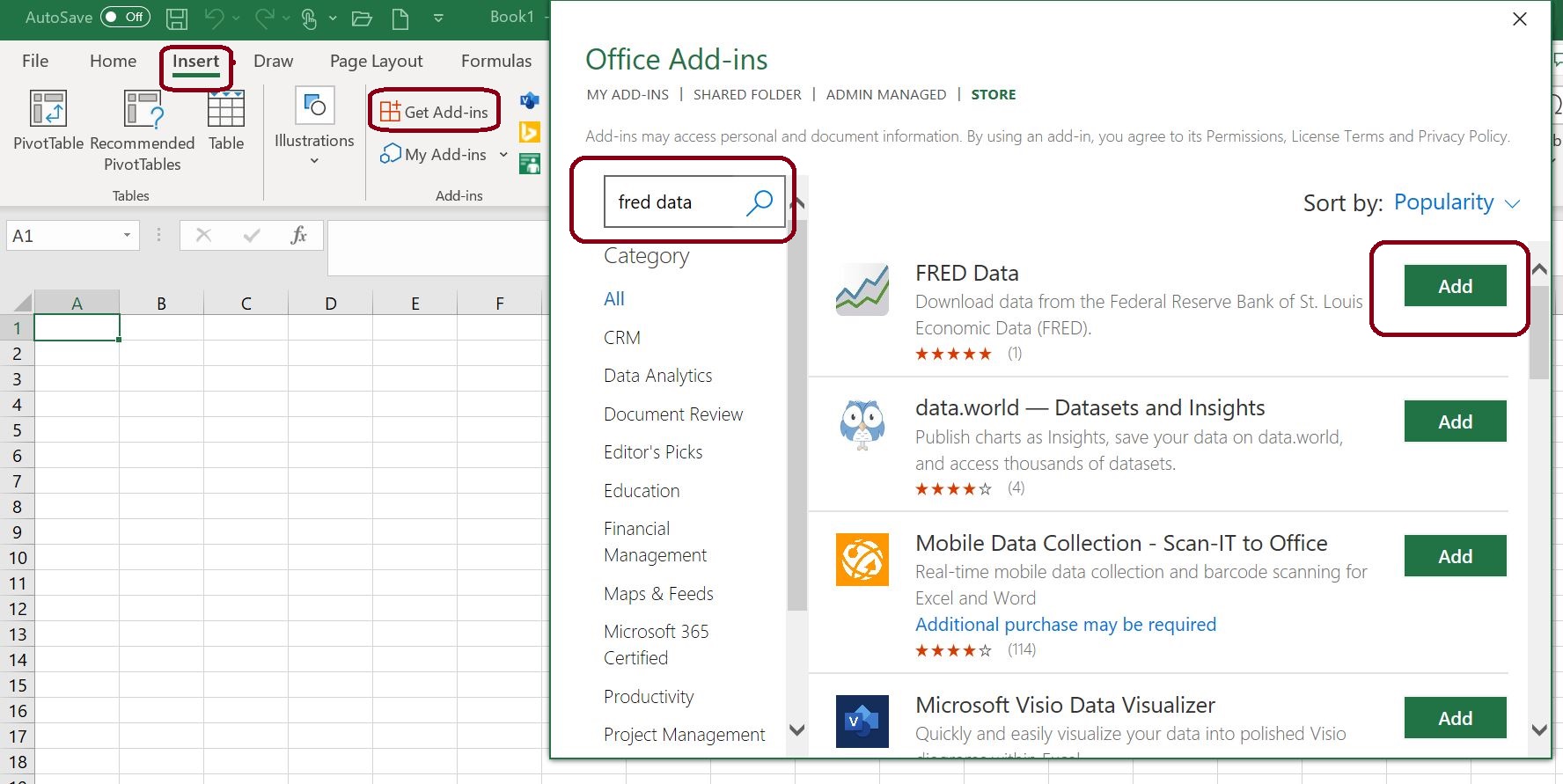
- Go to the Insert tab on the Ribbon.
- In the “Add-ins” group, click Get Add-ins (or “My Add-ins” to manage existing ones).
- Alternatively, you might find “Store” or “Add-ins” button directly on the “Home” tab or “Developer” tab.
- Browse or Search: The Office Add-ins dialog box will appear. You can browse “Recommended for you,” explore by category, or use the search bar to find a specific add-in. For example, if you’re looking for a financial data connector, you might search for “stock data” or “financial ratios.”
- Select and Add:
- Click on an add-in to read its description, reviews, and understand its functionalities.
- If you decide to install it, click the Add button.
- Review the terms and conditions if prompted, and click Continue.
- Using the Add-in: Once installed, the add-in will typically appear as a new button on the Ribbon (often under the “Home” or “Insert” tab), or it might open directly as a task pane on the side of your Excel window. For instance, an add-in like “Microsoft Forms” might appear as a new option to insert a form.
Installing Traditional Excel Add-ins (.xla or .xlam Files)
These are often locally stored files that you’ve downloaded or received. They require a slightly different approach.
- Obtain the Add-in File: Ensure you have the
.xlaor.xlamfile saved to a known location on your computer. A good practice is to create a dedicated folder for Excel add-ins (e.g.,C:UsersYourUserDocumentsExcel Add-ins) to keep them organized. - Open Excel: Start Excel.
- Access Excel Add-ins Dialog:
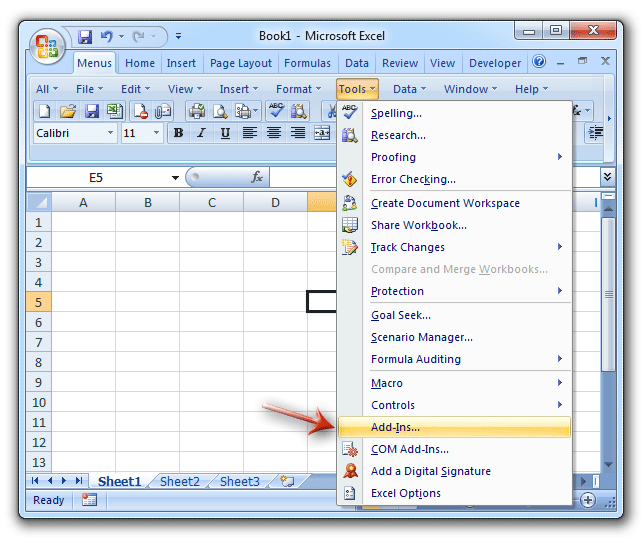
- Go to File > Options > Add-ins.
- In the “Manage:” dropdown, select Excel Add-ins, then click Go….
- Browse for the Add-in:
- In the “Add-ins” dialog box, click the Browse… button.
- Navigate to the folder where you saved your
.xlaor.xlamfile. - Select the file and click OK.
- Activate the Add-in:
- The add-in’s name should now appear in the “Add-ins available” list.
- Ensure the checkbox next to the add-in’s name is checked.
- Click OK.
The add-in is now installed and active. Its functions or custom ribbons will appear in your Excel interface. For instance, the “Analysis ToolPak” (a built-in Excel add-in) will make its data analysis tools available under the “Data” tab.
Managing COM Add-ins for System-Level Integrations
COM add-ins are usually installed as part of a software package and registered with your operating system. You typically don’t “install” them from within Excel in the same way, but you can enable or disable them.
- Open Excel: Start Excel.
- Access COM Add-ins Dialog:
- Go to File > Options > Add-ins.
- In the “Manage:” dropdown, select COM Add-ins, then click Go….
- Enable/Disable:
- The “COM Add-ins” dialog box will list all registered COM add-ins.
- Check the box next to an add-in to enable it, or uncheck it to disable it.
- Click OK.
It’s generally advised not to disable COM add-ins unless you understand their function, as they might be integral to other installed software.
Managing Your Add-ins: Troubleshooting and Best Practices
Installing add-ins is only half the battle; effective management ensures they contribute to productivity without causing issues.
Disabling, Removing, and Updating Add-ins
- Disabling: If an add-in causes performance issues or you simply don’t need it temporarily, you can disable it.
- For Office Store Add-ins: Go to Insert > My Add-ins, select the add-in, and choose “Remove” or hide it.
- For Excel Add-ins (.xla/.xlam): Go to File > Options > Add-ins > “Manage: Excel Add-ins” > Go…, then uncheck the box next to the add-in.
- For COM Add-ins: Go to File > Options > Add-ins > “Manage: COM Add-ins” > Go…, then uncheck the box.
- Removing/Uninstalling:
- Office Store Add-ins can often be permanently removed through the “My Add-ins” interface.
- For traditional Excel Add-ins, unchecking them from the “Add-ins available” list disables them, but doesn’t delete the file. To completely remove, uncheck it, then manually delete the
.xlaor.xlamfile from your hard drive. - COM Add-ins are usually uninstalled via the Windows “Apps & Features” control panel, as they are part of larger software installations.
- Updating: Office Store Add-ins usually update automatically. For traditional Excel Add-ins, you’ll need to obtain the latest
.xlamfile from the developer and replace the old one in your add-ins folder.
Common Issues and Security Considerations
- Add-in Not Showing/Working:
- Ensure it’s checked in the correct “Add-ins” dialog.
- Check for compatibility issues with your Excel version.
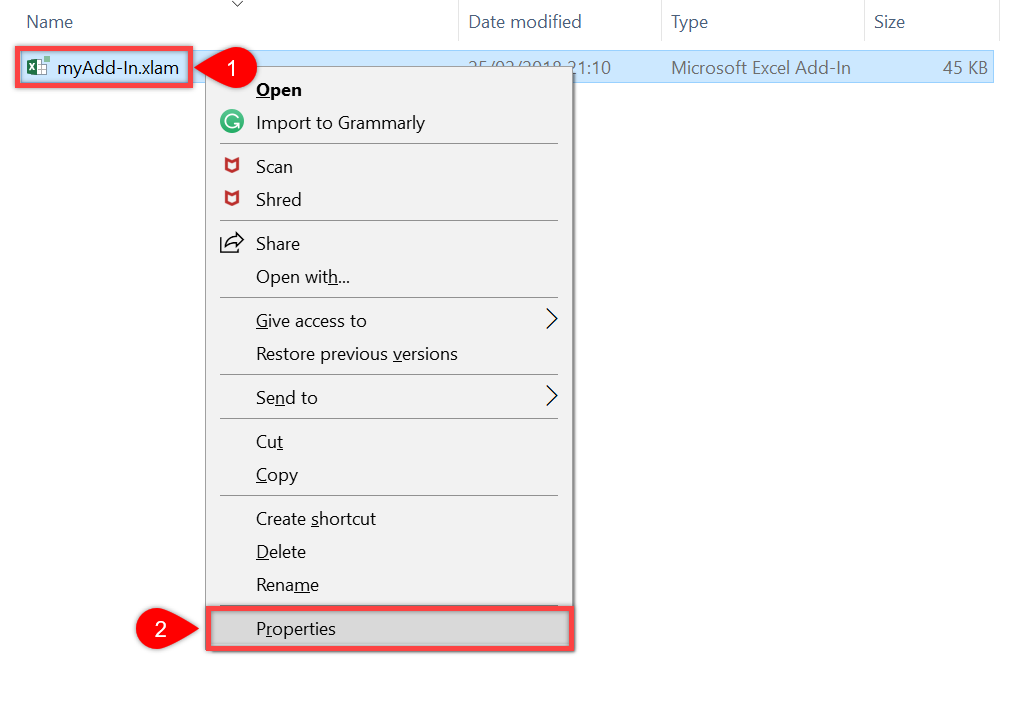
- If it’s a downloaded file, ensure it’s not blocked by Windows security. Right-click the file, go to “Properties,” and click “Unblock” if available.
- Ensure the add-in file is in a trusted location. Excel’s Trust Center settings can prevent add-ins from loading if they’re in untrusted folders.
- Performance Slowdown: Too many active add-ins, especially poorly coded ones, can slow down Excel. Disable add-ins you don’t frequently use.
- Security Risks:
- Always download add-ins from trusted sources. The official Office Store is generally safe. For
.xla/.xlamfiles, verify the developer’s reputation. - Malicious add-ins can contain viruses, steal data, or compromise your system. Exercise extreme caution. This is paramount for digital security, especially in professional environments dealing with sensitive financial or proprietary information.
- Understand the permissions an add-in requests, especially for web-based ones.
- Always download add-ins from trusted sources. The official Office Store is generally safe. For
Maximizing Productivity with Strategic Add-in Choices
The real power of Excel add-ins comes from strategically choosing those that align with your specific tasks and goals, turning your general-purpose spreadsheet into a highly specialized toolkit.
Popular Add-ins for Data Analysis, Finance, and More
- Analysis ToolPak (Built-in Excel Add-in): A must-have for statistical analysis, providing tools for regression, ANOVA, sampling, and more. Essential for anyone involved in data-driven decision-making.
- Solver (Built-in Excel Add-in): An optimization tool that finds optimal values for formulas by adjusting certain variables, subject to constraints. Invaluable for operations research, financial modeling, and resource allocation.
- Power Query & Power Pivot (Built-in to modern Excel versions, but sometimes listed as COM add-ins): Transformative tools for data import, cleaning, shaping, and building robust data models. Crucial for business intelligence and large-scale data analysis.
- Third-Party Financial Tools: Many add-ins from financial data providers or specialist firms offer direct access to stock prices, economic indicators, advanced valuation functions, and risk analysis tools, streamlining financial modeling and investment analysis.
- Data Visualization Add-ins: Tools that extend Excel’s charting capabilities to create more dynamic, interactive, or specialized charts (e.g., Gantt charts, waterfall charts beyond native options, geographical maps).
- Productivity Boosters: Add-ins that offer enhanced navigation, workbook management, or tools for faster formula creation and error checking.
The Long-Term Benefits of an Optimized Excel Environment
Investing time in understanding and implementing Excel add-ins offers significant long-term returns. For tech professionals, it means having a more agile and capable data environment. For finance experts, it translates to faster, more accurate financial models and insights. For branding and marketing teams, it allows for deeper analysis of market data and campaign performance.
A well-curated set of add-ins means:
- Reduced Manual Effort: Freeing up valuable time for strategic thinking rather than tedious data entry or complex formula construction.
- Increased Analytical Depth: Accessing specialized algorithms and functions that go beyond standard Excel, leading to richer insights.
- Improved Decision Making: Faster access to critical data and advanced analytical capabilities means more informed and timely business decisions.
- Professional Polish: Delivering results that are not only accurate but also visually compelling and derived from robust methodologies.
By carefully selecting and managing add-ins, you transform Excel from a simple spreadsheet application into a dynamic, personalized powerhouse, capable of tackling virtually any data challenge. This strategic approach to software utilization reinforces a brand’s commitment to efficiency and innovation, whether it’s a personal brand or a corporate entity.
In conclusion, Excel add-ins are more than just optional extras; they are vital components for anyone looking to maximize their productivity and analytical prowess within Excel. By understanding the different types, following the proper installation steps, and adhering to best practices for management and security, you can unlock a new realm of possibilities, making your work more efficient, accurate, and impactful across technology, finance, and branding domains. Start exploring the world of Excel add-ins today, and transform your data experience.
aViewFromTheCave is a participant in the Amazon Services LLC Associates Program, an affiliate advertising program designed to provide a means for sites to earn advertising fees by advertising and linking to Amazon.com. Amazon, the Amazon logo, AmazonSupply, and the AmazonSupply logo are trademarks of Amazon.com, Inc. or its affiliates. As an Amazon Associate we earn affiliate commissions from qualifying purchases.