
In the intricate tapestry of modern computing, where every click and scroll contributes to our digital workflow, the unassuming mouse stands as a pivotal tool. Yet, for all its apparent simplicity, the mouse relies on a critical piece of software known as a driver to unlock its full potential. Far from merely facilitating basic movement, a well-installed and updated mouse driver can be the difference between a frustrating, sluggish experience and one of seamless precision and enhanced productivity. For anyone delving into the nuances of technology, whether you’re a gamer seeking competitive edge, a designer demanding pixel-perfect accuracy, or simply a professional aiming for peak efficiency, understanding how to install and manage your mouse driver is fundamental.
This comprehensive guide will demystify the process of installing a mouse driver, taking you through various methods from the simplest plug-and-play scenarios to more advanced manual installations and troubleshooting techniques. We’ll explore why these drivers are more important than you might realize, how they enhance your experience, and provide practical steps to ensure your pointing device is always performing at its best. Drawing insights from the broader “Tech” domain, touching upon “Software,” “Gadgets,” “Digital Security,” and “Productivity,” this article aims to equip you with the knowledge to maintain an optimal computing environment.
Understanding Mouse Drivers and Their Importance
Before diving into the “how-to,” it’s essential to grasp the “why.” What exactly is a mouse driver, and why does it hold such a significant place in the performance of one of your primary input devices?
What Exactly is a Driver? The Digital Translator
At its core, a driver is a piece of software that allows your operating system (like Windows or macOS) to communicate with a specific hardware device (in this case, your mouse). Think of it as a translator. Your computer speaks one language, and your mouse speaks another. The driver acts as the interpreter, translating commands from the operating system into a language the mouse understands, and vice versa. Without this translation layer, your operating system wouldn’t know how to send signals to the mouse to move the cursor, register a click, or interpret scroll wheel movements.
For basic, generic mice, the operating system often comes pre-loaded with universal drivers that allow for fundamental functionality right out of the box—this is the plug-and-play experience. However, for more advanced mice, particularly those from specialized brands or designed for specific purposes (like gaming or professional design), these generic drivers often fall short.
Why a Dedicated Driver Matters Beyond Basic Functionality
While a generic driver will get your mouse cursor moving, a dedicated, manufacturer-specific driver unlocks a world of enhanced features, precision, and customization. This is where the true value lies, especially for users who rely on their peripherals for “Productivity” or high-performance tasks.
- Enhanced Precision and Responsiveness: Manufacturer drivers are optimized for the specific hardware, often providing superior tracking accuracy, smoother cursor movement, and reduced input lag compared to generic drivers. This can be crucial in tasks requiring fine motor control.
- Access to Advanced Features: Many modern mice come with programmable buttons, adjustable DPI (dots per inch) settings, custom polling rates, macro capabilities, and even RGB lighting customization. These features are almost always inaccessible without the manufacturer’s proprietary driver software. For gamers, this means setting up complex macros for in-game actions; for professionals, it could mean assigning productivity shortcuts to extra buttons.
- Stability and Compatibility: Dedicated drivers are designed to work seamlessly with the specific mouse model, ensuring better stability and fewer compatibility issues with your operating system or other software. They are also often updated to address bugs and improve performance.
- Firmware Updates: Beyond software drivers, some advanced mice receive firmware updates. These low-level updates, often delivered through the driver software, can fix hardware bugs, improve battery life for wireless mice, or even add new features to the mouse itself.
Ignoring the dedicated driver means settling for a fraction of your mouse’s capabilities, turning a high-performance “Gadget” into just another basic pointing device.
Types of Mice and Driver Requirements
The variety of mice available today is vast, and their driver needs can differ:
- Standard Wired/Wireless Optical Mice: These often work well with universal plug-and-play drivers included in Windows or macOS. However, even these can benefit from manufacturer drivers for minor performance tweaks or battery monitoring for wireless models.
- Gaming Mice: These “Gadgets” are perhaps the most reliant on dedicated drivers. Brands like Logitech, Razer, SteelSeries, and Corsair provide sophisticated software suites (e.g., Logitech G HUB, Razer Synapse) that allow for extensive customization of DPI, button mapping, RGB lighting, surface calibration, and macro creation. Without these drivers, a high-end gaming mouse is essentially a basic, expensive mouse.
- Ergonomic/Productivity Mice: Designed for comfort and efficiency (e.g., Logitech MX Master series, Microsoft Sculpt Ergonomic Mouse), these often feature unique button layouts, scroll wheels, and gestures. Their drivers enable these specialized functions and allow users to tailor them to their “Productivity” workflows.
- Trackballs and Specialty Pointers: Devices like trackballs or pen mice also rely heavily on specific drivers to enable their unique input methods and customizable features.
Understanding the type of mouse you have is the first step in determining the best approach to driver installation and management.
Step-by-Step Guide to Installing a Mouse Driver
Installing a mouse driver can range from an entirely automatic process to a more hands-on manual procedure. We’ll cover the most common methods, applicable to both Windows and macOS users where appropriate.
Method 1: The Plug-and-Play Approach (Automatic Installation)
This is the simplest and most common scenario for many generic mice.
- Connect Your Mouse: Simply plug your USB mouse into an available USB port on your computer, or if it’s a wireless mouse, plug in its USB receiver (dongle) or ensure Bluetooth is enabled and the mouse is in pairing mode.
- Wait for Automatic Detection: Your operating system (Windows, macOS, Linux) should automatically detect the new hardware. You’ll often see a notification like “Installing device driver software” or “Device setup complete.”
- Basic Functionality: Within moments, your mouse should be operational with basic movement, left-click, right-click, and scrolling capabilities.
This method works because modern operating systems come with a vast library of generic drivers for common hardware types. While convenient, remember that this usually only provides fundamental functionality.
Method 2: Utilizing Windows Update or macOS Software Update
Operating systems are intelligent enough to often find and install more specific drivers through their update mechanisms.
- For Windows Users:
- Connect your mouse.
- Go to Settings (Windows Key + I).
- Navigate to Update & Security > Windows Update.
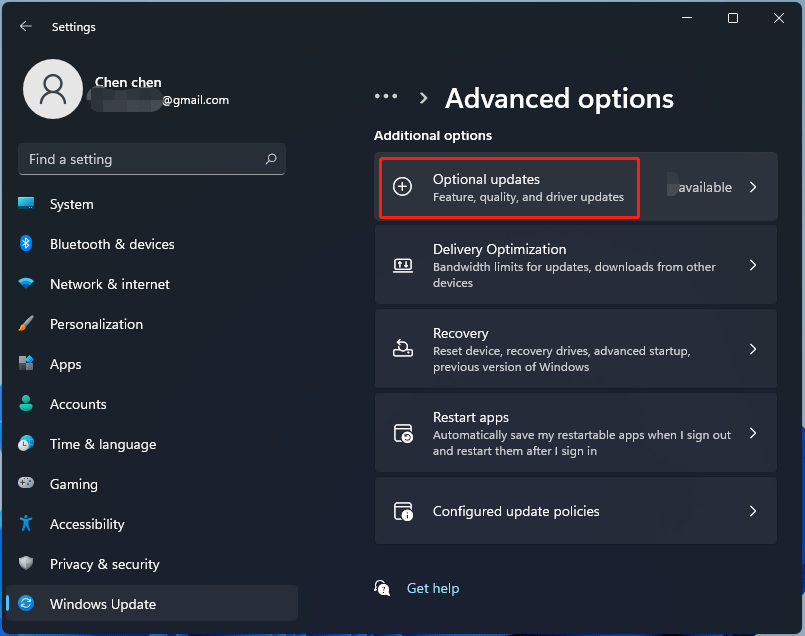
- Click Check for updates. Windows will scan for available updates, which often include hardware drivers. If a more suitable driver for your mouse is found, it will be downloaded and installed automatically. You might find drivers under “Optional updates” in Windows 10/11.
- For macOS Users:
- Connect your mouse (if it’s a USB or Bluetooth device).
- Go to Apple menu > System Settings (or System Preferences on older macOS versions).
- Click General > Software Update. macOS automatically checks for system updates, which frequently include driver updates for connected peripherals.
This method is reliable for ensuring you have a relatively up-to-date driver, especially if the manufacturer collaborates closely with Microsoft or Apple.
Method 3: Downloading from the Manufacturer’s Official Website
This is the recommended method for advanced mice, gaming mice, or if you’re experiencing issues with automatic installations. It’s also crucial from a “Digital Security” standpoint to only download drivers from trusted sources.
- Identify Your Mouse Model: Look for the brand and specific model number on the mouse itself, its packaging, or documentation.
- Visit the Official Manufacturer Website: Go directly to the support or downloads section of the mouse manufacturer’s official website (e.g., Logitech, Razer, Microsoft, Corsair, SteelSeries, HP, Dell). Avoid third-party driver sites, as these can often host outdated or malicious software, posing a serious “Digital Security” risk.
- Locate Driver/Software Downloads: Search for your specific mouse model. You’ll typically find a section for “Drivers,” “Software,” “Support,” or “Downloads.”
- Download the Correct Driver: Ensure you download the driver compatible with your operating system (Windows 10/11, macOS Ventura, etc.) and its architecture (32-bit or 64-bit, though most modern systems are 64-bit).
- Run the Installer: Once downloaded, locate the executable file (e.g.,
.exefor Windows,.dmgor.pkgfor macOS) and run it. Follow the on-screen prompts, which usually involve accepting terms, choosing an installation directory, and restarting your computer if prompted. - Install Supplemental Software: Many manufacturers bundle their drivers with advanced configuration software (e.g., Logitech G HUB, Razer Synapse). Install this software to unlock customization options like DPI adjustments, macro programming, and lighting controls.
This method ensures you get the latest, most feature-rich, and secure driver directly from the source.
Method 4: Manual Installation or Update via Device Manager (Windows)
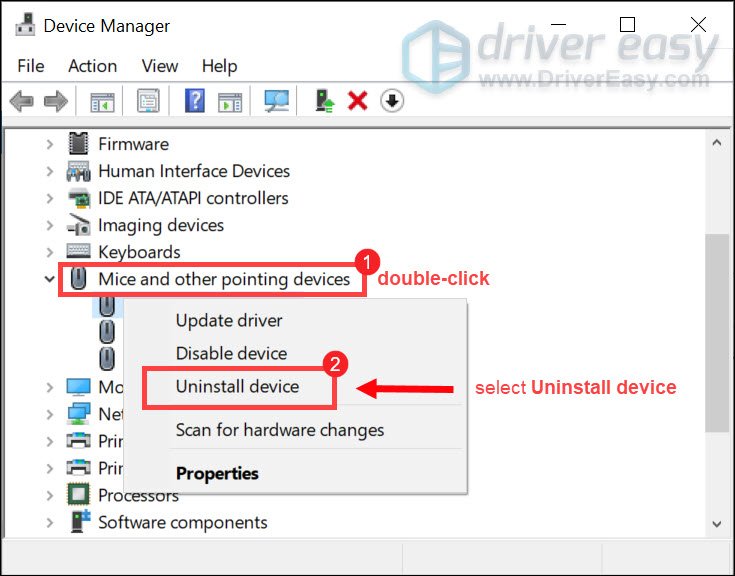
The Device Manager is a powerful tool in Windows for managing all your hardware, including mice. This method is useful for updating existing drivers, rolling back drivers, or installing a driver from a downloaded file when an automatic installer isn’t available.
- Open Device Manager:
- Right-click the Start button and select Device Manager.
- Alternatively, type “Device Manager” into the Windows search bar and open it.
- Locate Your Mouse: Expand the “Mice and other pointing devices” category. You should see your mouse listed, often by its brand name (e.g., “Logitech HID-compliant G Mouse”) or as “HID-compliant mouse.”
- Update Driver Software:
- Right-click on your mouse entry and select Update driver.
- You’ll be given two options:
- Search automatically for drivers: Windows will attempt to find a newer driver online. This is similar to Windows Update but focused solely on this device.
- Browse my computer for drivers: Select this if you have downloaded a driver file (often a
.inffile or a folder containing driver components) from the manufacturer’s website. You’ll then navigate to the folder where you saved the driver files.
- Uninstall and Reinstall Driver (Troubleshooting): If your mouse isn’t working correctly, sometimes uninstalling the driver and letting Windows reinstall it is the best solution.
- Right-click on your mouse entry and select Uninstall device.
- If prompted, check “Delete the driver software for this device” (use with caution, only if you have a replacement driver ready or want to force a fresh install).
- Click Uninstall.
- Once uninstalled, disconnect and reconnect your mouse. Windows should automatically detect it and attempt to reinstall a generic driver. You can then proceed with Method 3 or update via Device Manager.
- Roll Back Driver (Troubleshooting): If a new driver update causes issues, you can revert to a previous version.
- Right-click on your mouse entry and select Properties.
- Go to the Driver tab.
- If available, click Roll Back Driver. This will revert to the previously installed driver.
Method 5: For macOS Users (System Settings and Manufacturer Apps)
While macOS handles most drivers automatically, some manufacturers provide dedicated applications for advanced mice.
- System Settings (Accessibility/Mouse): For basic adjustments, go to Apple menu > System Settings > Mouse. Here you can adjust tracking speed, scrolling speed, and primary click button.
- Manufacturer Apps: Similar to Windows, high-end mice (like those from Logitech) often come with macOS-compatible software (e.g., Logitech Options+, Logitech G HUB for gaming mice).
- Download these applications directly from the manufacturer’s macOS support page.
- Install the application and use it to customize buttons, gestures, DPI, and other advanced features.
- You may need to grant accessibility permissions to these apps in System Settings > Privacy & Security > Accessibility for them to function correctly.
Troubleshooting Common Mouse Driver Issues
Even with the best intentions, driver installations can sometimes go awry. Here’s how to address some common problems.
When Your Mouse Isn’t Responding
- Check Physical Connections: Ensure the mouse is firmly plugged into a USB port. For wireless mice, check the USB receiver, battery levels, and ensure the mouse is turned on and paired. Try a different USB port.
- Restart Your Computer: A simple restart can often resolve temporary glitches or complete a pending driver installation.
- Reinstall the Driver: Go to Device Manager (Windows) or disconnect/reconnect (macOS) to force a reinstallation of the generic driver, then follow Method 3 or 4 for a specific driver.
- Test on Another Computer: If possible, test your mouse on another computer. If it works there, the issue likely lies with your original computer’s software or USB ports. If it doesn’t work, the mouse itself might be faulty.
Resolving Lag or Unresponsiveness
- Update the Driver: Outdated drivers are a common cause of performance issues. Follow Method 2 or 3 to ensure you have the latest version.
- Check for Driver Conflicts: Sometimes, conflicting software or drivers can interfere. In Device Manager (Windows), look for any devices with yellow exclamation marks, indicating a problem.
- Adjust Polling Rate (Gaming Mice): High polling rates (how often the mouse reports its position to the computer) can sometimes cause issues on older or less powerful systems. Check your mouse software to lower the polling rate if applicable.
- Clean Mouse Sensor: A dirty optical/laser sensor can lead to erratic movement. Clean it gently with a cotton swab.
Dealing with Error Messages During Installation
- Compatibility Issues: Ensure you downloaded the correct driver for your operating system version and architecture (32-bit vs. 64-bit).
- Corrupted Download: If the driver file was corrupted during download, delete it and download it again from the official source.
- Administrator Privileges: Ensure you have administrator rights on your computer to install drivers. Right-click the installer and choose “Run as administrator.”
- Antivirus Interference: Temporarily disable your antivirus software during installation if it’s flagging the driver as a threat (re-enable immediately after installation, and ensure the driver source is trustworthy).
Optimizing Your Mouse Experience: Beyond Basic Drivers
Installing the driver is just the first step. To truly get the most out of your mouse, you need to engage with the features that dedicated drivers unlock. This goes beyond basic functionality, impacting your “Productivity” and overall user experience significantly.
Leveraging Manufacturer Software for Customization
Modern mice, especially those designed for gaming or professional use, come alive with their companion software. These applications are often bundled with the driver download and provide an intuitive interface for deep customization:
- DPI/Sensitivity Adjustment: Precisely control cursor speed. Gamers can switch between high DPI for fast turns and low DPI for precise sniping, while designers can adjust for fine detail work.
- Button Re-mapping and Macros: Assign custom functions, keyboard shortcuts, or complex sequences of commands (macros) to extra mouse buttons. This is a massive “Productivity” booster, allowing you to trigger multi-step actions with a single click. For example, a video editor could map “cut,” “paste,” and “undo” to side buttons.
- Profile Management: Create different profiles for various applications or games. Your mouse settings can automatically change when you launch Photoshop, then switch again when you open your favorite game.
- RGB Lighting Control: Personalize your mouse’s aesthetics with custom colors and effects, syncing with other “Gadgets” in your setup.
- Surface Calibration: Some high-end gaming mice allow you to calibrate the sensor to your specific mouse pad for optimal tracking performance.
Investing a little time in exploring these software options can dramatically transform your interaction with your computer.
Keeping Your Drivers Updated for Peak Performance and Security
Driver updates aren’t just about new features; they’re also crucial for “Digital Security” and system stability.
- Bug Fixes and Performance Improvements: Manufacturers constantly release updates to address bugs, improve tracking algorithms, and optimize performance.
- Security Patches: Just like operating systems, drivers can have vulnerabilities. Updates often include patches to close these security holes, protecting your system from potential exploits.
- Compatibility with New OS Features: As operating systems evolve, drivers are updated to ensure full compatibility with new features and changes, preventing unexpected behavior or lost functionality.
Make it a habit to periodically check the manufacturer’s website for driver updates, or utilize the update features within their companion software. Many such applications even offer automatic update notifications.
The Impact of a Well-Configured Mouse on Productivity
It might seem trivial, but a mouse that is perfectly configured to your needs can have a profound impact on your “Productivity.”
- Reduced Strain: Optimized sensitivity and ergonomic designs, combined with custom button layouts, can reduce repetitive strain and discomfort during long computing sessions.
- Increased Efficiency: Custom macros and button assignments eliminate repetitive keyboard shortcuts or menu navigation, allowing you to execute commands faster and more smoothly.
- Enhanced Precision: For tasks like graphic design, CAD work, or competitive gaming, superior tracking precision and control directly translate to better outcomes and less frustration.
- Personalized Workflow: Tailoring your mouse to your specific tasks creates a more intuitive and efficient interaction with your computer, integrating seamlessly into your personal workflow.
Conclusion: The Unseen Hero of Your Digital Workflow
The mouse driver, often an invisible component of our computing experience, is far more than a simple piece of software. It is the crucial link that empowers our primary pointing device, transforming it from a basic cursor mover into a highly customizable, precise, and productivity-enhancing tool. From ensuring fundamental functionality to unlocking advanced features, precise calibration, and robust security, understanding how to install and manage your mouse drivers is an essential skill for any modern computer user.
By following the systematic methods outlined in this guide—whether it’s the simplicity of plug-and-play, the reliability of system updates, or the comprehensive control offered by manufacturer downloads and Device Manager—you can ensure your mouse consistently performs at its peak. Furthermore, embracing the customization options available through dedicated driver software can significantly elevate your digital workflow, enhancing efficiency, comfort, and precision across all your tasks. Don’t underestimate the power of a well-driven mouse; it truly is an unseen hero in the landscape of your digital life.
aViewFromTheCave is a participant in the Amazon Services LLC Associates Program, an affiliate advertising program designed to provide a means for sites to earn advertising fees by advertising and linking to Amazon.com. Amazon, the Amazon logo, AmazonSupply, and the AmazonSupply logo are trademarks of Amazon.com, Inc. or its affiliates. As an Amazon Associate we earn affiliate commissions from qualifying purchases.