
The Nintendo 3DS, a groundbreaking handheld console that brought stereoscopic 3D gaming without glasses to the masses, holds a special place in the hearts of many gamers. Despite being discontinued, its extensive library of titles remains highly coveted. For enthusiasts who have taken the plunge into modding their 3DS, a whole new world of possibilities opens up, especially when it comes to game management and installation. This guide will walk you through the process of installing 3DS games on your modded console, ensuring you can continue to enjoy its fantastic catalog for years to come.

Modding your 3DS (installing custom firmware, or CFW) transforms it from a closed ecosystem into a remarkably versatile handheld. It allows for region-free gaming, custom themes, homebrew applications, emulators, and crucially, the ability to install digital game backups directly to your system’s SD card. This eliminates the need for physical cartridges and provides a streamlined gaming experience. However, it’s essential to approach this process with a clear understanding of the steps involved and the tools required. Our focus here is on leveraging the most common and effective methods for getting your desired 3DS titles onto your modified device.
Before diving into the technicalities, a word of caution: modifying your console carries inherent risks, including the potential to “brick” your device if not performed correctly. Always follow reputable guides for the initial modding process, and ensure you have made all necessary backups. This guide assumes your 3DS is already successfully modded with custom firmware like Luma3DS and that you have a basic familiarity with its operation. Furthermore, the discussion around acquiring game files is for informational purposes related to managing backups of games you already own.
Essential Tools and Preparation for Game Installation
Successfully installing 3DS games on a modded console hinges on having the right setup and understanding the foundational components. This section covers everything you need to prepare before you begin transferring and installing games.
Your Modded 3DS and SD Card
The cornerstone of this entire operation is, of course, your modded Nintendo 3DS console. It should be running stable custom firmware, with Luma3DS being the most prevalent and recommended choice. Luma3DS provides the underlying framework that allows your console to run unsigned code, including the homebrew applications necessary for game installation. If your console isn’t modded yet, you’ll need to follow a comprehensive guide like those found on 3ds.hacks.guide before proceeding with this article.
Equally critical is a high-quality SD card. Modern 3DS game installations can be quite large, with many titles exceeding 1GB. Considering you’ll likely want to install multiple games, a minimum of 32GB is recommended, with 64GB or 128GB offering significantly more breathing room. Using a reputable brand (e.g., SanDisk, Samsung, Kingston) is advisable to ensure reliability and speed. The SD card should be formatted to FAT32, which is the standard file system for the 3DS. For cards larger than 32GB, you might need a third-party formatting tool on your computer as Windows’ built-in utility may not offer FAT32 for larger drives.
Understanding CIA Files and Acquiring Game Backups
The primary format for installing 3DS games directly onto your console’s home screen is the .CIA file. CIA stands for “CTR Importable Archive,” where CTR is Nintendo’s internal code name for the 3DS. These files are essentially packages that contain the game data, metadata, and instructions for installation, making them directly installable onto your system. Once installed, a CIA file behaves just like a game downloaded from the eShop, appearing on your home screen and launching seamlessly.
When it comes to acquiring .CIA files, it’s important to differentiate between legal and ethical practices. This guide is written with the understanding that users are creating or using backups of games they legally own. Various tools exist within the homebrew community to dump cartridges or eShop titles you possess into .CIA format. However, discussing specific sources for pre-made .CIA files that circumvent ownership is outside the scope of this tutorial and our website’s ethical guidelines. We encourage users to respect copyright laws and support game developers.
Setting Up FBI: Your Essential Installer
FBI is arguably the most indispensable homebrew application for a modded 3DS. It’s a robust file manager and installer specifically designed for custom firmware, allowing you to manage files on your SD card, install .CIA files, and much more. If you’ve followed a standard 3DS modding guide, FBI is typically installed very early in the process and should be accessible from your 3DS home menu. It usually appears as a red icon with a white ‘F’ or a similar distinctive logo.
If, for some reason, FBI is not installed on your system, you would need to acquire its .CIA file (from a reputable source like its GitHub page) and install it using another method, such as the Universal Updater or by placing it in the cias folder on your SD card and using a basic installer if one exists. However, for the vast majority of modded consoles, FBI is already present. Ensure your version of FBI is reasonably up-to-date, as newer versions often come with bug fixes and improved compatibility.
Step-by-Step Installation Guide Using FBI
With your modded 3DS ready, a properly formatted SD card, and an understanding of CIA files, you’re now equipped to begin the installation process. This section provides a detailed, step-by-step walkthrough using FBI, the most common and versatile installation method.
Transferring CIA Files to Your SD Card
The first practical step is to get your desired .CIA game files from your computer onto your 3DS’s SD card.
- Power off your 3DS: Always eject the SD card only when the console is completely powered down.
- Remove the SD card: Depending on your 3DS model, the SD card slot is usually on the side or under the backplate.
- Insert the SD card into your computer: Use an SD card reader if your computer doesn’t have a built-in slot.
- Create a dedicated folder: On the root of your SD card, it’s good practice to create a folder specifically for your .CIA files. You can name it something descriptive like
cias,games, orinstall. This helps keep your SD card organized. - Copy your .CIA files: Drag and drop the
.CIAgame files from your computer into the folder you just created on the SD card. - Safely eject the SD card: Once all files have been transferred, safely eject the SD card from your computer to prevent data corruption.
- Reinsert the SD card into your 3DS: Ensure it clicks securely into place.
- Power on your 3DS.
Launching FBI on Your 3DS
Once your 3DS is powered on and the SD card is back in, navigate to your home menu and find the FBI application. Its icon might be on a different page depending on how many applications you have. Tap on the FBI icon to launch it. You’ll typically be greeted with a menu displaying various options, allowing you to browse different locations and perform actions.
Navigating FBI and Installing Games
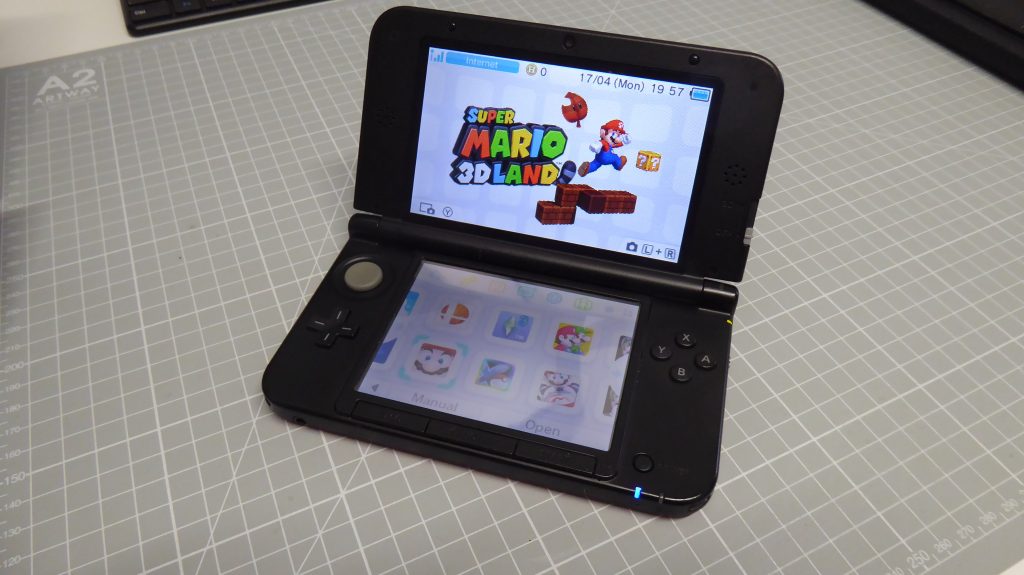
Within FBI, you’ll need to navigate to the location where you stored your .CIA files.
- Select
SD: From FBI’s main menu, select theSDoption. This tells FBI to browse the contents of your SD card. - Navigate to your CIA folder: Browse through the folders until you find the directory where you placed your
.CIAfiles (e.g.,SD:/cias/). - Select the .CIA file: Once inside the folder, you’ll see a list of your
.CIAgame files. Use the D-pad or touchscreen to highlight the game you wish to install. - Choose
Install CIAorInstall and delete CIA:Install CIA: This option will install the game to your 3DS’s system memory while leaving the original.CIAfile on your SD card. This is useful if you want to keep the backup.CIAfile for future re-installations or other purposes.Install and delete CIA: This option is highly recommended to save space on your SD card. It installs the game and then automatically deletes the.CIAfile from your SD card after successful installation. Since the game is now installed to your system, the.CIAfile is no longer needed on the SD card unless you plan to transfer it or store it as a backup.
- Confirm installation: FBI will display a confirmation prompt. Select “Yes” to begin the installation.
- Wait for completion: The installation process can take anywhere from a few seconds to several minutes, depending on the game’s size and your SD card’s speed. Do not turn off your 3DS or remove the SD card during this time.
- Installation successful: Once complete, FBI will display a message indicating successful installation. Press “A” or “B” to dismiss the message.
- Repeat for other games: You can repeat this process for any other
.CIAfiles you wish to install from your SD card. - Exit FBI: Once you’re done installing, press the “Home” button on your 3DS to exit FBI and return to your home menu.
Post-Installation Cleanup and Verification
After exiting FBI, you should see your newly installed game(s) appear on your 3DS home screen, often with a “New” banner. If you installed multiple games, they might appear across several pages. Take a moment to:
- Verify game presence: Scroll through your home menu to confirm all installed games are visible.
- Launch a game: Tap on a newly installed game to ensure it launches correctly. This verifies the integrity of the installation.
- Delete residual .CIA files (if not done automatically): If you chose “Install CIA” instead of “Install and delete CIA,” you might want to manually delete the
.CIAfiles from your SD card using FBI’s file browser (navigate to the.CIAfile, select it, then choose “Delete”) or by re-inserting your SD card into your computer and deleting them there. This frees up valuable space on your SD card, as the installed game now resides in a different partition managed by the 3DS system.
Alternative Installation Methods: Network and QR Code (FBI)
While transferring .CIA files via SD card is the most common method, FBI offers advanced functionalities that can be incredibly convenient, especially if you’re installing many games or prefer not to constantly remove your SD card.
Installing via Network Stream (FBI)
FBI includes a feature that allows you to install .CIA files directly from your computer over your local network, bypassing the need to remove the SD card. This requires a bit of setup on your computer.
- Computer Setup: You’ll need a way to serve files over HTTP on your local network. Simple HTTP server software or even a Python one-liner (
python -m http.server 8000) can achieve this. Place your.CIAfiles in the directory being served. - On your 3DS (FBI):
- Select the
Remote Installoption from FBI’s main menu. - Choose
HTTPorURLdepending on the exact setup. - You’ll then input the IP address of your computer and the port number your HTTP server is using (e.g.,
http://192.168.1.100:8000/). - Once connected, FBI will list the
.CIAfiles available on your server, and you can select them for installation in the same way you would from the SD card.
- Select the
This method is particularly efficient for bulk installations or when you have a constantly evolving library of games you want to try without repeatedly opening your 3DS’s SD card slot.
Installing via QR Code (FBI)
Another incredibly convenient feature of FBI is QR code installation. Many homebrew repositories and community sites provide QR codes for .CIA files.
- Find a QR Code: On your computer or another device, locate a QR code corresponding to the
.CIAfile you wish to install. (Again, this relates to legally acquired game backups). - On your 3DS (FBI):
- Select the
Remote Installoption from FBI’s main menu. - Choose
QR CodeorScan QR Code. - Your 3DS’s camera will activate. Position your 3DS so the camera can clearly see the QR code on your other device’s screen.
- FBI will scan the code, automatically download the
.CIAfile from the associated URL, and then prompt you to install it. - Confirm the installation, and FBI will handle the rest, just like with local
.CIAfiles.
- Select the
This method is exceptionally fast and eliminates any file transfer steps for the user, making it ideal for quick installations of individual titles or updates.
Common Issues and Best Practices
While installing games on a modded 3DS is generally straightforward, you might encounter a few hiccups. Knowing how to troubleshoot and adhere to best practices will ensure a smooth and enjoyable experience.
Troubleshooting Common Installation Issues
- “Failed to install CIA” Error: This is one of the most frequent errors.
- Insufficient Space: The most common cause. Check your system settings to ensure you have enough free space on your console’s internal memory (or the portion allocated for eShop titles, which is where CIAs install). Remember that game sizes can be misleading; they might require more temporary space during installation.
- Corrupt CIA File: The
.CIAfile itself might be corrupted during download or transfer. Try re-downloading the file from a reliable source or verifying its integrity if possible. - SD Card Issues: A faulty or slow SD card can cause installation failures. Ensure your SD card is genuine, formatted correctly (FAT32), and not showing signs of corruption.
- Outdated FBI/CFW: Ensure your FBI application and Luma3DS custom firmware are up to date. Outdated versions might have bugs or compatibility issues with newer games or system updates.
- Games Not Appearing on Home Menu:
- Installation Incomplete: The installation might have failed without a clear error message. Try reinstalling the game.
- SD Card Not Seated Properly: Re-seat your SD card firmly and reboot the console.
- Reboot Your 3DS: Sometimes, a simple reboot of the console is all it takes for newly installed titles to appear.
- Slow Installation Speeds: This is usually attributable to a slow SD card. Investing in a high-speed, reputable brand SD card can significantly improve installation times and overall system performance.
Best Practices for a Smooth Experience
- Keep Your CFW and FBI Updated: Regular updates to Luma3DS and FBI bring performance improvements, bug fixes, and compatibility with new system versions or game releases. Check for updates periodically via the Universal Updater application on your 3DS.
- Backup Your NAND: Your NAND (internal memory) backup is your ultimate safety net. If something goes wrong during a CFW update or complex modification, a recent NAND backup can save your console from being bricked.
- Use a High-Quality SD Card: As mentioned, a reliable and fast SD card prevents many headaches related to performance and data integrity.
- Organize Your SD Card: Keep your
.CIAfiles in a dedicated folder. This makes finding and managing them much easier within FBI. - Understand Regional Limitations (Mostly Bypassed by CFW): While CFW generally makes your 3DS region-free, very occasionally, a specific game or update might have a minor compatibility quirk. These are rare but good to be aware of.
- Responsible Sourcing and Ethical Use: Always prioritize obtaining game backups from titles you legally own. Supporting developers ensures the continued creation of great games.
- Avoid Overloading Your SD Card: While large SD cards are great, having hundreds of games can sometimes slow down the home menu’s loading times slightly. Balance your library with what you actively play.
Conclusion
Installing 3DS games on your modded console is a straightforward process once you understand the tools and steps involved. By preparing your SD card, leveraging the powerful capabilities of FBI, and following the outlined installation methods, you unlock the full potential of your Nintendo 3DS. Whether you prefer the classic method of transferring files directly to your SD card or the modern convenience of network and QR code installations, your modded 3DS becomes a versatile platform for enjoying its vast and beloved game library without the constraints of physical media.
This guide provides you with the knowledge to efficiently manage your digital game collection, enhancing your gaming experience. Remember to always proceed with caution, keep your software updated, and adhere to best practices for a stable and secure modded system. The world of 3DS gaming, in all its modded glory, awaits!
aViewFromTheCave is a participant in the Amazon Services LLC Associates Program, an affiliate advertising program designed to provide a means for sites to earn advertising fees by advertising and linking to Amazon.com. Amazon, the Amazon logo, AmazonSupply, and the AmazonSupply logo are trademarks of Amazon.com, Inc. or its affiliates. As an Amazon Associate we earn affiliate commissions from qualifying purchases.