
In the ever-evolving landscape of technology, maintaining a nimble, responsive, and secure operating system is paramount for both productivity and peace of mind. While regular updates and software cleanups can keep your Windows 10 system running smoothly, there comes a time when a more drastic, yet incredibly effective, solution is needed: a clean install. This comprehensive guide will walk you through every step of performing a clean installation of Windows 10, transforming a sluggish, bug-ridden machine into a finely tuned, high-performance powerhouse.
Why a Clean Install is Your System’s Best Friend
A clean installation of Windows 10 involves completely erasing your hard drive and installing a fresh copy of the operating system. Think of it as hitting the reset button on your computer. While the thought of wiping everything might seem daunting, the benefits far outweigh the initial effort, especially for those who value digital security, productivity, and the latest tech trends.

Reclaiming Performance and Stability
Over time, your Windows installation accumulates digital clutter: remnants of uninstalled programs, temporary files, old drivers, and registry errors. This digital “cruft” can bog down your system, leading to slower boot times, unresponsive applications, and general sluggishness. A clean install eliminates all this baggage, providing a pristine environment where Windows 10 can operate at its peak efficiency. You’ll notice snappier performance, faster load times, and a more responsive user experience, making your daily tasks feel effortless. For professionals and casual users alike, this regained performance translates directly into increased productivity and less frustration.
Eradicating Stubborn Issues and Malware
Sometimes, your computer encounters issues that simple troubleshooting can’t resolve. Persistent errors, unexplained crashes, driver conflicts, or even subtle malware infections can plague your system, making it unreliable. These deeply embedded problems can be incredibly difficult to diagnose and fix without a full system overhaul. A clean install acts as a digital exorcism, wiping away all problematic software, corrupted files, and hidden malware, leaving no trace behind. This is a critical step for ensuring your digital security and maintaining the integrity of your data against modern cyber threats. By starting fresh, you create a robust foundation, less susceptible to future attacks or system degradation.
Embracing a Fresh Start for Optimal Productivity
Beyond just fixing problems, a clean install offers the psychological and practical benefit of a fresh start. It’s an opportunity to re-evaluate your software needs, eliminate unnecessary programs that consume resources, and organize your digital workspace efficiently. Many users find themselves installing software they only use once or twice, leading to bloatware and background processes that drain performance. With a clean slate, you can selectively install only the applications you truly need, creating a streamlined and optimized environment tailored to your specific workflow. This focused approach not only boosts performance but also enhances your overall digital productivity, allowing you to concentrate on your work without digital distractions. It’s an ideal strategy for those looking to implement new productivity tools or streamline their digital life.
Essential Preparations Before You Begin
Before you embark on the journey of a clean installation, meticulous preparation is key. Skipping these crucial steps can lead to data loss or unnecessary headaches during the process. This planning phase ensures a smooth, secure, and successful transition to your newly installed Windows 10 system.
The Golden Rule: Back Up Your Data!
This cannot be stressed enough: back up all your important data! A clean install will erase everything on the drive where Windows is installed. This includes documents, photos, videos, music, applications, browser bookmarks, and any other personal files.
- External Hard Drive: The most common and reliable method. Simply drag and drop your essential folders (Documents, Pictures, Downloads, Desktop) to an external drive.
- Cloud Storage: Services like OneDrive, Google Drive, Dropbox, or iCloud offer convenient ways to back up files, especially if you have a stable internet connection. Many of these services offer generous free tiers.
- Network Attached Storage (NAS): For more advanced users or small businesses, a NAS provides a centralized, robust backup solution.
- System Image (Optional): While not necessary for a clean install, some users create a system image as an extra precaution, allowing them to revert to their old system if something goes wrong, though this would defeat the “clean” aspect.
- Application Data: Don’t forget data specific to certain applications. For example, if you have saved game progress, export it if the game doesn’t use cloud saves. Export browser bookmarks. If you use an email client like Outlook, back up your .pst or .ost files.
Take your time with this step. It’s better to spend an extra hour backing up than to lose years of memories or critical work.
Gathering Your Windows 10 Installation Arsenal
To perform a clean install, you’ll need a few essential items:
- A Valid Windows 10 Product Key (Optional but Recommended): If you already have an activated Windows 10 digital license linked to your Microsoft account, you might not need to enter a product key during installation; it will activate automatically once connected to the internet. However, having your product key handy (usually found on a sticker on your PC, in an email, or linked to your Microsoft account) is always a good idea, especially if you are changing hardware. For users who bought a standalone Windows 10 license, this key is essential.
- A USB Flash Drive (Minimum 8GB): This will be used to create your bootable Windows 10 installation media. Ensure it has no important data on it, as it will be completely formatted during the process.
- Reliable Internet Connection: You’ll need this to download the Windows 10 Media Creation Tool and potentially to download drivers and activate Windows after the installation.
- Another Working Computer (If your current one is not bootable): You’ll need a separate functioning computer to download the Media Creation Tool and create the bootable USB drive if your target computer is already experiencing severe issues or won’t boot.
Creating Your Bootable Windows 10 Installation Media
This is where you’ll turn your empty USB drive into a powerful tool capable of installing Windows 10.
-
Download the Media Creation Tool:
- Go to the official Microsoft Windows 10 download page:
https://www.microsoft.com/en-us/software-download/windows10 - Under “Create Windows 10 installation media,” click “Download tool now.”
- Save the
MediaCreationTool.exefile to your computer.
- Go to the official Microsoft Windows 10 download page:
-
Run the Media Creation Tool:
- Locate the downloaded
MediaCreationTool.exefile and double-click it. - Accept the license terms.
- On the “What do you want to do?” screen, select “Create installation media (USB flash drive, DVD, or ISO file) for another PC” and click “Next.”
- Locate the downloaded
-
Select Language, Edition, and Architecture:
- The tool will usually recommend options based on your current PC. If you’re installing on a different PC or want different options, uncheck “Use recommended options for this PC.”
- Choose your desired Language, Windows 10 Edition (e.g., Home, Pro), and Architecture (64-bit is most common for modern PCs; 32-bit for older systems with less than 4GB RAM). If unsure, choose “Both” for architecture, but this will require a larger USB drive and is generally not needed. For most users, 64-bit is the correct choice. Click “Next.”
-
Choose Media Type:
- Select “USB flash drive” and click “Next.”
-
Select Your USB Drive:
- From the list, select the USB drive you intend to use. Double-check that you are selecting the correct drive, as all data on it will be erased. Click “Next.”
-
Download and Creation:
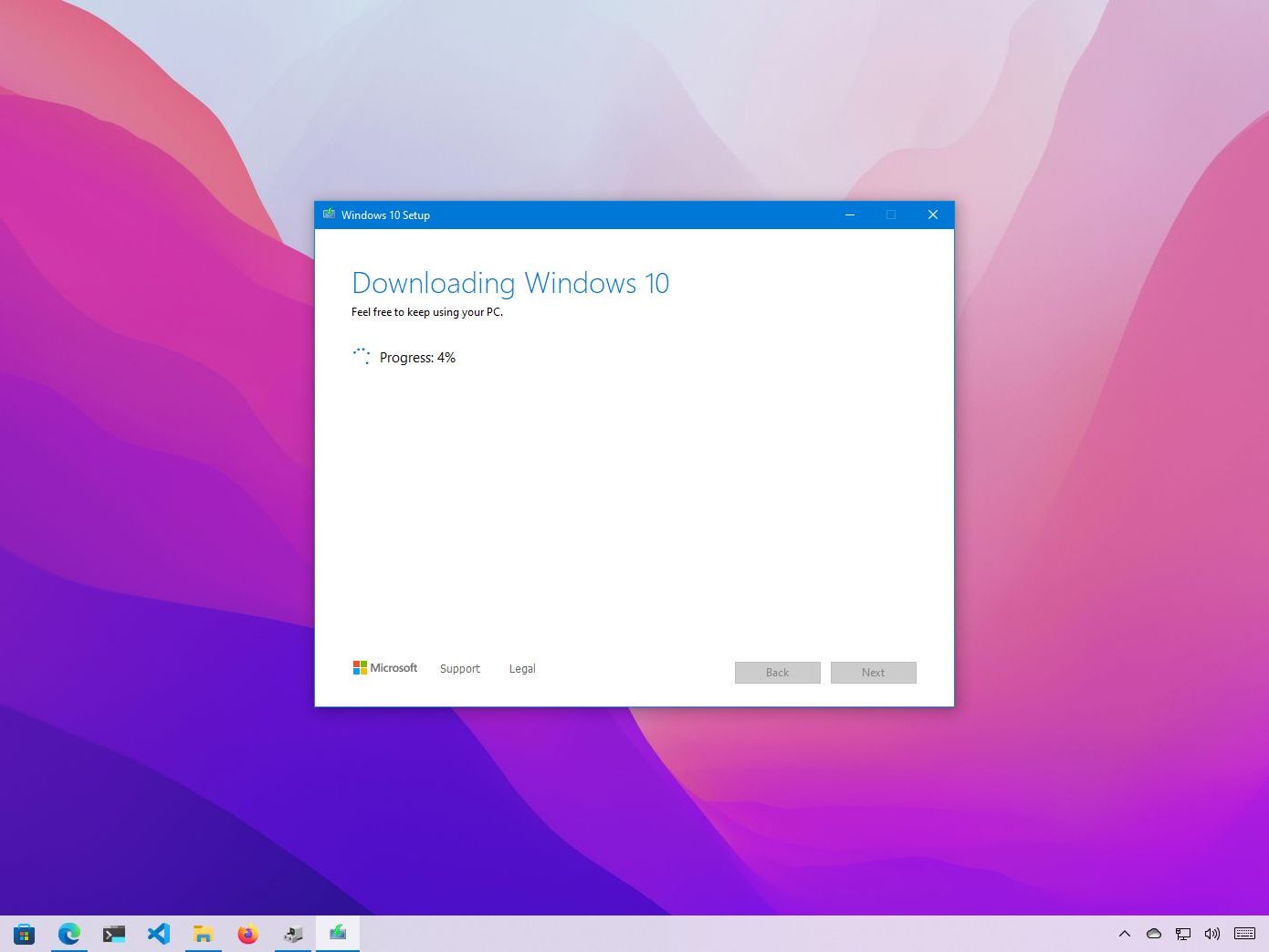
- The tool will now download the Windows 10 files and create the bootable media. This process can take some time depending on your internet speed.
- Once complete, you’ll see a message like “Your USB flash drive is ready.” Click “Finish.”
You now have a bootable Windows 10 installation media, ready for the next phase.
Navigating the Installation Process Step-by-Step
With your bootable USB drive ready, it’s time to initiate the clean installation. This involves configuring your computer to boot from the USB drive and then following the on-screen prompts to install Windows 10.

Booting from Your USB Drive
This is often the trickiest part for first-time installers, as it requires accessing your computer’s BIOS/UEFI settings.
- Insert the USB Drive: Plug your bootable Windows 10 USB flash drive into an available USB port on the computer where you want to install Windows.
- Restart Your PC: Reboot your computer.
- Access BIOS/UEFI: As soon as the computer starts, you need to repeatedly press a specific key to enter the BIOS or UEFI firmware settings. Common keys include
Del,F2,F10,F12, orEsc. The exact key varies by manufacturer (e.g., Dell, HP, Lenovo, Asus, Acer, Microsoft Surface). Look for a message on the screen during startup that indicates which key to press (e.g., “Press F2 for Setup,” “Press Del to enter BIOS”). If you miss it, restart and try again. - Change Boot Order:
- Once in the BIOS/UEFI, navigate to the “Boot” tab or “Boot Options” section.
- You’ll see a list of boot devices. You need to move your USB drive (it might be listed by its brand name or as “USB HDD” / “Removable Device”) to the top of the boot order.
- Use the arrow keys and often
F5/F6or+/-keys to reorder the devices. - Disable Secure Boot (If experiencing issues): On some newer UEFI systems, “Secure Boot” might prevent booting from external media. You might need to temporarily disable it in the “Security” or “Boot” section of your UEFI settings. Remember to re-enable it after installation for enhanced security.
- Enable Legacy Boot/CSM (If needed for older systems): If your system is older and struggling to see the USB drive, sometimes enabling “Legacy Boot” or “Compatibility Support Module (CSM)” can help, but this is rare for modern Windows 10 installations.
- Save and Exit: Save your changes (often by pressing
F10) and exit the BIOS/UEFI. Your computer should now restart and boot from the USB drive, displaying the Windows Setup screen.
Initial Setup and Partition Management
Once you’ve successfully booted from the USB drive, the graphical installation wizard will begin.
-
Windows Setup Screen:
- Select your preferred “Language to install,” “Time and currency format,” and “Keyboard or input method.” Click “Next.”
- Click “Install now.”
-
Enter Product Key (or Skip):
- If prompted, enter your Windows 10 product key.
- If you have a digital license linked to your Microsoft account, you can click “I don’t have a product key” to skip this step. Windows will automatically activate after installation once connected to the internet. Click “Next.”
-
Accept License Terms:
- Read the Microsoft Software License Terms, check “I accept the license terms,” and click “Next.”
-
Choose Installation Type:
- On the “Which type of installation do you want?” screen, select “Custom: Install Windows only (advanced).” This is the crucial step for a clean install.
-
Partition Management:
- This is the most critical part where you erase your old Windows installation. You’ll see a list of drives and partitions.
- Identify your primary drive: This is usually “Drive 0” and will contain multiple partitions like “System Reserved,” “Primary,” “Recovery,” etc.
- Delete Partitions: For a truly clean install, you should delete all partitions associated with your old Windows installation on the primary drive. Select each partition (e.g., “Drive 0 Partition 1,” “Drive 0 Partition 2,” etc.) and click “Delete.” Confirm when prompted.
- Warning: Be absolutely sure you are deleting partitions on the correct drive, especially if you have multiple hard drives or SSDs and don’t want to erase data on other drives.
- After deleting, you should be left with “Drive 0 Unallocated Space.”
- Create a New Partition (Optional but Recommended): While you can simply select the “Unallocated Space” and click “Next,” Windows will create default partitions. If you want more control, you can click “New,” specify the size for your main Windows partition (leaving some for a data partition if desired), and click “Apply.” This will create a primary partition and a small system reserved partition.
- Select the Primary Partition: Select the largest primary partition you just created (or the “Unallocated Space” if you skipped creating one) and click “Next.” This is where Windows 10 will be installed.
The Windows 10 Installation Takes Root
Once you’ve selected the destination drive, the core installation process begins.
- Copying Files: Windows will start copying files, installing features, and applying updates. This process is largely automated.
- Multiple Restarts: Your computer will restart multiple times during this phase. Do not press any keys when prompted to boot from USB again; let it boot from the internal drive to continue the installation.
- Progress Bar: You’ll see a progress bar and various messages like “Getting files ready for installation,” “Installing features,” “Installing updates,” and “Finishing up.” This can take anywhere from 15 minutes to an hour or more, depending on your system’s speed (especially the speed of your SSD/HDD).
- Initial Device Setup: After the final restart, Windows will prepare your devices and prompt you to begin the Out-of-Box Experience (OOBE).
Post-Installation Essentials for a Seamless Experience
Congratulations! Windows 10 is now installed. However, your journey isn’t quite over. There are critical steps to take to ensure your new system is fully functional, secure, and personalized to your needs.
Completing the Out-of-Box Experience (OOBE)
The OOBE guides you through the final setup steps for your new Windows 10 installation:
- Region and Keyboard Layout: Select your country/region and your preferred keyboard layout. You can add a second keyboard layout if needed.
- Connect to a Network: Connect to your Wi-Fi or plug in an Ethernet cable. An internet connection is crucial for activation, updates, and linking your Microsoft account.
- Account Setup:
- Microsoft Account: Windows will encourage you to sign in with or create a Microsoft account. This links your digital license, OneDrive, and other Microsoft services. It’s generally recommended for a full Windows 10 experience.
- Offline Account (Local Account): If you prefer not to use a Microsoft account, look for an option like “Offline account” or “Skip for now” (the wording changes with Windows versions). You can always switch to a Microsoft account later.
- PIN Creation: Windows will prompt you to create a PIN for faster and more secure sign-ins.
- Privacy Settings: Review the privacy settings (location, speech recognition, diagnostic data, tailored experiences, advertising ID). Adjust them to your comfort level. You can generally turn off most of these if you prioritize privacy.
- Cortana Setup (Optional): You’ll be asked if you want to use Cortana. You can choose to accept or decline.
- Final Touches: Windows will display “Getting things ready for you” as it prepares your desktop. This might take a few minutes.
Updating and Installing Critical Drivers
Once you reach your desktop, the immediate next steps are vital for system stability and functionality.
-
Windows Update:
- Go to
Settings > Update & Security > Windows Update. - Click “Check for updates.” Let Windows download and install all available updates. This includes security patches, feature updates, and often many essential drivers.
- Restart your computer as prompted. Repeat this process until no more updates are found, ensuring your system is fully patched.
- Go to
-
Install Essential Drivers: While Windows Update does a good job, sometimes proprietary drivers for components like your graphics card, chipset, network adapter, and audio card need to be installed manually for optimal performance.
- Graphics Card Drivers: This is crucial for gaming and professional graphics work. Visit the website of your GPU manufacturer (NVIDIA, AMD, Intel) and download the latest drivers for your specific model.
- Motherboard/Chipset Drivers: Go to your motherboard manufacturer’s website (e.g., ASUS, MSI, Gigabyte) or your PC manufacturer’s website (Dell, HP, Lenovo) and download the latest chipset drivers for your model. These ensure proper communication between components.
- Other Drivers: Check for any specific drivers for Wi-Fi, Bluetooth, audio, or other peripherals if they aren’t working correctly after Windows Update. Device Manager (
right-click Start button > Device Manager) can show you if any devices have missing drivers (indicated by a yellow exclamation mark).
Restoring Your Digital Life and Essential Software
With your system updated and drivers installed, it’s time to bring back your personal data and favorite applications.
- Restore Backed-Up Data: Copy your backed-up files (documents, photos, music, etc.) from your external drive or cloud storage back to their appropriate folders on your new Windows 10 installation.
- Install Essential Applications:
- Start by installing your web browser of choice (Chrome, Firefox, Edge, Brave, etc.).
- Install your productivity suite (Microsoft Office, LibreOffice, Google Workspace apps).
- Install security software (antivirus, anti-malware) if you choose a third-party solution.
- Install any specialized software for your work or hobbies (e.g., video editing software, CAD tools, IDEs, gaming platforms like Steam).
- Reinstall any peripheral software for printers, scanners, or other devices.
- Check Activation: Verify that Windows 10 is activated. Go to
Settings > Update & Security > Activation. If it shows as activated and linked to your Microsoft account, you’re all set. If not, troubleshoot the activation or enter your product key if you skipped it earlier.
Maintaining Your Pristine Windows 10 System
A clean install provides a fantastic foundation, but ongoing maintenance is key to preserving its performance and security.
- Regular Windows Updates: Keep your system updated to ensure you have the latest security patches and features.
- Driver Updates: Periodically check for updated drivers, especially for your graphics card, to ensure optimal performance and compatibility.
- Regular Backups: Continue to back up your important data regularly. A clean install is great for recovering from software issues, but it won’t save you from hardware failure.
- Mindful Software Installation: Be selective about what you install. Avoid unnecessary software to prevent bloat and maintain system speed.
- Disk Cleanup: Use Windows’ built-in Disk Cleanup tool (type “Disk Cleanup” in the Start search bar) to remove temporary files and system junk periodically.
- Antivirus/Antimalware: Use Windows Security (built-in Defender) or a reputable third-party solution to protect against malware.
- Review Privacy Settings: Periodically check your privacy settings in Windows to ensure they still align with your preferences, especially after major Windows updates.
By following this comprehensive guide, you’ve not only performed a successful clean installation of Windows 10 but also equipped yourself with the knowledge to maintain a fast, secure, and efficient computing environment. This investment in your system’s health will pay dividends in enhanced productivity, digital security, and a more enjoyable technological experience. Embrace your freshly installed Windows 10 – it’s ready to perform at its best!
aViewFromTheCave is a participant in the Amazon Services LLC Associates Program, an affiliate advertising program designed to provide a means for sites to earn advertising fees by advertising and linking to Amazon.com. Amazon, the Amazon logo, AmazonSupply, and the AmazonSupply logo are trademarks of Amazon.com, Inc. or its affiliates. As an Amazon Associate we earn affiliate commissions from qualifying purchases.