
Minecraft, the sandbox phenomenon that has captivated millions, offers an unparalleled canvas for creativity and adventure. While its base game is incredibly robust, the true magic for many lies in its vibrant modding community. Mods, short for modifications, are user-created additions that can fundamentally alter your Minecraft experience. From introducing entirely new creatures and biomes to overhauling game mechanics and adding intricate machinery, the possibilities are virtually limitless. If you’ve ever found yourself admiring breathtaking custom worlds or complex automated farms in gameplay videos and wondered “how do you install mods on Minecraft PC?”, you’ve come to the right place.

This guide will demystify the process of modding your Minecraft PC experience, breaking down the essential steps and concepts. We’ll cover everything from understanding the different types of mods to safely installing them, ensuring you can embark on your modded adventures with confidence. While the core of this guide focuses on the technical aspects of installation, understanding the underlying principles also touches upon aspects of technological literacy and problem-solving, aligning with the broader themes of our platform.
Understanding Minecraft Modding: The Foundation
Before diving into the installation process, it’s crucial to grasp some fundamental concepts. Modding Minecraft isn’t a single, monolithic action; it involves several key components and considerations.
The Pillars of Modding: Forge and Fabric
The vast majority of Minecraft mods are designed to work with specific mod loaders. These are essentially frameworks that allow mods to interact with the game’s code. The two dominant mod loaders are:
-
Minecraft Forge: This is the older, more established, and arguably the most widely used mod loader. Forge boasts a massive library of mods created for it, covering a huge spectrum of additions and changes. If you’re just starting with modding or looking for the widest selection of mods, Forge is often the go-to choice. It generally supports a wider range of Minecraft versions.
-
Fabric: Fabric is a newer, more lightweight, and modular mod loader. It’s known for its speed and flexibility, often leading to better performance, especially with less powerful hardware. While its mod library might be smaller than Forge’s in some areas, it’s rapidly growing and is favored by many for its efficiency and up-to-date support for newer Minecraft versions.
Choosing between Forge and Fabric primarily depends on the mods you want to install. Many mods are exclusively built for one or the other. Some ambitious projects even offer versions for both. Always check the mod’s download page to see which mod loader it requires.
Types of Minecraft Mods
Mods can be broadly categorized, which helps in understanding their impact and installation:
-
Client-Side Mods: These mods only need to be installed on your computer and don’t require any modification on the server to function. They are primarily for enhancing your personal gameplay experience. Examples include graphical enhancements (shaders, texture packs that go beyond simple resource packs), UI improvements, minimaps, and performance optimizers. Many client-side mods work without a specific mod loader, but some still benefit from them.
-
Server-Side Mods: These mods are installed on the Minecraft server. If you plan to play on a multiplayer server that uses mods, you’ll need to ensure you have the correct client-side mods installed that are compatible with the server’s modifications.
-
API Mods (Application Programming Interface): These are not mods in the traditional sense of adding content or features. Instead, they provide a set of tools and functions that other mods can use to operate. Forge and Fabric are prime examples of API mods. Sometimes, a mod might require another API mod to be installed alongside it to function correctly.
The Crucial Role of Minecraft Version
This is perhaps the most critical aspect of modding. Minecraft mods are version-specific. A mod designed for Minecraft 1.16.5 will almost certainly not work with Minecraft 1.19.2, and vice-versa. This applies to both the base game version and the mod loader version. You must ensure that:
- The Minecraft version you are running in your launcher matches the version the mod was designed for.
- The mod loader (Forge or Fabric) you install is compatible with that specific Minecraft version.
Ignoring version compatibility is the most common reason for mods not working and can lead to game crashes.
Step-by-Step: Installing Mods with Forge
Let’s get hands-on. We’ll start with Forge, as it’s a common entry point for many modders.
Step 1: Download and Install Minecraft Forge
- Visit the Official Forge Website: Go to the official Minecraft Forge website (files.minecraftforge.net).
- Select Your Minecraft Version: On the left-hand side, you’ll see a list of Minecraft versions. Click on the version you want to mod. It’s highly recommended to choose the latest stable release for that version.
- Choose the Recommended Installer: On the chosen version’s page, you’ll usually see two download options: “Installer” and “Mdk” (Mod Development Kit). You want the “Installer.” There might be a “Recommended” and a “Latest” build. The “Recommended” build is generally more stable. Click the “Installer” button next to the Recommended build.
- Wait for the Ad: You’ll be taken to an ad page. Do NOT click anything on this page except for the red “SKIP” button that appears in the top right corner after a few seconds. Downloading anything else from these sites can be risky.
- Run the Forge Installer: Once the installer JAR file is downloaded, locate it (usually in your Downloads folder) and double-click it.
- Select “Install Client”: A Forge installer window will appear. Ensure “Install client” is selected, and your Minecraft game directory is correctly identified (it usually is by default). Click “OK.”
- Installation Complete: The installer will download necessary files and install Forge. You should see a success message.
Step 2: Locate Your Minecraft Mods Folder
The mods folder is where you’ll place all your downloaded mod files.
- Open the Minecraft Launcher: Launch your Minecraft launcher.
- Create a Forge Profile (if not automatic): When Forge is installed, it often automatically creates a new launch profile in your launcher. Look for an option like “Forge” or a specific version number with “Forge” next to it in the version selection dropdown. Select this profile.
- Launch Minecraft with Forge: Click the “Play” button. It’s important to launch Minecraft at least once with the Forge profile selected. This will create the necessary folder structure, including the “mods” folder.
- Close Minecraft: Once the game has loaded to the main menu, close Minecraft.
- Find the
.minecraftFolder:- Windows: Press
Windows Key + Rto open the Run dialog. Type%appdata%.minecraftand press Enter. - macOS: Open Finder, press
Command + Shift + G, type~/Library/Application Support/minecraft, and press Enter. - Linux: Open your file manager, and look for a hidden folder named
.minecraftin your home directory. You might need to enable “Show Hidden Files” (oftenCtrl + H).
- Windows: Press
- Locate the
modsFolder: Inside the.minecraftfolder, you should now find a folder namedmods. If it’s not there after launching with Forge, create it manually.
Step 3: Download and Place Mods
Now for the exciting part – adding the mods!
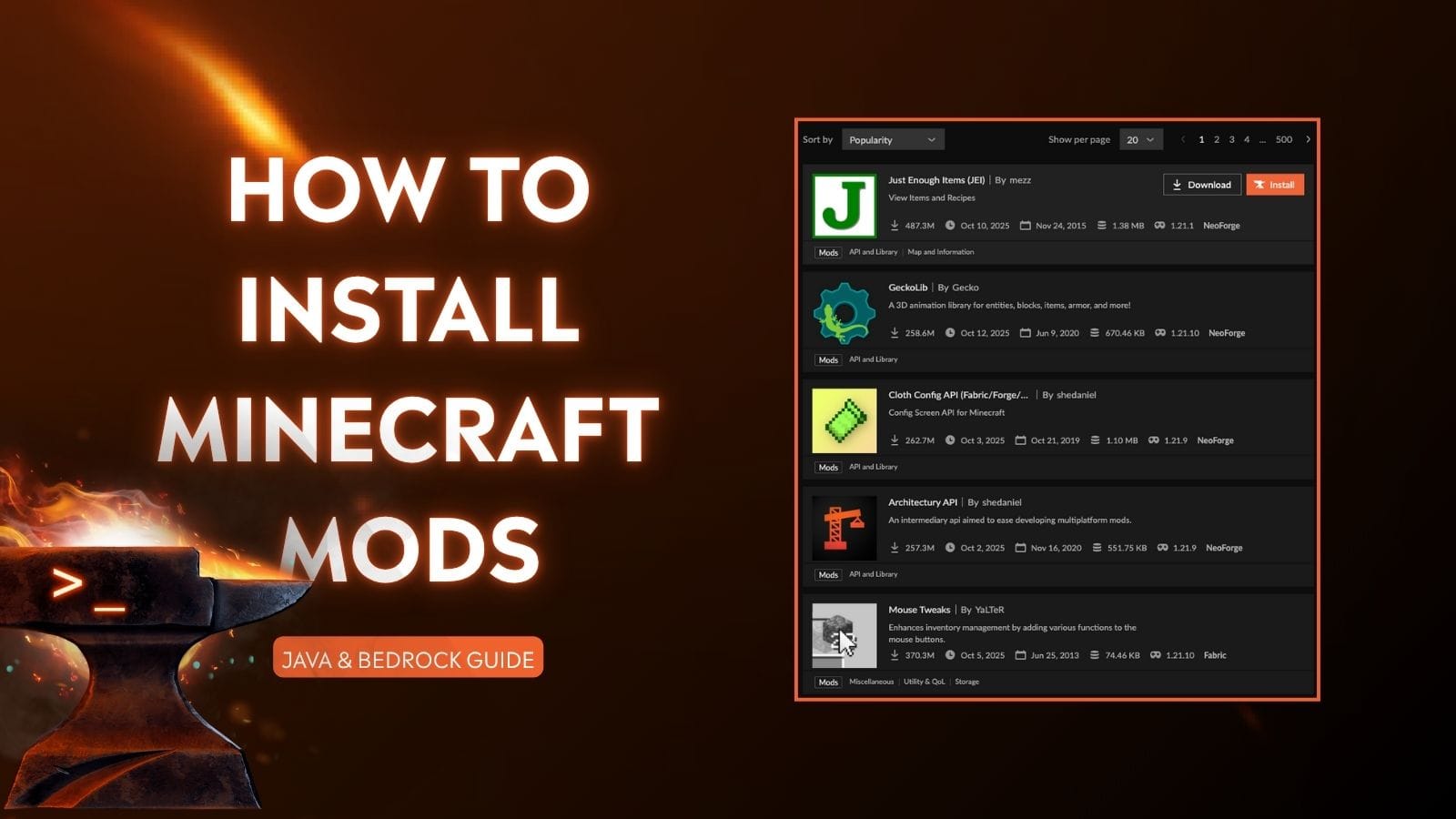
- Find Reputable Mod Sources: The most important rule here is to download mods from trusted sources. CurseForge (www.curseforge.com) is the largest and most reputable platform for Minecraft mods. Other sites might exist, but be extremely cautious and wary of unofficial downloads.
- Search for Mods: On CurseForge, navigate to the Minecraft section and search for mods. Use keywords related to what you want to add (e.g., “tech mods,” “magic mods,” “dungeon mods”).
- Check Compatibility: Crucially, when you find a mod, check its page carefully.
- Minecraft Version: Ensure the mod is for the exact Minecraft version you are running.
- Mod Loader: Verify it’s compatible with Forge (or Fabric, if you chose that).
- Dependencies: Some mods require other mods (often API mods or libraries) to function. These are usually listed under a “Dependencies” or “Required Mods” section. Download and install these as well.
- Download the Mod File: Download the mod file. These are usually JAR files. Again, be extremely careful on download pages and only click the official download button.
- Move the Mod File: Drag and drop the downloaded JAR file(s) directly into your
modsfolder (the one inside.minecraft).
Step 4: Launch and Test
- Launch Minecraft: Open your Minecraft launcher, select your Forge profile, and click “Play.”
- Check for Errors: If the game launches without crashing and you see new items, creatures, or changed mechanics, your mods are likely working!
- Troubleshooting: If the game crashes or the mods don’t appear:
- Check Versions: Double-check that all mods and the mod loader are for the exact same Minecraft version.
- Check Dependencies: Ensure you have installed all required dependency mods.
- Mod Conflicts: Sometimes, two mods might conflict with each other. Try removing mods one by one to identify the culprit.
- Corrupted Download: Redownload the mod file.
- Check the
logsfolder: Inside your.minecraftfolder, there’s alogsfolder. Thelatest.logfile can sometimes contain error messages that help diagnose problems.
Step-by-Step: Installing Mods with Fabric
Fabric modding is very similar to Forge, with a few key differences in the initial setup.
Step 1: Download and Install Fabric
- Visit the Official Fabric Website: Go to the official FabricMC website (fabricmc.net).
- Download the Universal Installer: Click on the “Download Universal Installer” button. This will download a JAR file.
- Run the Fabric Installer: Double-click the downloaded JAR file.
- Select “Install Client”: Similar to Forge, ensure “Install client” is selected and your game directory is correct.
- Choose Minecraft Version and Loader Version: You’ll have options to select the Minecraft version and the Fabric loader version. Choose the versions that match the mods you intend to use.
- Click “Install”: The installer will download and install the Fabric loader.
Step 2: Locate Your Minecraft Mods Folder
The process is identical to Forge:
- Open the Minecraft Launcher.
- Create a Fabric Profile: The Fabric installer usually creates a new profile in your launcher. Select it from the version dropdown.
- Launch Minecraft with Fabric: Click “Play.”
- Close Minecraft: Once the game loads to the main menu, close it.
- Find the
.minecraftFolder: Use the same method as described for Forge (%appdata%.minecrafton Windows, etc.). - Locate the
modsFolder: Ensure there is amodsfolder inside your.minecraftdirectory. Create it if it doesn’t exist.
Step 3: Download and Place Mods
- Find Reputable Mod Sources: Again, CurseForge is your primary go-to. Fabric mods are also available on other sites, but exercise caution.
- Search for Fabric Mods: Search for mods, paying close attention to the “Loader” filter or description to ensure they are for Fabric.
- Check Compatibility:
- Minecraft Version: Match the Minecraft version.
- Mod Loader: Confirm it’s for Fabric.
- Dependencies: Fabric also has its own set of API mods and libraries that some mods depend on (e.g., Fabric API itself is a crucial dependency for most Fabric mods). Always check the mod’s requirements.
- Download the Mod File: Download the JAR file(s).
- Move the Mod File: Place the downloaded JAR file(s) into your
modsfolder.
Step 4: Launch and Test
- Launch Minecraft: Open your Minecraft launcher, select your Fabric profile, and click “Play.”
- Check for Functionality: If the game launches and you see your mods in action, you’re good to go!
- Troubleshooting: Follow the same troubleshooting steps as with Forge, always prioritizing version and dependency checks.
Essential Tips for a Smooth Modding Experience
Modding can be incredibly rewarding, but a few best practices can save you a lot of headaches.
Prioritize Stability and Performance
- Start Small: Don’t install dozens of mods at once, especially if you’re new. Start with a few that interest you and incrementally add more.
- Check Mod Performance: Some mods, particularly those that add many new entities, complex generation, or advanced graphics, can significantly impact your game’s performance. Read reviews and mod descriptions to gauge their resource usage.
- Resource Packs vs. Shaders: While often discussed alongside mods, resource packs change textures and sounds, and shader packs drastically alter lighting and visual effects. These usually go in their own respective folders (
resourcepacksandshaderpacks) within.minecraftand don’t require Forge or Fabric unless specifically stated by the creator.
Security and Responsibility
- Download from Official Sources: As emphasized repeatedly, CurseForge is king. Avoid downloading mods from random file-sharing sites or YouTube links that aren’t clearly from a reputable source. Malware can be hidden in mod files.
- Read Descriptions and Comments: Mod creators often post important information, known issues, and troubleshooting tips in the description. The comments section can also be a goldmine for community-shared solutions.
- Back Up Your Worlds: Before installing major mod packs or making significant changes, always back up your Minecraft worlds. You can usually find your saves in the
savesfolder within your.minecraftdirectory.
Exploring the Modding Ecosystem
The world of Minecraft modding extends beyond just installing mods. Many players enjoy:
- Modpacks: These are curated collections of mods designed to work together, often themed around specific gameplay styles (e.g., tech-focused, magic-focused, exploration-heavy). Platforms like the CurseForge App and ATLauncher make it easy to download and manage modpacks.
- Creating Your Own Mods: For the truly adventurous, learning to code and create your own mods is the ultimate step. This requires programming knowledge (Java) and familiarity with the Forge or Fabric modding APIs.
By following these steps and tips, you’re well on your way to transforming your Minecraft PC experience with the power of mods. Whether you’re looking to automate your resource gathering with complex machinery, explore fantastical new dimensions, or simply enjoy a smoother, more visually appealing game, the modding community has something for everyone. Happy modding!
aViewFromTheCave is a participant in the Amazon Services LLC Associates Program, an affiliate advertising program designed to provide a means for sites to earn advertising fees by advertising and linking to Amazon.com. Amazon, the Amazon logo, AmazonSupply, and the AmazonSupply logo are trademarks of Amazon.com, Inc. or its affiliates. As an Amazon Associate we earn affiliate commissions from qualifying purchases.