
In today’s rapidly evolving digital landscape, having the right tools at your disposal is paramount for navigating the complexities of the internet. Among the most essential tools is a reliable and feature-rich web browser. While numerous options exist, Mozilla Firefox consistently stands out for its commitment to user privacy, robust customization options, and excellent performance. Whether you’re a seasoned tech pro looking to optimize your browsing experience or a newcomer venturing into the digital realm, understanding how to install Firefox is a fundamental skill. This guide will walk you through the entire process, ensuring a smooth and successful installation on various operating systems, and delve into why Firefox remains a top choice for many.
Understanding the Firefox Advantage: Why Choose This Browser?
Before we dive into the installation process, it’s worth understanding what makes Firefox a compelling choice. Mozilla, the non-profit organization behind Firefox, has always prioritized user well-being and the open web. This philosophy translates into several key advantages:
- Privacy-Focused: In an era where personal data is constantly being tracked, Firefox offers advanced tracking protection features that actively block a wide range of trackers across websites. This empowers users to browse with greater peace of mind, knowing their online activities are less exposed.
- Customization and Flexibility: Firefox is renowned for its extensive customization capabilities. Through its vast library of extensions and themes, users can tailor their browsing experience to their specific needs and preferences. Whether you need enhanced productivity tools, ad blockers, or simply want to change the browser’s appearance, Firefox has you covered.
- Performance and Speed: While all browsers strive for speed, Firefox has made significant strides in recent years. Its Quantum engine has dramatically improved performance, leading to faster page loading times and a more responsive browsing experience, even with multiple tabs open.
- Cross-Platform Availability: Firefox is available on all major operating systems, including Windows, macOS, and Linux, as well as mobile platforms like Android and iOS. This ensures a consistent browsing experience across all your devices.
- Open Source and Community-Driven: As an open-source project, Firefox benefits from the collective efforts of a passionate global community. This transparency fosters continuous improvement, security audits, and a commitment to user-centric development.
Installing Firefox on Your Desktop: A Step-by-Step Approach
The installation process for Firefox is generally straightforward and consistent across most desktop operating systems. We’ll cover the most common platforms below.
Installing Firefox on Windows
Windows users will find the installation of Firefox to be a familiar and intuitive process.
-
Download the Firefox Installer:
- Open your current web browser (e.g., Microsoft Edge, Chrome).
- Navigate to the official Mozilla Firefox download page: https://www.mozilla.org/firefox/new/
- The website will automatically detect your operating system and offer the correct download link. Click the prominent “Download Firefox” button.
- You may be prompted to save the installer file (typically named
Firefox Installer.exe). Choose a location you can easily find, such as your Downloads folder, and click “Save.”
-
Run the Installer:
- Once the download is complete, locate the
Firefox Installer.exefile. - Double-click the file to launch the installer.
- If prompted by User Account Control (UAC) to allow the app to make changes to your device, click “Yes.”
- Once the download is complete, locate the
-
Complete the Installation:
- The Firefox installer will open. It usually presents a “Welcome to Firefox” screen.
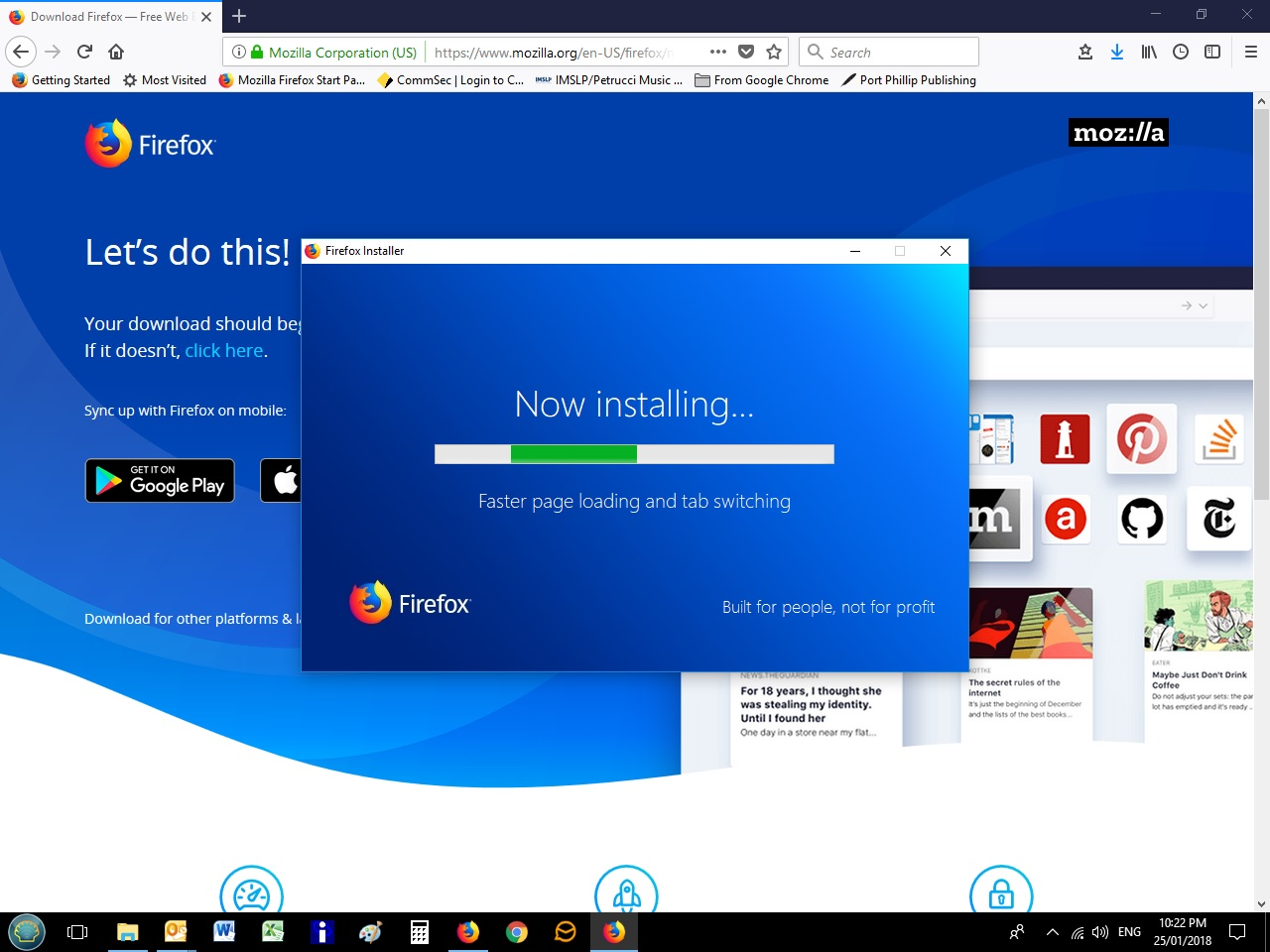
- Click the “Install” button for a standard installation. This will install Firefox with default settings and place a shortcut on your desktop.
- Alternatively, you can click “Custom Installation” if you wish to change the installation location or select specific components. For most users, the standard installation is recommended.
- The installer will now download and install Firefox. This process typically takes only a minute or two, depending on your internet speed.
- Once the installation is finished, Firefox will launch automatically, and you’ll be greeted with a welcome screen. You can choose to set Firefox as your default browser at this stage if you wish.
Installing Firefox on macOS
For Mac users, installing Firefox is just as simple, leveraging the familiar .dmg file format.
-
Download the Firefox Installer:
- Open your current web browser (e.g., Safari, Chrome).
- Navigate to the official Mozilla Firefox download page: https://www.mozilla.org/firefox/new/
- Click the “Download Firefox” button. Your operating system will be detected, and the macOS version will be provided.
- The download will typically be a
.dmgfile (e.g.,Firefox.dmg).
-
Open the Disk Image and Install:
- Once the download is complete, find the
Firefox.dmgfile in your Downloads folder. - Double-click the
.dmgfile. This will mount a virtual disk image and open a Finder window showing the contents. - In this window, you will see the Firefox application icon and a shortcut to your Applications folder.
- Drag the Firefox icon into the Applications folder. This copies Firefox to your Mac’s applications.
- Once the download is complete, find the
-
Launch Firefox and Eject the Disk Image:
- Open your Applications folder (you can usually access it directly from the Finder sidebar or by pressing
Cmd + Shift + A). - Double-click the Firefox icon to launch the browser.
- The first time you open Firefox, macOS might ask if you’re sure you want to open an application downloaded from the internet. Click “Open.”
- You can now eject the Firefox disk image by clicking the eject symbol next to it in the Finder sidebar, or by dragging its icon from your desktop into the Trash.
- Open your Applications folder (you can usually access it directly from the Finder sidebar or by pressing
Installing Firefox on Linux
Linux distributions offer various ways to install software, and Firefox is usually readily available through package managers or as a direct download.
Method 1: Using Your Distribution’s Package Manager (Recommended)
This is the most common and often the easiest method for Linux users, as it integrates Firefox with your system’s software updates. The exact commands may vary slightly depending on your Linux distribution.
- For Debian/Ubuntu-based systems (e.g., Ubuntu, Linux Mint):
- Open a terminal window.
- Update your package list:
bash

sudo apt update
- Install Firefox:
bash

sudo apt install firefox
-
For Fedora/CentOS/RHEL-based systems (e.g., Fedora, CentOS Stream):
- Open a terminal window.
- Install Firefox:
bash

sudo dnf install firefox
(If you are on an older version that usesyum, usesudo yum install firefox)
-
For Arch Linux-based systems (e.g., Arch Linux, Manjaro):
- Open a terminal window.
- Update your package list and install Firefox:
bash

sudo pacman -Syu firefox
After running the appropriate command, follow any on-screen prompts to confirm the installation. Firefox will then be available in your application menu.
Method 2: Downloading the Tarball Directly from Mozilla
If you prefer to install Firefox directly from Mozilla or if it’s not readily available through your distribution’s repositories, you can download a tarball.
-
Download the Firefox Tarball:
- Open your current web browser.
- Navigate to the official Mozilla Firefox download page: https://www.mozilla.org/firefox/new/
- Click the “Download Firefox” button. The website should automatically detect you’re on Linux and offer a Linux 64-bit (or 32-bit) download.
- You’ll download a compressed archive file (e.g.,
firefox-XX.X.tar.bz2).
-
Extract the Archive:
- Open a terminal window.
- Navigate to your Downloads directory (or wherever you saved the file):
bash

cd ~/Downloads
- Extract the tarball. Replace
firefox-XX.X.tar.bz2with the actual filename you downloaded:
bash

tar xjf firefox-XX.X.tar.bz2
- This will create a
firefoxdirectory containing the browser files.
-
Run Firefox:
- Navigate into the extracted Firefox directory:
bash

cd firefox
- Run Firefox by executing the
firefoxbinary:
bash

./firefox
- Navigate into the extracted Firefox directory:
- *To make it more convenient, you can move the extracted
firefoxfolder to a more permanent location, such as/opt/firefoxor~/opt/firefox, and then create a symbolic link or a desktop entry for easier access.
Post-Installation: Setting Up and Customizing Firefox
Once Firefox is installed, you’ll want to configure it to your liking.
Setting Firefox as Your Default Browser
When you first launch Firefox, you’ll often be prompted to set it as your default browser. This means that when you click on a web link in another application (like an email or a document), it will automatically open in Firefox.
- On Windows: You can usually find this option in Firefox’s settings under the “General” tab, or by going to Windows Settings > Apps > Default apps and selecting Firefox.
- On macOS: Go to Firefox Preferences (or Settings), click on “General,” and then click the “Make Default…” button.
- On Linux: This option is typically handled by your desktop environment. You can often find it in your system’s “Default Applications” settings.
Exploring Firefox Settings and Customization
Firefox offers a wealth of options to personalize your browsing experience.
-
Accessing Settings:
- Click the menu button (three horizontal lines) in the top-right corner of the Firefox window.
- Select “Settings” (or “Preferences” on macOS).
-
Key Settings to Explore:
- General: Here you can manage your homepage, download location, and default browser settings.
- Search: Customize your default search engine (Google, DuckDuckGo, Bing, etc.) and manage search suggestions.
- Privacy & Security: This is where you can fine-tune your tracking protection, manage cookies, set up a master password, and configure Firefox’s security settings.
- Extensions & Themes: This section allows you to discover, install, and manage the vast array of add-ons that can extend Firefox’s functionality. You can also change the visual appearance of your browser here.
- Sync: If you use Firefox on multiple devices, enabling Firefox Sync allows you to synchronize your bookmarks, history, passwords, and open tabs across them.

Installing Extensions and Themes
Extensions are small add-ons that add new features or modify existing ones in Firefox. Themes change the look and feel of the browser.
-
Finding Extensions and Themes:
- Click the menu button, then select “Add-ons and themes.”
- Alternatively, you can visit the official Mozilla Add-ons website: https://addons.mozilla.org/
-
Installing an Extension or Theme:
- Browse or search for the extension or theme you want.
- Click on the item to view its details.
- Click the “+ Add to Firefox” button.
- A prompt will appear asking for your permission to install. Review the permissions requested and click “Add” if you agree.
- For themes, you’ll typically see a “Enable” button on the add-ons page.
By following these steps, you’ll have Firefox installed and ready to go on your chosen operating system. Remember that the beauty of Firefox lies in its adaptability. Don’t hesitate to explore its settings and extensions to create a browsing environment that perfectly suits your digital life, whether you’re a tech enthusiast researching the latest AI tools, a brand strategist looking for market insights, or an individual focused on personal finance and online income.
aViewFromTheCave is a participant in the Amazon Services LLC Associates Program, an affiliate advertising program designed to provide a means for sites to earn advertising fees by advertising and linking to Amazon.com. Amazon, the Amazon logo, AmazonSupply, and the AmazonSupply logo are trademarks of Amazon.com, Inc. or its affiliates. As an Amazon Associate we earn affiliate commissions from qualifying purchases.