
In the vast and ever-evolving landscape of digital technology, where new software and applications emerge daily, understanding the fundamental building blocks of these tools is crucial for both casual users and tech enthusiasts. One such ubiquitous yet often misunderstood file format is the JAR file. If you’ve ever found yourself asking, “How do you install a JAR file?”, you’re not alone. This guide aims to demystify the process, clarify common misconceptions, and equip you with the knowledge to confidently run Java applications, enhancing your digital productivity and technical prowess.
Contrary to what the term “install” might suggest, interacting with a JAR file isn’t quite like installing a traditional application on your Windows PC or MacBook. There’s a nuanced difference that, once understood, makes the entire process incredibly straightforward. This article will walk you through everything you need to know, from preparing your system to executing JAR files using various methods, all while keeping an eye on security and best practices.

Demystifying JAR Files: What They Are and How They Work
Before we dive into the “how-to,” let’s establish a clear understanding of what a JAR file truly is and why it behaves differently from other executable files you might encounter. This foundational knowledge is key to navigating the world of Java applications.
The Essence of a Java Archive
A JAR file, an acronym for Java Archive, is a package file format primarily used to consolidate numerous Java class files, along with their associated metadata and resources (such as text, images, and audio files), into a single, compact file. Think of it as a meticulously organized digital container. Essentially, JAR files are highly compressed archives, remarkably similar in structure and function to the familiar ZIP file format. This compression not only saves disk space but also facilitates efficient distribution and deployment of Java programs and all their necessary dependencies.
The primary purpose of a JAR file is to bundle an entire Java application or library into one portable unit. This means that a developer can package all the code, resources, and configuration files required for their program to run seamlessly into a single JAR file, which can then be easily shared with end-users or integrated into larger projects. This standardization greatly simplifies the deployment process, making Java applications highly versatile across different operating systems.
The “Installation” Misconception: Running vs. Installing
Here’s where the common confusion often arises. When you refer to “installing” a JAR file, it’s important to clarify that this isn’t an “installation” in the conventional operating system sense. Unlike software applications that typically involve complex setup wizards, registry entries, and integration with your operating system’s start menu or application launcher, JAR files do not follow this paradigm.
Instead, JAR files are executed by the Java Virtual Machine (JVM). The JVM is a crucial component of the Java platform that allows Java code to run on any device or operating system that has a compatible JVM. When you “install” a JAR file in the context of Java, what you’re actually doing is preparing your system to run it. This preparation primarily involves ensuring that the Java Runtime Environment (JRE) or Java Development Kit (JDK) is installed and correctly configured on your computer. Once Java is present, running a JAR file is simply a matter of instructing the JVM to load and execute the code contained within that archive. This distinction is fundamental: you don’t install the JAR file itself; you install the environment that allows the JAR file to run. This portable, “run-anywhere” philosophy is a cornerstone of Java’s enduring appeal in the software development world.
Essential Prerequisites: Preparing Your System for JAR Execution
Before you can embark on running any JAR file, your system needs to have the necessary foundation in place. This involves ensuring that Java, the environment required to interpret and execute JAR files, is properly installed and configured.
The Crucial Role of the Java Runtime Environment (JRE) or Java Development Kit (JDK)
The cornerstone of running any Java application, including those packaged as JAR files, is the presence of a Java environment on your computer. Specifically, you need either the Java Runtime Environment (JRE) or the Java Development Kit (JDK) installed. Understanding the difference between these two is helpful:
- JRE (Java Runtime Environment): This is the minimum requirement for end-users who simply want to run Java applications. The JRE contains the Java Virtual Machine (JVM), which executes Java bytecode, along with the core Java class libraries and supporting files. It’s designed for execution, not development. If your primary goal is to use existing Java software, the JRE is what you need.
- JDK (Java Development Kit): As the name suggests, the JDK is tailored for Java developers. It includes everything in the JRE, plus a suite of development tools such as the Java compiler (javac), debugger, and other utilities necessary for writing, compiling, and debugging Java applications. If you have the JDK installed, you automatically have the JRE functionality, meaning you can both develop and run Java programs. For most users looking to execute JAR files, the JRE is sufficient, but having the JDK certainly won’t hurt.
Verifying Your Java Installation: A Quick Check
Before proceeding with any installation steps, it’s wise to check if Java is already present on your system. This simple verification can save you time and prevent unnecessary re-installations.
- Windows:
- Open the Command Prompt. You can do this by typing
cmdinto the Windows search bar and pressing Enter. - In the Command Prompt window, type
java -versionand press Enter. - If Java is installed, you will see output displaying the Java version information (e.g.,
java version "1.8.0_291"oropenjdk version "17.0.2"). - If Java is not installed or not configured in your system’s PATH, you’ll receive an error message such as
'java' is not recognized as an internal or external command, operable program or batch file.
- Open the Command Prompt. You can do this by typing
- macOS:
- Open Terminal. You can find it in Applications > Utilities > Terminal, or by searching for “Terminal” in Spotlight.
- Type
java -versionand press Enter. - Similar to Windows, you’ll see version details if Java is installed. macOS might also prompt you to install Java if it’s missing, or redirect you to Oracle’s website.
- Linux:
- Open your preferred Terminal emulator.
- Type
java -versionand press Enter. - The output will show your Java version if installed. Linux distributions often come with OpenJDK pre-installed or offer it through their package managers.
Step-by-Step Guide to Installing Java (If Not Installed)
If your system check revealed that Java is not installed, or you need to update to a newer version, the process is straightforward.
- Choose Your Java Distribution: Historically, Oracle’s Java was the primary choice. However, the open-source OpenJDK has become increasingly popular and is often preferred due to its open licensing. Leading distributions of OpenJDK include those from Adoptium (formerly AdoptOpenJDK), Amazon Corretto, Microsoft Build of OpenJDK, and others. For most users, Adoptium (adoptium.net) provides excellent, free, and open-source distributions of OpenJDK (Temurin). If you specifically require Oracle’s commercial Java for certain enterprise applications, you can download it from the official Oracle website (oracle.com/java/technologies/downloads/).
- Download the Installer: Visit your chosen vendor’s website (e.g., adoptium.net).
- Select the Correct Version: You’ll typically find multiple Java versions (e.g., Java 8, Java 11, Java 17, Java 21). Java LTS (Long-Term Support) versions like 11, 17, and 21 are recommended for stability and long-term use. Choose the version specified by the application developer, or an LTS version if no specific requirement.
- Select Your Operating System and Architecture: Crucially, pick the installer compatible with your operating system (Windows, macOS, Linux) and its architecture (32-bit or 64-bit). Most modern systems are 64-bit.
- Run the Installer:
- Windows/macOS: Double-click the downloaded
.exe(Windows) or.pkg/.dmg(macOS) file. - Linux: Installation typically involves using your distribution’s package manager (e.g.,
sudo apt install openjdk-17-jrefor Debian/Ubuntu,sudo yum install java-17-openjdkfor RHEL/CentOS). Alternatively, you can download a compressed archive and manually extract it.
- Windows/macOS: Double-click the downloaded
- Follow the Installation Wizard: The wizard will guide you through the process.
- Accept License Agreements: Read and accept the terms and conditions.
- Choose Installation Directory: The default location is usually fine (e.g.,
C:Program FilesJavaon Windows,/Library/Java/JavaVirtualMachineson macOS). - Install Components: Ensure that the “Java Runtime Environment” is selected. If you’re installing the JDK, all necessary components will typically be included.
- Setting JAVA_HOME (Optional but Recommended for Developers): While not strictly mandatory for simply running JAR files via double-click or
java -jar, setting theJAVA_HOMEenvironment variable is highly recommended for Java developers and crucial for many advanced Java applications, build tools (like Maven or Gradle), and integrated development environments (IDEs). This variable typically points to the root directory of your JDK installation.- Windows: Search for “Environment Variables,” click “Environment Variables” in System Properties, then “New” under System variables, set
JAVA_HOMEto your JDK path (e.g.,C:Program FilesJavajdk-17.0.2). Also, ensure thebindirectory of your Java installation (e.g.,%JAVA_HOME%bin) is in your system’s PATH variable. - macOS/Linux: Edit your shell’s configuration file (
~/.bashrc,~/.zshrc,~/.profile), addexport JAVA_HOME="/path/to/your/jdk"andexport PATH="$JAVA_HOME/bin:$PATH", thensourcethe file.
- Windows: Search for “Environment Variables,” click “Environment Variables” in System Properties, then “New” under System variables, set
After installation, rerun java -version in a new Command Prompt/Terminal window to confirm Java is correctly installed and accessible.
Mastering JAR File Execution: Multiple Approaches
With Java successfully installed on your system, you now have the power to execute JAR files. There are several methods to achieve this, ranging from the intuitively simple to the robust and versatile, catering to different user needs and application types.

Method 1: The Intuitive Double-Click (GUI-based Execution)
For most users and most graphically oriented Java applications, the simplest way to run a JAR file is by double-clicking it, just like any other executable file. This method leverages your operating system’s file associations to launch the Java application.
- Locate the JAR File: Open your file explorer (Windows Explorer, macOS Finder, or a Linux File Manager) and navigate to the directory where your
.jarfile is saved. - Double-Click: Simply double-click on the JAR file icon.
- Expected Outcome: If everything is configured correctly, the Java application packaged within the JAR should launch, often appearing as a new window or a system tray icon.
- Troubleshooting Common Issues:
- Nothing Happens or It Opens with the Wrong Program (e.g., a Zip Archiver): This is a common issue indicating that your operating system doesn’t correctly associate
.jarfiles with the Java Runtime Environment.- Fix: Right-click the JAR file.
- Choose “Open with.”
- Select “Java(TM) Platform SE binary” or a similar Java executable (the exact name may vary based on your Java version and vendor, e.g., “OpenJDK Platform binary”).
- If Java isn’t listed, click “Choose another app” or “Browse” and navigate to your Java installation directory. You’ll typically find the executable at a path like
C:Program FilesJavajre[version]binjavaw.exe(for Windows GUI apps) or/usr/bin/java(Linux/macOS, thoughjavawis specific to Windows for GUI applications without a console). Make sure to check the “Always use this app to open .jar files” box for future convenience.
- Security Warnings: Depending on your operating system’s security settings and the source of the JAR file, you might encounter a security warning (e.g., “The publisher could not be verified”). Always exercise caution. Only proceed if you trust the source of the JAR file, as Java applications can perform operations on your system.
- No Graphical Window Appears: Some JAR files are designed as command-line applications and do not have a graphical user interface (GUI). Double-clicking these will often result in a brief flash of a console window or seemingly nothing at all. In such cases, the command-line method is necessary.
- Nothing Happens or It Opens with the Wrong Program (e.g., a Zip Archiver): This is a common issue indicating that your operating system doesn’t correctly associate
Method 2: The Robust Command Line (Terminal-based Execution)
The command line (Command Prompt on Windows, Terminal on macOS/Linux) provides the most reliable and versatile way to execute JAR files. It’s essential for command-line-only applications and offers greater control, including the ability to pass arguments to the Java program.
- Open the Command Line Interface:
- Windows: Search for
cmdand open “Command Prompt.” - macOS/Linux: Open “Terminal” (Applications > Utilities > Terminal on macOS).
- Windows: Search for
- Navigate to the JAR File’s Directory: Use the
cd(change directory) command to go to the folder where your JAR file is located. This simplifies the execution command.- Example for Windows:
cd C:UsersYourUserDownloadsMyJavaApps - Example for macOS/Linux:
cd ~/Documents/JavaProjects - Tip: You can often drag and drop the folder into the terminal after typing
cd(with a space) to automatically get the path.
- Example for Windows:
- Execute the JAR File: Use the
java -jarcommand, followed by the name of your JAR file.java -jar YourApplication.jar(ReplaceYourApplication.jarwith the exact filename).- If you didn’t navigate to the directory: You can provide the full path to the JAR file:
java -jar "C:UsersYourUserDownloadsMyJavaAppsYourApplication.jar"(Use quotes for paths with spaces).
- Passing Arguments to the Application: Many command-line Java applications require input arguments. You can pass these directly after the JAR filename in the command.
java -jar YourApplication.jar argument1 value2 another_arg
- Troubleshooting Command Line Issues:
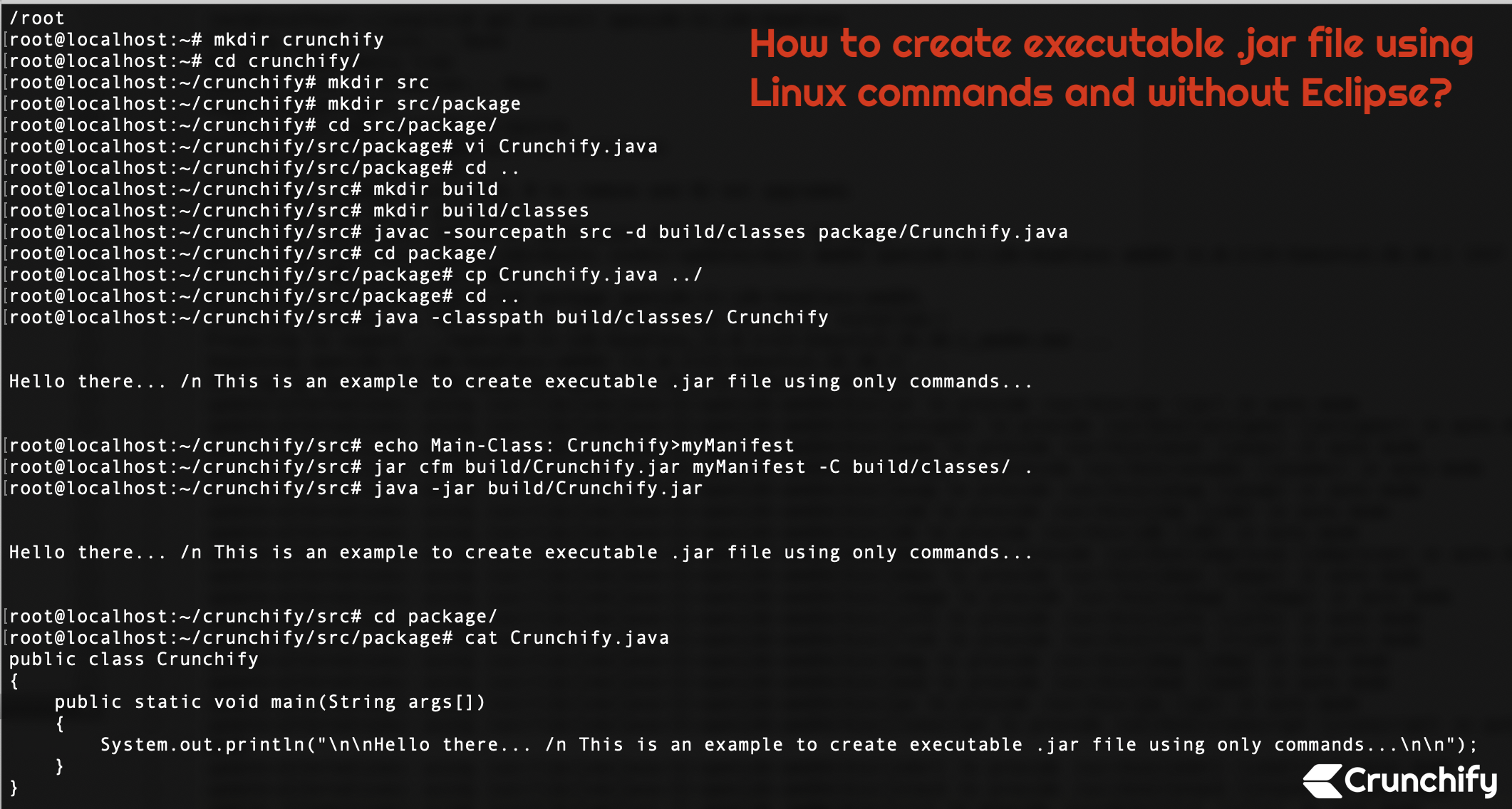
'java' is not recognized as an internal or external command...: This means thejavaexecutable is not found in your system’s PATH environment variable. Revisit the Java installation steps, particularly verifying and configuring your PATH. A system restart might also be required after setting environment variables.no main manifest attribute, in YourApplication.jar: This error indicates that the JAR file might be corrupted, or it wasn’t built correctly to be directly executable. Executable JARs require aMain-Classentry in their manifest file to tell the JVM which class contains themainmethod to start the application. If you encounter this, it might be a library JAR (meant to be used by other programs, not run directly), or you might need to run a specific class within the JAR using a more advanced command:
java -cp YourApplication.jar com.example.MainClass
Here,com.example.MainClassis the fully qualified name of the class within the JAR that contains thepublic static void main(String[] args)method. This approach is more common for developers or advanced scenarios.
Method 3: Streamlining with Scripts (Batch/Shell for Efficiency)
For JAR applications you use frequently, especially those that are command-line based or require specific, lengthy arguments, creating a simple script (batch file on Windows, shell script on macOS/Linux) can be a significant time-saver and a boost to productivity. This method encapsulates the command-line execution into a clickable file.
-
Windows (Batch File –
.bat):- Open Notepad: Or any plain text editor.
- Type the Command: Enter the
java -jarcommand, including any necessary arguments. You might also want to addpauseat the end to keep the command window open after execution, allowing you to see any output or errors.
batch

@echo off

java -jar YourApplication.jar argument1 argument2

pause
If the JAR file is not in the same directory as the batch file, provide the full path to the JAR. - Save the File: Save it with a
.batextension (e.g.,run_my_app.bat). Crucially, select “All Files” as the “Save as type” in Notepad to prevent it from saving as a.txtfile. Save it in the same directory as your JAR file for simplicity, or in a location easily accessible. - Run: Double-click the
.batfile to execute your Java application.
-
macOS/Linux (Shell Script –
.sh):- Open a Text Editor: Use
nano,vim, VS Code, or any other plain text editor. - Type the Script:
bash

#!/bin/bash

# This is a shell script to run your Java JAR application

java -jar YourApplication.jar argument1 argument2
Again, ensure the full path toYourApplication.jaris provided if it’s not in the same directory as the script. The#!/bin/bashline (shebang) tells the system to execute the script using the bash interpreter. - Save the File: Save it with a
.shextension (e.g.,run_my_app.sh). - Make Executable: Open Terminal, navigate to the directory where you saved the script, and make it executable:
chmod +x run_my_app.sh - Run: Execute the script from the Terminal:
./run_my_app.sh(The./indicates that the script is in the current directory).
- Open a Text Editor: Use
Creating these scripts not only streamlines your workflow but also makes sharing and consistently running specific Java applications much easier for teams or personal projects.
Security, Best Practices, and Beyond: What Every User Should Know
As with any software you interact with, understanding the security implications and adhering to best practices is paramount when dealing with JAR files. This knowledge not only protects your system but also ensures a smoother, more reliable user experience.
Navigating Security with JAR Files
The flexibility that allows JAR files to run code on any Java-enabled system also necessitates a strong emphasis on security. Since JAR files can contain and execute arbitrary code, they pose potential risks similar to any executable program.
- Always Download from Trusted Sources: This is the golden rule. Only acquire JAR files from reputable websites, known developers, or trusted repositories. Avoid downloading JAR files from unknown or suspicious sources, as they could contain malicious code designed to harm your system, steal data, or compromise your digital security.
- Be Cautious of Unsigned JAR Files: JAR files can be digitally signed by their developers. A digital signature verifies the identity of the publisher and ensures that the file hasn’t been tampered with since it was signed. While unsigned JARs aren’t inherently malicious, they lack this layer of trust and verification. Your operating system or Java security settings might display more prominent warnings for unsigned JARs. Always exercise greater scrutiny if you encounter one.
- Keep Your Java Installation Updated: Oracle and OpenJDK providers regularly release updates for Java that include crucial security patches, bug fixes, and performance improvements. Running an outdated Java version can leave your system vulnerable to known exploits. Make it a practice to update your JRE/JDK whenever new versions are released, usually through their respective official websites or system package managers. This proactive approach is a cornerstone of good digital hygiene.
Uninstallation and Management: The JAR File Way
Reinforcing the earlier point about “installation,” JAR files typically don’t involve a complex uninstallation process. Because they are executed by the JVM rather than deeply integrated into the operating system like native applications, managing them is often quite simple.
- To “Uninstall”: You generally just delete the JAR file itself. If the application created any configuration files, user data, or temporary files, you might need to locate and delete those as well. These files are typically found in your user’s home directory (e.g.,
~/.your_app_nameorC:UsersYourUserAppDataRoamingYourApp) or the directory where the JAR file was run. - No Registry Entries or Complex Clean-up: Unlike many Windows applications that leave numerous entries in the system registry, JAR files typically do not. This makes their removal cleaner and less prone to leaving behind “digital clutter.”
The Broad Applications of JAR Files
JAR files are incredibly versatile and form a core component of the Java ecosystem, powering a wide array of applications across different domains:
- Distributing Java Applications: From desktop applications (like popular IDEs, utility tools, or games) to command-line utilities, JAR files are the standard format for packaging and distributing executable Java programs to end-users.
- Packaging Libraries: Developers extensively use JAR files to package reusable code libraries. These “library JARs” are not meant to be run directly but are included as dependencies in other Java projects, allowing developers to share and utilize common functionalities efficiently.
- Web Applications (WAR files): While not strictly a JAR, WAR (Web Application Archive) files are a specialized type of JAR file used to package web applications for deployment on Java application servers (like Tomcat, JBoss, GlassFish). They contain servlets, JSPs, HTML, CSS, JavaScript, and other web resources.
- Android APK files: Interestingly, Android’s application package (APK) files are also based on the JAR format, albeit with specific modifications for the Android platform. This highlights the foundational role of the JAR format in modern mobile computing as well.
Conclusion
Understanding how to run a JAR file is a fundamental skill for anyone engaging with Java applications, from end-users to seasoned developers. While the concept of “installation” might be a misnomer in the traditional sense, the process of preparing your system with Java and then executing JAR files through double-clicking, the command line, or convenience scripts is straightforward and highly efficient.
By demystifying JAR files, clarifying the roles of JRE and JDK, and providing step-by-step guides for various execution methods, we hope to have empowered you to confidently interact with Java-based software. Always remember the importance of sourcing JAR files from trusted locations and keeping your Java environment updated to ensure optimal digital security and performance. Embracing these practices not only enhances your technical literacy but also streamlines your digital workflow, truly bringing a boost to your productivity in today’s technology-driven world.
aViewFromTheCave is a participant in the Amazon Services LLC Associates Program, an affiliate advertising program designed to provide a means for sites to earn advertising fees by advertising and linking to Amazon.com. Amazon, the Amazon logo, AmazonSupply, and the AmazonSupply logo are trademarks of Amazon.com, Inc. or its affiliates. As an Amazon Associate we earn affiliate commissions from qualifying purchases.