
In today’s hyper-connected world, Wi-Fi isn’t just a luxury; it’s a fundamental utility, as essential as electricity or running water. From streaming your favorite shows and working remotely to managing smart home devices and keeping up with global trends, a reliable Wi-Fi connection is the backbone of our digital lives. For businesses, a robust network is critical for brand reputation, seamless operations, and financial transactions. For individuals, it dictates productivity, access to information, and personal branding in a connected society. If you’re wondering “how do I install Wi-Fi?”, you’re about to embark on a journey to unlock a world of seamless connectivity. This guide, drawing on expertise in technology, brand strategy, and personal finance, will walk you through every step, ensuring you set up a secure, efficient, and future-proof wireless network.

The Foundation: Understanding Your Wi-Fi Ecosystem
Before you can install Wi-Fi, it’s crucial to understand the core components that make it all work. Like building a house, a strong foundation ensures stability and performance.
Decoding the Essentials: Modem vs. Router
The terms “modem” and “router” are often used interchangeably, but they serve distinct purposes. Understanding their roles is the first step in a successful Wi-Fi installation.
A modem (short for modulator-demodulator) is your gateway to the internet. Its primary function is to translate the internet signal from your Internet Service Provider (ISP) – whether it’s cable, fiber, DSL, or satellite – into a format your devices can use. Think of it as the translator between your home network and the vast internet outside. Without a modem, your home network wouldn’t be able to communicate with the rest of the world. Different ISPs provide different types of modems designed to work with their specific internet technologies. For instance, a cable internet subscription will require a cable modem, while a fiber optic connection will use an Optical Network Terminal (ONT), which functions similarly to a modem.
A router, on the other hand, is the device that creates and manages your local network (LAN) within your home or office. It takes the internet connection from the modem and distributes it wirelessly (Wi-Fi) to your various devices like laptops, smartphones, smart TVs, and tablets. It also manages traffic between these devices and assigns them unique local IP addresses, ensuring data goes to the correct recipient. Modern routers often come with advanced features like built-in firewalls, Quality of Service (QoS) settings for prioritizing traffic, and guest network capabilities. Some ISPs provide a single device that functions as both a modem and a router, often called a “gateway.” While convenient, these all-in-one devices can sometimes lack the advanced features or performance of dedicated units.
For those looking to maximize their Tech advantage, understanding this distinction is vital. It allows you to make informed decisions about purchasing separate, higher-performing devices that might offer better speed, range, and security features compared to ISP-provided gateways. From a Money perspective, investing in a quality separate router can be more cost-effective in the long run, as it can often be carried over if you switch ISPs, and it provides more control over your network without ongoing rental fees.
Choosing Your Internet Service Provider (ISP) and Plan
Your choice of ISP and internet plan forms the very foundation of your Wi-Fi experience. This decision directly impacts your network’s speed, reliability, and cost.
When selecting an ISP, consider the types of internet available in your area (cable, fiber, DSL, satellite, 5G home internet). Fiber optic internet is generally considered the fastest and most reliable, offering symmetrical upload and download speeds, which is crucial for heavy online gaming, large file uploads, and high-quality video conferencing – activities that can significantly impact your personal brand or corporate identity in a remote work environment. Cable internet offers competitive speeds and is widely available, while DSL tends to be slower but might be the only option in some rural areas. Satellite internet is a last resort due to high latency and data caps, and 5G home internet is an emerging option offering wireless broadband.
Beyond availability, evaluate different plans based on your usage habits. Do you stream 4K content, engage in online gaming, or work from home with frequent video calls? These activities demand higher bandwidth. A family of four with multiple devices streaming simultaneously will need a much faster plan than a single user occasionally browsing the web. Speeds are typically measured in Megabits per second (Mbps) or Gigabits per second (Gbps). For basic usage, 50-100 Mbps might suffice, but for a connected household or business, 200+ Mbps is often recommended. For serious users or small businesses, 1 Gbps (1000 Mbps) is increasingly becoming the standard for optimal performance.
From a Money perspective, analyze the cost per Mbps. Don’t simply opt for the cheapest plan; consider the value it delivers relative to your needs. Factor in promotional pricing, contract terms, data caps, and equipment rental fees. Hidden costs can quickly add up. For Brand considerations, especially for remote professionals or small businesses, a reliable, high-speed connection isn’t just about convenience; it’s a professional necessity. Dropped calls during client meetings or slow website loading times can significantly damage your reputation.
Pre-Installation Preparations: Gearing Up for Connectivity
With an understanding of your network’s core components and an ISP chosen, the next phase involves preparing your physical space and selecting the right hardware to ensure optimal performance from day one.
Selecting the Right Hardware for Your Needs
The quality and type of your router will largely dictate the performance, range, and stability of your Wi-Fi network. While an ISP-provided gateway might seem convenient, investing in a dedicated, high-quality router often provides superior Tech capabilities and long-term value.
Router Standards and Speeds: Look for routers that support the latest Wi-Fi standards. Currently, Wi-Fi 6 (802.11ax) and Wi-Fi 6E are cutting-edge, offering faster speeds, lower latency, and better performance in environments with many connected devices compared to older standards like Wi-Fi 5 (802.11ac). Wi-Fi 6E even utilizes the 6GHz band, reducing congestion. These advancements are crucial for a seamless experience, especially with the growing number of smart home devices and high-bandwidth applications.
Coverage and Range: Consider the size and layout of your home or office. For larger spaces or multi-story buildings, a single router might not provide adequate coverage. In such cases, a mesh Wi-Fi system is often the ideal solution. Mesh systems consist of multiple interconnected units that blanket an area with a strong, unified Wi-Fi signal, eliminating dead zones. This contrasts with traditional Wi-Fi extenders (also known as repeaters), which merely boost an existing signal and can sometimes introduce latency or halve bandwidth. While mesh systems represent a higher upfront Money investment, the improved Tech performance and reliable coverage can prevent frustration and enhance productivity, positively impacting your Brand in terms of responsiveness and reliability.
Features and Ports: Evaluate features like Gigabit Ethernet ports (essential for wired connections to devices like desktop PCs, gaming consoles, or network-attached storage), USB ports (for network printing or shared storage), and advanced security settings. A robust router also offers Quality of Service (QoS) features, allowing you to prioritize traffic for critical applications (e.g., video conferencing over game downloads), ensuring essential tasks maintain performance.
Optimal Placement: Where Your Router Belongs
The physical location of your router is surprisingly critical to your Wi-Fi’s performance. Even the most powerful router can underperform if placed incorrectly.
Central Location: Ideally, place your router in a central location within your home or office, as high up as possible. Wi-Fi signals travel outwards in all directions, so a central placement ensures the most even distribution. Placing it in a corner or inside a cabinet will significantly reduce its effective range and speed.
Avoid Obstacles and Interference: Wi-Fi signals are susceptible to interference and absorption.
- Physical Obstacles: Walls (especially concrete or brick), floors, and large metal objects (appliances, filing cabinets) can degrade or block signals.
- Electronic Interference: Other electronic devices operating on similar frequencies (2.4GHz) can cause interference. This includes microwaves, cordless phones, baby monitors, and even fluorescent lights. Keep your router away from these potential sources of disruption.
- Neighboring Networks: In dense urban areas, neighboring Wi-Fi networks can cause channel congestion. Many modern routers can automatically select the least congested channel, but manual adjustments might be necessary for optimization.
Strategic router placement is a simple, cost-free Tech optimization that can significantly improve your Wi-Fi experience. It’s a key factor in maintaining a consistent connection, which in turn supports your Brand (e.g., uninterrupted video calls) and protects your Money by maximizing the value of your internet plan and hardware.
Step-by-Step Installation: Bringing Your Network to Life
Once you have your hardware and understand placement, it’s time to connect everything and configure your network. This is where the theoretical understanding translates into tangible connectivity.
Connecting Your Modem and Router
This sequence is crucial for establishing your internet connection.
- Power Down Existing Equipment: If you’re replacing old equipment, power down your old modem and router. This helps prevent IP conflicts and ensures a clean setup.
- Connect the Modem:
- Locate the internet source in your home (coaxial cable outlet for cable, Ethernet port for fiber, phone jack for DSL).
- Connect the appropriate cable (coaxial, Ethernet, or phone) from the wall outlet to the corresponding port on your new modem.
- Connect the modem’s power adapter to a power outlet and plug it into the modem.
- Wait for the modem to power up and establish a connection with your ISP. This usually takes a few minutes, and you’ll see indicator lights on the modem turn solid (e.g., “Internet,” “Online,” or “WAN”). Refer to your modem’s manual for specific light indicators.
- Connect the Router:
- Take an Ethernet cable (usually included with the router, often blue or yellow) and connect one end to the WAN or Internet port on your router (this port is typically a different color or explicitly labeled).
- Connect the other end of this Ethernet cable to one of the LAN ports on your modem (if your modem has multiple ports, any non-WAN port will do).
- Connect the router’s power adapter to a power outlet and plug it into the router.
- Wait for the router to power up. Its indicator lights will typically show power, internet connectivity, and Wi-Fi activity.
This physical setup is the backbone of your Wi-Fi, a fundamental Tech step that directly impacts the availability of your internet service for all your digital needs.
Initial Setup and Configuration: SSID, Password, and Security
With the hardware connected, you now need to configure your wireless network. This is typically done through a web browser or a dedicated app.
- Access the Router’s Interface:
- Connect a computer or mobile device directly to one of the router’s LAN ports using an Ethernet cable, or connect to the router’s default Wi-Fi network (the SSID and password are usually printed on a sticker on the router itself or in its manual).
- Open a web browser (Chrome, Firefox, Edge, Safari) and type the router’s default IP address into the address bar. Common IP addresses include
192.168.1.1,192.168.0.1, or192.168.1.254. You can find this in your router’s manual. - You’ll be prompted for a username and password. The default credentials are also usually found on the router sticker or manual (e.g.,
admin/admin,admin/password). Crucially, change these immediately! Leaving default credentials is a massive security risk.
- Run Setup Wizard: Most modern routers have a setup wizard that guides you through the initial configuration steps.
- Configure Your Wi-Fi Network (SSID and Password):
- SSID (Service Set Identifier): This is your Wi-Fi network’s name. Choose something unique and descriptive, but avoid revealing too much personal information. For a home network, “MyHomeNetwork” or “SmithFamilyWifi” is fine. For a business, something like “CompanyNameGuest” or “CompanyNameSecure” is appropriate. This is part of your digital Brand identity.
- Password/Passphrase: This is the most critical security step. Choose a strong, complex password that is at least 12-16 characters long, combining uppercase and lowercase letters, numbers, and symbols. Avoid easily guessable information like birthdays or common words.
- Security Protocol: Always select the strongest available security protocol, which is typically WPA3 if your router and devices support it, or WPA2-AES (also known as WPA2-PSK [AES]) if WPA3 isn’t an option. Avoid WEP and WPA (first generation) as they are easily compromised. This is paramount for Digital Security, protecting your Money and sensitive data.
- Save Settings and Reboot: After configuring, save your settings. The router will likely reboot to apply the changes.
Connecting Your Devices
Once your router has rebooted with its new settings:
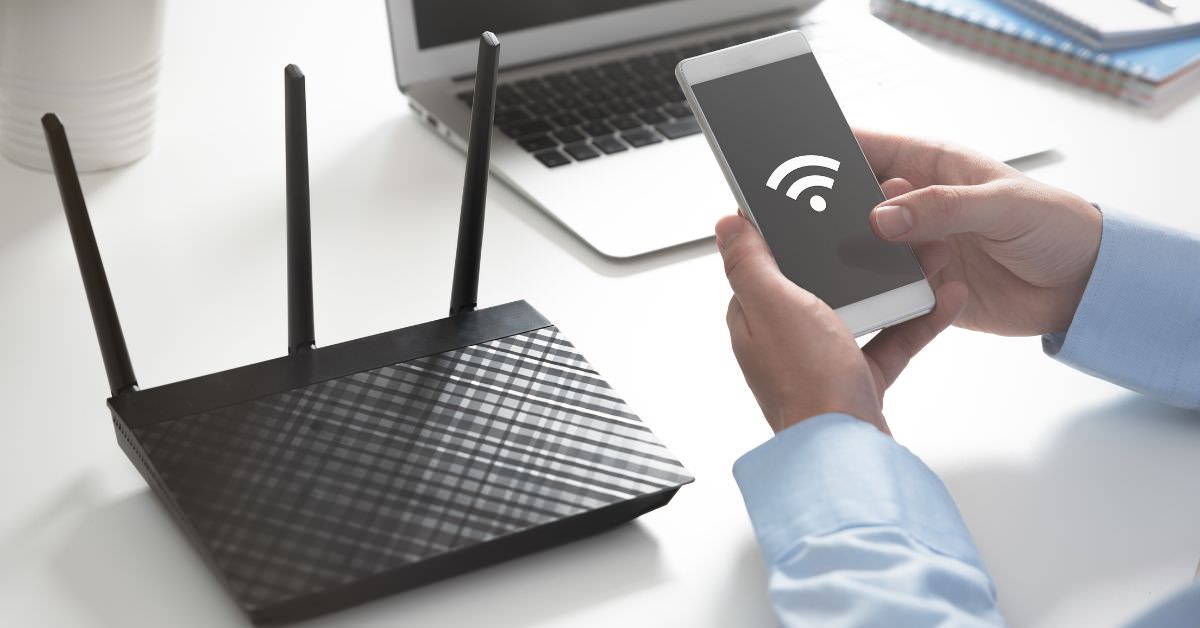
- On your devices (smartphone, laptop, tablet, smart TV, etc.), search for available Wi-Fi networks.
- Select the SSID you just created.
- Enter the strong password you set.
- Your device should now connect to your new Wi-Fi network.
This final step brings your Wi-Fi to life, enabling all your Tech devices to communicate wirelessly.
Optimizing Your Wi-Fi Experience: Beyond Basic Setup
Installing Wi-Fi is one thing; ensuring it performs optimally is another. A well-optimized network enhances productivity, improves digital security, and provides better value for your Money.
Enhancing Coverage with Mesh Systems and Extenders
As mentioned earlier, a single router may not cover large or complex spaces effectively.
- Mesh Wi-Fi Systems: These are the gold standard for comprehensive coverage. They consist of a main router and several satellite nodes strategically placed around your property. These nodes communicate with each other to create a single, seamless Wi-Fi network with a unified SSID. As you move, your devices automatically switch to the node with the strongest signal, ensuring uninterrupted connectivity. While a larger Money investment upfront, mesh systems dramatically improve the Tech experience, eliminating dead zones and enhancing performance for demanding applications. This consistent connectivity reflects positively on a professional’s Brand when working from home or a business’s Corporate Identity for customers and employees.
- Wi-Fi Extenders/Repeaters: These devices capture your existing Wi-Fi signal and re-broadcast it, extending its reach. They are a more budget-friendly option than mesh systems but come with trade-offs. Extenders can sometimes halve your bandwidth in the extended area and may create separate network names, requiring manual switching as you move. They are best suited for addressing small dead spots rather than blanketing a large area.
- Powerline Adapters: These devices use your home’s existing electrical wiring to extend network connectivity. One adapter connects to your router and a power outlet, and another connects to a device (or a Wi-Fi access point) in a different room and a power outlet. They can be a good solution for extending wired or wireless connectivity to areas where Wi-Fi signals struggle to reach.
Minimizing Interference and Maximizing Speed
Even with the best hardware, environmental factors can degrade Wi-Fi performance.
- Router Placement (Revisited): Reiterate the importance of central, elevated placement, away from major appliances and metal objects.
- Channel Optimization: Wi-Fi operates on specific channels. In congested areas, overlapping channels can cause interference. Most modern routers can automatically select the least congested channel. However, if you experience slow speeds, you can log into your router’s interface and manually change the Wi-Fi channel (typically 2.4GHz channels 1, 6, or 11 are non-overlapping). Tools and apps are available to analyze Wi-Fi signals in your area and recommend optimal channels.
- Firmware Updates: Router manufacturers regularly release firmware updates to fix bugs, improve performance, and enhance security. Periodically check for and install these updates from your router’s administration page. This is a crucial Tech maintenance step.
- Wired Connections: For devices that demand maximum speed and stability (e.g., desktop PCs, gaming consoles, network-attached storage, smart TVs for 4K streaming), use an Ethernet cable. Wired connections are faster, more reliable, and free from wireless interference. This frees up wireless bandwidth for devices that genuinely need it.
The Role of Quality of Service (QoS)
QoS is a powerful Tech feature found on many routers that allows you to prioritize certain types of network traffic. For example, you can set your router to give priority bandwidth to video conferencing applications (like Zoom or Microsoft Teams) over large file downloads or online gaming. This ensures that critical activities, especially for remote work or online education, run smoothly even when multiple devices are active on your network. Effective QoS management is key to maintaining a professional Brand and optimizing Money by ensuring your most important online tasks are never hampered by lesser priorities.
Securing Your Digital Frontier: Protecting Your Network
A powerful Wi-Fi network is only as good as its security. Neglecting network security leaves you vulnerable to cyber threats, risking your personal data, financial information, and digital Brand.
Understanding Wi-Fi Security Protocols (WPA2/WPA3)
As discussed during initial setup, choosing the right security protocol is paramount.
- WPA2-AES (Wi-Fi Protected Access II with Advanced Encryption Standard): This has been the industry standard for robust Wi-Fi security for many years. It uses strong encryption to protect your data as it travels wirelessly. Ensure your router is configured to use WPA2-AES (sometimes simply labeled WPA2-PSK [AES] or WPA2-Personal).
- WPA3 (Wi-Fi Protected Access III): This is the latest and most secure Wi-Fi security protocol, offering enhanced encryption and protection against brute-force attacks. If your router and devices support WPA3, it is highly recommended to enable it. It provides better security in public Wi-Fi scenarios as well, a boon for Digital Security.
- Avoid WEP and WPA: These older protocols are easily crackable and should never be used. Using them is akin to leaving your front door unlocked, inviting security breaches that could compromise your Money and Brand through identity theft or data loss.
Best Practices for Network Security
Beyond the protocol, several practices enhance your network’s resilience.
- Strong, Unique Passwords: Use complex, long passphrases for your Wi-Fi network, router administration interface, and all online accounts. Consider using a password manager.
- Change Default Router Credentials: Immediately change the default username and password for your router’s administration page. This is one of the most overlooked and dangerous security vulnerabilities.
- Keep Router Firmware Updated: As mentioned, firmware updates often include critical security patches. Regularly check for and install these updates. This proactive Tech maintenance is crucial for your Digital Security.
- Disable WPS (Wi-Fi Protected Setup): While convenient for connecting devices, WPS has known security vulnerabilities. It’s generally safer to disable it and manually connect devices using the network password.
- Firewall: Ensure your router’s built-in firewall is enabled. This acts as a barrier, inspecting incoming and outgoing network traffic and blocking unauthorized access.
- Network Audits: Occasionally check the list of connected devices in your router’s interface to identify any unauthorized users.
- VPN (Virtual Private Network): For an additional layer of security, especially when using public Wi-Fi or accessing sensitive information, consider using a VPN. A VPN encrypts your internet traffic, providing privacy and security. This is particularly relevant for maintaining Digital Security when handling Money transactions or sensitive client data, thereby protecting your Brand reputation.
Guest Networks: A Smart Security Move
Most modern routers allow you to set up a separate guest network. This is an excellent security feature that allows visitors to access the internet without having access to your main network and its connected devices (computers, smart storage, smart home devices). Guest networks are usually isolated, preventing potential security risks from guests’ devices from affecting your private data. This is a simple yet effective Tech strategy that adds a layer of Digital Security and enhances your Brand by providing secure access to visitors without compromising your core network.
Troubleshooting Common Wi-Fi Issues and Advanced Tips
Even the most meticulously installed Wi-Fi network can encounter hiccups. Knowing how to troubleshoot common issues and utilize advanced features can save you time and frustration, maintaining productivity and connectivity.
Diagnosing Connectivity Problems
When your Wi-Fi goes down or slows to a crawl, a systematic approach to troubleshooting can pinpoint the problem.
- Restart Everything: The classic “turn it off and on again” works wonders for network issues. Power cycle your modem first, wait a minute, then power cycle your router. Allow both to fully boot up (3-5 minutes each) before testing. This clears temporary glitches and refreshes connections.
- Check Physical Connections: Ensure all cables (coaxial, Ethernet, power) are securely plugged into your modem and router. A loose connection is a common culprit.
- Verify ISP Status: Check your ISP’s website or social media for any reported outages in your area. If the issue is widespread, there’s little you can do but wait.
- Isolate the Problem:
- Wired vs. Wireless: If devices connected via Ethernet work but Wi-Fi devices don’t, the problem is likely with your router’s wireless function.
- Single Device vs. All Devices: If only one device can’t connect, the issue might be with that specific device (e.g., its Wi-Fi adapter is off or faulty). If no devices can connect, the problem is likely with the router, modem, or ISP.
- Check Router Lights: Refer to your router’s manual to understand what the various indicator lights mean. A red or amber “Internet” light usually signals a problem with your connection to the ISP.
- Run Diagnostics: Some routers have built-in diagnostic tools in their web interface that can test connectivity.
- Factory Reset (Last Resort): If all else fails, a factory reset on your router might be necessary. Be warned: this will wipe all your custom settings, and you’ll have to reconfigure your network from scratch (SSID, password, etc.). Only do this if you’re prepared to go through the setup process again.
Understanding these Tech troubleshooting steps helps you swiftly resolve issues, minimizing downtime and protecting your Brand from connectivity-related disruptions, especially in professional contexts.
Firmware Updates and Router Maintenance
Beyond immediate troubleshooting, proactive maintenance is key to long-term Wi-Fi stability and security.
- Regular Firmware Updates: Make it a habit to check for and install firmware updates for your router every few months. These updates often bring performance improvements, new features, and crucial security patches that address newly discovered vulnerabilities. Neglecting updates leaves your network susceptible to cyberattacks, potentially compromising your Money and Digital Security.
- Router Placement Review: Periodically reassess your router’s placement. Have new furniture or appliances been introduced that might be blocking signals? Are there new sources of interference?
- Dust and Ventilation: Ensure your router is free from dust and has adequate ventilation. Overheating can lead to performance degradation and hardware failure.
- Password Rotation: While not strictly necessary as long as you have a strong password, occasionally changing your Wi-Fi password can be a good security practice, especially if you’ve shared it widely or suspect it might have been compromised.
These maintenance practices ensure your initial Money investment in hardware continues to deliver optimal Tech performance and robust Digital Security.

Parental Controls and Network Management
Modern routers offer a suite of advanced features for greater control over your network.
- Parental Controls: For families, parental controls are invaluable. They allow you to:
- Block Websites/Content: Restrict access to inappropriate websites or categories.
- Set Time Limits: Schedule internet access for specific devices (e.g., limit screen time for children).
- Pause Internet: Instantly pause internet access for certain devices or the entire network.
This helps in managing children’s online exposure and encourages a balanced digital life, a crucial aspect of personal and family Brand management.
- Quality of Service (QoS): Reiterate the importance of QoS for prioritizing critical applications. Properly configured QoS ensures your Tech resources are allocated efficiently, boosting productivity and safeguarding important online activities.
- Traffic Monitoring: Many routers provide tools to monitor network usage, showing which devices are consuming the most bandwidth. This can help you identify bandwidth hogs and manage your internet resources more effectively.
- Port Forwarding: For specific applications like online gaming servers, remote access to network devices, or certain smart home setups, you might need to configure port forwarding to allow external connections to specific devices on your local network. This is an advanced Tech feature that requires careful configuration to avoid creating security vulnerabilities.
By mastering these advanced Tech features, you not only ensure a stable and secure Wi-Fi connection but also gain greater control over your digital environment, enhancing productivity, protecting your family, and ultimately leveraging your Money investment in internet services to its fullest potential.
In conclusion, installing Wi-Fi is more than just plugging in cables; it’s about building a reliable, secure, and optimized digital gateway for your home or business. By understanding the fundamentals, making informed hardware choices, following proper installation steps, and embracing best practices for security and optimization, you can ensure a seamless connectivity experience that supports your technology needs, enhances your personal and corporate brand, and provides excellent value for your financial investment. Your journey to uninterrupted connectivity begins now.
aViewFromTheCave is a participant in the Amazon Services LLC Associates Program, an affiliate advertising program designed to provide a means for sites to earn advertising fees by advertising and linking to Amazon.com. Amazon, the Amazon logo, AmazonSupply, and the AmazonSupply logo are trademarks of Amazon.com, Inc. or its affiliates. As an Amazon Associate we earn affiliate commissions from qualifying purchases.