
In our increasingly connected world, a stable and efficient network connection is no longer a luxury, but a fundamental necessity. Whether you’re a remote worker relying on seamless video conferences, a gamer demanding low latency, a student accessing vital online resources, or simply someone who enjoys streaming their favorite shows, a robust internet connection is paramount. At the heart of this connectivity lie network drivers – the invisible architects that bridge the gap between your operating system and your network hardware.
But what exactly are network drivers, and why are they so crucial? Think of them as translators. Your computer’s operating system (like Windows or macOS) speaks one language, while your network card (whether it’s an Ethernet adapter for wired connections or a Wi-Fi chip for wireless) speaks another. Network drivers are the crucial pieces of software that allow these two to communicate effectively. Without them, your system wouldn’t know how to send or receive data over the network, rendering your internet access, local file sharing, and online gaming impossible.
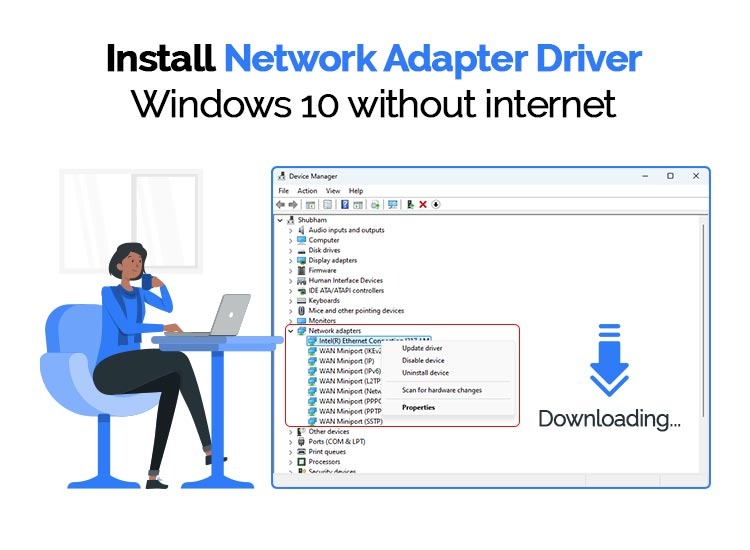
This article delves into the essential topic of installing and managing network drivers. We’ll explore the different scenarios where driver installation becomes necessary, provide step-by-step guides for various operating systems, and offer troubleshooting tips to ensure your digital lifeline remains unbroken. While this topic primarily falls under the “Tech” umbrella, understanding driver management can also have indirect implications for your “Money” through uninterrupted productivity and avoiding costly downtime, and even for your “Brand” by ensuring you present a professional and reliable image online.
Understanding Network Driver Essentials
Before we dive into the practicalities of installation, it’s important to grasp a few fundamental concepts. Network drivers are specific to the type of network hardware you have and the operating system you are running. This means a driver for an Intel Wi-Fi card on Windows 11 will be different from a driver for a Realtek Ethernet adapter on macOS.
Why Would You Need to Install or Update Network Drivers?
Several scenarios necessitate the installation or updating of network drivers:
- New Hardware Installation: When you add a new network card to your computer, whether it’s a dedicated Wi-Fi card for a desktop or a USB Ethernet adapter, your operating system won’t recognize it without the appropriate driver.
- Operating System Reinstallation or Upgrade: After a fresh installation of an operating system, or after a major upgrade, existing drivers might not be compatible or might be overwritten. You’ll often need to reinstall them.
- Troubleshooting Connectivity Issues: If you’re experiencing intermittent internet drops, slow speeds, or an inability to connect to your network at all, outdated, corrupted, or missing network drivers are a common culprit.
- Performance Improvements and New Features: Manufacturers regularly release driver updates that can optimize network performance, improve stability, and even introduce support for new networking standards or features.
- Security Patches: Like any software, drivers can have vulnerabilities. Updates often include security patches to protect your system from potential threats.
Identifying Your Network Hardware
To install the correct driver, you first need to identify your network hardware. This is typically a straightforward process.
On Windows:
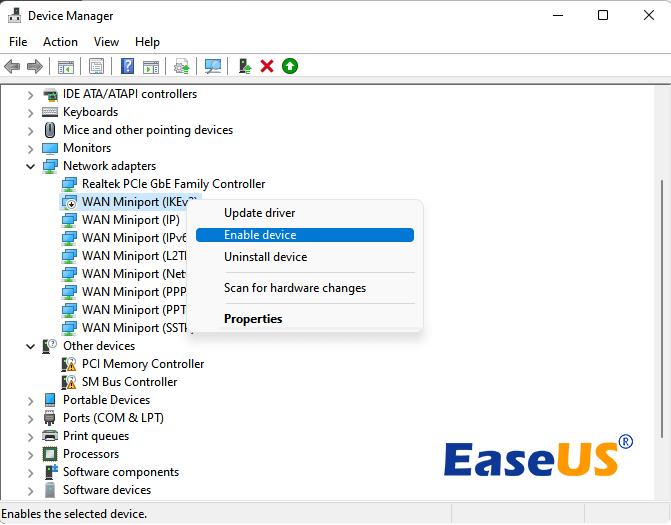
- Device Manager: The most reliable way is through Device Manager. Right-click on the Start button and select “Device Manager.”
- Network Adapters: Expand the “Network adapters” category. Here, you’ll see a list of your installed network devices. Look for entries like “Intel(R) Dual Band Wireless,” “Realtek PCIe GbE Family Controller,” or similar.
- Driver Properties: For more detailed information, right-click on the specific adapter and select “Properties.” The “General” tab will show the device name, and the “Driver” tab will display the driver provider, date, and version.
On macOS:
- System Information: Click the Apple logo in the top-left corner of your screen and select “About This Mac.”
- System Report: Click the “System Report…” button.
- Network: In the left-hand sidebar, navigate to the “Network” section. You’ll find details about your Wi-Fi and Ethernet connections, including the manufacturer and model.
On Linux:
- Terminal: Open a terminal window.
lspciCommand: Typelspci | grep -i networkto list PCI network devices.lsusbCommand: If you’re using a USB adapter, typelsusb | grep -i network.lshwCommand: For a more comprehensive overview, you can usesudo lshw -C network.
Once you have this information (manufacturer and model number), you’re ready to find the correct driver.
Installing Network Drivers: A Step-by-Step Guide
The installation process can vary slightly depending on your operating system. Here, we’ll cover the most common methods.
Installing Network Drivers on Windows
Windows generally tries to install drivers automatically, but sometimes manual intervention is required.
Method 1: Using Device Manager (Recommended for Updates and Reinstallation)
- Open Device Manager: As described earlier, right-click the Start button and select “Device Manager.”
- Locate Your Network Adapter: Expand “Network adapters.”
- Update Driver: Right-click on your network adapter and select “Update driver.”
- Search Automatically: Choose “Search automatically for drivers.” Windows will attempt to find and install the latest driver from its own repository or online.
- Browse My Computer for Drivers (If You’ve Downloaded Drivers): If you’ve already downloaded the driver package from the manufacturer’s website, choose “Browse my computer for drivers.” Click “Browse” and navigate to the folder where you saved the downloaded driver files. Make sure “Include subfolders” is checked. Click “Next.”
Method 2: Manual Installation from Manufacturer’s Website
- Identify Your Network Adapter: Use Device Manager as explained previously.
- Visit the Manufacturer’s Website: Go to the official website of your network adapter’s manufacturer (e.g., Intel, Realtek, Broadcom, Killer Networking).
- Navigate to the Support or Downloads Section: Look for a section dedicated to drivers, support, or downloads.
- Enter Your Product Information: You’ll usually be prompted to enter your product name, model number, or even your computer’s serial number.
- Select Your Operating System: Crucially, choose the correct version of your operating system (e.g., Windows 11, Windows 10, 64-bit or 32-bit).
- Download the Driver: Download the latest stable driver package. It might be an executable file (.exe) or a ZIP archive containing driver files.
- Run the Installer (if executable): If you downloaded an .exe file, double-click it and follow the on-screen instructions.
- Extract and Install (if ZIP archive): If it’s a ZIP file, extract its contents to a folder. Then, follow Method 1 (Using Device Manager) and select “Browse my computer for drivers,” pointing it to the extracted folder.
Method 3: Windows Update
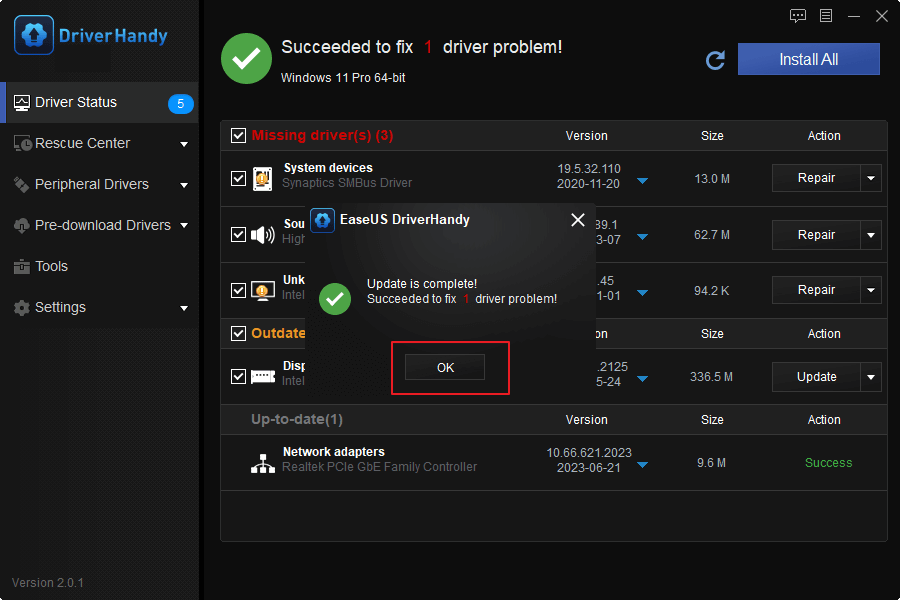
Sometimes, Windows Update can also provide updated network drivers.
- Open Settings: Press
Windows Key + I. - Update & Security (or Windows Update): Click on “Update & Security” (Windows 10) or “Windows Update” (Windows 11).
- Check for Updates: Click “Check for updates.”
- View Optional Updates: If there are optional updates available, click on “View optional updates.” You might find driver updates listed here, including for your network adapter. Select them and proceed with the installation.
Installing Network Drivers on macOS
macOS has a more integrated approach to driver management, with most essential drivers built into the operating system. Manual driver installation is less common and usually only necessary for specialized third-party hardware.
Built-in Drivers
For most standard Ethernet and Wi-Fi adapters, macOS will automatically detect and configure them upon connection. There’s generally no need to download or install drivers separately for Apple’s own hardware or commonly supported chipsets.
For Third-Party Hardware (Less Common)
If you’re using a specific USB Wi-Fi adapter or a non-standard Ethernet adapter that macOS doesn’t recognize out of the box:
- Check Manufacturer’s Website: Visit the website of the adapter’s manufacturer. Look for macOS drivers or “OS X” drivers.
- Download the Driver Package: Download the provided installer.
- Run the Installer: Double-click the downloaded
.pkgfile and follow the on-screen prompts. You might need to grant permissions or restart your Mac. - System Preferences: After installation, the adapter might appear in “System Preferences” > “Network” or require specific configuration there.
Installing Network Drivers on Linux
Linux distributions generally have excellent built-in support for a wide range of network hardware. However, some proprietary or newer chipsets might require manual driver installation.
Built-in Drivers (Kernel Modules)
Most network drivers are included as kernel modules within the Linux kernel. When you boot your system, the kernel probes for hardware and loads the appropriate modules.
For Specific Hardware (If Not Recognized)
- Identify Your Hardware: Use the terminal commands
lspci,lsusb, orlshwas described earlier to get precise hardware details. - Search Online: Search for “[Your Hardware Model] Linux driver” or “[Your Hardware Model] Debian/Ubuntu/Fedora driver” (replace with your distribution).
- Driver Repositories (PPAs, AUR): Many distributions have community-maintained repositories (like PPAs for Ubuntu, or the Arch User Repository for Arch Linux) that provide drivers not included in the official repositories.
- Ubuntu/Debian (using PPA):
bash

sudo add-apt-repository ppa:some/driver-repo

sudo apt update

sudo apt install your-driver-package
- Arch Linux (using AUR): Use an AUR helper like
yayorparu.
bash

yay -S your-driver-package
- Ubuntu/Debian (using PPA):
- Manual Compilation and Installation: In some cases, you might need to download source code, compile it, and install it manually. This is an advanced process and requires careful attention to dependencies and build instructions provided by the driver developer.
bash

# Example for building from source (commands vary greatly)

tar -xvf driver-source.tar.gz

cd driver-source/

make

sudo make install
- Reboot: After installing drivers manually or from external repositories, it’s often recommended to reboot your system.
Troubleshooting Common Network Driver Issues
Even with the correct installation, network issues can arise. Here are some common problems and their solutions:
No Network Connection After Driver Installation
- Double-Check Driver Compatibility: Ensure you downloaded the driver for the exact model of your network adapter and the correct version of your operating system (including 32-bit vs. 64-bit).
- Reboot Your Computer: A simple reboot can often resolve issues after driver changes.
- Roll Back Driver (Windows): If the new driver is causing problems, you can try rolling it back. In Device Manager, right-click the adapter, select “Properties,” go to the “Driver” tab, and click “Roll Back Driver” if the option is available.
- Uninstall and Reinstall: Completely uninstall the network adapter from Device Manager (check the box to delete the driver software if prompted) and then reboot. Windows will attempt to reinstall it automatically, or you can manually install the driver again.
- Check BIOS/UEFI Settings: On some motherboards, the onboard network adapter can be disabled in the BIOS/UEFI settings. Access your BIOS/UEFI during boot-up (usually by pressing DEL, F2, F10, or F12) and ensure your network adapter is enabled.
Slow Internet Speeds
- Update to the Latest Driver: Manufacturers often release driver updates that optimize performance.
- Check Network Hardware: Ensure your router, modem, and Ethernet cables are functioning correctly and are capable of the speeds you expect.
- Malware Scan: Malware can consume network bandwidth. Run a full system scan with your antivirus software.
- Background Processes: Identify and close any applications that might be consuming significant bandwidth in the background (e.g., cloud syncing, large downloads, background updates).
Intermittent Connectivity
- Driver Stability: Older or buggy drivers can cause connection drops. Try a different, stable driver version if available.
- Power Management Settings (Windows): Sometimes, Windows power-saving features can turn off the network adapter to save energy, leading to disconnections.
- In Device Manager, right-click the network adapter, select “Properties.”
- Go to the “Power Management” tab.
- Uncheck “Allow the computer to turn off this device to save power.”
- Wireless Interference: If you’re using Wi-Fi, other devices (microwaves, cordless phones, Bluetooth devices) can interfere. Try changing your Wi-Fi channel or moving closer to the router.
Driver Not Found or Recognized
- Correct Manufacturer and Model: Verify that you have the exact manufacturer and model number of your network adapter.
- Hidden Devices: In Device Manager, go to “View” > “Show hidden devices.” Sometimes, a previous installation might leave remnants.
- Try a Different Driver Version: If the latest driver doesn’t work, try an older, known stable version.
Conclusion
Network drivers are the unsung heroes of our digital lives, ensuring smooth and reliable access to the vast world of online information and communication. While modern operating systems have become adept at managing them automatically, understanding how to identify, install, and troubleshoot these essential software components can save you significant frustration and downtime.
Whether you’re setting up a new machine, upgrading your system, or facing perplexing connectivity issues, this guide provides the foundational knowledge and practical steps to get your network up and running. By taking the time to understand your hardware and follow the appropriate installation procedures, you empower yourself to maintain a stable and efficient connection, keeping your productivity high, your entertainment flowing, and your digital presence strong. Remember, in the interconnected ecosystem of technology, having the right drivers is akin to having the right tools for the job – essential for success.
aViewFromTheCave is a participant in the Amazon Services LLC Associates Program, an affiliate advertising program designed to provide a means for sites to earn advertising fees by advertising and linking to Amazon.com. Amazon, the Amazon logo, AmazonSupply, and the AmazonSupply logo are trademarks of Amazon.com, Inc. or its affiliates. As an Amazon Associate we earn affiliate commissions from qualifying purchases.