
In the dynamic landscape of operating systems, Linux stands out as a beacon of open-source innovation, offering unparalleled flexibility, security, and performance. From seasoned developers and cybersecurity experts to tech enthusiasts and entrepreneurs, a diverse array of users rely on Linux for its robustness and customization capabilities. At the heart of most computing experiences lies the web browser, the gateway to information, communication, and digital productivity. For many Linux users, Firefox, with its commitment to privacy, open standards, and powerful features, is the browser of choice.
Whether you’re a newcomer to the Linux ecosystem, a “tech” professional migrating your workflow, or someone optimizing their setup for “online income” or “side hustles,” installing Firefox efficiently is a fundamental step. Unlike proprietary operating systems, Linux offers several distinct methods for software installation, each with its own advantages. This comprehensive guide will walk you through the most common and effective ways to install Mozilla Firefox on your Linux distribution, ensuring you can choose the method that best suits your technical comfort level and specific needs. We’ll delve into using traditional package managers, universal packaging systems like Snap and Flatpak, and even manual installation for those who desire the latest versions or a tailored setup.

Navigating the Linux Landscape: Understanding Installation Methods
Before diving into specific commands, it’s crucial to understand why Linux offers multiple ways to install software. This flexibility is a core tenet of the open-source philosophy, catering to different user preferences, security models, and update cycles. Each method effectively delivers Firefox to your system, but they differ in how they manage dependencies, isolate applications, and handle updates. Choosing the right method often comes down to your distribution, your need for the absolute latest version, and your preference for system-wide integration versus sandboxed isolation.
The Power of Distribution-Specific Package Managers
The most traditional and often recommended method for installing software on Linux is through your distribution’s native package manager. This approach integrates Firefox seamlessly into your system, leveraging the official repositories maintained by your distribution’s developers. Package managers are designed to handle dependencies automatically, ensuring all necessary libraries and components are installed alongside Firefox, making it a hassle-free experience for most users. This method offers stability, security, and receives updates directly from your distribution’s maintainers.
Installing Firefox on Debian/Ubuntu and Derivatives (APT)
Debian, Ubuntu, Linux Mint, and a host of other popular distributions utilize the Advanced Package Tool (APT) system. Installing Firefox via APT is straightforward and typically involves just two commands in your terminal:
-
Update your package lists:
Before installing any new software, it’s good practice to update your local package index. This ensures that your system knows about the latest available versions of software in the repositories.sudo apt updatesudogrants you administrative privileges for the command,aptis the package manager, andupdaterefreshes the list of available packages. -
Install Firefox:
Once your package lists are updated, you can proceed to install Firefox.
bash

sudo apt install firefox
The system will prompt you to confirm the installation and any additional dependencies. TypeYand press Enter.
After the installation completes, you can launch Firefox from your applications menu or by typing firefox in the terminal.
Installing Firefox on Fedora/CentOS and Derivatives (DNF/YUM)
For distributions like Fedora, CentOS Stream, and other Red Hat-based systems, the DNF (Dandified YUM) package manager (or its predecessor YUM) is used. The process is equally simple:
- Install Firefox:
bash

sudo dnf install firefox
DNF will automatically resolve and install all necessary dependencies. Confirm withYwhen prompted. (Older CentOS/RHEL systems might usesudo yum install firefox).
Installing Firefox on Arch Linux and Derivatives (Pacman)
Arch Linux, Manjaro, and similar distributions use Pacman as their package manager. It’s known for its simplicity and speed.
- Install Firefox:
bash

sudo pacman -S firefox
Pacman will list the packages to be installed and ask for confirmation. PressYand Enter to proceed.
Using your distribution’s package manager is generally the most recommended approach for stability and ease of maintenance, especially for new Linux users or those prioritizing a fully integrated system. It’s often the “brand” recommended method by the distribution itself.
Exploring Universal Packaging Systems for Enhanced Flexibility
While distribution-specific package managers are excellent, they sometimes lag behind in providing the absolute latest software versions. Furthermore, managing dependencies across diverse Linux distributions can be a challenge for software developers. This led to the rise of universal packaging systems like Snap and Flatpak, which aim to provide a consistent experience across different Linux distributions, offering sandboxed environments for improved security and simpler updates. These are particularly valuable for “tech” users who need specific, up-to-date versions of applications, or “brands” that want to ensure their software runs identically everywhere.
Installing Firefox via Snap
Snap is a packaging and deployment system developed by Canonical (the creators of Ubuntu). Snaps are self-contained applications that run in a sandbox, isolated from the rest of your system. This enhances security and ensures compatibility across various Linux distributions.
-
Ensure
snapdis installed:
Most modern Ubuntu versions come withsnapdpre-installed. For other distributions, you might need to install it first.- Debian/Ubuntu:
bash

sudo apt install snapd
- Fedora:
bash

sudo dnf install snapd

sudo systemctl enable --now snapd.socket

sudo ln -s /var/lib/snapd/snap /snap
- Arch Linux:
bash

sudo pacman -S snapd

sudo systemctl enable --now snapd.socket

sudo ln -s /var/lib/snapd/snap /snap
(You might need to log out and back in, or restart your system, for snap paths to be fully configured.)
- Debian/Ubuntu:
-
Install Firefox:
Oncesnapdis set up, installing Firefox is a single command:
bash

sudo snap install firefox
The system will download the Firefox snap package and install it. Snap installations are often larger initially as they bundle all dependencies, but subsequent updates are usually incremental.
Firefox installed via Snap will automatically update in the background, keeping you on the latest stable version without manual intervention.
Installing Firefox via Flatpak

Flatpak is another universal packaging system, championed by Red Hat, that provides a similar sandboxed environment for applications. It’s highly popular in the GNOME desktop environment and is widely adopted across many distributions. Flatpak applications are often sourced from Flathub, a central repository for Flatpak apps.
-
Ensure
flatpakis installed:
Similar to Snap, you might need to install the Flatpak runtime on your system if it’s not already present.- Debian/Ubuntu:
bash

sudo apt install flatpak
- Fedora:
bash

sudo dnf install flatpak
- Arch Linux:
bash

sudo pacman -S flatpak
- Debian/Ubuntu:
-
Add the Flathub repository:
Flathub is the de facto repository for Flatpak applications. You need to add it to your Flatpak configuration:flatpak remote-add --if-not-exists flathub https://flathub.org/repo/flathub.flatpakrepo -
Install Firefox:
Now you can install Firefox from Flathub:
bash

flatpak install flathub org.mozilla.firefox
You’ll be asked to confirm the installation of Firefox and any required runtime dependencies.
Like Snap, Flatpak applications also handle their own updates, which can be managed with flatpak update or through your distribution’s software center. Both Snap and Flatpak offer compelling advantages for users who value application isolation, consistent behavior, and access to the latest software versions independent of their distribution’s release cycle. This consistency is particularly beneficial for “brand” consistency or for “tech” users who rely on specific software features.
Advanced Installation: The Tarball Method for Ultimate Control
For those who desire the absolute latest version of Firefox immediately upon release, need a specific release not yet available in repositories, or prefer a self-contained installation that doesn’t interfere with system packages, the manual installation from a tarball is the way to go. This method involves downloading the official Firefox binaries directly from Mozilla. While it offers the most control, it also requires more manual management for updates and system integration. This is often preferred by “tech” power users or developers who need bleeding-edge features or specific configurations.
Step-by-Step Manual Installation
-
Download the Firefox Tarball:
Navigate to the official Mozilla Firefox download page (e.g.,www.mozilla.org/firefox/new/) and download the Linux 64-bit version (or 32-bit if your system requires it). The file will typically be named something likefirefox-*.tar.bz2. -
Open a Terminal and Navigate:
Open your terminal and navigate to the directory where you downloaded the file, usually~/Downloads.cd ~/Downloads -
Extract the Archive:
Extract the downloadedtar.bz2file. Replacefirefox-*.tar.bz2with the actual filename.tar -xvf firefox-*.tar.bz2This will create a
firefoxdirectory in your current location. -
Move Firefox to an Optimal Location:
It’s good practice to move the extractedfirefoxdirectory to a system-wide location, typically/opt/. This directory is designated for optional software packages.sudo mv firefox /opt/ -
Create a Symbolic Link (Optional but Recommended):
Creating a symbolic link allows you to launch Firefox simply by typingfirefoxin the terminal, and it helps the system find the executable.sudo ln -s /opt/firefox/firefox /usr/local/bin/firefox -
Create a Desktop Entry (Optional but Highly Recommended):
For Firefox to appear in your applications menu and have proper icon integration, you need to create a.desktopfile.
bash

nano ~/.local/share/applications/firefox.desktop
Paste the following content into the file. Adjust theIconpath if your Firefox version places icons differently, though this path is standard for Mozilla tarball installations.
[Desktop Entry]

Name=Firefox

Comment=Web Browser

Exec=/opt/firefox/firefox %u

Terminal=false

Icon=/opt/firefox/browser/chrome/icons/default/default128.png

Type=Application

Categories=Network;WebBrowser;

MimeType=text/html;text/xml;application/xhtml+xml;application/vnd.mozilla.xul+xml;application/rss+xml;application/rdf+xml;image/gif;image/jpeg;image/png;image/webp;video/webm;audio/ogg;

StartupWMClass=Firefox
Save the file (Ctrl+O, Enter, Ctrl+X if usingnano). You might need to log out and back in for the new desktop entry to appear.
This manual method gives you the most control over your Firefox installation, making it ideal for specialized use cases or for “tech” users who manage their software aggressively.
Keeping Firefox Updated and Troubleshooting Common Issues
Regardless of your chosen installation method, keeping Firefox updated is paramount for security, performance, and access to the latest features. Timely updates patch vulnerabilities, introduce new “tech” innovations, and improve overall browsing experience, which can be crucial for anyone engaging in “online income” or sensitive financial transactions.
How to Update Firefox
-
Package Manager (APT, DNF, Pacman):
Simply run your distribution’s update and upgrade commands.- Debian/Ubuntu:
bash

sudo apt update && sudo apt upgrade
- Fedora:
bash

sudo dnf update
- Arch Linux:
bash

sudo pacman -Syu
This method will update all system packages, including Firefox, if a new version is available in the repositories.
- Debian/Ubuntu:
-
Snap:
Snap applications update automatically in the background. You can manually check for and initiate updates if needed:sudo snap refresh firefox -
Flatpak:
Flatpak applications also update automatically, often through your software center. To manually update all Flatpak apps:flatpak updateTo update only Firefox:
flatpak update org.mozilla.firefox -
Manual Installation (Tarball):
This method requires manual intervention for updates.- Download the new Firefox tarball.
- Extract it.
- Delete the old
/opt/firefoxdirectory:sudo rm -rf /opt/firefox - Move the new extracted
firefoxdirectory to/opt/:sudo mv firefox /opt/
This process replaces the old version with the new one. Your profile data (bookmarks, history, passwords) is stored separately in your home directory (~/.mozilla/firefox) and will remain intact.
Common Troubleshooting Tips
- Firefox Not Launching:
- Check the executable path: Ensure the
firefoxexecutable is correctly linked or located. For manual installs, verify/usr/local/bin/firefoxpoints to/opt/firefox/firefox. - Permissions: Make sure the Firefox directory and executable have correct permissions.
- Existing Process: Sometimes a stuck Firefox process prevents a new one from starting. Use
killall firefoxto terminate all running Firefox instances, then try again.
- Check the executable path: Ensure the
- Missing Icon/Application Menu Entry (Manual Install):
- Desktop Entry: Double-check the
~/.local/share/applications/firefox.desktopfile for typos, especially in theExecandIconpaths. - Refresh Desktop Environment: Log out and log back in, or restart your desktop environment to refresh application menus.
- Desktop Entry: Double-check the
- Performance Issues or Crashes:
- Safe Mode: Try launching Firefox in safe mode to disable extensions and custom settings:
firefox --safe-mode. If it works, an extension is likely the culprit. - Profile Corruption: Sometimes your Firefox profile can become corrupted. You can create a new profile by running
firefox -Pand selecting “Create New Profile.” - System Resources: Ensure you have sufficient RAM and CPU resources available.
- Safe Mode: Try launching Firefox in safe mode to disable extensions and custom settings:
- Conflicts with Multiple Installations:
If you’ve installed Firefox using multiple methods (e.g., both APT and Snap), you might encounter conflicts or confusion about which version is launching. It’s generally best to stick to one method to avoid such issues. If you need to switch, uninstall the old version first.
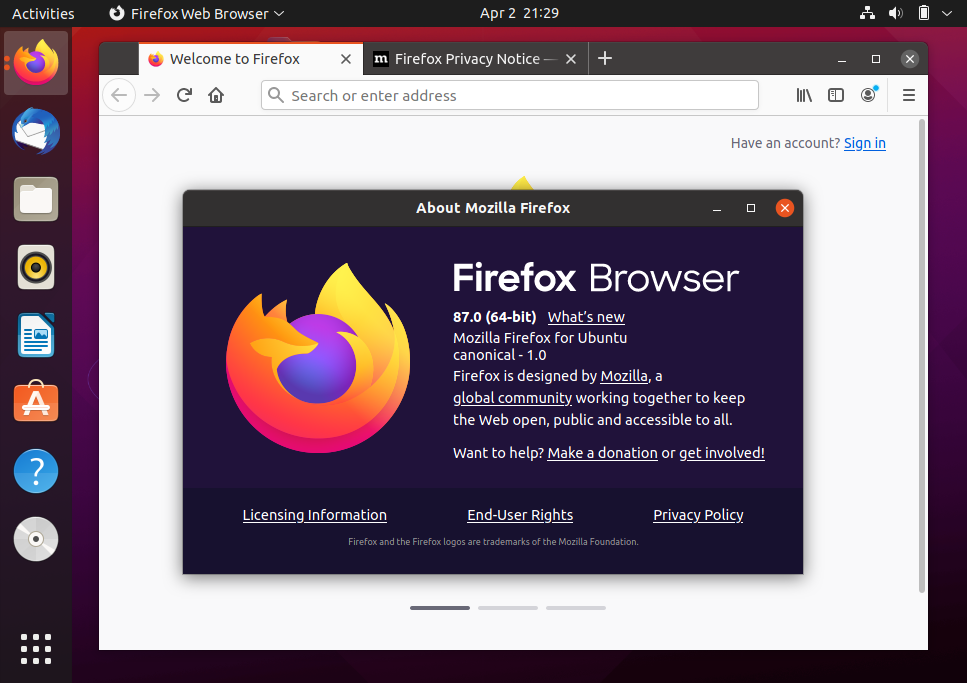
Conclusion: Empowering Your Linux Experience with Firefox
Installing Firefox on Linux, while offering multiple paths, is a straightforward process once you understand the underlying mechanisms. Whether you opt for the stability and seamless integration of your distribution’s package manager, the sandboxed versatility of Snap or Flatpak, or the ultimate control of a manual tarball installation, each method empowers you to harness the power of this privacy-focused, open-source browser.
For “tech” enthusiasts, the choice often boils down to balancing the latest features with system integration. For those building a “brand” or pursuing “online income,” a stable, secure, and up-to-date browser is an indispensable tool, enabling seamless access to web-based platforms, research, and communication. The beauty of Linux lies in its flexibility, allowing you to tailor your environment to your exact needs. By following this guide, you’ve not only installed Firefox but also gained valuable insight into the broader world of software management on Linux. Enjoy a fast, secure, and customizable browsing experience, further enhancing your productivity and digital freedom on the Linux platform.
aViewFromTheCave is a participant in the Amazon Services LLC Associates Program, an affiliate advertising program designed to provide a means for sites to earn advertising fees by advertising and linking to Amazon.com. Amazon, the Amazon logo, AmazonSupply, and the AmazonSupply logo are trademarks of Amazon.com, Inc. or its affiliates. As an Amazon Associate we earn affiliate commissions from qualifying purchases.