
In today’s interconnected world, smartphones and tablets have become indispensable tools, and the vibrant ecosystem of Android apps is at the heart of their utility. Whether you’re looking to enhance your productivity, stay entertained, connect with friends, or manage your finances, there’s an app for almost everything. But for those new to the Android platform, or perhaps transitioning from another operating system, the question “How do I install Android apps?” can feel like the first hurdle to unlock this vast digital world.
This guide is designed to demystify the process, taking you through the most common and straightforward methods of installing applications on your Android device. We’ll cover everything from the official Google Play Store to alternative installation methods, ensuring you have the knowledge to confidently equip your device with the apps you need. Our aim is to provide a clear, step-by-step walkthrough, making app installation as intuitive as possible, no matter your technical background.

The Primary Gateway: Navigating the Google Play Store
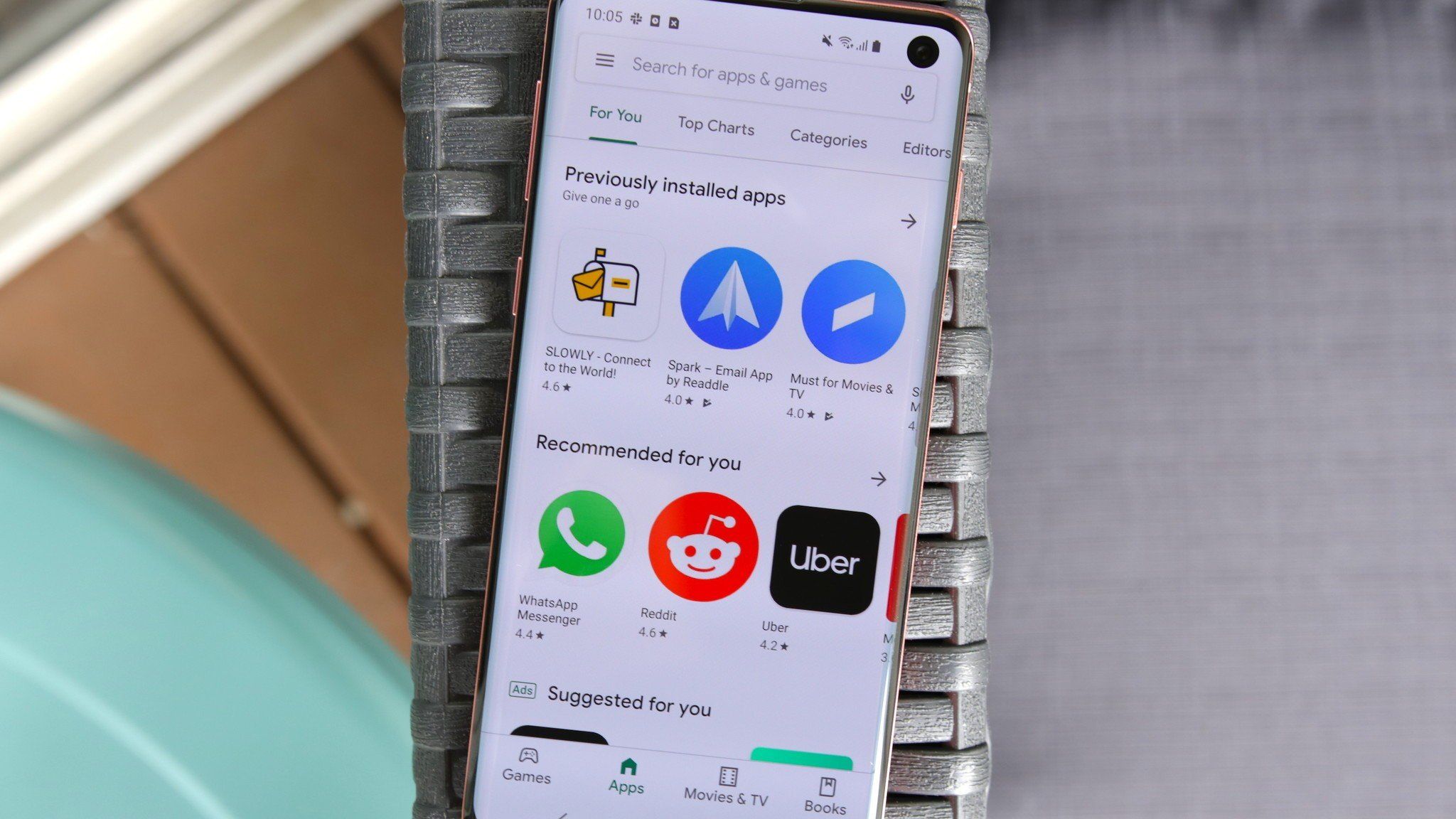
The Google Play Store is the official and most widely used platform for discovering, downloading, and installing applications on Android devices. Developed by Google, it acts as a curated marketplace, offering a vast library of free and paid apps, games, movies, TV shows, books, and more. For the vast majority of users, the Play Store is the safest and most convenient way to get their apps.
Finding and Installing Apps from the Play Store
The process of finding and installing an app from the Play Store is designed for simplicity.
1. Accessing the Google Play Store:
Your Android device will typically have a dedicated “Play Store” icon on your home screen or in your app drawer. It usually features a colorful, stylized “play” button. Tap on this icon to launch the application.
2. Searching for Apps:
Once the Play Store is open, you’ll see a search bar at the top. Tap on this bar and type the name of the app you’re looking for. For example, if you want to install a popular social media app, you might type “Instagram.” Alternatively, you can browse through categories like “Games,” “Apps,” “Movies & TV,” and “Books,” or explore curated lists like “Top Charts” or “New Releases.”
3. Selecting an App:
As you type, the Play Store will often suggest relevant apps. Tap on the desired app from the search results or browse to its listing. This will take you to the app’s dedicated page, which typically includes:
- App Title and Developer: Clearly indicates what the app is and who created it.
- Description: A detailed explanation of the app’s features and functionality.
- Screenshots and Videos: Visual previews of the app in action.
- User Ratings and Reviews: Feedback from other users, invaluable for gauging an app’s quality and reliability.
- Permissions: A list of the data and device functions the app requires to operate. It’s important to review these to ensure you’re comfortable with what the app can access.
4. Installing the App:
On the app’s page, you’ll find an “Install” button. Tap on this button. If the app is paid, the button will display the price instead of “Install.” You’ll then be prompted to confirm the installation. For free apps, this is usually a straightforward confirmation. For paid apps, you’ll need to select your payment method and confirm the purchase.
5. Granting Permissions:
After tapping “Install,” and before the app truly begins its installation, you might be presented with a list of permissions the app requires. Carefully review these permissions. For example, a photo editing app might request access to your photos and storage. A messaging app might need access to your contacts and microphone. If you’re comfortable with the requested permissions, tap “Accept” or “Allow.” If you’re not, you can choose to cancel the installation.
6. The Installation Process:
Once permissions are granted, the app will begin downloading and installing. You’ll see a progress bar indicating the download status. This process can take anywhere from a few seconds to several minutes, depending on the app’s size and your internet connection speed.
7. Opening the App:
After installation is complete, the “Install” button will change to “Open.” You can tap this to launch the app immediately. You’ll also find the app’s icon in your app drawer or on your home screen, ready to be accessed anytime.
Managing Apps and Updates in the Play Store
The Play Store isn’t just for installing; it also helps you manage your existing apps and keep them up-to-date.
Updating Apps:
Apps are frequently updated to add new features, fix bugs, and improve security. The Play Store can automatically update your apps, or you can choose to update them manually.
- Automatic Updates: In the Play Store settings, you can configure apps to update automatically over Wi-Fi. This is generally recommended for convenience and security.
- Manual Updates: To manually check for updates, open the Play Store, tap your profile icon in the top right, and select “Manage apps & device.” Here, you’ll see a list of apps with pending updates. Tap “Update all” or select individual apps to update.
Uninstalling Apps:
If you no longer need an app, you can uninstall it to free up storage space.
- From the Play Store: Go to the app’s page in the Play Store and tap the “Uninstall” button.
- From your Device Settings: Navigate to your device’s Settings, then “Apps” (or “Applications”). Find the app you want to remove, tap on it, and then select “Uninstall.”
Beyond the Play Store: Alternative Installation Methods
While the Google Play Store is the preferred method for most users due to its security and ease of use, there are other ways to install Android apps, particularly if an app isn’t available on the Play Store or if you’re interested in trying out beta versions or apps from third-party developers. These methods involve installing apps from sources other than the official Google Play Store, which is known as “sideloading.”
Sideloading Apps: Installing APK Files
An APK (Android Package Kit) file is the file format used by Android for the distribution and installation of mobile apps. Installing an APK file directly is referred to as sideloading.
Important Note: Sideloading apps from untrusted sources can pose a significant security risk. Malware and viruses can be disguised as legitimate apps, and installing them can compromise your device and personal data. Always download APK files from reputable websites and developers.
Enabling Installation from Unknown Sources:
Before you can sideload an app, you need to grant your device permission to install applications from sources other than the Play Store. The exact steps may vary slightly depending on your Android version and device manufacturer, but generally:
- Open your device’s Settings app.
- Navigate to “Apps” or “Applications.”
- Look for “Special app access” or a similar option.
- Find “Install unknown apps” or “Unknown sources.”
- Tap on it and enable the toggle. You might be asked to confirm this action.
- Important Consideration: Some Android versions allow you to enable this permission on a per-app basis. This means you can grant permission to your web browser (if you download the APK through it) or a file manager to install apps, rather than enabling it globally. This is a more secure approach.

Downloading and Installing an APK File:
- Find a reputable source for the APK file: Search for the app you want and look for a trusted website or the developer’s official site. Be wary of generic APK download sites that might host questionable software.
- Download the APK file: Once you’ve found the desired APK, tap on the download link. The file will be saved to your device, usually in the “Downloads” folder.
- Locate and open the APK file: Open your device’s file manager app (e.g., “Files,” “My Files”). Navigate to the “Downloads” folder or wherever you saved the APK.
- Tap on the APK file: Your device will likely prompt you to install the app. You may see a summary of the permissions the app requests.
- Confirm the installation: Tap “Install” to proceed. If you encounter any issues or the app requires specific permissions, you might be prompted to review them again.
- Complete the installation: Once the installation is finished, you’ll see a confirmation message. You can then tap “Open” to launch the app.
Using Third-Party App Stores
Another alternative to the Google Play Store is using third-party app stores. These are alternative marketplaces that offer a curated selection of Android apps. Some popular examples include Amazon Appstore, F-Droid (which focuses on free and open-source software), and various manufacturer-specific stores.
Advantages of Third-Party Stores:
- App Availability: They may offer apps not found on the Play Store.
- Deals and Promotions: Some stores may have exclusive discounts or free app offers.
- Specific Focus: Stores like F-Droid cater to users who prefer open-source software.
Disadvantages and Security Concerns:
- Security Risks: While some third-party stores are reputable, others may not have the same rigorous security checks as Google Play. This increases the risk of downloading malware.
- User Experience: The interface and app discovery features might not be as polished as the Play Store.
- Updates: App updates might be less frequent or managed differently compared to the Play Store.
Installing Apps from Third-Party Stores:
The process is similar to installing from the Google Play Store, but you’ll need to download and install the third-party app store itself first.
- Download the third-party app store’s APK: Search for the desired app store (e.g., “Amazon Appstore APK download”) and download its APK file from a trusted source.
- Enable “Install unknown apps” (if necessary): Follow the steps mentioned earlier to allow your device to install apps from unknown sources. You’ll need to grant this permission to the app you’re using to download the third-party store’s APK (e.g., your browser).
- Install the third-party app store: Locate the downloaded APK for the app store and tap on it to install.
- Open the third-party app store and install apps: Once the app store is installed, open it, browse for the apps you want, and install them directly from that store.
Considerations for App Installation and Security
As you navigate the world of Android app installation, a few key considerations will enhance your experience and protect your device. These revolve around understanding the app’s purpose, managing its access to your device, and ensuring its authenticity.
Understanding App Permissions
One of the most crucial aspects of installing any app, regardless of the source, is understanding the permissions it requests. Permissions are like the keys an app asks for to access different parts of your phone and data.
- Why Permissions Matter: An app might request access to your location to provide navigation services, your camera to take photos, or your contacts to facilitate sharing. However, if an app seems overly intrusive (e.g., a simple calculator asking for access to your microphone or SMS messages), it’s a red flag.
- Reviewing Permissions Before Installation: On the Google Play Store, you can find the “Permissions” section on an app’s details page. When sideloading or using a third-party store, you’ll often see a prompt listing the permissions before installation.
- Managing Permissions After Installation: Most modern Android versions allow you to manage app permissions after installation. You can go to Settings > Apps > [Select App] > Permissions to review and revoke or grant specific permissions. This is a powerful tool for maintaining your privacy and security. For instance, you can allow a navigation app to access your location only while the app is in use, rather than all the time.
Maintaining Digital Security and Avoiding Malware
The convenience of apps comes with the inherent risk of encountering malware. Malware, such as viruses, spyware, and ransomware, can steal your data, disrupt your device’s performance, or even lock you out of your phone.
- Stick to Official Sources: The Google Play Store is generally the safest place to download apps. Google has robust security measures in place to scan apps for malicious content.
- Be Skeptical of Unknown Sources: When sideloading or using third-party stores, exercise extreme caution. Only download APKs from websites you trust implicitly.
- Read Reviews and Ratings: Pay attention to user reviews. If many users are complaining about an app behaving strangely or mentioning security issues, it’s best to avoid it.
- Keep Your Device Updated: Regularly update your Android operating system and the Google Play Protect service. These updates often include security patches that protect against new threats.
- Install Reputable Security Software: Consider installing a well-known mobile security app that can scan for malware and protect your device in real-time.
- Be Wary of “Too Good to Be True” Offers: Apps promising free premium features or in-app currency for free are often malicious.
Exploring Beyond the Obvious: Productivity, Finance, and Brand Building Apps
The Android ecosystem isn’t just about entertainment; it’s a powerful platform for enhancing productivity, managing personal and business finances, and even building your personal or corporate brand.
Productivity Boosters:
From managing your to-do lists to organizing your notes and collaborating with teams, productivity apps can significantly streamline your workflow.
- Task Management: Apps like Todoist, Microsoft To Do, or Google Tasks help you keep track of your responsibilities.
- Note-Taking and Organization: Evernote, Google Keep, and OneNote are excellent for capturing ideas and organizing information.
- Cloud Storage and File Management: Google Drive, Dropbox, and OneDrive allow you to access and manage your files from anywhere.
- Communication and Collaboration: Slack, Microsoft Teams, and Zoom are vital for staying connected with colleagues and clients.
Financial Management Tools:
Taking control of your finances is easier than ever with a wide array of Android apps.
- Budgeting and Expense Tracking: Apps like Mint, YNAB (You Need A Budget), or PocketGuard help you monitor your spending and create budgets.
- Investing and Trading: Platforms like Robinhood, Fidelity, or E*TRADE offer mobile access to investment accounts.
- Online Income and Side Hustles: Apps related to freelancing platforms (e.g., Upwork, Fiverr), online selling (e.g., eBay, Etsy), or even passive income tracking can be found.
- Banking and Payments: Your bank’s official app, alongside payment services like Google Pay or PayPal, are essential for managing your money.
Brand Building and Marketing Tools:
For individuals and businesses looking to enhance their presence, Android offers a suite of tools.
- Social Media Management: Apps for scheduling posts, analyzing engagement, and managing multiple social media accounts (e.g., Buffer, Hootsuite).
- Graphic Design and Content Creation: Tools like Canva or Adobe Express allow you to create visually appealing graphics for marketing.
- Website and Blog Management: Apps that allow you to manage WordPress sites or other blogging platforms on the go.
- Customer Relationship Management (CRM): Mobile versions of CRM software help manage client interactions and sales pipelines.
- Personal Branding: Apps that facilitate content creation, networking, and portfolio showcasing.
By understanding how to install apps effectively and responsibly, you unlock the full potential of your Android device, transforming it into a powerful tool for personal growth, business success, and seamless daily management.
aViewFromTheCave is a participant in the Amazon Services LLC Associates Program, an affiliate advertising program designed to provide a means for sites to earn advertising fees by advertising and linking to Amazon.com. Amazon, the Amazon logo, AmazonSupply, and the AmazonSupply logo are trademarks of Amazon.com, Inc. or its affiliates. As an Amazon Associate we earn affiliate commissions from qualifying purchases.