
Few things are as frustrating for a tech user as being unable to access the very tools that make their devices smart: applications. The Google Play Store serves as the central hub for Android users worldwide, offering millions of apps that cater to every need – from productivity suites and communication tools to entertainment and essential financial management apps. When you encounter the dreaded “can’t install apps on Google Play” error, it can feel like your digital world has come to a grinding halt. This issue not only hinders your ability to download new software but can also prevent updates to existing critical applications, potentially impacting your device’s security, functionality, and your overall productivity.
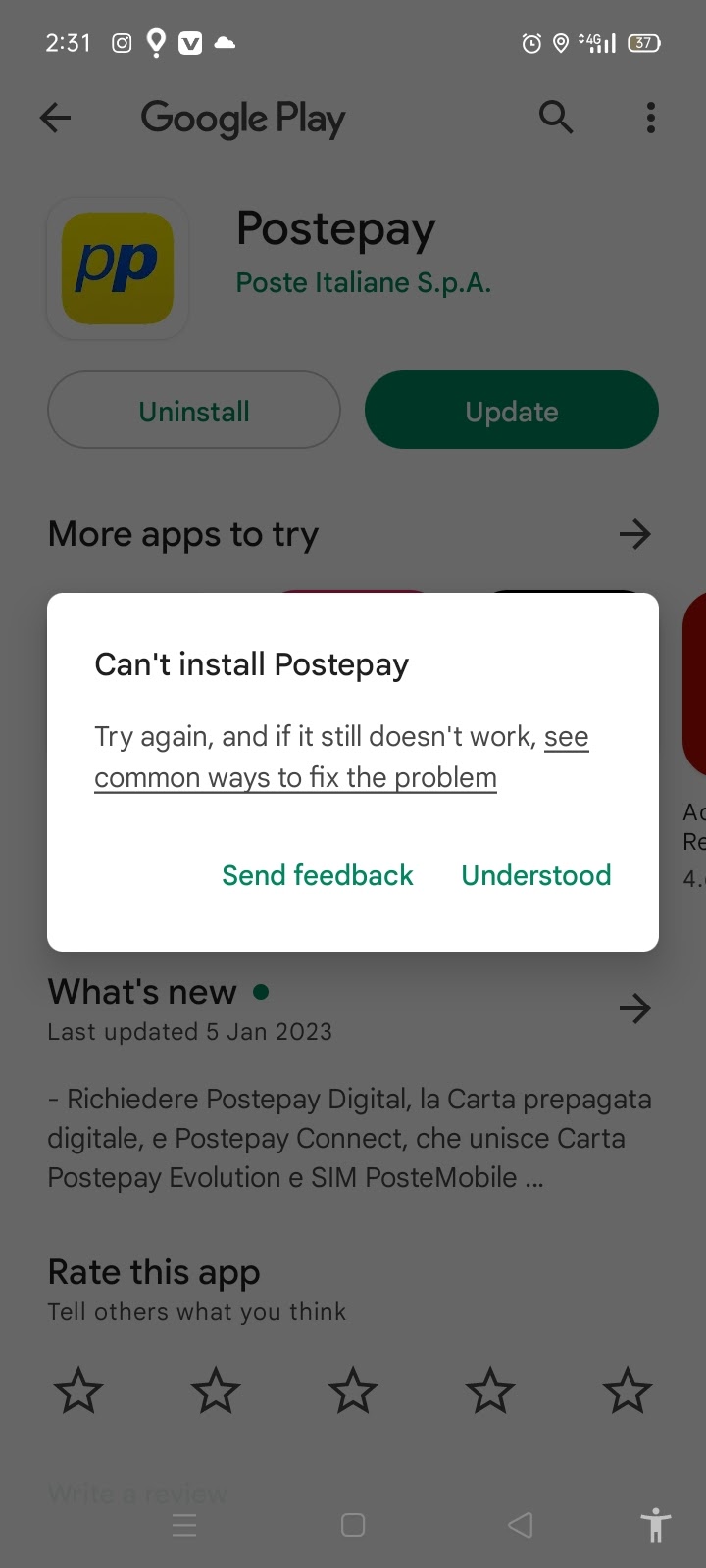
This comprehensive guide will walk you through a series of troubleshooting steps, starting from the simplest checks to more advanced solutions. We’ll delve into common causes for installation failures, ensuring you have the knowledge to diagnose and fix the problem, restoring full functionality to your Android device. Understanding these solutions is not just about fixing a momentary glitch; it’s about maintaining a seamless digital experience, which is crucial in today’s app-dependent landscape, where software powers everything from personal finance tracking to cutting-edge AI tools.
Initial Checks and Quick Fixes: The Foundation of Troubleshooting
Before diving into more complex solutions, it’s always wise to start with the basics. Many installation issues stem from simple oversight or temporary glitches that can be resolved with minimal effort. These initial checks are your first line of defense, often saving you time and frustration.
Verify Your Internet Connection
This might seem overtly simplistic, but a stable internet connection is the absolute bedrock for any app download. The Google Play Store requires a consistent and sufficiently strong connection to download app files, verify licenses, and communicate with Google’s servers.
- How to check:
- Wi-Fi: Ensure your Wi-Fi is turned on and you’re connected to a network. Try opening a web browser and navigating to a reliable website (e.g., Google.com or a news site). If pages don’t load, your Wi-Fi might be the problem. Try disconnecting and reconnecting, or restarting your router.
- Mobile Data: If you’re relying on mobile data, ensure it’s enabled in your device settings. Check if you have an active data plan and sufficient data allowance. Sometimes, even with data on, a weak signal or carrier issue can prevent downloads. Try switching between Wi-Fi and mobile data to see if one works where the other fails.
- Why it matters: A flaky connection can lead to incomplete downloads, timeout errors, or the Play Store simply failing to initiate the download process, displaying various generic error messages.
Restart Your Device
The classic “turn it off and on again” advice is a cliché for a reason: it often works wonders. A simple restart can clear temporary software glitches, refresh system processes, and resolve minor conflicts that might be preventing app installations. It effectively gives your device a fresh start.
- How to do it:
- Press and hold the power button for a few seconds.
- Select “Restart” from the options that appear.
- Wait for your device to power down and then reboot completely.
- Why it matters: Just like a computer, Android devices can accumulate minor software hiccups over prolonged periods of operation. A restart is a clean slate, often resolving issues related to memory management or stalled background processes that interfere with the Play Store.
Check Your Device’s Storage Space
Apps, especially modern ones with high-quality graphics and extensive features, require significant storage space. If your device is running low on internal storage, the Google Play Store won’t be able to download or install new applications, as there’s simply no room for them. This is a common oversight but a critical one.
- How to check:
- Go to your device’s Settings.
- Tap on Storage (the exact wording might vary slightly, e.g., “Storage & memory” or “About phone” then “Storage”).
- Review the breakdown of your storage usage. Look for “Available” or “Free” space.
- How to free up space:
- Delete unused apps: Go to Settings > Apps & notifications > See all apps, and uninstall apps you no longer use.
- Clear app cache: Many apps store large amounts of cached data. In the Apps settings, for individual apps, you can find an option to “Clear cache.”
- Delete old photos/videos: Transfer them to cloud storage (like Google Photos) or a computer.
- Manage downloads: Delete old files from your “Downloads” folder.
- Why it matters: The Play Store needs not just enough space for the app itself, but also temporary space for the download process. Insufficient storage is a hard barrier to installation.
Addressing Google Play Store and Services Issues: Deep Dive into the Engine
The Google Play Store app and Google Play Services are the primary components responsible for app installations. If these core applications are malfunctioning, it can directly impact your ability to download apps. Troubleshooting these specific components is often the most effective step for many installation problems.
Clear Cache and Data for Google Play Store
The Google Play Store app, like any other app, stores temporary files (cache) and user-specific data. Over time, this data can become corrupted or outdated, leading to unexpected behavior, including installation failures. Clearing these can often resolve a myriad of Play Store-related issues without affecting your installed apps.
- How to do it:
- Go to Settings on your device.
- Tap on Apps & notifications (or “Apps,” “Application Manager”).
- Find and tap on Google Play Store.
- Tap on Storage & cache.
- First, tap Clear cache.
- Then, tap Clear data (or “Clear storage”). Note: Clearing data will reset the Play Store app to its initial state, requiring you to accept terms again and potentially re-log in or refresh your browsing history within the app. It will NOT delete your installed apps.
- Restart your device and try installing the app again.
- Why it matters: A corrupted cache can confuse the Play Store, while old data might contain conflicting information that prevents new installations. Clearing these ensures the app starts fresh.
Clear Cache and Data for Google Play Services
Google Play Services is a crucial background process that enables many core Android functionalities, including authentication, synchronizing contacts, accessing user privacy settings, and, critically, facilitating communication between the Google Play Store and your device for app installations. Issues with Play Services can have far-reaching impacts.
- How to do it:
- Go to Settings on your device.
- Tap on Apps & notifications (or “Apps,” “Application Manager”).
- You might need to tap “See all apps” and then show “System apps” to find Google Play Services.
- Tap on Google Play Services.
- Tap on Storage & cache.
- First, tap Clear cache.
- Then, tap Clear data (or “Manage space” > “Clear all data”). Similar to Play Store, this won’t delete user data but might require some services to re-sync.
- Restart your device and re-test.
- Why it matters: Play Services acts as a bridge. If that bridge is compromised by bad data or cache, the flow of information necessary for app installation breaks down.
Check for Google Play Store Updates
Sometimes, an outdated version of the Google Play Store itself can cause compatibility issues or miss crucial bug fixes that address installation problems. The Play Store usually updates automatically in the background, but occasionally, an update might get stuck or delayed.
- How to check/update:
- Open the Google Play Store app.
- Tap your profile icon (usually top right).
- Go to Settings.
- Tap on About.
- Under “Play Store version,” tap Update Play Store. If an update is available, it will download and install in the background. If it says “Google Play Store is up to date,” you’re good.
- Why it matters: Keeping the Play Store updated ensures you have the latest features, security patches, and, importantly, fixes for known bugs that might affect app installations.
Remove and Re-add Your Google Account
Your Google account is intrinsically linked to your Play Store access. If there’s an authentication error or a synchronization issue with your Google account, it can prevent app installations. Removing and re-adding your account can refresh this connection, often resolving underlying account-related glitches.
- How to do it:
- Go to Settings on your device.
- Tap on Accounts (or “Users & accounts”).
- Select your Google account.
- Tap Remove account. You may need to enter your device password or PIN.
- Restart your device.
- Go back to Settings > Accounts > Add account > Google.
- Follow the prompts to sign back into your Google account.
- Try installing the app again.
- Why it matters: This process forces a complete re-sync of your device with Google’s services, establishing a fresh authentication token and clearing any old, corrupted account data. This is particularly effective for errors related to user authentication or server communication.
System-Level Troubleshooting: Beyond the App Itself
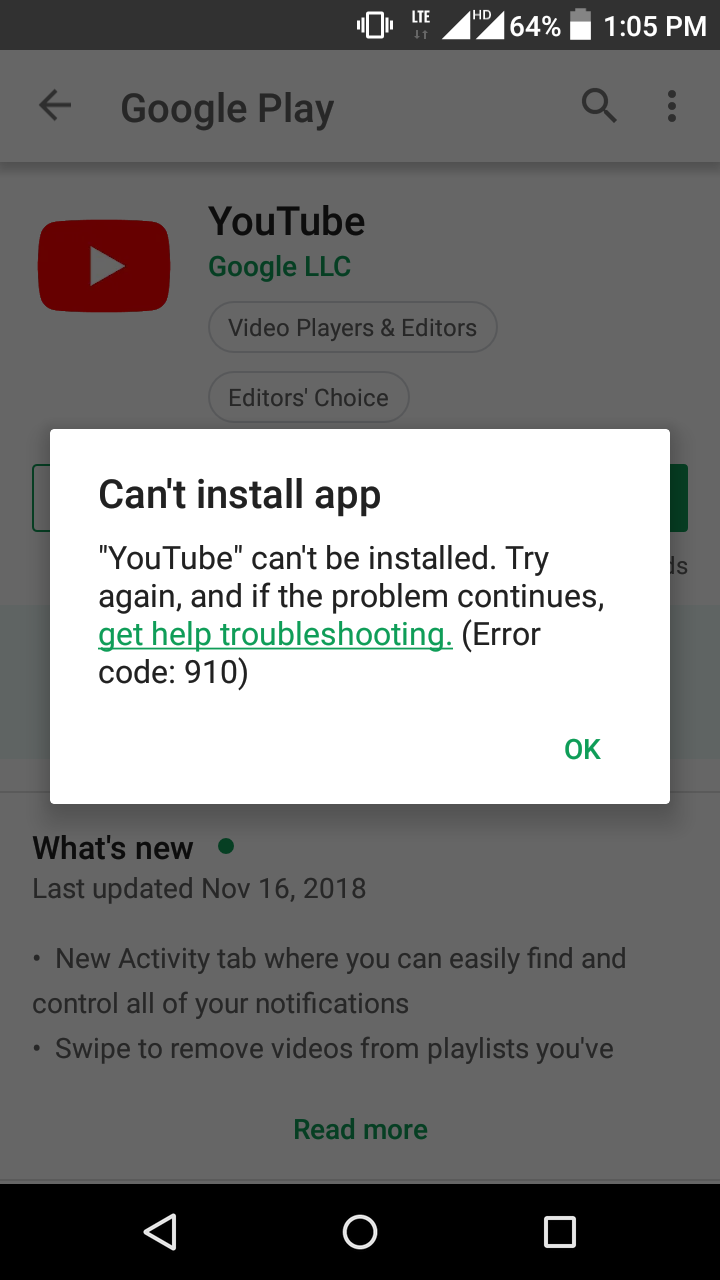
If the issues persist after addressing the Play Store and services directly, the problem might lie deeper within your Android operating system settings or network configurations. These steps look at broader system elements that can influence app installation.
Update Your Android Operating System
An outdated Android OS can lead to compatibility issues with newer apps or even the Play Store itself. Software updates often include critical bug fixes, performance improvements, and security enhancements that can resolve underlying system problems preventing app installations.
- How to do it:
- Go to Settings on your device.
- Scroll down and tap on System (or “About phone”).
- Tap on System update (or “Software update”).
- Check for and install any available updates.
- Why it matters: App developers build their applications to be compatible with certain Android versions. An older OS might lack necessary APIs or system components, leading to installation failures. Keeping your system updated is also crucial for digital security, protecting your data from vulnerabilities.
Correct Date and Time Settings
Believe it or not, incorrect date and time settings on your device can wreak havoc with app installations and many other online services. This is because secure communication protocols (like SSL/TLS, which Google Play uses) rely on accurate time synchronization to verify certificates and establish secure connections. If your device’s time is significantly off, it can lead to authentication failures.
- How to do it:
- Go to Settings on your device.
- Tap on System (or “Date & time”).
- Ensure “Set automatically” (or “Automatic date & time” / “Automatic time zone”) is toggled on. This synchronizes your device’s clock with network time, ensuring accuracy.
- If it’s already on, try toggling it off and then on again, or manually setting the correct date and time, then re-enabling automatic settings.
- Why it matters: Time discrepancies can cause secure connections to fail, as servers may reject connections from clients with mismatched clocks, leading to Play Store download errors.
Disable VPN or Proxy Servers
While VPNs and proxy servers offer privacy and access to geo-restricted content, they can sometimes interfere with the Google Play Store’s ability to communicate properly with its servers. A VPN might route your connection through a server that Google identifies as suspicious, or it might simply introduce latency and instability that disrupt the download process.
- How to do it:
- If you’re using a VPN app, open it and disconnect from the VPN server.
- If you’ve configured a proxy manually (less common for most users), go to Settings > Network & internet > Wi-Fi, tap the gear icon next to your connected network, then “Advanced options” or “Modify network,” and check for proxy settings. Set it to “None.”
- Attempt the app installation again without the VPN or proxy active.
- Why it matters: VPNs and proxies change your IP address and network path, which can occasionally conflict with Google’s security protocols or simply degrade connection quality, leading to installation failures. This is a common issue when trying to download apps whose regional availability might be impacted by the VPN’s server location.
Review Parental Controls and Restrictions
If you’re using a device that has parental controls enabled (either through Google Family Link or third-party apps), these restrictions can prevent the installation of certain apps based on age ratings, categories, or developer blacklists. It’s easy to overlook this if someone else set up the device or if the controls were enabled a long time ago.
- How to check:
- Open the Google Play Store app.
- Tap your profile icon.
- Go to Settings.
- Tap on Family then Parental controls.
- Check if parental controls are “On.” If so, you’ll need the PIN to view and modify the settings. Review the “Apps & games” section to ensure the app you’re trying to install isn’t blocked by a rating or specific restriction.
- Why it matters: Parental controls are designed to restrict content for younger users, but if misconfigured or forgotten, they can unintentionally block legitimate app installations for adults using the same device.
Advanced Solutions and Last Resorts: When All Else Fails
When the more common fixes don’t yield results, it’s time to consider more impactful solutions. These steps might be more involved or represent a final effort before seeking professional help.
Check App-Specific Permissions
While less common for installation failures, sometimes a pending app update or a specific app’s interaction with the system can cause issues, or in rare cases, a problematic permission state might indirectly affect the Play Store. Ensure the Google Play Store and Google Play Services have all necessary permissions.
- How to check:
- Go to Settings > Apps & notifications > See all apps.
- Find and tap on Google Play Store and then Google Play Services.
- Tap on Permissions.
- Ensure all necessary permissions (e.g., “Storage” for Play Store) are granted. While typically granted by default, it’s worth a quick check if other steps fail.
- Why it matters: Although critical system apps rarely have their core permissions revoked, any system glitch that prevents them from accessing necessary resources (like storage to download files) could manifest as an installation error.
Try Installing on a Different Network
Sometimes the issue isn’t your device or the Play Store, but rather your specific network environment. Corporate networks, public Wi-Fi hotspots, or even your home ISP might have firewalls, content filters, or DNS issues that specifically block access to Google Play’s download servers or certain content.
- How to do it:
- If you’re on Wi-Fi, try switching to mobile data (if available and you have enough allowance).
- If you’re on mobile data, try connecting to a different Wi-Fi network (e.g., a friend’s house, a public library, or a different hotspot).
- Restart your router if you suspect your home network is the problem.
- Why it matters: This helps isolate whether the problem is device-specific or network-specific. If the app installs on a different network, you know to investigate your original network settings, firewall, or router.
Performing a Factory Reset (As a Last Resort)
A factory reset wipes your device clean, returning it to the state it was in when you first took it out of the box. This is a drastic step, but it often resolves deep-seated software issues, corrupted system files, or persistent bugs that no other troubleshooting method can fix.
- Before you start:
- BACK UP ALL YOUR DATA! This is non-negotiable. Photos, videos, contacts, messages, app data – everything will be erased. Use Google Drive, Google Photos, or connect to a computer to back up.
- Ensure you know your Google account login details, as you’ll need them to set up your device again.
- How to do it:
- Go to Settings on your device.
- Tap on System (or “General management”).
- Tap on Reset options (or “Reset”).
- Tap Erase all data (factory reset).
- Confirm your decision and follow the on-screen prompts.
- Why it matters: A factory reset removes any corrupted system files, conflicting software, or persistent malware that might be silently interfering with app installations. While inconvenient, it’s the most effective way to eliminate software-related causes.

Contacting Google Support or App Developer
If you’ve exhausted all troubleshooting steps and still can’t install apps, it might be time to escalate.
- Google Support: For widespread Play Store issues affecting multiple apps, contacting Google Play support is the next logical step. They might be aware of server-side issues or have more advanced diagnostic tools. You can usually find support links within the Play Store app or by searching “Google Play Support” online.
- App Developer: If the problem is specific to only one particular app, the issue might lie with the app itself or its compatibility with your device model/OS version. Contacting the app developer directly (usually via their website or the “Developer contact” section on their Play Store listing) can provide insights or specific workarounds.
- Why it matters: Sometimes the problem isn’t with your device but with the service or the app itself. Professional support can offer solutions unique to your situation or confirm if it’s a known bug requiring a fix from their end.
Conclusion
Being unable to install apps on Google Play is a significant hindrance in a world increasingly reliant on digital tools for everything from personal productivity and financial management to communication and security. The inability to download or update apps can lead to missed opportunities, productivity bottlenecks, and even compromise your digital safety by preventing access to critical security patches.
By systematically working through the troubleshooting steps outlined in this guide – from simple checks like ensuring a stable internet connection and sufficient storage to more advanced actions like clearing app data and system updates – you stand an excellent chance of resolving the issue. Remember, patience and methodical problem-solving are key. With these strategies, you can restore your device’s full functionality, ensuring you remain connected, productive, and secure in your digital endeavors.
aViewFromTheCave is a participant in the Amazon Services LLC Associates Program, an affiliate advertising program designed to provide a means for sites to earn advertising fees by advertising and linking to Amazon.com. Amazon, the Amazon logo, AmazonSupply, and the AmazonSupply logo are trademarks of Amazon.com, Inc. or its affiliates. As an Amazon Associate we earn affiliate commissions from qualifying purchases.