
The question “can i install linux on mac” is a common one, echoing through forums, tech communities, and the minds of curious users seeking greater flexibility, control, or a different computing experience. The short answer is a resounding “yes,” but the journey, as with many compelling tech endeavors, is paved with nuances, specific considerations, and varying levels of complexity depending on your Mac’s hardware and your desired outcome. This comprehensive guide will explore the why, the how, and the essential details for successfully introducing the world of Linux to your Apple ecosystem.
Linux, renowned for its open-source nature, robust security, unparalleled customization, and efficiency, offers a compelling alternative or complement to macOS. For developers, system administrators, privacy advocates, or simply those eager to explore beyond Apple’s polished walled garden, running Linux on a Mac can unlock a universe of possibilities. Whether you’re looking to run specific software unavailable on macOS, revive an aging Mac with a lightweight operating system, or develop in a Linux-native environment, understanding the landscape is the first step.

Understanding the Landscape: Mac Hardware and Linux Compatibility
Before diving into installation methods, it’s crucial to acknowledge the fundamental differences in Mac hardware generations, as these dictate the feasibility and complexity of running Linux. The transition from Intel processors to Apple Silicon (M1, M2, M3 series) has profoundly impacted the compatibility landscape.
Intel Macs vs. Apple Silicon (M1/M2/M3): A Crucial Distinction
Intel-based Macs (2006-2020): These machines, powered by Intel x86-64 architecture processors, are generally the most compatible with Linux. The underlying architecture is the same as most PCs, meaning many Linux distributions and tools are designed to run seamlessly on them. For these Macs, options like dual-booting, virtualization, and running from external drives are well-established and relatively mature. Drivers for Wi-Fi, graphics, and other peripherals are often readily available or part of the Linux kernel.
Apple Silicon Macs (M1, M2, M3 series – 2020 onwards): This is where the landscape becomes more challenging and exciting. Apple Silicon processors are based on ARM architecture, a significant departure from Intel’s x86. This architectural shift means that Linux distributions compiled for x86 processors will not run natively on Apple Silicon. While progress is rapid, running Linux on these machines often involves specialized distributions (like Asahi Linux), specific virtualization tools optimized for ARM, or working with nascent driver support. The “can I install Linux” question here leans more towards “how much effort and how bleeding-edge am I willing to be?”
The Boot Process: EFI/UEFI and macOS
Both Intel and Apple Silicon Macs utilize a modern EFI (Extensible Firmware Interface) or UEFI (Unified EFI) boot system. This is a standard that Linux distributions are designed to work with, but Apple’s specific implementation, particularly its Secure Boot mechanism, can add layers of complexity. For Intel Macs, disabling Secure Boot or utilizing boot managers like rEFInd often paves the way for dual-booting. On Apple Silicon, the secure boot environment is even more tightly integrated, requiring specific solutions like Asahi Linux’s custom bootloader to coexist with macOS.
Why Linux? Benefits for Mac Users
Beyond the technical challenge, there are compelling reasons why a Mac user might want to venture into the Linux world:
- Customization and Control: Linux offers unparalleled freedom to customize every aspect of the operating system, from the desktop environment to the kernel itself. This level of control is appealing to power users and developers.
- Open-Source Philosophy: Embrace a vast ecosystem of free and open-source software, potentially reducing reliance on proprietary applications and their associated costs. This aligns with a philosophy of transparency and community-driven development.
- Specific Software and Tooling: Many development tools, server applications, and specialized engineering software are either Linux-native, perform better on Linux, or are simply easier to set up in a Linux environment. For example, Docker containers often integrate more seamlessly with a Linux host.
- Performance and Efficiency: Lightweight Linux distributions can breathe new life into older Macs, making them feel snappier than when running a modern macOS version. For developers, a stripped-down Linux environment can offer peak performance for compilation tasks.
- Security and Privacy: The open-source nature of Linux allows for constant community scrutiny, often leading to rapid identification and patching of vulnerabilities. Many users also appreciate the greater control over data and telemetry that Linux offers compared to proprietary operating systems.
- Learning Opportunity: Diving into Linux offers an invaluable learning experience, deepening your understanding of operating systems, command-line interfaces, and system administration. This knowledge can be a significant boost to a professional’s technical “brand” and career prospects, potentially opening doors to specialized roles that command higher salaries.
Methods for Installing Linux on Your Mac
The approach you take will largely depend on your Mac’s architecture, your technical comfort level, and how deeply you wish to integrate Linux.
1. Virtualization: The Safest and Easiest Approach
Virtualization allows you to run Linux as a “guest” operating system within a “host” macOS environment. This is by far the safest and most recommended method for most users, especially if you’re just exploring Linux or need it for specific applications.
- How it Works: A virtualization application (e.g., Parallels Desktop, VMware Fusion, VirtualBox, UTM) creates a virtual machine (VM) that simulates hardware, allowing Linux to run as if it were on its own computer, but entirely within a window on your macOS desktop.
- Popular Tools:
- Parallels Desktop (Paid): Excellent performance and integration on both Intel and Apple Silicon Macs. Often the easiest to set up, especially for Apple Silicon, as it handles ARM-based Linux distributions well.
- VMware Fusion (Free for Personal Use, Paid for Pro): Another robust, high-performance option for Intel Macs. Its support for Apple Silicon is rapidly maturing.
- VirtualBox (Free, Open-Source): A popular choice for Intel Macs, offering a good balance of features and cost. Its performance on Apple Silicon is less optimized, typically requiring Rosetta for x86 Linux or specific ARM builds.
- UTM (Free, Open-Source): Particularly strong for Apple Silicon Macs, UTM uses QEMU virtualization to run a wide range of operating systems, including ARM-based Linux distributions, with excellent compatibility. It can even emulate x86 on ARM, though with a performance hit.
- Pros:
- No Risk to macOS: Your primary macOS installation remains untouched.
- Easy Removal: Simply delete the VM file to uninstall Linux.
- Runs Simultaneously: You can switch between macOS and Linux applications effortlessly.
- Hardware Agnostic (to an extent): Virtualization tools bridge hardware differences, making installation generally smoother.
- Cons:
- Performance Overhead: Linux runs on virtual hardware, so it won’t achieve native performance.
- Resource Sharing: Both macOS and Linux compete for RAM, CPU, and storage.
- Limited Direct Hardware Access: Graphics acceleration and other specialized hardware might not be fully available or perform optimally.
2. Dual-Booting (Intel Macs Only): A Native Experience
Dual-booting means installing Linux directly onto your Mac’s storage alongside macOS, allowing you to choose which operating system to boot into at startup. This method is almost exclusively for Intel Macs due to the complexities of Apple Silicon’s boot process and driver requirements.
- How it Works: You partition your Mac’s internal drive, dedicating a separate section for Linux. A boot manager (like rEFInd) is then installed to present you with an option to load either macOS or Linux when you turn on your machine.
- Required Tools/Steps:
- Backup! This is paramount. Data loss is a real risk.
- Partitioning: Use macOS’s Disk Utility to shrink your macOS partition and create free space for Linux.
- rEFInd (Boot Manager): Highly recommended for Intel Macs, as it elegantly handles booting multiple OSes.
- Linux Distribution: Choose an Intel-compatible distro (e.g., Ubuntu, Fedora, Pop!_OS).
- Pros:
- Native Performance: Linux runs directly on your Mac’s hardware, offering the best possible performance.
- Full Hardware Access: All your Mac’s components (graphics card, Wi-Fi, etc.) are directly accessible to Linux, assuming drivers are available.
- No Resource Sharing: When running Linux, all system resources are dedicated to it.
- Cons:
- Complex Setup: Involves partitioning, boot manager configuration, and potential troubleshooting.
- Risk of Data Loss: Incorrect partitioning can lead to data corruption or loss.
- Not for Apple Silicon: Currently, native dual-booting of mainstream Linux distributions is not practically achievable on Apple Silicon Macs in the traditional sense, though Asahi Linux offers a similar experience.
- Exclusive Use: You can only run one OS at a time.
3. Running Linux from an External Drive (Intel & Apple Silicon – Limited)
Installing Linux onto a USB drive, external SSD, or Thunderbolt drive allows you to boot your Mac directly into Linux without touching your internal macOS installation. This is a non-invasive option for both Intel and, with more limitations, Apple Silicon Macs.
- How it Works: You create a bootable Linux installation on an external drive. When you start your Mac, you hold down the Option key (Intel) or Power button (Apple Silicon) to access the boot menu and select the external drive.
- Pros:
- Non-Invasive: Your internal macOS drive remains untouched.
- Portable: You can potentially take your Linux environment with you to other compatible Macs.
- Good for Testing: Excellent way to try out different distributions without committing to an internal installation.
- Cons:
- Slower Performance: USB 2.0/3.0 drives can be significantly slower than internal storage. An external NVMe SSD via Thunderbolt or USB 3.1/3.2 can mitigate this.
- Driver Challenges: Wi-Fi and graphics drivers can be particularly tricky, especially on Apple Silicon.
- Specific Setup for Apple Silicon: Booting from an external drive on Apple Silicon requires enabling “Full Security” and allowing “external boot” in Recovery Mode, and only specific ARM-based distros will work.
4. Linux on Apple Silicon (M1/M2/M3): The Frontier – Asahi Linux
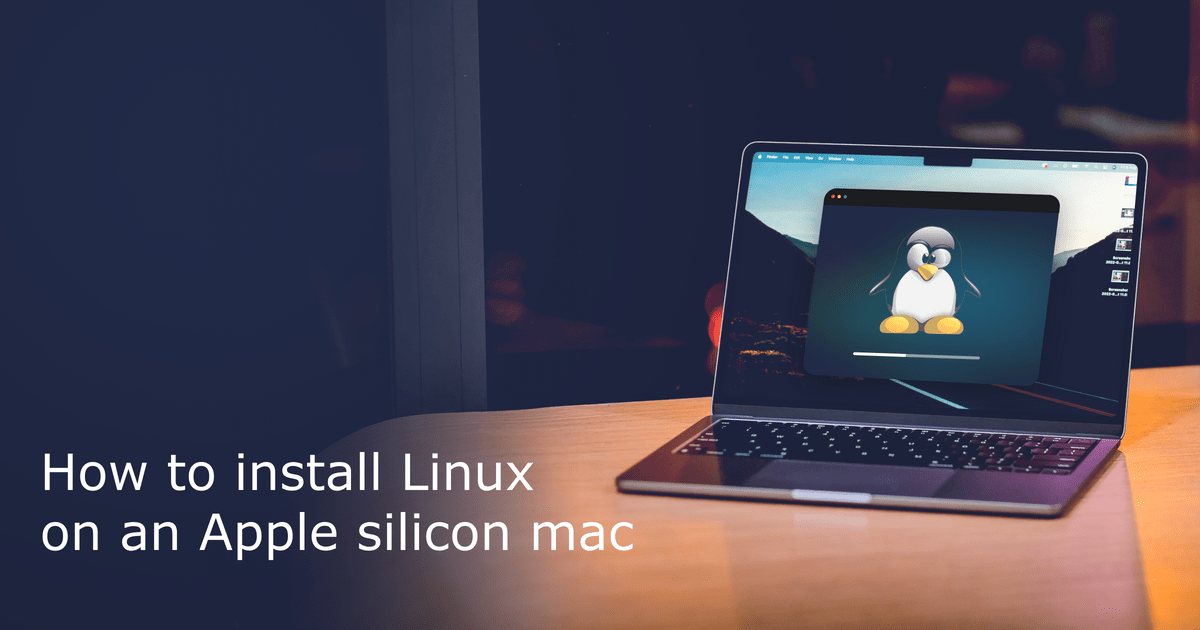
For Apple Silicon Macs, the most promising and rapidly developing native Linux experience is Asahi Linux. It’s not just a distribution; it’s an ambitious project dedicated to reverse-engineering and developing drivers and firmware to make Linux run natively on Apple’s ARM hardware.
- How it Works: Asahi Linux provides a specialized installer that partitions your drive (similar to dual-booting) and installs an ARM-native Linux distribution (often a variant of Fedora or Arch Linux). It includes custom drivers for various hardware components.
- Current State & Challenges:
- Progressive Support: While core functionality (CPU, basic graphics, USB, Thunderbolt) is often good, specific features like Wi-Fi, Bluetooth, or full GPU acceleration are under active development and vary by Mac model.
- Installation: Involves downloading the Asahi installer from macOS Recovery Mode, which then performs the necessary partitioning and installation steps.
- Limited Distros: Currently, Asahi Linux primarily provides specific configurations based on Arch Linux ARM or Fedora Asahi Remix.
- Secure Boot: The project tackles Apple’s secure boot mechanism by integrating a custom bootloader.
- Pros:
- Native Performance: When drivers are mature, it offers the full performance benefits of the Apple Silicon chip.
- Genuine Linux Experience: It’s not virtualized.
- Community-Driven: Backed by a passionate open-source community.
- Cons:
- Bleeding Edge: Expect bugs, incomplete driver support, and frequent updates. Not for mission-critical use without careful consideration.
- Limited Hardware Support: Certain peripherals or built-in features (like webcam, advanced display features) might not work out of the box.
- Learning Curve: Requires patience and a willingness to troubleshoot.
Pre-Installation Checklist and Considerations
Regardless of your chosen method, a little preparation goes a long way.
1. Backup Your Mac: Essential Step
This cannot be stressed enough. Before making any significant changes to your system, especially involving partitioning or bootloaders, perform a full backup of your macOS data using Time Machine or another reliable backup solution. This is your safety net against accidental data loss. It’s a fundamental aspect of digital security and productivity planning.
2. Choose Your Linux Distribution
The Linux ecosystem offers a vast array of distributions, each with its own philosophy, default desktop environment, and package management system.
- Beginner-Friendly:
- Ubuntu: Widely popular, excellent documentation, large community, and user-friendly. Great starting point.
- Linux Mint: Based on Ubuntu, offers a more traditional desktop experience (Cinnamon, MATE, XFCE).
- Pop!_OS: Based on Ubuntu, developed by System76, popular among developers and gamers.
- Intermediate/Advanced:
- Fedora: Cutting-edge, solid choice for developers, supported by Red Hat.
- Debian: The “universal operating system,” rock-solid stable, forms the base for many other distros (including Ubuntu).
- Arch Linux: Highly customizable, rolling release, great for learning the intricacies of Linux, but requires manual setup.
- Apple Silicon Specific:
- Asahi Linux (Fedora Asahi Remix, Arch Linux ARM): The go-to for native ARM Linux on M-series Macs.
Consider the desktop environment (GNOME, KDE Plasma, XFCE, Cinnamon, MATE) as it significantly impacts the user experience and system resource usage.
3. System Requirements: RAM and Storage
While Linux is often lighter than macOS, ensure you allocate sufficient resources:
- RAM: For virtualization, allocate at least 4GB of RAM to the VM for a smooth experience. For dual-booting or native installation, 4GB is a minimum, 8GB or more is recommended.
- Storage: For virtualization, a VM typically needs 20-40GB. For dual-booting, 50-100GB is a good starting point, depending on how many applications and files you plan to store in Linux. Ensure you have enough free space on your Mac’s internal drive before you begin.
4. Driver Compatibility: Wi-Fi, Graphics, Sound
This is often the trickiest part, especially on newer Mac hardware or with less common Linux distributions.
- Intel Macs: Most mainstream Linux distributions have good out-of-the-box support for Intel Mac hardware. Wi-Fi adapters (Broadcom chips) sometimes require proprietary firmware, which can often be installed after the base system is up.
- Apple Silicon Macs: Driver support is the primary challenge for Asahi Linux. While essential components work, specific hardware like Wi-Fi, Bluetooth, or full GPU acceleration might be a work in progress. Check the Asahi Linux project status page for your specific Mac model.
- Testing: Live USBs are excellent for testing hardware compatibility before committing to an installation.
The Benefits and Challenges of Running Linux on a Mac
Embarking on the journey of running Linux on your Mac presents a unique blend of advantages and hurdles. Understanding these can help you set realistic expectations and determine if it’s the right path for you.
Advantages: Unlocking Potential and Embracing Open Source
- Unparalleled Customization: Linux offers the freedom to tailor every aspect of your operating system. From choosing your desktop environment (GNOME, KDE Plasma, XFCE, etc.) to configuring obscure system settings, you have complete control. This level of personalization can significantly boost productivity for power users who like to optimize their workflow down to the last detail.
- Open Source Philosophy and Cost Savings: Linux itself is free, as are the vast majority of applications and tools available for it. This can lead to substantial cost savings by reducing the need for expensive proprietary software licenses for everything from office suites (LibreOffice) to professional graphic design tools (GIMP, Inkscape). For individuals or startups on a budget, this directly translates into money saved, which can be reinvested or used elsewhere.
- Specific Tooling for Developers and Sysadmins: Many development environments, programming languages, server applications, and system administration tools are either native to Linux or perform optimally within a Linux ecosystem. Running Linux on your Mac provides a powerful and familiar environment for backend development, containerization (Docker, Kubernetes), cloud computing (AWS CLI, Azure CLI), and more. This enhances professional capabilities and can even be seen as a boost to one’s “personal brand” in the tech industry.
- Performance and Efficiency (Especially for Older Macs): For older Intel Macs, a lightweight Linux distribution can breathe new life into hardware that might struggle with newer macOS versions. By opting for a minimal desktop environment, you can extend the useful lifespan of your hardware, making it a sustainable and financially smart choice. Even on newer Macs, dual-booted Linux can offer raw performance for CPU-intensive tasks, as it’s not burdened by virtualization overhead.
- Robust Security and Privacy: The open-source nature of Linux means its code is constantly scrutinized by a global community of developers, often leading to quicker identification and patching of vulnerabilities. Furthermore, Linux distributions generally offer more granular control over data collection and privacy settings compared to commercial operating systems.
- Learning Opportunity and Skill Enhancement: The process of installing, configuring, and using Linux, particularly if you delve into the command line, is an invaluable learning experience. It deepens your understanding of operating systems, computer architecture, and problem-solving. These skills are highly transferable and valuable in the job market, contributing directly to professional growth and potentially higher earning potential.
Disadvantages: The Road Less Traveled
- Setup Complexity: Installing Linux on a Mac, especially dual-booting or working with Apple Silicon, is generally more complex than a standard macOS installation or setting up Linux on a PC. It often requires careful partitioning, bootloader configuration, and troubleshooting.
- Driver Issues: This is a recurring challenge, particularly for newer Mac models or specific components. Wi-Fi, Bluetooth, dedicated graphics cards, webcam, and trackpad gestures might not work perfectly out-of-the-box, requiring manual driver installation or community-developed solutions. On Apple Silicon, while Asahi Linux is making incredible strides, full hardware support is still a work in progress.
- Learning Curve: If you’re new to Linux, there’s a significant learning curve involved, especially with the command line interface, different package managers, and the diverse desktop environments. While rewarding, it requires patience and a willingness to learn new paradigms.
- Performance Overhead (for Virtualization): While virtualization is safe and convenient, it introduces a layer of abstraction that consumes system resources. This can lead to a noticeable performance dip compared to a native installation, particularly for resource-intensive tasks.
- Limited macOS Integration: Running Linux (whether virtualized or dual-booted) means you lose the seamless integration with Apple’s ecosystem (iMessage, iCloud, AirDrop, Apple Watch unlock, etc.). Sharing files between macOS and a native Linux installation requires manual setup or external drives, though virtualization tools often provide shared folder capabilities.
- Loss of Warranty (Minor Risk): While simply installing Linux generally doesn’t void your hardware warranty, any damage caused by an incorrect installation or modification of the bootloader could be attributed to user error, potentially impacting warranty claims. Always proceed with caution.
Conclusion
The answer to “can i install linux on mac” is unequivocally yes, but the method and experience vary significantly based on your Mac’s generation and your appetite for technical adventure. For Intel Macs, the path is well-trodden, offering mature options like robust virtualization and native dual-booting. For the cutting-edge Apple Silicon Macs, projects like Asahi Linux are rapidly paving the way for a true native Linux experience, albeit with the caveats of being on the technological frontier.
Whether you’re drawn by the allure of open source, the need for specialized development tools, the desire to breathe new life into an older machine, or simply a quest for ultimate control and customization, integrating Linux into your Mac workflow is a deeply rewarding endeavor. It’s a journey that enhances your technical skills, broadens your computing horizons, and potentially offers significant long-term benefits in terms of cost savings and career development. Choose your method carefully, prepare diligently with backups, and embrace the powerful, flexible world that Linux has to offer right on your Apple hardware. The power to transform your Mac into a versatile multi-OS powerhouse is firmly in your hands.
aViewFromTheCave is a participant in the Amazon Services LLC Associates Program, an affiliate advertising program designed to provide a means for sites to earn advertising fees by advertising and linking to Amazon.com. Amazon, the Amazon logo, AmazonSupply, and the AmazonSupply logo are trademarks of Amazon.com, Inc. or its affiliates. As an Amazon Associate we earn affiliate commissions from qualifying purchases.