
Python has become the undisputed language of the modern technological era. Whether you are diving into artificial intelligence, automating mundane office tasks to boost productivity, or building a brand through data-driven marketing strategies, Python is likely at the heart of your workflow. However, for many macOS users, a common point of frustration arises early in the journey: “Where is Python actually installed on my Mac?”
Unlike Windows, where installation paths are often explicitly chosen during a setup wizard, macOS handles Python in a more layered, and sometimes confusing, manner. Because macOS is a Unix-based system, it uses various directories for system-critical software versus user-installed applications. Understanding these locations is not just a technical necessity; it is a fundamental step in maintaining a clean professional environment, ensuring digital security, and optimizing your tech stack for maximum efficiency.
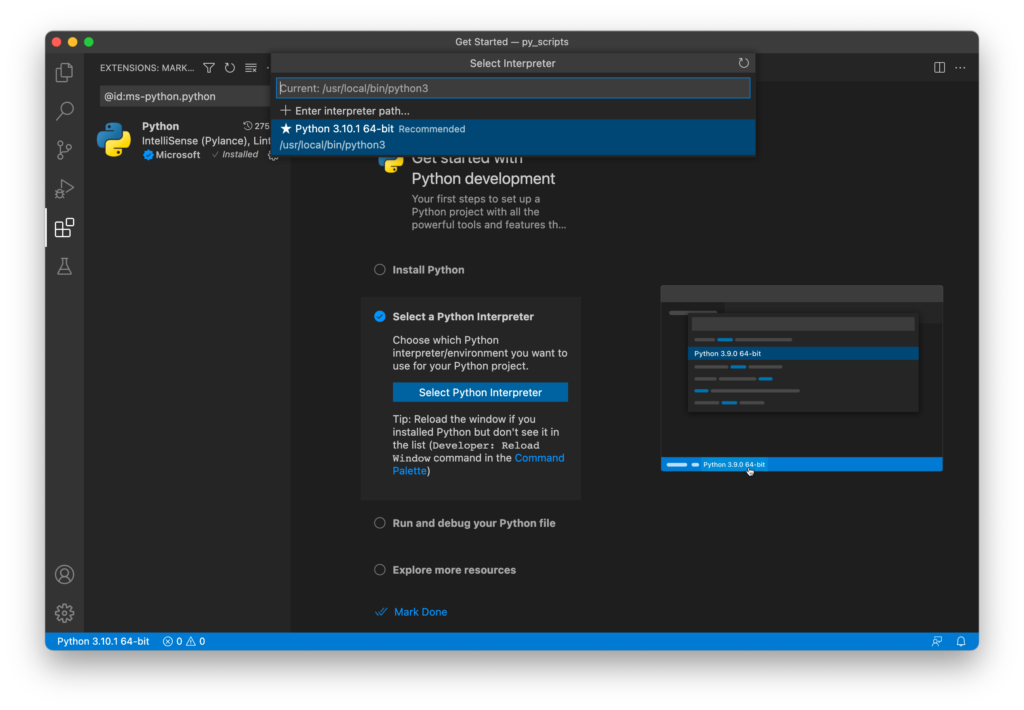
Understanding the macOS Python Landscape
To answer the question of where Python is located, we first must acknowledge that there is rarely just one version of Python on a Mac. Depending on how you use your machine, you might have three or more distinct installations existing simultaneously.
Historically, Apple included a “System Python” (version 2.7) to support internal OS processes. However, as the tech industry transitioned to Python 3, Apple eventually deprecated and removed the pre-installed version in recent macOS updates (starting with macOS Monterey 12.3). Today, most users rely on installations managed via the official Python website, Homebrew, or integrated development environments (IDEs) like Anaconda.
Knowing the location of these installations is critical for managing “Path” variables. If your terminal points to the wrong version, your scripts might fail, or worse, you might accidentally install packages into a system directory, leading to stability issues. For professionals building a personal brand in the tech space, having a “broken” environment is a novice mistake that can cost hours of billable time—making this knowledge a vital component of your “Money” and productivity strategy.
How to Find the Python Path Using Terminal Commands
The most efficient way to locate Python on macOS is through the Terminal. Since macOS uses Zsh (Z shell) by default, you can query the system to find the exact executable path for any installed version.
Using the ‘which’ and ‘whereis’ Commands
The which command is the standard tool for identifying which executable is currently active in your PATH. Open your Terminal and type:
which python3
Typically, if you installed Python from the official website, the output will be:
/usr/local/bin/python3
If you want to see all instances of Python across your system, the whereis or type -a commands are more thorough. Running type -a python3 will list every directory where a Python 3 binary is found, showing you the order of priority the system uses when you run a command.
Checking the Path via the Python Interpreter
Sometimes, you need to know more than just where the executable is; you need to know where the library files and “site-packages” (where your installed modules live) are located. You can find this from within Python itself:
- Type
python3in your terminal to enter the interactive shell. - Run the following code:
   import sys
   print(sys.executable)
   print(sys.path)
The sys.executable line confirms the path to the current running binary, while sys.path shows the list of directories Python searches when you try to import a module. This is essential for troubleshooting “Module Not Found” errors, which can stall your development projects and impact your output.
Common Installation Directories on macOS
Depending on your installation method, Python will reside in one of three primary locations. Identifying these paths helps you understand how your software interacts with the operating system.
The Official Python.org Installation Path
If you downloaded the macOS 64-bit universal2 installer from Python.org, the software is installed into a “Framework” directory. The actual files live deep within the system, but symlinks (shortcuts) are created in /usr/local/bin/ to make them accessible.
- Framework Path:
/Library/Frameworks/Python.framework/Versions/3.x/ - Executable Path:
/usr/local/bin/python3
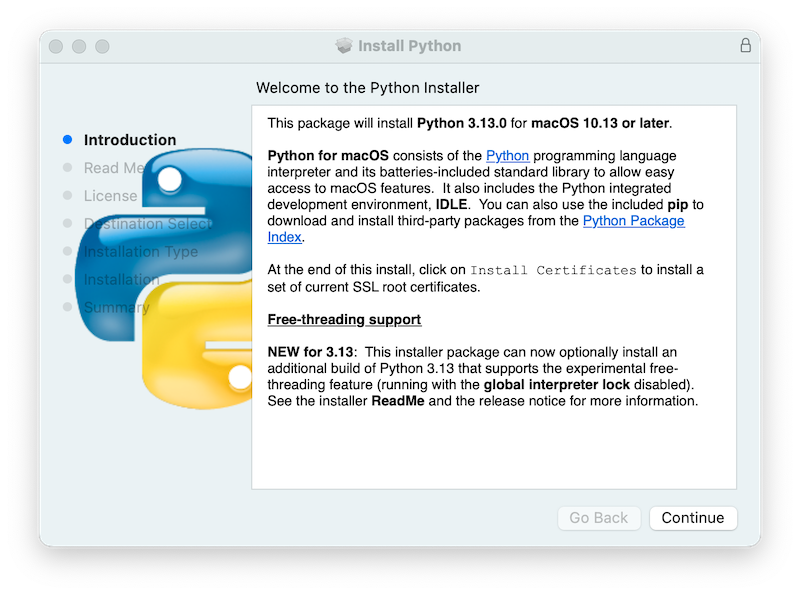
This installation is preferred by many because it is stable and includes “IDLE,” the default editor. From a “Brand” perspective, using the official distribution ensures that your development environment matches the standard used by most tutorials and professional documentation.
The Homebrew Installation Path (Recommended for Power Users)
Homebrew is the “missing package manager for macOS” and is a favorite among tech professionals and software engineers. If you installed Python via brew install python, the path will differ based on your Mac’s processor.
- Intel Macs:
/usr/local/Cellar/python@3.x/(with links in/usr/local/bin/) - Apple Silicon (M1/M2/M3) Macs:
/opt/homebrew/bin/python3
Homebrew is excellent for productivity because it simplifies the process of updating Python and managing dependencies. By keeping your tools in the /opt/homebrew directory, you separate your development tools from the core macOS system files, enhancing your digital security.
The Apple System/Xcode Python Path
Even if Apple has removed Python 2.7, they still provide a version of Python 3 bundled with Command Line Tools for Xcode. This version is often located at:
/usr/bin/python3
Note that /usr/bin is a system-protected directory. You should generally avoid installing packages directly into this version of Python, as macOS updates can overwrite your changes. Instead, use virtual environments—a best practice that separates your “Money-making” projects from your system’s core functionality.
Why Python Pathing Matters for Productivity and Security
In the world of technology and digital branding, your setup is your craft. A disorganized Python environment is more than just a nuisance; it represents a risk to your productivity and your brand’s reputation for quality.
Avoiding Dependency Hell
When you don’t know where Python is installed, you risk installing libraries in the wrong place. This leads to “dependency hell,” where one project requires Version A of a library, and another requires Version B, but they are both trying to use the same global Python path. By understanding your paths, you can effectively use Virtual Environments (venv).
A virtual environment creates a localized “Python installation” inside your project folder. This ensures that your side hustles and business finance tools remain isolated and stable, protecting your online income streams from technical crashes.
Security and Reputation
From a digital security standpoint, knowing your installation path allows you to audit the scripts running on your machine. Malware often hides by mimicking common system paths. If you know that your professional work should only be running from /opt/homebrew/bin/, you can more easily spot anomalies. For those building a corporate identity or personal brand as a tech expert, maintaining a secure and optimized machine is a non-negotiable standard of professionalism.
Troubleshooting and Managing Your Python Environment
If you type python3 and get a “command not found” error, it usually means your installation path is not in your system’s PATH variable. This is a common hurdle for those new to tech, but it is easily fixed.
Updating Your .zshrc File
On modern macOS, your shell configuration is stored in a hidden file called .zshrc in your home folder. To tell your Mac where to find Python, you can add an export command to this file:
export PATH="/usr/local/bin:$PATH"
By mastering the configuration of your shell, you transition from a casual user to a tech-savvy professional. This efficiency allows you to spend less time fixing your computer and more time on high-value tasks, such as investing in your skills or developing AI tools that generate revenue.
Using Version Managers
For those who need to switch between many different versions of Python (perhaps for testing different software or legacy apps), tools like pyenv are invaluable. pyenv installs Python versions into your home directory (~/.pyenv/versions/), giving you total control without needing administrative privileges. This level of control is the hallmark of a high-productivity workflow, allowing you to scale your business operations without being hindered by software conflicts.
Conclusion
Finding where Python is installed on your Mac is the first step toward mastering the technical environment that powers modern business and innovation. Whether your Python resides in /usr/local/bin, /opt/homebrew/bin, or within a specialized framework directory, knowing its location empowers you to build better apps, secure your digital assets, and optimize your path to financial and professional success.
By maintaining a clean, well-mapped Python setup, you aren’t just managing software—you are building a robust foundation for your digital brand and your future in the ever-evolving world of technology. Keep your paths clear, your environments virtualized, and your focus on creating value.
aViewFromTheCave is a participant in the Amazon Services LLC Associates Program, an affiliate advertising program designed to provide a means for sites to earn advertising fees by advertising and linking to Amazon.com. Amazon, the Amazon logo, AmazonSupply, and the AmazonSupply logo are trademarks of Amazon.com, Inc. or its affiliates. As an Amazon Associate we earn affiliate commissions from qualifying purchases.