
In the sprawling universe of PC gaming, few platforms have risen with the meteoric speed and impact of Epic Games. Known for its revolutionary Unreal Engine, its groundbreaking title Fortnite, and perhaps most famously, its aggressive strategy of offering a constant stream of free games, Epic Games has cultivated a massive, loyal user base. With every new free title claimed or AAA game purchased, a gamer’s digital library expands, leading to an inevitable question for many: “Where does Epic Games install games?”
This seemingly simple query underpins a crucial aspect of PC gaming management, touching upon everything from system performance and storage optimization to digital security and overall user experience. For seasoned PC enthusiasts and newcomers alike, understanding the default installation paths, knowing how to locate your installed games, and mastering the art of customizing these locations is paramount. It’s not just about finding a folder; it’s about taking control of your valuable digital assets, ensuring optimal system performance, and strategically managing your hardware resources. This comprehensive guide will delve into the technicalities of Epic Games’ installation processes, provide actionable tutorials, and explore the broader implications for your tech setup, financial planning, and brand interaction.
Unearthing the Default Path: Where Epic Games Starts Its Journey
Every piece of software installed on your computer, by default, seeks a standard location to reside. For most applications on a Windows system, this means the Program Files directory. Epic Games titles are no exception, generally adhering to this conventional wisdom. Understanding this default is the first step in managing your expanding game collection.
The Standard Destination: Understanding Epic Games’ Default Installation
When you click “Install” on a new game within the Epic Games Launcher, and you don’t intervene to select a custom path, the system will typically choose a specific location on your primary drive. For the vast majority of Windows users, this default installation directory will look something like this:
C:Program FilesEpic Games[Game Name]
Let’s break down this path:
C:: This refers to your primary system drive, often an SSD (Solid State Drive) where your operating system (Windows) is installed. While SSDs offer incredible speed benefits, their capacity can sometimes be limited, especially on laptops or older desktops, quickly filling up with large game files.Program Files: This is a standard Windows directory designed for 64-bit applications. Installing programs here ensures they have the necessary permissions and integration with the operating system.Epic Games: This is a subfolder created by the Epic Games Launcher to house all games and related data specific to the platform.[Game Name]: Within theEpic Gamesfolder, each individual game you install will reside in its own dedicated subfolder, typically named after the game itself (e.g.,Fortnite,GrandTheftAutoV,Cyberpunk2077).
This default path is convenient for quick installations, requiring minimal user input. However, its convenience can also become a drawback, particularly as the file sizes of modern games continue to swell. A few AAA titles can easily consume hundreds of gigabytes, rapidly depleting the precious storage on your often-smaller primary SSD. This is where the strategic importance of knowing your installation paths and having the ability to customize them truly comes into play, a core aspect of smart tech management.
Locating Your Installed Games Within the Launcher: A Practical Tutorial
While knowing the default path is useful for general understanding, the Epic Games Launcher itself provides a straightforward and intuitive way to pinpoint the exact location of any installed game. This feature is invaluable whether you’re looking to verify files, backup game data, or simply confirm where a specific title is residing on your system. It’s a prime example of good software design aiming for user productivity and control.
Here’s how to easily find the installation directory for any game in your Epic Games library:
- Launch the Epic Games Launcher: Open the application on your PC. Ensure you are logged into your account.
- Navigate to Your Library: On the left-hand sidebar of the launcher, click on the “Library” tab. This will display all the games you own, both installed and uninstalled.
- Find the Desired Game: Scroll through your library or use the search bar to locate the specific game whose installation path you want to find.
- Access Game Options: Once you’ve found the game, hover over its tile or click on the three horizontal dots (
...) located in the bottom-right corner of the game’s tile. This will open a small pop-up menu with various options. - Select “Manage”: From the options presented, click on “Manage.” This will take you to a dedicated page for that specific game, offering details like game size, available updates, and more.
- Locate the Installation Folder Icon: On the “Manage” page, under the “Installation” section (or similar wording), you will see an icon that looks like a folder. This is your direct link to the game’s installation directory.
- Click the Folder Icon: Clicking this icon will immediately open a File Explorer window, taking you directly to the game’s root installation folder on your hard drive.
This quick and easy method negates the need to manually browse through your drives, saving you time and preventing potential frustration. It’s a testament to how well-designed software can empower users with direct access to underlying system information, enhancing the overall tech experience. This capability is not just about convenience; it’s a fundamental aspect of digital security and productivity, allowing users to efficiently manage their valuable game data.
Mastering Your Storage: Customizing Epic Games Installation Locations
While the default installation path is practical for a quick setup, a truly optimized gaming experience often requires a more strategic approach to storage management. With game sizes regularly exceeding 100 GB, relying solely on your primary drive can lead to performance bottlenecks, insufficient space, and a disorganized system. The ability to customize installation locations, both before and after installation, is a powerful tool for any PC gamer. This is where tech-savvy users take control, balancing performance, capacity, and system hygiene.
Setting a New Course: Changing Path Before Installation
The easiest and most recommended time to decide on a custom installation path for an Epic Games title is before the installation process begins. The Epic Games Launcher is designed to offer this flexibility, putting you in control from the outset. This proactive approach can save you significant time and effort down the line, especially with massive downloads.
Here’s how to do it:
- Initiate Installation: From your Epic Games Library, click on the game you wish to install. If it’s not installed, you’ll see an “Install” button. Click it.
- Review the Installation Options: A new window will appear, presenting you with installation options. Crucially, you will see a field labeled “Install Location” or similar, displaying the default path.
- Click “Browse” or “Change Folder”: Next to the default path, there will be a “Browse,” “Change Folder,” or similar button. Click this to open a file browser window.
- Select Your Desired Location: Navigate through your computer’s drives and folders to select the new destination for your game. You might choose:
- A secondary SSD: Ideal for other frequently played games to benefit from fast loading times without hogging space on your primary OS drive.
- A large HDD (Hard Disk Drive): Perfect for larger, less frequently played games where sheer storage capacity is more critical than ultra-fast load times.
- A dedicated “Games” folder: Many users create a specific drive or folder (e.g.,
D:GamesEpic Games) to keep all their game installations neatly organized, irrespective of the launcher.
- Confirm and Proceed: Once you’ve selected the new path, click “Select Folder” or “OK.” The installation window will update with your chosen custom path. Review any other options (like creating a desktop shortcut) and then click “Install.”
This simple step, taken at the beginning of the installation, is a cornerstone of effective tech management. It allows you to distribute your games across different drives, leveraging the strengths of each (speed of SSDs, capacity of HDDs) and preventing your main system drive from becoming a bottleneck, which could degrade overall PC performance. It’s a small financial and technical decision upfront that pays dividends in convenience and system longevity.
The Art of Relocation: Moving Existing Epic Games Installs
What if a game is already installed on a drive, and you decide you want to move it? Perhaps you’ve upgraded to a larger SSD, or your current drive is simply bursting at the seams. Moving an already installed game, while not as straightforward as changing the path pre-installation, is entirely feasible and highly recommended for optimizing your storage and enhancing your gaming experience. This process is a testament to applying advanced tech skills for productivity and system efficiency.
There are generally two main approaches:
Option 1: The “Uninstall and Reinstall” Approach (The Sledgehammer)
This is the simplest method, albeit often the most time-consuming and bandwidth-intensive.
- Pros: Absolutely foolproof; ensures a clean installation at the new location.
- Cons: Requires re-downloading the entire game, which can be hundreds of gigabytes, consuming significant internet bandwidth and hours of your time. This can have tangible “money” implications for those with data caps or slow internet speeds.
Steps:
- Uninstall the Game: In the Epic Games Launcher, go to “Library,” click the three dots (
...) on the game tile, select “Manage,” and then click “Uninstall.” Confirm the uninstallation. - Delete Remaining Files (Optional but Recommended): After uninstalling, manually check the old installation directory to ensure no residual files or folders remain. Delete them if they do.
- Reinstall to New Location: Follow the steps outlined in “Setting a New Course: Changing Path Before Installation” to install the game to your desired new location.
Option 2: The “Cut, Paste, and Verify” Method (The Surgical Strike)
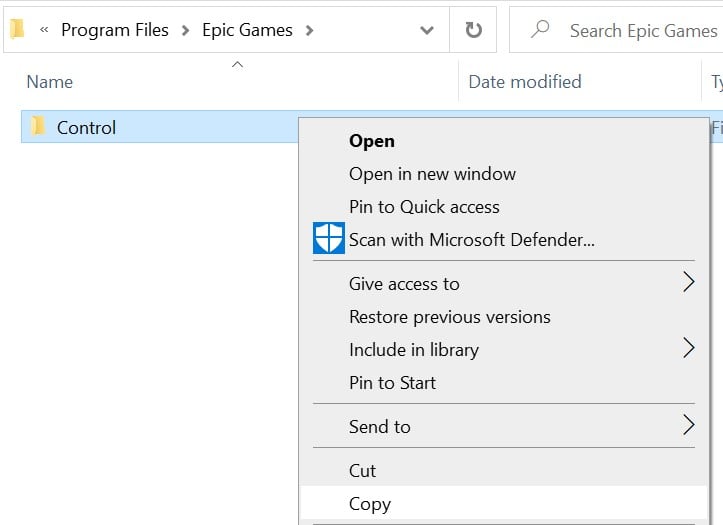
This method avoids re-downloading the entire game by manually moving the game files and then instructing the Epic Games Launcher to “discover” them in their new home. This is the preferred method for tech-savvy users looking to optimize their time and bandwidth.
- Pros: Saves massive amounts of download time and bandwidth.
- Cons: Requires careful execution; if done incorrectly, you might still end up redownloading parts or all of the game.
Steps:
- Close the Epic Games Launcher: This is crucial. Ensure the launcher and the game itself are completely closed to avoid file corruption during the move.
- Locate the Game’s Current Installation Folder: Use the method described in “Locating Your Installed Games Within the Launcher” to open the game’s current installation folder (e.g.,
C:Program FilesEpic GamesFortnite). - Cut the Game Folder: Select the entire game folder (e.g.,
Fortnite), right-click on it, and select “Cut.” - Paste to the New Location: Navigate to your desired new installation drive and folder (e.g.,
D:GamesEpic Games). Right-click within this new folder and select “Paste.” Wait for the files to transfer. This can take a while for large games. - Initiate “Uninstall” in Epic Games Launcher (Critical Step): Reopen the Epic Games Launcher. Go to “Library” and find the game you just moved. You will likely still see an “Installed” status. Click the three dots (
...) on the game tile, select “Manage,” and then click “Uninstall.”- Crucial Note: This step in the Epic Games Launcher primarily removes the launcher’s record of the game’s location, NOT the game files themselves (since you manually moved them). If done correctly, it should now show an “Install” button.
- Start a New “Installation” to the New Location: Click the “Install” button for the game. When prompted to choose an installation location, select the new folder where you pasted the game files (e.g.,
D:GamesEpic GamesFortnite). - Launcher Verification: The Epic Games Launcher will then begin a “Verifying” process instead of a full download. It will scan the existing files in the chosen directory, compare them to its manifest, and only download any missing or corrupted files. This process is significantly faster than a full re-download.
This surgical approach, while requiring a few more steps, exemplifies superior tech management. It saves precious time and internet data, showcasing how understanding software mechanics can directly lead to higher productivity and even indirect “money” savings.
Why Bother? The Strategic Advantages of Custom Paths
The effort to customize and manage your game installation paths isn’t just a technical exercise; it’s a strategic decision that profoundly impacts your gaming experience, system performance, and long-term financial planning regarding your PC setup.
Performance Enhancement: SSD vs. HDD and Load Times
This is perhaps the most compelling reason to manage your game locations.
- SSDs (Solid State Drives): Offer blazing-fast read/write speeds. Installing games on an SSD dramatically reduces loading times, texture streaming delays, and overall in-game stuttering. For competitive multiplayer games or graphically intensive single-player experiences, an SSD is almost a necessity. Many users have a smaller, faster NVMe SSD for their OS and most-played games.
- HDDs (Hard Disk Drives): Provide significantly larger storage capacities at a lower cost per gigabyte but are much slower. They are ideal for storing vast libraries of less-frequently played games, media files, or backups where speed is not the primary concern.
By strategically placing your games, you can ensure that your most cherished and performance-critical titles benefit from SSD speeds, while larger, less demanding games can reside on more capacious HDDs, striking a perfect balance between performance and storage volume. This smart allocation of resources is a core tenet of modern tech optimization.
Storage Management: Organizing Your Digital Hoard
Modern games are storage hogs. It’s not uncommon for a single AAA title to demand over 100 GB of space. Without proper management, your primary drive (often C:) can quickly fill up, leading to:
- System Slowdown: A full
C:drive can impact overall system performance, including boot times and application responsiveness. - Update Failures: Insufficient space can prevent games or even your operating system from updating, leading to security vulnerabilities and missed content.
- Disorganization: Scattering games across various random folders makes it harder to track and manage your digital assets.
Custom installation paths allow you to:
- De-clutter Your Primary Drive: Keep your OS drive lean and fast, ensuring it has enough free space for system operations and critical applications.
- Create Dedicated Game Drives/Folders: Organize all your games on a separate drive (e.g.,
D:) or within a clearly structured folder hierarchy. This makes backups easier and helps you quickly assess your storage usage. - Plan for Future Growth: As you acquire more games (especially with Epic’s free offerings), having a flexible storage strategy means you can easily allocate new installations without constant reshuffling.
Backup and Recovery: Safeguarding Your Investment
While most of your game data can be re-downloaded, the time and bandwidth investment for large libraries are substantial. Having games installed on a dedicated drive, separate from your OS, offers several advantages for digital security and disaster recovery:
- Easier Backups: You can more easily back up an entire game drive. In case of an OS failure, your games remain intact and accessible.
- Faster OS Reinstalls: If you need to reinstall Windows, you won’t lose your game installations, saving you from lengthy re-downloads. You can simply point the launcher to the existing game folders after reinstalling the OS and the launcher.
- Data Integrity: Isolating game files from system files can sometimes reduce the risk of corruption spreading between different data types.
Ultimately, mastering your game installation locations is a powerful productivity hack for any serious PC gamer. It ensures your tech performs at its peak, your digital assets are organized, and your time and internet resources are used efficiently, impacting both your gaming enjoyment and your budget.
Beyond Installation Paths: Optimizing Your Epic Games Experience
Understanding where Epic Games installs your titles is just one piece of the puzzle. A truly optimized Epic Games experience extends to troubleshooting common issues, appreciating the platform’s brand strategy, and making financially sound decisions about your gaming hardware and habits. This holistic view connects technical know-how with broader brand and money considerations.
Troubleshooting Common Installation & Launch Issues
Even with careful management, you might encounter glitches. Knowing how to troubleshoot these issues quickly is a key productivity skill for any PC user.
- “Install” Button Instead of “Launch”: This often means the Epic Games Launcher has lost track of where the game is installed, or the game files have been moved without the launcher being properly informed.
- Solution: If you’ve moved the game files, follow the “Cut, Paste, and Verify” method described above (specifically steps 5-7) to point the launcher to the new location. If you haven’t moved anything, try verifying the game files (three dots on game tile -> Manage -> Verify). This will check for corrupted or missing files and repair them.
- Game Crashes or Performance Issues: While not always installation-related, sometimes a corrupted installation can cause crashes.
- Solution: Verify game files as mentioned above. Ensure your graphics drivers are up to date. Check the integrity of the drive the game is on (e.g., using Windows’ built-in disk check tools).
- Disk Space Warnings: If your chosen installation drive is running out of space, the launcher might prevent further installations or updates.
- Solution: Free up space on the drive by uninstalling unused games or applications. Consider moving some larger games to a different drive with more capacity using the “Cut, Paste, and Verify” method. This proactive storage management saves time and frustration.
The Epic Games Ecosystem: User Experience and Brand Perception
The ease (or difficulty) with which users can manage their game installations directly impacts their perception of the Epic Games brand. Epic’s strategy of offering a constant stream of free games has been a massive success, drawing millions to its platform. However, this success also brings a challenge: users accumulate many large games, making storage management a critical aspect of their overall experience.
- Brand Loyalty: A user-friendly launcher that facilitates easy installation management, troubleshooting, and clear communication about system requirements contributes significantly to brand loyalty. When users feel empowered and in control of their digital assets, they are more likely to continue engaging with the platform.
- Corporate Identity: Epic Games aims to be a leading digital storefront, competing with giants like Steam. Offering robust features for file management and performance optimization aligns with a corporate identity focused on providing a premium, comprehensive gaming solution, not just a game seller.
- Marketing Implications: While not directly marketed, the “behind-the-scenes” efficiency of the launcher in handling installations, especially the ability to relocate games without re-downloading, serves as an implicit marketing point. It demonstrates a commitment to user convenience and resourcefulness, reinforcing a positive brand image.
Ultimately, the technical aspects of game installation and management are not isolated functions; they are integral components of the user journey that shape overall brand perception and user retention within the competitive digital marketplace.

Smart Gaming Storage: A Financial and Technical Perspective
From a “Money” standpoint, optimizing your gaming storage is an investment that pays dividends in both performance and savings. It’s about making smart financial choices about your hardware and leveraging existing resources effectively.
- Strategic Hardware Investment:
- SSDs for Core Games: Investing in a reasonably sized (500GB-1TB) NVMe SSD for your operating system and frequently played, performance-critical Epic Games titles is a wise financial decision. The performance benefits significantly enhance your gaming experience, arguably making it a better investment than some other incremental hardware upgrades.
- HDDs for Archival: Supplementing with a larger (2TB+) traditional HDD for your extensive library of less-demanding or completed Epic Games titles offers cost-effective mass storage. This hybrid approach optimizes your financial outlay for storage.
- Saving on Re-downloads (Time and Data Costs): The ability to move games without re-downloading them is a direct financial saving, especially for users with metered internet plans or limited bandwidth. It saves data costs and the opportunity cost of time spent waiting for massive files to re-download.
- Preventing Premature Upgrades: By efficiently managing your storage across multiple drives, you can prolong the life and utility of your existing hardware. Instead of feeling pressured to buy a brand new, larger primary SSD prematurely, you can strategically offload games to a secondary drive, maximizing the value of your current setup.
- Protecting Your Digital Assets: Your game library represents a significant financial investment, whether through direct purchases or the “value” of free games you’ve collected. Smart storage management, including strategic placement and the ease of backup, helps protect this investment, ensuring continued access and enjoyment.
In conclusion, understanding where Epic Games installs your games, and more importantly, how to manage those locations, transcends mere technical curiosity. It’s a fundamental aspect of digital literacy for PC gamers, enabling superior tech performance, savvy financial decisions regarding hardware, and a more fulfilling interaction with the Epic Games brand. By taking control of your game library, you’re not just organizing files; you’re optimizing your entire digital gaming ecosystem.
aViewFromTheCave is a participant in the Amazon Services LLC Associates Program, an affiliate advertising program designed to provide a means for sites to earn advertising fees by advertising and linking to Amazon.com. Amazon, the Amazon logo, AmazonSupply, and the AmazonSupply logo are trademarks of Amazon.com, Inc. or its affiliates. As an Amazon Associate we earn affiliate commissions from qualifying purchases.