
The decision of where to install Windows is far more critical than many realize. It’s not merely about pointing the installer to an available drive; it’s a foundational choice that directly impacts your system’s performance, longevity, cost-effectiveness, and even your digital security posture. In a world increasingly reliant on technology for everything from daily productivity to entertainment, making an informed choice about your operating system’s home can significantly enhance your computing experience. This comprehensive guide will delve into the myriad options available, from traditional internal drives to advanced virtual environments, helping you tailor your Windows installation to your specific needs and priorities, whether you’re a casual user, a hardcore gamer, a creative professional, or an enterprise IT manager.

Understanding Your Primary Installation Choices
The journey of installing Windows begins with understanding the fundamental types of storage and environments available. Each comes with its own set of advantages and considerations, influencing everything from boot times to application responsiveness and overall system stability.
Internal Storage: The Core of Your System
Internal storage is the most common and often the most recommended destination for your Windows installation. It’s physically located inside your computer case, directly connected to the motherboard, and serves as the primary repository for your operating system, applications, and user data. The choice within internal storage largely boils down to the type of drive.
HDD vs. SSD: Speed, Durability, and Cost Considerations
For decades, the Hard Disk Drive (HDD) was the undisputed king of internal storage. HDDs are mechanical devices that store data on spinning platters accessed by read/write heads. Their primary advantages are their low cost per gigabyte and availability in very large capacities, making them ideal for bulk storage of files like movies, photos, and documents. However, their mechanical nature makes them slower, more susceptible to physical shock, and generates more heat and noise. A Windows installation on an HDD will result in slower boot times, longer application loading, and a generally less responsive feel compared to modern alternatives.
Solid State Drives (SSDs), on the other hand, represent a significant leap in storage technology. They use flash memory to store data, similar to USB drives but on a much larger and faster scale. The absence of moving parts makes SSDs incredibly fast, durable, silent, and energy-efficient. Boot times are dramatically reduced, applications launch almost instantly, and overall system responsiveness is significantly improved. The primary trade-off has historically been their higher cost per gigabyte and often smaller maximum capacities compared to HDDs. However, SSD prices have fallen considerably, making them the de facto standard for primary operating system drives. Investing in an SSD for your Windows installation is arguably the single most impactful upgrade you can make for system performance, offering a superior user experience that directly translates to increased productivity and a more seamless digital workflow. From a “Money” perspective, the initial higher investment in an SSD offers substantial returns in time saved and frustration avoided.
SATA SSD vs. NVMe SSD: The Quest for Ultimate Speed
Even within the realm of SSDs, there are crucial distinctions, primarily related to their interface and form factor. SATA (Serial ATA) SSDs connect to your motherboard via a SATA cable, much like traditional HDDs. While vastly superior to HDDs, SATA’s theoretical maximum speed (around 600 MB/s) can become a bottleneck for modern flash memory.
Enter NVMe (Non-Volatile Memory Express) SSDs. These drives utilize the PCIe (Peripheral Component Interconnect Express) interface, the same high-speed lanes used by graphics cards. This direct connection to the CPU bypasses the SATA bottleneck, allowing NVMe SSDs to achieve speeds many times faster than SATA SSDs – often exceeding 3,500 MB/s for Gen3 NVMe and even 7,000 MB/s for Gen4. Most NVMe drives come in a compact M.2 form factor, which resembles a stick of RAM and plugs directly into the motherboard, saving space and simplifying cable management. For users demanding the absolute fastest boot times, near-instant application loading, and superior performance in data-intensive tasks (like video editing, large file transfers, or complex software development), an NVMe SSD is the premium choice. While they are generally more expensive than SATA SSDs, the performance gains are undeniable and can be a significant boost to productivity, especially for professionals whose “Brand” relies on efficiency and cutting-edge technology.
External Storage Solutions: Portability and Flexibility
While internal drives are the bedrock for most installations, external storage offers unique advantages in terms of portability, data recovery, and specialized use cases.
USB Drives: Bootable Media and Portable Environments
USB drives are primarily used as bootable installation media for Windows, facilitating fresh installs or troubleshooting existing systems. However, in certain scenarios, you can technically install a full version of Windows onto a high-speed USB 3.0 or newer drive. This creates a “Windows To Go” environment (though Microsoft officially discontinued support for creating new Windows To Go workspaces, the concept lives on through third-party tools like Rufus). A portable Windows installation can be invaluable for IT professionals, repair technicians, or users who need to run a familiar OS environment on various machines without affecting the host system. It offers unmatched flexibility and can serve as a powerful diagnostic tool or a secure, isolated workspace. The performance, however, will be limited by the USB interface speed and the quality of the USB drive, making it generally less responsive than an internal SSD installation.
External SSDs: High-Performance Portability
Taking the concept of a portable OS a step further, installing Windows onto a high-speed external SSD connected via USB 3.1 (Gen 2), USB-C, or Thunderbolt offers a more robust and performant portable solution. These drives combine the speed advantages of SSDs with the convenience of external connectivity. An external SSD can serve as a primary OS for a mini PC, a gaming console (for expanded game storage, not necessarily OS install), or a high-performance portable work environment that can be plugged into any compatible computer. This solution strikes an excellent balance between performance and portability, though it’s still generally slower than an internal NVMe drive due to interface overhead. For professionals who need to carry their entire personalized Windows environment and applications across different physical machines, this is a compelling “Tech” solution that supports their “Brand” of efficiency and adaptability.
Virtual Machines: Isolation, Testing, and Multi-OS Environments
Virtualization technology allows you to run an entire operating system, like Windows, within a software environment on top of an existing “host” operating system. This virtualized instance is called a Virtual Machine (VM).
Hyper-V, VirtualBox, VMware: Choosing Your Hypervisor
Popular hypervisors (the software that creates and manages VMs) include Microsoft’s Hyper-V (built into Windows Pro/Enterprise), Oracle’s VirtualBox (free and open-source), and VMware Workstation Player/Pro. Installing Windows in a VM offers unparalleled flexibility and isolation. You can run multiple instances of Windows (or other operating systems like Linux or macOS) simultaneously on a single physical machine.
VMs are invaluable for:
- Software Development and Testing: Developers can test applications across different Windows versions or configurations without needing multiple physical machines.
- Security and Isolation: Running suspicious software or browsing potentially unsafe websites within a VM ensures that any malware or system compromise is contained within the virtual environment, protecting your host OS and critical data. This is a significant digital security benefit.
- Legacy Software Support: Running older applications that require an older version of Windows (e.g., Windows XP) without compromising your primary modern OS.
- Learning and Experimentation: A safe sandbox to experiment with OS settings, software installations, or network configurations without fear of breaking your main system.
While VMs leverage your host machine’s hardware, their performance is inherently abstracted and shares resources, meaning a virtualized Windows will typically not perform as fast as a native installation on dedicated hardware. However, for many use cases, the benefits of isolation and flexibility far outweigh this performance difference. This option represents a sophisticated “Tech” approach to computing, offering “Money” savings by consolidating hardware and mitigating risks that could otherwise lead to costly downtime or data loss, thereby protecting one’s professional “Brand.”
Dual-Booting and Multi-Boot Setups: Coexisting Operating Systems
Dual-booting refers to installing two (or more) operating systems on the same physical computer, allowing you to choose which OS to boot into at startup.
Windows Alongside Linux or macOS
The most common dual-boot scenario involves Windows alongside a Linux distribution (e.g., Ubuntu, Fedora). This setup is popular among developers, system administrators, and privacy advocates who appreciate the open-source nature and robust tools of Linux, but still require Windows for specific applications, gaming, or corporate compatibility. Each operating system resides on its own partition (or even its own physical drive), ensuring minimal interference between them.
A less common but technically possible scenario involves running Windows alongside macOS, often on a “Hackintosh” (a non-Apple computer configured to run macOS). This setup is complex, often fragile, and not officially supported by Apple, but it caters to users who need specific macOS software while also relying on Windows.
Dual-booting offers native performance for both operating systems, which is superior to virtualization in terms of raw speed. However, it requires a reboot to switch between operating systems, which can be inconvenient. Careful partition management is also crucial to avoid data loss during installation. This approach caters to users with diverse software needs who prioritize native performance for both environments.
Key Factors Influencing Your Decision
Choosing the right Windows installation destination isn’t a one-size-fits-all decision. Several critical factors should weigh into your analysis, aligning your choice with your specific requirements and budget.
Performance Demands: Speed, Responsiveness, and Application Workloads
This is often the most significant factor. Do you need lightning-fast boot times and instant application launches? Are you running resource-intensive applications like video editors, CAD software, or modern AAA games? If so, an NVMe SSD is almost a prerequisite. For lighter use cases – web browsing, document editing, email – a SATA SSD offers excellent performance at a lower cost. If even moderate delays are detrimental to your “Brand” or productivity, prioritizing performance is key.
Capacity Needs: Storage for OS, Applications, and Data
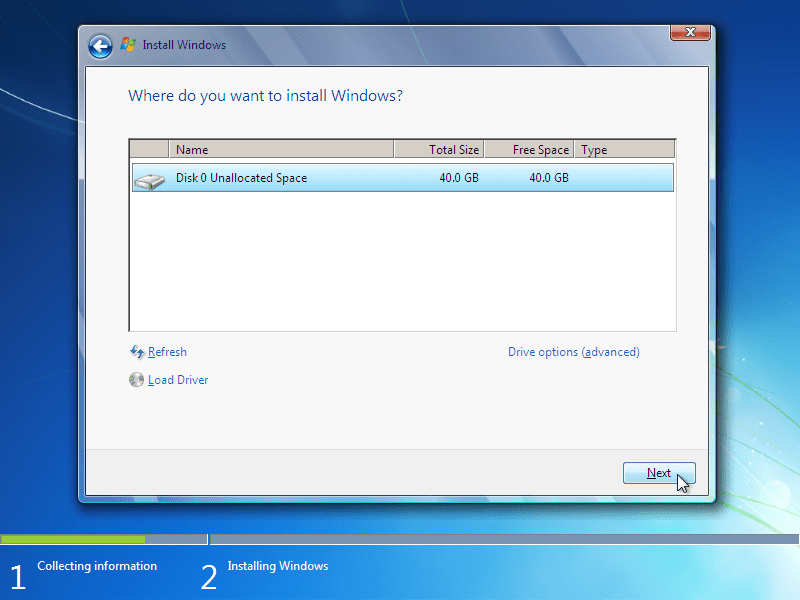
Consider not just the size of the Windows OS itself (which is around 20-30GB for a fresh install) but also the space required for your applications, games, and personal data (documents, photos, videos). While it’s common practice to install the OS on a smaller, faster drive (e.g., 250GB-500GB SSD) and store bulk data on a larger, slower HDD or a separate network drive, you need to ensure your primary OS drive has sufficient headroom for updates, temporary files, and frequently used applications. Running out of space on your OS drive can severely degrade performance.
Cost-Effectiveness: Balancing Budget with Benefits
“Money” plays a crucial role. HDDs offer the most storage for your dollar, but at a significant performance cost. SATA SSDs provide a great balance of speed and affordability. NVMe SSDs offer top-tier performance but come with a higher price tag. When evaluating cost, consider the long-term value. A faster drive might cost more upfront but save countless hours of waiting, improving productivity and potentially increasing your earning potential. For a business, this translates to ROI on hardware investment. Conversely, overspending on an NVMe for basic web browsing might not be the most “Money”-wise decision.
Portability and Accessibility: On-the-Go or Stationary Use
Do you need your Windows environment to be mobile? If so, an external SSD or a robust USB-based “Windows To Go” setup might be ideal. If your computer is always stationary, internal drives are the logical choice. Consider how often you’ll need to move your environment and the implications for data security during transport.
Security and Data Isolation: Protecting Your Digital Life
For users concerned about security or needing to test potentially harmful software, a Virtual Machine offers an isolated sandbox, protecting your primary OS. Dual-booting provides a clean separation between operating systems but offers no isolation when both are running. Ensuring robust backups and potentially encryption (e.g., BitLocker) are vital regardless of your chosen installation method. Protecting your data and system integrity directly contributes to maintaining your professional “Brand.”
Longevity and Reliability: The Lifespan of Your Chosen Medium
SSDs generally have a longer lifespan than HDDs under normal operating conditions, primarily because they lack moving parts susceptible to mechanical failure. NVMe drives, due to their direct connection, often run cooler than SATA SSDs, which can contribute to longevity. However, all storage media have a finite lifespan (measured in TBW – Terabytes Written). Choose reputable brands and consider redundancy or robust backup strategies to mitigate the risk of drive failure.
Niche and Advanced Installation Scenarios
Beyond the common options, specific use cases sometimes call for more specialized Windows installation methods.
Windows To Go: A Legacy of Portable Windows
As mentioned, Windows To Go was an enterprise feature in Windows 8 and 10 that allowed users to boot a full Windows workspace from a certified USB drive. While Microsoft no longer officially supports its creation, the underlying technology and third-party tools keep the concept alive. It’s particularly useful for disaster recovery, providing a standardized environment for multiple users, or for temporary, secure workstations. The primary limitation is performance, which is inherently throttled by the USB interface compared to internal drives.
Network Installations and Remote Desktops: Enterprise and Cloud Solutions
In enterprise environments, Windows is often installed over a network using deployment tools like Microsoft Deployment Toolkit (MDT) or System Center Configuration Manager (SCCM). This streamlines the installation process for hundreds or thousands of machines. Furthermore, cloud-based solutions like Windows 365 or Azure Virtual Desktop allow users to access a full Windows desktop from virtually anywhere, streamed over the internet. While not a local installation, these represent a growing trend for how users interact with Windows, offering immense flexibility, scalability, and security for businesses. These solutions are deeply integrated with the “Tech” and “Money” aspects, allowing for subscription-based access and centralized management, protecting the corporate “Brand” through standardized, secure environments.
Recovery Partitions and Bootable USBs: Your Safety Net
Regardless of your primary installation choice, it’s crucial to have a recovery plan. Most OEM computers include a recovery partition on the main drive, allowing you to restore Windows to its factory state. Additionally, creating a bootable Windows installation USB drive or a dedicated recovery drive is essential. These serve as lifelines for troubleshooting boot issues, reinstalling Windows, or performing system repairs, safeguarding your digital life and minimizing downtime. This proactive step reflects good “Tech” hygiene and protects your “Brand” from potential disruptions.
Making the Right Choice: Tailoring to Your Use Case
The “best” place to install Windows is entirely dependent on who you are and what you intend to do with your computer.
For the Everyday User: Balancing Speed and Storage
For most users who primarily browse the web, handle emails, stream media, and use productivity software, a 250GB-500GB SATA SSD for the OS and frequently used applications, paired with a larger HDD for bulk storage, offers an excellent balance of speed and cost. This is a pragmatic “Money”-wise choice that provides a responsive experience without breaking the bank.
For Gamers and Power Users: Prioritizing Performance
Gamers, video editors, graphic designers, and other power users will significantly benefit from the fastest storage available. A 500GB-1TB (or larger) NVMe SSD for the OS and core applications/games is highly recommended. The reduced loading times and improved responsiveness translate directly into a smoother, more enjoyable, and more productive experience. This is an investment in their craft and entertainment, reflecting a commitment to high-end “Tech.”
For Developers and Testers: Embracing Virtualization
Developers and testers often need to work with multiple operating systems or different versions of Windows. A powerful system with ample RAM and a large NVMe SSD, coupled with extensive use of Virtual Machines (VMware, VirtualBox, Hyper-V), is the ideal setup. This allows for isolated testing environments, rapid deployment of development servers, and seamless switching between various operating systems without rebooting, significantly boosting productivity and supporting their “Tech” endeavors.
For Mobile Professionals: The Need for Portability
Professionals who travel frequently or work across multiple physical machines might consider a high-speed external SSD for a portable Windows environment. This allows them to carry their customized workspace and critical applications, ensuring consistency and security regardless of the host machine. This choice aligns with a “Brand” image of adaptability and on-the-go efficiency.
Best Practices for Windows Installation
Regardless of your chosen destination, following a few best practices will ensure a smoother, more secure, and more efficient Windows installation process and subsequent operation.
Backup Before You Begin
Always, always back up your critical data before performing any major system changes, especially a fresh Windows installation. Even if you’re installing to a new drive, accidental deletions or formatting errors can occur. Use external drives, cloud storage, or network-attached storage (NAS) to secure your files. This is the golden rule of “Tech” management and essential for protecting your “Brand” from data loss.
Driver Management and Post-Installation Optimizations
After installing Windows, ensure all necessary drivers (chipset, graphics card, audio, network, etc.) are installed and up-to-date. Visit your motherboard manufacturer’s and graphics card manufacturer’s websites for the latest drivers. Additionally, consider basic post-installation optimizations like removing bloatware, configuring privacy settings, and setting up automatic updates to maintain system health and security.

Regular Maintenance and Updates
Finally, your Windows installation is not a “set it and forget it” task. Regular maintenance, including keeping Windows and applications updated, running antivirus scans, decluttering temporary files, and periodically backing up your system, is crucial for long-term stability and performance. These habits ensure your system remains a reliable tool, bolstering your digital security and productivity, and reinforcing a strong “Tech” and “Brand” presence.
In conclusion, the decision of where to install Windows is a multifaceted one that merits careful consideration. By understanding the various storage options, evaluating your specific performance, capacity, and portability needs, and factoring in cost and security, you can make an informed choice that optimizes your computing experience, aligns with your financial considerations, and supports your personal or professional brand in the digital landscape.
aViewFromTheCave is a participant in the Amazon Services LLC Associates Program, an affiliate advertising program designed to provide a means for sites to earn advertising fees by advertising and linking to Amazon.com. Amazon, the Amazon logo, AmazonSupply, and the AmazonSupply logo are trademarks of Amazon.com, Inc. or its affiliates. As an Amazon Associate we earn affiliate commissions from qualifying purchases.