
In the intricate ecosystem of a Windows operating system, countless background processes work tirelessly to ensure stability, security, and optimal performance. Among these crucial components is the Windows Modules Installer, a fundamental service that often operates silently in the background but plays an indispensable role in maintaining the integrity and up-to-dateness of your system. Yet, for many users, its presence becomes noticeable only when it starts consuming excessive system resources, leading to performance bottlenecks and frustrating slowdowns.
This article delves deep into the essence of the Windows Modules Installer, its associated process TiWorker.exe, and why understanding its function is vital for effective system maintenance. We’ll explore its primary purpose, common issues that arise, and provide a comprehensive guide to troubleshooting and resolving problems, ultimately enhancing your digital security and productivity.
Understanding Windows Modules Installer: The System’s Core Guardian
At its heart, the Windows Modules Installer (WMI) is a critical Windows service responsible for the installation, modification, and uninstallation of Windows updates, optional features, and service packs. Its technical name is “TrustedInstaller.exe,” and it operates under a special user account called “NT ServiceTrustedInstaller” with elevated privileges, ensuring that only authenticated and verified system components can alter core Windows files. This robust security measure is a cornerstone of Windows’ architectural integrity.
The primary function of WMI is to manage the C:WindowsWinSxS directory, known as the Windows Side-by-Side component store. This directory is a vital repository for multiple versions of system components, libraries, and files, allowing Windows to maintain compatibility with various applications and recover from corruption. Whenever Windows needs to install an update, replace a system file, or add a new feature, WMI is the gatekeeper that orchestrates these changes, meticulously managing the vast collection of components within WinSxS.
The Core Functionality: Why It’s Indispensable
Imagine Windows as a complex machine built from thousands of interlocking parts. Over time, some parts need to be replaced, upgraded, or added. The Windows Modules Installer is the master mechanic overseeing this process. It ensures that every new part fits perfectly, that old parts are correctly removed, and that the entire machine remains functional and secure.
Its responsibilities include:
- Installing Windows Updates: From monthly security patches to major feature updates, WMI handles the deployment of all official Windows updates.
- Managing Optional Features: Enabling or disabling Windows features like Hyper-V, Windows Sandbox, or specific language packs falls under its purview.
- System File Integrity: By enforcing strict permissions, WMI prevents unauthorized modification or deletion of critical system files, a crucial aspect of digital security.
- Component Servicing: It’s vital for servicing the WinSxS store, cleaning up superseded components to reduce its size, though this is often an automated process.
Without the Windows Modules Installer, the operating system would quickly become vulnerable to corruption, security threats, and compatibility issues, rendering it unstable and unusable. It is, in essence, the silent guardian of your Windows installation’s health and integrity.
WMI Worker (TiWorker.exe): The Engine Behind the Scenes
While TrustedInstaller.exe is the primary service, its often-seen counterpart in Task Manager is TiWorker.exe, or the “Windows Modules Installer Worker.” TiWorker.exe is a child process of TrustedInstaller.exe and is the executable responsible for carrying out the actual heavy lifting involved in installing or removing updates and components.
When you see TiWorker.exe running, it typically indicates that your system is actively performing one of the following tasks:
- Checking for Updates: Scanning for available updates on Microsoft servers.
- Downloading Updates: Retrieving new update files.
- Installing Updates: Applying the downloaded updates to your system, which involves replacing or modifying system files.
- Cleaning Up Component Store: Managing the WinSxS folder, including removing outdated components to free up disk space.
- System File Repairs: Executing commands like
sfc /scannowor DISM operations, which involve checking and repairing system files.
It’s common for TiWorker.exe to consume significant CPU, disk, or memory resources during these operations, especially after a fresh installation, a major update release, or following system file corruption. This resource consumption is a normal part of its operation, akin to a construction crew diligently working on your system’s infrastructure. However, when this high usage persists for extended periods without apparent reason, it signals a potential problem that needs attention.
Common Issues and Their Impact on Productivity
While the Windows Modules Installer and its worker process are essential, they can sometimes become the source of significant frustration for users. The most frequently reported issues revolve around excessive resource consumption, which directly impacts system performance and, consequently, user productivity.
High Resource Consumption: CPU, Disk, and Memory
The most visible symptom of a problematic Windows Modules Installer Worker is its appearance in Task Manager, hogging a substantial percentage of your CPU, disk, or RAM.
- High CPU Usage: When TiWorker.exe consumes a large chunk of your processor’s cycles (e.g., consistently above 30-50%, sometimes even 100%), your computer will feel sluggish. Applications will launch slowly, multitasking becomes arduous, and even basic operations can stutter.
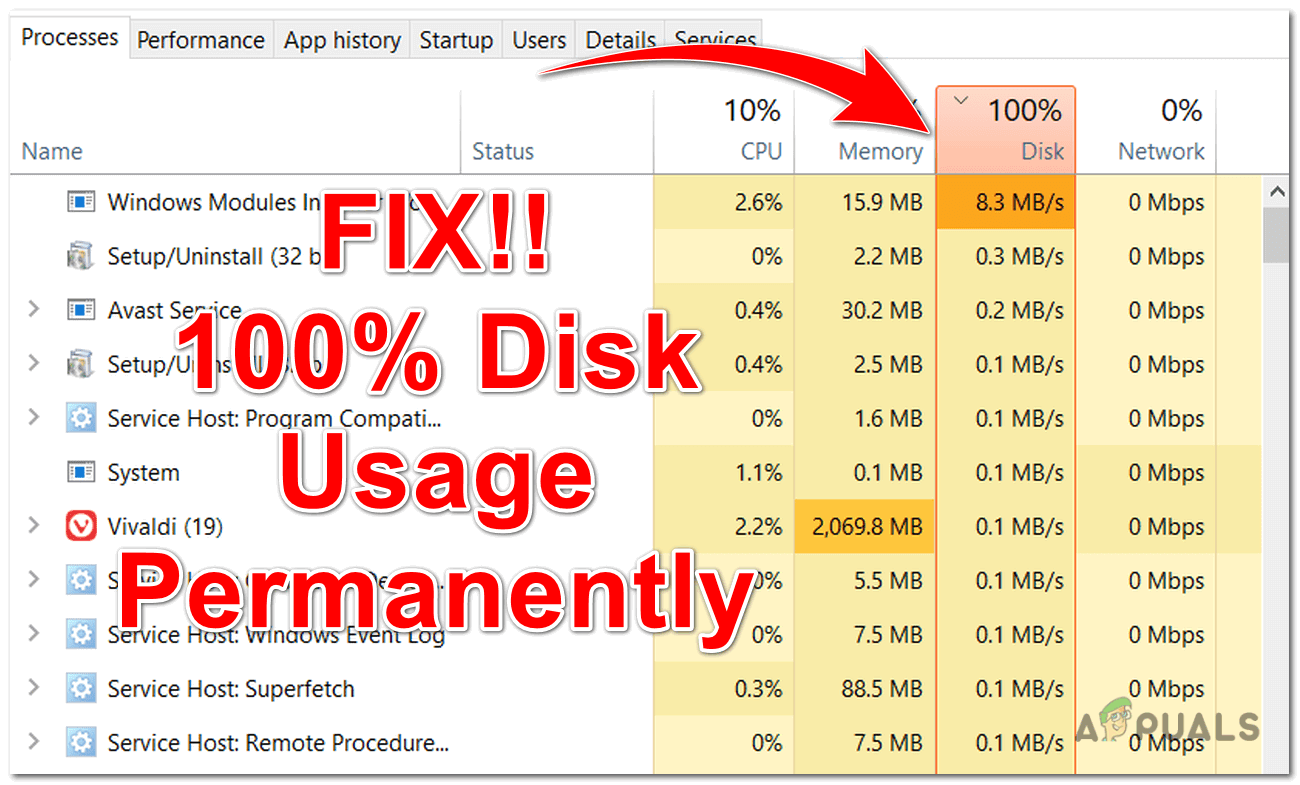
- High Disk Usage: Constant read/write operations by TiWorker.exe can lead to your hard drive or SSD being constantly at 100% usage. This makes the entire system extremely slow, affecting file transfers, application loading times, and overall responsiveness.
- High Memory Usage: While less common than CPU or disk issues, TiWorker.exe can sometimes consume an inordinate amount of RAM. This can lead to your system swapping data to disk more frequently (if you have an HDD), further exacerbating performance problems and potentially causing other applications to crash due to insufficient memory.
These resource spikes are normal for short periods during active update installations or system file repairs. The concern arises when this high usage persists for hours or even days, without any clear indication of progress, or when it recurs frequently even after reboots.
Root Causes of WMI/TiWorker.exe Problems
Understanding the underlying reasons for persistent high resource usage is the first step towards effective troubleshooting. Several factors can contribute to TiWorker.exe misbehaving:
- Stuck or Corrupt Windows Updates: Incomplete downloads, corrupted update files, or errors during the installation process can cause TiWorker.exe to repeatedly try to install or rollback updates, leading to an endless loop of high resource consumption.
- Corrupt System Files: Damage to core Windows system files, often due to unexpected shutdowns, malware infections, or faulty hardware, can make WMI struggle to verify or repair them.
- Malware or Viruses: Malicious software can sometimes interfere with legitimate Windows processes, including WMI, either by corrupting its files or by using its elevated privileges for their own nefarious purposes, masquerading as TiWorker.exe.
- Conflicting Third-Party Software: Rarely, poorly coded antivirus programs, firewalls, or other system utilities can interfere with Windows Update processes, leading to conflicts and resource spikes.
- Driver Issues: Outdated or corrupt device drivers can sometimes cause system instability that indirectly affects WMI’s ability to function correctly.
- Full WinSxS Folder: While WMI generally manages this, an excessively large and unoptimized WinSxS component store can sometimes contribute to slowdowns as WMI attempts to process it.
The Productivity Drain
The direct consequence of an errant Windows Modules Installer Worker is a significant hit to productivity. A slow computer means tasks take longer, creative flow is interrupted, and focus is broken. For professionals relying on their PCs for work – be it coding, graphic design, data analysis, or even just document creation – consistent slowdowns translate directly into lost time and potential financial implications.
Moreover, persistent system issues can erode trust in the operating system, leading to user frustration and potentially impacting digital security if users start looking for quick, unofficial fixes that might compromise their system. Resolving these issues is not just about making the computer faster; it’s about restoring a seamless, secure, and efficient working environment.
Comprehensive Troubleshooting Guide: Restoring System Health
Addressing issues with the Windows Modules Installer Worker requires a systematic approach. Here’s a comprehensive guide, ranging from simple fixes to more advanced solutions, designed to help you regain control of your system.
Patience is a Virtue: Letting It Finish
Before diving into complex troubleshooting, it’s crucial to understand that TiWorker.exe needs to run. Its high resource usage is often legitimate, especially after a major update or if your system hasn’t been updated in a while. If you notice high usage, give your system time – sometimes several hours – to complete its tasks. Ensure your computer is connected to power and has a stable internet connection. Interrupting it can sometimes lead to more severe problems. If the usage eventually drops and stays low, then there’s likely no issue.

System File Checker (SFC) and DISM
These are your first lines of defense against system file corruption, a common cause of TiWorker.exe problems.
-
Run System File Checker (SFC):
- Open Command Prompt as an administrator. (Search for
cmd, right-click, “Run as administrator”). - Type
sfc /scannowand press Enter. - This command scans for corrupted Windows system files and attempts to repair them. It can take a while.
- Restart your computer after the scan completes.
- Open Command Prompt as an administrator. (Search for
-
Run Deployment Image Servicing and Management (DISM):
- If SFC reports it couldn’t fix all issues, or if the problem persists, DISM can repair the Windows image itself, which SFC relies upon.
- Open Command Prompt as an administrator.
- Type
DISM /Online /Cleanup-Image /RestoreHealthand press Enter. - This command downloads repair files from Windows Update to fix any corruption in the component store. An active internet connection is required.
- This process can take a significant amount of time. Once completed, run
sfc /scannowagain. - Restart your computer.
Windows Update Troubleshooter and Resetting Components
Problems with Windows Update are frequently linked to TiWorker.exe issues.
-
Run the Windows Update Troubleshooter:
- Go to
Settings > Update & Security > Troubleshoot > Additional troubleshooters. - Select “Windows Update” and click “Run the troubleshooter.”
- Follow the on-screen instructions.
- Go to
-
Manually Reset Windows Update Components: If the troubleshooter doesn’t help, you can manually reset the Windows Update components.
- Open Command Prompt as an administrator.
- Stop the Windows Update services:
net stop wuauservnet stop cryptSvcnet stop bitsnet stop msiserver
- Delete or rename the
SoftwareDistributionandcatroot2folders (these store update files and logs). This forces Windows to recreate them.ren C:WindowsSoftwareDistribution SoftwareDistribution.oldren C:WindowsSystem32catroot2 catroot2.old
- Restart the Windows Update services:
net start wuauservnet start cryptSvcnet start bitsnet start msiserver
- Restart your computer and check for updates again.
Malware Scans and Driver Updates
Malware can impersonate or interfere with system processes. Outdated drivers can cause instability.
-
Perform a Thorough Malware Scan:
- Use Windows Security (Defender) for a full scan.
- Consider a reputable third-party antivirus for a second opinion.
- Ensure your antivirus definitions are up-to-date.
-
Update Device Drivers:
- Especially graphics card drivers, chipset drivers, and network adapter drivers.
- You can use Device Manager or visit your PC manufacturer’s website or component manufacturer’s website (e.g., NVIDIA, AMD, Intel) for the latest drivers.
Strategic Disabling (Use with Caution)
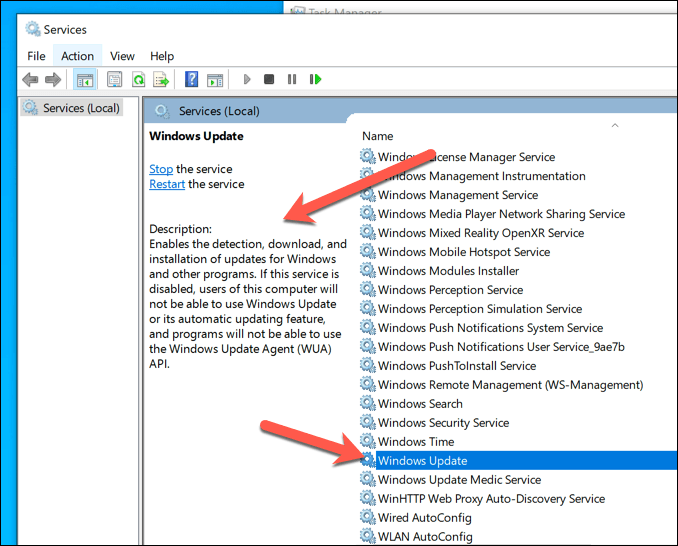
Disabling the Windows Modules Installer service should be a last resort and is generally not recommended, as it prevents your system from receiving critical updates and maintaining security. However, if you are desperate for a temporary reprieve to diagnose other issues, you can:
- Temporarily Disable the Service:
- Open
services.msc(search for “Services”). - Find “Windows Modules Installer” in the list.
- Double-click it, change “Startup type” to “Manual,” and click “Stop.”
- Crucially, remember to re-enable it (set to “Automatic” and Start the service) after you’ve completed your diagnostics or troubleshooting. Prolonged disabling leaves your system vulnerable.
- Open
Clean Boot and Event Viewer Diagnostics
These methods help identify conflicting software or provide deeper insights into the problem.
-
Perform a Clean Boot:
- A clean boot starts Windows with a minimal set of drivers and startup programs. This helps eliminate software conflicts.
- Search for
msconfigand open “System Configuration.” - Go to the “Services” tab, check “Hide all Microsoft services,” and then click “Disable all.”
- Go to the “Startup” tab, click “Open Task Manager,” and disable all startup items.
- Restart your computer. If the problem disappears, re-enable services and startup items one by one to find the culprit.
-
Check Event Viewer:
- Search for
Event Viewerand open it. - Navigate to
Windows Logs > SystemandWindows Logs > Application. - Look for error or warning entries around the time TiWorker.exe spikes, particularly those related to “TrustedInstaller,” “Windows Update,” or critical system errors. These logs can provide clues about what’s going wrong.
- Search for
The Ultimate Resort: Resetting or Reinstalling Windows
If all else fails and the problem persists, a fresh start might be necessary.
-
Reset This PC:
- Go to
Settings > Update & Security > Recovery. - Under “Reset this PC,” click “Get started.”
- You’ll have the option to “Keep my files” (removes apps and settings but keeps personal files) or “Remove everything” (a clean slate). “Remove everything” is often more effective for deep-seated issues.
- Go to
-
Clean Installation of Windows:
- This is the most thorough solution, involving wiping your drive and installing Windows from scratch using a USB installation media. This guarantees no lingering software conflicts or corrupt files.
- Crucially, back up all your important data before proceeding with this option.
Proactive System Maintenance and Digital Security
Understanding and managing the Windows Modules Installer is not just about fixing problems; it’s an integral part of maintaining a healthy, secure, and productive computing environment. By adopting best practices, you can minimize the chances of encountering TiWorker.exe issues in the first place.
Best Practices for a Healthy Windows System
- Regularly Update Windows: Don’t defer updates indefinitely. Timely updates often include performance improvements and crucial security patches that prevent issues before they arise.
- Keep Drivers Updated: Ensure your essential hardware drivers are current to maintain system stability.
- Use Reputable Antivirus Software: A robust security solution is critical for protecting against malware that could corrupt system files or interfere with WMI.
- Maintain Disk Health: Regularly run disk cleanup, defragment mechanical drives, and ensure you have sufficient free disk space.
- Avoid Unnecessary Software: Only install applications from trusted sources and uninstall programs you no longer use to reduce potential conflicts.
- Backup Your Data: Always have a backup strategy for your important files. This mitigates the risk of data loss when performing system resets or clean installations.
WMI and Your Digital Security Posture
The Windows Modules Installer’s role in installing security updates makes it a direct contributor to your digital security posture. By ensuring WMI functions correctly, you guarantee that:
- Vulnerability Patches are Applied: Microsoft regularly releases patches for newly discovered security vulnerabilities. A working WMI ensures these critical updates are installed promptly.
- System Integrity is Maintained: WMI’s control over core system files prevents malicious software from easily tampering with vital Windows components.
- Protection Against Zero-Days: While no system is perfectly secure, timely updates managed by WMI are your best defense against emerging threats and zero-day exploits.
When TiWorker.exe struggles, it often means your system isn’t receiving these vital security updates, leaving it exposed to known threats. Therefore, diagnosing and resolving WMI issues is not merely a performance tweak; it’s a fundamental aspect of safeguarding your digital life.
In conclusion, the Windows Modules Installer and its worker process, TiWorker.exe, are unsung heroes of the Windows operating system. While their occasional resource intensity can be perplexing, understanding their function and knowing how to troubleshoot their issues empowers you to maintain a stable, secure, and highly productive computing experience. By following the steps outlined in this guide, you can ensure your Windows system remains efficient and resilient, keeping your technology working for you, not against you.
aViewFromTheCave is a participant in the Amazon Services LLC Associates Program, an affiliate advertising program designed to provide a means for sites to earn advertising fees by advertising and linking to Amazon.com. Amazon, the Amazon logo, AmazonSupply, and the AmazonSupply logo are trademarks of Amazon.com, Inc. or its affiliates. As an Amazon Associate we earn affiliate commissions from qualifying purchases.